
The Android low memory killer (LMK) daemon monitors the memory state of a running Android system and reacts to high memory pressure by terminating the least essential processes. Android vitals tracks and reports user-perceived LMK terminations in Google Play Console to help you identify memory pressure issues affecting your users.
LMK metric on Android vitals
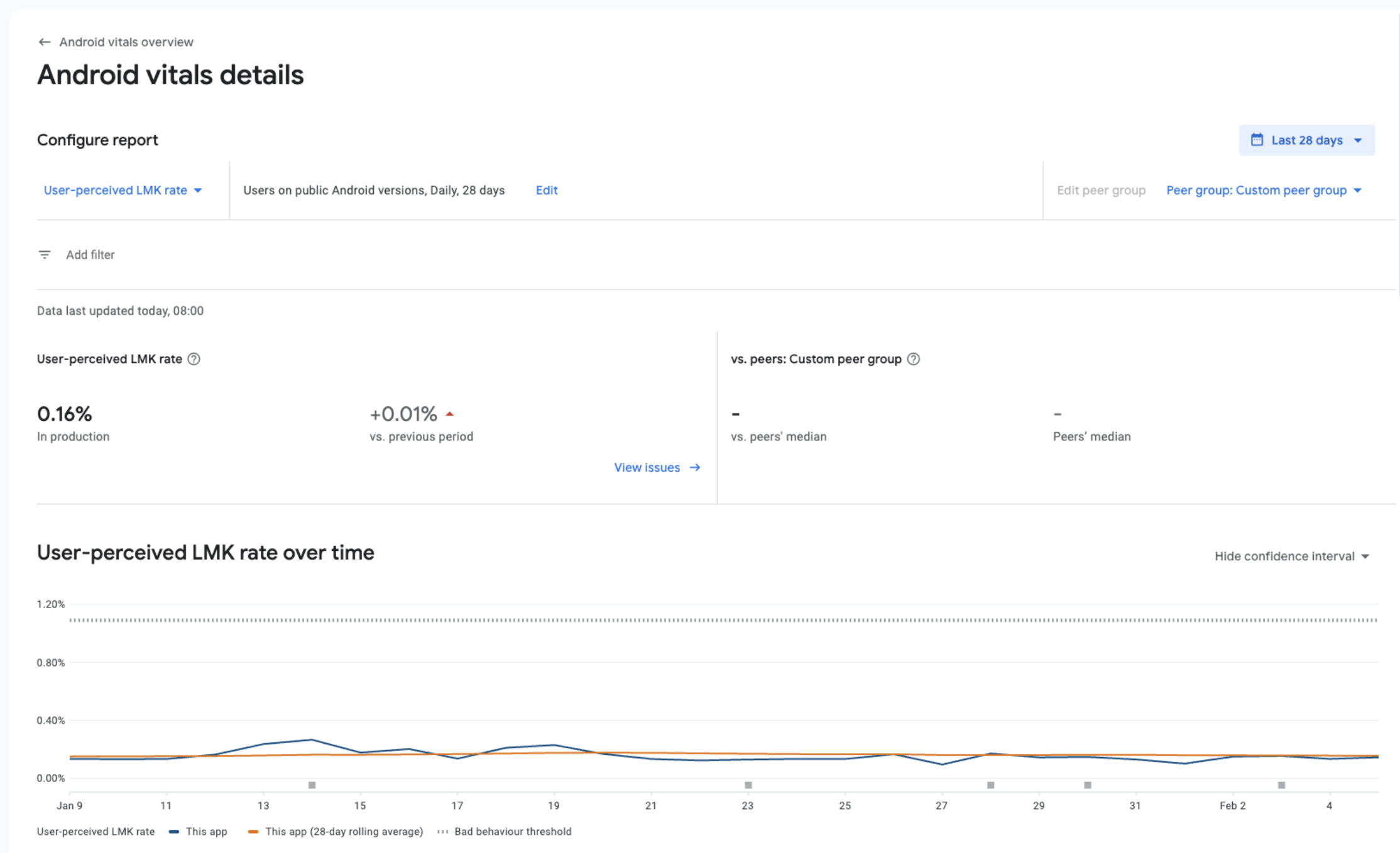
Android vitals can help you monitor and improve your app's LMK rate. Android vitals measures only one LMK rate: User-perceived LMK rate.
The metric reflects the percentage of your daily active users who experienced at least one user-perceived LMK. A user-perceived LMK is an LMK that is likely to have been noticed by the user. For example, this includes LMKs that happen while your app is displaying an activity or running as a foreground service. These terminations result in an immediate, non-graceful process exit. To the end user, it looks like the app crashed, often bypassing standard lifecycle state-saving mechanisms and resulting in lost user progress.
Android Vitals focuses on these process terminations because they serve as a high-fidelity proxy for memory mismanagement issues. An LMK rate above 1% indicates a critical need for immediate action. However, a lower LMK rate doesn't necessarily mean the app's memory usage is healthy. That lower rate might mean that the LMK daemon is frequently killing processes while they are in the background, which degrades "warm start" performance and multitasking fluidity.
You can find the metric under the Stability section in Android vitals:
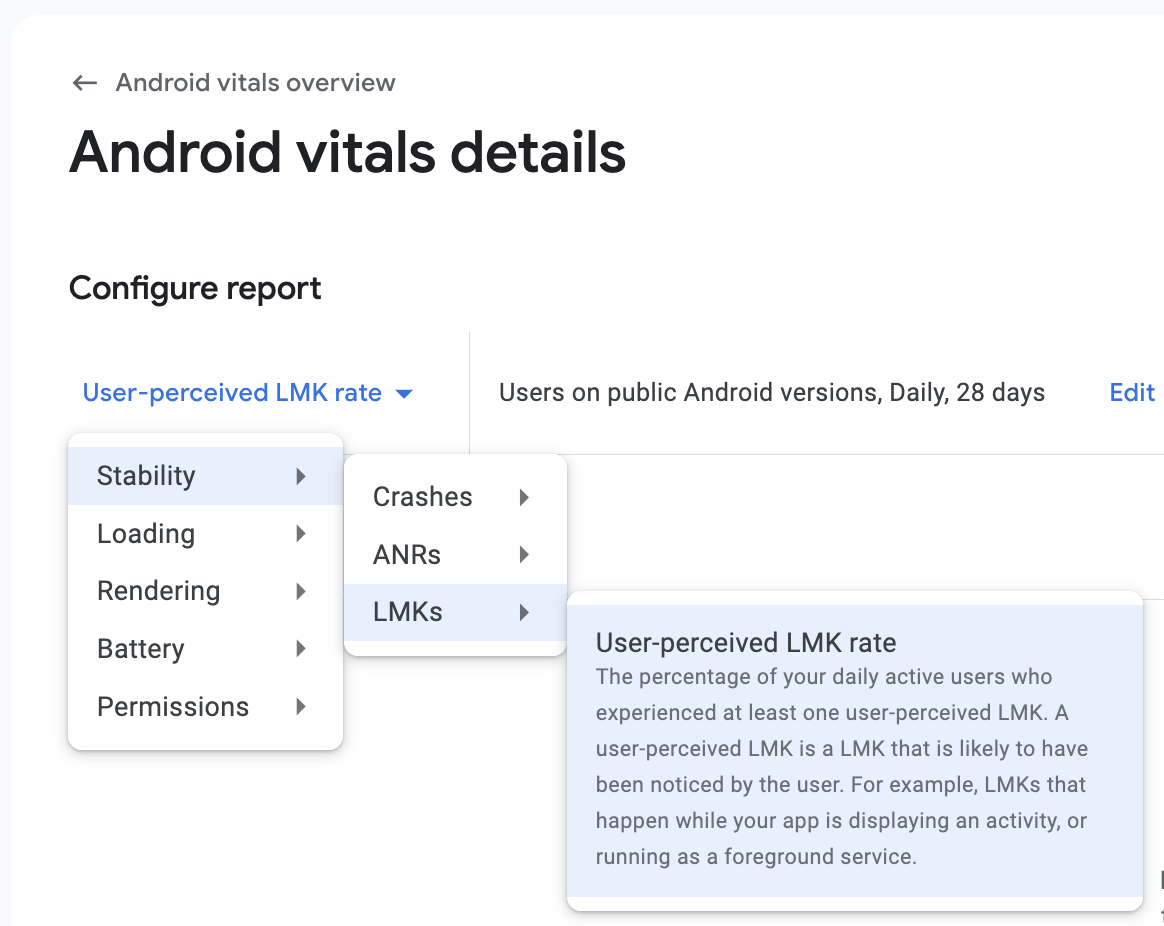
As with similar core vital metrics, such as ANRs and crashes, you can filter the metrics, compare your metrics with your peers, or monitor the metric's change for a long period of time (up to 3 years). Data is available for existing apps starting from 28 Jan 2025.
How the low memory killer daemon works
The Android platform runs on the premise that free memory is wasted memory. Android tries to use all available memory at all times. For example, the system keeps apps in memory after they've been closed so the user can quickly switch back to them. For this reason, Android devices often run with very little free memory (see Memory allocation among processes).
To decide which process to kill when free memory runs low, the
low memory killer (LMK) daemon uses an out of memory score called
oom_adj_score to
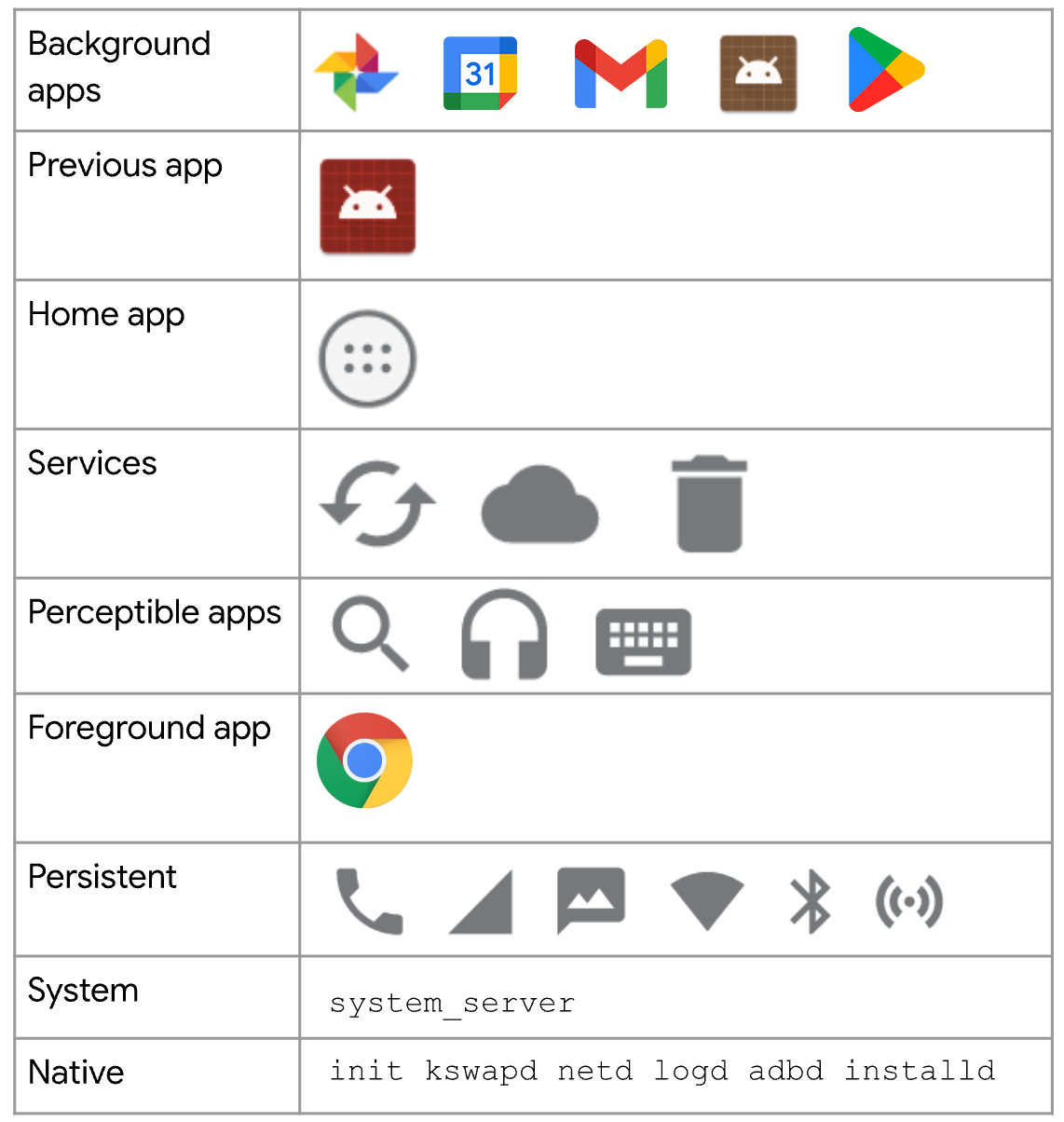
prioritize the running processes. Processes with a high
score are killed first. Background apps are killed first; system processes,
last. The following table lists the LMK scoring categories from high to low.
Items in the highest-scoring category, in row one, are killed first:
Memory profiling tools
The following tools can help you find and diagnose memory issues in the following ways:
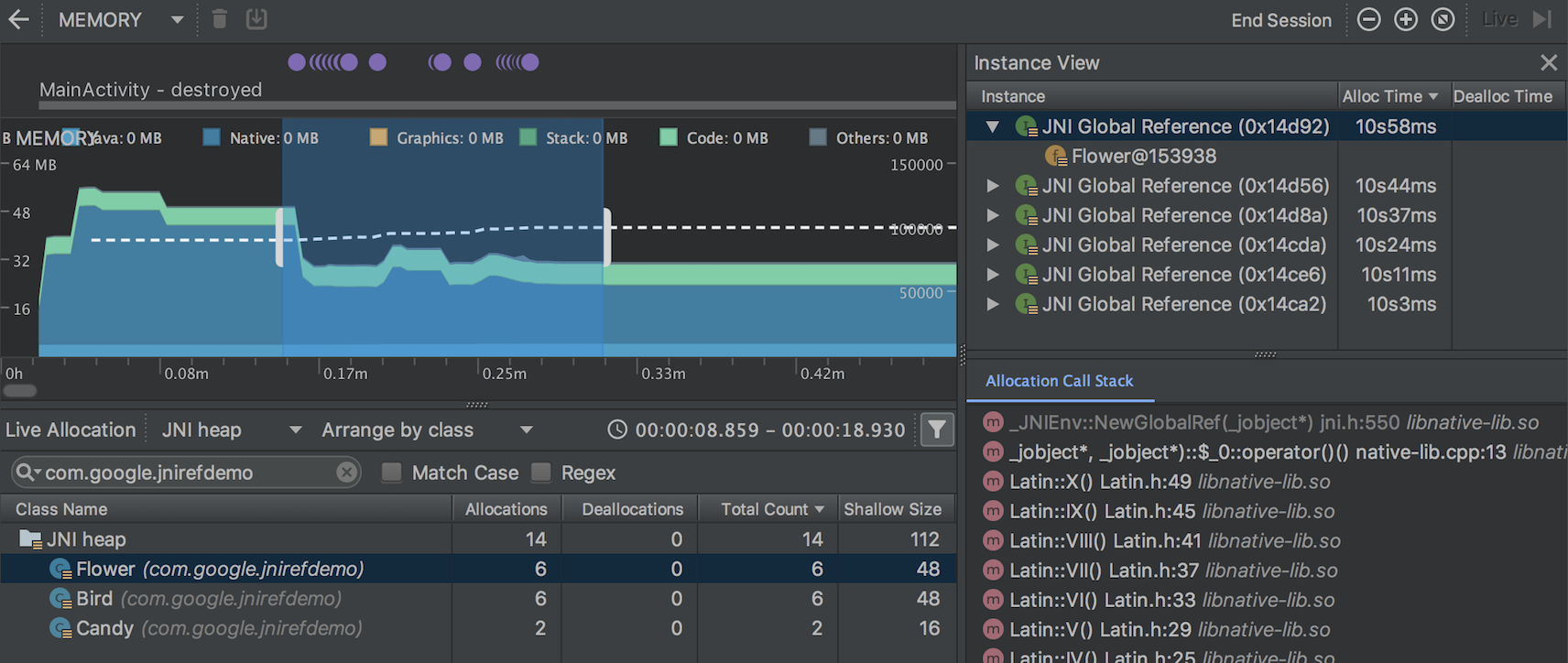
- See how your app allocates memory over time. You can find a real-time graph of how much memory your app is using, the number of allocated Java objects, and when garbage collection occurs.
- Initiate garbage collection events and take a snapshot of the Java heap while your app runs.
- Record your app's memory allocations, inspect all allocated objects, and view the stack trace for each allocation.
If your game is running on a native engine, use HWAddress Sanitizer to debug native memory allocation.
Android Studio Memory Profiler
Android Studio provides the Memory Profiler as a component of the Android Profiler that helps you identify memory leaks and memory churn that can lead to stutter, freezes, and even app crashes. The profiler shows a real-time graph of your app's memory use and lets you capture a heap dump, force garbage collection, and track memory allocation.
Unity memory profiling tools
If you're using Unity Engine to build your apps, you can follow Unity memory profiling guidance. Unity offers two tools to analyze memory usage in your application in Unity.
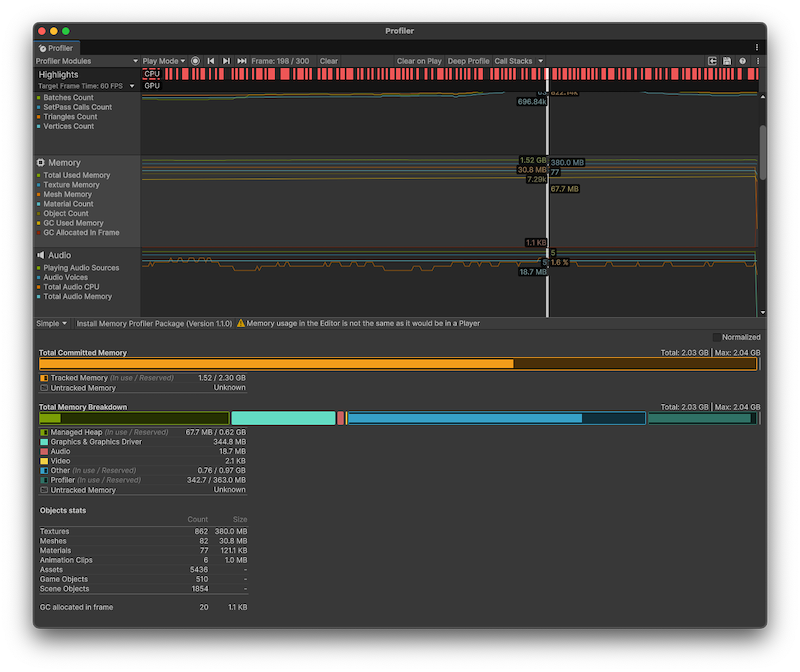
The first is the Memory Profiler module, which is a built-in profiler that gives you basic information about where your application uses memory.
The second tool is the Memory Profiler package, which is a Unity package that you can add to your project. The package adds an additional Memory Profiler window to the Unity Editor. The Memory Profiler lets you analyze memory usage in your application in even more detail. You can store and compare snapshots to find memory leaks or see the memory layout to find memory fragmentation issues.
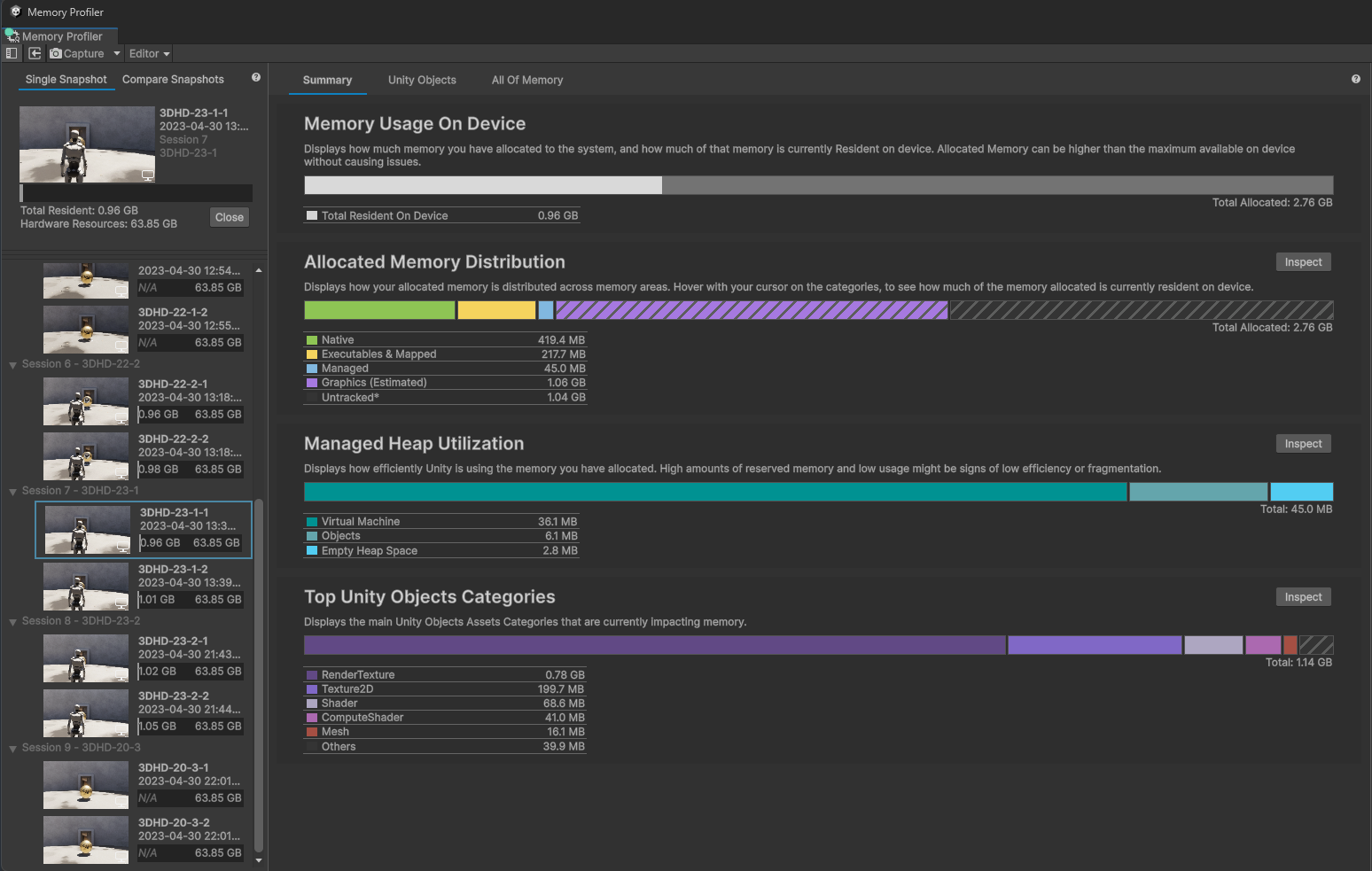
For Android-specific Unity workflows, see Check memory usage with Unity tools, Optimize memory usage in Unity, and Debug LMKs for Unity games.
Unreal Memory Insights
Apps built by Unreal Engine can use Unreal Memory Insights to see detailed information about memory allocation and deallocation, including the Low Level Memory (LLM) tags and callstacks associated with blocks of memory.
The Memory Insights query system can find live allocations at any point in time, identify changes in memory usage, locate memory leaks, and differentiate short-term from long-term allocations.
From UE 5.4, Memory Insights supports memory tracing with callstacks for Android projects.
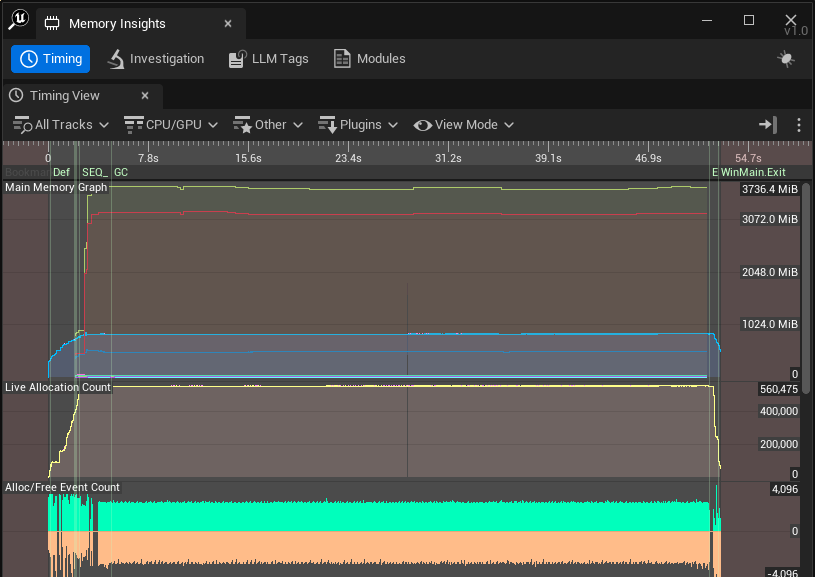
For Android-specific Unreal workflows, see Check memory usage with Unreal and Optimize memory usage in Unreal.
Low memory insights
Android provides callbacks and APIs that let you reduce your game's memory usage and determine why previous game runs were terminated.
Callbacks
Don't register for deprecated trim callbacks. Android doesn't
provide APIs for detecting native memory pressure events before the system
reclaims memory, and fine-grained running-memory trim callbacks
(TRIM_MEMORY_RUNNING_*) haven't been effective at preventing low-memory kills.
As a result, Android deprecated all trim levels other than
TRIM_MEMORY_UI_HIDDEN and
TRIM_MEMORY_BACKGROUND. Use these remaining callbacks—or
engine lifecycle equivalents such as Unity's OnApplicationPause and
Unreal's ApplicationWillEnterBackgroundDelegate—to release UI and auxiliary
resources when your game moves to the background. For implementation details,
see Reduce memory in games.
Game termination
Android tries to use all available memory to cache apps and games to ensure they load quickly (improving the user experience), but when memory becomes limited, the system kills the most memory-intensive apps and games to free up memory for normal device operation.
Information, insights, and best practices to help you achieve better game memory usage include the following:
- Use
ApplicationExitInfo: This API returns the reason why the previous game run was killed by the Android system. UseApplicationExitInfoto check for low memory (REASON_LOW_MEMORY) or memory limiter terminations (REASON_MEMORY_LIMITER) as the reason for a previous process exit (see ApplicationExitInfo for games). Check whether the game was terminated due to memory pressure so the game can be optimized to use less memory on that device. - Look at total physical RAM: To prevent games from being killed
when in the foreground and to match the device's capabilities, look at the
total physical RAM per device for fine granularity to adjust game memory
usage based on that. If the goal is to prevent apps from being killed shortly
after moving to the background (to allow the player to multitask), use the
trim callbacks (
TRIM_MEMORY_UI_HIDDENspecifically) to reduce your game memory usage.
Additional resources
- About memory management for games
- How to monitor memory usage in games
- How to reduce memory in games
- Overview of memory management