
Due to the differences between development and running environments, some problems only occur on specific physical devices.
At this time, remote code debugging is very important. It can help you to locate the problem quickly, saving you lots of time.
Fortunately, remote code debugging is very easy in Cocos Creator.
To perform remote code debugging on physical devices, just follow these 3 steps:
Make sure the device running Android is on the same LAN as the computer that you are using for debugging. Don't enable a proxy during debugging, or the connection might fail.
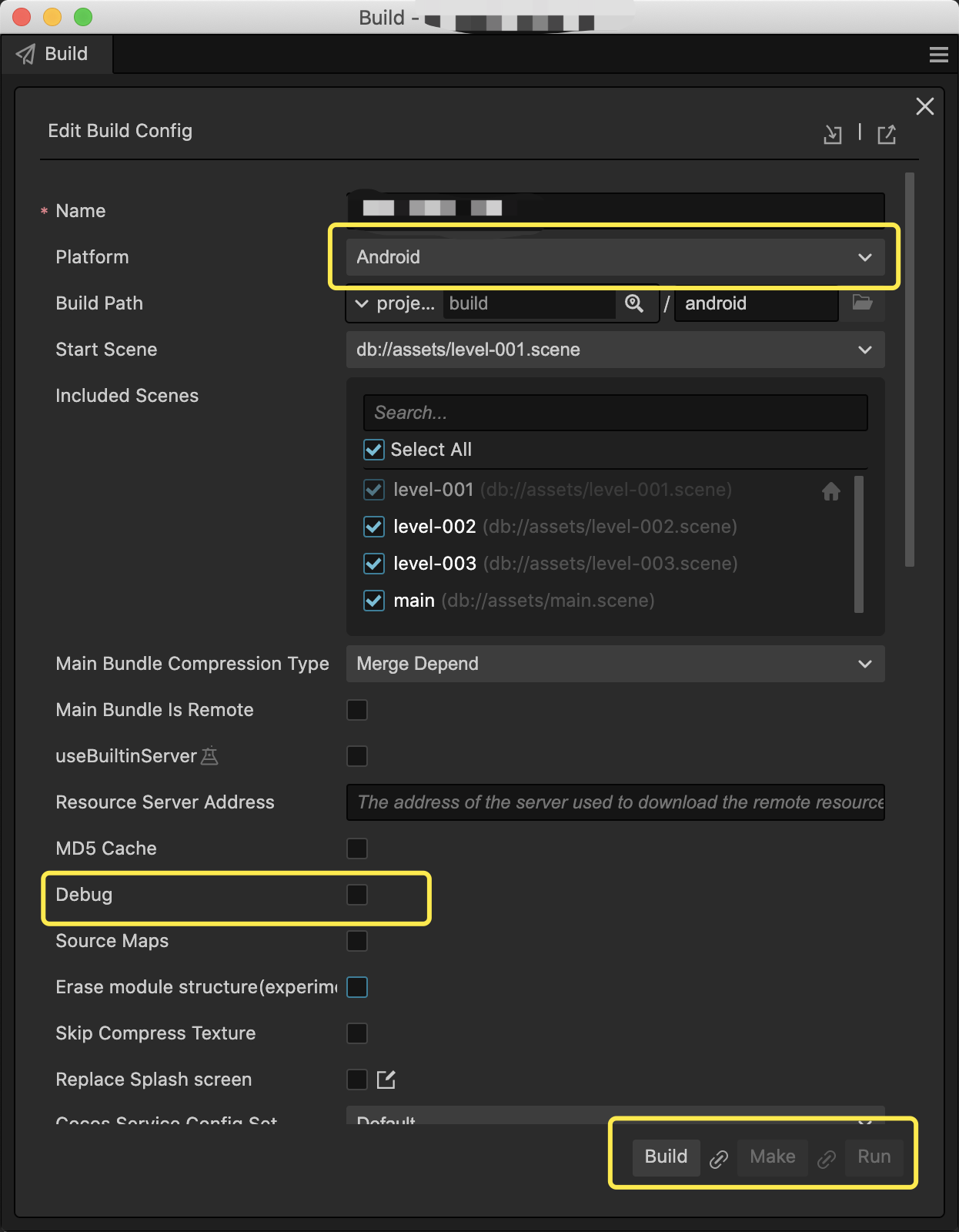
Select the Android platform and select Debug mode in the Build panel of Cocos Creator, then build and run.
Open the Chrome devtools for remote debugging by visiting the following address in the Chrome browser. (You'll need to replace
<device_LAN_IP>with the correct mobile device's IP address.) You can then start the remote debugging on TypeScript code in your project.devtools://devtools/bundled/js_app.html?v8only=true&ws=<device_LAN_IP>:6086/00010002-0003-4004-8005-000600070008
For more detailed instructions, you can take a look at the official Cocos Creator documentation.