
In this guide, you'll learn how to adapt your game to work across diverse Android form factors.
Before starting, read Support large screen resizability. Modern games on Android should adapt to all screen sizes without relying on system compatibility layers. This way, you always have control over how your game is displayed and your game delivers a premium player experience, even on form factors like XR or devices where a screen can't be rotated.
To do this, complete the following tasks:
- Disable system letterboxing and implement your own in-engine letterboxing.
- Make the letterboxed area usable and thematically appropriate.
- Address design considerations needed to let your game scale from 21:9 through 1:1 and into 9:21.
Commands for testing
When building and testing your game, verify that your game renders any letterboxes itself. You should also force your game into portrait and landscape orientations, because devices like TVs and in-car displays can't rotate from their default landscape or portrait orientation.
To check whether your game engine is using system letterboxing, use the
adb shell cmd window set-letterbox-style command. For example, the following
command makes system letterboxes bright green and adds a corner radius to your
game, making it obvious if your game falls back to the operating system's
compatibility mode:
adb shell "cmd window set-letterbox-style --backgroundType solid_color --backgroundColor '#00FF00' --cornerRadius 30 --isEducationEnabled false"
To force an orientation for testing, use
adb shell cmd window user-rotation lock. This helps you simulate how your game
behaves on a device that doesn't honor app overrides for orientation, or
understand what users see on an XR or PC-like device where windows can appear in
portrait or landscape independent of device orientation.
First, put your device into a state where you can override app orientation:
adb shell cmd window set-ignore-orientation-request true
adb shell cmd window fixed-to-user-rotation enabled
Next, test changing your game to landscape:
adb shell cmd window user-rotation lock 1
Then test changing your game to portrait:
adb shell cmd window user-rotation lock 0
Reset your device to the OEM configuration by rebooting or running the following commands:
adb shell cmd window reset-letterbox-style
adb shell cmd window fixed-to-user-rotation default
adb shell cmd window user-rotation free
adb shell cmd window set-ignore-orientation-request reset
Why disable system letterboxing?
The system always controls system letterboxing. By detecting the screen size and managing the display area yourself, you can mitigate issues, such as dropped inputs, that occur when inputs leave your game area. You can also expand non-gameplay elements to the edge of the screen, even if your game content remains fixed in the middle. System compatibility modes can make a game available, but it's up to you as a game developer to make your game great for your players.

Letterbox sample implementation
Most game engines give you control over where a camera renders on screen. To implement your own letterboxing, measure the aspect ratio of the rendered area and adjust your clipping rectangle for the unused area rather than letting the system letterbox your game. The following sample restricts one camera to rendering into a bounded aspect ratio while allowing UI cameras or passes to expand to the full logical screen size:
Unity
[SerializeField]
private float minAspectRatio = 4f / 3f;

[SerializeField]
private float maxAspectRatio = 21f / 9f;

private Camera _camera;

private void Awake()
{
    _camera = GetComponent<Camera>();
}

public void MaintainAspectRatio()
{
    int viewWidth = Screen.width;
    int viewHeight = Screen.height;

    // 1. Calculate screen aspect ratio
    float scaleScreen = viewWidth / (float)viewHeight;
    Rect rect = _camera.pixelRect;

    // 2. Scale to the fullest of the lower between width or height
    if (scaleScreen > maxAspectRatio)
    {
        // use height, lock width to max at aspect scale
        rect.width = viewHeight * maxAspectRatio;
        rect.height = viewHeight;
    }
    else if (scaleScreen < minAspectRatio)
    {
        // use width, lock height to min at aspect scale
        rect.width = viewWidth;
        rect.height = viewWidth / minAspectRatio;
    }
    else
    {
        // within allowed aspect ratio range, use full screen
        rect.width = viewWidth;
        rect.height = viewHeight;
    }

    rect.x = Mathf.Floor((viewWidth - rect.width) * 0.5f);
    rect.y = Mathf.Floor((viewHeight - rect.height) * 0.5f);

    Debug.Log("camera view width = " + rect.width +
        " height = " + rect.height +
        " x = " + rect.x +
        " y = " + rect.y);

    // 3. Commit the new size to the camera so that it takes effect
    _camera.pixelRect = rect;
}
C++ (Vulkan)
/**
 * @brief Calculates a bounded-aspect-ratio gameplay viewport and scissor
 * rectangle and records them directly into a Vulkan command buffer.
 *
 * @note Requires `VK_DYNAMIC_STATE_VIEWPORT` and `VK_DYNAMIC_STATE_SCISSOR` to
 * be enabled on the bound graphics `VkPipeline`.
 *
 * @param command_buffer   Active `VkCommandBuffer` in the recording state.
 * @param window_width     Full physical window or swapchain width in pixels.
 * @param window_height    Full physical window or swapchain height in pixels.
 * @param min_aspect_ratio Minimum allowed aspect ratio (`width / height`).
 * @param max_aspect_ratio Maximum allowed aspect ratio (`width / height`).
 */
void MaintainAspectRatio(VkCommandBuffer command_buffer, uint32_t window_width,
                         uint32_t window_height, float min_aspect_ratio,
                         float max_aspect_ratio) {
  if (command_buffer == VK_NULL_HANDLE || window_width == 0 ||
      window_height == 0 || min_aspect_ratio <= 0.0f ||
      max_aspect_ratio < min_aspect_ratio) {
    return;
  }

  // 1. Calculate screen aspect ratio.
  const float view_width = static_cast<float>(window_width);
  const float view_height = static_cast<float>(window_height);
  const float scale_screen = view_width / view_height;

  // 2. Scale to the fullest of the lower between width or height.
  float rect_width = view_width;
  float rect_height = view_height;
  if (scale_screen > max_aspect_ratio) {
    // Use height, lock width to max at aspect scale (pillarbox).
    rect_width = std::floor(view_height * max_aspect_ratio);
    rect_height = view_height;
  } else if (scale_screen < min_aspect_ratio) {
    // Use width, lock height to min at aspect scale (letterbox).
    rect_width = view_width;
    rect_height = std::floor(view_width / min_aspect_ratio);
  } else {
    // Within allowed aspect ratio range, use full screen.
    rect_width = view_width;
    rect_height = view_height;
  }

  const float rect_x = std::floor((view_width - rect_width) * 0.5f);
  const float rect_y = std::floor((view_height - rect_height) * 0.5f);

  // 3. Commit the new viewport and scissor to the command buffer so that
  // subsequent gameplay draw calls are transformed and clipped to this region.
  const VkViewport viewport = {
      .x = rect_x,
      .y = rect_y,
      .width = rect_width,
      .height = rect_height,
      .minDepth = 0.0f,
      .maxDepth = 1.0f,
  };
  const VkRect2D scissor = {
      .offset =
          {
              .x = static_cast<int32_t>(rect_x),
              .y = static_cast<int32_t>(rect_y),
          },
      .extent =
          {
              .width = static_cast<uint32_t>(rect_width),
              .height = static_cast<uint32_t>(rect_height),
          },
  };

  vkCmdSetViewport(command_buffer, 0, 1, &viewport);
  vkCmdSetScissor(command_buffer, 0, 1, &scissor);
}
For a step-by-step walkthrough in Unity, see the Optimizing Unity Games for Large Screens and Foldables codelab.
Handle large and small screen sizes
On smaller screens, such as phones and the outer displays of foldables, the best user experience might be a portrait- or landscape-locked game. As screens get larger—such as tablets, Chromebooks, in-car displays, or the inner displays of foldables—it becomes less desirable or even impossible to rotate the device, while the larger physical display keeps the game playable in off-axis aspect ratios.
To give players the best experience, detect the screen size at runtime and
restrict rotation when necessary, while giving players more flexibility as the
screen size increases. Android considers the ideal cutoff
to be sw600dp, a smallest width of 600 density-independent pixels (600dp).
This correlates with WindowSizeClass.WIDTH_DP_MEDIUM_LOWER_BOUND. Use
computeMaximumWindowMetrics to validate
available screen size in multi-display configurations.
To support this in your game, support all orientations in your manifest, and
then in both onCreate() and onConfigurationChanged(), evaluate the smallest
width and set the orientation lock appropriately:
Remove static orientation locks in your manifest and declare configuration change handling:
<activity
    android:name=".MainActivity"
    android:resizeableActivity="true"
    android:configChanges="orientation|screenSize|smallestScreenSize|screenLayout|density|keyboard|keyboardHidden" />
Add the required imports:
import android.content.pm.ActivityInfo
import android.content.res.Configuration
import android.os.Bundle
import androidx.activity.enableEdgeToEdge
import androidx.window.core.layout.WindowSizeClass
import androidx.window.layout.WindowMetricsCalculator
import kotlin.math.min
Handle both
onCreateandonConfigurationChanged:override fun onCreate(savedInstanceState: Bundle?) { enableEdgeToEdge() super.onCreate(savedInstanceState) applyAdaptiveOrientationPolicy() // ... } override fun onConfigurationChanged(newConfig: Configuration) { super.onConfigurationChanged(newConfig) applyAdaptiveOrientationPolicy() // ... }Update the requested orientation based on the smallest screen width, locking compact screens to your game's preferred design orientation:
private fun applyAdaptiveOrientationPolicy() {
    // compute the smallest screen bound in dp
    val maxMetrics = WindowMetricsCalculator.getOrCreate().computeMaximumWindowMetrics(this)
    val minDimensionPx = min(maxMetrics.bounds.width(), maxMetrics.bounds.height())
    val displaySmallestWidthDp = minDimensionPx / maxMetrics.density

    val targetOrientation = if (displaySmallestWidthDp >= WindowSizeClass.WIDTH_DP_MEDIUM_LOWER_BOUND) {
        // Large display (>= 600dp): allow free rotation in any orientation
        ActivityInfo.SCREEN_ORIENTATION_UNSPECIFIED
    } else {
        // Compact display (< 600dp): lock to your game's preferred orientation
        // (use SCREEN_ORIENTATION_SENSOR_LANDSCAPE for landscape-first games)
        ActivityInfo.SCREEN_ORIENTATION_PORTRAIT
    }

    // Guard against redundant setter calls to avoid configuration change loops
    if (requestedOrientation != targetOrientation) {
        requestedOrientation = targetOrientation
    }
}
Design around common issues
Supporting a range of aspect ratios and orientations gives your players the best possible user experience. Unlike phones, larger displays are often fixed in either landscape or portrait orientation, and in some cases the screen is almost square. On these larger devices, players often multitask when playing your game. By maximizing your use of screen space, you can engage more players more often and for longer play sessions.
The following sections provide solutions that make your game feel like a premium experience across form factors rather than a phone game embedded in a non-phone screen.
Aspect-aware cameras
In 3D games, if a screen is too tall, players can feel like they're viewing the game through a narrow slit, and if it's too wide, players might miss designed interactions. As in 2D games, you can keep a "safe area" always visible. The following code switches a camera between a horizontal field of view and a vertical field of view based on how the active aspect ratio compares to a reference aspect ratio of 1920x1080. This way, a designer can build a game for a 1080p display and know that everything designed within that reference frame remains visible:
Unity
[SerializeField]
private Camera _camera;

[SerializeField]
private float _referenceWidth = 1920f;

[SerializeField]
private float _referenceHeight = 1080f;

[SerializeField]
private float _referenceVerticalFov = 60f;

public float ReferenceAspectRatio => _referenceWidth / Mathf.Max(0.0001f, _referenceHeight);

private void Awake()
{
    if (_camera == null)
    {
        _camera = GetComponent<Camera>();
    }
}

// Built-in Render Pipeline callback. In URP, subscribe to
// RenderPipelineManager.beginCameraRendering or call UpdateFov() on resize.
private void OnPreCull()
{
    UpdateFov();
}

public void UpdateFov()
{
    if (_camera == null || _camera.orthographic)
    {
        return;
    }

    float referenceAspect = ReferenceAspectRatio;
    float currentAspect = _camera.aspect;
    if (currentAspect <= 0.0001f)
    {
        return;
    }

    float targetVerticalFov;

    if (currentAspect >= referenceAspect)
    {
        // Viewport is wider than (or equal to) the reference safe area
        targetVerticalFov = _referenceVerticalFov;
    }
    else
    {
        // Viewport is skinnier than the reference safe area
        float referenceHorizontalFov = Camera.VerticalToHorizontalFieldOfView(_referenceVerticalFov, referenceAspect);
        targetVerticalFov = Camera.HorizontalToVerticalFieldOfView(referenceHorizontalFov, currentAspect);
        targetVerticalFov = Mathf.Clamp(targetVerticalFov, 1f, 179f);
    }

    if (!Mathf.Approximately(_camera.fieldOfView, targetVerticalFov))
    {
        _camera.fieldOfView = targetVerticalFov;
    }
}
C++ (Vulkan)
/**
 * @brief Calculates an aspect-aware Vulkan perspective projection matrix using
 * GLM that keeps a reference safe area (e.g., 1920x1080) visible across
 * aspect ratios.
 *
 * @note Uses `glm::perspectiveZO` for Vulkan's `[0, 1]` depth range and
 * inverts `projection[1][1]` for Vulkan's top-left (`+Y` down) clip space.
 *
 * @param viewport_width         Active gameplay viewport width in pixels.
 * @param viewport_height        Active gameplay viewport height in pixels.
 * @param reference_width        Authored safe-area reference width in pixels.
 * @param reference_height       Authored safe-area reference height in pixels.
 * @param reference_vertical_fov Authored vertical FOV in degrees (e.g., 60.0f).
 * @param near_plane             Near clipping plane distance (`zNear > 0.0f`).
 * @param far_plane              Far clipping plane distance (`zFar > zNear`).
 * @return Aspect-aware `glm::mat4` perspective projection matrix for Vulkan.
 */
glm::mat4 CalculateAspectAwareProjectionMatrix(
    float viewport_width, float viewport_height, float reference_width = 1920.0f,
    float reference_height = 1080.0f, float reference_vertical_fov = 60.0f,
    float near_plane = 0.1f, float far_plane = 100.0f) {
  if (viewport_width <= 0.0001f || viewport_height <= 0.0001f) {
    return glm::mat4(1.0f);
  }

  // 1. Compare the active viewport aspect ratio against the reference safe
  // area.
  const float reference_aspect =
      reference_width / std::max(0.0001f, reference_height);
  const float current_aspect = viewport_width / viewport_height;

  float target_vertical_fov_rad = glm::radians(reference_vertical_fov);

  if (current_aspect >= reference_aspect) {
    // Viewport is wider than (or equal to) the reference safe area (Hor+).
    target_vertical_fov_rad = glm::radians(reference_vertical_fov);
  } else {
    // Viewport is skinnier than the reference safe area (Vert+):
    // Convert reference vertical FOV -> reference horizontal FOV -> new
    // vertical FOV at current_aspect so the safe area is never cropped.
    const float tan_half_horiz =
        std::tan(target_vertical_fov_rad * 0.5f) * reference_aspect;
    target_vertical_fov_rad = 2.0f * std::atan(tan_half_horiz / current_aspect);
    target_vertical_fov_rad = std::clamp(
        target_vertical_fov_rad, glm::radians(1.0f), glm::radians(179.0f));
  }

  // 2. Build the Vulkan [0, 1] depth perspective matrix and flip +Y clip space.
  glm::mat4 projection = glm::perspectiveZO(
      target_vertical_fov_rad, current_aspect, near_plane, far_plane);
  projection[1][1] *= -1.0f;
  return projection;
}
Fully interactive letterboxes
Some games have a fixed play area by design, often matching genre-based design considerations, such as the fixed field of a vertical shoot-'em-up or the flip-screen scrolling used for a retro aesthetic.
For these games, scale the gameplay area to fit so that one axis of the game is always maximized to fill the gameplay area. Which axis is maximized can change based on the relative aspect ratios of your game and the display bounds.
Anchor HUD and UI elements all the way to the safe edge of the screen: avoid cutouts, but otherwise place interactive elements like virtual controls, health bars, and minimaps as far out of the gameplay area as possible. This way, the interactive portion of the game uses the entire screen, and players on form factors like tablets and foldables can comfortably play your game without excessive finger stretching.
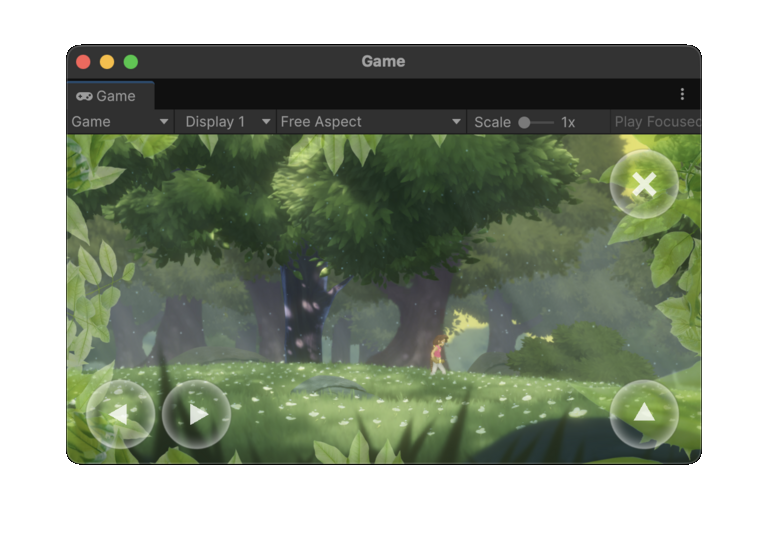
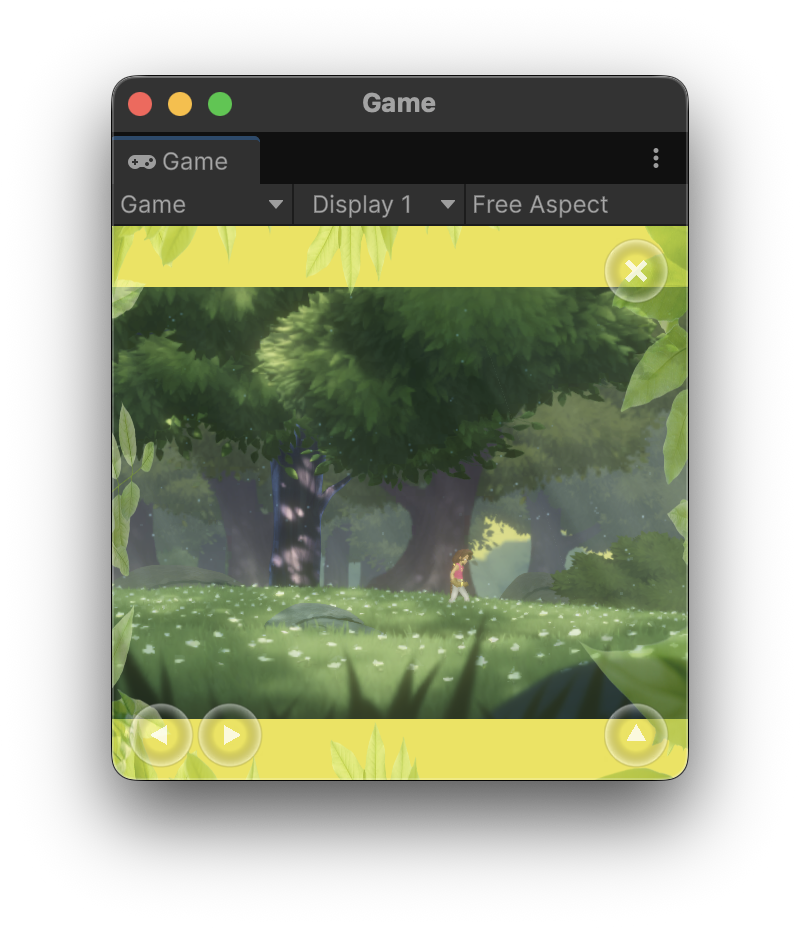
Finally, make the letterbox area appropriately themed or diegetic. Consider borders that match the on-screen palette or tile set, a virtual table or screen for board or retro games, or extended minimaps and decorative visuals.
In the following example, the game renders full size for most aspect ratios. When the aspect ratio is narrower than 4:3, it renders a thematically colored skybox while continuing to place UI elements like controls on the edge of the screen:
|
|
Fog of war
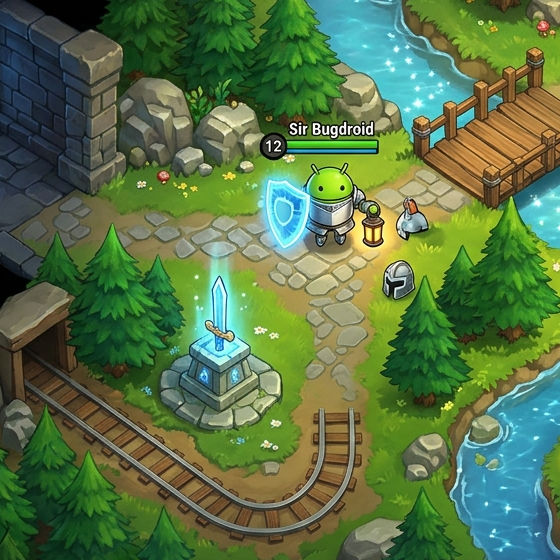
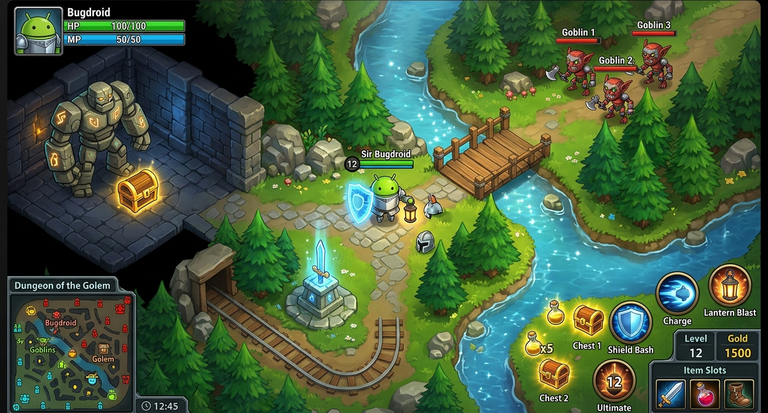
Many game developers are concerned that players can gain an unfair advantage from extreme vertical or horizontal aspect ratios. For example, a player in a competitive game like a multiplayer online battle arena (MOBA) might use a very vertical screen to get a view deep into an opponent's lane.
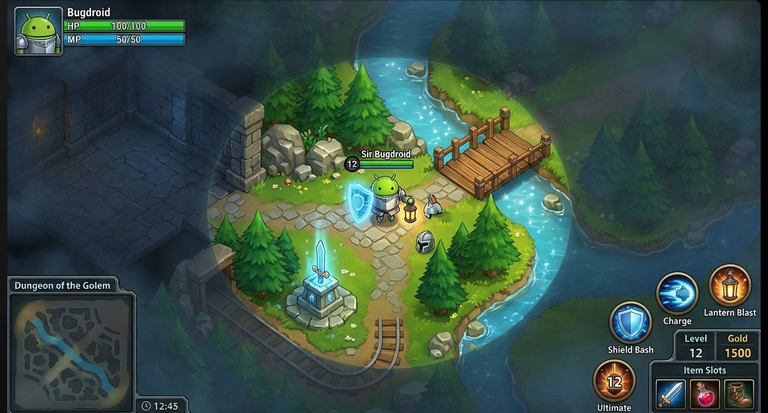
For top-down strategy and simulation games, consider rendering a fog of war:
- Don't render geometry at all until the player can view it.
- Render geometry that the player character can't actively see as dimmed, without any dynamic elements.
- Render only opponents, collectibles, and other dynamic objects that the player character can actively see diegetically.
If you combine this technique with fully interactive letterboxes and render your UI to the edge of the screen, the player gets an experience that feels both polished and intentional without requiring you to redesign level structure or team balance.
Expanding this game to fill a larger screen without a fog of war reveals portions of the map the player shouldn't see:
|
|
By rendering a fog of war and hiding dynamic elements like enemies and items, you maintain fairness in the game while using the full frame available to the game:
|
|
|
Fade out geometry
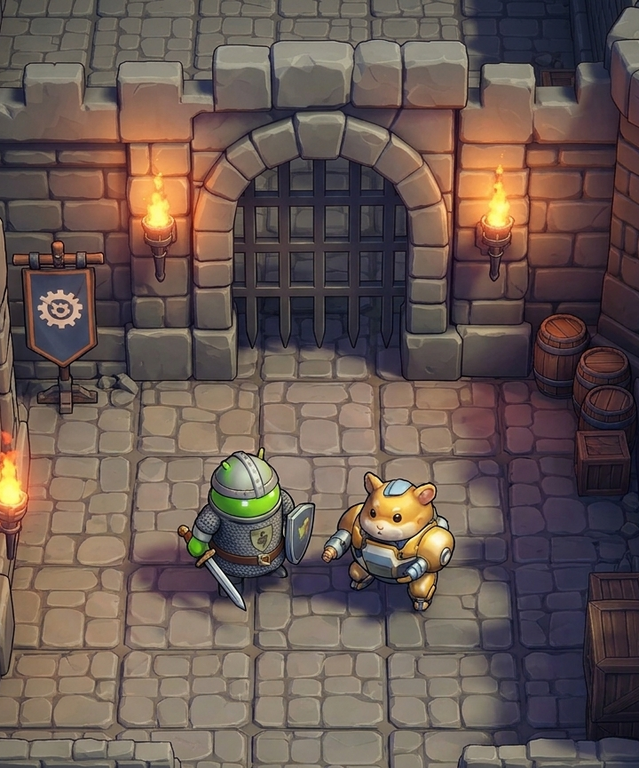
Many games, especially in the turn-based strategy space, use a technique similar to the fog of war described in the preceding section and don't render geometry that either the player hasn't discovered or that the player can't interact with during a certain setpiece.
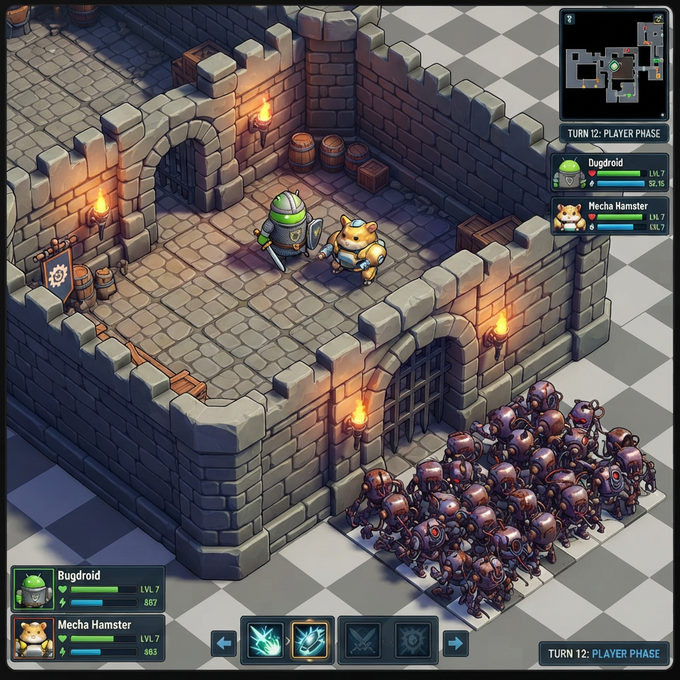
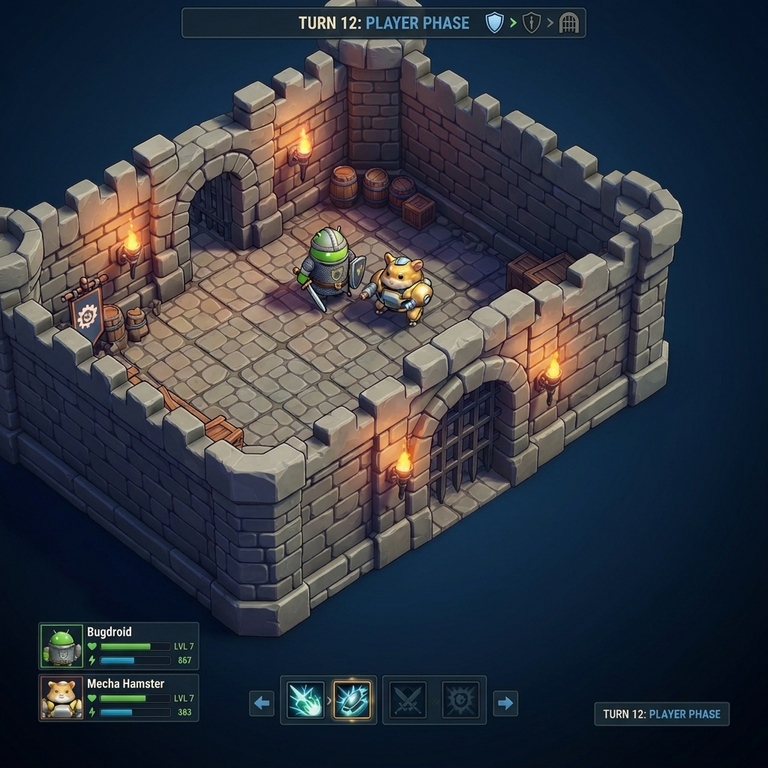
If an expanded field of view would reveal portions of your set or cinematic that the player shouldn't see, masking certain portions of the scene in a cleanly designed way achieves the same practical effect as a letterbox without the perception of a fixed static border.
In the following example, expanding the game to a larger aspect ratio reveals a zombie horde outside the walls of the castle:
|
|
Instead, you can omit rendering level geometry beyond the bounds of the current play area:
|
|
|
Diegetic boundaries
In immersive 3D games where an expanded field of view can lead to a competitive advantage in first- or third-person multiplayer games or reveal unauthored areas of fixed set-based games, consider building diegetic elements into the game to cap the field of view rather than relying on a rectangular letterbox. Examples include:
- The interior cockpit of a vehicle like a car or plane
- The interior of a helmet
- A vignette indicating the edge of a player's vision
UI and HUD elements should still extend to the edge of the screen or be incorporated into the diegetic boundaries, and making them dynamic is ideal. These diegetic elements can also help players who experience motion sickness—especially on XR form factors—providing an accessibility aid in addition to helping mitigate the complexity of new aspect ratios.
Avoid rendering the game on a surface inside a non-interactive static scene. Although that approach is better than rendering black bars for letterboxes and pillarboxes, players quickly notice static borders and can be frustrated if their favorite games render to a phone-sized patch of screen on non-phone form factors.
|
In this example, a game designed for a standard phone screen is rendered inside a simulated television with a skeuomorphic gamepad to accommodate the more square aspect ratio common on the inner displays of foldables: 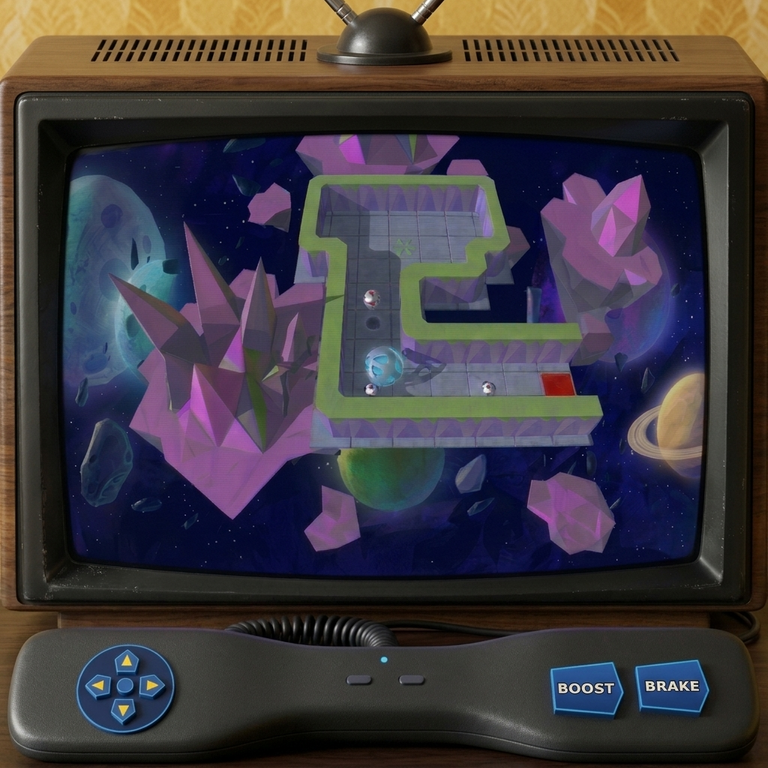
|
Some 3D games might need to restrict the field of view either for competitive fairness or for design considerations. Using a cockpit, helmet, or other diegetic metaphor to restrict the field of view is preferable to black bars: 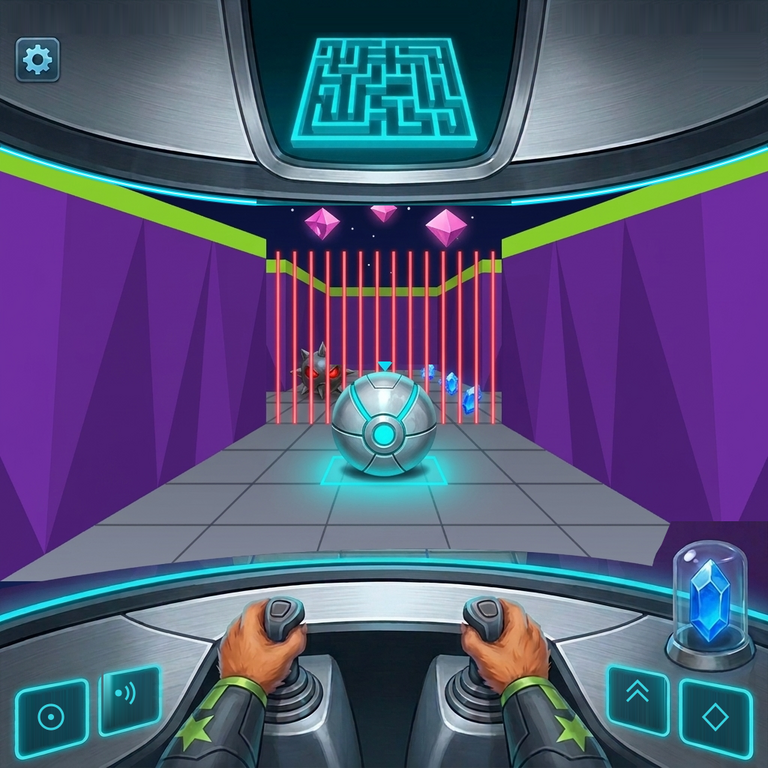
|
Additional resources
- Make your Unity game great on all form factors
- Make your game compatible with all form factors
- Enable natural input on all form factors
- Handle device orientation with Vulkan pre-rotation