
Play Billing Lab is a companion app that helps you test integrations with the Google Play billing system. You can use Play Billing Lab's out-of-app purchase (OOAP) preview testing to validate that your backend is properly configured to handle items acquired outside of your app, including Play Games Rewards.
With the OOAP preview feature, you can select a specific product or offer to show across out-of-app surfaces, such as your app details page in Google Play, and verify the end-to-end entitlement acquisition and fulfillment flow.
Prerequisites
Before using Play Billing Lab to test out-of-app purchase (OOAP) flows to validate your setup for Play Games Rewards, ensure that you meet the following requirements:
- Enroll in the Play Games Rewards EAP.
Licensed tester status: Your test account must be registered as a licensed tester for the game. For details, see Google Play licensed tester documentation.
Note: While any user can view the Play Billing Lab app, only licensed testers of EAP developers in the allowlist can configure and trigger OOAP overrides.
Account consistency across surfaces: You must sign in to Play Billing Lab and the Google Play Store using the same licensed tester account. If there is an account mismatch, the Play Store might not surface the overridden test product or offer, or complete the test purchase.
Download and install
You can download and install Play Billing Lab from Google Play:
- Google Play Store (Android): Play Billing Lab app
- Web testing track: Play Billing Lab web opt-in
Step-by-step EAP integration and testing guide
The following steps detail how to integrate and test Play Games Rewards using Play Billing Lab.
Step 1: Launch Play Billing Lab and sign in
When you open Play Billing Lab for the first time after installation:
- Tap Sign-in with Google.
- Select the Google Account registered as the licensed tester for your app.
- After signing in, you see the main Dashboard.
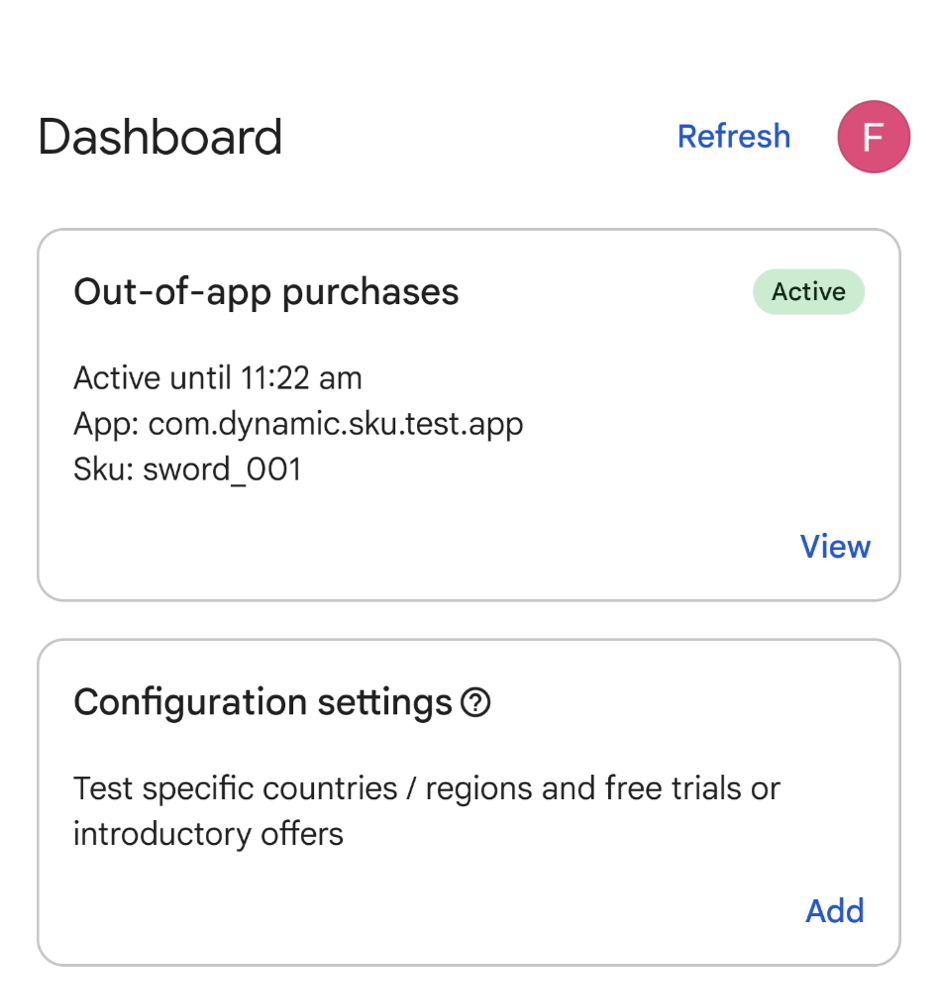
Step 2: Navigate to out-of-app purchases (OOAP) testing
- On the Dashboard, locate the Out-of-app purchases card.
- Tap Test to open the OOAP configuration setup screen.
Step 3: Specify app package name and product ID
On the OOAP setup screen, enter the required app identifiers:
- Package name: The exact Android package name of your app (for example,
com.example.app). - Product type: Use the drop-down menu to select either One-time product (in-app item) or Subscription.
- Product ID (SKU): The product ID of the in-app product or subscription that you want to test.
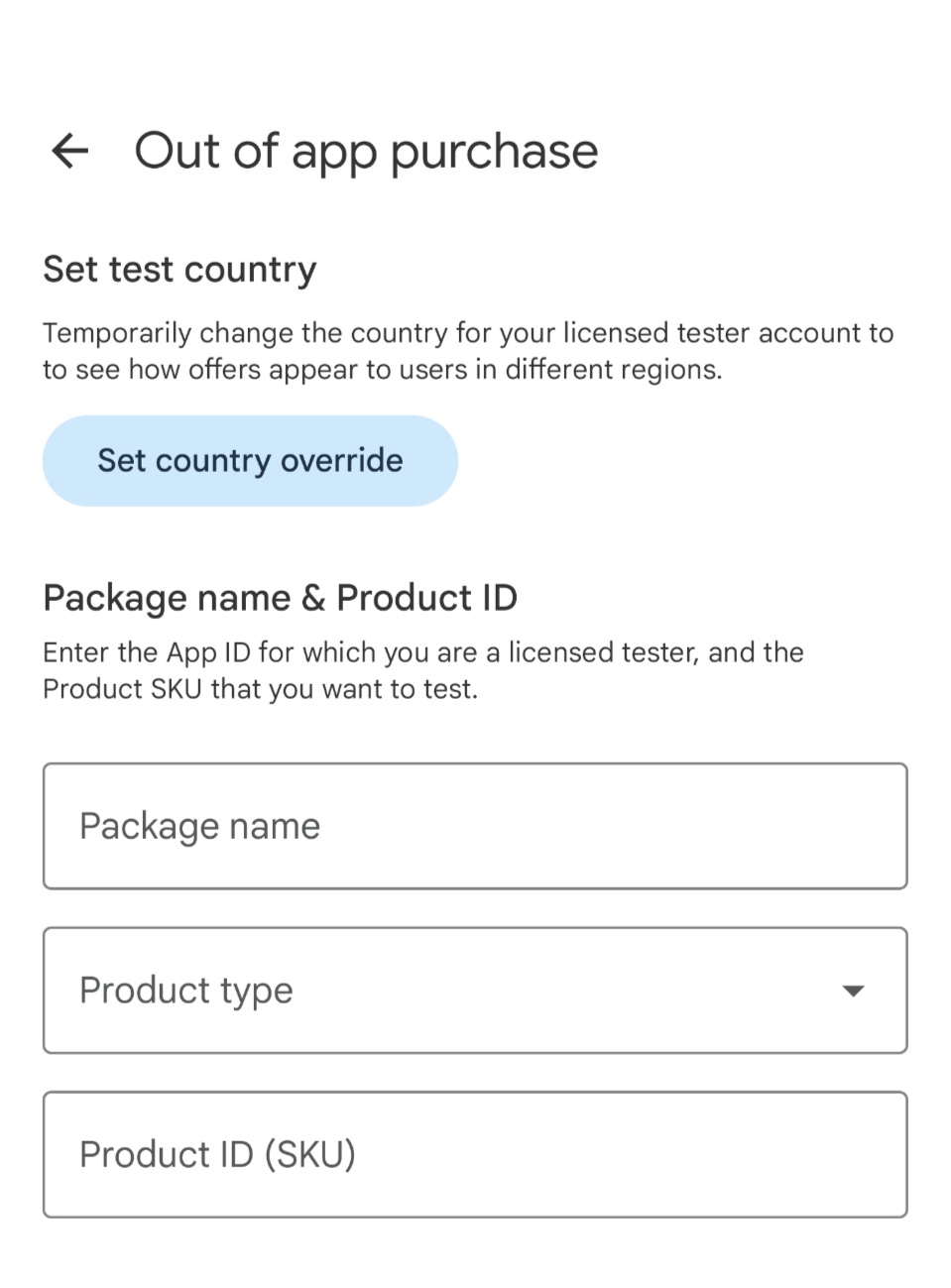
Step 4: Select an eligible offer
After you enter the package name, product ID, and product type, Play Billing Lab queries the backend and displays a list of available offers for that product.
For one-time products: Select the applicable purchase option or offer.
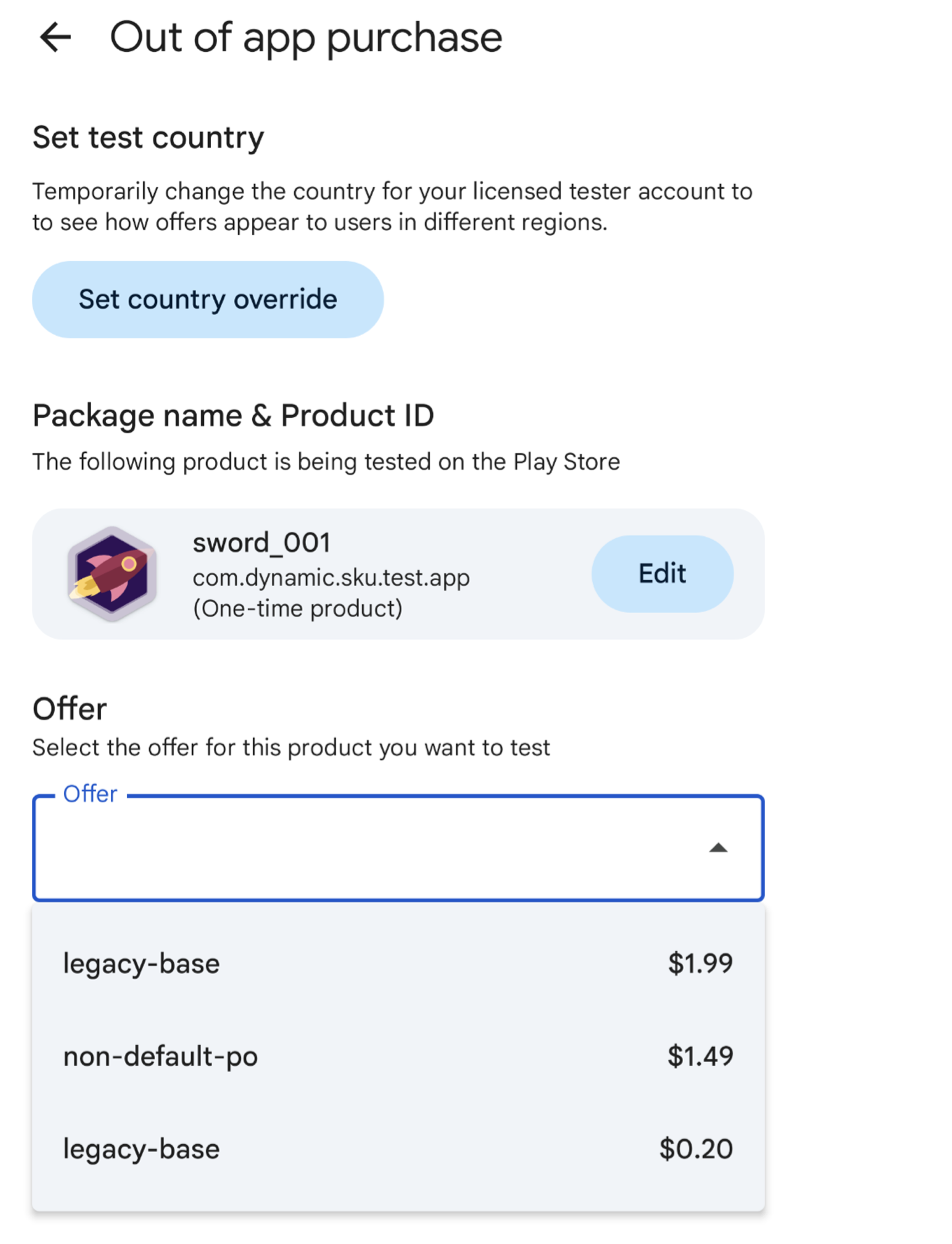
Select an eligible offer.
Step 5: Start the OOAP test
After selecting the offer, tap Start test. The configuration is saved and synced with Google Play backend servers.
After activation, your Dashboard displays an Active badge on the Out-of-app purchases card, showing the configured package name, product ID (SKU), and remaining duration.
- Testing window: Active OOAP test configurations remain active for 2 hours by default before expiring automatically.
Backend override: While active, the configuration shows as the highest priority on the various OOAP surfaces (such as your app details page in the Play Store).
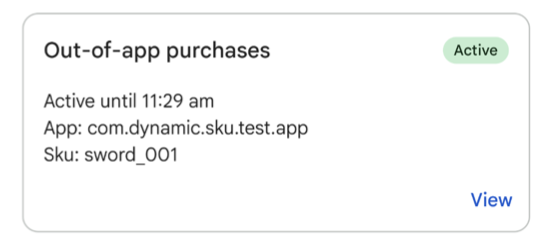
Start the OOAP test.
Step 6: Test end-to-end acquisition flow for out-of-app offers
While the OOAP test is active in Play Billing Lab, open the Google Play Store app signed in with the same licensed tester account:
- Clear the Google Play Store cache:
- Open the Settings app on your device.
- Tap Apps > Google Play Store.
- Tap Storage and cache, and then tap Clear cache and Clear storage.
- Open the Google Play Store app.
- Navigate to your app details page.
Complete test purchase (Play Express overlay): Tap the card for the item. The native Google Play Express checkout bottom sheet overlays in the Play Store.
- Review the price, payment instrument (test instrument for licensed testers), and offer details.
- Tap 1-tap buy to complete the transaction.
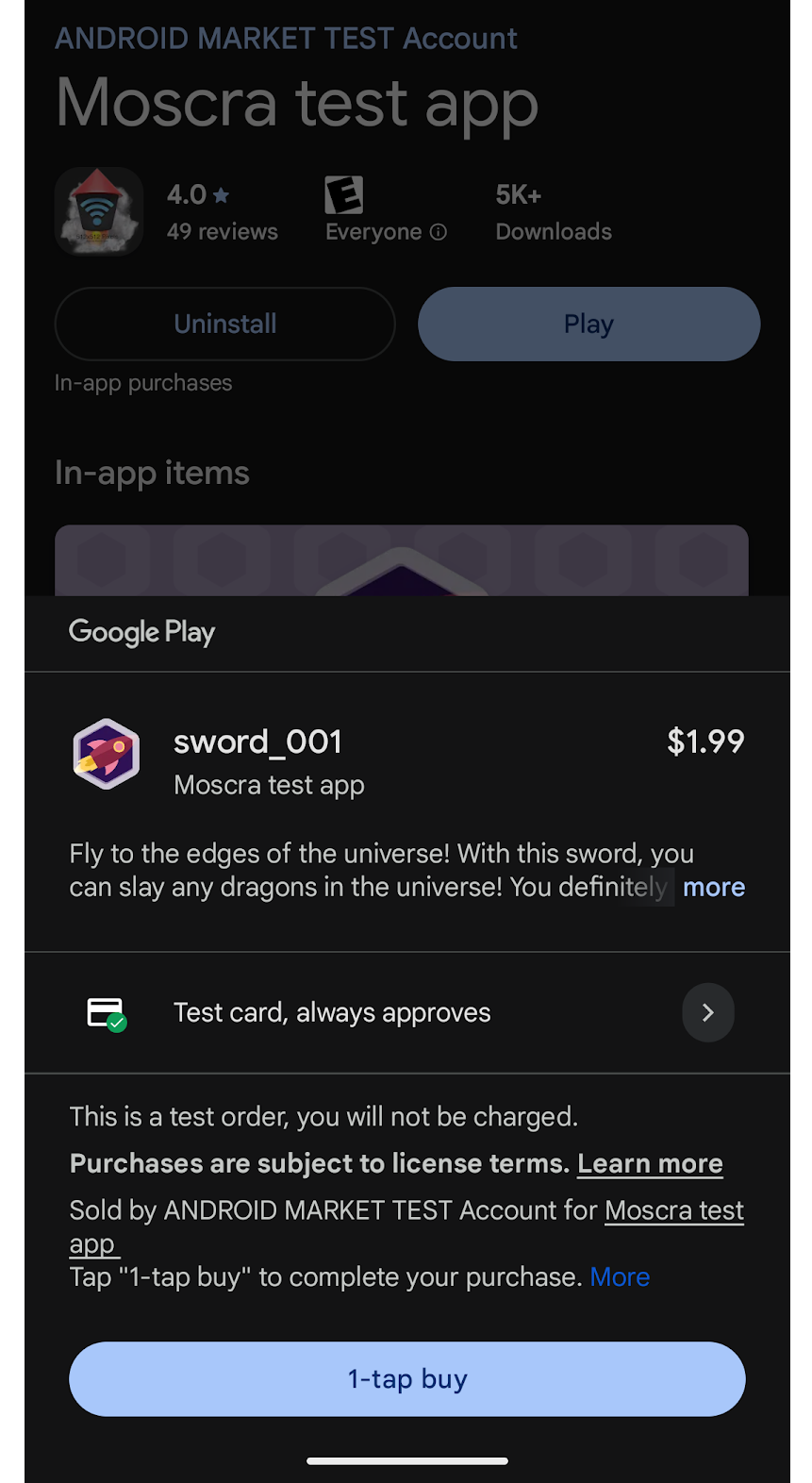
Test end-to-end acquisition flow. Verify backend integration:
- After a successful purchase, verify that Google Play sends a Real-Time
Developer Notification (RTDN) to your backend server.
- Note: Rewards also sends an RTDN.
- Verify that your server calls the Google Play Developer API to acknowledge the purchase and grant the entitlement to the user.
- Check the user purchase history in the Play Store app to confirm that the test order is recorded.
- After a successful purchase, verify that Google Play sends a Real-Time
Developer Notification (RTDN) to your backend server.
Step 7: Stop and clear the OOAP test
After you finish testing:
- Go to Out-of-app purchases page.
- Tap Clear test to stop the OOAP test and clear the OOAP test settings.
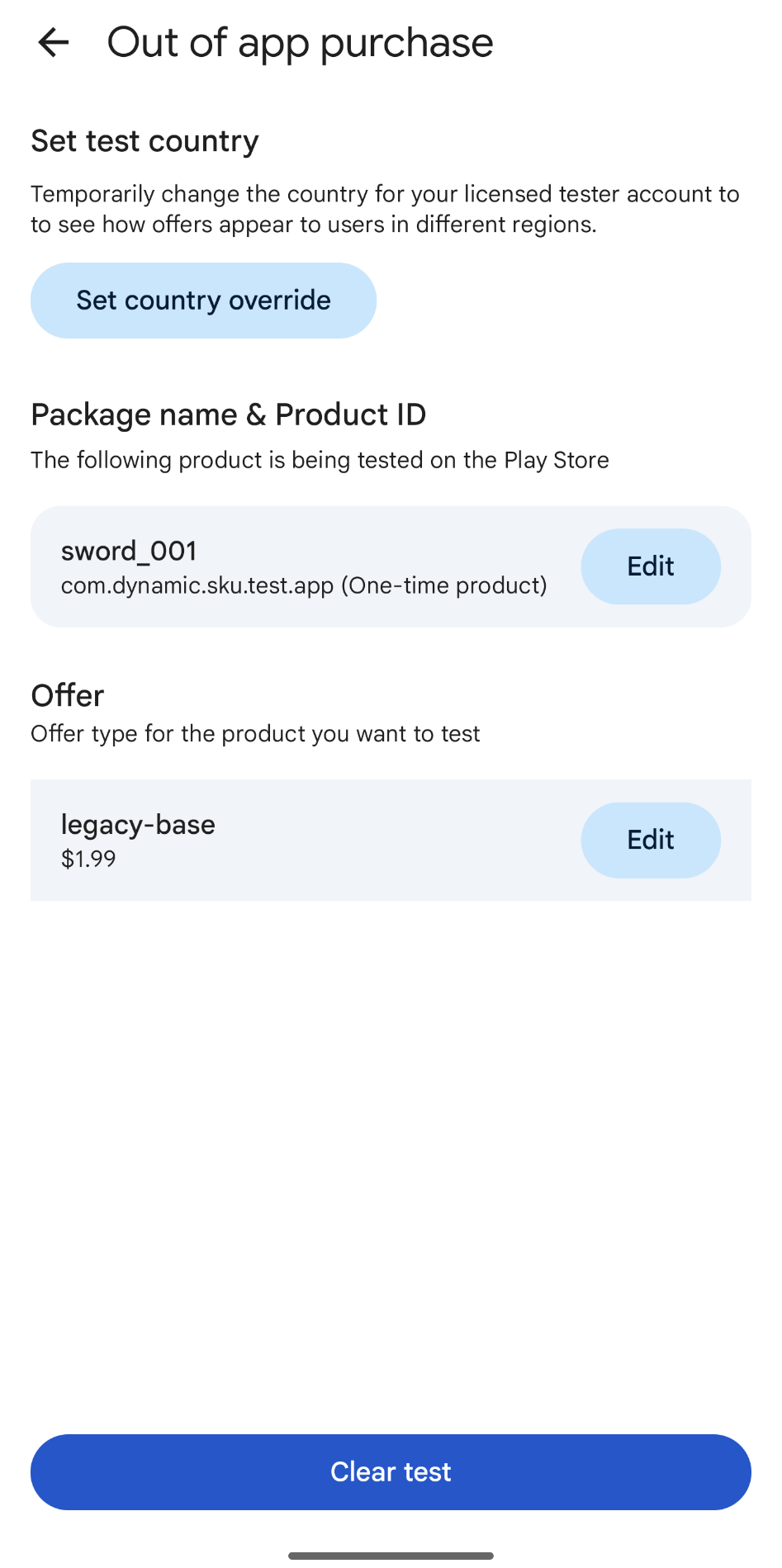
Modifying Test Configurations
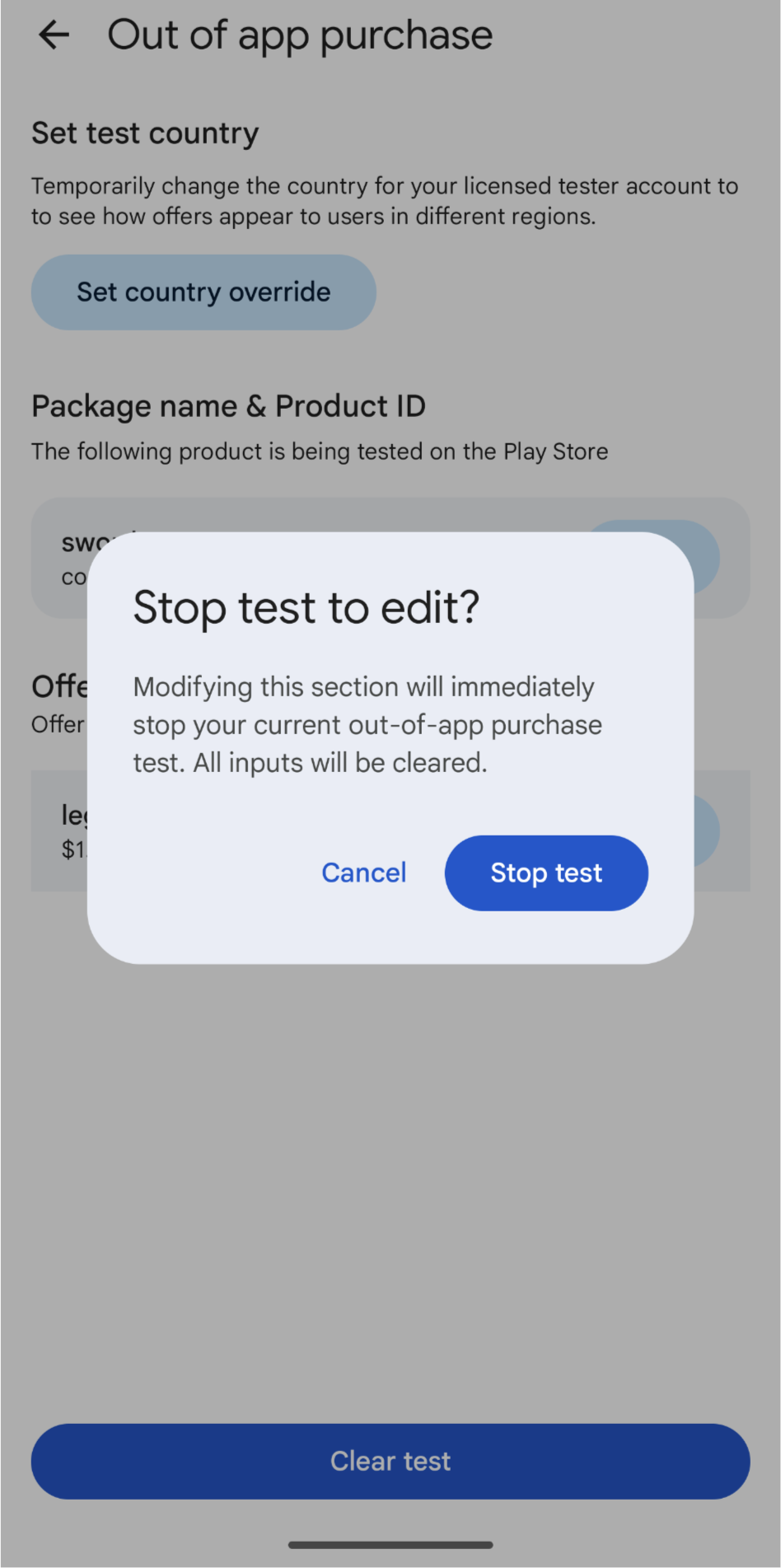
You cannot change the package name, product ID, offer selection, or change the Play Store Country override while an OOAP preview test is actively running.
Doing so requires stopping and clearing the current OOAP testing
How to edit product or offer
If you are currently running an OOAP test and want to test a different product or offer:
- Open Play Billing Lab and tap View on the active Out-of-app purchases card.
- Tap Edit to modify the package name, product ID or testing offer.
- Confirm Stop test when prompted. The test will be stopped and all relevant inputs will be cleared.
- Enter your new product or select the new offer, and restart the test.
How to test localized pricing with country overrides
Play Billing Lab lets you override your Google Play Store country to test regional pricing and currency formatting. However, country changes must be synchronized cleanly with OOAP testing:
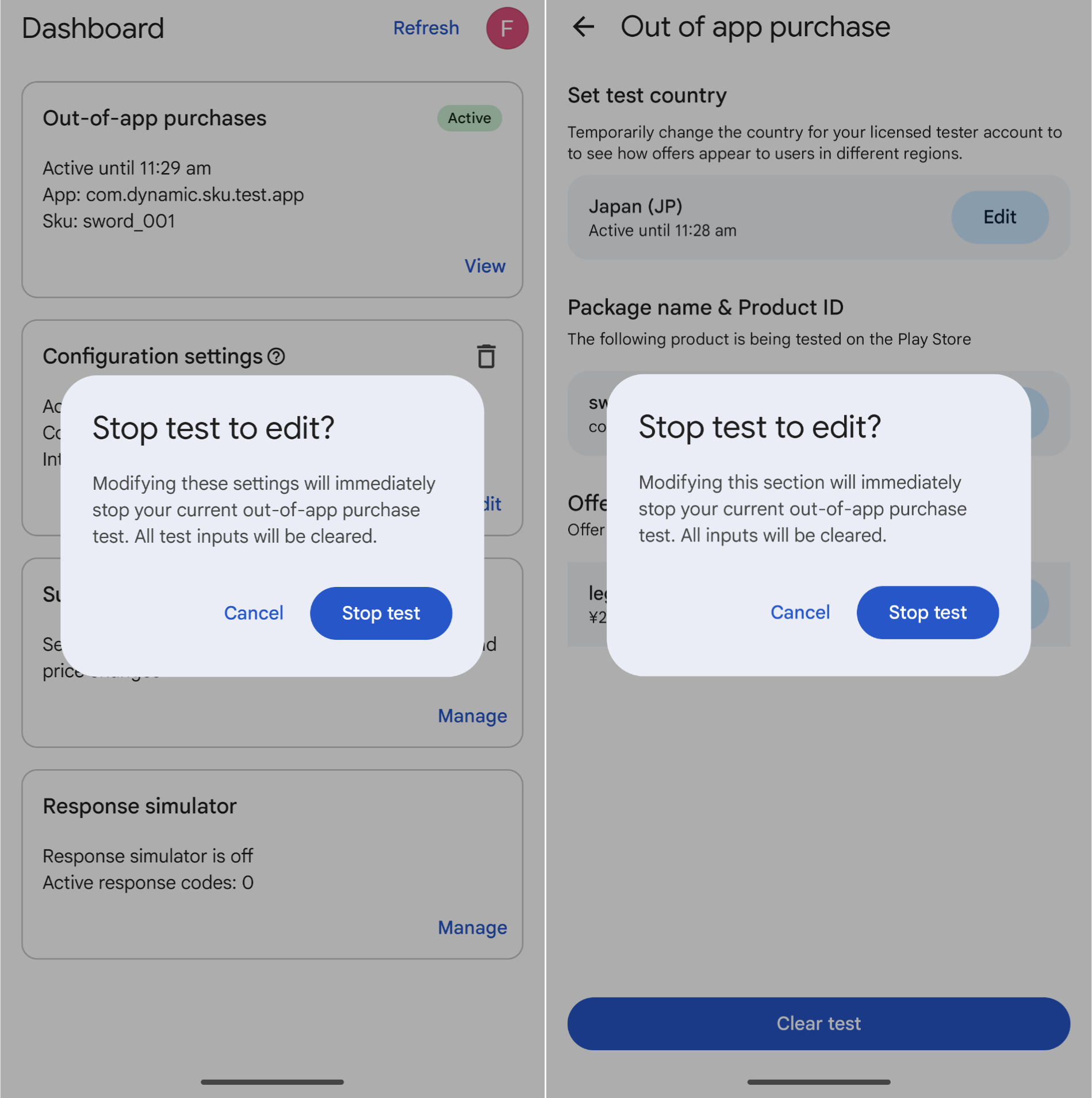
Stop Active OOAP Test: If you attempt to edit your country override while an OOAP test is active, either from the Dashboard or Out of app purchase page, Play Billing Lab will display a warning prompting you to stop the test first. Confirming by tapping Stop test will stop the current OOAP test and clear the test inputs.
Set Country Override: After stopping the OOAP test, you can edit your country setting in the Configuration Settings page. Select the target country (for example, Japan, United Kingdom) and tap Apply.
Restart OOAP Test: Once the country override is active, return to the Out-of-app purchases card, select your product and offer, and tap Start test.
Your dashboard will now show both an active Country Override and an active OOAP Test.
Verify Localized Price in the Play Store: Open the Play Store and visit your app's details page. The surfaced UI card and Play Express bottom sheet will now display the product price formatted in the local currency of your overridden country!
Troubleshooting and frequently asked questions
Why isn't my configured test offer appearing on my app details page in the Play Store?
- Account consistency: Verify that the account signed in to the Play Store app is the exact same account signed in to Play Billing Lab.
- EAP allowlist and licensed tester status: Verify that your developer account is allow listed for the Play Billing Lab OOAP Preview EAP, and that your account is listed as an active licensed tester in Play Console.
- Expiration: Active OOAP tests expire after 2 hours. Open Play Billing Lab to check if your test tag has changed to Expired. If so, start a new test.
Why can't I select or see any offers when setting up a product in Play Billing Lab?
- Offer eligibility: Play Billing Lab only displays offers that your specific tester account is currently eligible to purchase.
Why did my test purchase fail in the Play Express overlay?
- Ensure that your test device is running Android 12 (API level 31) or higher and has the latest version of the Google Play Store installed.
- Check your app backend RTDN webhook and API integration. When testing through the Play Store, purchases occur outside your app standard UI. Your backend server must reliably receive RTDN messages from Google Play and acknowledge purchases asynchronously.
How do I stop or clear an active test before the 2-hour timer expires?
- Open Play Billing Lab, locate the active card (Out-of-app purchases or Configuration settings), and tap Stop or Delete. When prompted, confirm your choice. The override is immediately removed from Google Play servers.