
When implementing gamepad support, consider the following essential requirements to help players enjoy smooth, uninterrupted gameplay.
Let users on the Play Store know your game supports controllers
Declaring the gamepad feature in your Android manifest displays a gamepad-supported icon and tag on Google Play. Use this declaration to help more users discover and play your game. For detailed configuration instructions and manifest examples, see Play Store visibility and Gamepad hardware features.
Let players switch seamlessly between input devices
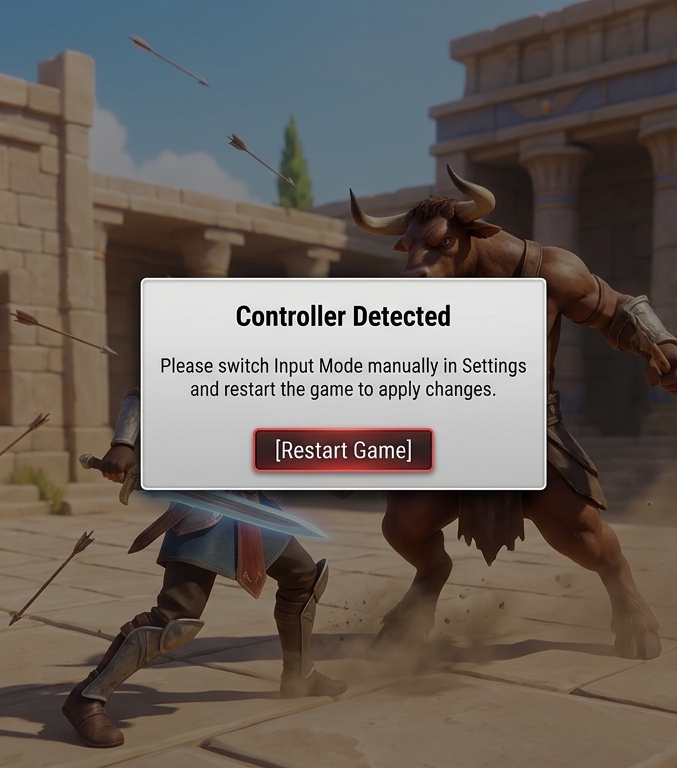
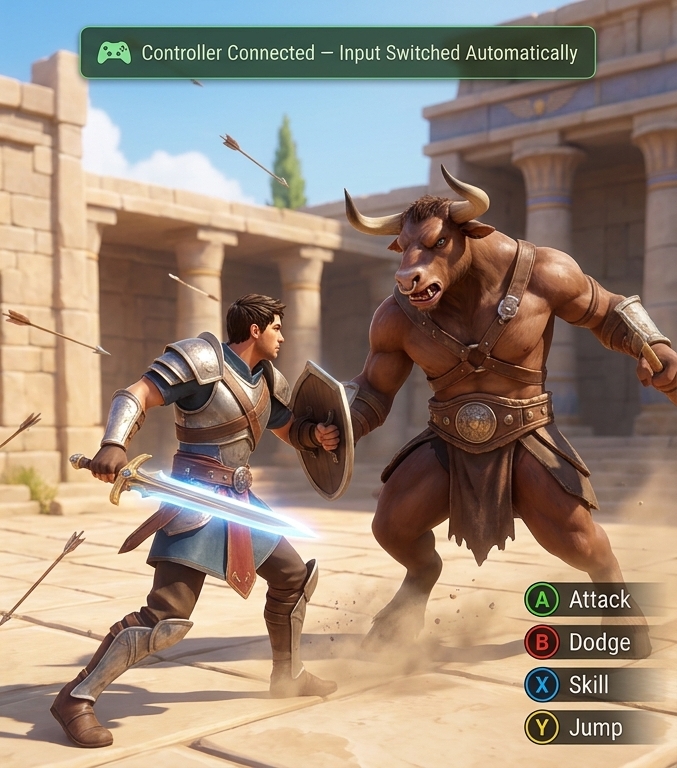
When players transition between input devices, make the switch seamless. Avoid requiring players to manually toggle their input method in a settings menu or restart the game.
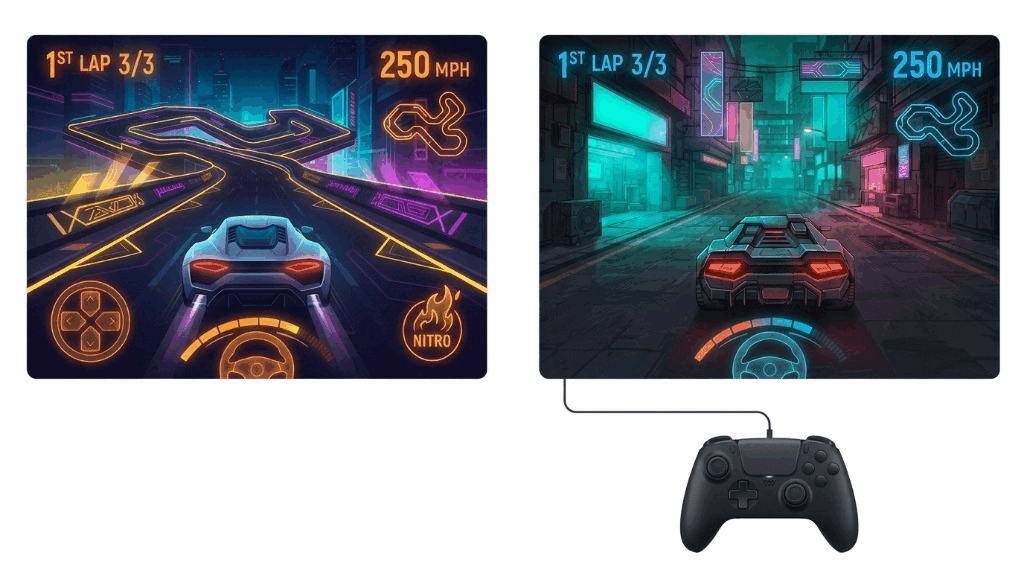
Switch automatically and support hot-plugging
Keep all supported input devices active simultaneously so players can switch
between them on the fly. Listen for input device changes at runtime so gamepads
work immediately upon connection without restarting the app, and seamlessly
transition to other available input methods if an active controller disconnects
during gameplay. To detect controller connections and disconnections, see
Verify a game controller is connected (Kotlin or Java) or
Register or remove a controller status callback (C++ Game Controller
library). On Android 16 (API level 36) and lower, also declare
android:configChanges="keyboard|keyboardHidden|navigation" in your manifest so
connecting or disconnecting a controller does not restart your activity (see
Handle configuration changes).
| Not recommended | Recommended |
|---|---|
|
|
Update button iconography and text guides to match the active device
Dynamically switch on-screen button icons and text guides based on the active input device. For example, transition a touch-control guide like "Tap to jump" to "Press B to jump" (or the platform-equivalent button) when your game detects gamepad input.
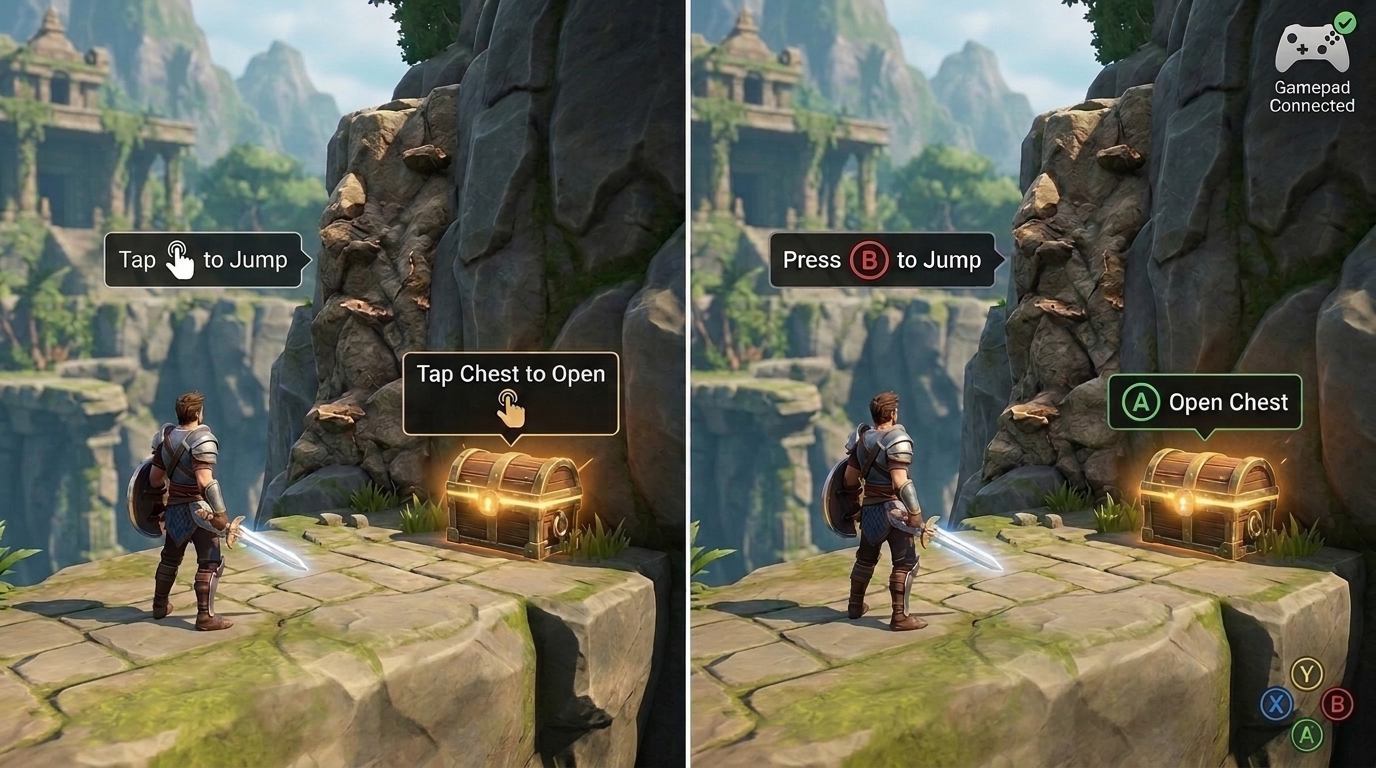
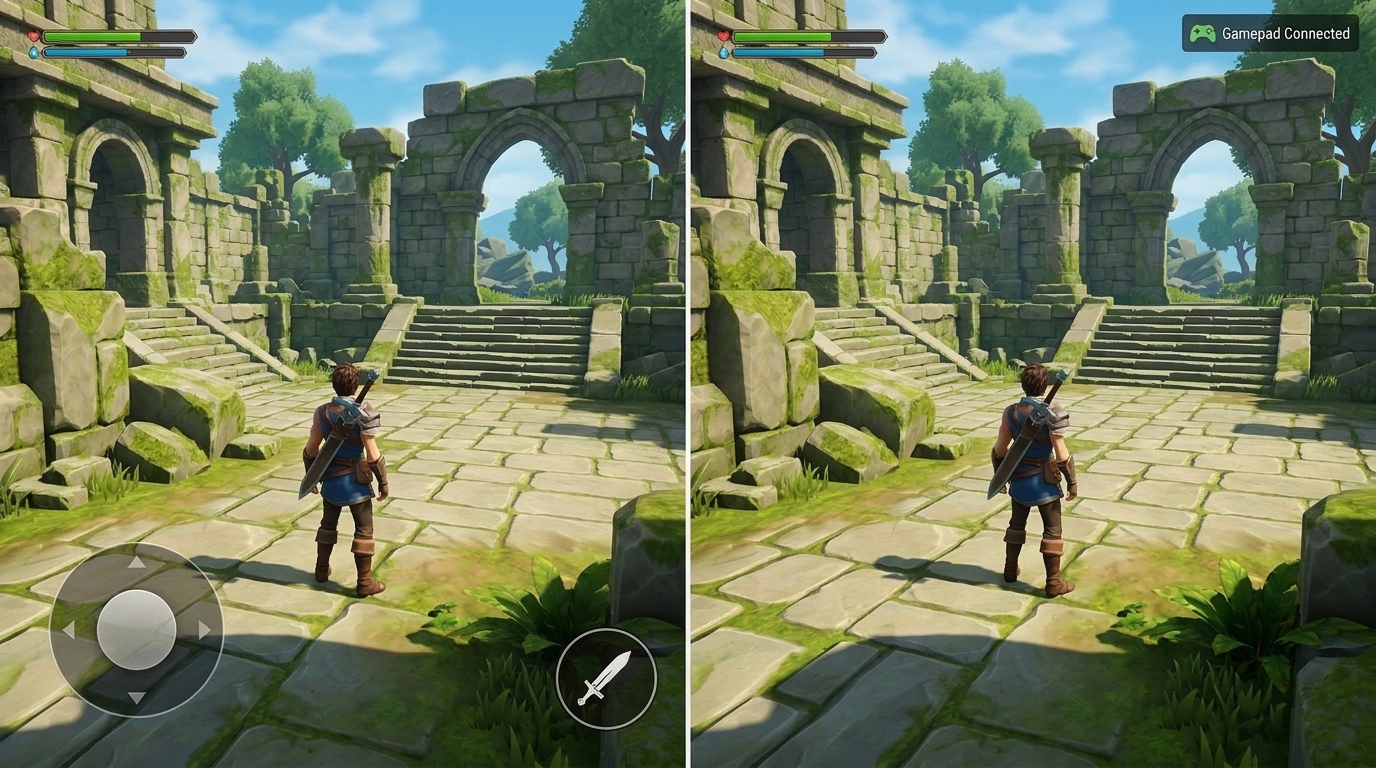
Hide virtual touch controls when a gamepad is active
To prevent screen clutter and player confusion, hide all virtual touch UI elements, such as virtual joysticks and on-screen buttons, when a gamepad is active. Restore the touch UI immediately if the player touches the screen.
Provide full gamepad support for all in-game logic
Avoid relying on touch as a fallback mechanism. Using touch to exit menus or perform specific parts of the game can break immersion. Implement all in-game interactions so players can perform them entirely using a gamepad.
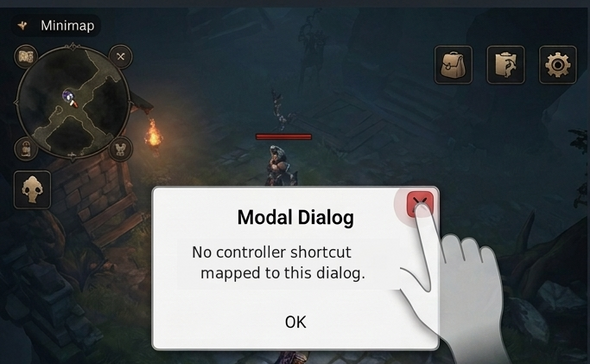
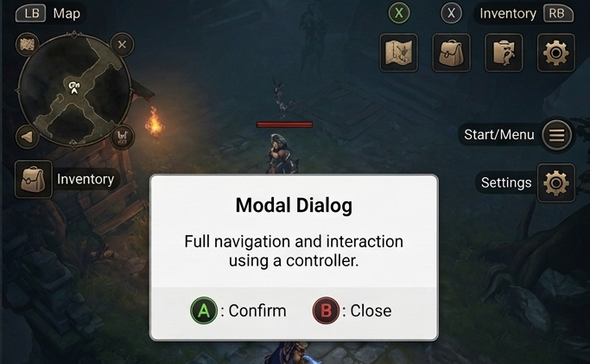
Map all HUD elements and dialogs to controller inputs
Let players open, interact with, and close all on-screen heads-up display (HUD) elements, menus, and dialogs using the controller through dedicated shortcut buttons, bumpers, or directional pad (D-pad) navigation so they don't have to touch the screen.
| Not recommended | Recommended |
|---|---|
|
|
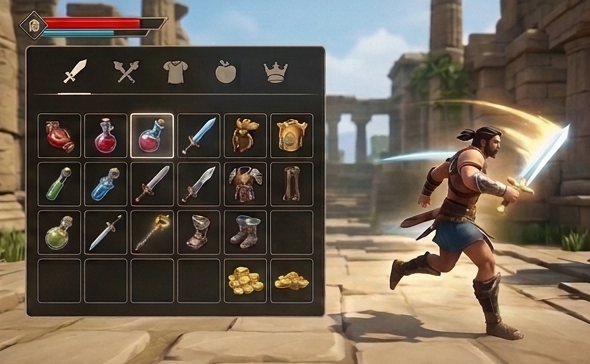
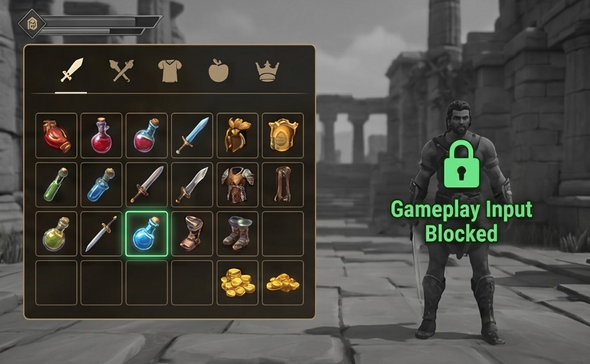
Separate gameplay and UI input contexts
When a menu or dialog opens over gameplay, switch contexts or block background controls so the gamepad only interacts with the active UI. This separation prevents directional navigation or button presses in a menu from accidentally triggering character movement or actions in the background.
| Not recommended | Recommended |
|---|---|
|
|
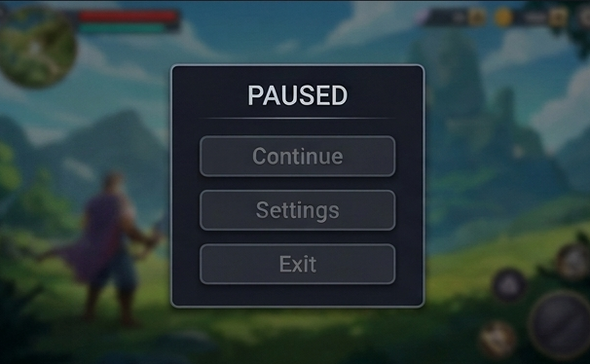
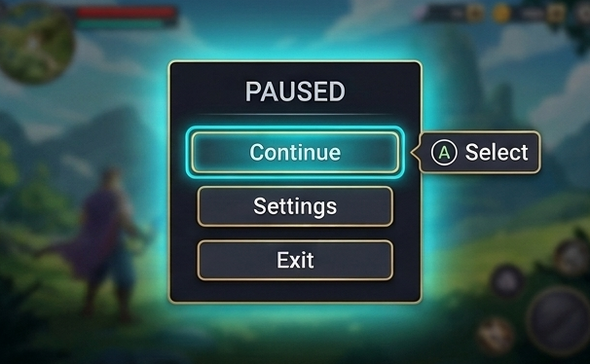
Assign initial focus immediately when a screen opens
Unlike touch input, where players tap buttons directly, gamepad navigation moves from the currently focused element to an adjacent one. If a new menu or dialog opens without an initial focus target, D-pad and confirm inputs can fail to respond or remain trapped on background elements. Assign initial focus to a default button as soon as a screen opens.
| Not recommended | Recommended |
|---|---|
|
|