

Este documento descreve como migrar jogos do games v1 SDK para o games v2 SDK.
Antes de começar
Você pode usar qualquer ambiente de desenvolvimento integrado (IDE) de sua preferência, como o Android Studio, para migrar o jogo. Conclua as etapas a seguir antes de migrar para o games v2:
- Fazer o download do Android Studio e instalá-lo
- O jogo precisa usar o games v1 SDK.
- Você pode fazer upgrade do jogo para usar o games v1 SDK para
com.google.android.gms:play-services-games:24.0.0. Não faça upgrade paracom.google.android.gms:play-services-games:25.0.0, porque a API games v1 foi removida.
Atualizar as dependências
No arquivo
build.gradledo módulo, encontre esta linha nas dependências do nível do módulo.implementation "com.google.android.gms:play-services-games:+"Substitua por este código:
implementation "com.google.android.gms:play-services-games-v2:version"Substitua version pela versão mais recente do SDK do jogo.
Depois de atualizar as dependências, conclua todas as etapas neste documento.
Definir o ID do projeto
Para adicionar o ID do projeto do SDK dos serviços do Google Play Games ao seu app, siga estas etapas:
No arquivo
AndroidManifest.xml, adicione o seguinte<meta-data>elemento e atributos ao elemento<application>:<manifest> <application> <meta-data android:name="com.google.android.gms.games.APP_ID" android:value="@string/game_services_project_id"/> </application> </manifest>Defina a referência do recurso de string
@string/game_services_project_idusando o ID do projeto do jogo nos serviços relacionados a jogos como o valor. O ID do projeto nos serviços relacionados a jogos pode ser encontrado abaixo do nome do jogo na página Configuração do Google Play Console.No seu arquivo
res/values/strings.xml, adicione uma referência de recurso de string e defina o ID do projeto como o valor. Exemplo:<!-- res/values/strings.xml --> <resources> <!-- Replace 0000000000 with your game’s project id. Example value shown above. --> <string translatable="false" name="game_services_project_id"> 0000000000 </string> </resources>
Caminhos de migração
O caminho de migração correto para o jogo depende de como ele implementa os serviços do Google Play Games v1 e processa a identidade do jogador. Para garantir uma transição tranquila e evitar a perda de dados do jogador, identifique o cenário que melhor corresponde à configuração atual e siga as etapas correspondentes.
Opção 1: para jogos em que a IGA está vinculada ao ID do jogador dos serviços do Google Play Games
Esse cenário se aplica a jogos que usaram os serviços do Google Play Games Player ID como o único identificador de uma conta no jogo (IGA, na sigla em inglês) de um jogador e que não solicitaram ou armazenaram um OpenID anteriormente. O principal desafio é vincular a IGA atual a um identificador principal (o OpenID) sem perder a conexão com o progresso do jogador.
O fluxo de migração inclui as seguintes etapas:
- Quando o jogo é iniciado, o SDK dos serviços do Google Play Games v2 autentica a plataforma de forma automática e silenciosa.
Apresente uma tela de login com um botão Fazer login com o Google, substituindo o botão Google Play. Para ver um exemplo, consulte CredManBridge.java.
CredManBridge.java
package com.wickedcube.trivialkart; import android.accounts.Account; import android.content.Context; import android.util.Log; import android.os.CancellationSignal; import androidx.credentials.CredentialManager; import androidx.credentials.GetCredentialRequest; import androidx.credentials.GetCredentialResponse; import androidx.credentials.exceptions.GetCredentialException; import androidx.credentials.exceptions.NoCredentialException; import com.google.android.libraries.identity.googleid.GetGoogleIdOption; import com.google.android.libraries.identity.googleid.GoogleIdTokenCredential; import com.google.android.gms.auth.api.identity.AuthorizationClient; import com.google.android.gms.auth.api.identity.AuthorizationRequest; import com.google.android.gms.auth.api.identity.AuthorizationResult; import com.google.android.gms.common.api.ApiException; import com.google.android.gms.auth.api.identity.Identity; import com.google.android.gms.common.api.Scope; import com.unity3d.player.UnityPlayer; import java.util.Collections; import java.util.List; import java.util.concurrent.Executor; import java.util.concurrent.Executors;public class CredManBridge {
// --- MODE 1: SILENT SIGN-IN (Called on Awake) --- // Tries to auto-select an authorized account. If it fails, it does NOT show UI. public static void signInSilent(Context context, String webClientId) { CredentialManager credentialManager = CredentialManager.create(context); CancellationSignal cancellationSignal = new CancellationSignal(); Executor executor = Executors.newSingleThreadExecutor();
Log.d("CredMan", "Attempting Silent Sign-In..."); GetGoogleIdOption silentOption = new GetGoogleIdOption.Builder() .setFilterByAuthorizedAccounts(true) // Strict: Only authorized accounts .setServerClientId(webClientId) .setAutoSelectEnabled(true) // Auto-select if possible .build(); GetCredentialRequest silentRequest = new GetCredentialRequest.Builder() .addCredentialOption(silentOption) .build(); credentialManager.getCredentialAsync( context, silentRequest, cancellationSignal, executor, new androidx.credentials.CredentialManagerCallback<GetCredentialResponse, GetCredentialException>() { @Override public void onResult(GetCredentialResponse result) { Log.d("CredMan", "Silent Sign-In Successful!"); handleSignInResult(context, result, webClientId); } @Override public void onError(GetCredentialException e) { // Send a specific error code so Unity knows to just stay on the Start Screen Log.d("CredMan", "Silent sign-in failed. Keeping UI hidden."); UnityPlayer.UnitySendMessage("AuthManager", "OnSignInError", "SilentFailed"); } } );}
// --- MODE 2: INTERACTIVE SIGN-IN (Called on Button Click) --- // Forces the Account Selection / "Add Account" sheet to appear. public static void signInInteractive(Context context, String webClientId) { CredentialManager credentialManager = CredentialManager.create(context); CancellationSignal cancellationSignal = new CancellationSignal(); Executor executor = Executors.newSingleThreadExecutor();
Log.d("CredMan", "Starting Interactive Sign-In...");

GetGoogleIdOption interactiveOption = new GetGoogleIdOption.Builder()
    .setFilterByAuthorizedAccounts(false) // Show ALL accounts (and "Add Account")
    .setServerClientId(webClientId)
    .setAutoSelectEnabled(false)          // Force the UI to show
    .build();

GetCredentialRequest interactiveRequest = new GetCredentialRequest.Builder()
    .addCredentialOption(interactiveOption)
    .build();

credentialManager.getCredentialAsync(
    context,
    interactiveRequest,
    cancellationSignal,
    executor,
    new androidx.credentials.CredentialManagerCallback<GetCredentialResponse, GetCredentialException>() {
        @Override
        public void onResult(GetCredentialResponse result) {
            Log.d("CredMan", "Interactive Sign-In Successful!");
            handleSignInResult(context, result, webClientId);
        }

        @Override
        public void onError(GetCredentialException e) {
            Log.e("CredMan", "Interactive Sign-In Canceled or Failed", e);
            UnityPlayer.UnitySendMessage("AuthManager", "OnSignInError", "Canceled");
        }
    }
);
}
private static void handleSignInResult(Context context, GetCredentialResponse result, String webClientId) { try { GoogleIdTokenCredential credential = GoogleIdTokenCredential.createFrom(result.getCredential().getData()); String email = credential.getId();
    Account account = new Account(email, "com.google");
    // Requesting GAMES_LITE scope to check for pre-existing V1 grants
    List<Scope> requestedScopes = Collections.singletonList(new Scope("https://www.googleapis.com/auth/games_lite"));

    AuthorizationRequest authRequest = new AuthorizationRequest.Builder()
        .setRequestedScopes(requestedScopes)
        .setAccount(account)
        .requestOfflineAccess(webClientId)
        .build();

    AuthorizationClient authClient = Identity.getAuthorizationClient(context);

    authClient.authorize(authRequest)
        .addOnSuccessListener(authorizationResult -> {
            if (authorizationResult.getServerAuthCode() != null) {
                // CASE 1: RETURNING USER (Success)
                // The user has already granted GAMES_LITE in the past.
                // We got the code directly without showing UI.
                Log.i("CredMan", "PGS v1: Existing grant found. Returning user detected. Auth Code retrieved.");
                UnityPlayer.UnitySendMessage("AuthManager", "OnSignInSuccess", authorizationResult.getServerAuthCode());
            }
            else if (authorizationResult.hasResolution()) {
                // CASE 2: NEW USER (PendingIntent)
                // The user has NOT granted GAMES_LITE before. The API returned a PendingIntent
                // (authorizationResult.getPendingIntent()) to show the consent screen.
                // As per your flow, we DISCARD this intent and do not show UI.
                Log.i("CredMan", "PGS v1: No existing grant (PendingIntent returned). This is a NEW user or they revoked access.");
                Log.i("CredMan", "PGS v1: Discarding PendingIntent. Proceeding as New User.");

                // Notify Unity that this is a "New User" so it can trigger V2 logic instead of failing
                UnityPlayer.UnitySendMessage("AuthManager", "OnSignInError", "NewUser_NoGrant");
            }
            else {
                // Edge Case: No code and no resolution?
                Log.e("CredMan", "PGS v1: Authorization success but no Auth Code or Resolution returned.");
                UnityPlayer.UnitySendMessage("AuthManager", "OnSignInError", "No Auth Code returned");
            }
        })
        .addOnFailureListener(e -> {
            // CASE 3: GENERIC FAILURE
            Log.e("CredMan", "PGS v1: Authorization failed completely.", e);
            UnityPlayer.UnitySendMessage("AuthManager", "OnSignInError", "Authorization Failed: " + e.getMessage());
        });

} catch (Exception e) {
    UnityPlayer.UnitySendMessage("AuthManager", "OnSignInError", "Parsing Error: " + e.getMessage());
}
} }
Recupere dois identificadores distintos quando o jogador tocar no botão Fazer login com o Google e selecionar uma Conta do Google:
- O
OpenID, que é o identificador principal para vincular a IGA. - Os
Player
ID
dos serviços do Google Play Games, recuperados usando o escopoGAMES_LITE, para pesquisar a IGA do jogador no sistema de back-end e realizar a vinculação. Para mais informações, consulte RecuperarPlayer ID.
- O
Acesse a IGA pelo fluxo Fazer login com o Google em inicializações de jogos subsequentes, sem exigir que os jogos usem
Player IDcomo um identificador principal.
Recuperar Player ID
Você pode realizar a etapa 3 usando uma implementação do lado do cliente do jogo.
- Chame a API Android Credential Manager para fazer login do usuário com uma Conta do Google.
- Depois que o usuário concluir o fluxo "Fazer login com o Google" e selecionar uma Conta do Google, receba um objeto de resultado contendo o token de ID e o endereço de e-mail.
- Construa um objeto de conta no endereço de e-mail.
- Chame a API Authorization com o escopo
GAMES_LITEe a conta. - Se a conta tiver uma concessão pré-existente no escopo
GAMES_LITE, a API Authorization vai retornar um token diretamente no objeto de resposta:- Use o token de resposta para chamar os servidores dos serviços do Google Play Games e recuperar o
Player IDdos serviços do Google Play Games. - Verifique se o
Player IDdos serviços do Google Play Games está vinculado a uma conta no jogo.- Isso indica um usuário recorrente dos serviços do Google Play Games v1.
- Vincule o novo ID do GAIA à conta anterior dos serviços do Google Play Games v1.
- Use o token de resposta para chamar os servidores dos serviços do Google Play Games e recuperar o
- Se a conta não tiver uma concessão pré-existente no escopo
GAMES_LITE, a API Authorization vai retornar umaPendingIntent:- Isso indica que o usuário não tem uma conta dos serviços do Google Play Games v1.
- Descarte a
PendingIntentcom segurança sem mostrar nenhuma interface.
Opção 2: para jogos que já vinculam a IGA ao OpenID
Os desenvolvedores desse grupo têm o caminho de migração mais simples. Se a conta no jogo já estiver vinculada principalmente ao OpenID, você só precisará realizar a migração técnica padrão do SDK da v1 para a v2, conforme descrito nas etapas.
Migrar do Login do Google descontinuado
Substitua a GoogleSignInClient
classe pela GamesSignInClient
classe.
Java
Localize os arquivos com a classe GoogleSignInClient.
import com.google.android.gms.auth.api.signin.GoogleSignIn;
import com.google.android.gms.auth.api.signin.GoogleSignInClient;
import com.google.android.gms.auth.api.signin.GoogleSignInOptions;

// ... existing code

@Override
public void onCreate(@Nullable Bundle bundle) {
    super.onCreate(bundle);

    // ... existing code

    GoogleSignInOptions signInOption =
        new GoogleSignInOptions.Builder(GoogleSignInOptions.DEFAULT_GAMES_SIGN_IN).build();

    // Client used to sign in to Google services
    GoogleSignInClient googleSignInClient =
        GoogleSignIn.getClient(this, signInOptions);
}
E atualize para o seguinte:
import com.google.android.gms.games.PlayGamesSdk;
import com.google.android.gms.games.PlayGames;
import com.google.android.gms.games.GamesSignInClient;

// ... existing code

@Override
public void onCreate(){
    super.onCreate();
    PlayGamesSdk.initialize(this);
    // Client used to sign in to Google services
    GamesSignInClient gamesSignInClient =
        PlayGames.getGamesSignInClient(getActivity());
}
Kotlin
Localize os arquivos com a classe GoogleSignInClient.
import com.google.android.gms.auth.api.signin.GoogleSignIn
import com.google.android.gms.auth.api.signin.GoogleSignInClient
import com.google.android.gms.auth.api.signin.GoogleSignInOptions

// ... existing code

val signInOptions = GoogleSignInOptions.DEFAULT_GAMES_SIGN_IN

// ... existing code

override fun onCreate(savedInstanceState: Bundle?) {
    super.onCreate(savedInstanceState)
    val googleSignInClient: GoogleSignInClient =
        GoogleSignIn.getClient(this, signInOptions)
}
E atualize para o seguinte:
import com.google.android.gms.games.PlayGames
import com.google.android.gms.games.PlayGamesSdk
import com.google.android.gms.games.GamesSignInClient

// ... existing code

override fun onCreate(savedInstanceState: Bundle?) {
    super.onCreate(savedInstanceState)
    PlayGamesSdk.initialize(this)
    // client used to sign in to Google services
    val gamesSignInClient: GamesSignInClient =
        PlayGames.getGamesSignInClient(this)
}
Atualizar o código GoogleSignIn
GoogleSignIn A API
não é compatível com o games v2 SDK. Substitua o código da API GoogleSignIn
pela API GamesSignInClient, conforme mostrado no exemplo a seguir.
Para solicitar um token de acesso do lado do servidor, use o
GamesSignInClient.requestServerSideAccess() método.
Para mais informações, consulte
Atualizar as classes de acesso do lado do servidor.
Java
Localize os arquivos com a classe GoogleSignIn.
// Request code used when invoking an external activity.
private static final int RC_SIGN_IN = 9001;

private boolean isSignedIn() {
    GoogleSignInAccount account = GoogleSignIn.getLastSignedInAccount(this);
    GoogleSignInOptions signInOptions =
    GoogleSignInOptions.DEFAULT_GAMES_SIGN_IN;
    return GoogleSignIn.hasPermissions(account, signInOptions.getScopeArray());
}

private void signInSilently() {
    GoogleSignInOptions signInOptions =
        GoogleSignInOptions.DEFAULT_GAMES_SIGN_IN;
    GoogleSignInClient signInClient = GoogleSignIn.getClient(this, signInOptions);
    signInClient
        .silentSignIn()
        .addOnCompleteListener(
            this,
            task -> {
            if (task.isSuccessful()) {
                // The signed-in account is stored in the task's result.
                GoogleSignInAccount signedInAccount = task.getResult();
                showSignInPopup();
            } else {
                // Perform interactive sign in.
                startSignInIntent();
            }
        });
}

private void startSignInIntent() {
    GoogleSignInClient signInClient = GoogleSignIn.getClient(this,
        GoogleSignInOptions.DEFAULT_GAMES_SIGN_IN);
    Intent intent = signInClient.getSignInIntent();
    startActivityForResult(intent, RC_SIGN_IN);
}

@Override
protected void onActivityResult(int requestCode, int resultCode, Intent data) {
    super.onActivityResult(requestCode, resultCode, data);
    if (requestCode == RC_SIGN_IN) {
        GoogleSignInResult result =
        Auth.GoogleSignInApi.getSignInResultFromIntent(data);
        if (result.isSuccess()) {
            // The signed-in account is stored in the result.
            GoogleSignInAccount signedInAccount = result.getSignInAccount();
            showSignInPopup();
        } else {
            String message = result.getStatus().getStatusMessage();
            if (message == null || message.isEmpty()) {
                message = getString(R.string.signin_other_error);
        }
        new AlertDialog.Builder(this).setMessage(message)
            .setNeutralButton(android.R.string.ok, null).show();
        }
    }
}

private void showSignInPopup() {
Games.getGamesClient(requireContext(), signedInAccount)
    .setViewForPopups(contentView)
    .addOnCompleteListener(
        task -> {
            if (task.isSuccessful()) {
                logger.atInfo().log("SignIn successful");
            } else {
                logger.atInfo().log("SignIn failed");
            }
        });
  }
E atualize para o seguinte:
private void signInSilently() {
    gamesSignInClient.isAuthenticated().addOnCompleteListener(isAuthenticatedTask -> {
    boolean isAuthenticated =
        (isAuthenticatedTask.isSuccessful() &&
            isAuthenticatedTask.getResult().isAuthenticated());
        if (isAuthenticated) {
            // Continue with Play Games Services
        } else {
            // If authentication fails, either disable Play Games Services
            // integration or
            // display a login button to prompt players to sign in.
            // Use`gamesSignInClient.signIn()` when the login button is clicked.
        }
    });
}

@Override
protected void onResume() {
    super.onResume();
    // When the activity is inactive, the signed-in user's state can change;
    // therefore, silently sign in when the app resumes.
    signInSilently();
}
Kotlin
Localize os arquivos com a classe GoogleSignIn.
// Request codes we use when invoking an external activity.
private val RC_SIGN_IN = 9001

// ... existing code

private fun isSignedIn(): Boolean {
    val account = GoogleSignIn.getLastSignedInAccount(this)
    val signInOptions = GoogleSignInOptions.DEFAULT_GAMES_SIGN_IN
    return GoogleSignIn.hasPermissions(account, *signInOptions.scopeArray)
}

private fun signInSilently() {
    val signInOptions = GoogleSignInOptions.DEFAULT_GAMES_SIGN_IN
    val signInClient = GoogleSignIn.getClient(this, signInOptions)
    signInClient.silentSignIn().addOnCompleteListener(this) { task ->
        if (task.isSuccessful) {
            // The signed-in account is stored in the task's result.
            val signedInAccount = task.result
            // Pass the account to showSignInPopup.
            showSignInPopup(signedInAccount)
        } else {
            // Perform interactive sign in.
            startSignInIntent()
        }
    }
}

private fun startSignInIntent() {
    val signInClient = GoogleSignIn.getClient(this, GoogleSignInOptions.DEFAULT_GAMES_SIGN_IN)
    val intent = signInClient.signInIntent
    startActivityForResult(intent, RC_SIGN_IN)
}

override fun onActivityResult(requestCode: Int, resultCode: Int, data: Intent?) {
    super.onActivityResult(requestCode, resultCode, data)
    if (requestCode == RC_SIGN_IN) {
        val result = Auth.GoogleSignInApi.getSignInResultFromIntent(data)
        if (result.isSuccess) {
            // The signed-in account is stored in the result.
            val signedInAccount = result.signInAccount
            showSignInPopup(signedInAccount) // Pass the account to showSignInPopup.
        } else {
            var message = result.status.statusMessage
            if (message == null || message.isEmpty()) {
                message = getString(R.string.signin_other_error)
        }
        AlertDialog.Builder(this)
            .setMessage(message)
            .setNeutralButton(android.R.string.ok, null)
            .show()
        }
    }
}

private fun showSignInPopup(signedInAccount: GoogleSignInAccount) {
    // Add signedInAccount parameter.
    Games.getGamesClient(this, signedInAccount)
        .setViewForPopups(contentView) // Assuming contentView is defined.
        .addOnCompleteListener { task ->
        if (task.isSuccessful) {
            logger.atInfo().log("SignIn successful")
        } else {
            logger.atInfo().log("SignIn failed")
        }
    }
}
E atualize para o seguinte:
private fun signInSilently() {
    gamesSignInClient.isAuthenticated.addOnCompleteListener { isAuthenticatedTask ->
        val isAuthenticated = isAuthenticatedTask.isSuccessful &&
        isAuthenticatedTask.result.isAuthenticated
        if (isAuthenticated) {
            // Continue with Play Games Services
        } else {
            // To handle a user who is not signed in, either disable Play Games Services integration
            // or display a login button. Selecting this button calls `gamesSignInClient.signIn()`.
        }
    }
}

override fun onResume() {
    super.onResume()
    // Since the state of the signed in user can change when the activity is
    // not active it is recommended to try and sign in silently from when the
    // app resumes.
    signInSilently()
}
Adicionar o código GamesSignInClient
Se o jogador for autenticado com sucesso, remova o botão de login dos serviços do Google Play Games do seu jogo. Se o usuário optar por não autenticar quando o jogo for iniciado,
continue mostrando um botão com o ícone dos serviços do Google Play Games,
e inicie o processo de login com
GamesSignInClient.signIn().
Java
private void startSignInIntent() {
    gamesSignInClient
        .signIn()
        .addOnCompleteListener( task -> {
            if (task.isSuccessful() && task.getResult().isAuthenticated()) {
                // sign in successful
            } else {
                // sign in failed
            }
        });
  }
Kotlin
private fun startSignInIntent() {
    gamesSignInClient
        .signIn()
        .addOnCompleteListener { task ->
            if (task.isSuccessful && task.result.isAuthenticated) {
                // sign in successful
            } else {
                // sign in failed
            }
        }
  }
Remover o código de saída
Remova o código de GoogleSignInClient.signOut.
Remova o código mostrado no exemplo a seguir:
Java
// ... existing code

private void signOut() {
    GoogleSignInClient signInClient = GoogleSignIn.getClient(this,
    GoogleSignInOptions.DEFAULT_GAMES_SIGN_IN);
    signInClient.signOut().addOnCompleteListener(this,
    new OnCompleteListener() {
        @Override
        public void onComplete(@NonNull Task task) {
           // At this point, the user is signed out.
        }
    });
}
Kotlin
// ... existing code

private fun signOut() {
    val signInClient = GoogleSignIn.getClient(this, GoogleSignInOptions.DEFAULT_GAMES_SIGN_IN)
    signInClient.signOut().addOnCompleteListener(this) {
    // At this point, the user is signed out.
    }
}
Verificar a autenticação bem-sucedida
Inclua o código a seguir para verificar se você fez a autenticação automática e adicione a lógica personalizada, se disponível.
Java
private void checkIfAutomaticallySignedIn() {
gamesSignInClient.isAuthenticated().addOnCompleteListener(isAuthenticatedTask -> {
boolean isAuthenticated =
    (isAuthenticatedTask.isSuccessful() &&
    isAuthenticatedTask.getResult().isAuthenticated());

    if (isAuthenticated) {
        // Continue with Play Games Services
        // If your game requires specific actions upon successful sign-in,
        // you can add your custom logic here.
        // For example, fetching player data or updating UI elements.
    } else {
        // Show a login button to ask  players to sign-in. Clicking it should
        // call GamesSignInClient.signIn().
        }
    });
}
Kotlin
private void checkIfAutomaticallySignedIn() {
gamesSignInClient.isAuthenticated()
    .addOnCompleteListener { task ->
    val isAuthenticated = task.isSuccessful && task.result?.isAuthenticated ?: false

        if (isAuthenticated) {
            // Continue with Play Games Services
        } else {
            // Disable your integration or show a login button
        }
    }
}
Atualizar nomes e métodos de classes do cliente
Ao migrar para o games v2, os métodos usados para receber os nomes das classes do cliente são diferentes.
Use os métodos correspondentes
PlayGames.getxxxClient()
em vez dos métodos
Games.getxxxClient().
Por exemplo, para
LeaderboardsClient
use PlayGames.getLeaderboardsClient() em vez do
Games.getLeaderboardsClient() método.
Remova qualquer código relacionado às classes GamesClient e GamesMetadataClient, já que não temos classes de substituição no games v2.
Java
Localize o código de LeaderboardsClient.
import com.google.android.gms.games.LeaderboardsClient;
import com.google.android.gms.games.Games;

@Override
public void onCreate(@Nullable Bundle bundle) {
    super.onCreate(bundle);
        // Get the leaderboards client using Play Games services.
    LeaderboardsClient leaderboardsClient = Games.getLeaderboardsClient(this,
        GoogleSignIn.getLastSignedInAccount(this));
}
E atualize para o seguinte:
import com.google.android.gms.games.LeaderboardsClient;
import com.google.android.gms.games.PlayGames;

 @Override
public void onCreate(@Nullable Bundle bundle) {
    super.onCreate(bundle);
        // Get the leaderboards client using Play Games services.
        LeaderboardsClient leaderboardsClient = PlayGames.getLeaderboardsClient(getActivity());
}
Kotlin
Localize o código de LeaderboardsClient.
import com.google.android.gms.games.LeaderboardsClient
import com.google.android.gms.games.Games
// Initialize the variables.
private lateinit var leaderboardsClient: LeaderboardsClient

override fun onCreate(savedInstanceState: Bundle?) {
    super.onCreate(savedInstanceState)
    leaderboardsClient = Games.getLeaderboardsClient(this,
        GoogleSignIn.getLastSignedInAccount(this))
}
E atualize para o seguinte:
import com.google.android.gms.games.LeaderboardsClient
import com.google.android.gms.games.PlayGames
    // Initialize the variables.
private lateinit var leaderboardsClient: LeaderboardsClient

override fun onCreate(savedInstanceState: Bundle?) {
    super.onCreate(savedInstanceState)
    leaderboardsClient = PlayGames.getLeaderboardsClient(this)
}
Da mesma forma, use os métodos correspondentes para os seguintes clientes: AchievementsClient, EventsClient, GamesSignInClient, PlayerStatsClient, RecallClient, SnapshotsClient ou PlayersClient.
Atualizar as classes de acesso do lado do servidor
Para solicitar um token de acesso do lado do servidor, use o
GamesSignInClient.requestServerSideAccess()
método em vez do
GoogleSignInAccount.getServerAuthCode()
método.
Para mais informações, consulte Enviar o código de autenticação do servidor.
O exemplo a seguir mostra como solicitar um token de acesso do lado do servidor.
Java
Localize o código da classe GoogleSignInOptions.
    private static final int RC_SIGN_IN = 9001;
    private GoogleSignInClient googleSignInClient;

    private void startSignInForAuthCode() {
        /** Client ID for your backend server. */
        String webClientId = getString(R.string.webclient_id);
        GoogleSignInOptions signInOption = new GoogleSignInOptions.Builder(GoogleSignInOptions.DEFAULT_GAMES_SIGN_IN)
            .requestServerAuthCode(webClientId)
            .build();

        GoogleSignInClient signInClient = GoogleSignIn.getClient(this, signInOption);
        Intent intent = signInClient.getSignInIntent();
        startActivityForResult(intent, RC_SIGN_IN);
    }

    /** Auth code to send to backend server */
    private String mServerAuthCode;

    @Override
    protected void onActivityResult(int requestCode, int resultCode, Intent data) {
        super.onActivityResult(requestCode, resultCode, data);
        if (requestCode == RC_SIGN_IN) {
            GoogleSignInResult result = Auth.GoogleSignInApi.getSignInResultFromIntent(data);
        if (result.isSuccess()) {
            mServerAuthCode = result.getSignInAccount().getServerAuthCode();
        } else {
            String message = result.getStatus().getStatusMessage();
            if (message == null || message.isEmpty()) {
                message = getString(R.string.signin_other_error);
            }
            new AlertDialog.Builder(this).setMessage(message)
                .setNeutralButton(android.R.string.ok, null).show();
        }
      }
    }
E atualize para o seguinte:
  private void startRequestServerSideAccess() {
      GamesSignInClient gamesSignInClient = PlayGames.getGamesSignInClient(this);
      gamesSignInClient
          .requestServerSideAccess(OAUTH_2_WEB_CLIENT_ID,
           /* forceRefreshToken= */ false, /* additional AuthScope */ scopes)
          .addOnCompleteListener(task -> {
              if (task.isSuccessful()) {
                  AuthResponse authresp = task.getResult();
                  // Send the authorization code as a string and a
                  // list of the granted AuthScopes that were granted by the
                  // user. Exchange for an access token.
                  // Verify the player with Play Games Services REST APIs.
              } else {
                // Authentication code retrieval failed.
              }
        });
  }
Kotlin
Localize o código da classe GoogleSignInOptions.
  // ... existing code

  private val RC_SIGN_IN = 9001
  private lateinit var googleSignInClient: GoogleSignInClient

  // Auth code to send to backend server.
  private var mServerAuthCode: String? = null

  private fun startSignInForAuthCode() {
      // Client ID for your backend server.
      val webClientId = getString(R.string.webclient_id)

      val signInOption = GoogleSignInOptions.Builder(GoogleSignInOptions.DEFAULT_GAMES_SIGN_IN)
          .requestServerAuthCode(webClientId)
          .build()

      googleSignInClient = GoogleSignIn.getClient(this, signInOption)
      val intent = googleSignInClient.signInIntent
      startActivityForResult(intent, RC_SIGN_IN)
  }

  override fun onActivityResult(requestCode: Int, resultCode: Int, data: Intent?) {
      super.onActivityResult(requestCode, resultCode, data)
      if (requestCode == RC_SIGN_IN) {
          val result = Auth.GoogleSignInApi.getSignInResultFromIntent(data)
          if (result.isSuccess) {
              mServerAuthCode = result.signInAccount.serverAuthCode
          } else {
              var message = result.status.statusMessage
              if (message == null || message.isEmpty()) {
                  message = getString(R.string.signin_other_error)
              }
              AlertDialog.Builder(this).setMessage(message)
                  .setNeutralButton(android.R.string.ok, null).show()
            }
        }
  }
E atualize para o seguinte:
  private void startRequestServerSideAccess() {
  GamesSignInClient gamesSignInClient = PlayGames.getGamesSignInClient(this);
      gamesSignInClient
          .requestServerSideAccess(OAUTH_2_WEB_CLIENT_ID, /* forceRefreshToken= */ false,
          /* additional AuthScope */ scopes)
          .addOnCompleteListener(task -> {
              if (task.isSuccessful()) {
                  AuthResponse authresp = task.getResult();
                  // Send the authorization code as a string and a
                  // list of the granted AuthScopes that were granted by the
                  // user. Exchange for an access token.
                  // Verify the player with Play Games Services REST APIs.
              } else {
                // Authentication code retrieval failed.
              }
        });
  }
Migração do GoogleApiClient
Para integrações existentes mais antigas, seu jogo pode depender da variação da API GoogleApiClient do SDK dos serviços do Google Play Games. Ela foi
descontinuada no final de 2017
e substituída por clientes "sem conexão".
Para migrar, você pode substituir a classe GoogleApiClient por um equivalente "sem conexão".
A tabela a seguir lista os mapeamentos de classes comuns do games v1 para o games v2:
| games v2 (atual) | games v1 (legado) |
|---|---|
| com.google.android.gms.games.AchievementsClient | com.google.android.gms.games.achievement.Achievements |
| com.google.android.gms.games.LeaderboardsClient | com.google.android.gms.games.leaderboard.Leaderboard |
| com.google.android.gms.games.SnapshotsClient | com.google.android.gms.games.snapshot.Snapshots |
| com.google.android.gms.games.PlayerStatsClient | com.google.android.gms.games.stats.PlayerStats |
| com.google.android.gms.games.PlayersClient | com.google.android.gms.games.Players |
| com.google.android.gms.games.GamesClientStatusCodes | com.google.android.gms.games.GamesStatusCodes |
Criar e executar o jogo
Para criar e executar no Android Studio, consulte Criar e executar o app.
Testar o jogo
Teste o jogo para garantir que ele funcione conforme projetado. Os testes realizados dependem dos recursos do jogo.
A seguir, confira uma lista de testes comuns a serem executados.
Login bem-sucedido.
O login automático funciona. O usuário precisa fazer login nos serviços do Google Play Games ao iniciar o jogo.
O pop-up de boas-vindas é mostrado.
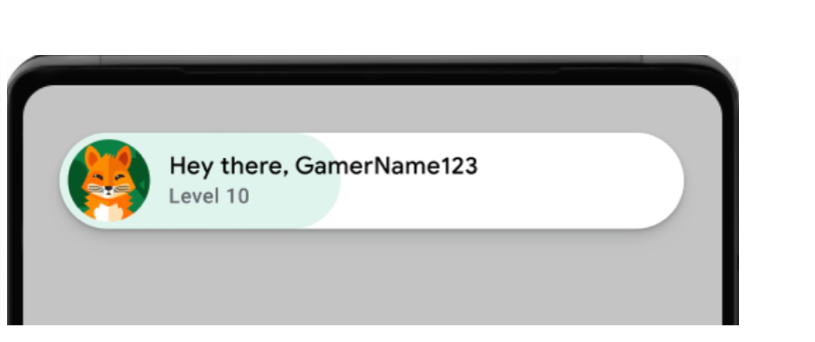
Exemplo de pop-up de boas-vindas (clique para ampliar). As mensagens de registro bem-sucedidas são mostradas. Execute o seguinte comando no terminal:
adb logcat | grep com.google.android.
Uma mensagem de registro bem-sucedida é mostrada no exemplo a seguir:
[
Garantir a consistência do componente da interface.
Os pop-ups, os placares e as conquistas são exibidos de forma correta e consistente em vários tamanhos e orientações de tela na interface dos serviços do Google Play Games.
A opção de sair não está visível na interface dos serviços do Google Play Games.
Verifique se é possível recuperar o ID do jogador e, se aplicável, se os recursos do lado do servidor funcionam conforme o esperado.
Se o jogo usar a autenticação do lado do servidor, teste o fluxo
requestServerSideAccesscompletamente. Verifique se o servidor recebe o código de autenticação e pode trocá-lo por um token de acesso. Teste cenários de sucesso e falha para erros de rede e cenários declient IDinválidos.
Se o jogo estiver usando algum dos recursos a seguir, teste-os para garantir que eles funcionem da mesma forma que antes da migração:
- Classificações: envie pontuações e confira as classificações. Verifique a classificação e a exibição corretas dos nomes e pontuações dos jogadores.
- Conquistas: desbloqueie conquistas e verifique se elas estão registradas corretamente e mostradas na interface do Play Games.
- Jogos salvos: se o jogo usar jogos salvos, verifique se o salvamento e o carregamento do progresso do jogo funcionam perfeitamente. Isso é particularmente importante para testar em vários dispositivos e após atualizações de apps.
Tarefas pós-migração
Conclua as etapas a seguir depois de migrar para o games v2.
Publicar o jogo
Crie os APKs e publique o jogo no Play Console.
- No menu do Android Studio, selecione Build > Build Bundles(s) / APK(s) > Build APK(s).
- Publicar o jogo. Para mais informações, consulte Publicar apps particulares no Play Console.