

במאמר הזה מוסבר איך להעביר משחקים קיימים מ-games v1 SDK ל-games v2 SDK.
לפני שמתחילים
אתם יכולים להשתמש בכל סביבת פיתוח משולבת (IDE) שאתם מעדיפים, כמו Android Studio, כדי להעביר את המשחק. לפני שמעבירים את האפליקציה לגרסה 2 של Games, צריך לבצע את השלבים הבאים:
- הורדה והתקנה של Android Studio
- המשחק צריך להשתמש ב-SDK בגרסה Games v1.
- אפשר לשדרג את המשחק לשימוש בגרסה 1 של ה-SDK למשחקים כדי לבצע את הפעולות הבאות:
com.google.android.gms:play-services-games:24.0.0. לא מומלץ לשדרג לגרסהcom.google.android.gms:play-services-games:25.0.0כי ה-API למשחקים בגרסה 1 הוסר.
עדכון יחסי התלות
בקובץ
build.gradleשל המודול, מחפשים את השורה הזו בהגדרות התלויות ברמת המודול.implementation "com.google.android.gms:play-services-games:+"מחליפים אותו בקוד הבא:
implementation "com.google.android.gms:play-services-games-v2:version"מחליפים את version בגרסה העדכנית ביותר של ערכת ה-SDK למשחקים.
אחרי שמעדכנים את התלות, צריך לוודא שמשלימים את כל השלבים במסמך הזה.
הגדרת מזהה הפרויקט
כדי להוסיף את מזהה הפרויקט של Play Games Services SDK לאפליקציה, מבצעים את השלבים הבאים:
בקובץ
AndroidManifest.xml, מוסיפים את הרכיב<meta-data>ואת המאפיינים הבאים לרכיב<application>:<manifest> <application> <meta-data android:name="com.google.android.gms.games.APP_ID" android:value="@string/game_services_project_id"/> </application> </manifest>מגדירים את הפניה למשאב המחרוזת
@string/game_services_project_idבאמצעות מזהה פרויקט Game services של המשחק כערך. מזהה הפרויקט של Games Services מופיע מתחת לשם המשחק בדף הגדרות ב-Google Play Console.בקובץ
res/values/strings.xml, מוסיפים הפניה למשאב מחרוזת ומגדירים את מזהה הפרויקט כערך. לדוגמה:<!-- res/values/strings.xml --> <resources> <!-- Replace 0000000000 with your game’s project id. Example value shown above. --> <string translatable="false" name="game_services_project_id"> 0000000000 </string> </resources>
מסלולי מעבר
נתיב ההעברה הנכון למשחק שלכם תלוי באופן ההטמעה של Play Games Services v1 ושל הטיפול בזהות השחקן. כדי להבטיח מעבר חלק ולמנוע אובדן של נתוני שחקנים, צריך לזהות את התרחיש שהכי מתאים להגדרה הקיימת ולפעול לפי השלבים המתאימים.
אפשרות 1: למשחקים שבהם IGA מקושר למזהה השחקן ב-Play Games Services
התרחיש הזה רלוונטי למשחקים שהשתמשו בשירותי Play Games Player ID כמזהה היחיד של חשבון במשחק (IGA) של שחקן, ולא ביקשו או שמרו בעבר OpenID. האתגר המרכזי הוא לקשר את מזהה הגיימר הקיים למזהה ראשי (OpenID) בלי לאבד את הקשר להתקדמות של השחקן.
תהליך ההעברה כולל את השלבים הבאים:
- כשהמשחק מופעל, Play Games Services v2 SDK מאמת את הפלטפורמה באופן אוטומטי ובשקט.
להציג מסך כניסה עם לחצן כניסה באמצעות חשבון Google במקום הלחצן Google Play. לדוגמה, ראו CredManBridge.java.
CredManBridge.java
package com.wickedcube.trivialkart; import android.accounts.Account; import android.content.Context; import android.util.Log; import android.os.CancellationSignal; import androidx.credentials.CredentialManager; import androidx.credentials.GetCredentialRequest; import androidx.credentials.GetCredentialResponse; import androidx.credentials.exceptions.GetCredentialException; import androidx.credentials.exceptions.NoCredentialException; import com.google.android.libraries.identity.googleid.GetGoogleIdOption; import com.google.android.libraries.identity.googleid.GoogleIdTokenCredential; import com.google.android.gms.auth.api.identity.AuthorizationClient; import com.google.android.gms.auth.api.identity.AuthorizationRequest; import com.google.android.gms.auth.api.identity.AuthorizationResult; import com.google.android.gms.common.api.ApiException; import com.google.android.gms.auth.api.identity.Identity; import com.google.android.gms.common.api.Scope; import com.unity3d.player.UnityPlayer; import java.util.Collections; import java.util.List; import java.util.concurrent.Executor; import java.util.concurrent.Executors;public class CredManBridge {
// --- MODE 1: SILENT SIGN-IN (Called on Awake) --- // Tries to auto-select an authorized account. If it fails, it does NOT show UI. public static void signInSilent(Context context, String webClientId) { CredentialManager credentialManager = CredentialManager.create(context); CancellationSignal cancellationSignal = new CancellationSignal(); Executor executor = Executors.newSingleThreadExecutor();
Log.d("CredMan", "Attempting Silent Sign-In..."); GetGoogleIdOption silentOption = new GetGoogleIdOption.Builder() .setFilterByAuthorizedAccounts(true) // Strict: Only authorized accounts .setServerClientId(webClientId) .setAutoSelectEnabled(true) // Auto-select if possible .build(); GetCredentialRequest silentRequest = new GetCredentialRequest.Builder() .addCredentialOption(silentOption) .build(); credentialManager.getCredentialAsync( context, silentRequest, cancellationSignal, executor, new androidx.credentials.CredentialManagerCallback<GetCredentialResponse, GetCredentialException>() { @Override public void onResult(GetCredentialResponse result) { Log.d("CredMan", "Silent Sign-In Successful!"); handleSignInResult(context, result, webClientId); } @Override public void onError(GetCredentialException e) { // Send a specific error code so Unity knows to just stay on the Start Screen Log.d("CredMan", "Silent sign-in failed. Keeping UI hidden."); UnityPlayer.UnitySendMessage("AuthManager", "OnSignInError", "SilentFailed"); } } );}
// --- MODE 2: INTERACTIVE SIGN-IN (Called on Button Click) --- // Forces the Account Selection / "Add Account" sheet to appear. public static void signInInteractive(Context context, String webClientId) { CredentialManager credentialManager = CredentialManager.create(context); CancellationSignal cancellationSignal = new CancellationSignal(); Executor executor = Executors.newSingleThreadExecutor();
Log.d("CredMan", "Starting Interactive Sign-In...");

GetGoogleIdOption interactiveOption = new GetGoogleIdOption.Builder()
    .setFilterByAuthorizedAccounts(false) // Show ALL accounts (and "Add Account")
    .setServerClientId(webClientId)
    .setAutoSelectEnabled(false)          // Force the UI to show
    .build();

GetCredentialRequest interactiveRequest = new GetCredentialRequest.Builder()
    .addCredentialOption(interactiveOption)
    .build();

credentialManager.getCredentialAsync(
    context,
    interactiveRequest,
    cancellationSignal,
    executor,
    new androidx.credentials.CredentialManagerCallback<GetCredentialResponse, GetCredentialException>() {
        @Override
        public void onResult(GetCredentialResponse result) {
            Log.d("CredMan", "Interactive Sign-In Successful!");
            handleSignInResult(context, result, webClientId);
        }

        @Override
        public void onError(GetCredentialException e) {
            Log.e("CredMan", "Interactive Sign-In Canceled or Failed", e);
            UnityPlayer.UnitySendMessage("AuthManager", "OnSignInError", "Canceled");
        }
    }
);
}
private static void handleSignInResult(Context context, GetCredentialResponse result, String webClientId) { try { GoogleIdTokenCredential credential = GoogleIdTokenCredential.createFrom(result.getCredential().getData()); String email = credential.getId();
    Account account = new Account(email, "com.google");
    // Requesting GAMES_LITE scope to check for pre-existing V1 grants
    List<Scope> requestedScopes = Collections.singletonList(new Scope("https://www.googleapis.com/auth/games_lite"));

    AuthorizationRequest authRequest = new AuthorizationRequest.Builder()
        .setRequestedScopes(requestedScopes)
        .setAccount(account)
        .requestOfflineAccess(webClientId)
        .build();

    AuthorizationClient authClient = Identity.getAuthorizationClient(context);

    authClient.authorize(authRequest)
        .addOnSuccessListener(authorizationResult -> {
            if (authorizationResult.getServerAuthCode() != null) {
                // CASE 1: RETURNING USER (Success)
                // The user has already granted GAMES_LITE in the past.
                // We got the code directly without showing UI.
                Log.i("CredMan", "PGS v1: Existing grant found. Returning user detected. Auth Code retrieved.");
                UnityPlayer.UnitySendMessage("AuthManager", "OnSignInSuccess", authorizationResult.getServerAuthCode());
            }
            else if (authorizationResult.hasResolution()) {
                // CASE 2: NEW USER (PendingIntent)
                // The user has NOT granted GAMES_LITE before. The API returned a PendingIntent
                // (authorizationResult.getPendingIntent()) to show the consent screen.
                // As per your flow, we DISCARD this intent and do not show UI.
                Log.i("CredMan", "PGS v1: No existing grant (PendingIntent returned). This is a NEW user or they revoked access.");
                Log.i("CredMan", "PGS v1: Discarding PendingIntent. Proceeding as New User.");

                // Notify Unity that this is a "New User" so it can trigger V2 logic instead of failing
                UnityPlayer.UnitySendMessage("AuthManager", "OnSignInError", "NewUser_NoGrant");
            }
            else {
                // Edge Case: No code and no resolution?
                Log.e("CredMan", "PGS v1: Authorization success but no Auth Code or Resolution returned.");
                UnityPlayer.UnitySendMessage("AuthManager", "OnSignInError", "No Auth Code returned");
            }
        })
        .addOnFailureListener(e -> {
            // CASE 3: GENERIC FAILURE
            Log.e("CredMan", "PGS v1: Authorization failed completely.", e);
            UnityPlayer.UnitySendMessage("AuthManager", "OnSignInError", "Authorization Failed: " + e.getMessage());
        });

} catch (Exception e) {
    UnityPlayer.UnitySendMessage("AuthManager", "OnSignInError", "Parsing Error: " + e.getMessage());
}
} }
שליפת שני מזהים שונים כשהשחקן מקיש על הלחצן כניסה באמצעות Google ובוחר חשבון Google:
-
OpenID, שהוא המזהה הראשי לקישור ה-IGA. - Play Games Services
Player ID, שאוחזר באמצעות היקףGAMES_LITE, כדי לחפש את מזהה הגיימר (IGA) של השחקן במערכת העורפית שלכם ולבצע את הקישור. מידע נוסף זמין במאמר שחזורPlayer ID.
-
אפשר לגשת ל-IGA באמצעות תהליך הכניסה באמצעות חשבון Google בהפעלות הבאות של המשחק, בלי שהמשחקים יצטרכו להשתמש ב-
Player IDכמזהה ראשי.
אחזור Player ID
אפשר לבצע את שלב 3 באמצעות הטמעה בצד הלקוח של משחק.
- קוראים ל-Android Credential Manager API כדי שהמשתמש ייכנס באמצעות חשבון Google.
- אחרי שהמשתמש משלים את תהליך הכניסה באמצעות חשבון Google ובוחר חשבון Google, מקבלים אובייקט תוצאה שמכיל את אסימון ה-ID ואת כתובת האימייל.
- יוצרים אובייקט Account מכתובת האימייל.
- שולחים קריאה ל-Authorization API עם ההיקף
GAMES_LITEוהחשבון. - אם בחשבון יש מענק קיים בהיקף
GAMES_LITE, Authorization API מחזיר אסימון ישירות באובייקט התגובה:- משתמשים באסימון התגובה כדי להתקשר לשרתים של Play Games Services ולאחזר את
Player IDשל Play Games Services. - בודקים אם Play Games Services
Player IDמקושר לחשבון במשחק.- הערך הזה מציין משתמש חוזר מגרסה 1 של Play Games Services.
- מקשרים את מזהה GAIA החדש לחשבון הקודם בגרסה 1 של Play Games Services.
- משתמשים באסימון התגובה כדי להתקשר לשרתים של Play Games Services ולאחזר את
- אם לחשבון אין מענק קיים בהיקף
GAMES_LITE, ה-Authorization API מחזיר את השגיאהPendingIntent:- המשמעות היא שלמשתמש אין חשבון קיים מגרסה 1 של שירותי המשחקים של Play.
- אפשר להשליך את
PendingIntentבבטחה בלי להציג ממשק משתמש.
אפשרות 2: למשחקים שכבר מקשרים את IGA ל-OpenID
למפתחים בקבוצה הזו יש את נתיב ההעברה הכי פשוט. אם החשבון במשחק כבר מקושר בעיקר ל-OpenID, צריך רק לבצע את ההעברה הטכנית הרגילה של ה-SDK מגרסה 1 לגרסה 2, כמו שמתואר בשלבים.
מעבר מגרסה שהוצאה משימוש של 'כניסה באמצעות חשבון Google'
מחליפים את המחלקה GoogleSignInClient במחלקה GamesSignInClient.
Java
מאתרים את הקבצים עם הכיתה GoogleSignInClient.
import com.google.android.gms.auth.api.signin.GoogleSignIn;
import com.google.android.gms.auth.api.signin.GoogleSignInClient;
import com.google.android.gms.auth.api.signin.GoogleSignInOptions;

// ... existing code

@Override
public void onCreate(@Nullable Bundle bundle) {
    super.onCreate(bundle);

    // ... existing code

    GoogleSignInOptions signInOption =
        new GoogleSignInOptions.Builder(GoogleSignInOptions.DEFAULT_GAMES_SIGN_IN).build();

    // Client used to sign in to Google services
    GoogleSignInClient googleSignInClient =
        GoogleSignIn.getClient(this, signInOptions);
}
מעדכנים אותו לערך הבא:
import com.google.android.gms.games.PlayGamesSdk;
import com.google.android.gms.games.PlayGames;
import com.google.android.gms.games.GamesSignInClient;

// ... existing code

@Override
public void onCreate(){
    super.onCreate();
    PlayGamesSdk.initialize(this);
    // Client used to sign in to Google services
    GamesSignInClient gamesSignInClient =
        PlayGames.getGamesSignInClient(getActivity());
}
Kotlin
מאתרים את הקבצים עם הכיתה GoogleSignInClient.
import com.google.android.gms.auth.api.signin.GoogleSignIn
import com.google.android.gms.auth.api.signin.GoogleSignInClient
import com.google.android.gms.auth.api.signin.GoogleSignInOptions

// ... existing code

val signInOptions = GoogleSignInOptions.DEFAULT_GAMES_SIGN_IN

// ... existing code

override fun onCreate(savedInstanceState: Bundle?) {
    super.onCreate(savedInstanceState)
    val googleSignInClient: GoogleSignInClient =
        GoogleSignIn.getClient(this, signInOptions)
}
מעדכנים אותו לערך הבא:
import com.google.android.gms.games.PlayGames
import com.google.android.gms.games.PlayGamesSdk
import com.google.android.gms.games.GamesSignInClient

// ... existing code

override fun onCreate(savedInstanceState: Bundle?) {
    super.onCreate(savedInstanceState)
    PlayGamesSdk.initialize(this)
    // client used to sign in to Google services
    val gamesSignInClient: GamesSignInClient =
        PlayGames.getGamesSignInClient(this)
}
עדכון הקוד של GoogleSignIn
GoogleSignIn API לא נתמך ב-SDK של Games v2. מחליפים את קוד ה-API GoogleSignIn ב-API GamesSignInClient, כמו בדוגמה הבאה.
כדי לבקש אסימון גישה בצד השרת, משתמשים בשיטה GamesSignInClient.requestServerSideAccess(). מידע נוסף זמין במאמר עדכון של מחלקות הגישה בצד השרת.
Java
מאתרים את הקבצים עם הכיתה GoogleSignIn.
// Request code used when invoking an external activity.
private static final int RC_SIGN_IN = 9001;

private boolean isSignedIn() {
    GoogleSignInAccount account = GoogleSignIn.getLastSignedInAccount(this);
    GoogleSignInOptions signInOptions =
    GoogleSignInOptions.DEFAULT_GAMES_SIGN_IN;
    return GoogleSignIn.hasPermissions(account, signInOptions.getScopeArray());
}

private void signInSilently() {
    GoogleSignInOptions signInOptions =
        GoogleSignInOptions.DEFAULT_GAMES_SIGN_IN;
    GoogleSignInClient signInClient = GoogleSignIn.getClient(this, signInOptions);
    signInClient
        .silentSignIn()
        .addOnCompleteListener(
            this,
            task -> {
            if (task.isSuccessful()) {
                // The signed-in account is stored in the task's result.
                GoogleSignInAccount signedInAccount = task.getResult();
                showSignInPopup();
            } else {
                // Perform interactive sign in.
                startSignInIntent();
            }
        });
}

private void startSignInIntent() {
    GoogleSignInClient signInClient = GoogleSignIn.getClient(this,
        GoogleSignInOptions.DEFAULT_GAMES_SIGN_IN);
    Intent intent = signInClient.getSignInIntent();
    startActivityForResult(intent, RC_SIGN_IN);
}

@Override
protected void onActivityResult(int requestCode, int resultCode, Intent data) {
    super.onActivityResult(requestCode, resultCode, data);
    if (requestCode == RC_SIGN_IN) {
        GoogleSignInResult result =
        Auth.GoogleSignInApi.getSignInResultFromIntent(data);
        if (result.isSuccess()) {
            // The signed-in account is stored in the result.
            GoogleSignInAccount signedInAccount = result.getSignInAccount();
            showSignInPopup();
        } else {
            String message = result.getStatus().getStatusMessage();
            if (message == null || message.isEmpty()) {
                message = getString(R.string.signin_other_error);
        }
        new AlertDialog.Builder(this).setMessage(message)
            .setNeutralButton(android.R.string.ok, null).show();
        }
    }
}

private void showSignInPopup() {
Games.getGamesClient(requireContext(), signedInAccount)
    .setViewForPopups(contentView)
    .addOnCompleteListener(
        task -> {
            if (task.isSuccessful()) {
                logger.atInfo().log("SignIn successful");
            } else {
                logger.atInfo().log("SignIn failed");
            }
        });
  }
מעדכנים אותו לערך הבא:
private void signInSilently() {
    gamesSignInClient.isAuthenticated().addOnCompleteListener(isAuthenticatedTask -> {
    boolean isAuthenticated =
        (isAuthenticatedTask.isSuccessful() &&
            isAuthenticatedTask.getResult().isAuthenticated());
        if (isAuthenticated) {
            // Continue with Play Games Services
        } else {
            // If authentication fails, either disable Play Games Services
            // integration or
            // display a login button to prompt players to sign in.
            // Use`gamesSignInClient.signIn()` when the login button is clicked.
        }
    });
}

@Override
protected void onResume() {
    super.onResume();
    // When the activity is inactive, the signed-in user's state can change;
    // therefore, silently sign in when the app resumes.
    signInSilently();
}
Kotlin
מאתרים את הקבצים עם הכיתה GoogleSignIn.
// Request codes we use when invoking an external activity.
private val RC_SIGN_IN = 9001

// ... existing code

private fun isSignedIn(): Boolean {
    val account = GoogleSignIn.getLastSignedInAccount(this)
    val signInOptions = GoogleSignInOptions.DEFAULT_GAMES_SIGN_IN
    return GoogleSignIn.hasPermissions(account, *signInOptions.scopeArray)
}

private fun signInSilently() {
    val signInOptions = GoogleSignInOptions.DEFAULT_GAMES_SIGN_IN
    val signInClient = GoogleSignIn.getClient(this, signInOptions)
    signInClient.silentSignIn().addOnCompleteListener(this) { task ->
        if (task.isSuccessful) {
            // The signed-in account is stored in the task's result.
            val signedInAccount = task.result
            // Pass the account to showSignInPopup.
            showSignInPopup(signedInAccount)
        } else {
            // Perform interactive sign in.
            startSignInIntent()
        }
    }
}

private fun startSignInIntent() {
    val signInClient = GoogleSignIn.getClient(this, GoogleSignInOptions.DEFAULT_GAMES_SIGN_IN)
    val intent = signInClient.signInIntent
    startActivityForResult(intent, RC_SIGN_IN)
}

override fun onActivityResult(requestCode: Int, resultCode: Int, data: Intent?) {
    super.onActivityResult(requestCode, resultCode, data)
    if (requestCode == RC_SIGN_IN) {
        val result = Auth.GoogleSignInApi.getSignInResultFromIntent(data)
        if (result.isSuccess) {
            // The signed-in account is stored in the result.
            val signedInAccount = result.signInAccount
            showSignInPopup(signedInAccount) // Pass the account to showSignInPopup.
        } else {
            var message = result.status.statusMessage
            if (message == null || message.isEmpty()) {
                message = getString(R.string.signin_other_error)
        }
        AlertDialog.Builder(this)
            .setMessage(message)
            .setNeutralButton(android.R.string.ok, null)
            .show()
        }
    }
}

private fun showSignInPopup(signedInAccount: GoogleSignInAccount) {
    // Add signedInAccount parameter.
    Games.getGamesClient(this, signedInAccount)
        .setViewForPopups(contentView) // Assuming contentView is defined.
        .addOnCompleteListener { task ->
        if (task.isSuccessful) {
            logger.atInfo().log("SignIn successful")
        } else {
            logger.atInfo().log("SignIn failed")
        }
    }
}
מעדכנים אותו לערך הבא:
private fun signInSilently() {
    gamesSignInClient.isAuthenticated.addOnCompleteListener { isAuthenticatedTask ->
        val isAuthenticated = isAuthenticatedTask.isSuccessful &&
        isAuthenticatedTask.result.isAuthenticated
        if (isAuthenticated) {
            // Continue with Play Games Services
        } else {
            // To handle a user who is not signed in, either disable Play Games Services integration
            // or display a login button. Selecting this button calls `gamesSignInClient.signIn()`.
        }
    }
}

override fun onResume() {
    super.onResume()
    // Since the state of the signed in user can change when the activity is
    // not active it is recommended to try and sign in silently from when the
    // app resumes.
    signInSilently()
}
הוספת הקוד GamesSignInClient
אם האימות של השחקן הצליח, צריך להסיר את לחצן הכניסה ל-Play Games Services מהמשחק. אם המשתמש בוחר לא לבצע אימות כשהמשחק מופעל, צריך להמשיך להציג כפתור עם הסמל של Play Games Services ולהתחיל את תהליך ההתחברות עם GamesSignInClient.signIn().
Java
private void startSignInIntent() {
    gamesSignInClient
        .signIn()
        .addOnCompleteListener( task -> {
            if (task.isSuccessful() && task.getResult().isAuthenticated()) {
                // sign in successful
            } else {
                // sign in failed
            }
        });
  }
Kotlin
private fun startSignInIntent() {
    gamesSignInClient
        .signIn()
        .addOnCompleteListener { task ->
            if (task.isSuccessful && task.result.isAuthenticated) {
                // sign in successful
            } else {
                // sign in failed
            }
        }
  }
הסרת קוד היציאה מהחשבון
הסרת הקוד של GoogleSignInClient.signOut.
מסירים את הקוד שמוצג בדוגמה הבאה:
Java
// ... existing code

private void signOut() {
    GoogleSignInClient signInClient = GoogleSignIn.getClient(this,
    GoogleSignInOptions.DEFAULT_GAMES_SIGN_IN);
    signInClient.signOut().addOnCompleteListener(this,
    new OnCompleteListener() {
        @Override
        public void onComplete(@NonNull Task task) {
           // At this point, the user is signed out.
        }
    });
}
Kotlin
// ... existing code

private fun signOut() {
    val signInClient = GoogleSignIn.getClient(this, GoogleSignInOptions.DEFAULT_GAMES_SIGN_IN)
    signInClient.signOut().addOnCompleteListener(this) {
    // At this point, the user is signed out.
    }
}
בדיקה שהאימות בוצע בהצלחה
כדי לבדוק אם האימות בוצע באופן אוטומטי, מוסיפים את הקוד הבא ומוסיפים את הלוגיקה המותאמת אישית אם היא זמינה.
Java
private void checkIfAutomaticallySignedIn() {
gamesSignInClient.isAuthenticated().addOnCompleteListener(isAuthenticatedTask -> {
boolean isAuthenticated =
    (isAuthenticatedTask.isSuccessful() &&
    isAuthenticatedTask.getResult().isAuthenticated());

    if (isAuthenticated) {
        // Continue with Play Games Services
        // If your game requires specific actions upon successful sign-in,
        // you can add your custom logic here.
        // For example, fetching player data or updating UI elements.
    } else {
        // Show a login button to ask  players to sign-in. Clicking it should
        // call GamesSignInClient.signIn().
        }
    });
}
Kotlin
private void checkIfAutomaticallySignedIn() {
gamesSignInClient.isAuthenticated()
    .addOnCompleteListener { task ->
    val isAuthenticated = task.isSuccessful && task.result?.isAuthenticated ?: false

        if (isAuthenticated) {
            // Continue with Play Games Services
        } else {
            // Disable your integration or show a login button
        }
    }
}
עדכון שמות ושיטות של מחלקות לקוח
כשעוברים לגרסה Games v2, השיטות שמשמשות לקבלת שמות המחלקות של הלקוח שונות. במקום השיטות Games.getxxxClient(), צריך להשתמש בשיטות התואמות PlayGames.getxxxClient().
לדוגמה, במקום להשתמש בשיטה Games.getLeaderboardsClient(), צריך להשתמש ב-PlayGames.getLeaderboardsClient() עבור LeaderboardsClient.
צריך להסיר את כל הקוד שקשור למחלקות GamesClient ו-GamesMetadataClient, כי אין לנו מחלקות חלופיות בגרסה 2 של Games.
Java
מאתרים את הקוד של LeaderboardsClient.
import com.google.android.gms.games.LeaderboardsClient;
import com.google.android.gms.games.Games;

@Override
public void onCreate(@Nullable Bundle bundle) {
    super.onCreate(bundle);
        // Get the leaderboards client using Play Games services.
    LeaderboardsClient leaderboardsClient = Games.getLeaderboardsClient(this,
        GoogleSignIn.getLastSignedInAccount(this));
}
מעדכנים אותו לערך הבא:
import com.google.android.gms.games.LeaderboardsClient;
import com.google.android.gms.games.PlayGames;

 @Override
public void onCreate(@Nullable Bundle bundle) {
    super.onCreate(bundle);
        // Get the leaderboards client using Play Games services.
        LeaderboardsClient leaderboardsClient = PlayGames.getLeaderboardsClient(getActivity());
}
Kotlin
מאתרים את הקוד של LeaderboardsClient.
import com.google.android.gms.games.LeaderboardsClient
import com.google.android.gms.games.Games
// Initialize the variables.
private lateinit var leaderboardsClient: LeaderboardsClient

override fun onCreate(savedInstanceState: Bundle?) {
    super.onCreate(savedInstanceState)
    leaderboardsClient = Games.getLeaderboardsClient(this,
        GoogleSignIn.getLastSignedInAccount(this))
}
מעדכנים אותו לערך הבא:
import com.google.android.gms.games.LeaderboardsClient
import com.google.android.gms.games.PlayGames
    // Initialize the variables.
private lateinit var leaderboardsClient: LeaderboardsClient

override fun onCreate(savedInstanceState: Bundle?) {
    super.onCreate(savedInstanceState)
    leaderboardsClient = PlayGames.getLeaderboardsClient(this)
}
באופן דומה, צריך להשתמש בשיטות המתאימות ללקוחות הבאים: AchievementsClient, EventsClient, GamesSignInClient, PlayerStatsClient, RecallClient, SnapshotsClient או PlayersClient.
עדכון של מחלקות הגישה בצד השרת
כדי לבקש אסימון גישה בצד השרת, צריך להשתמש ב-method GamesSignInClient.requestServerSideAccess() במקום ב-method GoogleSignInAccount.getServerAuthCode().
מידע נוסף זמין במאמר בנושא שליחת קוד הרשאה לשרת.
בדוגמה הבאה אפשר לראות איך מבקשים אסימון גישה בצד השרת.
Java
מאתרים את הקוד של הכיתה GoogleSignInOptions.
    private static final int RC_SIGN_IN = 9001;
    private GoogleSignInClient googleSignInClient;

    private void startSignInForAuthCode() {
        /** Client ID for your backend server. */
        String webClientId = getString(R.string.webclient_id);
        GoogleSignInOptions signInOption = new GoogleSignInOptions.Builder(GoogleSignInOptions.DEFAULT_GAMES_SIGN_IN)
            .requestServerAuthCode(webClientId)
            .build();

        GoogleSignInClient signInClient = GoogleSignIn.getClient(this, signInOption);
        Intent intent = signInClient.getSignInIntent();
        startActivityForResult(intent, RC_SIGN_IN);
    }

    /** Auth code to send to backend server */
    private String mServerAuthCode;

    @Override
    protected void onActivityResult(int requestCode, int resultCode, Intent data) {
        super.onActivityResult(requestCode, resultCode, data);
        if (requestCode == RC_SIGN_IN) {
            GoogleSignInResult result = Auth.GoogleSignInApi.getSignInResultFromIntent(data);
        if (result.isSuccess()) {
            mServerAuthCode = result.getSignInAccount().getServerAuthCode();
        } else {
            String message = result.getStatus().getStatusMessage();
            if (message == null || message.isEmpty()) {
                message = getString(R.string.signin_other_error);
            }
            new AlertDialog.Builder(this).setMessage(message)
                .setNeutralButton(android.R.string.ok, null).show();
        }
      }
    }
מעדכנים אותו לערך הבא:
  private void startRequestServerSideAccess() {
      GamesSignInClient gamesSignInClient = PlayGames.getGamesSignInClient(this);
      gamesSignInClient
          .requestServerSideAccess(OAUTH_2_WEB_CLIENT_ID,
           /* forceRefreshToken= */ false, /* additional AuthScope */ scopes)
          .addOnCompleteListener(task -> {
              if (task.isSuccessful()) {
                  AuthResponse authresp = task.getResult();
                  // Send the authorization code as a string and a
                  // list of the granted AuthScopes that were granted by the
                  // user. Exchange for an access token.
                  // Verify the player with Play Games Services REST APIs.
              } else {
                // Authentication code retrieval failed.
              }
        });
  }
Kotlin
מאתרים את הקוד של הכיתה GoogleSignInOptions.
  // ... existing code

  private val RC_SIGN_IN = 9001
  private lateinit var googleSignInClient: GoogleSignInClient

  // Auth code to send to backend server.
  private var mServerAuthCode: String? = null

  private fun startSignInForAuthCode() {
      // Client ID for your backend server.
      val webClientId = getString(R.string.webclient_id)

      val signInOption = GoogleSignInOptions.Builder(GoogleSignInOptions.DEFAULT_GAMES_SIGN_IN)
          .requestServerAuthCode(webClientId)
          .build()

      googleSignInClient = GoogleSignIn.getClient(this, signInOption)
      val intent = googleSignInClient.signInIntent
      startActivityForResult(intent, RC_SIGN_IN)
  }

  override fun onActivityResult(requestCode: Int, resultCode: Int, data: Intent?) {
      super.onActivityResult(requestCode, resultCode, data)
      if (requestCode == RC_SIGN_IN) {
          val result = Auth.GoogleSignInApi.getSignInResultFromIntent(data)
          if (result.isSuccess) {
              mServerAuthCode = result.signInAccount.serverAuthCode
          } else {
              var message = result.status.statusMessage
              if (message == null || message.isEmpty()) {
                  message = getString(R.string.signin_other_error)
              }
              AlertDialog.Builder(this).setMessage(message)
                  .setNeutralButton(android.R.string.ok, null).show()
            }
        }
  }
מעדכנים אותו לערך הבא:
  private void startRequestServerSideAccess() {
  GamesSignInClient gamesSignInClient = PlayGames.getGamesSignInClient(this);
      gamesSignInClient
          .requestServerSideAccess(OAUTH_2_WEB_CLIENT_ID, /* forceRefreshToken= */ false,
          /* additional AuthScope */ scopes)
          .addOnCompleteListener(task -> {
              if (task.isSuccessful()) {
                  AuthResponse authresp = task.getResult();
                  // Send the authorization code as a string and a
                  // list of the granted AuthScopes that were granted by the
                  // user. Exchange for an access token.
                  // Verify the player with Play Games Services REST APIs.
              } else {
                // Authentication code retrieval failed.
              }
        });
  }
העברה מ-GoogleApiClient
יכול להיות שהמשחק שלכם מסתמך על וריאציה של API GoogleApiClient של Play Games Services SDK, אם מדובר בשילובים קיימים ישנים יותר. ה-API הזה הוצא משימוש בסוף 2017 והוחלף בלקוחות 'ללא חיבור'. כדי לבצע מיגרציה, אפשר להחליף את המחלקה GoogleApiClient במחלקה מקבילה 'ללא חיבור'. בטבלה הבאה מפורטים מיפויי המחלקות הנפוצים מגרסה 1 של Games לגרסה 2 של Games:
| משחקים גרסה 2 (נוכחית) | משחקים גרסה 1 (דור קודם) |
|---|---|
| com.google.android.gms.games.AchievementsClient | com.google.android.gms.games.achievement.Achievements |
| com.google.android.gms.games.LeaderboardsClient | com.google.android.gms.games.leaderboard.Leaderboard |
| com.google.android.gms.games.SnapshotsClient | com.google.android.gms.games.snapshot.Snapshots |
| com.google.android.gms.games.PlayerStatsClient | com.google.android.gms.games.stats.PlayerStats |
| com.google.android.gms.games.PlayersClient | com.google.android.gms.games.Players |
| com.google.android.gms.games.GamesClientStatusCodes | com.google.android.gms.games.GamesStatusCodes |
איך בונים ומריצים את המשחק
הוראות ליצירת build והרצה ב-Android Studio זמינות במאמר יצירת build והרצה של האפליקציה.
בדיקה של המשחק
כדי לוודא שהמשחק פועל כמו שתכננתם, אתם צריכים לבדוק אותו. הבדיקות שתבצעו תלויות בתכונות של המשחק.
ריכזנו כאן רשימה של בדיקות נפוצות שכדאי להריץ.
הכניסה בוצעה בהצלחה.
הכניסה האוטומטית פועלת. המשתמש צריך להיות מחובר ל-Play Games Services כשהמשחק מופעל.
מוצג חלון קופץ עם הודעת הפתיחה.
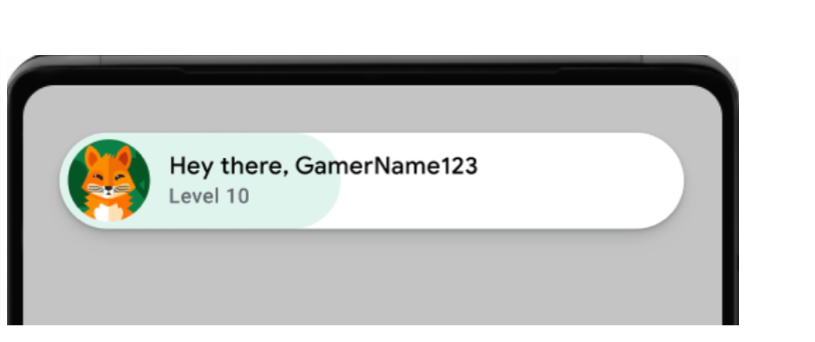
דוגמה לחלון קופץ של הודעת פתיחה (לוחצים כדי להגדיל). יוצגו הודעות יומן לגבי פעולות שבוצעו בהצלחה. מריצים את הפקודה הבאה במסוף:
adb logcat | grep com.google.android.
בדוגמה הבאה מוצגת הודעה ביומן שמעידה על הצלחה:
[
שמירה על עקביות ברכיבי ממשק המשתמש.
הפריטים הקופצים, לוחות הלידרבורד וההישגים מוצגים בצורה נכונה ועקבית בגדלים ובכיוונים שונים של מסכים בממשק המשתמש של Play Games Services.
אפשרות היציאה מהחשבון לא מוצגת בממשק המשתמש של Play Games Services.
מוודאים שאפשר לאחזר את מזהה השחקן, ואם רלוונטי, שהיכולות בצד השרת פועלות כמצופה.
אם המשחק משתמש באימות בצד השרת, צריך לבדוק היטב את התהליך
requestServerSideAccess. מוודאים שהשרת מקבל את קוד ההרשאה ויכול להחליף אותו באסימון גישה. בודקים תרחישים של הצלחה ושל כישלון לשגיאות ברשת, תרחישים לא חוקיים שלclient ID.
אם המשחק שלכם השתמש באחת מהתכונות הבאות, כדאי לבדוק אותן כדי לוודא שהן פועלות כמו לפני ההעברה:
- טבלאות מובילים: שליחת ציונים וצפייה בטבלאות מובילים. בדיקה שהדירוג נכון ושהשמות והציונים של השחקנים מוצגים.
- הישגים: ביטול נעילה של הישגים ואימות שהם נרשמים ומוצגים בצורה נכונה בממשק המשתמש של Play Games.
- משחקים שמורים: אם המשחק משתמש במשחקים שמורים, חשוב לוודא שהשמירה והטעינה של ההתקדמות במשחק פועלות בצורה חלקה. חשוב במיוחד לבדוק את זה בכמה מכשירים ואחרי עדכוני אפליקציה.
משימות אחרי ההעברה
אחרי המעבר לגרסה 2 של games, צריך לבצע את השלבים הבאים.
פרסום המשחק
יוצרים את קובצי ה-APK ומפרסמים את המשחק ב-Play Console.
- בתפריט של Android Studio, בוחרים באפשרות Build (בנייה) > Build Bundles(s) / APK(s) (בניית חבילות או קובצי APK) > Build APK(s) (בניית קובצי APK).
- מפרסמים את המשחק. מידע נוסף זמין במאמר בנושא פרסום אפליקציות פרטיות מ-Play Console.