
Play Games Sidekick is an overlay that helps players stay in your game by delivering relevant content and offers directly to players.
- User retention with Gemini Live and tips, so players don't need to leave the game for help or advice.
- Increased monetization with in-the-moment Points exchange, Play-funded offers, and Pass coupons.
- Rewarded gameplay with integrated streaks, quests, and profile interactions.
- Deeper engagement with content and videos.
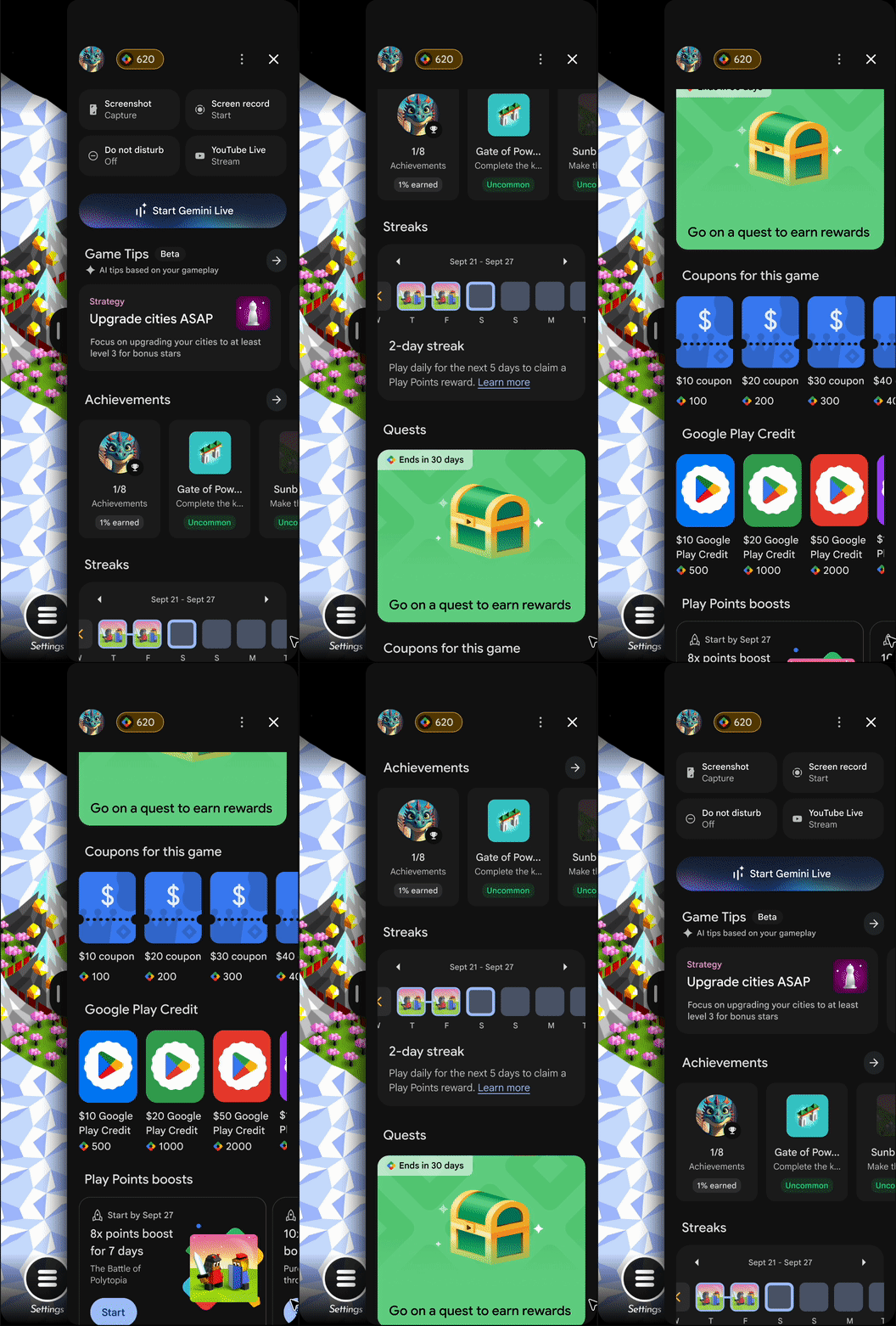
Features
Available features on Sidekick will vary by game, depending on your Google Play Games Services integration status and Play Points enrollment. Players can expect the following features:
- Gaming utilities: Screenshot, screen record, YouTube Livestream, and Do Not Disturb.
- Achievements: Requires implementation of achievements.
- Gaming streaks: Gaming streaks.
- Play Points credit exchange.
- Play Points boosters and coupons: Available to enrolled Play Points developers.
- Play Pass benefits and offers.
- Quests: Quests are available to enrolled Quest developers.
- Official and Creator Videos: Sidekick shows the videos that you add. For more information about how to add videos on Play Store and Sidekick, see Showcase your app with YouTube videos on Google Play.
Software and hardware requirements
To access Sidekick, players need the following:
- A mobile phone running Android 13 or higher.
- Players must have one Gamer profile.
- The game must be installed from the Play Store.
Try Sidekick
To enable Sidekick for your game, follow these steps:
Make Sidekick default on for your game
Create an internal or closed testing release in the Play Console to test pre-release versions of your game with Sidekick and gather targeted feedback. Note that while testing in a closed beta track doesn't offer a direct comparison for performance metrics, it remains a valid method for basic functional testing of your Sidekick integration.
Once you've tested with a smaller group of colleagues or trusted users, you can expand your test to an open release.
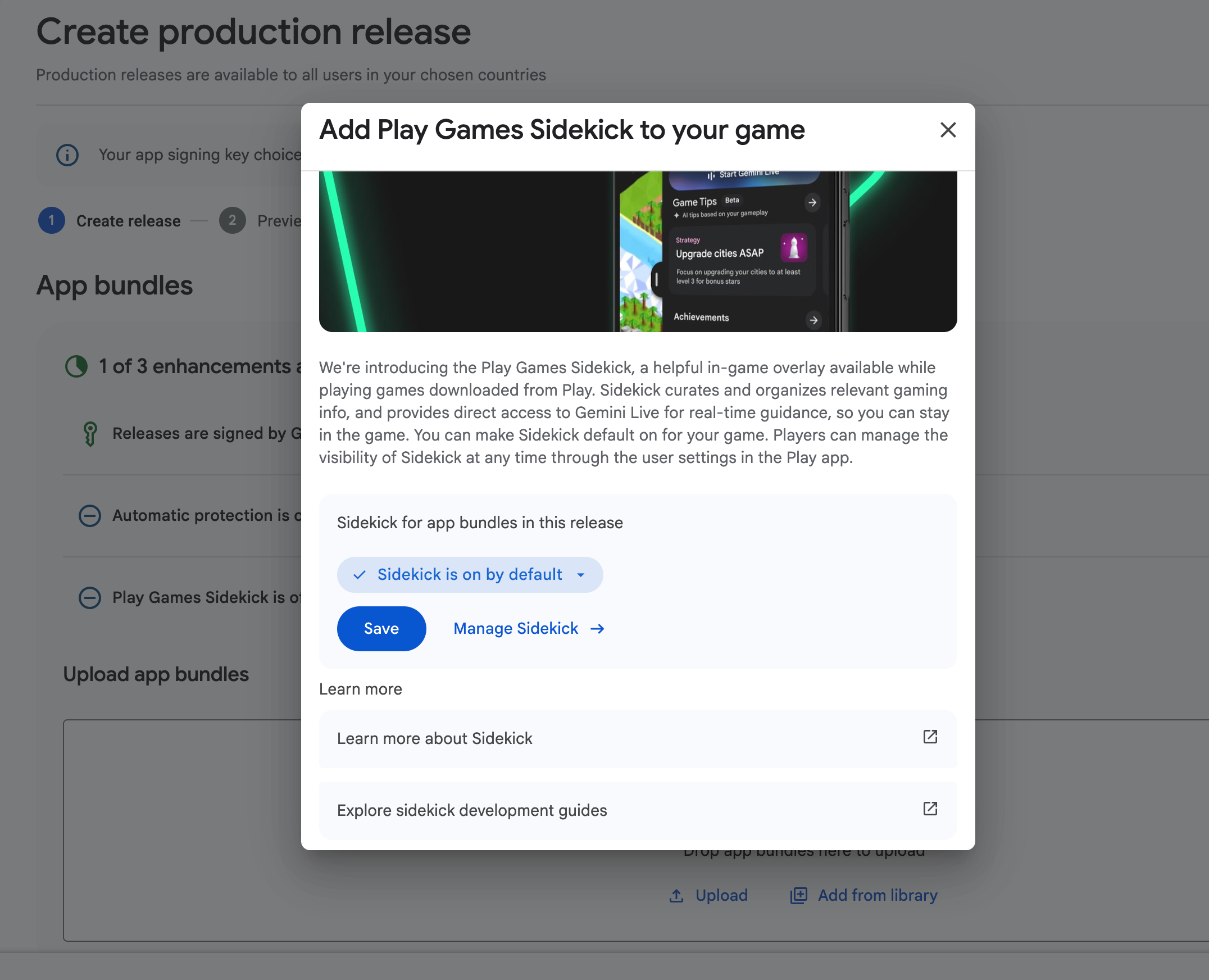
- In the Play Console, set up an internal or a closed testing release.
- To add Play Games Sidekick to your app bundle, select Sidekick is on by default.
- Conduct your testing.
- Once ready, release the build to production. For more information, see Prepare a release in phases.
Players can manage the visibility of Sidekick at any time through the user settings in the Play Store.
Safely test Sidekick
When integrating Sidekick, ensure the overlay integrates seamlessly into your game, maintains a consistent player experience, and doesn't negatively affect key metrics such as game health (Crashes/ANRs), engagement, and revenue. To establish a performance baseline before a full launch, use a 5% staged rollout.
This testing playbook lets you run a concurrent comparison in your production environment, minimizing risk while verifying the success of your integration.
The 5% staged rollout playbook
By releasing Sidekick to a small, controlled segment of your audience, you can isolate its impact by tracking metrics against your new game version.
- Prepare your release: Integrate the Sidekick SDK into your game and prepare a new release build.
- Start a staged rollout: Publish your new build to the Production track using a 5% staged rollout in the Google Play Console. This exposes the Sidekick integration to a small fraction of your player base in real-time.
- Isolate by app version: Ensure that your analytics tools are configured to filter data specifically for the app version containing the Sidekick integration.
Monitor performance and metrics
During the 5% staged rollout, monitor your game's performance and ensure your core metrics remain stable by using a combination of the Google Play Console and your own analytics setup. When monitoring your staged rollout, focus on the following:
- Track engagement and game stability: Use the Google Play Console to ensure that your Android vitals (such as crash rates and ANRs) and player engagement metrics remain stable for the new app version.
- Track revenue consistency: Monitor your revenue and IAP metrics closely using your existing analytics infrastructure, such as Google Analytics or your internal Business Intelligence (BI) tools. Compare the 5% cohort that has access to Sidekick against the rest of your production traffic to ensure your core monetization remains stable.
Once you have verified that Sidekick successfully complements your revenue, engagement, and stability during the 5% staged rollout, you can confidently proceed to ramp up your release to 100% of your players.
Manage Sidekick visibility on your device for testing
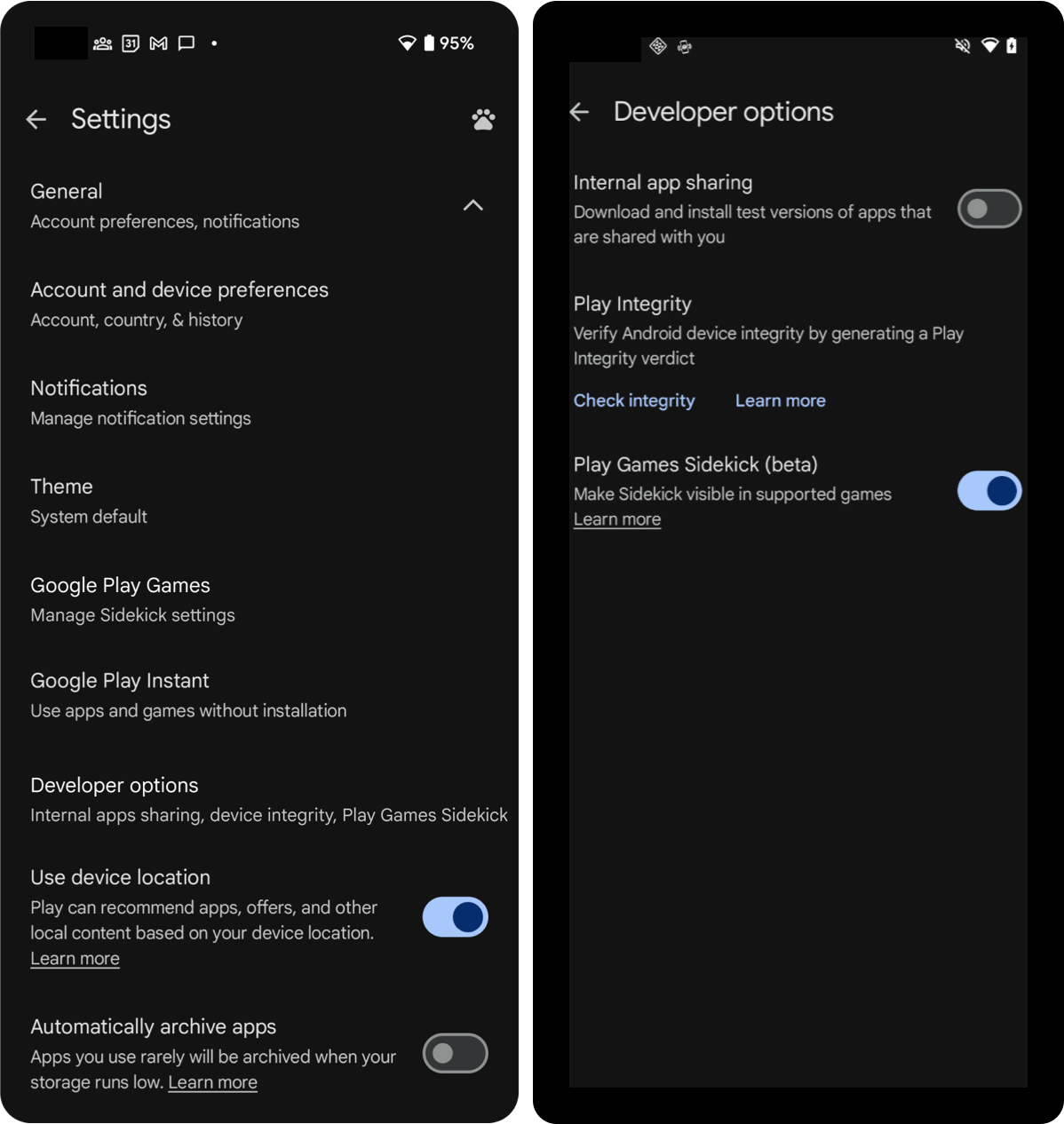
Once the release is available to your testers in the Play Console, follow these steps to enable Play Store developer options on the device:
- Open Google Play Store app.
- Tap your profile icon and then tap Settings.
- Tap the About menu.
- Tap the Play Store version 7 times until you see the message
You are
now a developer!
. This enables developer options on your device. - Tap General and then tap Developer options.
- Turn on Play Games Sidekick.
- Go to your game to see Sidekick appear.
Configure snooze duration for entry point
By default, the Play Games Sidekick entry point displays immediately. You can snooze the ingame entry point for a configured custom duration in the XML_RESOURCE_FILE.
In the
AndroidManifest.xmlfile, add the following<meta-data>element to the<application>element:<manifest> <application> <meta-data android:name="com.google.android.finsky.deku.OVERLAY_CONFIG" android:resource="@xml/XML_RESOURCE_FILE"/> </application> </manifest>
Specify the snooze duration in the XML_RESOURCE_FILE.
Sample file (res/xml/XML_RESOURCE_FILE.xml):
<?xml version="1.0" encoding="utf-8"?>
<deku-config>
  <!-- Entrypoint default position overrides -->
  <default-entrypoint-position orientation="landscape" value="MIDDLE_LEFT" />
  <default-entrypoint-position orientation="portrait" value="TOP_RIGHT" />

  <!-- Custom Snooze Period -->
  <snooze duration_seconds="300" />

  <!-- Extensible: Add new configuration fields here as needed -->
</deku-config>
Custom snooze duration is capped at 30 minutes. If you specify a value that exceeds this threshold, the system automatically defaults to the 30-minute limit.
Automatically add Sidekick to all bundle uploads
When you create a release and make Sidekick default on for your game, Sidekick is added to all of your future app bundles.
To change if Sidekick is on by default for all new app bundles you upload, follow these steps:
- Open Play Console.
- Select a game.
- Go to Testing > Advanced settings.
- On the Play Games Sidekick tab, select either
- Automatically make Sidekick is on by default for new app bundles you upload.
- Don't automatically make Sidekick default on for new app bundles you upload.
- Select Save changes.
If your app updates are infrequent, we may periodically update the Sidekick for you. You can opt out of Sidekick using the advanced settings in the Google Play Console at any time.
Promote Sidekick to production
If you promote a release containing Sidekick to production, players will see Sidekick. Players can manage the visibility of Sidekick at any time through the user settings in the Play Store app.
Games that promote a release with Sidekick satisfy the Level Up guidelines.
Give feedback
For any feedback on Sidekick, use the feedback form.
Frequently asked questions
Can you add Sidekick to your game using the Publishing API?
You can add Sidekick to your game even if you publish using the Google Play Developer Publishing API. First, automatically add Sidekick to all bundle uploads, and then continue your normal release process. Sidekick will be added to your Android App Bundle.
My game does not use Android App Bundles (AAB), what should I do?
Sidekick is added to games when you upload a new Android App Bundle.
If you are using APKs, add the Sidekick SDK as a dependency.
My game uses an anti-tampering product. Is Sidekick compatible with my solution?
We have been working with leading companies to ensure Sidekick compatibility.
If you are using an incompatible anti-tampering product, add the Sidekick SDK as a dependency to your APK. If you have other questions, request support.
Why are achievements not appearing in Sidekick?
If achievements aren't appearing as expected, check the following:
- Draft status: Achievements in "Draft" state aren't shown in the Sidekick.
- Achievement badge: Locked achievements are only visible to all players if the game has earned an achievements badge. This requires at least 100 unique players to have made calls to the achievements API within the last 30 days.
- Unlocked: If the game hasn't earned a badge, players see achievements they have already unlocked.