

컨트롤러에는 두 가지 작업이 있습니다.
KeyEvent'켜짐' 및 '꺼짐'의 바이너리 상태가 있는 모든 버튼에 사용되는 "on" 및 "off"MotionEvent값 범위를 반환하는 모든 축에 사용되는 예를 들어 아날로그 스틱의 경우 -1~1, 아날로그 트리거의 경우 0~1입니다.
focus가 있는 View에서 이러한 입력을 읽을 수 있습니다.
onGenericMotionEvent은(는) 모든MotionEvent에 대해 발생합니다.
Kotlin
override fun onKeyDown(keyCode: Int, event: KeyEvent): Boolean {
  if (event.isFromSource(SOURCE_GAMEPAD)
      && event.repeatCount == 0
  ) {
      Log.d("GameView", "Gamepad key pressed: $keyCode")
      return true
  }

  return super.onKeyDown(keyCode, event)
}

override fun onGenericMotionEvent(event: MotionEvent): Boolean {
  if (event.isFromSource(SOURCE_JOYSTICK)) {
      Log.d("GameView", "Gamepad event: $event")
      return true
  }

  return super.onGenericMotionEvent(event)
}
자바
@Override
public boolean onKeyDown(int keyCode, KeyEvent event) {
  if (event.isFromSource(SOURCE_GAMEPAD)
          && event.getRepeatCount() == 0
  ) {
      Log.d("GameView", "Gamepad key pressed: " + keyCode);
      return true;
  }

  return super.onKeyDown(keyCode, event);
}

@Override
public boolean onGenericMotionEvent(MotionEvent event) {
  if (event.isFromSource(SOURCE_JOYSTICK)) {
      Log.d("GameView", "Gamepad event: " + event);
      return true;
  }
  return super.onGenericMotionEvent(event);
}
필요한 경우 Activity에서 직접 이벤트를 읽을 수도 있습니다.
dispatchGenericMotionEvent은 모든MotionEvent에 대해 발생합니다.dispatchKeyEvent. 모든KeyEvent에 대해 발생합니다.
게임 컨트롤러가 연결되어 있는지 확인
입력 이벤트를 보고할 때 Android는 여러 입력 기기 유형에 동일한 키 또는 축 ID를 재사용합니다. 예를 들어 터치 스크린 작업에서는 터치 스크린의 X
좌표를 나타내는
AXIS_X 이벤트가 발생하지만, 게임패드에서는 왼쪽 스틱의 X
위치를 나타내는
AXIS_X 이벤트가 발생합니다. 즉, 입력 이벤트를 올바르게 해석하려면 소스 유형을 확인해야 합니다.
연결된 InputDevice가 게임 컨트롤러인지 확인하려면
supportsSource(int) 함수를 사용하세요.
SOURCE_GAMEPAD의 소스 유형은 입력 장치에 컨트롤러 버튼 (예:KEYCODE_BUTTON_A)이 있음을 나타냅니다. 이 소스 유형은 게임 컨트롤러에 D패드 버튼이 있는지 확실히 표시하지 않습니다. 다만 대부분의 컨트롤러에는 일반적으로 방향 컨트롤이 있습니다.SOURCE_DPAD의 소스 유형은 입력 기기에 D패드 버튼 (예:DPAD_UP)이 있는지 나타냅니다.SOURCE_JOYSTICK의 소스 유형은 입력 기기에 아날로그 컨트롤 스틱 (예:AXIS_X및AXIS_Y를 따라 이동을 기록하는 조이스틱)이 있음을 나타냅니다.
다음의 코드 스니펫은 연결된 입력 기기가 게임 컨트롤러인지 확인할 수 있도록 도와주는 메서드를 보여줍니다. 입력 기기가 게임 컨트롤러라면 이 메서드는 게임 컨트롤러의 기기 ID를 가져옵니다. 그런 다음 각 기기 ID를 게임 플레이어에 연결하고 연결된 플레이어별로 게임 작업을 처리 할 수 있습니다. 동일한 Android 지원 기기에 동시에 연결된 여러 게임 컨트롤러를 지원하는 방법에 관한 자세한 내용은 여러 게임 컨트롤러 지원을 참조하세요.
Kotlin
fun getGameControllerIds(): List<Int> {
  val gameControllerDeviceIds = mutableListOf<Int>()
  val deviceIds = InputDevice.getDeviceIds()
  deviceIds.forEach { deviceId ->
      InputDevice.getDevice(deviceId)?.apply {

          // Verify that the device has gamepad buttons, control sticks, or both.
          if (supportsSource(SOURCE_GAMEPAD)
              || supportsSource(SOURCE_JOYSTICK)) {
              // This device is a game controller. Store its device ID.
              gameControllerDeviceIds
                  .takeIf { !it.contains(deviceId) }
                  ?.add(deviceId)
          }
      }
  }
  return gameControllerDeviceIds
}
자바
 public ArrayList<Integer> getGameControllerIds() {
  ArrayList<Integer> gameControllerDeviceIds = new ArrayList<Integer>();
  int[] deviceIds = InputDevice.getDeviceIds();
  for (int deviceId : deviceIds) {
      InputDevice dev = InputDevice.getDevice(deviceId);

      if (dev == null) {
          continue;
      }

      // Verify that the device has gamepad buttons, control sticks, or both.
      if (dev.supportsSource(SOURCE_GAMEPAD) || dev.supportsSource(SOURCE_JOYSTICK)) {
          // This device is a game controller. Store its device ID.
          if (!gameControllerDeviceIds.contains(deviceId)) {
              gameControllerDeviceIds.add(deviceId);
          }
      }
  }
  return gameControllerDeviceIds;
}
컨트롤러 입력 처리
이 섹션에서는 Android에서 지원되는 게임 컨트롤러의 유형을 설명합니다.
C++ 개발자는 게임 컨트롤러 라이브러리를 사용해야 합니다. 이 라이브러리는 모든 컨트롤러를 가장 일반적인 기능 하위 집합으로 통합하고 버튼 레이아웃을 감지하는 기능을 비롯하여 컨트롤러 간에 일관된 인터페이스를 제공합니다.
이 그림은 Android 게임 개발자가 Android에서 일반적인 컨트롤러가 어떻게 표시될 것으로 예상할 수 있는지 보여줍니다.
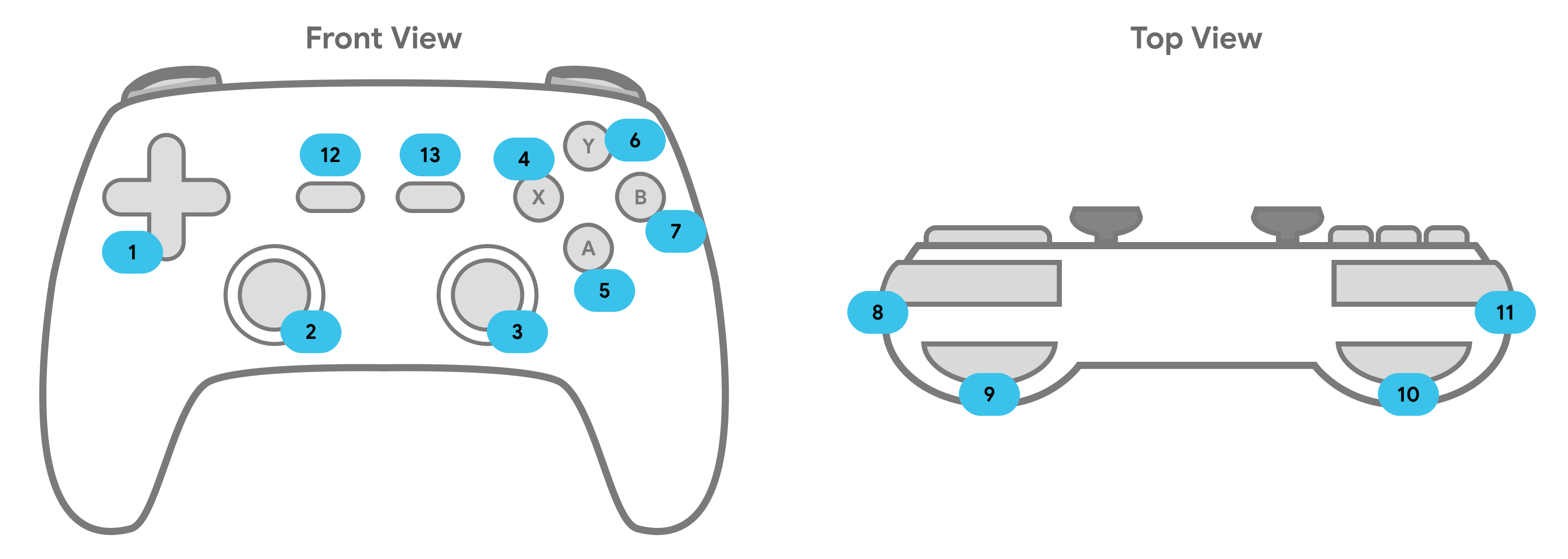
이 표에는 게임 컨트롤러의 표준 이벤트 이름과 유형이 나와 있습니다. 전체 이벤트 목록은 일반적인 변형을 참조하세요. 시스템은 MotionEvent 이벤트를 onGenericMotionEvent를 통해 전송하고 KeyEvent 이벤트를 onKeyDown 및 onKeyUp를 통해 전송합니다.
| 컨트롤러 입력 | KeyEvent | MotionEvent |
|---|---|---|
| 1. D패드 |
AXIS_HAT_X(수평 입력) AXIS_HAT_Y(수직 입력) |
|
| 2. 왼쪽 아날로그 스틱 |
KEYCODE_BUTTON_THUMBL(눌렀을 때) |
AXIS_X(수평 이동) AXIS_Y(수직 이동) |
| 3. 오른쪽 아날로그 스틱 |
KEYCODE_BUTTON_THUMBR(눌렀을 때) |
AXIS_Z(수평 이동) AXIS_RZ(수직 이동) |
| 4. X 버튼 | KEYCODE_BUTTON_X |
|
| 5. A 버튼 | KEYCODE_BUTTON_A |
|
| 6. Y 버튼 | KEYCODE_BUTTON_Y |
|
| 7. B 버튼 | KEYCODE_BUTTON_B |
|
| 8. 오른쪽 범퍼 |
KEYCODE_BUTTON_R1 |
|
| 9. 오른쪽 트리거 |
AXIS_RTRIGGER |
|
| 10. 왼쪽 트리거 | AXIS_LTRIGGER |
|
| 11. 왼쪽 범퍼 | KEYCODE_BUTTON_L1 |
|
| 12. 시작 | KEYCODE_BUTTON_START |
|
| 13. 선택 | KEYCODE_BUTTON_SELECT |
버튼 누르기 처리
Android는 컨트롤러 버튼 누르기를 키보드 버튼 누르기와 동일하게 보고하므로 다음을 실행해야 합니다.
- 이벤트가
SOURCE_GAMEPAD에서 발생했는지 확인합니다. -
KeyEvent.getRepeatCount()를 사용하여 버튼을 한 번만 수신해야 합니다. Android는 키보드 키를 길게 누른 경우와 마찬가지로 반복 키 이벤트를 전송합니다. true를 반환하여 이벤트가 처리되었음을 나타냅니다.처리되지 않은 이벤트를
super에 전달하여 Android의 다양한 호환성 레이어가 적절하게 작동하는지 확인합니다.Kotlin
class GameView : View {
// ...
override fun onKeyDown(keyCode: Int, event: KeyEvent): Boolean {
    event.apply {
        var handled = false

        // make sure we're handling gamepad events
        if (isFromSource(SOURCE_GAMEPAD)) {

            // avoid processing the keycode repeatedly
            if (repeatCount == 0) {
                when (keyCode) {
                    // handle the "A" button
                    KEYCODE_BUTTON_A -> {
                      handled = true
                    }
                }
                // ...
            }
        }
        if (handled) {
            return true
        }
   }
   return super.onKeyDown(keyCode, event)
  }
}
자바
public class GameView extends View {
// ...

@Override
public boolean onKeyDown(int keyCode, KeyEvent event) {
    boolean handled = false;
    // make sure we're handling gamepad events
    if (event.isFromSource(SOURCE_GAMEPAD)) {
        // avoid processing the keycode repeatedly
        if (event.getRepeatCount() == 0) {
            switch (keyCode) {
                case KEYCODE_BUTTON_A:
                    // handle the "A" button
                    handled = true;
                    break;
                // ...
            }
        }
        // mark this event as handled
        if (handled) {
            return true;
        }
    }
    // Always do this instead of "return false"
    // it allows Android's input compatibility layers to work
    return super.onKeyDown(keyCode, event);
  }
}
방향 패드 입력 처리
4방향 패드 또는 D패드는 많은 게임 컨트롤러에서 일반적인 물리적 컨트롤입니다. Android는 D패드의 위/아래가 눌리면 -1.0(위)에서 1.0(아래) 사이의 값을 가진 AXIS_HAT_Y 이벤트로 보고합니다. D패드의 왼쪽/오른쪽이 눌리면 -1.0(왼쪽)에서 1.0(오른쪽) 사이의 값을 가진 AXIS_HAT_X 이벤트로 보고합니다.
일부 컨트롤러는 D패드가 눌렸을 때 이벤트 대신 키 코드로 보고합니다. 게임에서 D패드 눌림을 감지해야 한다면 표 2에서 권장하는 것과 같이 해트 축 이벤트와 D패드 키 코드를 동일한 입력 이벤트로 취급해야 합니다.
표 2. 기본 게임 작업에 권장하는 D패드 키 코드 및 해트 축 값
| 게임 작업 | D패드 키 코드 | 해트 축 코드 |
|---|---|---|
| 위로 이동 | KEYCODE_DPAD_UP |
AXIS_HAT_Y(0 ~ -1.0의 값을 가짐) |
| 아래로 이동 | KEYCODE_DPAD_DOWN |
AXIS_HAT_Y(0 ~ 1.0의 값을 가짐) |
| 왼쪽으로 이동 | KEYCODE_DPAD_LEFT |
AXIS_HAT_X(0 ~ -1.0의 값을 가짐) |
| 오른쪽으로 이동 | KEYCODE_DPAD_RIGHT |
AXIS_HAT_X (0 ~ 1.0의 값을 가짐) |
다음 코드 스니펫은 입력 이벤트에서 해트 축 및 키 코드 값을 확인하여 D패드의 방향을 결정하도록 도와주는 클래스 사용법을 보여줍니다.
Kotlin
class Dpad {

    private var directionPressed = -1 // initialized to -1

    fun getDirectionPressed(event: InputEvent): Int {
        if (!isDpadDevice(event)) {
            return -1
        }

        // If the input event is a MotionEvent, check its hat axis values.
        (event as? MotionEvent)?.apply {

            // Use the hat axis value to find the D-pad direction
            val xaxis: Float = event.getAxisValue(MotionEvent.AXIS_HAT_X)
            val yaxis: Float = event.getAxisValue(MotionEvent.AXIS_HAT_Y)

            directionPressed = when {
                // Check if the AXIS_HAT_X value is -1 or 1, and set the D-pad
                // LEFT and RIGHT direction accordingly.
                xaxis.compareTo(-1.0f) == 0 -> Dpad.LEFT
                xaxis.compareTo(1.0f) == 0 -> Dpad.RIGHT
                // Check if the AXIS_HAT_Y value is -1 or 1, and set the D-pad
                // UP and DOWN direction accordingly.
                yaxis.compareTo(-1.0f) == 0 -> Dpad.UP
                yaxis.compareTo(1.0f) == 0 -> Dpad.DOWN
                else -> directionPressed
            }
        }
        // If the input event is a KeyEvent, check its key code.
        (event as? KeyEvent)?.apply {

            // Use the key code to find the D-pad direction.
            directionPressed = when(event.keyCode) {
                KeyEvent.KEYCODE_DPAD_LEFT -> Dpad.LEFT
                KeyEvent.KEYCODE_DPAD_RIGHT -> Dpad.RIGHT
                KeyEvent.KEYCODE_DPAD_UP -> Dpad.UP
                KeyEvent.KEYCODE_DPAD_DOWN -> Dpad.DOWN
                KeyEvent.KEYCODE_DPAD_CENTER ->  Dpad.CENTER
                else -> directionPressed
            }
        }
        return directionPressed
    }

    companion object {
        internal const val UP = 0
        internal const val LEFT = 1
        internal const val RIGHT = 2
        internal const val DOWN = 3
        internal const val CENTER = 4

        fun isDpadDevice(event: InputEvent): Boolean =
            // Check that input comes from a device with directional pads.
            return event.isFromSource(InputDevice.SOURCE_DPAD)
    }
}
자바
public class Dpad {
    final static int UP       = 0;
    final static int LEFT     = 1;
    final static int RIGHT    = 2;
    final static int DOWN     = 3;
    final static int CENTER   = 4;

    int directionPressed = -1; // initialized to -1

    public int getDirectionPressed(InputEvent event) {
        if (!isDpadDevice(event)) {
           return -1;
        }

        // If the input event is a MotionEvent, check its hat axis values.
        if (event instanceof MotionEvent) {

            // Use the hat axis value to find the D-pad direction
            MotionEvent motionEvent = (MotionEvent) event;
            float xaxis = motionEvent.getAxisValue(MotionEvent.AXIS_HAT_X);
            float yaxis = motionEvent.getAxisValue(MotionEvent.AXIS_HAT_Y);

            // Check if the AXIS_HAT_X value is -1 or 1, and set the D-pad
            // LEFT and RIGHT direction accordingly.
            if (Float.compare(xaxis, -1.0f) == 0) {
                directionPressed =  Dpad.LEFT;
            } else if (Float.compare(xaxis, 1.0f) == 0) {
                directionPressed =  Dpad.RIGHT;
            }
            // Check if the AXIS_HAT_Y value is -1 or 1, and set the D-pad
            // UP and DOWN direction accordingly.
            else if (Float.compare(yaxis, -1.0f) == 0) {
                directionPressed =  Dpad.UP;
            } else if (Float.compare(yaxis, 1.0f) == 0) {
                directionPressed =  Dpad.DOWN;
            }
        }

        // If the input event is a KeyEvent, check its key code.
        else if (event instanceof KeyEvent) {

           // Use the key code to find the D-pad direction.
            KeyEvent keyEvent = (KeyEvent) event;
            if (keyEvent.getKeyCode() == KeyEvent.KEYCODE_DPAD_LEFT) {
                directionPressed = Dpad.LEFT;
            } else if (keyEvent.getKeyCode() == KeyEvent.KEYCODE_DPAD_RIGHT) {
                directionPressed = Dpad.RIGHT;
            } else if (keyEvent.getKeyCode() == KeyEvent.KEYCODE_DPAD_UP) {
                directionPressed = Dpad.UP;
            } else if (keyEvent.getKeyCode() == KeyEvent.KEYCODE_DPAD_DOWN) {
                directionPressed = Dpad.DOWN;
            } else if (keyEvent.getKeyCode() == KeyEvent.KEYCODE_DPAD_CENTER) {
                directionPressed = Dpad.CENTER;
            }
        }
        return directionPressed;
    }

    public static boolean isDpadDevice(InputEvent event) {
        // Check that input comes from a device with directional pads.
        return event.isFromSource(InputDevice.SOURCE_DPAD);
     }
}
게임에서 D패드
입력을 처리할 때 (예:
onGenericMotionEvent()
또는
onKeyDown()
콜백에서) 이 도우미 클래스를 사용할 수 있습니다.
예를 들면 다음과 같습니다.
Kotlin
private val dpad = Dpad()
...
override fun onGenericMotionEvent(event: MotionEvent): Boolean {
    if (Dpad.isDpadDevice(event)) {
        when (dpad.getDirectionPressed(event)) {
            Dpad.LEFT -> {
                // Do something for LEFT direction press
                ...
                return true
            }
            Dpad.RIGHT -> {
                // Do something for RIGHT direction press
                ...
                return true
            }
            Dpad.UP -> {
                // Do something for UP direction press
                ...
                return true
            }
            ...
        }
    }

    // Check if this event is from a joystick movement and process accordingly.
    ...
}
자바
Dpad dpad = new Dpad();
...
@Override
public boolean onGenericMotionEvent(MotionEvent event) {

    // Check if this event if from a D-pad and process accordingly.
    if (Dpad.isDpadDevice(event)) {

       int press = dpad.getDirectionPressed(event);
       switch (press) {
            case LEFT:
                // Do something for LEFT direction press
                ...
                return true;
            case RIGHT:
                // Do something for RIGHT direction press
                ...
                return true;
            case UP:
                // Do something for UP direction press
                ...
                return true;
            ...
        }
    }

    // Check if this event is from a joystick movement and process accordingly.
    ...
}
조이스틱 이동 처리
플레이어가 게임 컨트롤러에서 조이스틱을 이동하면 Android는
MotionEvent에 포함된
ACTION_MOVE 작업
코드와 조이스틱 축의 업데이트된 위치를 보고합니다. 게임은
MotionEvent
에서 제공하는 데이터를 사용하여 게임에 의미있는 조이스틱 이동이 발생했는지 확인할 수 있습니다.
조이스틱 모션 이벤트는 단일 개체 내에서 여러 이동 샘플을 함께 일괄 처리할 수 있습니다. MotionEvent 객체는 각 조이스틱 축의 현재 위치와 각 축의 여러 이전 위치를 포함합니다. Android는 작업 코드
ACTION_MOVE를 가진 모션 이벤트 (예:
조이스틱 이동)를 보고할 때 효율성을 위해 축 값을 일괄 처리합니다. 축의 이전 값은 현재 축 값보다 오래된 별개의 값 집합 및 이전 모션 이벤트에서 보고된 값보다 더 최근의 값으로 구성됩니다. 자세한 내용은 MotionEvent
참조를 확인하세요.
조이스틱 입력에 기반한 게임 개체의 이동을 정확하게 렌더링하려면 MotionEvent 객체에서 제공하는 이전 정보를 사용하면 됩니다.
다음 메서드를 사용하여 현재 값과 이전 값을 가져올 수 있습니다.
getAxisValue()getHistoricalAxisValue()getHistorySize()(조이스틱 이벤트의 이전 지점 수를 찾음)
다음 스니펫은
onGenericMotionEvent()
콜백을 재정의하여 조이스틱 입력을 처리하는 방법을 보여줍니다. 먼저 축의 이전 값을 처리한 다음 현재 위치를 처리해야 합니다.
Kotlin
class GameView(...) : View(...) {

    override fun onGenericMotionEvent(event: MotionEvent): Boolean {

        // Check that the event came from a game controller
        return if (event.source and InputDevice.SOURCE_JOYSTICK == InputDevice.SOURCE_JOYSTICK
                && event.action == MotionEvent.ACTION_MOVE) {

            // Process the movements starting from the
            // earliest historical position in the batch
            (0 until event.historySize).forEach { i ->
                // Process the event at historical position i
                processJoystickInput(event, i)
            }

            // Process the current movement sample in the batch (position -1)
            processJoystickInput(event, -1)
            true
        } else {
            super.onGenericMotionEvent(event)
        }
    }
}
자바
public class GameView extends View {

    @Override
    public boolean onGenericMotionEvent(MotionEvent event) {

        // Check that the event came from a game controller
        if ((event.getSource() & InputDevice.SOURCE_JOYSTICK) ==
                InputDevice.SOURCE_JOYSTICK &&
                event.getAction() == MotionEvent.ACTION_MOVE) {

            // Process all historical movement samples in the batch
            final int historySize = event.getHistorySize();

            // Process the movements starting from the
            // earliest historical position in the batch
            for (int i = 0; i < historySize; i++) {
                // Process the event at historical position i
                processJoystickInput(event, i);
            }

            // Process the current movement sample in the batch (position -1)
            processJoystickInput(event, -1);
            return true;
        }
        return super.onGenericMotionEvent(event);
    }
}
조이스틱 입력을 사용하기 전에 조이스틱이 중앙에 있는지 확인한 다음 그에 따라 축의 이동을 계산해야 합니다. 일반적으로 조이스틱은 평면 영역, 즉 축의 중심으로 간주하는 (0,0) 좌표 근처 값의 범위를 갖습니다. Android에서 보고한 축 값이 평면 영역에 속하면 컨트롤러를 안정 상태로 취급합니다 (즉, 두 축을 따라 움직임 없음).
이 스니펫은 각 축을 따라 이동하는 값을 계산하는 도우미 메서드를 보여줍니다. 다음 샘플에서 추가로 설명한 것과 같이 processJoystickInput() 메서드에서 이 도우미 메서드를 호출합니다.
Kotlin
private fun getCenteredAxis(
        event: MotionEvent,
        device: InputDevice,
        axis: Int,
        historyPos: Int
): Float {
    val range: InputDevice.MotionRange? = device.getMotionRange(axis, event.source)

    // A joystick at rest does not always report an absolute position of
    // (0,0). Use the getFlat() method to determine the range of values
    // bounding the joystick axis center.
    range?.apply {
        val value: Float = if (historyPos < 0) {
            event.getAxisValue(axis)
        } else {
            event.getHistoricalAxisValue(axis, historyPos)
        }

        // Ignore axis values that are within the 'flat' region of the
        // joystick axis center.
        if (Math.abs(value) > flat) {
            return value
        }
    }
    return 0f
}
자바
private static float getCenteredAxis(MotionEvent event,
        InputDevice device, int axis, int historyPos) {
    final InputDevice.MotionRange range =
            device.getMotionRange(axis, event.getSource());

    // A joystick at rest does not always report an absolute position of
    // (0,0). Use the getFlat() method to determine the range of values
    // bounding the joystick axis center.
    if (range != null) {
        final float flat = range.getFlat();
        final float value =
                historyPos < 0 ? event.getAxisValue(axis):
                event.getHistoricalAxisValue(axis, historyPos);

        // Ignore axis values that are within the 'flat' region of the
        // joystick axis center.
        if (Math.abs(value) > flat) {
            return value;
        }
    }
    return 0;
}
다음은 게임에서 조이스틱 이동을 처리하는 방법을 종합적으로 보여줍니다.
Kotlin
private fun processJoystickInput(event: MotionEvent, historyPos: Int) {

    val inputDevice = event.device

    // Calculate the horizontal distance to move by
    // using the input value from one of these physical controls:
    // the left control stick, hat axis, or the right control stick.
    var x: Float = getCenteredAxis(event, inputDevice, MotionEvent.AXIS_X, historyPos)
    if (x == 0f) {
        x = getCenteredAxis(event, inputDevice, MotionEvent.AXIS_HAT_X, historyPos)
    }
    if (x == 0f) {
        x = getCenteredAxis(event, inputDevice, MotionEvent.AXIS_Z, historyPos)
    }

    // Calculate the vertical distance to move by
    // using the input value from one of these physical controls:
    // the left control stick, hat switch, or the right control stick.
    var y: Float = getCenteredAxis(event, inputDevice, MotionEvent.AXIS_Y, historyPos)
    if (y == 0f) {
        y = getCenteredAxis(event, inputDevice, MotionEvent.AXIS_HAT_Y, historyPos)
    }
    if (y == 0f) {
        y = getCenteredAxis(event, inputDevice, MotionEvent.AXIS_RZ, historyPos)
    }

    // Update the ship object based on the new x and y values
}
자바
private void processJoystickInput(MotionEvent event,
        int historyPos) {

    InputDevice inputDevice = event.getDevice();

    // Calculate the horizontal distance to move by
    // using the input value from one of these physical controls:
    // the left control stick, hat axis, or the right control stick.
    float x = getCenteredAxis(event, inputDevice,
            MotionEvent.AXIS_X, historyPos);
    if (x == 0) {
        x = getCenteredAxis(event, inputDevice,
                MotionEvent.AXIS_HAT_X, historyPos);
    }
    if (x == 0) {
        x = getCenteredAxis(event, inputDevice,
                MotionEvent.AXIS_Z, historyPos);
    }

    // Calculate the vertical distance to move by
    // using the input value from one of these physical controls:
    // the left control stick, hat switch, or the right control stick.
    float y = getCenteredAxis(event, inputDevice,
            MotionEvent.AXIS_Y, historyPos);
    if (y == 0) {
        y = getCenteredAxis(event, inputDevice,
                MotionEvent.AXIS_HAT_Y, historyPos);
    }
    if (y == 0) {
        y = getCenteredAxis(event, inputDevice,
                MotionEvent.AXIS_RZ, historyPos);
    }

    // Update the ship object based on the new x and y values
}
단일 조이스틱 이상의 고급 기능을 갖춘 게임 컨트롤러를 지원하려면 다음의 권장사항을 따르세요.
- 듀얼 컨트롤러 스틱의 처리. 대부분의 게임 컨트롤러에는 조이스틱이 왼쪽과 오른쪽, 양쪽에 모두 있습니다. Android는 왼쪽 스틱의 수평 이동은
AXIS_X이벤트로, 수직 이동은AXIS_Y이벤트로 보고합니다. 오른쪽 스틱의 경우 수평 이동은AXIS_Z이벤트로, 수직 이동은AXIS_RZ이벤트로 보고합니다. 코드에서 두 컨트롤러 스틱을 모두 처리해야 합니다. - 숄더 트리거가 눌렸을 때의 처리 (
AXIS_및KEYCODE_BUTTON_이벤트와 게임이 작동하는지 확인). 일부 컨트롤러에는 왼쪽 및 오른쪽 숄더 트리거가 있습니다. 이러한 트리거가 있는 경우AXIS_*TRIGGER또는KEYCODE_BUTTON_*2이벤트 또는 둘 다 발생합니다. 왼쪽 트리거의 경우AXIS_LTRIGGER및KEYCODE_BUTTON_L2입니다. 오른쪽 트리거의 경우AXIS_RTRIGGER및KEYCODE_BUTTON_R2입니다. 축 이벤트는 트리거가 0~1 범위의 값을 발생시키는 경우에만 발생하며 아날로그 출력이 있는 일부 컨트롤러는 축 이벤트 외에 버튼 이벤트도 발생시킵니다. 게임은 모든 일반적인 게임 컨트롤러와 호환되도록AXIS_및KEYCODE_BUTTON_이벤트를 모두 지원해야 하지만 컨트롤러가 둘 다 보고하는 경우 게임플레이에 가장 적합한 이벤트를 선호합니다. Android 4.3 (API 수준 18) 이상에서AXIS_LTRIGGER를 생성하는 컨트롤러는 또한AXIS_BRAKE축의 동일한 값을 보고합니다.AXIS_RTRIGGER및AXIS_GAS의 경우도 마찬가지입니다. Android는 모든 아날로그 트리거가 눌렸을 때 0.0(해제)에서 1.0 (완전히 눌림)으로 완전히 정규화된 값을 보고합니다. - 에뮬레이션된 환경에서는 특정 동작과 지원이 다를 수 있습니다.
Google Play Games와 같은 에뮬레이션된 플랫폼은 호스트 운영체제의 기능에 따라 동작이 약간 다를 수 있습니다. 예를 들어
AXIS_및KEYCODE_BUTTON_이벤트를 모두 발생시키는 일부 컨트롤러는AXIS_이벤트만 발생시키고 일부 컨트롤러에 대한 지원이 완전히 누락될 수 있습니다.
일반적인 변형
Android에서 지원하는 컨트롤러가 다양하므로 플레이어 기반에서 게임이 버그 없이 작동하는지 확인하기 위해 빌드하고 테스트하는 방법을 알기 어려울 수 있습니다. 이러한 다양한 컨트롤러에도 불구하고 전 세계의 컨트롤러 제조업체는 세 가지 컨트롤러 스타일을 일관되게 준수하는 경향이 있습니다. 일부는 이러한 두 가지 이상의 하드웨어 전환을 제공합니다.
즉, 개발팀에서 세 개의 컨트롤러로만 테스트하고 허용 및 거부 목록을 사용하지 않고도 게임을 플레이할 수 있다고 확신할 수 있습니다.
일반적인 컨트롤러 유형
가장 일반적인 컨트롤러 스타일은 인기 있는 게임 콘솔의 레이아웃을 모방하는 경향이 있습니다. 이는 버튼 라벨과 레이아웃의 미적 측면과 발생하는 이벤트의 기능적 측면 모두에 해당합니다. 여러 콘솔 유형 간에 하드웨어 전환이 있는 컨트롤러는 전송하는 이벤트와 논리적 버튼 레이아웃까지 변경합니다.
테스트할 때는 각 카테고리의 컨트롤러 하나로 게임이 작동하는지 확인하는 것이 좋습니다. 퍼스트 파티 컨트롤러 또는 인기 있는 서드 파티 제조업체로 테스트할 수 있습니다. 일반적으로 가장 인기 있는 컨트롤러를 최선을 다해 위의 정의에 매핑합니다.
| 조종 장치 유형 | 동작 차이 | 라벨 변형 |
|---|---|---|
| Xbox 스타일 컨트롤러
일반적으로 Microsoft Xbox 및 Windows* 플랫폼용으로 제작된 컨트롤러입니다. |
이러한 컨트롤러는 컨트롤러 입력 처리에서 설명한 특성 세트와 일치합니다. | 이러한 컨트롤러의 L2/R2 버튼에는 LT/RT가 라벨로 지정되어 있습니다. |
| Switch 스타일 컨트롤러
이러한 컨트롤러는 일반적으로 Nintendo Switch* 콘솔 제품군용으로 설계되었습니다. |
이러한 컨트롤러는 KeyEvent
KEYCODE_BUTTON_R2
KEYCODE_BUTTON_L2
MotionEvent를 전송합니다. |
이러한 컨트롤러의 L2/R2 버튼에는 ZL/ZR이 라벨로 지정되어 있습니다.
이러한 컨트롤러는 A 버튼과 B 버튼, X 버튼과 Y 버튼도 바꾸므로 |
| PlayStation 스타일 컨트롤러
이러한 컨트롤러는 일반적으로 Sony PlayStation* 콘솔 제품군용으로 설계되었습니다. |
이러한 컨트롤러는 MotionEvents
Xbox 스타일 컨트롤러와 같은 KeyEvents
를 전송하지만 완전히 눌렀을 때는 Switch 스타일 컨트롤러와 같은 KeyEvents
도 전송합니다. |
이러한 컨트롤러는 페이스 버튼에 다른 글리프 집합을 사용합니다. |
* Microsoft, Xbox, Windows는 Microsoft의 등록 상표입니다. Nintendo Switch는 Nintendo of America Inc.의 등록 상표입니다. PlayStation은 Sony Interactive Entertainment Inc.의 등록 상표입니다.
KEYCODE_BUTTON_AkeyCode
트리거 버튼 명확히 구분
일부 컨트롤러는 AXIS_LTRIGGER 및 AXIS_RTRIGGER를 전송하고 일부는 KEYCODE_BUTTON_L2 및 KEYCODE_BUTTON_R2를 전송하며 다른 컨트롤러는 하드웨어 기능에 따라 이러한 모든 이벤트를 전송합니다. 이러한 모든 이벤트를 지원하여 호환성을 극대화하세요.
AXIS_LTRIGGER를 전송하는 모든 컨트롤러는 AXIS_BRAKE도 전송하며 AXIS_RTRIGGER 및 AXIS_GAS도 마찬가지로 레이싱 휠과 일반적인 게임 컨트롤러 간의 호환성을 극대화하는 데 도움이 됩니다. 일반적으로 이로 인해 문제가 발생하지는 않지만 키 재매핑 화면과 같은 기능에 유의하세요.
| 트리거 | MotionEvent |
KeyEvent |
|---|---|---|
| 왼쪽 트리거 | AXIS_LTRIGGERAXIS_BRAKE
|
KEYCODE_BUTTON_L2
|
| 오른쪽 트리거 | AXIS_RTRIGGERAXIS_GAS
|
KEYCODE_BUTTON_R2
|
가능한 한 많은 컨트롤러와 호환되도록 게임이 KeyEvent와 MotionEvent를 모두 처리할 수 있고 이벤트가 중복 삭제되는지 확인해야 합니다.
지원되는 컨트롤러
테스트할 때는 각 카테고리의 컨트롤러 하나로 게임이 작동하는지 확인하는 것이 좋습니다.
- Xbox 스타일
- Nintendo Switch 스타일
- PlayStation 스타일
퍼스트 파티 컨트롤러 또는 인기 있는 서드 파티 제조업체로 테스트할 수 있으며 일반적으로 가장 인기 있는 컨트롤러를 정의에 최대한 가깝게 매핑합니다.