陰影可提升 UI 的視覺效果、向使用者提示互動功能,並立即回應使用者動作。Compose 提供多種方法,可將陰影加入應用程式:
Modifier.shadow():在符合 Material Design 指南的可組合項後方,建立以高度為基礎的陰影。Modifier.dropShadow():建立可自訂的陰影,顯示在可組合項後方,使其看起來像是浮在上方。Modifier.innerShadow():在可組合項的邊框內建立陰影,使其看起來像是壓入後方的表面。
Modifier.shadow() 適合用來建立基本陰影,而 dropShadow() 和 innerShadow() 修飾符則可更精細地控制陰影算繪。
本頁面說明如何實作這些修飾符,包括如何在使用者互動時為陰影加上動畫,以及如何鏈結 innerShadow() 和 dropShadow() 修飾符,建立漸層陰影、擬態陰影等。
建立基本陰影
Modifier.shadow() 會根據 Material Design 指南建立基本陰影,模擬頂部光源。陰影深度取決於 elevation 值,投射陰影會裁剪為可組合項的形狀。
@Composable fun ElevationBasedShadow() { Box( modifier = Modifier.aspectRatio(1f).fillMaxSize(), contentAlignment = Alignment.Center ) { Box( Modifier .size(100.dp, 100.dp) .shadow(10.dp, RectangleShape) .background(Color.White) ) } }
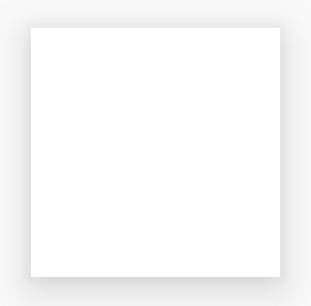
Modifier.shadow() 建立的高度陰影。實作投射陰影
使用 dropShadow() 修飾符在內容後方繪製精確的陰影,讓元素看起來像是浮在上方。
您可以透過 Shadow 參數控制下列重要面向:
radius:定義模糊效果的柔和度和擴散程度。color:定義色調的顏色。offset:沿著 X 軸和 Y 軸定位陰影的幾何圖形。spread:控制陰影幾何圖形的擴展或收縮。
此外,shape 參數會定義陰影的整體形狀。它可以使用 androidx.compose.foundation.shape 套件中的任何幾何圖形,以及 Material Expressive 形狀。
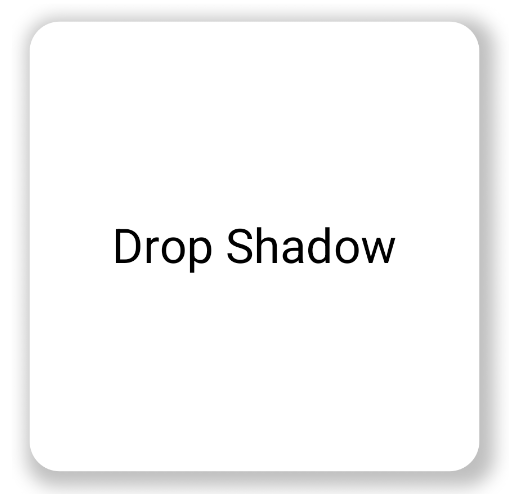
如要實作基本投射陰影,請在可組合項鏈結中加入 dropShadow() 修飾符,並提供半徑、顏色和擴散。請注意,顯示在陰影上方的 purpleColor 背景是在 dropShadow() 修飾符之後繪製:
@Composable fun SimpleDropShadowUsage() { Box(Modifier.fillMaxSize()) { Box( Modifier .width(300.dp) .height(300.dp) .dropShadow( shape = RoundedCornerShape(20.dp), shadow = Shadow( radius = 10.dp, spread = 6.dp, color = Color(0x40000000), offset = DpOffset(x = 4.dp, 4.dp) ) ) .align(Alignment.Center) .background( color = Color.White, shape = RoundedCornerShape(20.dp) ) ) { Text( "Drop Shadow", modifier = Modifier.align(Alignment.Center), fontSize = 32.sp ) } } }
程式碼重點
dropShadow()修飾符會套用至內部的Box。陰影具有下列特性:- 圓角矩形 (
RoundedCornerShape(20.dp)) - 模糊半徑為
10.dp,使邊緣柔和且擴散 - 展開
6.dp,擴大陰影尺寸,使其大於投射陰影的方塊 - Alpha 值為
0.5f,使陰影呈現半透明
- 圓角矩形 (
- 定義陰影後,已套用
background()修飾符。Box填滿白色。- 背景會裁剪成與陰影相同的圓角矩形形狀。
結果
實作內陰影
如要建立與 dropShadow() 相反的效果,請使用 Modifier.innerShadow(),營造出元素凹陷或壓入底層表面的錯覺。
建立內陰影時,順序十分重要。innerShadow() 修飾符會在內容「上方」繪製。為確保陰影可見,您通常會執行下列步驟:
- 繪製背景內容。
- 套用
innerShadow()修飾符,建立凹陷外觀。
如果 innerShadow() 位於背景之前,背景會繪製在陰影上方,完全隱藏陰影。
以下範例說明如何將 innerShadow() 套用至 RoundedCornerShape:
@Composable fun SimpleInnerShadowUsage() { Box(Modifier.fillMaxSize()) { Box( Modifier .width(300.dp) .height(200.dp) .align(Alignment.Center) // note that the background needs to be defined before defining the inner shadow .background( color = Color.White, shape = RoundedCornerShape(20.dp) ) .innerShadow( shape = RoundedCornerShape(20.dp), shadow = Shadow( radius = 10.dp, spread = 2.dp, color = Color(0x40000000), offset = DpOffset(x = 6.dp, 7.dp) ) ) ) { Text( "Inner Shadow", modifier = Modifier.align(Alignment.Center), fontSize = 32.sp ) } } }
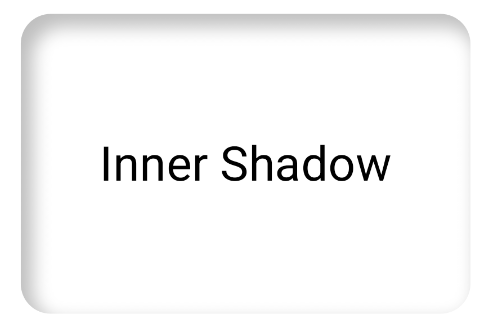
Modifier.innerShadow()。在使用者互動時為陰影加上動畫
如要讓陰影回應使用者互動,可以將陰影屬性與 Compose 的 Animation API 整合。舉例來說,當使用者按下按鈕時,陰影可以變更,提供即時的視覺回饋。
以下程式碼會建立帶有陰影的「按下」效果 (表面被推入螢幕的錯覺):
@Composable fun AnimatedColoredShadows() { SnippetsTheme { Box(Modifier.fillMaxSize()) { val interactionSource = remember { MutableInteractionSource() } val isPressed by interactionSource.collectIsPressedAsState() // Create transition with pressed state val transition = updateTransition( targetState = isPressed, label = "button_press_transition" ) fun <T> buttonPressAnimation() = tween<T>( durationMillis = 400, easing = EaseInOut ) // Animate all properties using the transition val shadowAlpha by transition.animateFloat( label = "shadow_alpha", transitionSpec = { buttonPressAnimation() } ) { pressed -> if (pressed) 0f else 1f } // ... val blueDropShadow by transition.animateColor( label = "shadow_color", transitionSpec = { buttonPressAnimation() } ) { pressed -> if (pressed) Color.Transparent else blueDropShadowColor } // ... Box( Modifier .clickable( interactionSource, indication = null ) { // ** ...... **// } .width(300.dp) .height(200.dp) .align(Alignment.Center) .dropShadow( shape = RoundedCornerShape(70.dp), shadow = Shadow( radius = 10.dp, spread = 0.dp, color = blueDropShadow, offset = DpOffset(x = 0.dp, -(2).dp), alpha = shadowAlpha ) ) .dropShadow( shape = RoundedCornerShape(70.dp), shadow = Shadow( radius = 10.dp, spread = 0.dp, color = darkBlueDropShadow, offset = DpOffset(x = 2.dp, 6.dp), alpha = shadowAlpha ) ) // note that the background needs to be defined before defining the inner shadow .background( color = Color(0xFFFFFFFF), shape = RoundedCornerShape(70.dp) ) .innerShadow( shape = RoundedCornerShape(70.dp), shadow = Shadow( radius = 8.dp, spread = 4.dp, color = innerShadowColor2, offset = DpOffset(x = 4.dp, 0.dp) ) ) .innerShadow( shape = RoundedCornerShape(70.dp), shadow = Shadow( radius = 20.dp, spread = 4.dp, color = innerShadowColor1, offset = DpOffset(x = 4.dp, 0.dp), alpha = innerShadowAlpha ) ) ) { Text( "Animated Shadows", // ... ) } } } }
程式碼重點
- 使用
transition.animateColor和transition.animateFloat宣告按下時要建立動畫的參數開始和結束狀態。 - 使用
updateTransition並提供所選targetState (targetState = isPressed),驗證所有動畫是否同步。每當isPressed變更時,轉場物件會自動管理所有子項屬性的動畫,從目前的值轉換為新的目標值。 - 定義
buttonPressAnimation規格,用於控制轉場效果的時間和加/減速。它指定了tween(in-between 的縮寫),持續時間為 400 毫秒,並使用EaseInOut曲線,這表示動畫開始時速度較慢,中間加速,最後減速。 - 定義
Box,並使用一連串修飾符函式套用所有動畫屬性,建立視覺元素,包括:- .
clickable():讓Box具備互動功能的修飾符。 .dropShadow():首先套用兩個外層投射陰影。其顏色和 Alpha 屬性會連結至動畫值 (blueDropShadow等),並建立初始凸起外觀。.innerShadow():在背景上繪製兩個內陰影。這些屬性會連結至另一組動畫值 (innerShadowColor1等),並建立縮排外觀。
- .
結果
建立漸層陰影
光影不限於純色。陰影 API 接受 Brush,可讓您建立漸層陰影。
Box( modifier = Modifier .width(240.dp) .height(200.dp) .dropShadow( shape = RoundedCornerShape(70.dp), shadow = Shadow( radius = 10.dp, spread = animatedSpread.dp, brush = Brush.sweepGradient( colors ), offset = DpOffset(x = 0.dp, y = 0.dp), alpha = animatedAlpha ) ) .clip(RoundedCornerShape(70.dp)) .background(Color(0xEDFFFFFF)), contentAlignment = Alignment.Center ) { Text( text = breathingText, color = Color.Black, style = MaterialTheme.typography.bodyLarge ) }
程式碼重點
dropShadow()會在方塊後方加上陰影。brush = Brush.sweepGradient(colors)會使用漸層為陰影上色,漸層會在一組預先定義的colors清單中循環,營造出彩虹般的效果。
結果
您可以使用筆刷做為陰影,建立具有「呼吸」動畫的漸層 dropShadow():
合併陰影
您可以結合 dropShadow() 和 innerShadow() 修飾符並疊加,創造各種效果。以下各節將說明如何使用這項技術,產生新擬物化、新粗獷主義和寫實陰影。
建立新擬物化陰影
新擬態陰影的特徵是柔和的外觀,自然地從背景中浮現。如要建立新擬態陰影,請按照下列步驟操作:
- 使用與背景顏色相同的元素。
- 套用兩個相反的微弱投射陰影:一個角落套用淺色陰影,另一個角落套用深色陰影。
下列程式碼片段會疊加兩個 dropShadow() 修飾符,建立新擬物化效果:
@Composable fun NeumorphicRaisedButton( shape: RoundedCornerShape = RoundedCornerShape(30.dp) ) { val bgColor = Color(0xFFe0e0e0) val lightShadow = Color(0xFFFFFFFF) val darkShadow = Color(0xFFb1b1b1) val upperOffset = -10.dp val lowerOffset = 10.dp val radius = 15.dp val spread = 0.dp Box( modifier = Modifier .fillMaxSize() .background(bgColor) .wrapContentSize(Alignment.Center) .size(240.dp) .dropShadow( shape, shadow = Shadow( radius = radius, color = lightShadow, spread = spread, offset = DpOffset(upperOffset, upperOffset) ), ) .dropShadow( shape, shadow = Shadow( radius = radius, color = darkShadow, spread = spread, offset = DpOffset(lowerOffset, lowerOffset) ), ) .background(bgColor, shape) ) }

建立新野獸派陰影
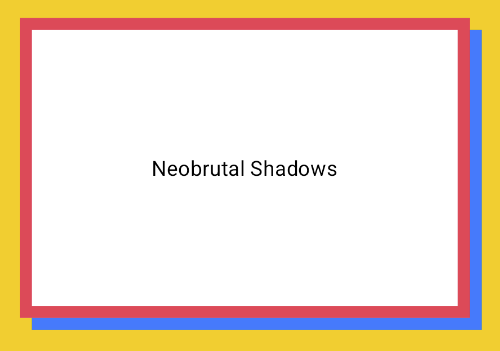
新野獸派風格採用高對比、塊狀版面配置、鮮豔色彩和粗邊框。如要建立這種效果,請使用模糊度為零且偏移量明顯的 dropShadow(),如以下程式碼片段所示:
@Composable fun NeoBrutalShadows() { SnippetsTheme { val dropShadowColor = Color(0xFF007AFF) val borderColor = Color(0xFFFF2D55) Box(Modifier.fillMaxSize()) { Box( Modifier .width(300.dp) .height(200.dp) .align(Alignment.Center) .dropShadow( shape = RoundedCornerShape(0.dp), shadow = Shadow( radius = 0.dp, spread = 0.dp, color = dropShadowColor, offset = DpOffset(x = 8.dp, 8.dp) ) ) .border( 8.dp, borderColor ) .background( color = Color.White, shape = RoundedCornerShape(0.dp) ) ) { Text( "Neobrutal Shadows", modifier = Modifier.align(Alignment.Center), style = MaterialTheme.typography.bodyMedium ) } } } }
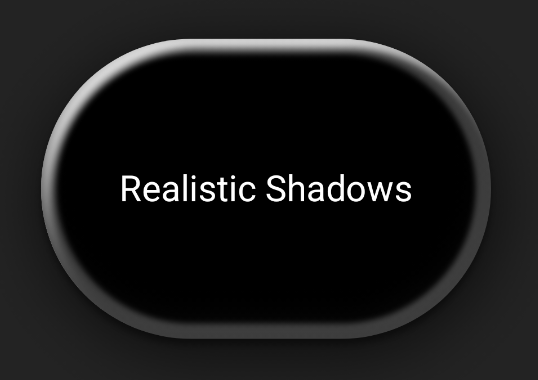
建立逼真的陰影
擬真陰影會模擬實體世界中的陰影,看起來像是受到主要光源照射,因此會產生直接陰影和更擴散的陰影。您可以堆疊多個具有不同屬性的 dropShadow() 和 innerShadow() 例項,重現逼真的陰影效果,如以下程式碼片段所示:
@Composable fun RealisticShadows() { Box(Modifier.fillMaxSize()) { val dropShadowColor1 = Color(0xB3000000) val dropShadowColor2 = Color(0x66000000) val innerShadowColor1 = Color(0xCC000000) val innerShadowColor2 = Color(0xFF050505) val innerShadowColor3 = Color(0x40FFFFFF) val innerShadowColor4 = Color(0x1A050505) Box( Modifier .width(300.dp) .height(200.dp) .align(Alignment.Center) .dropShadow( shape = RoundedCornerShape(100.dp), shadow = Shadow( radius = 40.dp, spread = 0.dp, color = dropShadowColor1, offset = DpOffset(x = 2.dp, 8.dp) ) ) .dropShadow( shape = RoundedCornerShape(100.dp), shadow = Shadow( radius = 4.dp, spread = 0.dp, color = dropShadowColor2, offset = DpOffset(x = 0.dp, 4.dp) ) ) // note that the background needs to be defined before defining the inner shadow .background( color = Color.Black, shape = RoundedCornerShape(100.dp) ) // // .innerShadow( shape = RoundedCornerShape(100.dp), shadow = Shadow( radius = 12.dp, spread = 3.dp, color = innerShadowColor1, offset = DpOffset(x = 6.dp, 6.dp) ) ) .innerShadow( shape = RoundedCornerShape(100.dp), shadow = Shadow( radius = 4.dp, spread = 1.dp, color = Color.White, offset = DpOffset(x = 5.dp, 5.dp) ) ) .innerShadow( shape = RoundedCornerShape(100.dp), shadow = Shadow( radius = 12.dp, spread = 5.dp, color = innerShadowColor2, offset = DpOffset(x = (-3).dp, (-12).dp) ) ) .innerShadow( shape = RoundedCornerShape(100.dp), shadow = Shadow( radius = 3.dp, spread = 10.dp, color = innerShadowColor3, offset = DpOffset(x = 0.dp, 0.dp) ) ) .innerShadow( shape = RoundedCornerShape(100.dp), shadow = Shadow( radius = 3.dp, spread = 9.dp, color = innerShadowColor4, offset = DpOffset(x = 1.dp, 1.dp) ) ) ) { Text( "Realistic Shadows", modifier = Modifier.align(Alignment.Center), fontSize = 24.sp, color = Color.White ) } } }
程式碼重點
- 套用兩個具有不同屬性的鏈結
dropShadow()修飾符,後面接著background()修飾符。 - 套用鏈結的
innerShadow()修飾符,在元件邊緣周圍打造金屬邊框效果。
結果
上述程式碼片段會產生以下結果: