

基本通知通常包含標題、一行文字,以及使用者可執行的回應動作。如要提供更多資訊,您可以套用本文件所述的其中一個通知範本,建立可展開的大型通知。
首先,請按照「建立通知」一文的說明,建構包含所有基本內容的通知。接著,使用樣式物件呼叫 setStyle(),並提供與各範本對應的資訊,如下列範例所示。
新增大型圖片
如要在通知中新增圖片,請將 NotificationCompat.BigPictureStyle 的執行個體傳遞至 setStyle()。
var notification = NotificationCompat.Builder(context, CHANNEL_ID) .setSmallIcon(com.example.compose.snippets.R.drawable.ic_logo) .setContentTitle("Title") .setContentText("Content text") .setStyle( NotificationCompat.BigPictureStyle() .bigPicture(bitmapImage) ) .build()
如要讓圖片只在通知收合時顯示為縮圖 (如下圖所示),請呼叫 setLargeIcon() 並傳遞圖片。然後呼叫
BigPictureStyle.bigLargeIcon()
並傳遞 null,這樣一來,通知展開時,大型圖示就會消失:
notification = NotificationCompat.Builder(context, CHANNEL_ID) .setSmallIcon(R.drawable.ic_logo) .setContentTitle("Title") .setContentText("Content text") .setLargeIcon(Icon.createWithResource(context, R.drawable.dog)) .setStyle( NotificationCompat.BigPictureStyle() .bigPicture(bitmapImage) .bigLargeIcon(null as Bitmap?) ) .build()
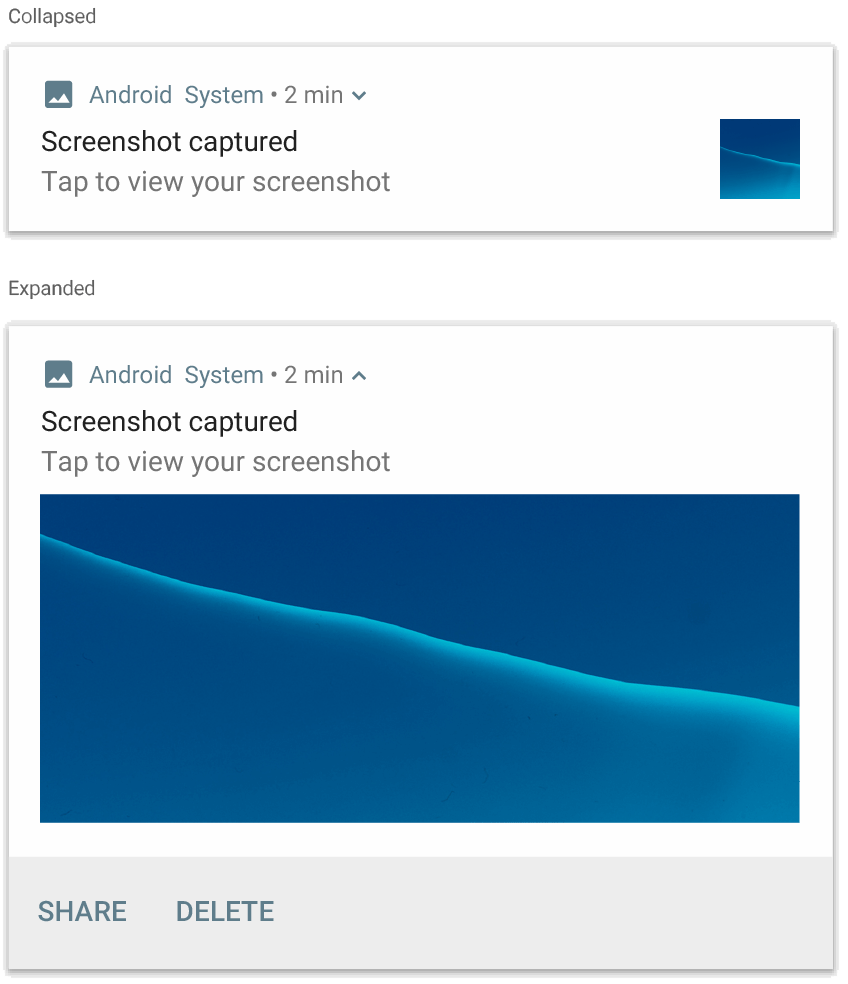
NotificationCompat.BigPictureStyle 的通知。新增大量文字
套用 NotificationCompat.BigTextStyle,在通知的展開內容區域中顯示文字:
notification = NotificationCompat.Builder(context, CHANNEL_ID) .setSmallIcon(R.drawable.ic_logo) .setContentTitle("Sender name") .setContentText("Email subject") .setLargeIcon(Icon.createWithResource(context, R.drawable.dog)) .setStyle( NotificationCompat.BigTextStyle() .bigText(someVeryLongMessage) ) .build()
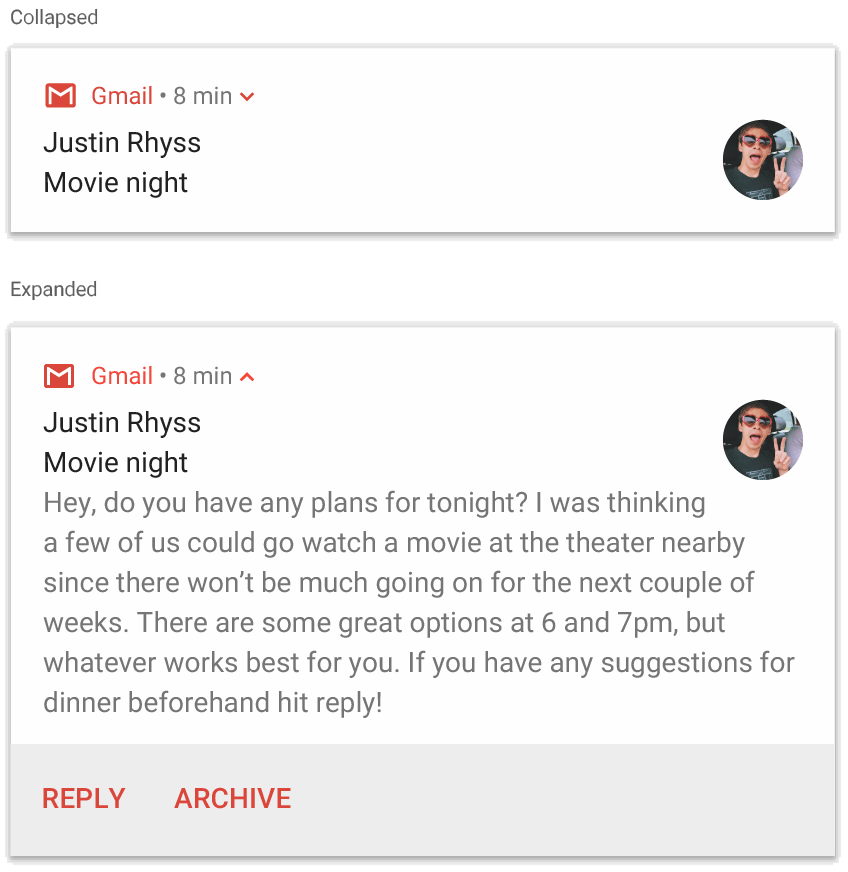
NotificationCompat.BigTextStyle 的通知。建立收件匣樣式的通知
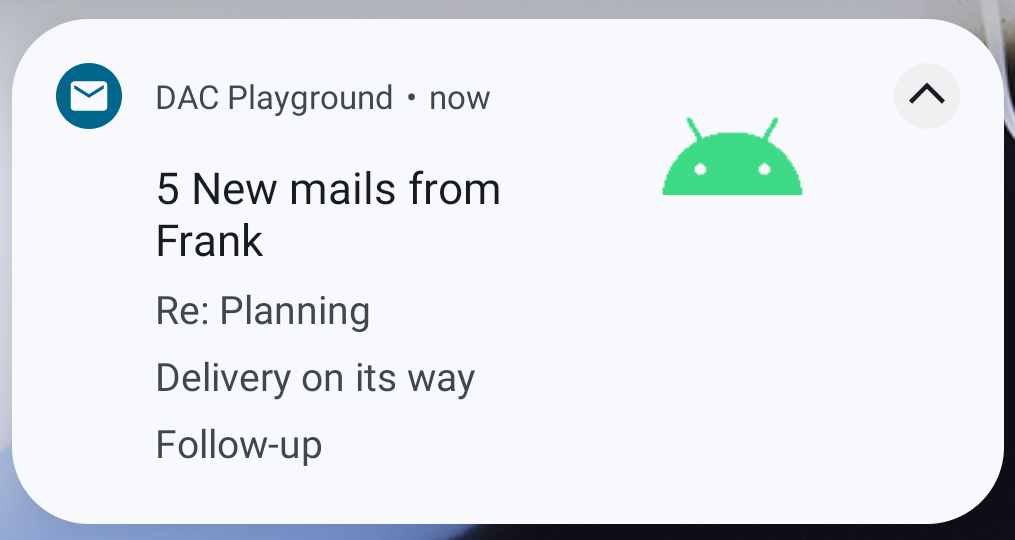
如要新增多行簡短摘要,例如來自電子郵件的片段,請將 NotificationCompat.InboxStyle 套用至通知。這樣一來,您就能新增多個內容文字,每個文字都會截斷成一行,而不是 NotificationCompat.BigTextStyle 提供的一行連續文字。
如要新增一行,請呼叫 addLine() 最多六次,如下列範例所示。如果新增超過六行,系統只會顯示前六行。
notification = NotificationCompat.Builder(context, CHANNEL_ID) .setSmallIcon(R.drawable.mail) .setContentTitle("5 New mails from Frank") .setContentText("Check them out") .setLargeIcon(bitmapImage) .setStyle( NotificationCompat.InboxStyle() .addLine("Re: Planning") .addLine("Delivery on its way") .addLine("Follow-up") ) .build()
結果如下圖所示:
在通知中顯示對話
套用 NotificationCompat.MessagingStyle,即可顯示任意人數之間的連續訊息。這非常適合用於訊息應用程式,因為這類應用程式會分別處理傳送者名稱和訊息文字,為每則訊息提供一致的版面配置,而且每則訊息可以有多行。
如要新增訊息,請呼叫 addMessage(),並傳遞訊息文字、收到時間和傳送者姓名。您也可以將這項資訊做為 NotificationCompat.MessagingStyle.Message 物件傳遞,如下列範例所示:
val message1 = NotificationCompat.MessagingStyle.Message( messages[0].text, messages[0].time, messages[0].sender ) val message2 = NotificationCompat.MessagingStyle.Message( messages[1].text, messages[1].time, messages[1].sender ) notification = NotificationCompat.Builder(context, CHANNEL_ID) .setSmallIcon(R.drawable.ic_logo) .setStyle( NotificationCompat.MessagingStyle(Person.Builder().setName("Me").build()) .addMessage(message1) .addMessage(message2) ) .build()
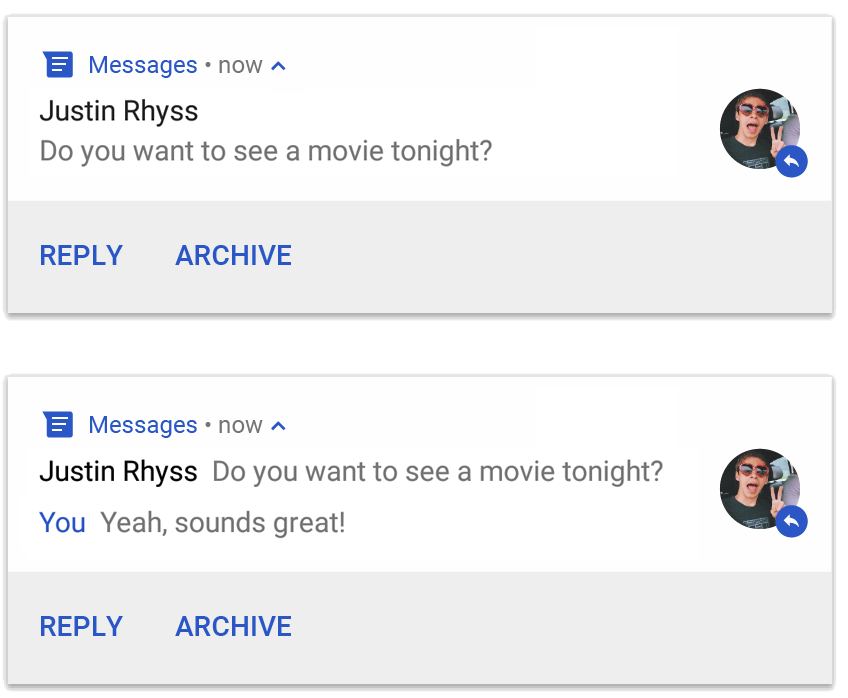
NotificationCompat.MessagingStyle 的通知。使用 NotificationCompat.MessagingStyle 時,系統會忽略提供給 setContentTitle() 和 setContentText() 的任何值。
你可以撥打 setConversationTitle(),在對話上方新增標題。這可能是使用者建立的群組名稱,如果沒有特定名稱,則會顯示對話中的參與者清單。請勿為一對一對話設定對話標題,因為系統會根據這個欄位是否存在,判斷對話是否為群組。
這項樣式僅適用於搭載 Android 7.0 (API 級別 24) 以上版本的裝置。如先前所示,使用相容性程式庫 (NotificationCompat) 時,含有 MessagingStyle 的通知會自動改用支援的展開式通知樣式。
為即時通訊對話建構這類通知時,請新增直接回覆動作。
建立含有媒體遙控器的通知
套用 MediaStyleNotificationHelper.MediaStyle,顯示媒體播放控制項和追蹤資訊。
在建構函式中指定相關聯的 MediaSession。這樣 Android 才能顯示媒體的正確資訊。
最多可呼叫 addAction() 五次,顯示最多五個圖示按鈕。
呼叫 setLargeIcon() 可設定專輯封面。
與其他通知樣式不同,MediaStyle 也可讓您指定三個動作按鈕,修改摺疊大小的內容檢視畫面,這些按鈕也會顯示在摺疊檢視畫面中。如要這麼做,請將動作按鈕索引提供給 setShowActionsInCompactView()。
以下範例說明如何建立含有媒體控制項的通知:
notification = NotificationCompat.Builder(context, CHANNEL_ID) // Show controls on lock screen even when user hides sensitive content. .setVisibility(NotificationCompat.VISIBILITY_PUBLIC) .setSmallIcon(com.example.compose.snippets.R.drawable.play) // Add media control buttons that invoke intents in your media service .addAction(R.drawable.previous, "Previous", null /* Add valid intent */) // #0 .addAction(R.drawable.pause, "Pause", null /* Add valid intent */) // #1 .addAction(R.drawable.next, "Next", null /* Add valid intent */) // #2 // Apply the media style template. .setStyle(MediaStyleNotificationHelper.MediaStyle(mediaSession) .setShowActionsInCompactView(1 /* #1: pause button */)) .setContentTitle("Wonderful music") .setContentText("My Awesome Band") .setLargeIcon(bitmapImage) .build()
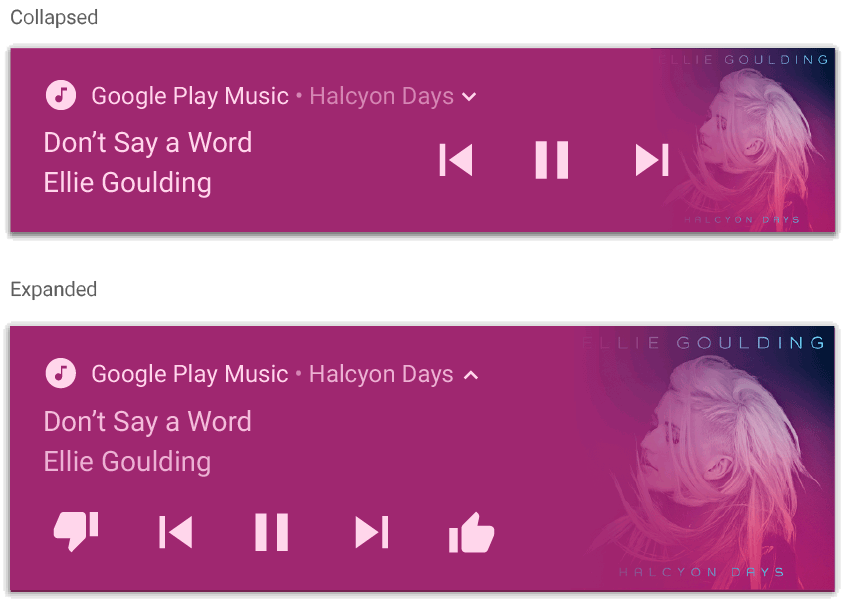
MediaStyleNotificationHelper.MediaStyle 的通知。其他資源
如要進一步瞭解 MediaStyle 和可展開式通知,請參閱下列參考資料。