

Compose 附带内置的可组合项和修饰符,可用于处理常见的动画用例。
内置动画可组合项
Compose 提供了多个可组合项,可为内容显示、消失和布局更改添加动画效果。
为出现和消失添加动画效果
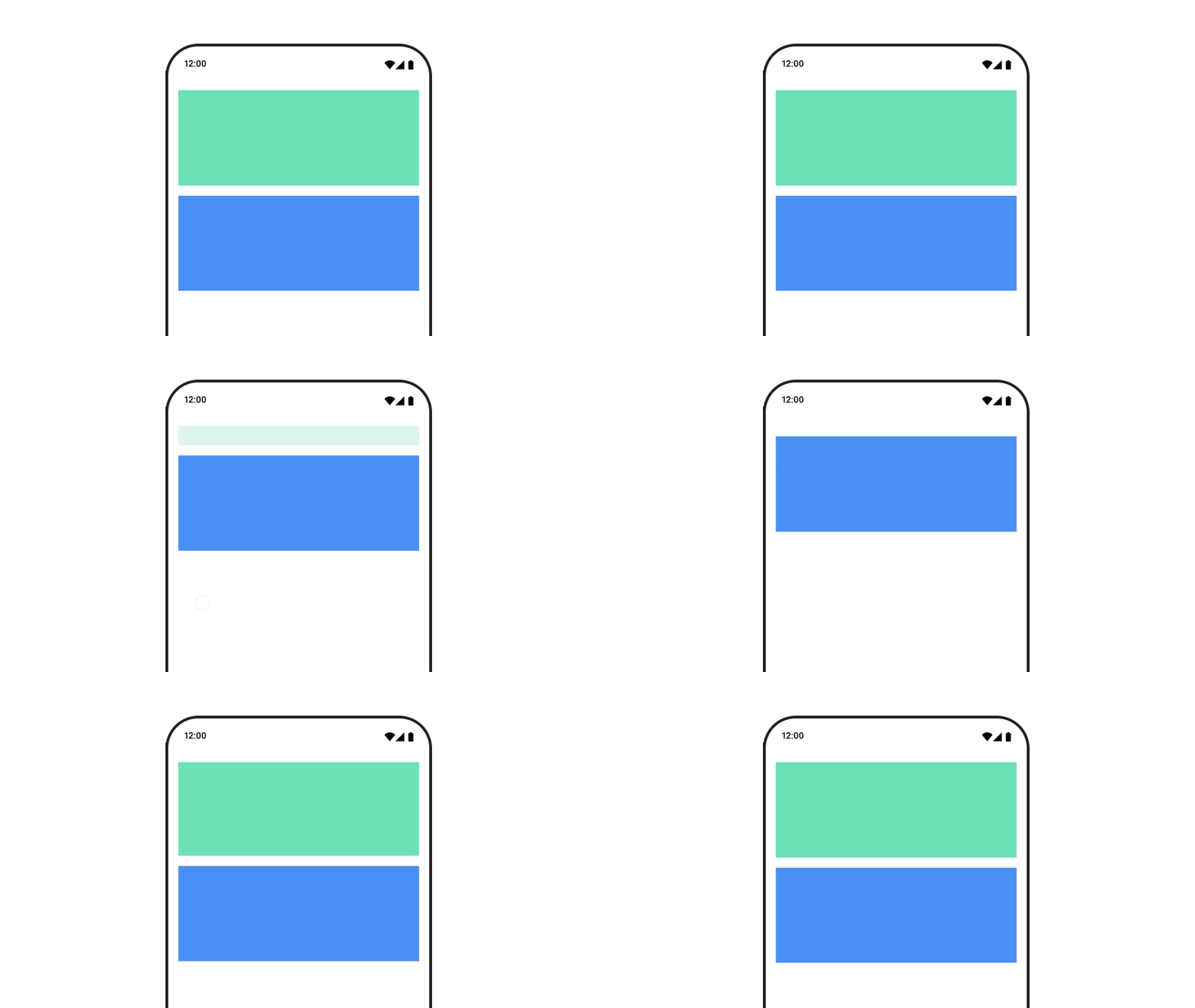
AnimatedVisibility 可组合项可为内容的出现和消失添加动画效果。
var visible by remember { mutableStateOf(true) } // Animated visibility will eventually remove the item from the composition once the animation has finished. AnimatedVisibility(visible) { // your composable here // ... }
默认情况下,内容以淡入和扩大的方式出现,以淡出和缩小的方式消失。您可以通过指定 EnterTransition 和 ExitTransition 对象来自定义此过渡效果。
var visible by remember { mutableStateOf(true) } val density = LocalDensity.current AnimatedVisibility( visible = visible, enter = slideInVertically { // Slide in from 40 dp from the top. with(density) { -40.dp.roundToPx() } } + expandVertically( // Expand from the top. expandFrom = Alignment.Top ) + fadeIn( // Fade in with the initial alpha of 0.3f. initialAlpha = 0.3f ), exit = slideOutVertically() + shrinkVertically() + fadeOut() ) { Text( "Hello", Modifier .fillMaxWidth() .height(200.dp) ) }
如上例所示,您可以使用 + 运算符组合多个 EnterTransition 或 ExitTransition 对象,并且每个对象都接受可选参数以自定义其行为。如需了解详情,请参阅相关参考页面。
进入和退出过渡效果示例
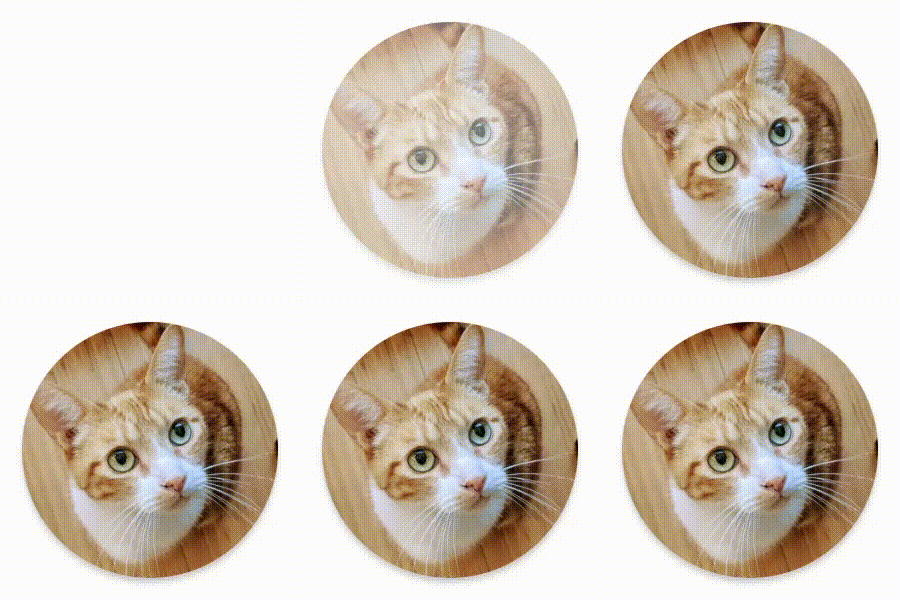

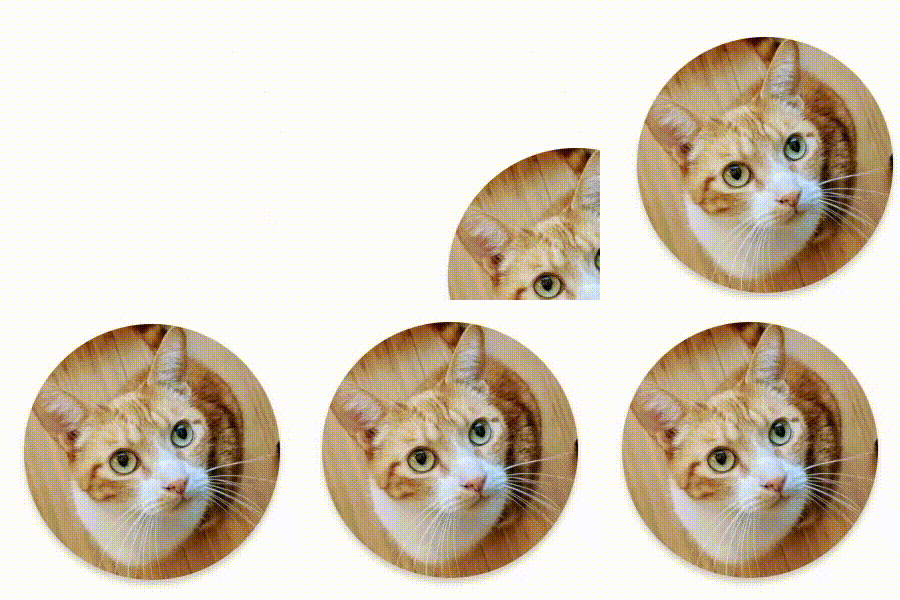

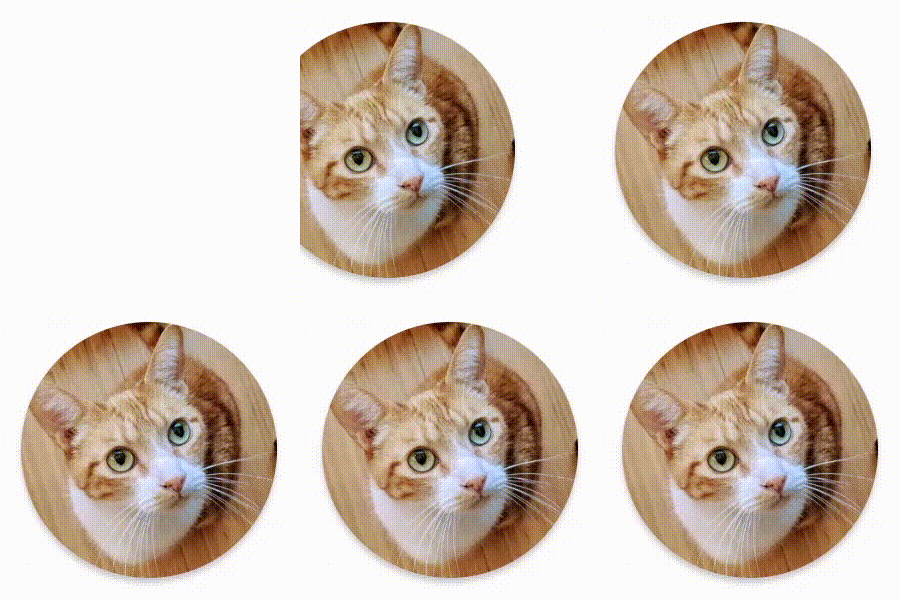

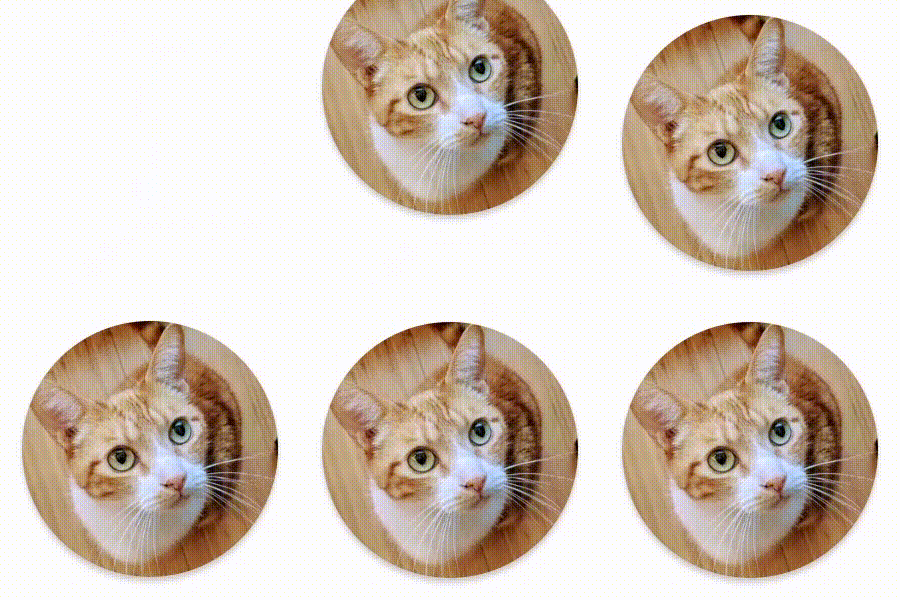

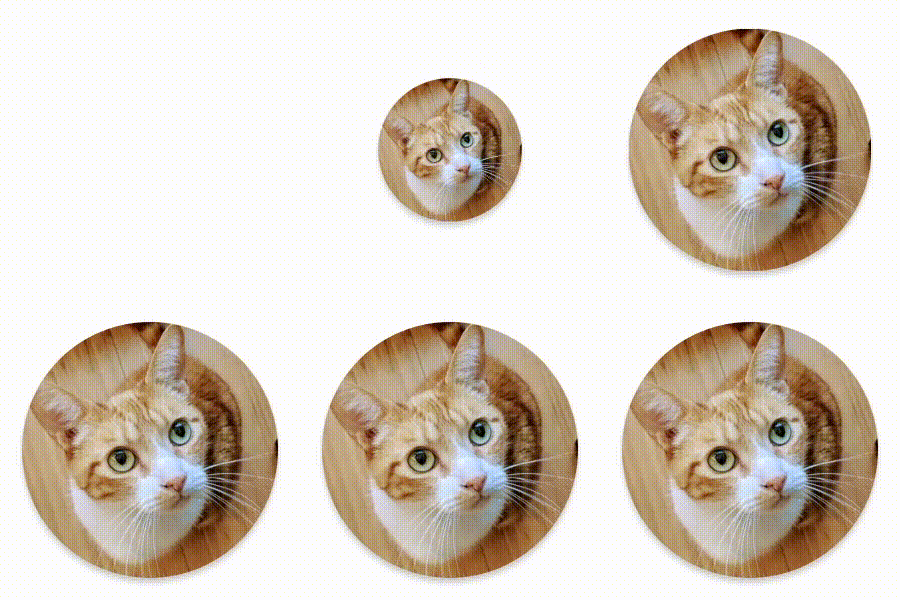

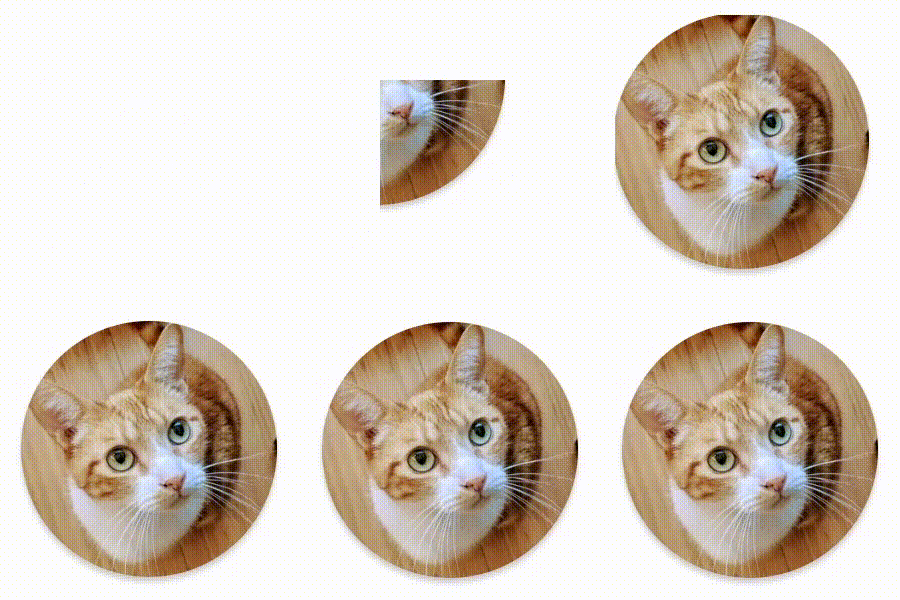

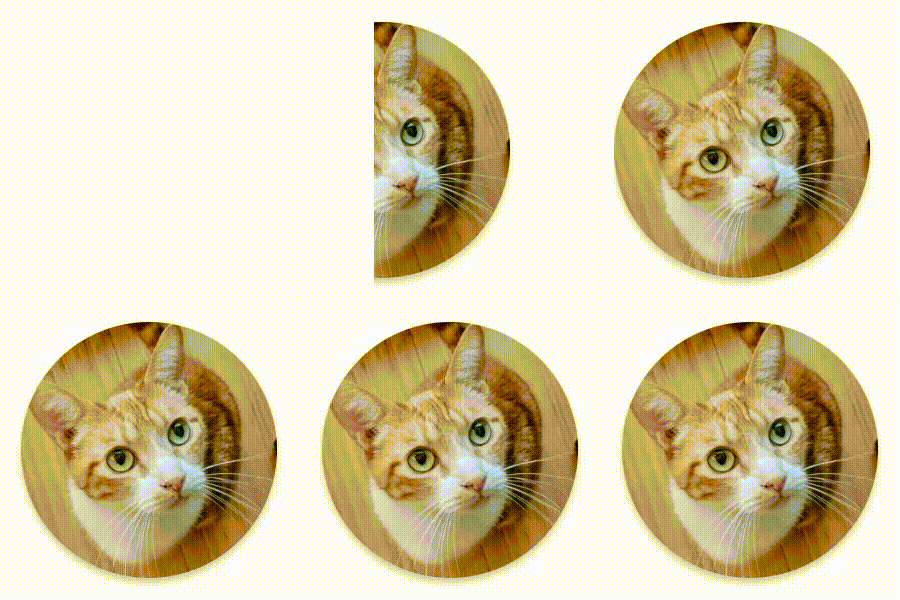

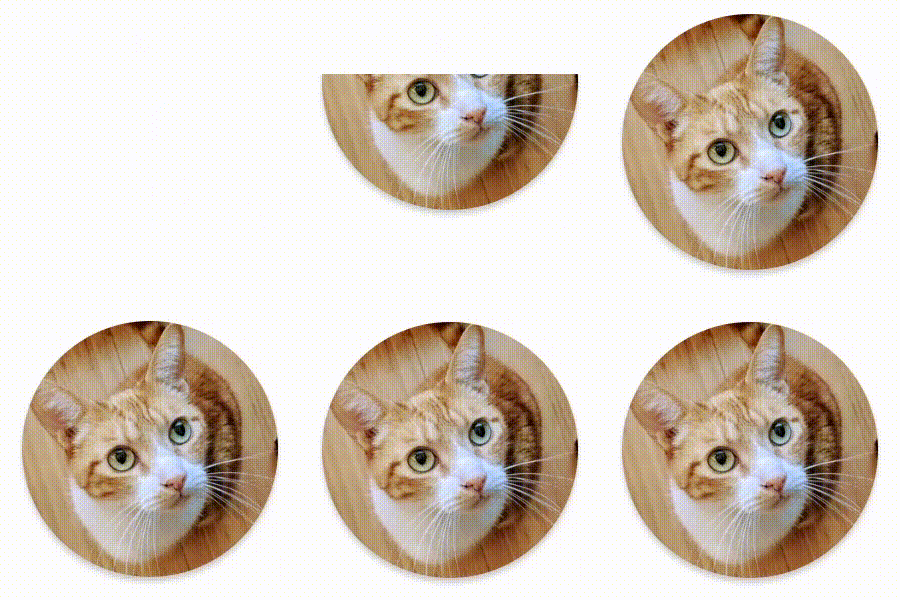

AnimatedVisibility 还提供了接受 MutableTransitionState 实参的变体。这样,只要将 AnimatedVisibility 可组合项添加到组合树中,您就可以立即触发动画。该属性还有助于观察动画状态。
// Create a MutableTransitionState<Boolean> for the AnimatedVisibility. val state = remember { MutableTransitionState(false).apply { // Start the animation immediately. targetState = true } } Column { AnimatedVisibility(visibleState = state) { Text(text = "Hello, world!") } // Use the MutableTransitionState to know the current animation state // of the AnimatedVisibility. Text( text = when { state.isIdle && state.currentState -> "Visible" !state.isIdle && state.currentState -> "Disappearing" state.isIdle && !state.currentState -> "Invisible" else -> "Appearing" } ) }
为子项添加进入和退出动画效果
AnimatedVisibility 中的内容(直接或间接子项)可以使用 animateEnterExit 修饰符为每个子项指定不同的动画行为。其中每个子项的视觉效果均由 AnimatedVisibility 可组合项中指定的动画与子项自己的进入和退出动画构成。
var visible by remember { mutableStateOf(true) } AnimatedVisibility( visible = visible, enter = fadeIn(), exit = fadeOut() ) { // Fade in/out the background and the foreground. Box( Modifier .fillMaxSize() .background(Color.DarkGray) ) { Box( Modifier .align(Alignment.Center) .animateEnterExit( // Slide in/out the inner box. enter = slideInVertically(), exit = slideOutVertically() ) .sizeIn(minWidth = 256.dp, minHeight = 64.dp) .background(Color.Red) ) { // Content of the notification… } } }
在某些情况下,您可能希望 AnimatedVisibility 完全不应用任何动画,这样子项就可以通过 animateEnterExit 拥有各自的不同动画。如需实现此目标,请在 AnimatedVisibility 可组合项中指定 EnterTransition.None 和 ExitTransition.None。
添加自定义动画
如果您想在内置进入和退出动画之外添加自定义动画效果,请通过 AnimatedVisibility 的内容 lambda 内的 transition 属性访问底层 Transition 实例。添加到 Transition 实例的所有动画状态都将与 AnimatedVisibility 的进入和退出动画同时运行。AnimatedVisibility 会等到 Transition 中的所有动画都完成后再移除其内容。对于独立于 Transition(例如使用 animate*AsState)创建的退出动画,AnimatedVisibility 将无法解释这些动画,因此可能会在完成之前移除内容可组合项。
var visible by remember { mutableStateOf(true) } AnimatedVisibility( visible = visible, enter = fadeIn(), exit = fadeOut() ) { // this: AnimatedVisibilityScope // Use AnimatedVisibilityScope#transition to add a custom animation // to the AnimatedVisibility. val background by transition.animateColor(label = "color") { state -> if (state == EnterExitState.Visible) Color.Blue else Color.Gray } Box( modifier = Modifier .size(128.dp) .background(background) ) }
如需详细了解如何使用 Transition 管理动画,请参阅使用过渡同时为多个属性添加动画效果。
根据目标状态添加动画
AnimatedContent 可组合项会在内容根据目标状态发生变化时,为内容添加动画效果。
Row { var count by remember { mutableIntStateOf(0) } Button(onClick = { count++ }) { Text("Add") } AnimatedContent( targetState = count, label = "animated content" ) { targetCount -> // Make sure to use `targetCount`, not `count`. Text(text = "Count: $targetCount") } }
默认情况下,初始内容淡出,然后目标内容淡入(此行为称为淡出后淡入)。
您可以为 transitionSpec 参数指定 ContentTransform 对象,以自定义此动画行为。您可以使用 with infix 函数将 EnterTransition 对象与 ExitTransition 对象相结合,以创建 ContentTransform 的实例。您可以使用 using infix 函数将 SizeTransform 附加到 ContentTransform 对象。
AnimatedContent( targetState = count, transitionSpec = { // Compare the incoming number with the previous number. if (targetState > initialState) { // If the target number is larger, it slides up and fades in // while the initial (smaller) number slides up and fades out. slideInVertically { height -> height } + fadeIn() togetherWith slideOutVertically { height -> -height } + fadeOut() } else { // If the target number is smaller, it slides down and fades in // while the initial number slides down and fades out. slideInVertically { height -> -height } + fadeIn() togetherWith slideOutVertically { height -> height } + fadeOut() }.using( // Disable clipping since the faded slide-in/out should // be displayed out of bounds. SizeTransform(clip = false) ) }, label = "animated content" ) { targetCount -> Text(text = "$targetCount") }
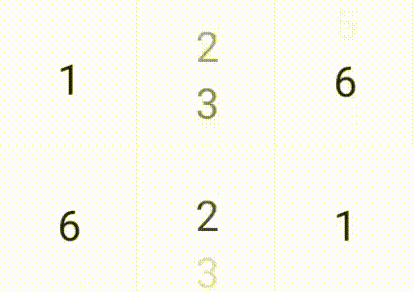
EnterTransition 定义了目标内容应如何显示,ExitTransition 则定义了初始内容应如何消失。除了可用于 AnimatedVisibility 的所有 EnterTransition 和 ExitTransition 函数之外,AnimatedContent 还提供了 slideIntoContainer 和 slideOutOfContainer。这些是 slideInHorizontally/Vertically 和 slideOutHorizontally/Vertically 的便捷替代方案,它们可根据初始内容的大小和 AnimatedContent 内容的目标内容来计算滑动距离。
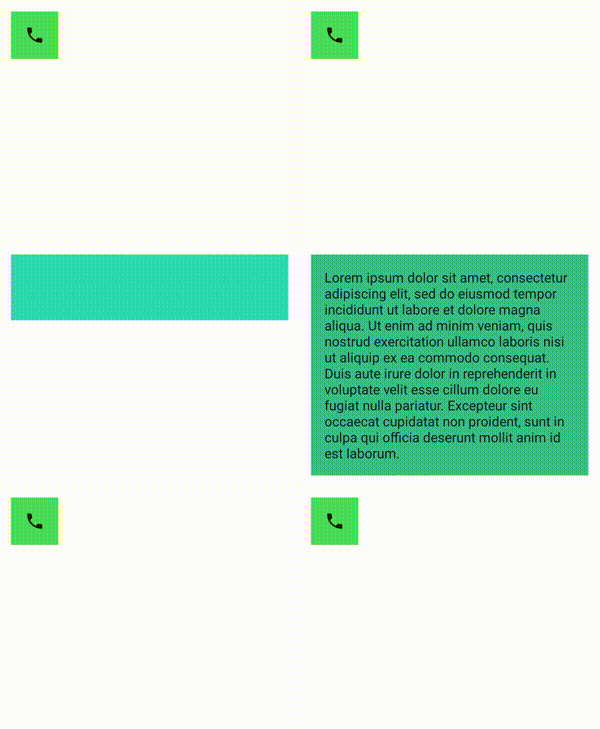
SizeTransform 定义了大小应如何在初始内容与目标内容之间添加动画效果。在创建动画时,您可以访问初始大小和目标大小。SizeTransform 还可控制在动画播放期间是否应将内容裁剪为组件大小。
var expanded by remember { mutableStateOf(false) } Surface( color = MaterialTheme.colorScheme.primary, onClick = { expanded = !expanded } ) { AnimatedContent( targetState = expanded, transitionSpec = { fadeIn(animationSpec = tween(150, 150)) togetherWith fadeOut(animationSpec = tween(150)) using SizeTransform { initialSize, targetSize -> if (targetState) { keyframes { // Expand horizontally first. IntSize(targetSize.width, initialSize.height) at 150 durationMillis = 300 } } else { keyframes { // Shrink vertically first. IntSize(initialSize.width, targetSize.height) at 150 durationMillis = 300 } } } }, label = "size transform" ) { targetExpanded -> if (targetExpanded) { Expanded() } else { ContentIcon() } } }
为子项添加进入和退出过渡动画
就像 AnimatedVisibility 一样,animateEnterExit 修饰符可以在 AnimatedContent 的内容 lambda 内使用。使用此修饰符可将 EnterAnimation 和 ExitAnimation 分别应用于每个直接或间接子项。
添加自定义动画
就像 AnimatedVisibility 一样,transition 字段可以在 AnimatedContent 的内容 lambda 内使用。使用此字段可创建与 AnimatedContent 过渡同时运行的自定义动画效果。如需了解详情,请参阅 updateTransition。
在两个布局之间添加动画效果
Crossfade 可使用淡入淡出动画在两个布局之间添加动画效果。通过切换传递给 current 参数的值,可以使用淡入淡出动画来切换内容。
var currentPage by remember { mutableStateOf("A") } Crossfade(targetState = currentPage, label = "cross fade") { screen -> when (screen) { "A" -> Text("Page A") "B" -> Text("Page B") } }
内置动画修饰符
Compose 提供了修饰符,用于直接在可组合项上为特定更改添加动画效果。
为可组合项的大小变化添加动画效果
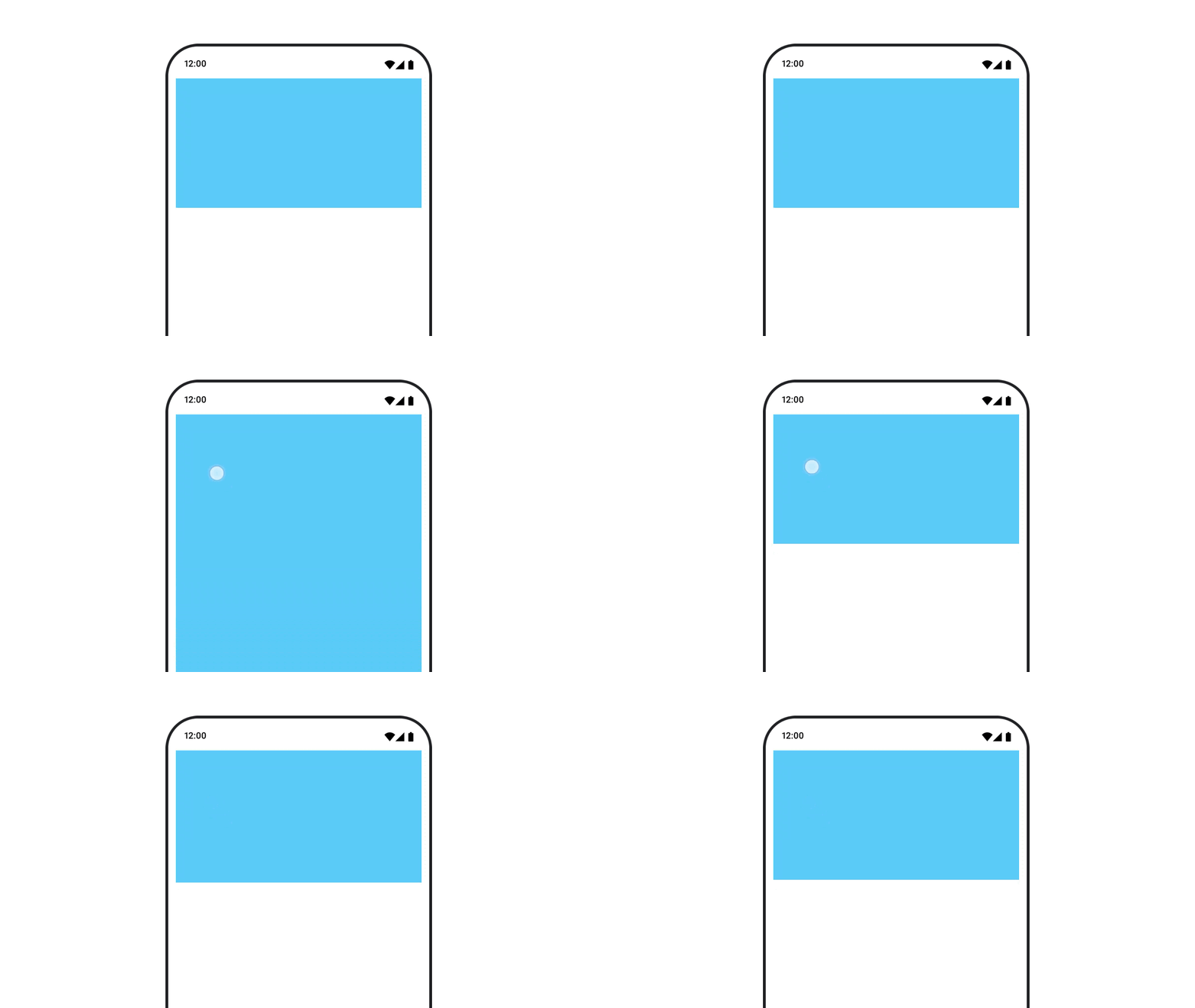
animateContentSize 修饰符可为大小变化添加动画效果。
var expanded by remember { mutableStateOf(false) } Box( modifier = Modifier .background(colorBlue) .animateContentSize() .height(if (expanded) 400.dp else 200.dp) .fillMaxWidth() .clickable( interactionSource = remember { MutableInteractionSource() }, indication = null ) { expanded = !expanded } ) { }
列表项动画
如果您希望为延迟列表或网格内的项重新排序操作添加动画效果,请参阅延迟布局项动画文档。
为你推荐
- 注意:当 JavaScript 处于关闭状态时,系统会显示链接文字
- 基于价值的动画
- Compose 中的动画
- 动画工具支持 {:#tooling}