

本頁說明如何使用不同的觸覺回饋 API,在 Android 應用程式中建立標準震動波形以外的自訂效果。
本頁面包含下列範例:
- 使用
VibrationEffect.Builder建立時間軸錨定組合- 使用預設設定組合:依序播放預先定義的觸覺感受。
- 使用包絡線和預設設定進行合成:沿著時間軸結合包絡線和預設設定。
- 重複使用及移動事件: 移動及重複使用現有的組合事件。
- 重複組合:建立重複的時間軸效果。
- 自訂震動模式
- 漸強模式:平穩開始的模式。
- 重複模式:沒有結束時間的模式。
- Pattern with fallback:備用模式示範。
- 震動基元組合
- 含包絡線的震動波形
如需其他範例,請參閱「為活動新增觸覺回饋」,並務必遵循觸覺設計原則。
使用備用廣告處理裝置相容性問題
實作自訂觸覺回饋效果時,裝置相容性和備用行為取決於您選擇的 API 介面:
VibrationEffect.Builder(建議):從 Android 16 (26Q4) 開始,使用VibrationEffect.Builder建立的效果包含自動架構層級備用機制。如果裝置不支援要求的Preset或基本Envelope,架構會在播放時自動盡可能轉換為適當的替代方案。播放由VibrationEffect.Builder組成的效果前,您不需要手動檢查每個原始裝置的功能。- 例外狀況:使用
WaveformEnvelopeBuilder建立的進階波形包絡不支援自動備用,因為這類包絡依賴特定硬體頻率對應 (FOAM)。如果格式不支援,就無法播放。
- 例外狀況:使用
VibrationEffect.Composition:使用startComposition()API 建立的組合結構不會自動備用。如果組合包含不支援的原語,整個震動效果就無法播放。您必須使用vibrator.arePrimitivesSupported()手動檢查功能。- 具有振幅控制功能的波形:在不具備振幅控制功能的裝置上,非零振幅會無條件進位至 100%。請檢查
vibrator.hasAmplitudeControl(),並視需要改用明確設計的開啟/關閉模式。
使用觸覺基元
Android 包含多種觸覺基元,振幅和頻率各不相同。您可以單獨使用一個基元,也可以結合多個基元,達到豐富的觸覺效果。
- 延遲時間應設為 50 毫秒以上,讓兩個基元之間有明顯間隔,並盡可能考量基元持續時間。
- 使用比例差異為 1.4 以上的比例,以便更清楚地感知強度差異。
使用 0.5、0.7 和 1.0 的比例,建立低、中、高強度的原始顏色版本。
建立自訂震動模式
震動模式通常用於引起注意的觸覺回饋,例如通知和鈴聲。Vibrator 服務可以播放長時間的震動模式,並隨著時間改變震動幅度。這類效果稱為波形。
波形效果通常可以感知,但在安靜的環境中播放時,突然長時間的震動可能會嚇到使用者。如果太快達到目標振幅,也可能產生可聽見的嗡嗡聲。設計波形模式,讓振幅轉換更流暢,打造漸強和漸弱效果。
震動模式範例
以下各節提供幾種震動模式範例:
增加曝光量模式
波形會以 VibrationEffect 表示,並包含三個參數:
- Timings:每個波形片段的時間長度陣列,以毫秒為單位。
- 振幅:第一個引數中指定的每個持續時間所需的震動振幅,以 0 到 255 的整數值表示,其中 0 代表震動器「關閉狀態」,255 則是裝置的最大振幅。
- 重複索引:第一個引數中指定的陣列索引,用於開始重複波形,如果只應播放一次模式,則為 -1。
以下是波形範例,會脈衝兩次,兩次脈衝之間暫停 350 毫秒。第一個脈衝會平穩地升至最大振幅,第二個脈衝則會快速升至最大振幅並保持不變。負重複索引值定義了在結尾停止。
val timings: LongArray = longArrayOf( 50, 50, 50, 50, 50, 100, 350, 25, 25, 25, 25, 200 ) val amplitudes: IntArray = intArrayOf( 33, 51, 75, 113, 170, 255, 0, 38, 62, 100, 160, 255 ) val repeatIndex = -1 // Don't repeat. vibrator.vibrate( VibrationEffect.createWaveform( timings, amplitudes, repeatIndex ) )
重複圖案
波形也可以重複播放,直到取消為止。如要建立重複波形,請設定非負 repeat 參數。播放重複波形時,震動會持續到服務明確取消為止:
fun startVibrating() { val timings: LongArray = longArrayOf(50, 50, 100, 50, 50) val amplitudes: IntArray = intArrayOf(64, 128, 255, 128, 64) val repeat = 1 // Repeat from the second entry, index = 1. val repeatingEffect: VibrationEffect = VibrationEffect.createWaveform( timings, amplitudes, repeat ) // repeatingEffect can be used in multiple places. vibrator.vibrate(repeatingEffect) } fun stopVibrating() { vibrator.cancel() }
這項功能非常適合用於需要使用者確認的間歇性事件。這類事件包括來電和觸發的鬧鐘。
含備用廣告的模式
控制震動振幅是硬體相關功能。如果低階裝置不支援這項功能,播放波形時,裝置會以振幅陣列中每個正值的最大振幅震動。如果應用程式需要支援這類裝置,請使用在這種情況下播放時不會產生嗡嗡聲效果的模式,或設計更簡單的開啟/關閉模式,以便在播放時做為備用模式。
if (vibrator.hasAmplitudeControl()) { vibrator.vibrate( VibrationEffect.createWaveform( smoothTimings, amplitudes, smoothRepeatIdx ) ) } else { vibrator.vibrate( VibrationEffect.createWaveform( onOffTimings, onOffRepeatIdx ) ) }
與 VibrationEffect.Builder 的時間軸錨定組合
從 Android 16 (26Q4) 開始,VibrationEffect.Builder 是建立複雜震動效果和組合的首選 API。您可以使用 startTimeMillis,沿著絕對時間軸排列離散觸覺元素,建構出富有表現力的觸覺感受。
VibrationEffect.Builder 支援結合多種震動類型:
- 預設:預先定義的觸覺脈衝 (
VibrationEffect.Preset),例如點擊和輕觸。 - 包絡:動態連續波形,包括與硬體無關的基本包絡 (
BasicEnvelopeBuilder) 和進階頻率調變包絡 (WaveformEnvelopeBuilder)。 - 現有的 VibrationEffects:使用
addEvents()或建構函式複製功能匯入的基本組合 (VibrationEffect.Composition)、步進波形 (VibrationEffect.createWaveform)、預先定義的效果 (VibrationEffect.createPredefined) 和單次效果 (VibrationEffect.createOneShot)。 - 重複序列:使用
setRepeatingEffect()設定的連續模式。
使用 VibrationEffect.Builder 建構的震動效果,其元素 (包括預設、基本包絡和組合震動效果) 內建架構層級的自動備用機制,可確保不同裝置的使用者體驗一致,不需手動檢查功能。(使用 WaveformEnvelopeBuilder 建立的進階波形包絡需要硬體支援,且不支援自動備用)。
使用預設設定撰寫
使用 VibrationEffect.Preset 將常見的預先定義短觸覺脈衝 (例如 PRESET_CLICK、PRESET_TICK 或 PRESET_LOW_TICK) 新增至組合。預設設定是由裝置製造商實作,可提供清晰、短暫且愉悅的震動,符合觸覺回饋原則,可提供清晰的觸覺回饋。如要進一步瞭解這些功能及其運作方式,請參閱「震動致動器入門」。
預設設定會取代 VibrationEffect.Composition API 的簡短原始物件。如要呈現較長或連續的觸覺感受 (例如漸強和漸弱),請改用包絡波形 (PWLE)。
每個預設設定都可以指派 0.0f 到 1.0f 之間的選用縮放比例,並從合成開始時,放置在明確的開始時間 (以毫秒為單位)。
Kotlin
val clickPreset = VibrationEffect.Preset.create(
    VibrationEffect.Preset.PRESET_CLICK, /* scale= */ 0.8f
)
val tickPreset = VibrationEffect.Preset.create(
    VibrationEffect.Preset.PRESET_TICK, /* scale= */ 0.5f
)

val effect = VibrationEffect.Builder()
    .addPreset(/* startTimeMillis= */ 0L, clickPreset)
    .addPreset(/* startTimeMillis= */ 100L, tickPreset)
    .build()

vibrator.vibrate(effect)
Java
VibrationEffect.Preset clickPreset = VibrationEffect.Preset.create(
    VibrationEffect.Preset.PRESET_CLICK, /* scale= */ 0.8f
);
VibrationEffect.Preset tickPreset = VibrationEffect.Preset.create(
    VibrationEffect.Preset.PRESET_TICK, /* scale= */ 0.5f
);

VibrationEffect effect = new VibrationEffect.Builder()
    .addPreset(/* startTimeMillis= */ 0L, clickPreset)
    .addPreset(/* startTimeMillis= */ 100L, tickPreset)
    .build();

vibrator.vibrate(effect);
使用包絡線和預設設定
您可以將 VibrationEffect.Envelope 執行個體 (使用 BasicEnvelopeBuilder 或 WaveformEnvelopeBuilder 建立) 與預設設定完美結合,建立豐富的多區段觸覺回饋模式。
以下範例會先播放平滑漸強和淡出的包絡,然後播放尖銳的點擊預設:
Kotlin
val basicEnvelope = VibrationEffect.Envelope.create(
    VibrationEffect.BasicEnvelopeBuilder()
        .setInitialSharpness(0.0f)
        .addControlPoint(1.0f, 1.0f, 300L)
        .addControlPoint(0.0f, 0.5f, 100L)
)
val clickPreset = VibrationEffect.Preset.create(
    VibrationEffect.Preset.PRESET_CLICK, 0.9f
)

val mixedEffect = VibrationEffect.Builder()
    .addEnvelope(/* startTimeMillis= */ 0L, basicEnvelope)
    .addPreset(/* startTimeMillis= */ 450L, clickPreset)
    .build()

vibrator.vibrate(mixedEffect)
Java
VibrationEffect.Envelope basicEnvelope = VibrationEffect.Envelope.create(
    new VibrationEffect.BasicEnvelopeBuilder()
        .setInitialSharpness(0.0f)
        .addControlPoint(1.0f, 1.0f, 300L)
        .addControlPoint(0.0f, 0.5f, 100L)
);
VibrationEffect.Preset clickPreset = VibrationEffect.Preset.create(
    VibrationEffect.Preset.PRESET_CLICK, 0.9f
);

VibrationEffect mixedEffect = new VibrationEffect.Builder()
    .addEnvelope(/* startTimeMillis= */ 0L, basicEnvelope)
    .addPreset(/* startTimeMillis= */ 450L, clickPreset)
    .build();

vibrator.vibrate(mixedEffect);
重複使用及轉移現有活動
如要重複使用或串連現有的 VibrationEffect (包括 VibrationEffect.Composition),請使用 getEvents() 擷取其 VibrationEffect.Event 物件清單,並使用 addEvents(startTimeShiftMillis, events) 附加這些物件和偏移量 (或直接將效果傳遞至 VibrationEffect.Builder(effect) 建構函式)。以這種方式匯入 VibrationEffect.Composition 例項時,架構會自動將其原始物件轉換為預設值,啟用執行階段備用支援。
Kotlin
val existingEffect = VibrationEffect.Builder()
    .addPreset(
        0L,
        VibrationEffect.Preset.create(VibrationEffect.Preset.PRESET_CLICK)
    )
    .addPreset(
        80L,
        VibrationEffect.Preset.create(VibrationEffect.Preset.PRESET_TICK)
    )
    .build()

// Shift and append the existing events 200ms into the new composition.
val combinedEffect = VibrationEffect.Builder()
    .addEvents(/* startTimeShiftMillis= */ 200L, existingEffect.events)
    .build()

vibrator.vibrate(combinedEffect)
Java
VibrationEffect existingEffect = new VibrationEffect.Builder()
    .addPreset(
        0L,
        VibrationEffect.Preset.create(VibrationEffect.Preset.PRESET_CLICK)
    )
    .addPreset(
        80L,
        VibrationEffect.Preset.create(VibrationEffect.Preset.PRESET_TICK)
    )
    .build();

// Shift and append the existing events 200ms into the new composition.
VibrationEffect combinedEffect = new VibrationEffect.Builder()
    .addEvents(/* startTimeShiftMillis= */ 200L, existingEffect.getEvents())
    .build();

vibrator.vibrate(combinedEffect);
建立重複組合
使用 setRepeatingEffect(startTimeMillis, repeatingEffect, durationMillis) 將重複模式新增至組合:
Kotlin
val repeatingPattern = VibrationEffect.Builder()
    .addPreset(
        0L,
        VibrationEffect.Preset.create(
            VibrationEffect.Preset.PRESET_CLICK, 1.0f
        )
    )
    .addPreset(
        150L,
        VibrationEffect.Preset.create(
            VibrationEffect.Preset.PRESET_LOW_TICK, 0.6f
        )
    )
    .build()

val repeatingEffect = VibrationEffect.Builder()
    .setRepeatingEffect(
        /* startTimeMillis= */ 0L,
        /* effect= */ repeatingPattern,
        /* durationMillis= */ 300L
    )
    .build()

vibrator.vibrate(repeatingEffect)
Java
VibrationEffect repeatingPattern = new VibrationEffect.Builder()
    .addPreset(
        0L,
        VibrationEffect.Preset.create(
            VibrationEffect.Preset.PRESET_CLICK, 1.0f
        )
    )
    .addPreset(
        150L,
        VibrationEffect.Preset.create(
            VibrationEffect.Preset.PRESET_LOW_TICK, 0.6f
        )
    )
    .build();

VibrationEffect repeatingEffect = new VibrationEffect.Builder()
    .setRepeatingEffect(
        /* startTimeMillis= */ 0L,
        /* effect= */ repeatingPattern,
        /* durationMillis= */ 300L
    )
    .build();

vibrator.vibrate(repeatingEffect);
時間、驗證和漂移管理
使用 VibrationEffect.Builder 設計組合時,請注意下列時間和驗證規則:
- 嚴格遞增的開始時間:新增至建構工具的每個元素,其
startTimeMillis必須嚴格大於或等於前一個元素的開始時間。 - 建構時驗證:建構工具會在
build()時間使用已知元素持續時間 (或預設值至少 1 毫秒) 執行最佳驗證。如果偵測到不可能的重疊,則會擲回IllegalArgumentException。 - 播放依序移位:如果下一個元素的開始時間到來時,上一個震動元素仍在實際播放,架構會自動將下一個元素移至最早可用的時段。這樣可確保事件不會重疊,也不會遺漏任何震動,但如果事件排程過於接近,可能會導致時間稍微偏移。為盡量減少漂移,請在連續觸覺事件之間預留足夠的時間 (例如 50 毫秒以上)。
建立震動基元組合
本節說明如何使用 VibrationEffect.Composition 組合震動效果。本頁先前所述的組合原始物件是由裝置製造商實作。這類效果會提供簡短、俐落且舒適的震動,符合觸覺回饋原則,可提供清晰的觸覺回饋。如要進一步瞭解這些功能和運作方式,請參閱「震動致動器入門」。
與 VibrationEffect.Builder 不同,VibrationEffect.Composition API 不會自動為不支援的原語提供備用方案。因此:
啟用進階觸覺回饋前,請確認指定裝置支援您使用的所有基元。
停用不支援的一致體驗組合,而不只是缺少原始物件的效果。
- Kotlin:
val fallbackEffect = VibrationEffect.Builder(compositionEffect).build()(或.addEvents(0L, compositionEffect.events)) - Java:
VibrationEffect fallbackEffect =new VibrationEffect.Builder(compositionEffect).build();(或.addEvents(0L, compositionEffect.getEvents()))
使用 VibrationEffect.Builder 建構時,架構會將組合基元轉換為預設值,並在使用者裝置不支援任何基元時,自動提供執行階段備用方案。
組合震動效果
您可以使用 VibrationEffect.Composition 建立組合震動效果。以下是緩慢上升效果,接著是急促點擊效果的範例:
vibrator.vibrate( VibrationEffect.startComposition().addPrimitive( VibrationEffect.Composition.PRIMITIVE_SLOW_RISE ).addPrimitive( VibrationEffect.Composition.PRIMITIVE_CLICK ).compose() )
如要建立組合,請新增要依序播放的原語。每個基元也都可以調整,因此您可以控制每個基元產生的震動幅度。縮放比例定義為介於 0 和 1 之間的值,其中 0 實際上對應至使用者 (勉強) 能感受到這個基元的最小振幅。
建立震動基元的變化版本
如要為同一個基元建立強弱版本,請將強度比率設為 1.4 以上,這樣就能輕易察覺強度差異。請勿嘗試為同一個基元建立超過三個強度等級,因為這些等級在感知上並無明顯差異。舉例來說,您可以使用 0.5、0.7 和 1.0 的縮放比例,建立低、中、高強度的基元版本。
在震動基元之間加入間隔
組合也可以指定在連續基元之間加入延遲。這項延遲時間是以毫秒為單位,從上一個原始指令結束後開始計算。一般來說,兩個基元之間的間隔如果只有 5 到 10 毫秒,就太短而無法偵測。如要在兩個基元之間建立可辨別的間隔,請使用 50 毫秒以上的間隔。以下是含有延遲時間的組合範例:
val delayMs = 100 vibrator.vibrate( VibrationEffect.startComposition().addPrimitive( VibrationEffect.Composition.PRIMITIVE_SPIN, 0.8f ).addPrimitive( VibrationEffect.Composition.PRIMITIVE_SPIN, 0.6f ).addPrimitive( VibrationEffect.Composition.PRIMITIVE_THUD, 1.0f, delayMs ).compose() )
查看支援哪些基元
您可以使用下列 API,驗證裝置是否支援特定基元:
val primitive = VibrationEffect.Composition.PRIMITIVE_LOW_TICK if (vibrator.areAllPrimitivesSupported(primitive)) { vibrator.vibrate( VibrationEffect.startComposition() .addPrimitive(primitive).compose() ) } else { // Play a predefined effect or custom pattern as a fallback. }
您也可以檢查多個基元,然後根據裝置支援等級決定要組合哪些基元:
val primitives: IntArray = intArrayOf( VibrationEffect.Composition.PRIMITIVE_LOW_TICK, VibrationEffect.Composition.PRIMITIVE_TICK, VibrationEffect.Composition.PRIMITIVE_CLICK ) val supported: BooleanArray = vibrator.arePrimitivesSupported(*primitives)
震動組合範例
以下各節提供幾個震動組合範例,取自 GitHub 上的觸覺回饋範例應用程式。
抗拒 (低刻度)
您可以控制原始震動的振幅,針對進行中的動作提供實用回饋。使用間隔緊密的縮放值,可為原始物件建立流暢的漸強效果。連續基元之間的延遲時間,也可以根據使用者互動動態設定。以下範例說明如何透過拖曳手勢控制檢視畫面動畫,並加入觸覺回饋。
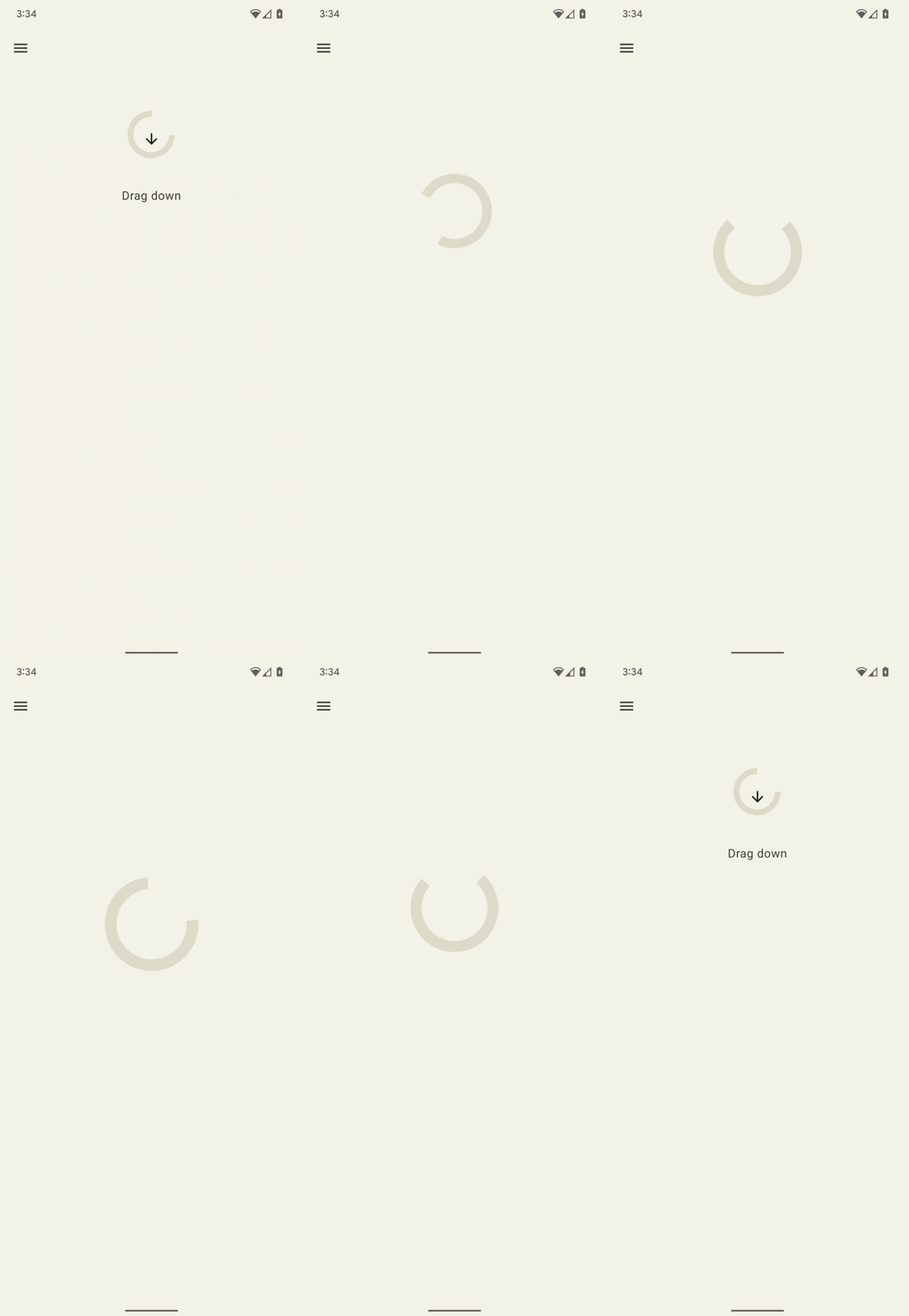
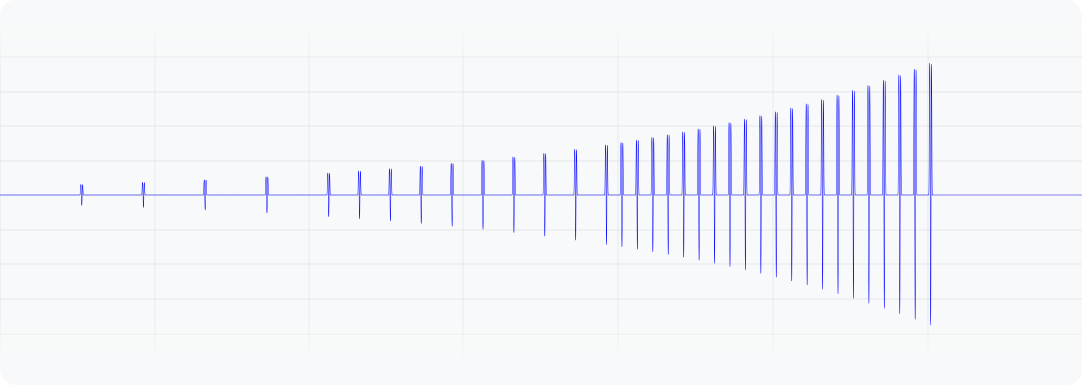
圖 1. 這個波形代表裝置震動的輸出加速度。
@Composable fun ResistScreen() { // Control variables for the dragging of the indicator. var isDragging by remember { mutableStateOf(false) } var dragOffset by remember { mutableFloatStateOf(0f) } // Only vibrates while the user is dragging LaunchedEffect(isDragging) { // Continuously run the effect for vibration to occur even when the view // is not being drawn, when user stops dragging midway through gesture. while (isDragging) { // Calculate the interval inversely proportional to the drag offset. val vibrationInterval = calculateVibrationInterval(dragOffset) // Calculate the scale directly proportional to the drag offset. val vibrationScale = calculateVibrationScale(dragOffset) delay(vibrationInterval) vibrator.vibrate( VibrationEffect.startComposition().addPrimitive( VibrationEffect.Composition.PRIMITIVE_LOW_TICK, vibrationScale ).compose() ) } } Column( Modifier .draggable( orientation = Orientation.Vertical, onDragStarted = { isDragging = true }, onDragStopped = { isDragging = false }, state = rememberDraggableState { delta -> dragOffset += delta } ) ) { // Build the indicator UI based on how much the user has dragged it. ResistIndicator(dragOffset) } }
展開 (有升有降)
有兩種基元可用於提高感知震動強度:PRIMITIVE_QUICK_RISE 和 PRIMITIVE_SLOW_RISE。兩者都能達到相同目標,但所需時間不同。只有一個基本類型用於降低,即 PRIMITIVE_QUICK_FALL。這些基元搭配使用效果更佳,可建立強度逐漸增強,然後逐漸減弱的波形片段。您可以對齊縮放的基元,防止基元之間的振幅突然跳躍,這也有助於延長整體效果持續時間。在感知上,使用者總是會注意到上升部分多於下降部分,因此將上升部分縮短於下降部分,可用於將重點轉移到下降部分。
以下範例說明如何運用這項組合展開及收合圓形。上升效果可強化動畫期間的擴展感。上升和下降效果的組合有助於強調動畫結尾的收合。
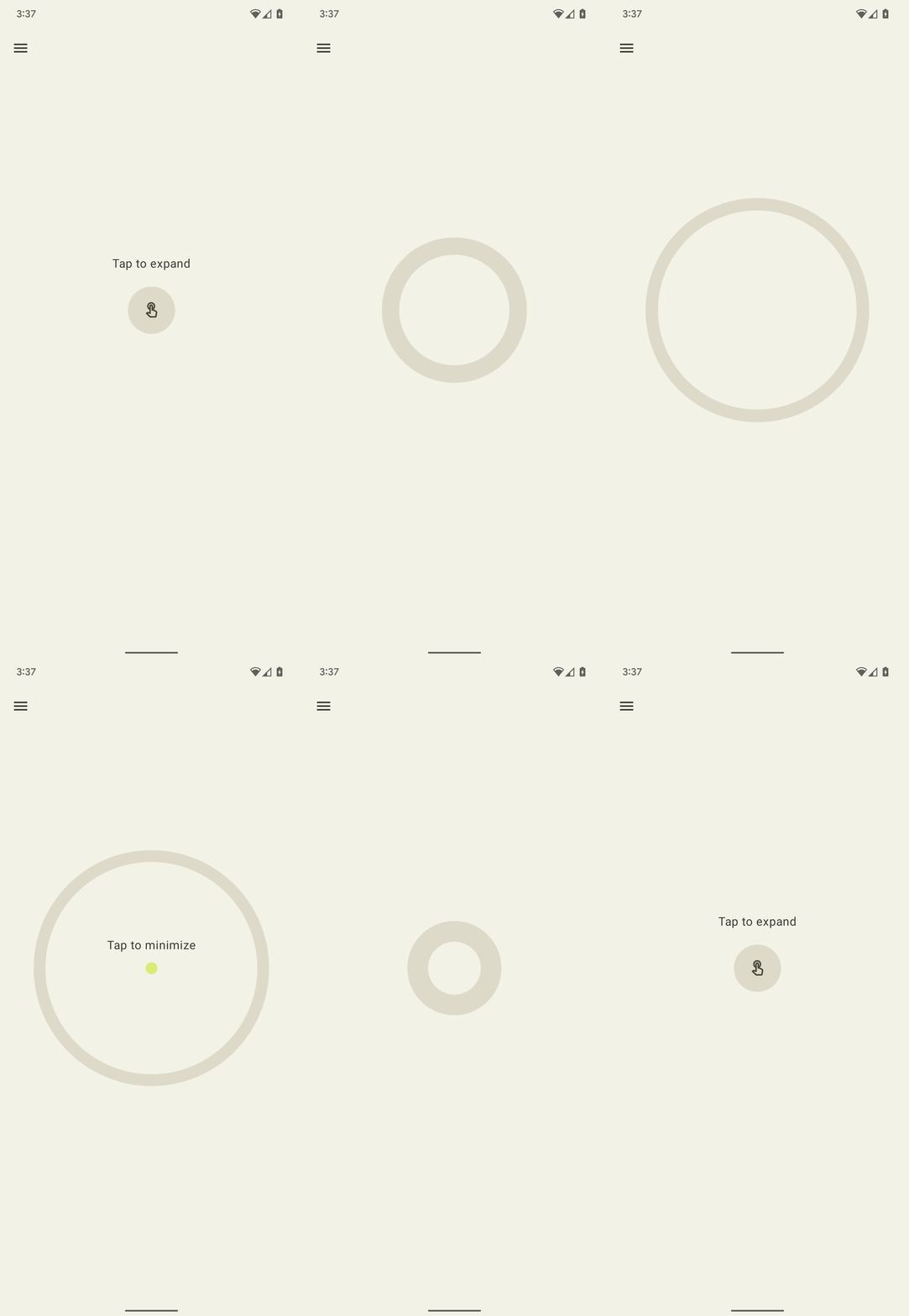
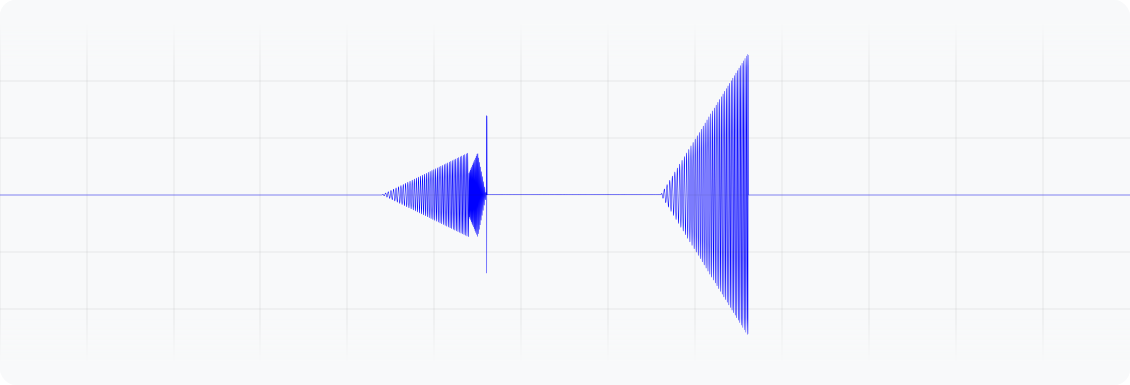
圖 2.這個波形代表裝置震動的輸出加速度。
enum class ExpandShapeState { Collapsed, Expanded } @Composable fun ExpandScreen() { // Control variable for the state of the indicator. var currentState by remember { mutableStateOf(ExpandShapeState.Collapsed) } // Animation between expanded and collapsed states. val transitionData = updateTransitionData(currentState) Column( Modifier .clickable( onClick = { if (currentState == ExpandShapeState.Collapsed) { currentState = ExpandShapeState.Expanded vibrator.vibrate( VibrationEffect.startComposition().addPrimitive( VibrationEffect.Composition.PRIMITIVE_SLOW_RISE, 0.3f ).addPrimitive( VibrationEffect.Composition.PRIMITIVE_QUICK_FALL, 0.3f ).compose() ) } else { currentState = ExpandShapeState.Collapsed vibrator.vibrate( VibrationEffect.startComposition().addPrimitive( VibrationEffect.Composition.PRIMITIVE_SLOW_RISE ).compose() ) } } ) ) { // Build the indicator UI based on the current state. ExpandIndicator(transitionData) } }
搖擺 (旋轉)
觸覺回饋原則的其中一項重點是讓使用者感到愉悅。如要加入令人驚喜的震動效果,不妨使用 PRIMITIVE_SPIN。呼叫這個原始物件多次時,效果最好。串連多個旋轉動作可產生搖晃和不穩定的效果,在每個圖元上套用隨機縮放,可進一步強化這種效果。您也可以嘗試調整連續旋轉基元之間的間隔。兩次旋轉之間沒有任何間隔 (0 毫秒),會產生緊湊的旋轉感。將旋轉間隔從 10 毫秒增加到 50 毫秒,會產生較鬆散的旋轉感,可用於配合影片或動畫的時間長度。
請勿使用超過 100 毫秒的間隔,因為連續旋轉不再能妥善整合,並開始感覺像個別效果。
以下是彈性形狀的範例,在向下拖曳後放開,形狀會彈回。動畫會套用一組旋轉效果,播放強度會隨著彈跳位移而變化。
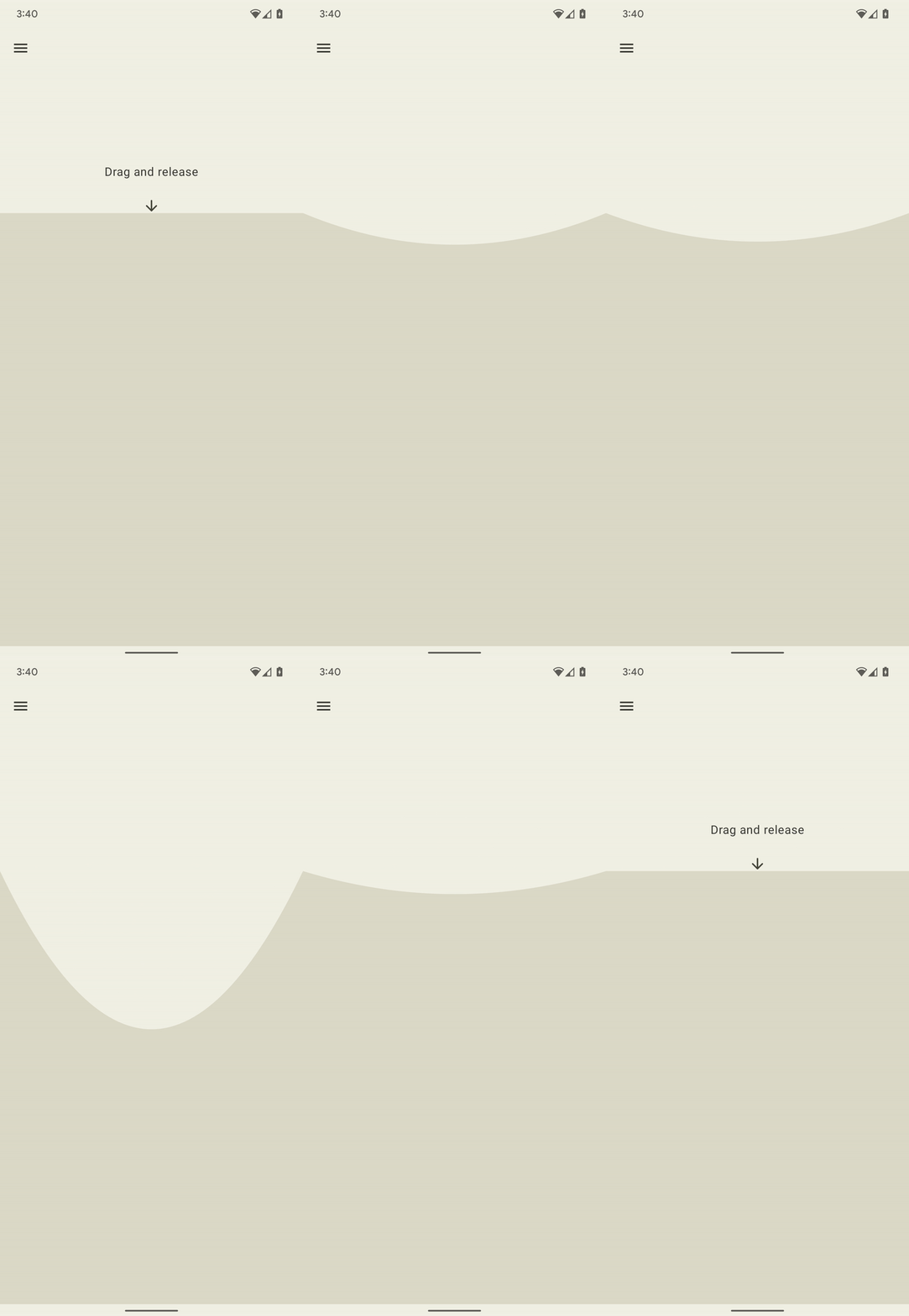
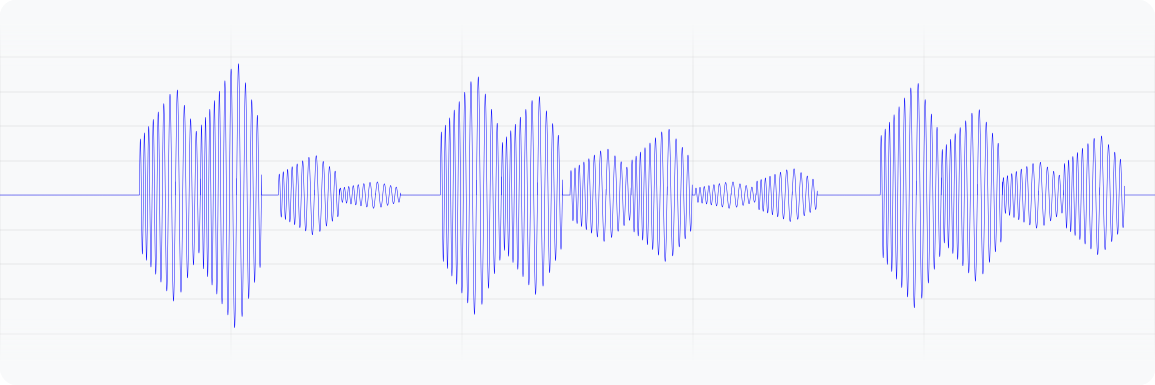
圖 3. 這個波形代表裝置震動的輸出加速度。
@Composable fun WobbleScreen() { // Control variables for the dragging and animating state of the elastic. var dragDistance by remember { mutableFloatStateOf(0f) } var isWobbling by remember { mutableStateOf(false) } // Use drag distance to create an animated float value behaving like a spring. val dragDistanceAnimated by animateFloatAsState( targetValue = if (dragDistance > 0f) dragDistance else 0f, animationSpec = spring( dampingRatio = Spring.DampingRatioHighBouncy, stiffness = Spring.StiffnessMedium ), // The spring ends on its target. An end value of 0f means that the // shape is back at rest, so the wobble is over. finishedListener = { endValue -> if (endValue == 0f) isWobbling = false }, ) LaunchedEffect(isWobbling) { while (isWobbling) { val displacement = dragDistanceAnimated / MAX_DRAG_DISTANCE // Use some sort of minimum displacement so the final few frames // of animation don't generate a vibration. if (displacement > SPIN_MIN_DISPLACEMENT) { vibrator.vibrate( VibrationEffect.startComposition().addPrimitive( VibrationEffect.Composition.PRIMITIVE_SPIN, nextSpinScale(displacement) ).addPrimitive( VibrationEffect.Composition.PRIMITIVE_SPIN, nextSpinScale(displacement) ).compose() ) } // Delay the next check for a sufficient duration until the // current composition finishes. Note that you can use // Vibrator.getPrimitiveDurations API to calculcate the delay. delay(VIBRATION_DURATION) } } Box( Modifier .fillMaxSize() .draggable( onDragStopped = { // Wobble only if the shape is far enough from rest to vibrate. // It then springs back to 0f, and the finishedListener ends // the wobble. val displacement = dragDistanceAnimated / MAX_DRAG_DISTANCE isWobbling = displacement > SPIN_MIN_DISPLACEMENT dragDistance = 0f }, orientation = Orientation.Vertical, state = rememberDraggableState { delta -> isWobbling = false dragDistance += delta } ) ) { // Draw the wobbling shape using the animated spring-like value. The // lambda defers the read to the draw phase, so the animation doesn't // recompose this screen on every frame. WobbleShape { dragDistanceAnimated } } } // Calculate a random scale for each spin to vary the full effect. fun nextSpinScale(displacement: Float): Float { // Generate a random offset in the range [-0.1, +0.1] to be added to the // vibration scale so the spin effects have slightly different values. val randomOffset: Float = Random.Default.nextFloat() * 0.2f - 0.1f return (displacement + randomOffset).absoluteValue.coerceIn(0f, 1f) }
彈跳 (伴隨重擊聲)
震動效果的另一項進階應用是模擬實體互動。PRIMITIVE_THUD 可產生強烈且迴盪的效果,可與影片或動畫等視覺效果搭配使用,提升整體體驗。
以下範例說明如何強化球掉落動畫,在球每次從畫面底部彈起時播放重擊效果:
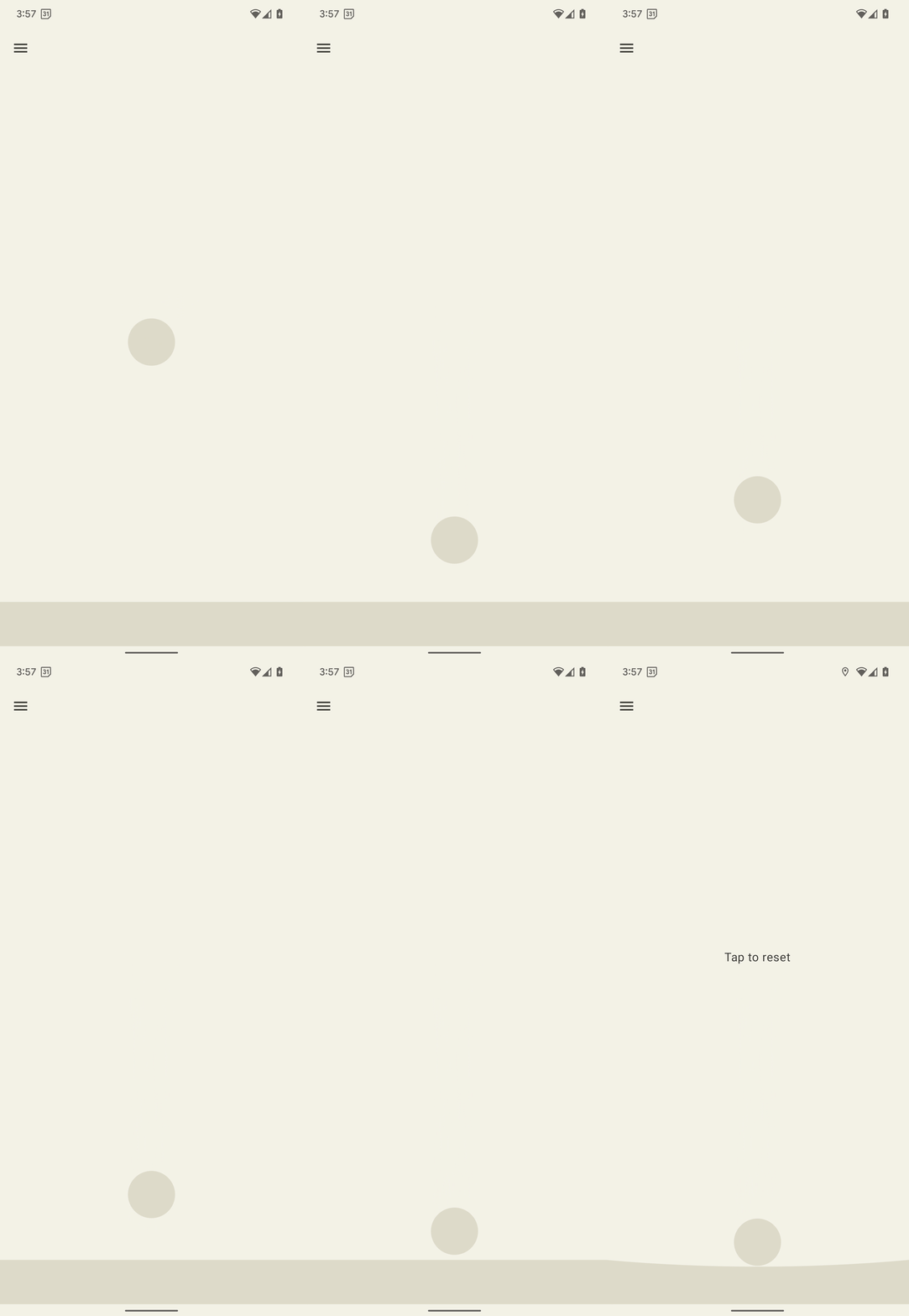
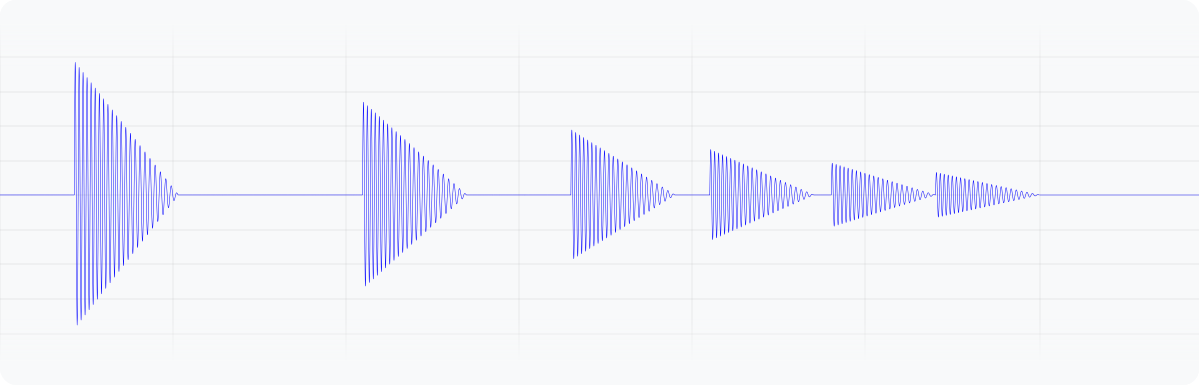
圖 4. 這個波形代表裝置震動的輸出加速度。
enum class BallPosition { Start, End } @Composable fun BounceScreen() { // Control variable for the state of the ball. var ballPosition by remember { mutableStateOf(BallPosition.Start) } // Plain holder for the bounce count. It's read only in the effect and in // the click handler, never in composition, so it needs no snapshot state. val bounceCount = remember { intArrayOf(0) } // Animation for the bouncing ball. val transitionData = updateTransitionData(ballPosition) val collisionData = updateCollisionData(transitionData) // Ball is about to contact floor. The effect runs only when the collision // state changes, so it vibrates once per collision. Nothing here suspends, // so a keyed SideEffect does the job without launching a coroutine. SideEffect(collisionData.collisionWithFloor) { if (collisionData.collisionWithFloor) { val vibrationScale = 0.7.pow(bounceCount[0]++).toFloat() vibrator.vibrate( VibrationEffect.startComposition().addPrimitive( VibrationEffect.Composition.PRIMITIVE_THUD, vibrationScale ).compose() ) } } Box( Modifier .fillMaxSize() .clickable { if (transitionData.isAtStart) { ballPosition = BallPosition.End } else { ballPosition = BallPosition.Start bounceCount[0] = 0 } }, ) { // Build the ball UI based on the current state. BouncingBall(transitionData) } }
有包絡線的震動波形
建立自訂震動模式的程序可讓您控制震動幅度,建立平滑的漸強和漸弱效果。本節說明如何使用波形包絡線建立動態觸覺效果,精確控制震動幅度和頻率。這樣一來,您就能打造更豐富、更細緻的觸覺體驗。
從 Android 16 (API 級別 36) 開始,系統會提供下列 API,透過定義一系列控制點來建立震動波形包絡:
BasicEnvelopeBuilder:建立與硬體無關的觸覺效果,這種方法容易上手。WaveformEnvelopeBuilder:建立觸覺回饋效果的進階方法,需要熟悉觸覺回饋硬體。
Android 不提供包絡效果的備用方案。如需這項支援,請完成下列步驟:
- 使用
Vibrator.areEnvelopeEffectsSupported()檢查特定裝置是否支援包絡效果。 - 停用不支援的一致體驗,或使用自訂震動模式或組合做為備用替代方案。
如要建立更多基本信封效果,請使用 BasicEnvelopeBuilder 搭配下列參數:
- 強度值,範圍為 \( [0, 1] \),代表震動的感知強度。舉例來說, \( 0.5 \)的值會被視為裝置可達到的全域最大強度的一半。
銳利度值介於 \( [0, 1] \)之間,代表震動的清晰度。值越低,震動越平緩;值越高,震動越強烈。
duration 值,代表從上一個控制點 (即強度和銳利度組合) 轉換到新控制點所需的時間,以毫秒為單位。
以下範例波形會將強度從低音調提高到高音調,在 500 毫秒內達到最大強度振動,然後在 100 毫秒內降回\( 0 \) (關閉)。
vibrator.vibrate( VibrationEffect.BasicEnvelopeBuilder() .setInitialSharpness(0.0f) .addControlPoint(1.0f, 1.0f, 500) .addControlPoint(0.0f, 1.0f, 100) .build() )
如果您對觸覺回饋有更進階的瞭解,可以使用 WaveformEnvelopeBuilder 定義包絡效果。使用這個物件時,您可以透過 VibratorFrequencyProfile 存取頻率對輸出加速度對應 (FOAM)。
- 振幅值介於 \( [0, 1] \)範圍內,代表在指定頻率下可達到的震動強度,由裝置 FOAM 決定。舉例來說, \( 0.5 \) 的值會產生在指定頻率下可達到的最大輸出加速度的一半。
頻率值,以赫茲為單位。
duration 值,代表從上一個控制點轉換到新控制點所需的時間,以毫秒為單位。
以下程式碼顯示定義 400 毫秒震動效果的波形範例。一開始,振幅會在 50 毫秒內從關閉狀態上升至最大值,頻率則維持在 60 Hz。接著,頻率會在接下來的 100 毫秒內上升至 120 Hz,並維持在這個水平 200 毫秒。最後,振幅會下降至 \( 0 \),頻率則會在最後 50 毫秒內回到 60 Hz:
vibrator.vibrate( VibrationEffect.WaveformEnvelopeBuilder() .addControlPoint(1.0f, 60f, 50) .addControlPoint(1.0f, 120f, 100) .addControlPoint(1.0f, 120f, 200) .addControlPoint(0.0f, 60f, 50) .build() )
下列各節提供幾個具有包絡線的震動波形範例。
彈跳彈簧
先前的範例使用 PRIMITIVE_THUD 模擬實體彈跳互動。基本包絡線 API 提供更精細的控制功能,可精準調整震動強度和銳利度。觸覺回饋會更準確地配合動畫事件。
以下是自由落體彈簧的範例,每次彈簧從畫面底部彈起時,都會播放基本包絡線效果,強化動畫效果:
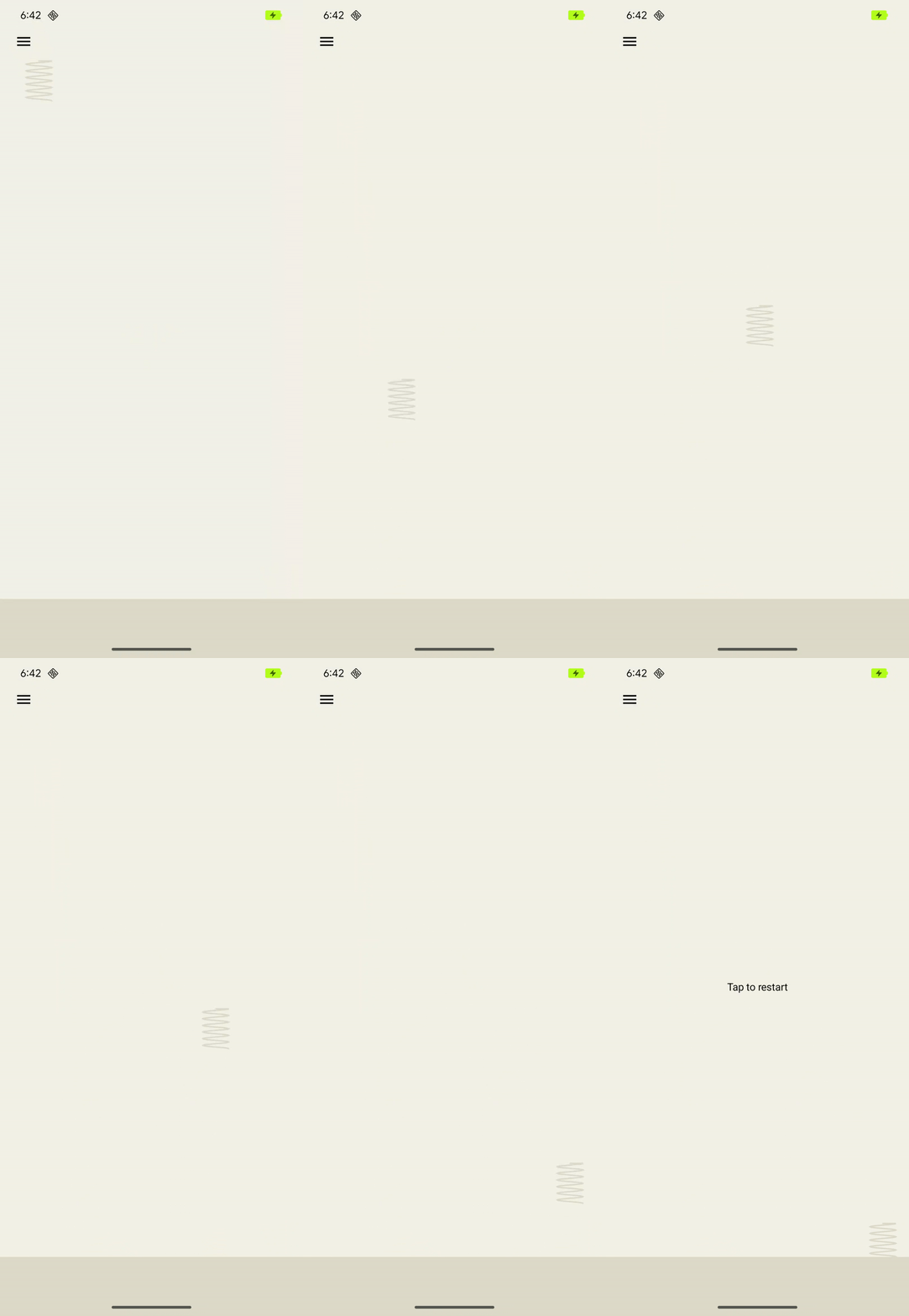
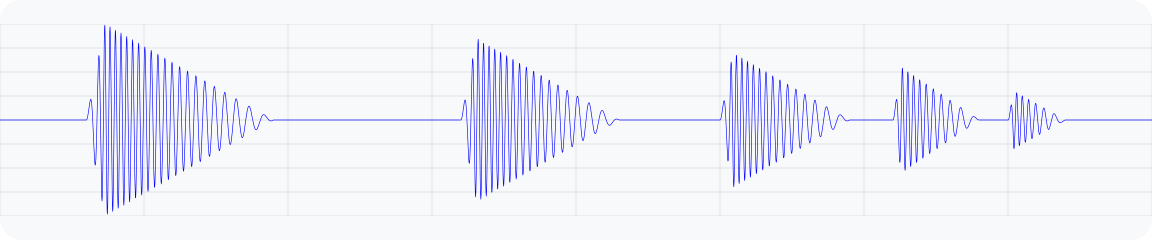
圖 5. 輸出加速度波形圖,用於模擬彈簧彈跳的震動。
@Composable fun BouncingSpringAnimation() { // The spring's height above the floor: 1f is the drop height, 0f is the floor. val springHeight = remember { Animatable(1f) } var isAnimating by remember { mutableStateOf(true) } LaunchedEffect(isAnimating) { if (!isAnimating) return@LaunchedEffect springHeight.snapTo(1f) // Each bounce reaches a fraction of the previous height. var bounceHeight = 1f while (bounceHeight > MIN_BOUNCE_HEIGHT) { // Fall to the floor, speeding up like a falling object. A fall from // a greater height takes longer. val fallDurationMs = (DROP_DURATION_MS * sqrt(bounceHeight)).toInt() springHeight.animateTo(0f, tween(fallDurationMs, easing = EaseInQuad)) // The spring hits the floor: play a "boing" envelope effect that fades // out. A higher bounce gives a stronger and sharper vibration. vibrator.vibrate( VibrationEffect.BasicEnvelopeBuilder() // Starting from zero sharpness here, will simulate a smoother // "boing" effect. .setInitialSharpness(0f) // Add a control point to reach the target intensity and // sharpness very quickly. .addControlPoint(bounceHeight, bounceHeight * MAX_SHARPNESS, 20L) // Add a control point to fade out the vibration intensity while // maintaining sharpness. .addControlPoint(0f, bounceHeight * MAX_SHARPNESS, fallDurationMs.toLong()) .build() ) // Bounce back up to a lower height, slowing down like a thrown object. // When the next bounce is too small, the spring stays on the floor. bounceHeight *= BOUNCE_DAMPING if (bounceHeight > MIN_BOUNCE_HEIGHT) { val riseDurationMs = (DROP_DURATION_MS * sqrt(bounceHeight)).toInt() springHeight.animateTo(bounceHeight, tween(riseDurationMs, easing = EaseOutQuad)) } } isAnimating = false } Box( modifier = Modifier .fillMaxSize() .clickable(enabled = !isAnimating) { isAnimating = true } .drawBehind { // Read the height in the draw phase, and scale it to the distance // between the top of the box and the floor. val floorTop = size.height - FLOOR_HEIGHT.toPx() val dropDistance = floorTop - SPRING_HEIGHT.toPx() drawSpring(topY = dropDistance * (1f - springHeight.value)) drawFloor(top = floorTop) } ) { if (!isAnimating) { Text("Tap to restart", Modifier.align(Alignment.Center)) } } }
火箭發射
先前的範例說明如何使用基本包絡線 API 模擬彈跳彈簧反應。WaveformEnvelopeBuilder 可精確控制裝置的完整頻率範圍,實現高度自訂的觸覺效果。結合 FOAM 資料,即可根據特定頻率能力調整震動。
以下範例示範如何使用動態震動模式模擬火箭發射。效果會從支援的最低頻率加速度輸出 (0.1 G) 提升至共振頻率,並一律維持 10% 的振幅輸入。這樣一來,效果就會以相當強的輸出開始,並增加感知強度和清晰度,即使驅動振幅相同也一樣。達到共振後,效果頻率會降回最小值,使用者會感覺到強度和清晰度下降。這會產生先阻力後釋放的感覺,模擬發射到太空的過程。
基本包絡線 API 無法達到這種效果,因為它會抽象化裝置專屬的共振頻率和輸出加速度曲線資訊。提高銳利度可能會使等效頻率超過共振頻率,導致加速度意外下降。
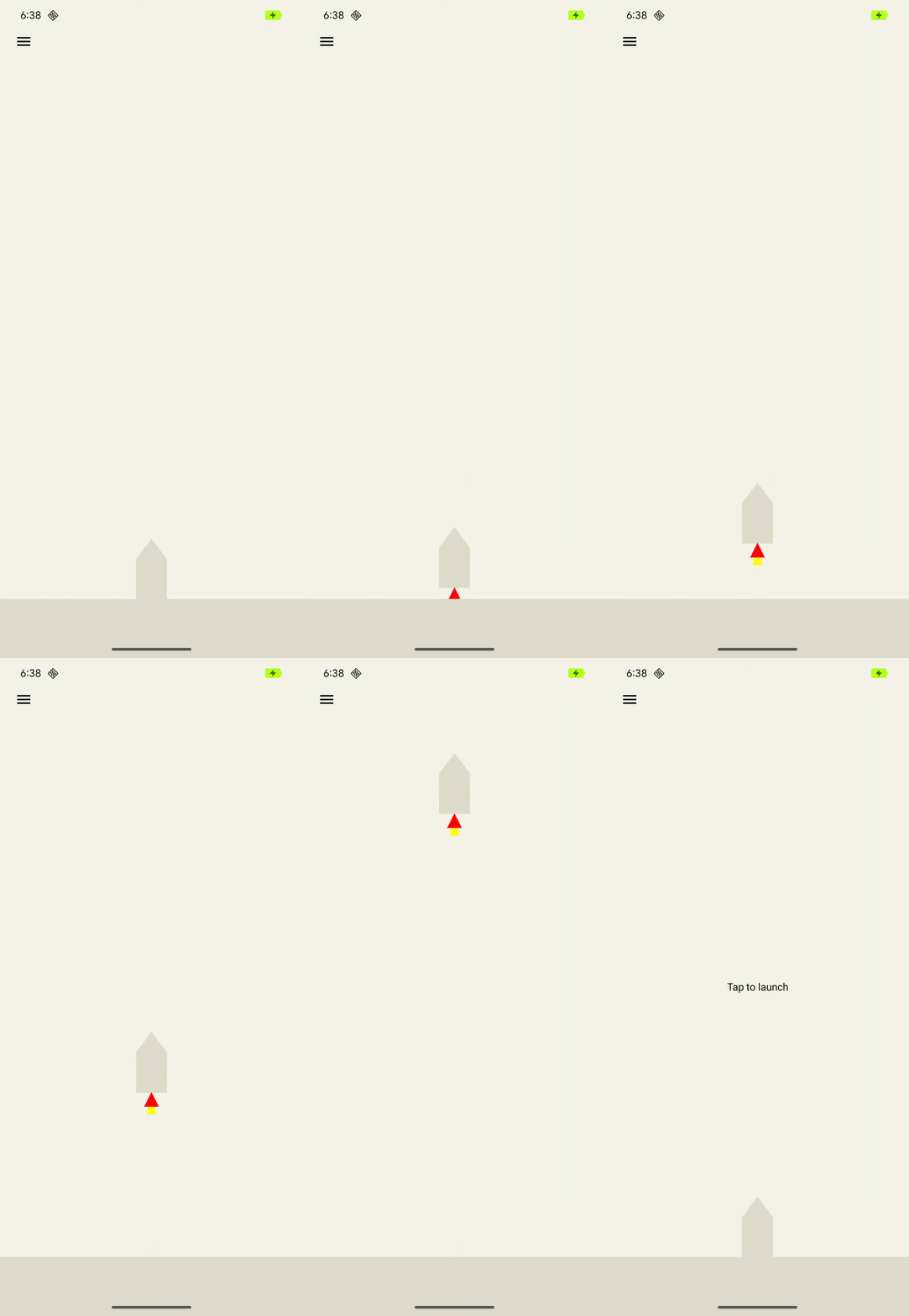
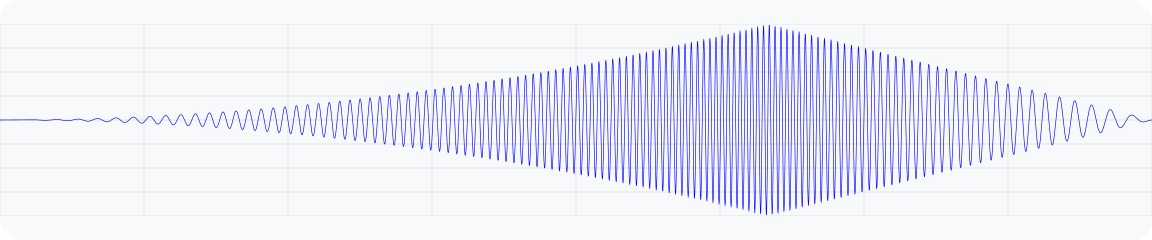
圖 6. 模擬火箭發射震動的輸出加速度波形圖。
@Composable fun RocketLaunchAnimation() { var isLaunched by remember { mutableStateOf(false) } val animation = remember { Animatable(0f) } val animationDuration = 3000 LaunchedEffect(isLaunched) { if (isLaunched) { animation.animateTo( 1.2f, // Overshoot so that the rocket goes off the screen. animationSpec = tween( durationMillis = animationDuration, // Applies an easing curve with a slow start and rapid acceleration // towards the end. easing = CubicBezierEasing(1f, 0f, 0.75f, 1f) ) ) animation.snapTo(0f) isLaunched = false } } Canvas( modifier = Modifier .fillMaxSize() .clickable { if (!isLaunched) { // Play vibration with same duration as the animation, using 70% of // the time for the rise of the vibration, to match the easing curve // defined previously. playVibration(vibrator, animationDuration.toLong(), 0.7f) isLaunched = true } } .background(colorResource(R.color.background)) ) { // Read the animation in the draw phase, and scale it to the canvas height. drawRocket(size.height * animation.value) } } private fun playVibration( vibrator: Vibrator, totalDurationMs: Long, riseBias: Float, minOutputAccelerationGs: Float = 0.1f, ) { require(riseBias in 0f..1f) { "Rise bias must be between 0 and 1." } if (!vibrator.areEnvelopeEffectsSupported()) { return } val resonantFrequency = vibrator.resonantFrequency if (resonantFrequency.isNaN()) { // Device doesn't have or expose a resonant frequency. return } val startFrequency = vibrator.frequencyProfile?.getFrequencyRange(minOutputAccelerationGs)?.lower ?: return if (startFrequency >= resonantFrequency) { // Vibrator can't generate the minimum required output at lower frequencies. return } val minDurationMs = vibrator.envelopeEffectInfo.minControlPointDurationMillis val rampUpDurationMs = (riseBias * totalDurationMs).toLong() - minDurationMs val rampDownDurationMs = totalDurationMs - rampUpDurationMs - minDurationMs vibrator.vibrate( VibrationEffect.WaveformEnvelopeBuilder() // Quickly reach the target output at the start frequency .addControlPoint(0.1f, startFrequency, minDurationMs) .addControlPoint(0.1f, resonantFrequency, rampUpDurationMs) .addControlPoint(0.1f, startFrequency, rampDownDurationMs) // Controlled ramp down to zero to avoid ringing after the vibration. .addControlPoint(0.0f, startFrequency, minDurationMs) .build() ) }
LavaBeats
如「火箭發射」範例所示,WaveformEnvelopeBuilder API 可控制震動的振幅和頻率片段,因此能設計許多複雜的觸覺回饋效果。這類設計的另一個例子是模擬更抽象的身體感受,例如「活力」。
方法是使用特定振幅和頻率的震動片段,代表典型心電圖 (ECG) 訊號的生物標記。LavaBeats 是一個範例,其中 ECG 記錄的兩個特徵片段以兩個脈衝表示,並以時間延遲分隔。第一個特徵脈衝是 QRS 複合波,呈現為高振幅和短持續時間的尖峰。第二個脈衝是 T 波,振幅較低、持續時間較長,且形狀較平滑 (見圖 7)。
使用 WaveformEnvelopeBuilder 建構這兩個脈衝的多種重複模式,並以固定的第一到第二脈衝延遲分隔。第一個脈衝可以是啁啾訊號,在短時間內從低頻率開始,並以較高頻率結束。第二個脈衝可以表示為低頻正弦波的單一週期。我們可以將兩個脈衝組合成一個節拍,並按照一般的每分鐘節拍數 (bpm) 速率,多次重複組合,並在兩次組合之間加入延遲。結果會產生類似心跳的觸覺效果。
您可以在 GitHub 上的觸覺回饋範例應用程式中試用 LavaBeats,並感受伴隨熔岩燈視覺效果的效果,該效果會以與觸覺效果相同的節奏跳動。您也可以變更效果設定,修改兩個脈衝的振幅、頻率、持續時間和延遲時間,創造不同的節拍感。
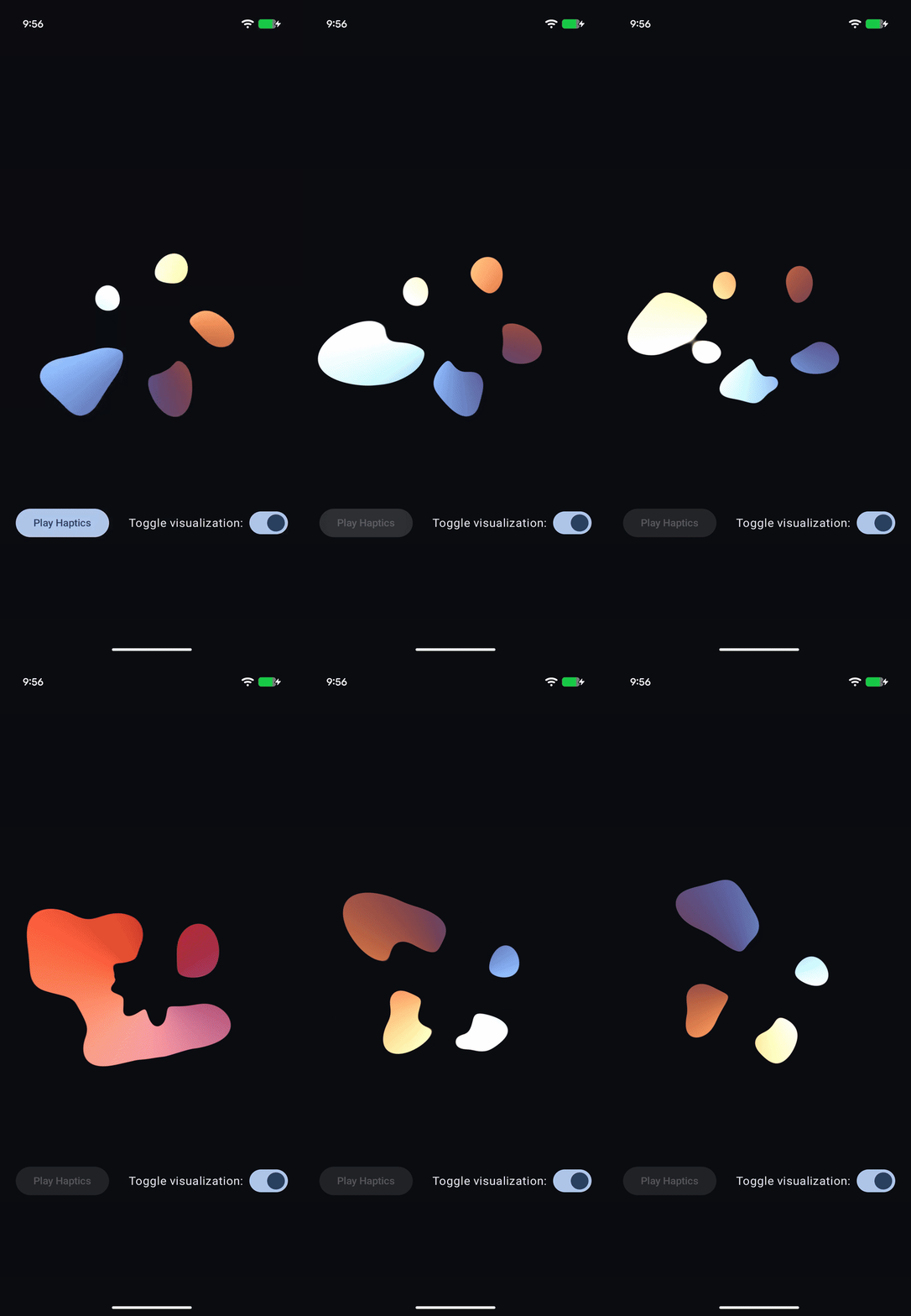
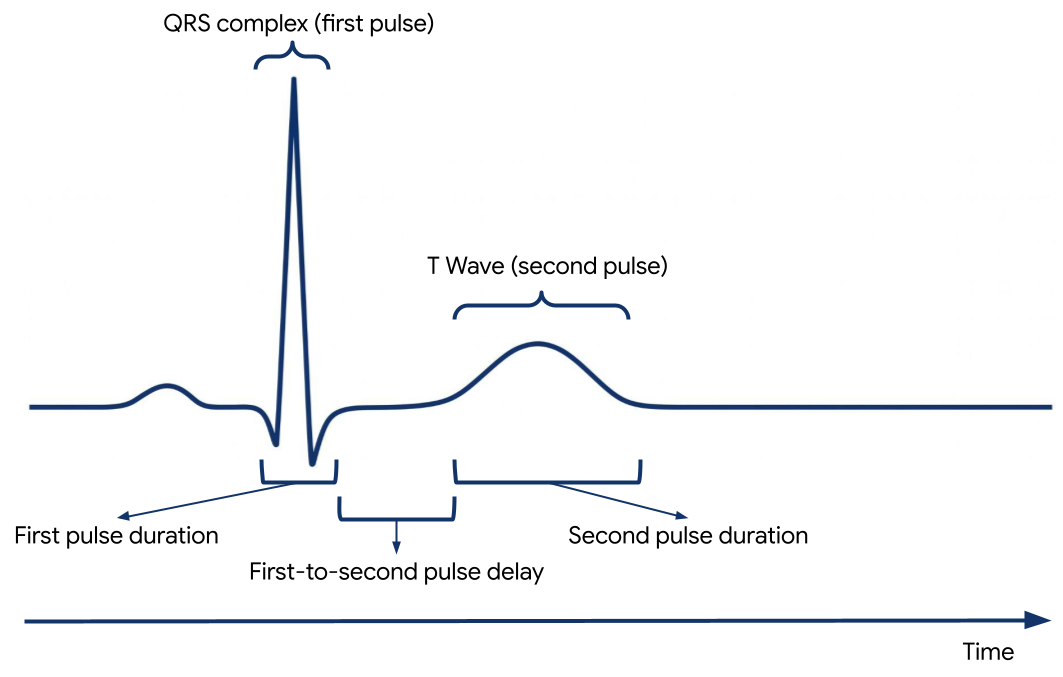
圖 7. 心電圖記錄中包含 QRS 波群和 T 波的部分
private fun createEnvelopeEffect( beatParameters: List<BeatParameter> ): VibrationEffect = VibrationEffect.WaveformEnvelopeBuilder() .apply { repeat(beatParameters.getNumBeats()) { // First pulse chirp addControlPoint( beatParameters.getFirstPulseAmplitude(), beatParameters.getFirstPulseStartFreq(), ENVELOPE_RAMP_DURATION_MILLIS, ) addControlPoint( beatParameters.getFirstPulseAmplitude(), beatParameters.getFirstPulseEndFreq(), beatParameters.getFirstPulseDurationMillis().toLong(), ) addControlPoint( 0f, beatParameters.getFirstPulseEndFreq(), ENVELOPE_RAMP_DURATION_MILLIS, ) // Delay between first and second pulse addControlPoint( 0f, beatParameters.getFirstPulseEndFreq(), beatParameters.getFirstToSecondPulseDelayMillis().toLong(), ) // Second pulse addControlPoint( beatParameters.getSecondPulseAmplitude(), beatParameters.getSecondPulseFreq(), ENVELOPE_RAMP_DURATION_MILLIS, ) addControlPoint( beatParameters.getSecondPulseAmplitude(), beatParameters.getSecondPulseFreq(), (1_000 / (2f * beatParameters.getSecondPulseFreq())).toLong(), ) addControlPoint( 0f, beatParameters.getSecondPulseFreq(), ENVELOPE_RAMP_DURATION_MILLIS, ) addControlPoint( 0f, beatParameters.getSecondPulseFreq(), beatParameters.getBeatDelayMillis().toLong(), ) } } .build() /** A parameter of a haptic beat effect that represents an ECG signal parameter */ data class BeatParameter( val description: String = "", val value: Float = 0f, val range: ClosedFloatingPointRange<Float> = 0f..1f, val steps: Int = 0, val isFrequencyType: Boolean = false, )