Android Studio includes an APK Analyzer that provides immediate insight into the
composition of your APK or Android App Bundle after the build process completes.
Using the APK Analyzer can reduce the time you spend debugging issues with DEX
files and resources within your app and help reduce your APK size. The APK Analyzer
is also available from the command line with
apkanalyzer.
With the APK Analyzer, you can:
- View the absolute and relative size of files in the app, such as the DEX and Android resource files.
- Understand the composition of DEX files.
- Quickly view the final versions of files in the app, such as the
AndroidManifest.xmlfile. - Perform a side-by-side comparison of two APKs or app bundles.
There are three ways to access the APK Analyzer when a project is open:
- Drag an APK or app bundle into the Editor window of Android Studio.
- Switch to the Project view in the Project window, then
double-click the APK in the default
build/output/apks/directory. - Select Build > Analyze APK in the menu bar, then select your APK or app bundle.
Android skills
View on GitHub
R8 analyzer
android skills add r8-analyzer
View file and size information
APKs are files that follow the ZIP file format. The APK Analyzer displays each file or folder as an entity that you can expand to navigate into folders. The hierarchy of the entities mirrors the structure of the files and folders in the APK file.
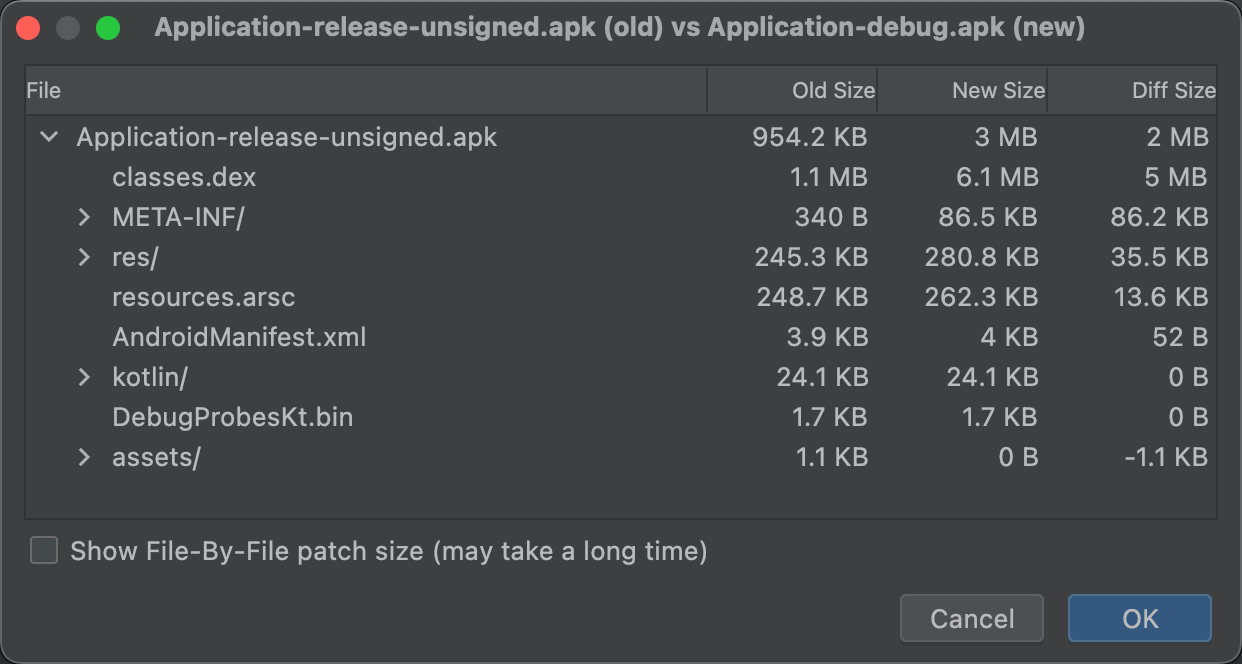
The APK Analyzer shows the zipped file size (or "raw file size") and download file size values for each entity, as shown in figure 1. Raw File Size represents the contribution of the entity to the total APK size. Download Size represents the estimated compressed size of the entity as it would be delivered by Google Play. The % of Total Download Size indicates the percentage of the APK's total download size the entity represents.
View the AndroidManifest.xml
If your project includes multiple AndroidManifest.xml files, such as for
product flavors, or includes libraries that also provide a manifest file, they
are merged into a single file in your app. This manifest file
is normally a binary file within the APK or app bundle, but when
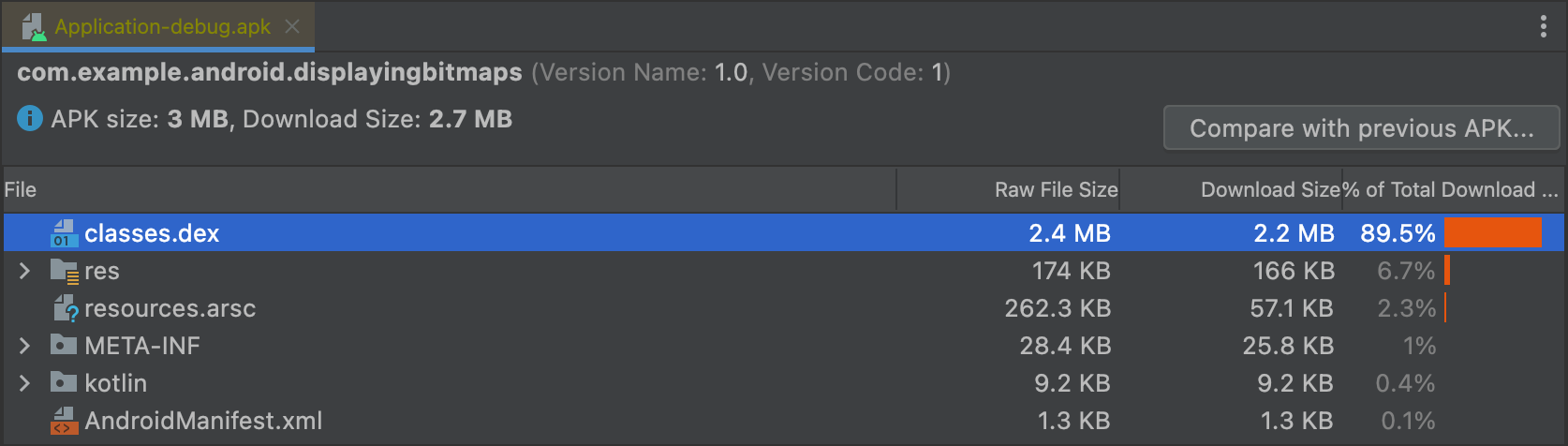
selected in the APK Analyzer, the XML form of this entity is reconstructed and
presented.
This viewer helps you understand any changes that might have been
made to your app during the build. For example, you can see how the
AndroidManifest.xml file from a library your application depends on
is merged into the final AndroidManifest.xml file.
Additionally, this viewer provides some lint capabilities. Warnings or errors appear in the top-right corner. Figure 2 shows an error being reported for the selected manifest file.
View DEX files
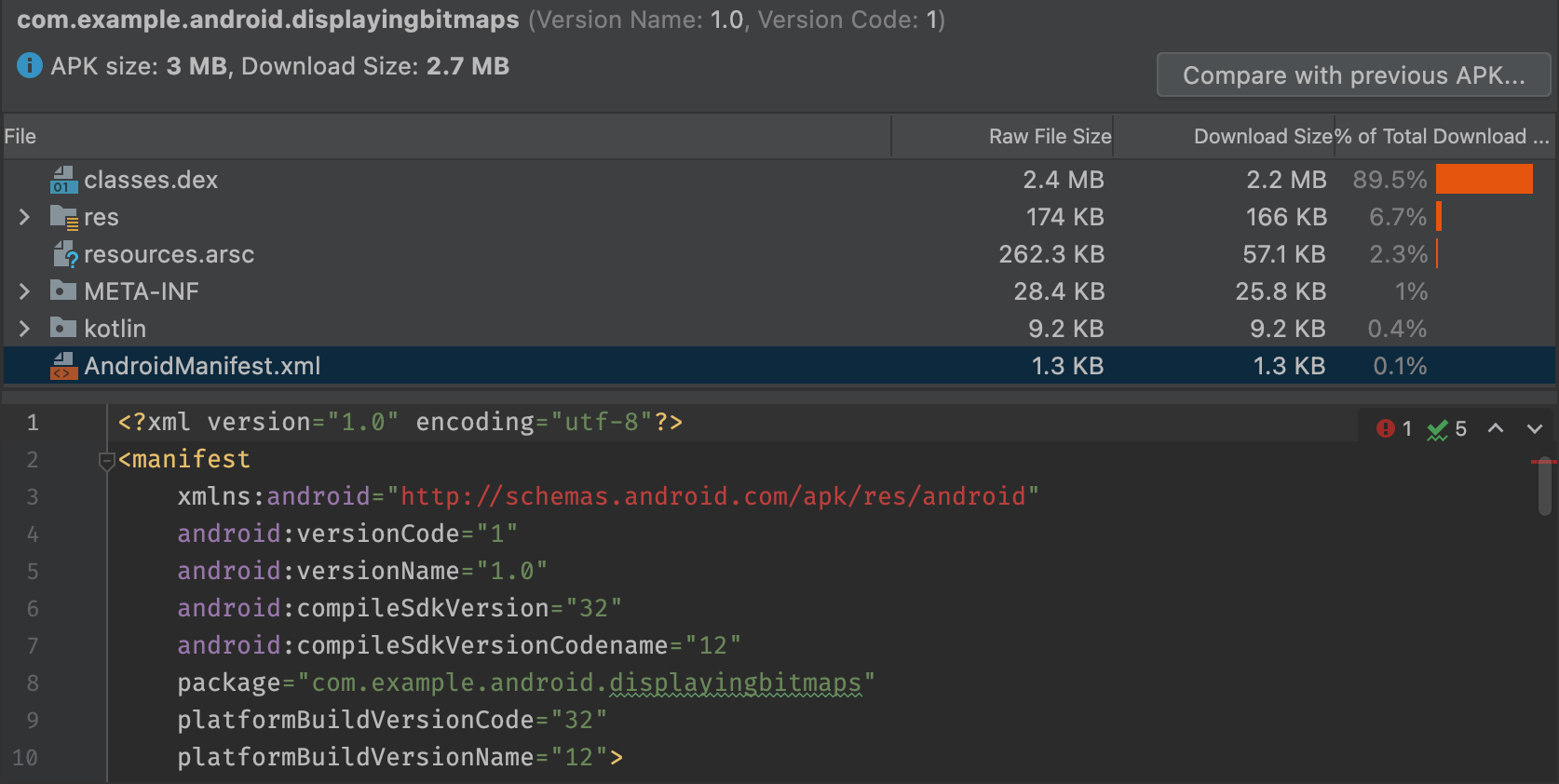
The APK Analyzer's DEX file viewer gives you immediate access to the underlying information in the DEX files in your app. The viewer provides class, package, total reference, and declaration counts, which can assist in deciding whether to use multidex or how to remove dependencies to get below the 64K DEX limit.
Figure 3 shows a medium-size app that is below the 64K DEX limit. Each package, class, and method inside the DEX file has counts listed in the Defined Methods and Referenced Methods columns.
The Referenced Methods column counts all methods that the DEX file references. This typically includes methods defined in your code, dependency libraries, and methods defined in standard Java and Android packages that the code uses. These are the methods counted toward the 64K method limit in each DEX file.
The Defined Methods column counts only the methods that are defined in one of your DEX files, so this number is a subset of Referenced Methods.
Filter the DEX file tree view
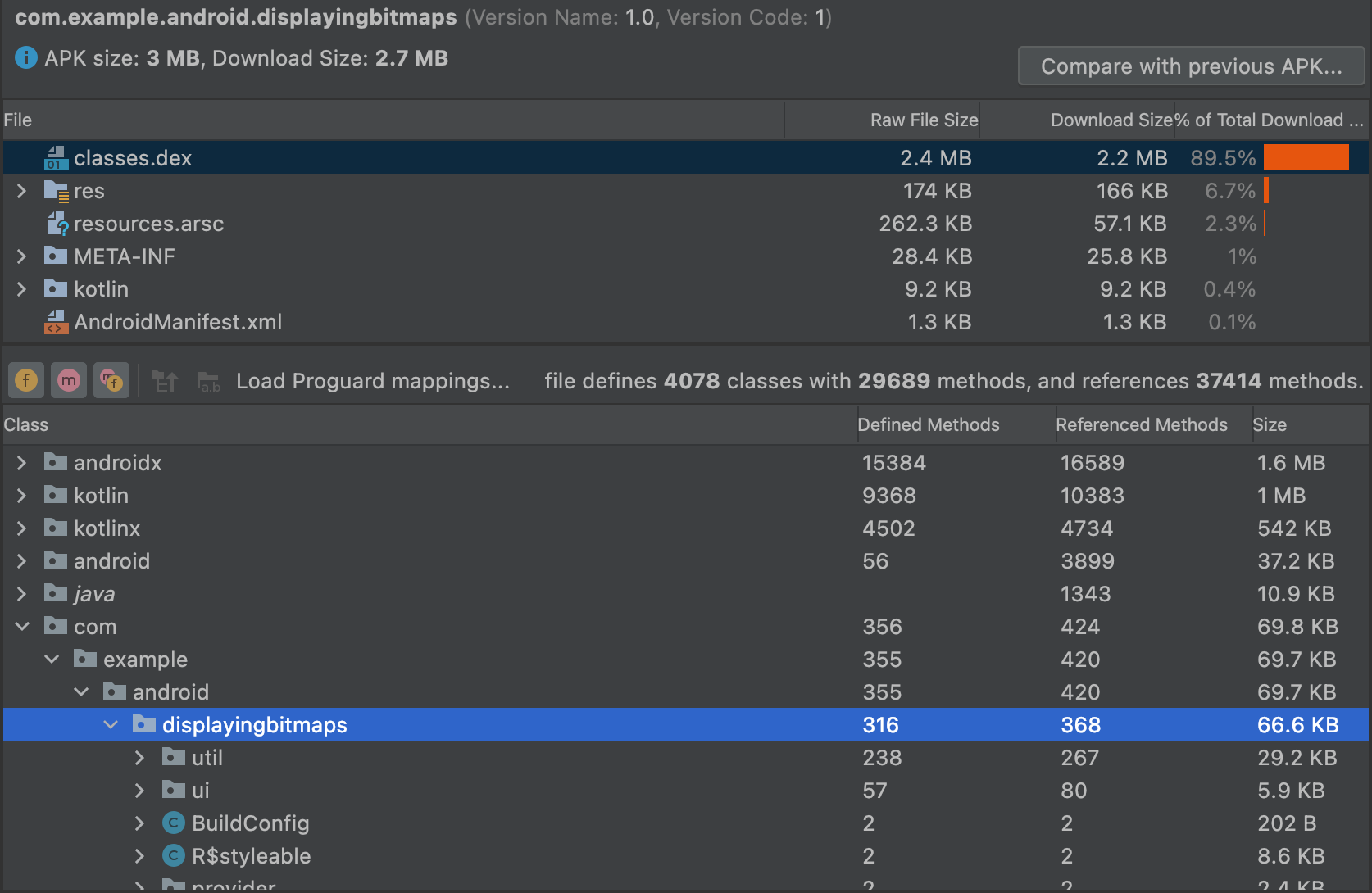
Just above the Class list, the APK Analyzer provides filters for viewing the contents of the selected DEX file, as shown in figure 4.
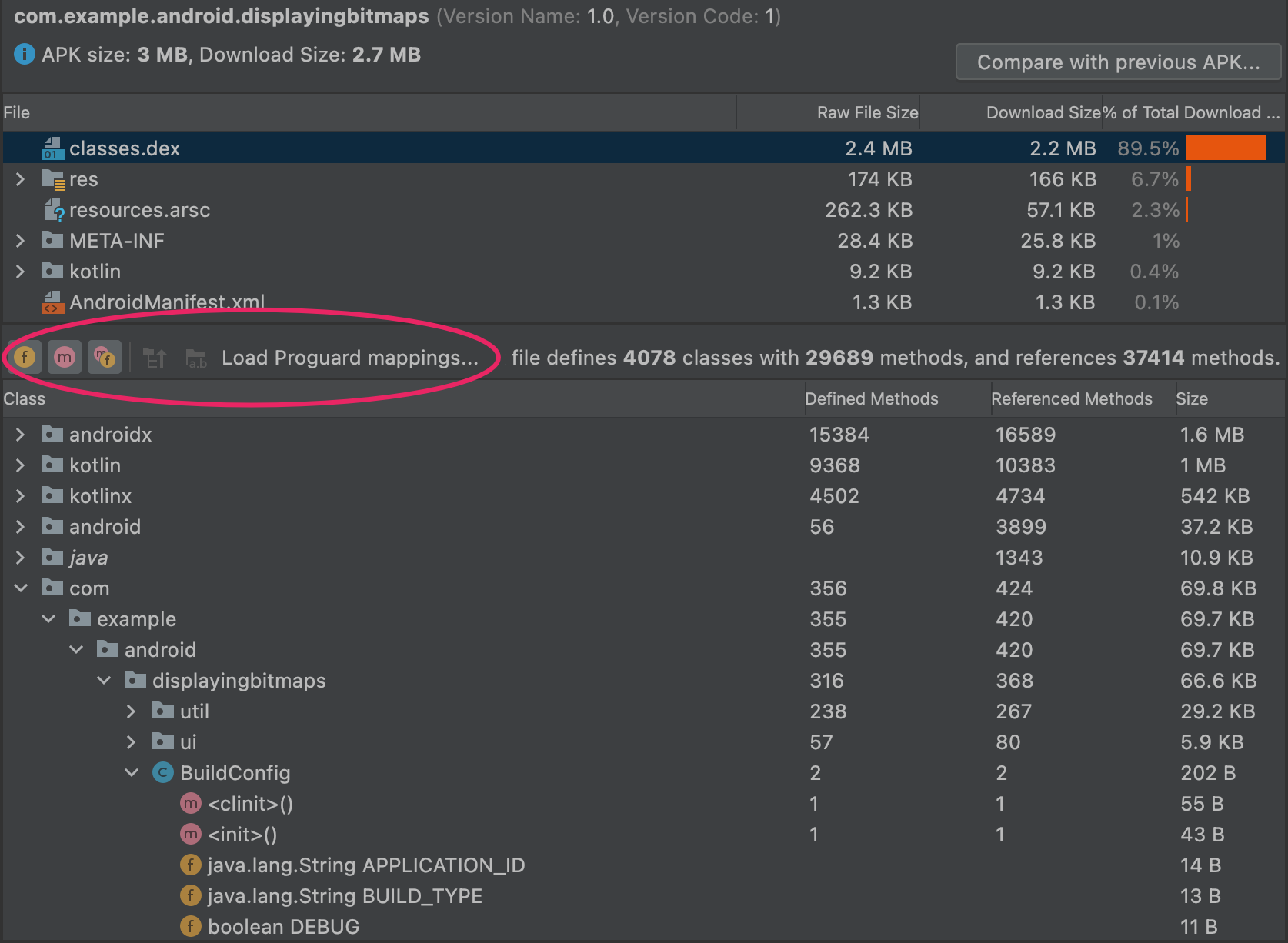
BuildConfig.To use the filters to display all methods and fields inside a class, do the following:
- In the File list, select the
classes.dexfile. - In the Class list, navigate to and select a class.
- Expand the class you selected.
- Toggle Show fields
 to show or hide the class fields.
 - Toggle Show methods
 to show or hide the class methods.
 Toggle Show all referenced methods or fields
 to show or hide referenced packages, classes, methods, and fields.
In the tree view, italicized nodes are references that don't have a definition in the selected DEX file. A DEX file can reference methods and fields that are defined in a different file. For example,
System.out.printlnis a reference to theprintlnmethod in the Android framework.
Load ProGuard mappings
Next to the filtering icons are the ProGuard mapping icons. The ProGuard icons
are grayed out until you load a set of ProGuard mapping files that add
functionality to the DEX viewer, such as deobfuscating names (mapping.txt),
showing nodes that were removed (usage.txt), and indicating nodes
that can't be removed (seeds.txt).
The ProGuard mapping file you import must result from the same build that produced the DEX files with code shrinking enabled.

To load the ProGuard mapping files, do the following:
- Click Load Proguard mappings....
Navigate to the project folder that contains the mapping files and load all the files, any combination of the files, or the folder that contains the files.
The mapping files are normally in
project/app/build/outputs/mappings/release/. The file picker defaults to the release folder if it detects this project structure.First, the file picker checks for filenames that exactly match
mapping.txt,seeds.txt, andusage.txt. Next, the file picker checks for filenames that contain the textmapping,usage, orseedssomewhere and end with.txt. For examplerelease-seeds-1.10.15.txtis a match.
The following list describes the mapping files:
seeds.txt: Nodes that the ProGuard configuration prevents from being removed during shrinking are shown in bold.mapping.txt: Enables Deobfuscate names so you can restore the original names of nodes that
were obfuscated by R8. For example, you can restore obfuscated node
names like
so you can restore the original names of nodes that
were obfuscated by R8. For example, you can restore obfuscated node
names like a,b,ctoMyClass,MainActivity, andmyMethod().usage.txt: Enables Show removed nodes so you can show classes, methods, and fields that were
removed by R8 during shrinking. The restored nodes are shown in
strikethrough.
so you can show classes, methods, and fields that were
removed by R8 during shrinking. The restored nodes are shown in
strikethrough.For more information about using R8 to obfuscate and minimize your code, see Shrink, obfuscate, and optimize your app.
Show bytecode, find usages, and generate Keep rule
The nodes in the Class list view have a context menu with the following options that let you see the bytecode, find usages, and display a dialog that shows ProGuard rules to copy and paste for the selected node. Right-click any node in the Class list view to display its context menu.
Show bytecode: Decompiles the selected class, method, or field and displays the smali bytecode representation in a dialog, as follows:
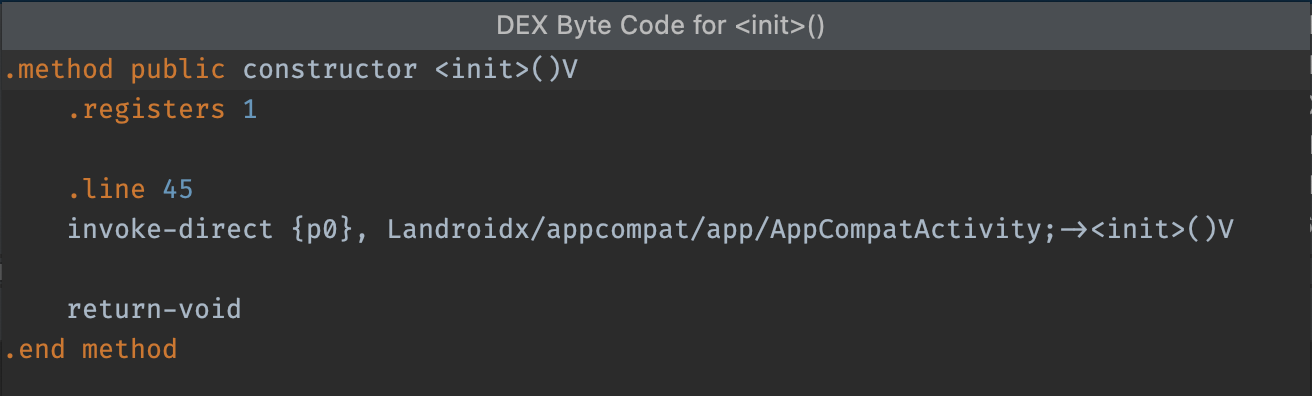
init
method.Find usages: Shows which other parts of the DEX code
have references to the selected class or method, as shown in figure 7.
If you have seeds.txt loaded,
nodes displayed in bold indicate that the ProGuard configuration prevents them
from being removed during shrinking:
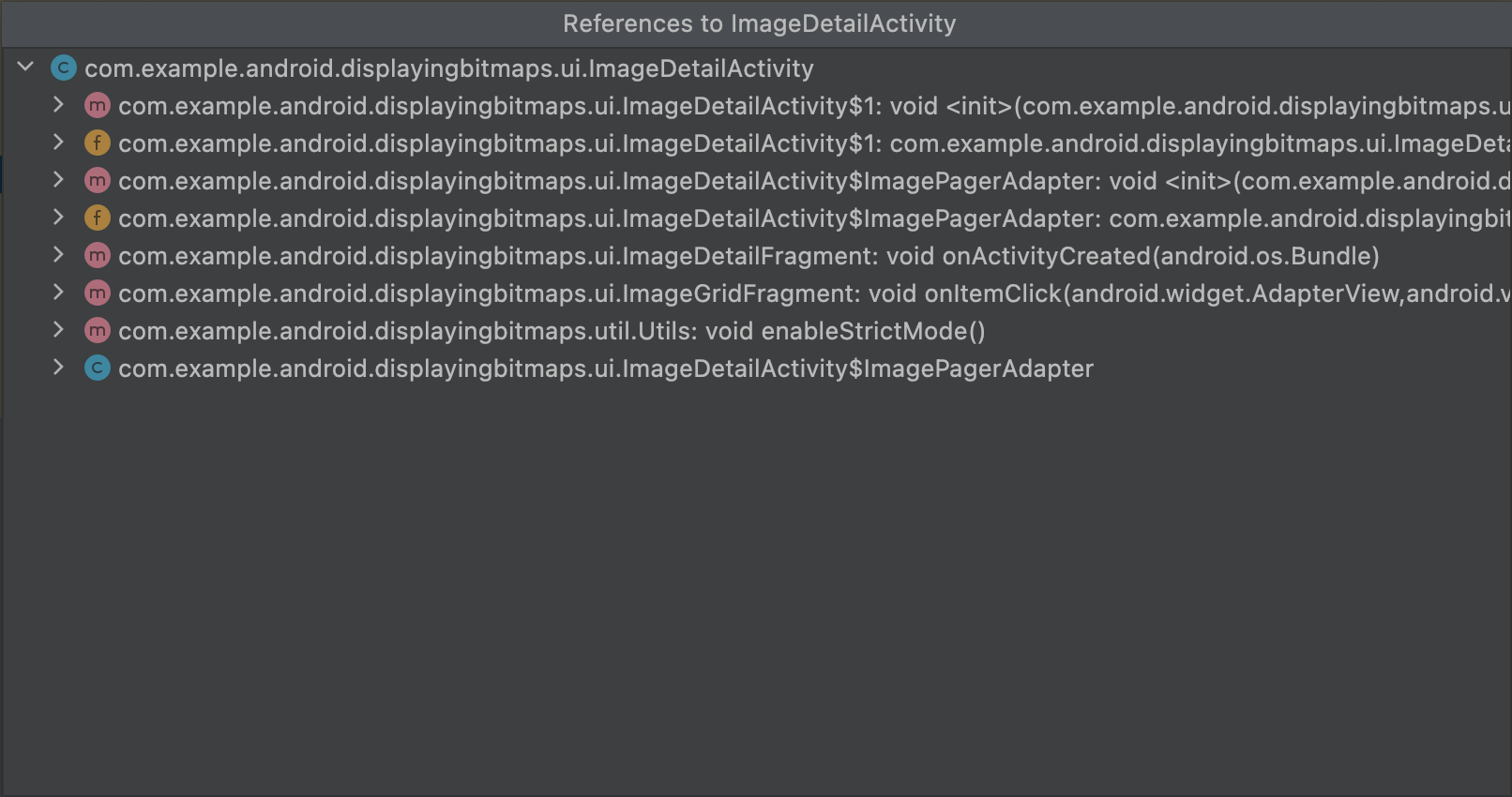
MyClass.
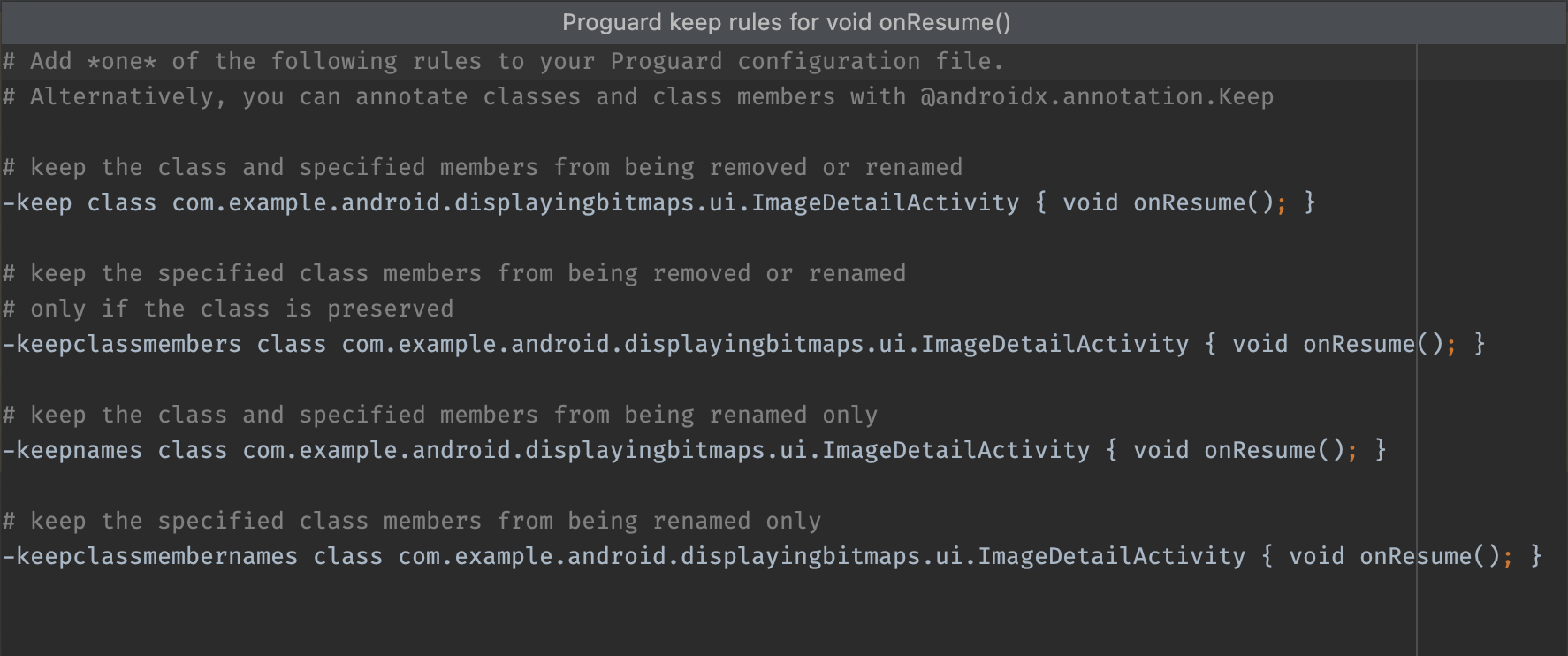
Generate Proguard Keep rule: Shows ProGuard rules that you can copy and paste into your project's ProGuard configuration file, as shown in figure 8. This keeps a given package, class, method, or field from being removed during the code shrinking phase. For more information, see Customize which code to keep.
View code and resource entities
Various build tasks change the final entities in an app. For example, ProGuard shrinking rules can alter your final code, and image resources can be overridden by resources in a product flavor.
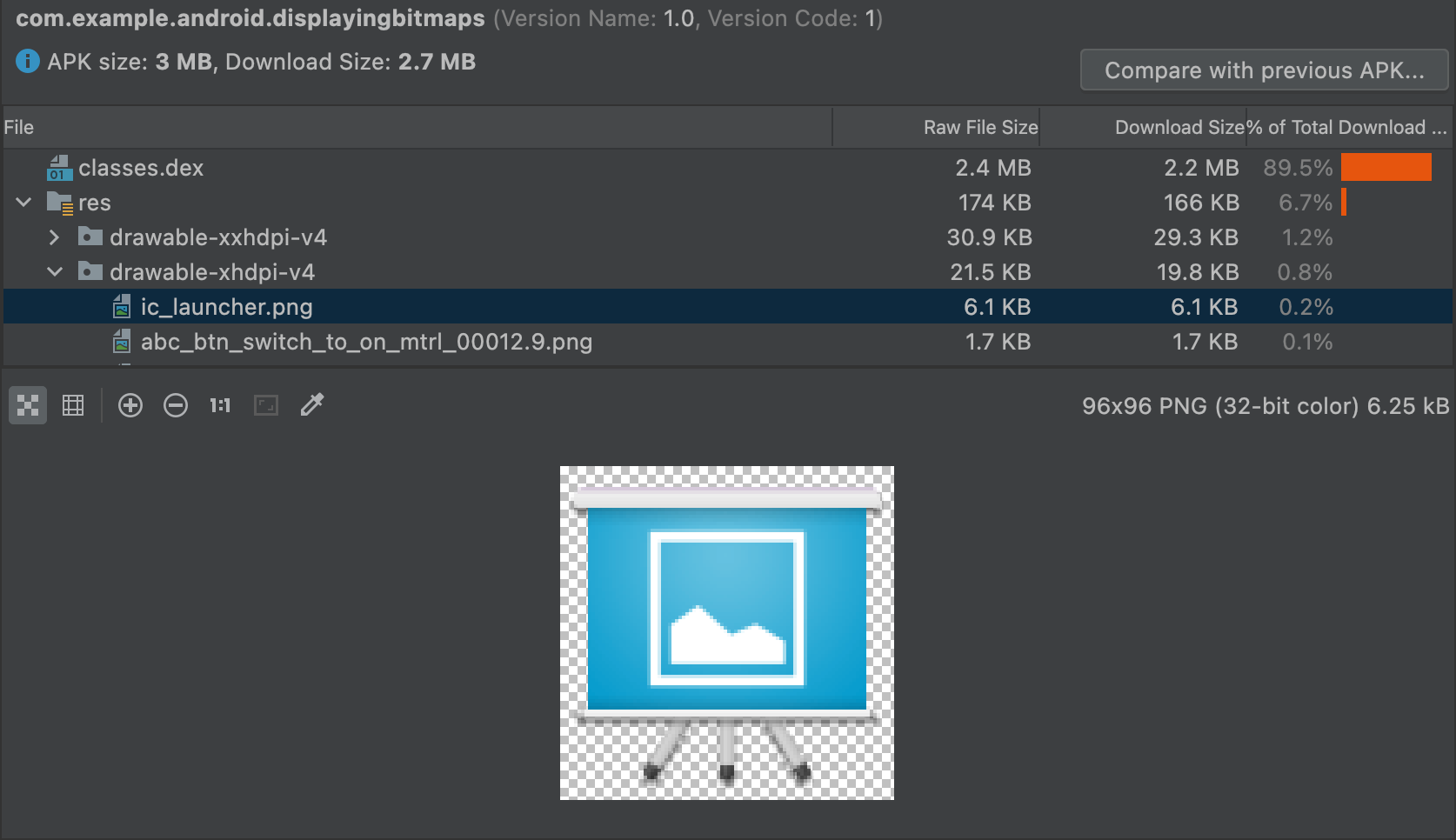
To view the final version of your files with the APK Analyzer, click the entity for a preview of the text or image entity, as shown in figure 9.
The APK Analyzer can also display various text and binary files.
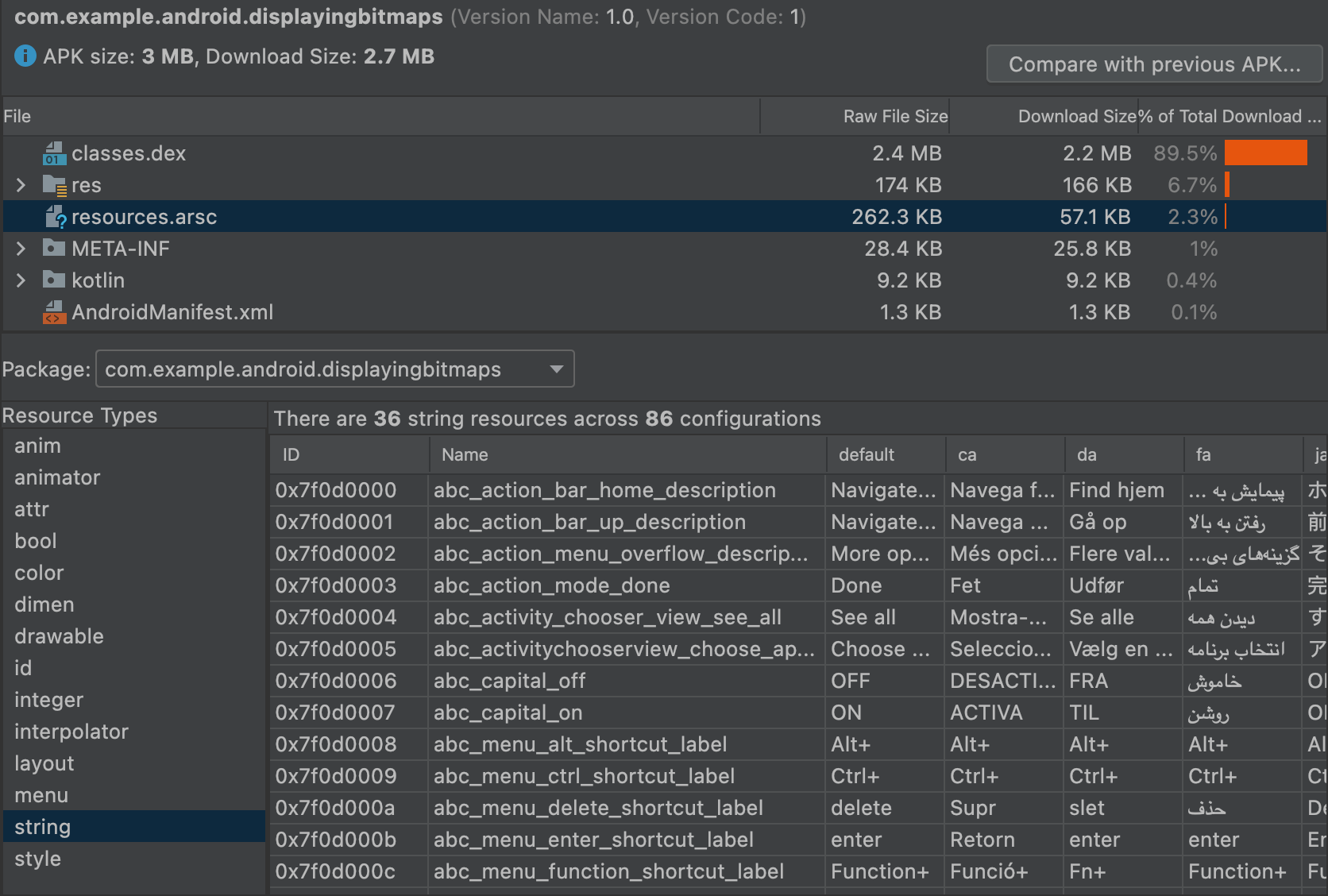
For instance, the resources.arsc entity viewer lets you see the
configuration-specific values, such as language translations for a
string resource. In figure 10, you can see the translations for each string
resource.
Compare files
The APK Analyzer can compare the size of the entities in two different APK or app bundle files. This is helpful when you need to understand why your app increased in size compared to a previous release.
Before you publish an updated app, do the following:
- Load the version of the app you are about to publish into the APK Analyzer.
- In the top-right corner of the APK Analyzer, click Compare with previous APK....
In the selection dialog, find the artifact that was last published to your users and click OK.
A dialog similar to the one in figure 11 appears to help you assess the impact the update might have on users.
Figure 11 shows the difference between a particular app's debug and release builds. Different build options are in use between these build types, which alter the underlying entities differently.