標準版面配置

Canonical layouts are proven, versatile layouts that provide an optimal user experience on a variety of form factors.

Depiction of large screen devices showing the canonical layouts.

The canonical layouts support small screen phones as well as tablets, foldables, and ChromeOS devices. Derived from Material Design guidance, the layouts are aesthetic as well as functional.

The Android framework includes specialized components that make implementation of the layouts straightforward and reliable.

The canonical layouts create engaging, productivity‑enhancing UIs that form the foundation of great apps.

如果您已熟悉自適應應用程式標準版面配置,但不確定應用程式要使用哪個 Android API,請直接參閱「適用性」一節,瞭解如何判斷哪個版面配置適合您的應用程式用途。

List-detail

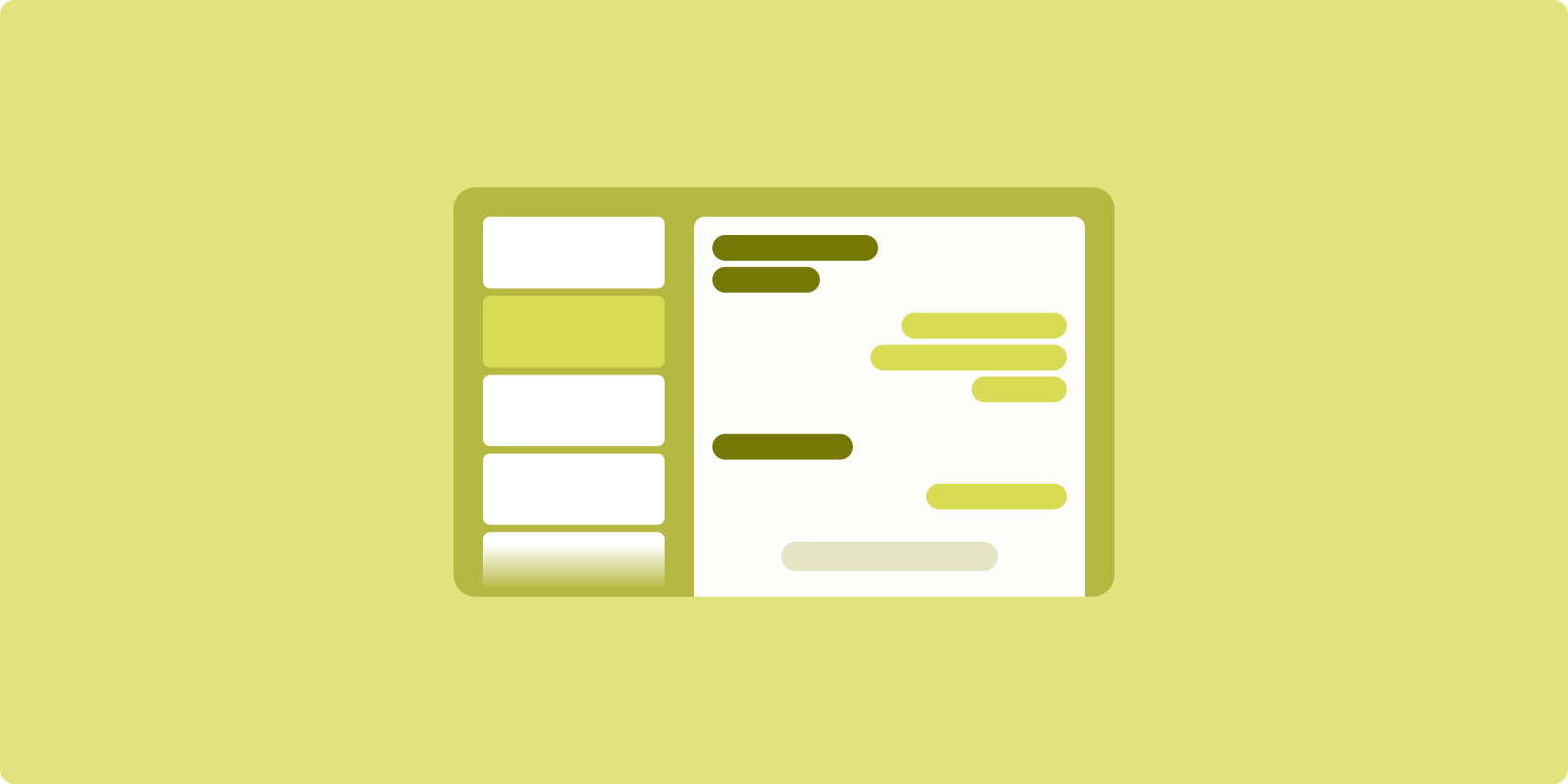
Wireframe of list-detail layout.

The list-detail layout enables users to explore lists of items that have descriptive, explanatory, or other supplementary information—the item detail.

The layout divides the app window into two side-by-side panes: one for the list, one for the detail. Users select items from the list to display the item detail. Deep links in the detail reveal additional content in the detail pane.

Expanded-width displays (see Use window size classes) accommodate both the list and detail at the same time. Selection of a list item updates the detail pane to show the related content for the selected item.

Medium- and compact-width displays show either the list or the detail, depending on user interaction with the app. When just the list is visible, selection of a list item displays the detail in place of the list. When just the detail is visible, pressing the back button redisplays the list.

Configuration changes such as device orientation changes or app window size changes can change the display's window size class. A list‑detail layout responds accordingly, preserving app state:

  • If an expanded-width display showing both the list and detail panes narrows to medium or compact, the detail pane remains visible and the list pane is hidden
  • If a medium- or compact-width display has just the detail pane visible and the window size class widens to expanded, the list and detail are shown together, and the list indicates that the item corresponding to the content in the detail pane is selected
  • If a medium- or compact-width display has just the list pane visible and widens to expanded, the list and a placeholder detail pane are shown together

List-detail is ideal for messaging apps, contact managers, interactive media browsers or any app where the content can be organized as a list of items that reveal additional information.

Figure 1. Messaging app showing a list of conversations and the details of a selected conversation.

Implementation

您可以運用多種技術建立清單詳細資料版面配置,包括 Compose、檢視區塊和活動嵌入 (適用於舊版應用程式)。請參閱「適用性」一節,以協助判斷哪種技術最適用於您的應用程式。

SlidingPaneLayout 程式庫可根據檢視區塊或片段,實作清單詳細資料版面配置。

首先,宣告 SlidingPaneLayout 做為 XML 版面配置的根元素。接著,新增兩個代表清單和詳細資料內容的子項元素 (檢視畫面或片段)。

實作通訊方法,在清單/詳細資料檢視畫面或片段之間傳遞資料。建議使用 ViewModel,因為該程式碼能夠儲存商業邏輯,並在設定變更後繼續有效。

SlidingPaneLayout 會自動判斷是否要個別或同時顯示清單與詳細資料。在水平空間足以容納兩者的視窗中,清單和詳細資料會並列顯示。在缺少足夠空間的視窗中,系統會根據使用者與應用程式的互動顯示清單或詳細資料。

如需實作範例,請參閱「使用滑動窗格建立清單詳細資料」範例。

活動嵌入

使用活動嵌入功能,即可讓舊版多活動應用程式在同一個畫面中並排顯示兩個活動,或相互疊放顯示 (一個活動疊加在另一個活動上)。如果應用程式在不同活動中實作清單/詳細資料版面配置的清單和詳細資料,活動嵌入功能可讓您在幾乎不需要重構程式碼的情況下建立清單/詳細資料版面配置。

使用 XML 設定檔指定工作視窗分割,實作活動嵌入功能。分割定義了啟動分割的主要活動和次要活動。使用視窗大小類別中斷點,指定分割的最小顯示寬度。螢幕寬度低於最小中斷點時,活動就會疊加顯示。舉例來說,如果螢幕最小寬度為 600 dp,活動會在精簡螢幕上顯示另一個活動,但在中等和展開螢幕上會並排顯示。

Android 12L (API 級別 32) 以上版本皆支援活動嵌入功能,不過裝置製造商也可能為 API 級別較低的版本導入這項功能。如果裝置上無法使用活動嵌入功能,備用行為會導致清單活動或詳細資料活動,根據使用者與應用程式的互動產生佔據整個應用程式視窗的詳細資料活動。

詳情請參閱活動嵌入功能

如需實作範例,請參閱「使用活動嵌入功能建立清單詳細資料」範例。

Feed

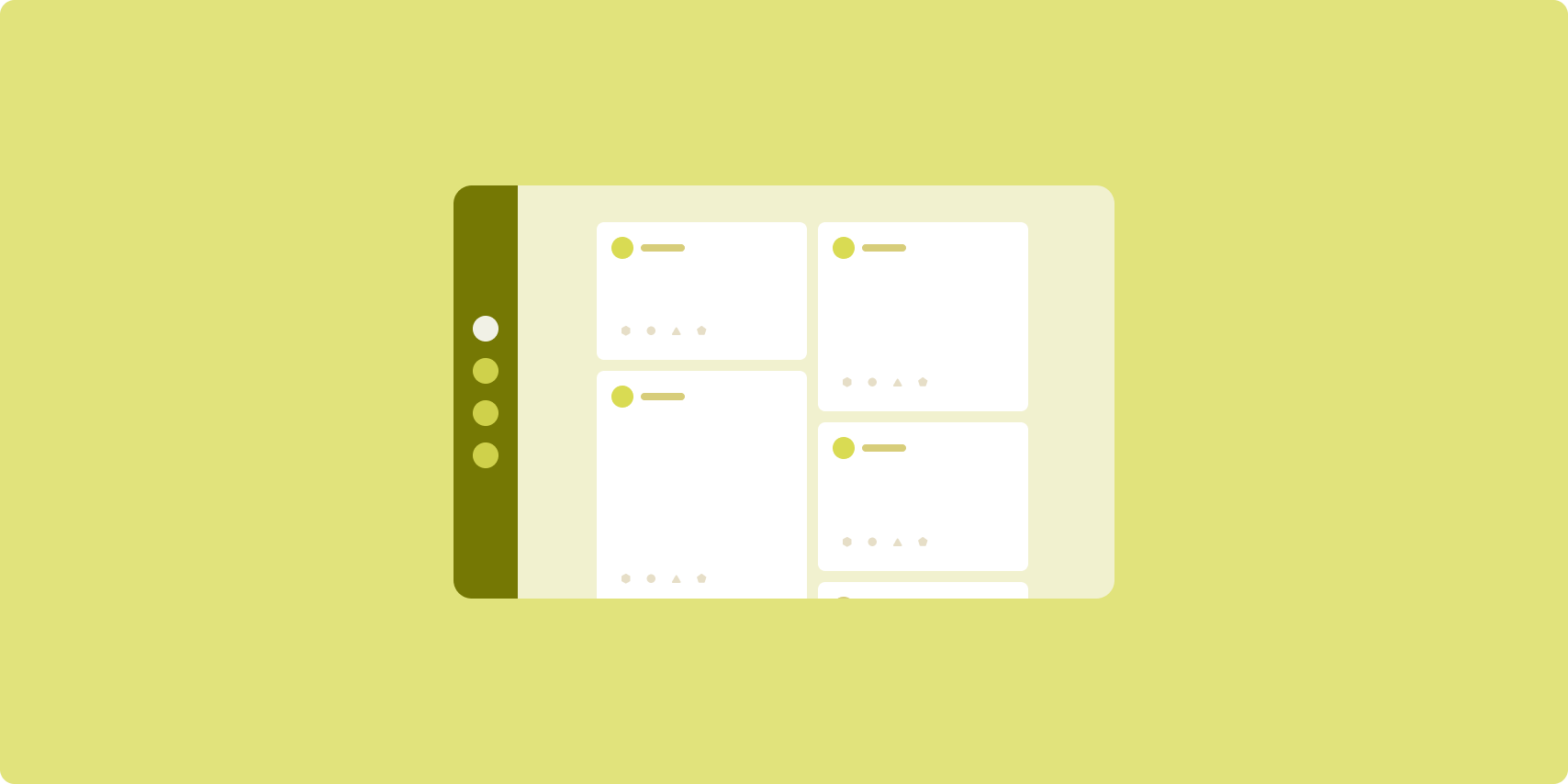
Wireframe of feed layout.

A feed layout arranges equivalent content elements in a configurable grid for quick, convenient viewing of a large amount of content.

Size and position establish relationships among the content elements.

Content groups are created by making elements the same size and positioning them together. Attention is drawn to elements by making them larger than nearby elements.

Cards and lists are common components of feed layouts.

A feed layout supports displays of almost any size because the grid can adapt from a single, scrolling column to a multi‑column scrolling feed of content.

Feeds are especially well suited for news and social media apps.

Figure 2. Social media app showing posts in cards of varying sizes.

Implementation

A RecyclerView efficiently renders a large number of items in a single column. A GridLayoutManager lays out items in a grid, allowing configuration of the item sizes and spans.

Configure the grid columns based on the size of the available display area to set the minimum allowable width for items.

The GridLayoutManager default spanning strategy, which is one span per item, can be overridden by creating a custom SpanSizeLookup. Adjust the span to emphasize some items over others.

On compact-width displays that have enough space for only one column, use LinearLayoutManager instead of GridLayoutManager.

For an example implementation, see the Feed with views sample.

Supporting pane

Wireframe of supporting pane layout.

Supporting pane layout organizes app content into primary and secondary display areas.

The primary display area occupies the majority of the app window (typically about two thirds) and contains the main content. The secondary display area is a pane that takes up the remainder of the app window and presents content that supports the main content.

Supporting pane layouts work well on expanded-width displays (see Use window size classes) in landscape orientation. Medium- or compact‑width displays support showing both the primary and secondary display areas if the content is adaptable to narrower display spaces, or if the additional content can be initially hidden in a bottom or side sheet accessible by means of a control such as a menu or button.

A supporting pane layout differs from a list‑detail layout in the relationship of the primary and secondary content. Secondary pane content is meaningful only in relation to the primary content; for example, a supporting pane tool window is irrelevant by itself. The supplementary content in the detail pane of a list‑detail layout, however, is meaningful even without the primary content, for example, the description of a product from a product listing.

Use cases for supporting pane include:

Figure 3. Shopping app with product descriptions in a supporting pane.

Implementation

A supporting pane layout is implemented using a helper layout such as LinearLayout or ConstraintLayout. Establish the window size classes that divide the amount of horizontal display space available for your app into three categories: compact (< 600dp), medium (>= 600dp), and expanded (>= 840dp).

For each window size class, define layouts as follows:

  • Compact: In the app resources layout folder, place content that renders the supporting pane below the main content or inside a bottom sheet
  • Medium: In the layout-w600dp folder, provide supporting pane content that results in the main content and supporting pane rendering side by side, splitting the horizontal display space equally
  • Expanded: In the layout-w840dp folder, include supporting pane content that results in the main content and supporting pane rendering side by side; however, the supporting pane takes up only 30% of the horizontal space, leaving the remaining 70% for the main content

Use a ViewModel for communication between the main content and the supporting pane whether using views, fragments, or a combination.

For implementation examples, see the following samples:

適用性

標準化版面配置可創造出多面向的內容呈現方式,方便使用者輕鬆存取及深入探索。請依照下方流程圖,找出最適合應用程式用途的版面配置和實作策略。

如需在不同類型應用程式中實作的標準化版面配置範例,請參閱「大螢幕圖片庫」。

圖 4. 大螢幕標準化版面配置決策樹。

Additional resources