
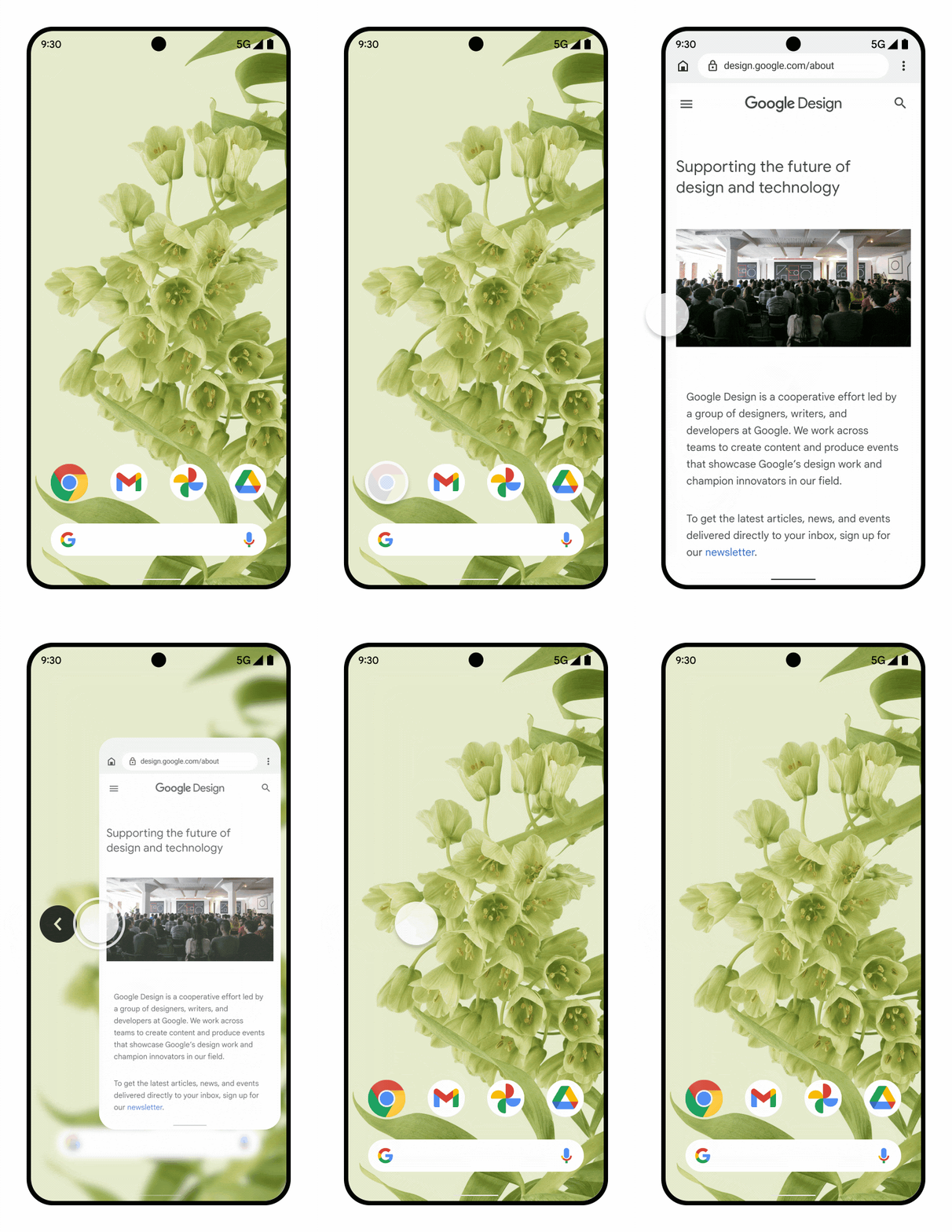
Predictive Back, a gesture navigation feature, lets users preview where the back swipe takes them.
For example, using a back gesture can display an animated preview of the Home screen behind your app, as presented in the mockup in figure 1.
Starting with Android 15, the developer option for predictive back animations is no longer available. System animations such as back-to-home, cross-task, and cross-activity now appear for apps that have opted in to the predictive back gesture either entirely or at an activity level.
You can test this back-to-home animation (as described in a following section of this page).
Supporting the predictive back gesture requires updating your app, using the
backward compatible
OnBackPressedCallback AppCompat 1.6.0-alpha05
(AndroidX) or higher API, or using the new OnBackInvokedCallback
platform API. Most apps use the backward compatible AndroidX API.
This update provides a migration path to properly intercept back navigation,
which involves replacing back interceptions from KeyEvent.KEYCODE_BACK
and any classes with onBackPressed methods such as Activity and
Dialog with the new system Back APIs.
Codelab and Google I/O video
In addition to using this documentation on this page, try out our codelab. It provides a common use-case implementation of a WebView handling the predictive back gesture using AndroidX Activity APIs.
You can also view our Google I/O video, which covers additional examples of implementing the AndroidX and platform APIs.
Handle custom back gestures in Compose
Compose provides the PredictiveBackHandler composable to handle custom back
gestures. This API allows you to respond to the back gesture and provides a
Flow of BackEventCompat objects that you can use to implement custom
animations or transitions as the user swipes.
PredictiveBackHandler(enabled = isBackHandlerEnabled) { progress: Flow<BackEventCompat> ->
    try {
        progress.collect { backEvent ->
            // Update your UI or animation based on backEvent.progress
        }
        // Handle the final back action (e.g., navigate back)
    } catch (e: CancellationException) {
        // Back gesture was cancelled, reset your UI
    }
}
If you only need to intercept the back gesture without tracking progress, use
BackHandler.
Update an app that uses default back navigation
Predictive back is enabled by default.
If your app uses Fragments or the Navigation Component, also upgrade to AndroidX Activity 1.6.0-alpha05 or higher.
Update an app that uses custom back navigation
If your app implements custom back behavior, there are different migration paths depending on whether it uses AndroidX and how it handles back navigation.
| How your app handles back navigation | Recommended migration path (link on this page) |
| AndroidX APIs | Migrate an existing AndroidX back implementation |
| Unsupported platform APIs | Migrate an AndroidX app containing unsupported back navigation APIs to AndroidX APIs |
Migrate an AndroidX back navigation implementation
This use case is the most common (and the most recommended). It applies to new
or existing apps that implement custom gesture navigation handling with
OnBackPressedDispatcher, as described in
Provide custom back navigation.
To make sure that APIs that are already using OnBackPressedDispatcher
(such as Fragments and the Navigation Component) work seamlessly with the
predictive back gesture, upgrade to
AndroidX Activity 1.6.0-alpha05.
```xml
// In your build.gradle file:
dependencies {

// Add this in addition to your other dependencies
implementation "androidx.activity:activity:1.6.0-alpha05"
```
Migrate an AndroidX app containing unsupported back navigation APIs to AndroidX APIs
If your app uses AndroidX libraries but implements or makes reference to the unsupported back navigation APIs, you’ll need to migrate to using AndroidX APIs to support the new behavior.
To migrate unsupported APIs to AndroidX APIs:
Migrate your system Back handling logic to AndroidX’s
OnBackPressedDispatcherwith an implementation ofOnBackPressedCallback. For detailed guidance, see Provide custom back navigation.Disable the
OnBackPressedCallbackwhen ready to stop intercepting the back gesture.Stop intercepting back events via
OnBackPressedorKeyEvent.KEYCODE_BACK.Make sure to upgrade to AndroidX Activity 1.6.0-alpha05.
// In your build.gradle file:
dependencies {

// Add this in addition to your other dependencies
implementation "androidx.activity:activity:1.6.0-alpha05"
Opt out of predictive back
To opt out, in AndroidManifest.xml, in the <application> tag, set the
android:enableOnBackInvokedCallback flag to false.
<application
    ...
    android:enableOnBackInvokedCallback="false"
    ... >
...
</application>
Setting this to false does the following:
- Disables the predictive back gesture system animation.
- Ignores
OnBackInvokedCallback, butOnBackPressedCallbackcalls continue to work.
Opt out at an activity level
The android:enableOnBackInvokedCallback flag lets you opt out of predictive
system animations at the activity level. This behavior makes it more manageable
to migrate large multi-activity apps to predictive back gestures.
The following code shows an example of enableOnBackInvokedCallback set to
enable the back-to-home system animation from the MainActivity:
<manifest ...>
    <application . . .

        android:enableOnBackInvokedCallback="false">

        <activity
            android:name=".MainActivity"
            android:enableOnBackInvokedCallback="true"
            ...
        </activity>
        <activity
            android:name=".SecondActivity"
            android:enableOnBackInvokedCallback="false"
            ...
        </activity>
    </application>
</manifest>
Keep in mind the following considerations when using the
android:enableOnBackInvokedCallback flag:
- Setting
android:enableOnBackInvokedCallback=falseturns off predictive back animations either at the activity level or at the app level, depending on where you set the tag, and instructs the system to ignore calls to theOnBackInvokedCallbackplatform API. However, calls toOnBackPressedCallbackcontinue to run becauseOnBackPressedCallbackis backward compatible and calls theonBackPressedAPI, which is unsupported prior to Android 13. - Setting the
enableOnBackInvokedCallbackflag at the app level establishes the default value for all activities in the app. You can override the default per activity by setting the flag at the activity level, as shown in the preceding code example.
Callback best practices
Here are best practices for using the supported system back callbacks;
PredictiveBackHandler or BackHandler (for Compose),
OnBackPressedCallback, or OnBackInvokedCallback.
Determine the UI State that enables and disables each callback
UI state is a property that describes the UI. We recommend following these high-level steps.
Determine the UI state that enables and disables each callback.
Define that state using an observable data holder type, such as
StateFlowor Compose State, and enable or disable the callback as the state changes.
If your app was previously associating back logic with conditional statements, this might signify you are reacting to the back event after it has already occurred. Avoid this pattern with newer callbacks. If possible, move the callback outside of the conditional statement and instead associate the callback to an observable data holder type.
Use system back callbacks for UI Logic
UI logic dictates how to display UI. Use system back callbacks to run UI logic, such as displaying a dialog or running an animation.
If your app enables an OnBackPressedCallback or an OnBackInvokedCallback
with PRIORITY_DEFAULT or PRIORITY_OVERLAY, the predictive back animations
don't run and you must handle the back event. Don't create these callbacks to
run business logic or to log.
Use the following approaches if your app must run business logic or log when the user swipes back:
- Use
OnBackInvokedCallbackwithPRIORITY_SYSTEM_NAVIGATION_OBSERVERon devices running Android 16 and higher. This creates an observer-callback that doesn't consume the back event. For example, you may register this callback when the user swipes back from the root activity, or in other words, when the user has left your app. In this case, you can log the back event or run other business logic, and the back-to-home animation will still play. - For activity-to-activity cases or fragment-to-activity cases, log if
isFinishingwithinonDestroyistruewithin the Activity lifecycle. - For fragment-to-fragment cases, log if
isRemovingwithinonDestroyis true within the Fragment's view lifecycle. Or log usingonBackStackChangeStartedoronBackStackChangeCommittedmethods withinFragmentManager.OnBackStackChangedListener. - For the Compose case, log within the
onCleared()callback of aViewModelassociated with the Compose destination. This is the best signal for knowing when a compose destination is popped off the back stack and destroyed.
Create single responsibility callbacks
You can add multiple callbacks to the dispatcher. The callbacks are added to a stack in which the last added enabled callback handles the next back gesture with one callback per back gesture.
It is easier to manage the enabled state of a callback if that callback has a single responsibility. For example:
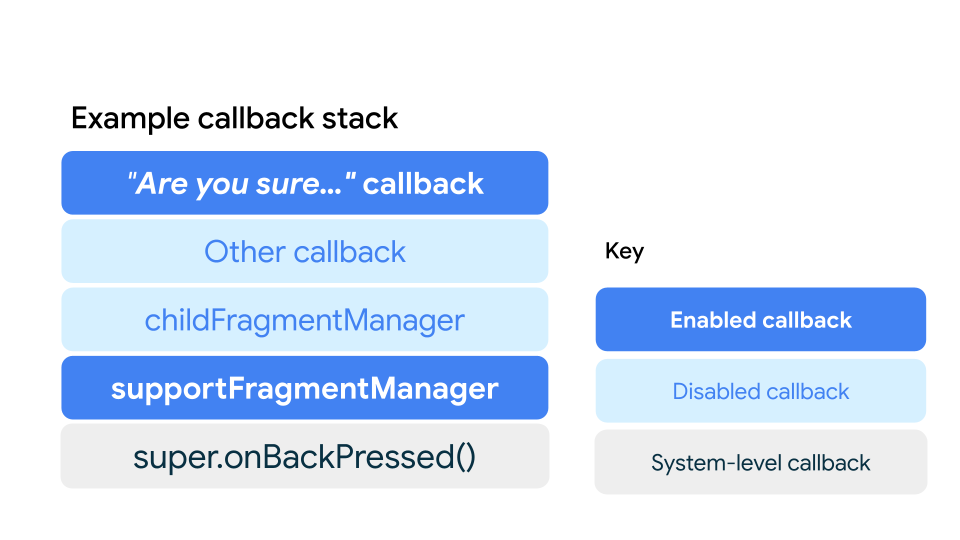
Figure 2 shows how you can have multiple callbacks in the stack, each responsible for one thing. A callback only runs if the callbacks above it in the stack are disabled. In this example, the "Are you sure..." callback is enabled when the user enters data into a form, and disabled otherwise. The callback opens a confirmation dialog when the user swipes back to exit the form.
The other callback can include a material component that supports predictive back, an AndroidX transition using the Progress APIs, or another custom callback.
The same stack behavior applies in Compose: the innermost PredictiveBackHandler
or BackHandler takes precedence.
Similarly, a childFragmentManager's callback runs if the above callbacks are
disabled and the back stack for this FragmentManager isn't empty. In this
example, this internal callback is disabled.
Likewise, supportFragmentManager's internal callback runs if the above
callbacks are disabled and its stack is non-empty. In this example,
this callback runs if the user didn't enter text into the form causing the
"Are you sure..." callback to be disabled.
Finally, the system handles the back gesture if the above callbacks are
disabled. In order to trigger system animations such as back-to-home,
cross-activity, and cross-task, supportFragmentManager's back stack must be
empty so its internal callback is disabled.
Test the predictive back gesture animation
If you still use Android 13 or Android 14, you can test the back-to-home animation shown in Figure 1.
To test this animation, complete the following steps:
On your device, go to Settings > System > Developer options.
Select Predictive back animations.
Launch your updated app, and use the back gesture to see it in action.