Jetpack Compose offers an implementation of Material Design, a comprehensive design system
for creating digital interfaces. Material Components (buttons, cards, switches,
etc.) and layouts like Scaffold are available as composable functions.

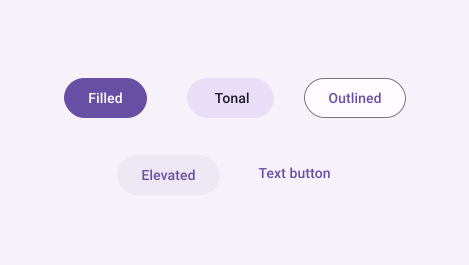
Material Components are interactive building blocks for creating a user interface. Compose offers a number of these components out-of-the-box. To see which are available, check out the Compose Material API reference.
Material Components use values provided by a MaterialTheme in
your app:
@Composable
fun MyApp() {
MaterialTheme {
// Material Components like Button, Card, Switch, etc.
}
}
To learn more about theming, check out the Design systems in Compose guides.
Content slots
Material Components that support inner content (text labels, icons, etc.) tend to offer “slots” — generic lambdas that accept composable content — as well as public constants, like size and padding, to support laying out inner content to match Material specifications.
An example of this is Button:
Button(
onClick = { /* ... */ },
// Uses ButtonDefaults.ContentPadding by default
contentPadding = PaddingValues(
start = 20.dp,
top = 12.dp,
end = 20.dp,
bottom = 12.dp
)
) {
// Inner content including an icon and a text label
Icon(
Icons.Filled.Favorite,
contentDescription = "Favorite",
modifier = Modifier.size(ButtonDefaults.IconSize)
)
Spacer(Modifier.size(ButtonDefaults.IconSpacing))
Text("Like")
}

Figure 1. A Button using the content slot and default padding (left) and
a Button using the content slot that provides a custom contentPadding
(right).
Button has a generic content trailing lambda slot, which uses a RowScope to layout
content composables in a row. It also has a contentPadding parameter to apply
padding to the inner content. You can use constants provided through
ButtonDefaults, or custom values.
Another example is ExtendedFloatingActionButton:
ExtendedFloatingActionButton(
onClick = { /* ... */ },
icon = {
Icon(
Icons.Filled.Favorite,
contentDescription = "Favorite"
)
},
text = { Text("Like") }
)

Figure 2. An ExtendedFloatingActionButton using the icon and text slots.
Instead of a generic content lambda, ExtendedFloatingActionButton has two
slots for an icon and a text label. While each slot supports generic
composable content, the component is opinionated about how these pieces of
inner content are laid out. It handles padding, alignment, and size
internally.
Scaffold
Compose provides convenient layouts for combining Material Components into
common screen patterns. Composables such as Scaffold provide
slots for various components and other screen elements.
Screen content
Scaffold has a generic content trailing lambda slot. The lambda receives an
instance of PaddingValues that
should be applied to the content root — for example, via Modifier.padding —
to offset the top and bottom bars, if they exist.
Scaffold(/* ... */) { contentPadding ->
// Screen content
Box(modifier = Modifier.padding(contentPadding)) { /* ... */ }
}
App bars
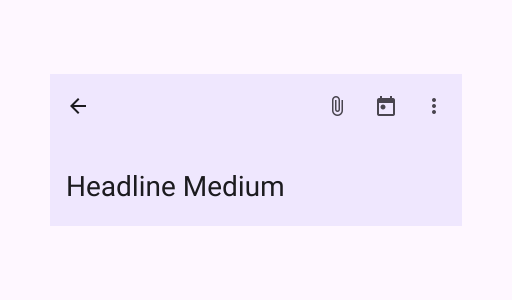
Scaffold provides slots for a top app bar or a bottom app bar. The placement of the
composables is handled internally.

You can use the topBar slot and a TopAppBar:
Scaffold(
topBar = {
TopAppBar(title = {
Text("My App")
})
}
) { contentPadding ->
// Screen content
}

You can use the bottomBar slot and a BottomAppBar:
Scaffold(
bottomBar = {
BottomAppBar { /* Bottom app bar content */ }
}
) { contentPadding ->
// Screen content
}
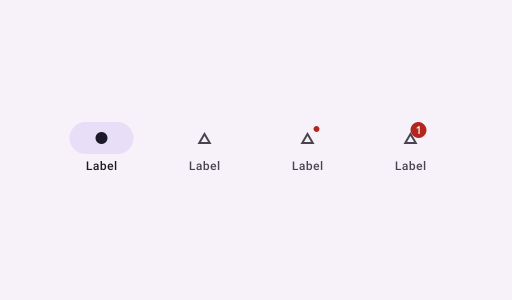
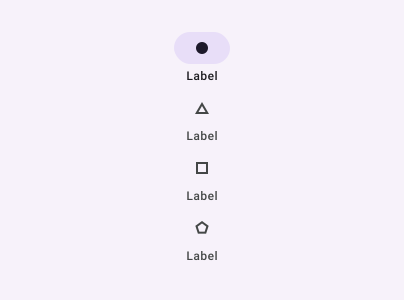
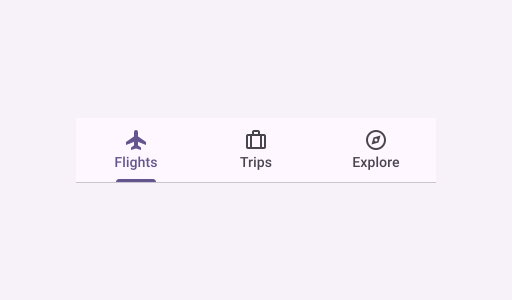
These slots can be used for other Material Components like BottomNavigation.
You can also use custom composables — for an example, take a look at the
onboarding screen
from the Owl sample.
Floating action buttons

Scaffold provides a slot for a floating action button.
You can use the floatingActionButton slot and a FloatingActionButton:
Scaffold(
floatingActionButton = {
FloatingActionButton(onClick = { /* ... */ }) {
/* FAB content */
}
}
) { contentPadding ->
// Screen content
}
The bottom placement of the FAB composable is handled internally. You can use
the floatingActionButtonPosition parameter to adjust the horizontal
position:
Scaffold(
floatingActionButton = {
FloatingActionButton(onClick = { /* ... */ }) {
/* FAB content */
}
},
floatingActionButtonPosition = FabPosition.Center
) { contentPadding ->
// Screen content
}
Snackbars

Scaffold provides a means to display snackbars.
This is provided via SnackbarHost,
which includes a SnackbarHostState
property. SnackbarHostState provides access to the
showSnackbar
function. This suspending function requires a CoroutineScope — for example,
using
rememberCoroutineScope
— and can be called in response to UI events to show a
Snackbar
within Scaffold.
val scope = rememberCoroutineScope()
val snackbarHostState = remember { SnackbarHostState() }
Scaffold(
snackbarHost = {
SnackbarHost(hostState = snackbarHostState)
},
floatingActionButton = {
ExtendedFloatingActionButton(
text = { Text("Show snackbar") },
icon = { Icon(Icons.Filled.Image, contentDescription = "") },
onClick = {
scope.launch {
snackbarHostState.showSnackbar("Snackbar")
}
}
)
}
) { contentPadding ->
// Screen content
}
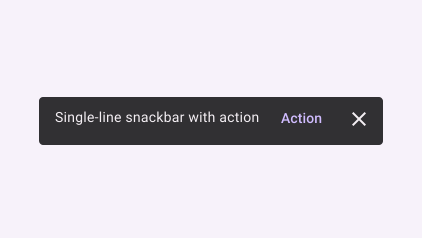
You can provide an optional action and adjust the duration of the Snackbar.
The snackbarHostState.showSnackbar function accepts additional actionLabel
and duration parameters, and returns a SnackbarResult.
val scope = rememberCoroutineScope()
val snackbarHostState = remember { SnackbarHostState() }
Scaffold(
snackbarHost = {
SnackbarHost(hostState = snackbarHostState)
},
floatingActionButton = {
ExtendedFloatingActionButton(
text = { Text("Show snackbar") },
icon = { Icon(Icons.Filled.Image, contentDescription = "") },
onClick = {
scope.launch {
val result = snackbarHostState
.showSnackbar(
message = "Snackbar",
actionLabel = "Action",
// Defaults to SnackbarDuration.Short
duration = SnackbarDuration.Indefinite
)
when (result) {
SnackbarResult.ActionPerformed -> {
/* Handle snackbar action performed */
}
SnackbarResult.Dismissed -> {
/* Handle snackbar dismissed */
}
}
}
}
)
}
) { contentPadding ->
// Screen content
}
You can provide a custom Snackbar with the snackbarHost parameter. See the
SnackbarHost API reference docs for
more information.
Drawers

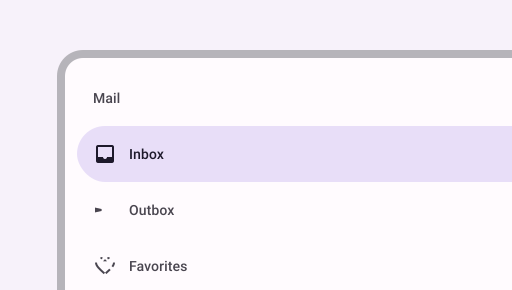
ModalNavigationDrawer
is the Material Design navigation drawer.
You can use the drawerContent slot to provide a ModalDrawerSheet
and provide the drawer's contents:
ModalNavigationDrawer(
drawerContent = {
ModalDrawerSheet {
Text("Drawer title", modifier = Modifier.padding(16.dp))
Divider()
NavigationDrawerItem(
label = { Text(text = "Drawer Item") },
selected = false,
onClick = { /*TODO*/ }
)
// ...other drawer items
}
}
) {
// Screen content
}
ModalNavigationDrawer accepts a number of additional drawer parameters. For example, you
can toggle whether or not the drawer responds to drags with the
gesturesEnabled parameter:
ModalNavigationDrawer(
drawerContent = {
ModalDrawerSheet {
// Drawer contents
}
},
gesturesEnabled = false
) {
// Screen content
}
Programmatically opening and closing the drawer is done via DrawerState. A DrawerState
should be passed to ModalNavigationDrawer with the drawerState parameter.
DrawerState provides access to the open and close functions, as
well as properties related to the current drawer state. These suspending
functions require a CoroutineScope — for example, using
rememberCoroutineScope
— and can be called in response to UI events.
val drawerState = rememberDrawerState(initialValue = DrawerValue.Closed)
val scope = rememberCoroutineScope()
ModalNavigationDrawer(
drawerState = drawerState,
drawerContent = {
ModalDrawerSheet { /* Drawer content */ }
},
) {
Scaffold(
floatingActionButton = {
ExtendedFloatingActionButton(
text = { Text("Show drawer") },
icon = { Icon(Icons.Filled.Add, contentDescription = "") },
onClick = {
scope.launch {
drawerState.apply {
if (isClosed) open() else close()
}
}
}
)
}
) { contentPadding ->
// Screen content
}
}
Bottom sheets

If you want to implement a bottom sheet, you can
use the ModalBottomSheet
composable.
You can use the content slot, which uses a ColumnScope to layout
sheet content composables in a column:
ModalBottomSheet(onDismissRequest = { /* Executed when the sheet is dismissed */ }) {
// Sheet content
}
Programmatically expanding and collapsing the sheet is done via
SheetState. You can use
rememberSheetState
to create an instance of SheetState that should be passed to
ModalBottomSheet with the sheetState parameter. SheetState
provides access to the show and
collapse functions,
as well as properties related to the current sheet state. These
suspending functions require a CoroutineScope — for example, using
rememberCoroutineScope
— and can be called in response to UI events. Make sure to remove the
ModalBottomSheet from composition upon hiding the bottom sheet.
val sheetState = rememberModalBottomSheetState()
val scope = rememberCoroutineScope()
var showBottomSheet by remember { mutableStateOf(false) }
Scaffold(
floatingActionButton = {
ExtendedFloatingActionButton(
text = { Text("Show bottom sheet") },
icon = { Icon(Icons.Filled.Add, contentDescription = "") },
onClick = {
showBottomSheet = true
}
)
}
) { contentPadding ->
// Screen content
if (showBottomSheet) {
ModalBottomSheet(
onDismissRequest = {
showBottomSheet = false
},
sheetState = sheetState
) {
// Sheet content
Button(onClick = {
scope.launch { sheetState.hide() }.invokeOnCompletion {
if (!sheetState.isVisible) {
showBottomSheet = false
}
}
}) {
Text("Hide bottom sheet")
}
}
}
}