Bạn có thể thêm giao diện người dùng dựa trên Compose vào một ứng dụng hiện có sử dụng thiết kế dựa trên Khung hiển thị.
Để tạo một màn hình mới hoàn toàn dựa trên Compose, hãy gọi phương thức setContent() và truyền bất kỳ hàm có khả năng kết hợp nào mà bạn muốn.
class ExampleActivity : ComponentActivity() { override fun onCreate(savedInstanceState: Bundle?) { super.onCreate(savedInstanceState) setContent { // In here, we can call composables! MaterialTheme { Greeting(name = "compose") } } } } @Composable fun Greeting(name: String) { Text(text = "Hello $name!") }
Đoạn mã trên được viết giống hệt những gì bạn sẽ thấy trong bất kỳ ứng dụng thuần Compose nào
ViewCompositionStrategy cho ComposeView
ViewCompositionStrategy xác định thời điểm nên huỷ bỏ composition. Chiến lược mặc định,
ViewCompositionStrategy.Default,
sẽ loại bỏ composition khi
ComposeView
cơ bản tách khỏi cửa sổ, trừ phi đó là một phần của vùng chứa gộp như
RecyclerView. Trong một ứng dụng chỉ có một Hoạt động và chỉ dùng Compose, hành vi mặc định này là điều bạn muốn. Tuy nhiên, nếu bạn đang dần thêm Compose vào toàn bộ mã nguồn của mình, thì hành vi này có thể gây mất state trong một số trường hợp.
Để thay đổi ViewCompositionStrategy, hãy gọi phương thức setViewCompositionStrategy() và cung cấp một chiến lược khác.
Bảng dưới đây tóm tắt các trường hợp bạn có thể sử dụng ViewCompositionStrategy:
ViewCompositionStrategy |
Nội dung mô tả và tình huống tương tác |
|---|---|
DisposeOnDetachedFromWindow |
Composition sẽ bị huỷ khi ComposeView cơ bản bị tách khỏi cửa sổ. Đã được thay thế bằng DisposeOnDetachedFromWindowOrReleasedFromPool.Tình huống tương tác: * ComposeView cho dù đó là phần tử duy nhất trong hệ phân cấp view hay trong bối cảnh của màn hình kết hợp Khung hiển thị/Compose (không phải trong Fragment). |
DisposeOnDetachedFromWindowOrReleasedFromPool (Mặc định) |
Tương tự như DisposeOnDetachedFromWindow, khi Thành phần không nằm trong vùng chứa gộp, chẳng hạn như RecyclerView. Nếu nằm trong vùng chứa gộp, thì ComposeView sẽ bị loại bỏ khi chính vùng chứa gộp đó tách khỏi cửa sổ hoặc khi mục đó bị loại bỏ (tức là khi vùng chứa đã đầy).Trường hợp tương tác: * ComposeView cho dù đó là phần tử duy nhất trong hệ phân cấp view hay trong ngữ cảnh của màn hình View/Compose kết hợp (không phải trong Fragment).* ComposeView dưới dạng một mục trong vùng chứa gộp, chẳng hạn như RecyclerView. |
DisposeOnLifecycleDestroyed |
Thành phần kết hợp sẽ bị huỷ khi Lifecycle được cung cấp bị huỷ.Kịch bản tương tác * ComposeView trong Khung hiển thị của mảnh. |
DisposeOnViewTreeLifecycleDestroyed |
Thành phần sẽ bị huỷ khi Lifecycle do LifecycleOwner sở hữu được trả về bởi ViewTreeLifecycleOwner.get của cửa sổ tiếp theo mà Khung hiển thị được đính kèm bị huỷ.Kịch bản tương tác: * ComposeView trong Khung hiển thị của Mảnh.* ComposeView trong một Khung hiển thị chưa xác định được Vòng đời. |
ComposeView trong Fragment (Bước chuyển tiếp)
Nếu bạn muốn kết hợp nội dung trên giao diện người dùng Compose trong một mảnh hoặc bố cục Khung hiển thị hiện có, hãy sử dụng lớp ComposeView và gọi phương thức setContent(). Lớp ComposeView là một lớp cơ sở View của Android.
Bạn có thể đặt lớp ComposeView vào bố cục XML giống như đối với bất kỳ lớp cơ sở View nào khác:
<LinearLayout xmlns:android="http://schemas.android.com/apk/res/android" android:orientation="vertical" android:layout_width="match_parent" android:layout_height="match_parent"> <TextView android:id="@+id/text" android:layout_width="wrap_content" android:layout_height="wrap_content" /> <androidx.compose.ui.platform.ComposeView android:id="@+id/compose_view" android:layout_width="match_parent" android:layout_height="match_parent" /> </LinearLayout>
Trong mã nguồn Kotlin, hãy tăng cường sử dụng bố cục trong tài nguyên bố cục được định nghĩa trong XML. Tiếp theo, tạo lớp ComposeView bằng mã XML, đặt chiến lược Bố cục phù hợp nhất với máy chủ View và gọi phương thức setContent() để sử dụng tính năng từ Compose.
class ExampleFragmentXml : Fragment() { override fun onCreateView( inflater: LayoutInflater, container: ViewGroup?, savedInstanceState: Bundle? ): View { val view = inflater.inflate(R.layout.fragment_example, container, false) val composeView = view.findViewById<ComposeView>(R.id.compose_view) composeView.apply { // Dispose of the Composition when the view's LifecycleOwner // is destroyed setViewCompositionStrategy(ViewCompositionStrategy.DisposeOnViewTreeLifecycleDestroyed) setContent { // In Compose world MaterialTheme { Text("Hello Compose!") } } } return view } }
Ngoài ra, bạn cũng có thể sử dụng tính năng liên kết khung hiển thị để lấy thông tin tham chiếu đến ComposeView bằng cách tham chiếu lớp liên kết được tạo cho tệp bố cục XML:
class ExampleFragment : Fragment() { private var _binding: FragmentExampleBinding? = null // This property is only valid between onCreateView and onDestroyView. private val binding get() = _binding!! override fun onCreateView( inflater: LayoutInflater, container: ViewGroup?, savedInstanceState: Bundle? ): View { _binding = FragmentExampleBinding.inflate(inflater, container, false) val view = binding.root binding.composeView.apply { // Dispose of the Composition when the view's LifecycleOwner // is destroyed setViewCompositionStrategy(ViewCompositionStrategy.DisposeOnViewTreeLifecycleDestroyed) setContent { // In Compose world MaterialTheme { Text("Hello Compose!") } } } return view } override fun onDestroyView() { super.onDestroyView() _binding = null } }
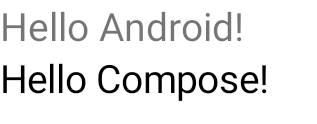
Hình 1. Hình trên thể hiện kết quả chạy của đoạn mã trên sau khi thêm các phần tử Compose vào một hệ phân cấp Giao diện người dùng. Dòng chữ "Hello Android!" ("Xin chào Android!") hiển thị nhờ tiện ích TextView. Dòng chữ "Hello Compose!" ("Xin chào Compose!") hiển thị nhờ phần tử Compose.
Bạn cũng có thể trực tiếp đưa lớp ComposeView vào một mảnh nếu chế độ toàn màn hình của bạn được tạo bằng Compose. Điều này giúp bạn tránh hoàn toàn việc sử dụng tệp bố cục XML.
class ExampleFragmentNoXml : Fragment() { override fun onCreateView( inflater: LayoutInflater, container: ViewGroup?, savedInstanceState: Bundle? ): View { return ComposeView(requireContext()).apply { // Dispose of the Composition when the view's LifecycleOwner // is destroyed setViewCompositionStrategy(ViewCompositionStrategy.DisposeOnViewTreeLifecycleDestroyed) setContent { MaterialTheme { // In Compose world Text("Hello Compose!") } } } } }
Nhiều thực thể ComposeView trong cùng một bố cục
Nếu có nhiều phần tử ComposeView trong cùng một bố cục, thì mỗi phần tử phải có một mã nhận dạng duy nhất để savedInstanceState hoạt động.
class ExampleFragmentMultipleComposeView : Fragment() { override fun onCreateView( inflater: LayoutInflater, container: ViewGroup?, savedInstanceState: Bundle? ): View = LinearLayout(requireContext()).apply { addView( ComposeView(requireContext()).apply { setViewCompositionStrategy( ViewCompositionStrategy.DisposeOnViewTreeLifecycleDestroyed ) id = R.id.compose_view_x // ... } ) addView(TextView(requireContext())) addView( ComposeView(requireContext()).apply { setViewCompositionStrategy( ViewCompositionStrategy.DisposeOnViewTreeLifecycleDestroyed ) id = R.id.compose_view_y // ... } ) } }
Mã nhận dạng ComposeView được định nghĩa trong tệp res/values/ids.xml:
<resources> <item name="compose_view_x" type="id" /> <item name="compose_view_y" type="id" /> </resources>
Xem trước thành phần kết hợp trong Layout Editor (Trình chỉnh sửa bố cục)
Bạn cũng có thể xem trước các thành phần kết hợp trong Layout Editor cho bố cục XML chứa ComposeView. Việc này giúp bạn xem giao diện của các thành phần kết hợp trong bố cục kết hợp giữa Khung hiển thị và Compose.
Giả sử bạn muốn hiển thị thành phần kết hợp sau đây trong Layout Editor (Trình chỉnh sửa bố cục). Lưu ý rằng các thành phần kết hợp được chú thích bằng @Preview là những thành phần phù hợp để xem trước trong Layout Editor (Trình chỉnh sửa bố cục).
@Preview @Composable fun GreetingPreview() { Greeting(name = "Android") }
Để hiển thị composable này, hãy sử dụng thuộc tính công cụ tools:composableName và đặt giá trị của thuộc tính này thành tên đủ điều kiện của composable để xem trước trong bố cục.
<LinearLayout xmlns:android="http://schemas.android.com/apk/res/android" xmlns:tools="http://schemas.android.com/tools" android:orientation="vertical" android:layout_width="match_parent" android:layout_height="match_parent"> <androidx.compose.ui.platform.ComposeView android:id="@+id/my_compose_view" tools:composableName="com.example.compose.snippets.interop.InteroperabilityAPIsSnippetsKt.GreetingPreview" android:layout_height="match_parent" android:layout_width="match_parent"/> </LinearLayout>