

Compose มาพร้อมกับคอมโพสได้และตัวปรับแต่งในตัวสำหรับจัดการกรณีการใช้งานภาพเคลื่อนไหวที่พบบ่อย
คอมโพสได้แบบเคลื่อนไหวในตัว
Compose มีคอมโพสได้หลายรายการที่สร้างภาพเคลื่อนไหวให้การปรากฏ การหายไป และการเปลี่ยนแปลงเลย์เอาต์ของเนื้อหา
สร้างภาพเคลื่อนไหวให้การปรากฏและการหายไป
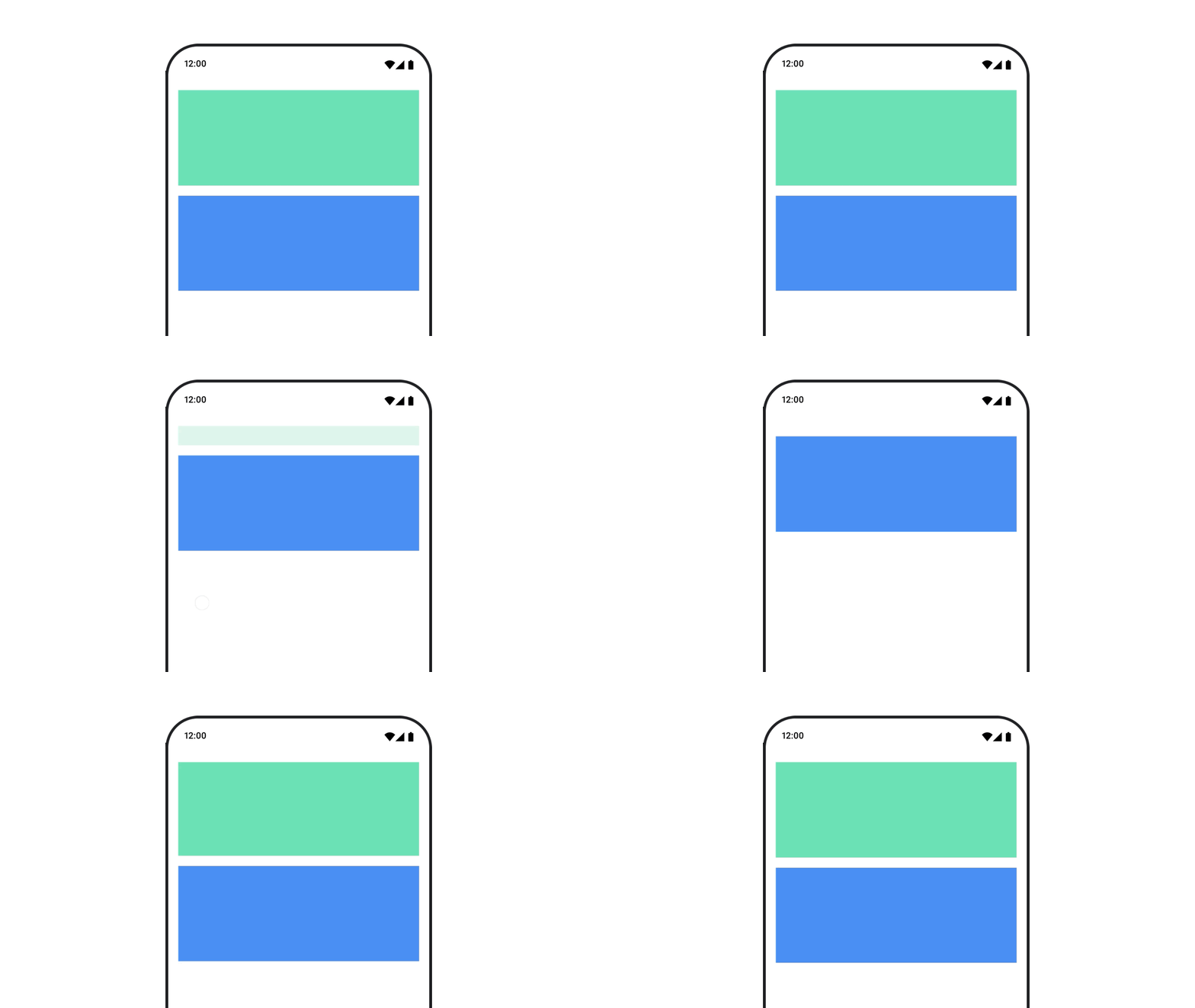
คอมโพสได้
AnimatedVisibility
จะสร้างภาพเคลื่อนไหวให้การปรากฏและการหายไปของเนื้อหา
var visible by remember { mutableStateOf(true) } // Animated visibility will eventually remove the item from the composition once the animation has finished. AnimatedVisibility(visible) { // your composable here // ... }
โดยค่าเริ่มต้น เนื้อหาจะปรากฏโดยการเฟดอินและขยาย และจะหายไปโดยการเฟดเอาต์และหด คุณปรับแต่งการเปลี่ยนนี้ได้โดยการระบุ
EnterTransition และ ExitTransition ออบเจ็กต์
var visible by remember { mutableStateOf(true) } val density = LocalDensity.current AnimatedVisibility( visible = visible, enter = slideInVertically { // Slide in from 40 dp from the top. with(density) { -40.dp.roundToPx() } } + expandVertically( // Expand from the top. expandFrom = Alignment.Top ) + fadeIn( // Fade in with the initial alpha of 0.3f. initialAlpha = 0.3f ), exit = slideOutVertically() + shrinkVertically() + fadeOut() ) { Text( "Hello", Modifier .fillMaxWidth() .height(200.dp) ) }
ดังที่แสดงในตัวอย่างก่อนหน้า คุณสามารถรวมออบเจ็กต์ EnterTransition หรือ ExitTransition หลายรายการด้วยตัวดำเนินการ + และแต่ละรายการจะยอมรับพารามิเตอร์ที่ไม่บังคับเพื่อปรับแต่งลักษณะการทำงาน ดูข้อมูลเพิ่มเติมได้ในหน้ารายการอ้างอิง
ตัวอย่างการเปลี่ยนเข้าและออก
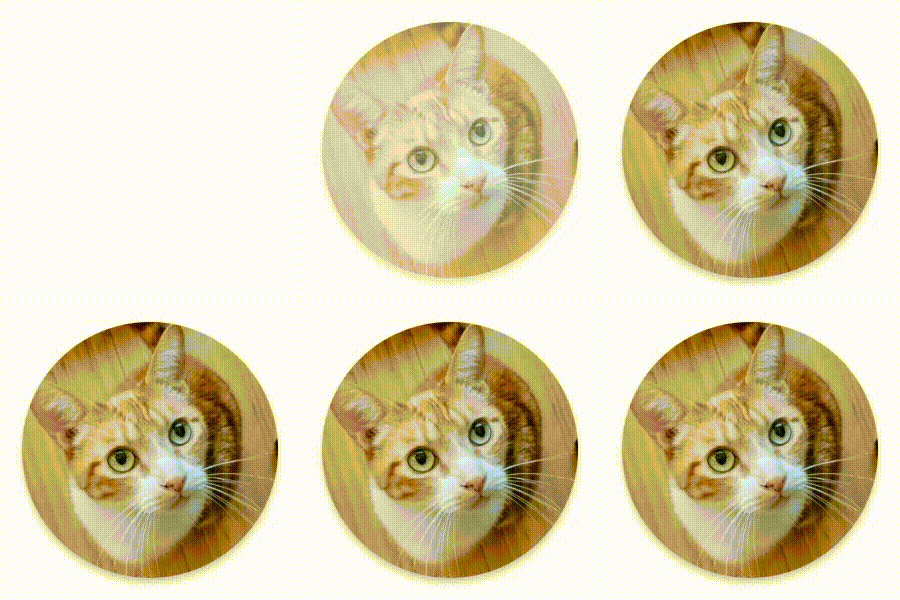



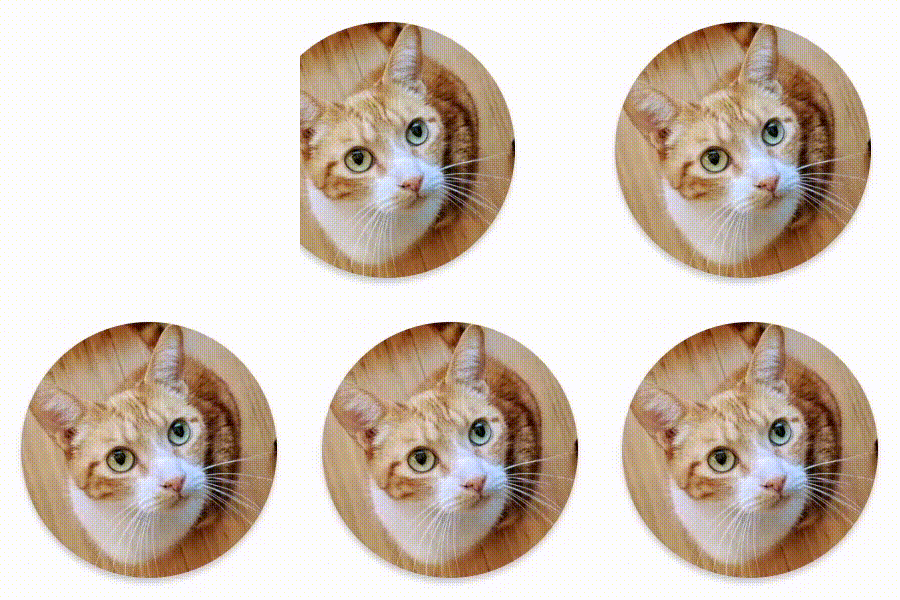



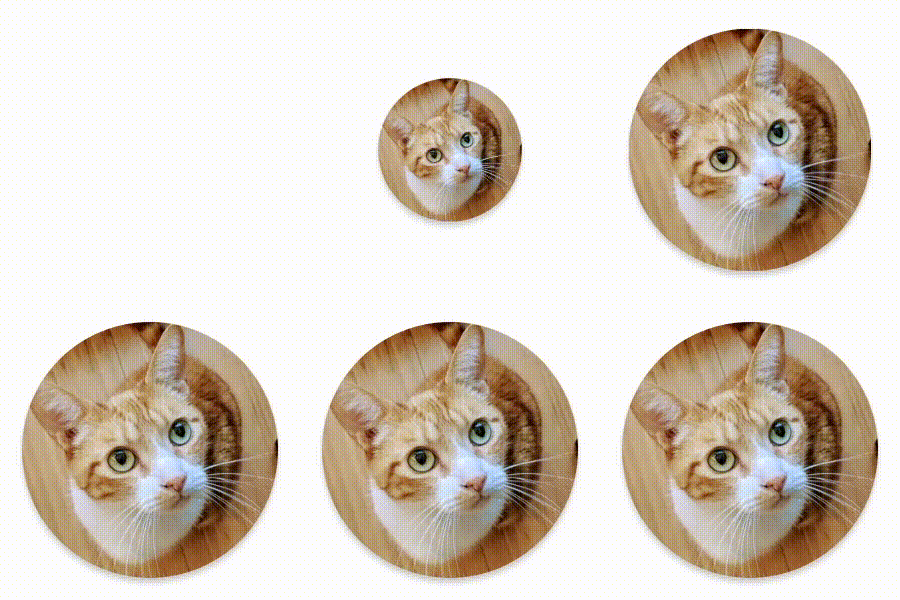

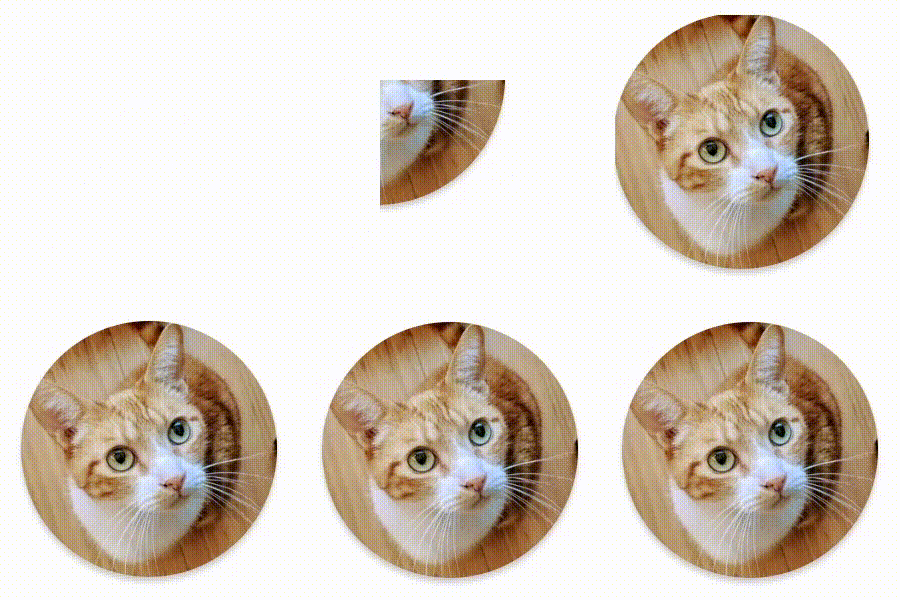

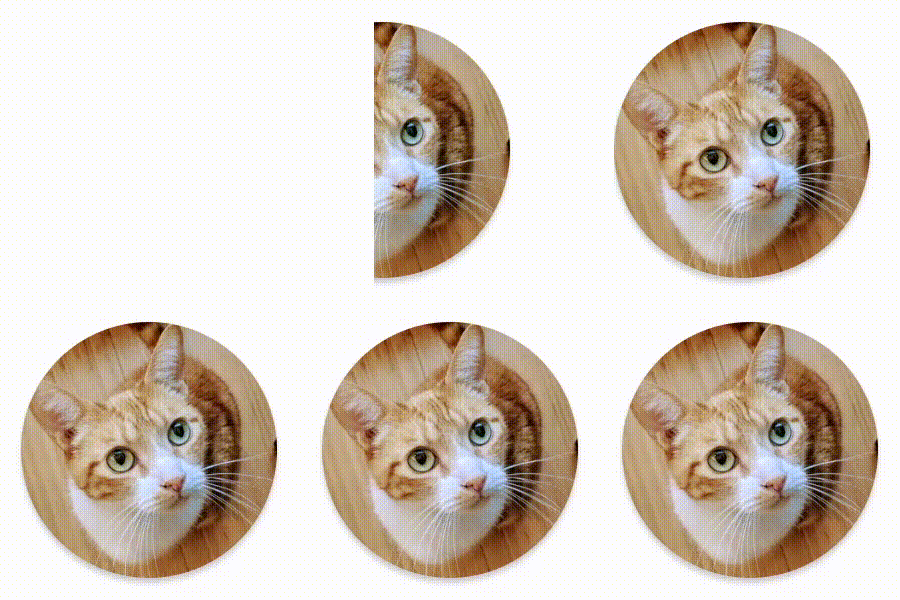



AnimatedVisibility ยังมีตัวเลือกที่รับอาร์กิวเมนต์ MutableTransitionState ด้วย ซึ่งช่วยให้คุณทริกเกอร์ภาพเคลื่อนไหวได้ทันทีที่เพิ่มคอมโพสได้ AnimatedVisibility ลงในแผนผังคอมโพสิชัน นอกจากนี้ยังเป็นประโยชน์สำหรับการสังเกตสถานะภาพเคลื่อนไหว
// Create a MutableTransitionState<Boolean> for the AnimatedVisibility. val state = remember { MutableTransitionState(false).apply { // Start the animation immediately. targetState = true } } Column { AnimatedVisibility(visibleState = state) { Text(text = "Hello, world!") } // Use the MutableTransitionState to know the current animation state // of the AnimatedVisibility. Text( text = when { state.isIdle && state.currentState -> "Visible" !state.isIdle && state.currentState -> "Disappearing" state.isIdle && !state.currentState -> "Invisible" else -> "Appearing" } ) }
สร้างภาพเคลื่อนไหวให้การเปลี่ยนเข้าและออกขององค์ประกอบย่อย
เนื้อหาภายใน AnimatedVisibility (องค์ประกอบย่อยโดยตรงหรือโดยอ้อม) สามารถใช้
animateEnterExit
เพื่อระบุลักษณะการทำงานของภาพเคลื่อนไหวที่แตกต่างกันสำหรับแต่ละรายการ เอฟเฟกต์ภาพสำหรับองค์ประกอบย่อยแต่ละรายการเป็นการผสมผสานระหว่างภาพเคลื่อนไหวที่ระบุไว้ในคอมโพสได้ AnimatedVisibility กับภาพเคลื่อนไหวเข้าและออกขององค์ประกอบย่อยเอง
var visible by remember { mutableStateOf(true) } AnimatedVisibility( visible = visible, enter = fadeIn(), exit = fadeOut() ) { // Fade in/out the background and the foreground. Box( Modifier .fillMaxSize() .background(Color.DarkGray) ) { Box( Modifier .align(Alignment.Center) .animateEnterExit( // Slide in/out the inner box. enter = slideInVertically(), exit = slideOutVertically() ) .sizeIn(minWidth = 256.dp, minHeight = 64.dp) .background(Color.Red) ) { // Content of the notification… } } }
ในบางกรณี คุณอาจต้องการให้ AnimatedVisibility ไม่ใช้ภาพเคลื่อนไหวเลย เพื่อให้องค์ประกอบย่อยแต่ละรายการมีภาพเคลื่อนไหวที่แตกต่างกันได้โดยใช้ animateEnterExit หากต้องการทำเช่นนี้ ให้ระบุ EnterTransition.None และ ExitTransition.None ในคอมโพสได้ AnimatedVisibility
เพิ่มภาพเคลื่อนไหวที่กำหนดเอง
หากต้องการเพิ่มเอฟเฟกต์ภาพเคลื่อนไหวที่กำหนดเองนอกเหนือจากภาพเคลื่อนไหวเข้าและออกในตัว ให้เข้าถึงอินสแตนซ์ Transition ที่อยู่เบื้องหลังโดยใช้พร็อพเพอร์ตี้ transition ภายในแลมบ์ดาเนื้อหาสำหรับ AnimatedVisibility สถานะภาพเคลื่อนไหวที่เพิ่มลงในอินสแตนซ์ Transition จะทำงานพร้อมกันกับภาพเคลื่อนไหวเข้าและออกของ AnimatedVisibility AnimatedVisibility จะรอจนกว่าภาพเคลื่อนไหวทั้งหมดใน Transition จะเสร็จสิ้นก่อนที่จะนำเนื้อหาออก
สำหรับภาพเคลื่อนไหวออกที่สร้างขึ้นโดยไม่ขึ้นกับ Transition (เช่น การใช้ animate*AsState) AnimatedVisibility จะไม่สามารถพิจารณาภาพเคลื่อนไหวเหล่านั้นได้ และอาจนำคอมโพสได้เนื้อหาออกก่อนที่ภาพเคลื่อนไหวจะเสร็จสิ้น
var visible by remember { mutableStateOf(true) } AnimatedVisibility( visible = visible, enter = fadeIn(), exit = fadeOut() ) { // this: AnimatedVisibilityScope // Use AnimatedVisibilityScope#transition to add a custom animation // to the AnimatedVisibility. val background by transition.animateColor(label = "color") { state -> if (state == EnterExitState.Visible) Color.Blue else Color.Gray } Box( modifier = Modifier .size(128.dp) .background(background) ) }
ดูข้อมูลเพิ่มเติมเกี่ยวกับการใช้ Transition เพื่อจัดการภาพเคลื่อนไหวได้ที่ สร้างภาพเคลื่อนไหว
ให้พร็อพเพอร์ตี้หลายรายการพร้อมกันด้วยการเปลี่ยน
สร้างภาพเคลื่อนไหวตามสถานะเป้าหมาย
คอมโพสได้ AnimatedContent
จะสร้างภาพเคลื่อนไหวให้เนื้อหาเมื่อเนื้อหาเปลี่ยนแปลงตามสถานะเป้าหมาย
Row { var count by remember { mutableIntStateOf(0) } Button(onClick = { count++ }) { Text("Add") } AnimatedContent( targetState = count, label = "animated content" ) { targetCount -> // Make sure to use `targetCount`, not `count`. Text(text = "Count: $targetCount") } }
โดยค่าเริ่มต้น เนื้อหาเริ่มต้นจะเฟดเอาต์ แล้วเนื้อหาเป้าหมายจะเฟดอิน
(ลักษณะการทำงานนี้เรียกว่า
เฟดผ่าน)
คุณปรับแต่งลักษณะการทำงานของภาพเคลื่อนไหวนี้ได้โดยการระบุออบเจ็กต์
ContentTransform
ให้กับพารามิเตอร์ transitionSpec คุณสร้างอินสแตนซ์ของ ContentTransform ได้โดยการรวมออบเจ็กต์ EnterTransition กับออบเจ็กต์ ExitTransition โดยใช้ฟังก์ชันอินฟิกซ์ with คุณใช้ SizeTransform
กับออบเจ็กต์ ContentTransform ได้โดยการแนบออบเจ็กต์ดังกล่าวด้วยฟังก์ชันอินฟิกซ์
using
AnimatedContent( targetState = count, transitionSpec = { // Compare the incoming number with the previous number. if (targetState > initialState) { // If the target number is larger, it slides up and fades in // while the initial (smaller) number slides up and fades out. slideInVertically { height -> height } + fadeIn() togetherWith slideOutVertically { height -> -height } + fadeOut() } else { // If the target number is smaller, it slides down and fades in // while the initial number slides down and fades out. slideInVertically { height -> -height } + fadeIn() togetherWith slideOutVertically { height -> height } + fadeOut() }.using( // Disable clipping since the faded slide-in/out should // be displayed out of bounds. SizeTransform(clip = false) ) }, label = "animated content" ) { targetCount -> Text(text = "$targetCount") }
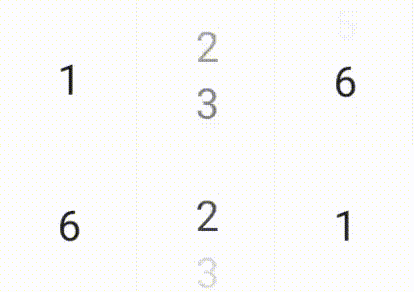
EnterTransition จะกำหนดวิธีที่เนื้อหาเป้าหมายควรปรากฏ และ ExitTransition จะกำหนดวิธีที่เนื้อหาเริ่มต้นควรหายไป นอกจาก
ฟังก์ชัน EnterTransition และ ExitTransition ทั้งหมดที่ใช้ได้กับ
AnimatedVisibility แล้ว AnimatedContent ยังมี slideIntoContainer
และ slideOutOfContainer ด้วย
ซึ่งเป็นตัวเลือกที่สะดวกแทน slideInHorizontally/Vertically และ slideOutHorizontally/Vertically ที่คำนวณระยะทางสไลด์ตามขนาดของเนื้อหาเริ่มต้นและเนื้อหาเป้าหมายของเนื้อหา AnimatedContent
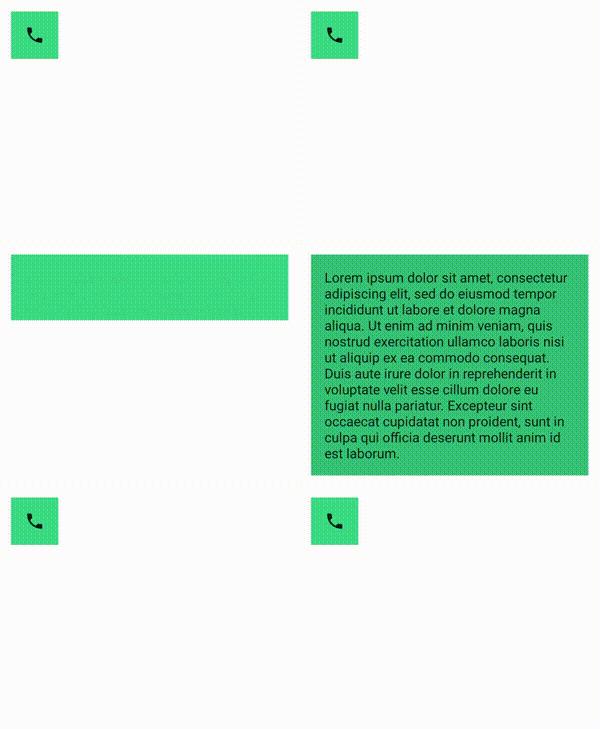
SizeTransform จะกำหนดวิธีที่ขนาดควรสร้างภาพเคลื่อนไหวระหว่างเนื้อหาเริ่มต้นและเนื้อหาเป้าหมาย คุณมีสิทธิ์เข้าถึงทั้งขนาดเริ่มต้นและขนาดเป้าหมายเมื่อสร้างภาพเคลื่อนไหว SizeTransform ยังควบคุมด้วยว่าควรตัดเนื้อหาให้มีขนาดเท่ากับคอมโพเนนต์ระหว่างภาพเคลื่อนไหวหรือไม่
var expanded by remember { mutableStateOf(false) } Surface( color = MaterialTheme.colorScheme.primary, onClick = { expanded = !expanded } ) { AnimatedContent( targetState = expanded, transitionSpec = { fadeIn(animationSpec = tween(150, 150)) togetherWith fadeOut(animationSpec = tween(150)) using SizeTransform { initialSize, targetSize -> if (targetState) { keyframes { // Expand horizontally first. IntSize(targetSize.width, initialSize.height) at 150 durationMillis = 300 } } else { keyframes { // Shrink vertically first. IntSize(initialSize.width, targetSize.height) at 150 durationMillis = 300 } } } }, label = "size transform" ) { targetExpanded -> if (targetExpanded) { Expanded() } else { ContentIcon() } } }
สร้างภาพเคลื่อนไหวให้การเปลี่ยนเข้าและออกขององค์ประกอบย่อย
เช่นเดียวกับ AnimatedVisibility ตัวปรับแต่ง animateEnterExit
จะใช้ได้ภายในแลมบ์ดาเนื้อหาของ AnimatedContent ใช้ตัวปรับแต่งนี้เพื่อใช้ EnterAnimation และ ExitAnimation กับองค์ประกอบย่อยแต่ละรายการ (โดยตรงหรือโดยอ้อม) แยกกัน
เพิ่มภาพเคลื่อนไหวที่กำหนดเอง
เช่นเดียวกับ AnimatedVisibility ฟิลด์ transition จะใช้ได้ภายในแลมบ์ดาเนื้อหาของ AnimatedContent ใช้ฟิลด์นี้เพื่อสร้างเอฟเฟกต์ภาพเคลื่อนไหวที่กำหนดเองซึ่งทำงานพร้อมกันกับการเปลี่ยน AnimatedContent ดูรายละเอียดได้ที่
updateTransition
สร้างภาพเคลื่อนไหวระหว่าง 2 เลย์เอาต์
Crossfade จะสร้างภาพเคลื่อนไหวระหว่าง 2 เลย์เอาต์ด้วยภาพเคลื่อนไหวแบบครอสเฟด เมื่อสลับค่าที่ส่งไปยังพารามิเตอร์ current เนื้อหาจะเปลี่ยนไปพร้อมกับภาพเคลื่อนไหวแบบครอสเฟด
var currentPage by remember { mutableStateOf("A") } Crossfade(targetState = currentPage, label = "cross fade") { screen -> when (screen) { "A" -> Text("Page A") "B" -> Text("Page B") } }
ตัวปรับแต่งภาพเคลื่อนไหวในตัว
Compose มีตัวปรับแต่งสำหรับสร้างภาพเคลื่อนไหวให้การเปลี่ยนแปลงที่เฉพาะเจาะจงในคอมโพสได้โดยตรง
สร้างภาพเคลื่อนไหวให้การเปลี่ยนแปลงขนาดของคอมโพสได้

ตัวปรับแต่ง animateContentSize จะสร้างภาพเคลื่อนไหวให้การเปลี่ยนแปลงขนาด
var expanded by remember { mutableStateOf(false) } Box( modifier = Modifier .background(colorBlue) .animateContentSize() .height(if (expanded) 400.dp else 200.dp) .fillMaxWidth() .clickable( interactionSource = remember { MutableInteractionSource() }, indication = null ) { expanded = !expanded } ) { }
ภาพเคลื่อนไหวของรายการในรายการ
หากต้องการสร้างภาพเคลื่อนไหวให้การจัดเรียงรายการใหม่ภายในรายการหรือตารางกริดแบบ Lazy โปรดดู เอกสารประกอบเกี่ยวกับภาพเคลื่อนไหวของรายการเลย์เอาต์แบบ Lazy
แนะนำสำหรับคุณ
- หมายเหตุ: ข้อความลิงก์จะแสดงเมื่อ JavaScript ปิดอยู่
- ภาพเคลื่อนไหวตามมูลค่า
- ภาพเคลื่อนไหวใน Compose
- การรองรับเครื่องมือภาพเคลื่อนไหว {:#tooling}