出色的视觉设计是应用成功的关键所在,而配色方案是设计的主要组成部分。调色板库是一个 Jetpack 库,用于从图片中提取突出颜色,以创建具有视觉吸引力的应用。
您可以使用调色板库来设计布局主题背景,还可以对应用中的视觉元素应用自定义颜色。例如,您可以使用调色板根据歌曲的专辑封面为歌曲制作颜色协调的片头字幕,也可以在应用的背景图片发生变化时调整其工具栏颜色。Palette 对象可让您访问 Bitmap 图片中的颜色,同时还提供位图中的六个主要颜色配置文件,以帮助您了解设计选项。
设置调色板库
如需使用 Palette 库,请将以下内容添加到您的 build.gradle 中:
Kotlin
android {
    compileSdkVersion(36)
    ...
}

dependencies {
    ...
    implementation("androidx.palette:palette:1.0.0")
}
Groovy
android {
    compileSdkVersion 36
    ...
}

dependencies {
    ...
    implementation 'androidx.palette:palette:1.0.0'
}
创建调色板
您可以通过 Palette 对象访问图片中的主要颜色以及叠加文本的相应颜色。您可以使用调色板设计应用的样式,并根据给定源图片动态更改应用的配色方案。
如需创建调色板,请先从 Bitmap 实例化 Palette.Builder。然后,您可以在生成调色板之前使用 Palette.Builder 自定义调色板。本部分将介绍如何通过位图图片生成调色板及进行自定义。
生成调色板实例
使用 Palette 的
from(Bitmap bitmap)
方法生成实例,以先从
Bitmap 创建 Palette.Builder。
生成工具可以同步或异步生成调色板。如需在调用此方法的同一线程上创建调色板,请以同步方式生成调色板。如果您在另一个线程上异步生成调色板,请使用 onGenerated() 方法在调色板创建完成后立即访问该调色板。
下面的代码段显示了用这两种方式生成调色板的示例方法:
Kotlin
// Generate palette synchronously and return it.
fun createPaletteSync(bitmap: Bitmap): Palette = Palette.from(bitmap).generate()

// Generate palette asynchronously and use it on a different thread using onGenerated().
fun createPaletteAsync(bitmap: Bitmap) {
    Palette.from(bitmap).generate { palette ->
        // Use generated instance.
    }
}
Java
// Generate palette synchronously and return it.
public Palette createPaletteSync(Bitmap bitmap) {
  Palette p = Palette.from(bitmap).generate();
  return p;
}

// Generate palette asynchronously and use it on a different thread using onGenerated().
public void createPaletteAsync(Bitmap bitmap) {
  Palette.from(bitmap).generate(new PaletteAsyncListener() {
    public void onGenerated(Palette p) {
      // Use generated instance.
    }
  });
}
如果您需要为已排序的图片或对象列表连续生成调色板,请考虑缓存 Palette 实例以防止界面性能降低。请勿在主线程上创建调色板。
自定义调色板
使用 Palette.Builder,您可以自定义调色板,包括选择生成的调色板中的颜色数量、生成工具生成调色板所使用的图片的区域以及调色板中包含哪些颜色。例如,您可以滤除黑色,或确保生成工具仅使用图片的上半部分来生成调色板。
使用 Palette.Builder 类中的以下方法对调色板的大小和颜色进行微调:
addFilter()- 此方法会添加一个过滤器,用于指明生成的调色板中可以有哪些颜色。传入您自己的
Palette.Filter并修改其isAllowed()方法,以确定从调色板中滤除哪些颜色。 maximumColorCount()- 此方法可用于设置调色板中的颜色数量上限。默认值为 16,最佳值取决于源图片。对于横向显示的图片,最佳值的范围为 8 到 16,而带有人脸的图片的值通常介于 24 到 32 之间。调色板中的颜色越多,
Palette.Builder生成调色板的所用的时间就越长。 setRegion()- 此方法指示在创建调色板时生成工具使用的位图的区域。您只能在从位图生成调色板时使用此方法,而且这不会影响原始图片。
addTarget()- 此方法允许您通过向构建器添加
Target颜色配置文件来自行执行颜色调整。如果默认Target不够,高级开发者可以使用Target.Builder创建自己的Target。
提取颜色配置文件
根据 Material Design 的标准,调色板库从图片中提取常用的颜色配置文件。每个配置文件都由 Target 定义,然后针对每个配置文件对从位图图片中提取的颜色进行评分,具体评判标准包括饱和度、亮度和填充(由颜色表示的位图像素数)。对于每个配置文件,得分最高的颜色定义了给定图片的颜色配置文件。
默认情况下,Palette 对象包含给定图片中的 16 种主要颜色。生成调色板后,您可以使用 Palette.Builder 自定义其颜色数量。提取更多颜色可以提高每个颜色配置文件匹配的可能性,但也会导致 Palette.Builder 花费更长的时间来生成调色板。
调色板库尝试提取以下六种颜色配置文件:
- Light Vibrant
- Vibrant
- Dark Vibrant
- Light Muted
- Muted
- Dark Muted
Palette 中的每个 get<Profile>Color() 方法均返回与该特定配置文件相关联的调色板中的颜色,其中 <Profile> 会替换为六种颜色配置文件之一的名称。例如,获取 Dark Vibrant 颜色配置文件的方法是 getDarkVibrantColor()。由于并非所有图片都包含所有颜色配置文件,因此请提供要返回的默认颜色。
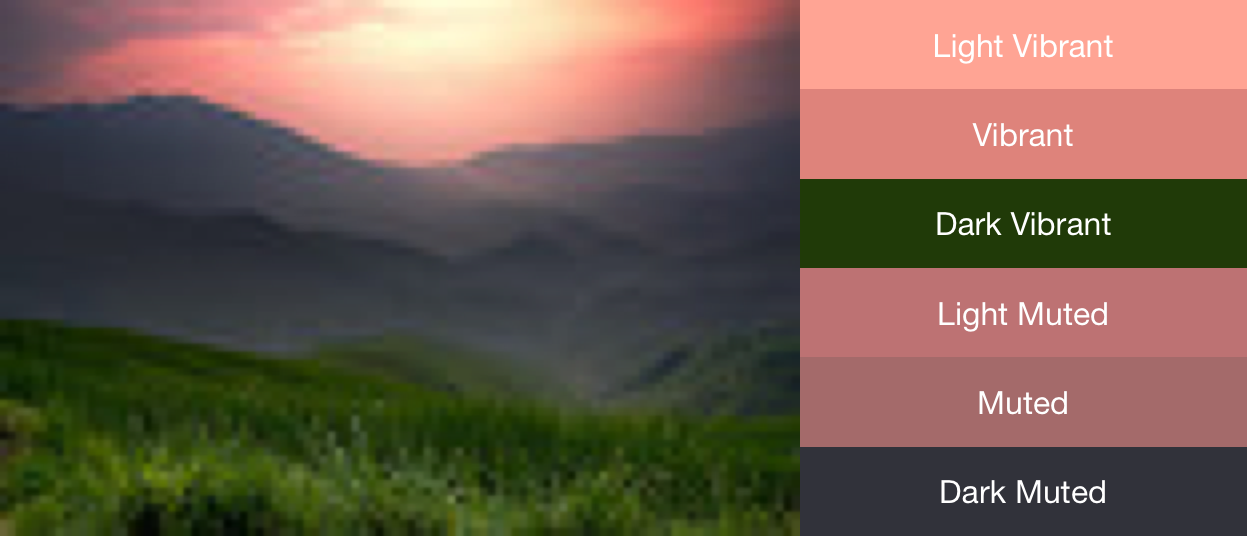
图 1 显示了一张照片以及通过 get<Profile>Color() 方法获取的该照片的相应颜色配置文件。
使用色样创建配色方案
Palette 类还会为每个颜色配置文件生成 Palette.Swatch 对象。Palette.Swatch 对象包含该配置文件的关联颜色以及颜色的填充(以像素为单位)。
色样可提供其他方法来获取关于颜色配置文件的更多信息,如 HSL 值和像素填充。您可以通过 getBodyTextColor() 和 getTitleTextColor() 方法,使用色样帮助创建更全面的配色方案和应用主题背景。这些方法会返回适合在色样的颜色中使用的颜色。
Palette 中的每个 get<Profile>Swatch() 方法均返回与该特定配置文件相关联的色样,其中 <Profile> 会替换为六种颜色配置文件之一的名称。尽管调色板的 get<Profile>Swatch() 方法不需要默认值参数,但如果该图片中不存在该特定配置文件,则这些方法会返回 null。因此,在使用色样之前,应检查确保色样不为 Null。例如,如果 Vibrant 色样不为 null,则以下代码会从调色板中获取标题文本颜色:
Kotlin
val vibrant = myPalette.vibrantSwatch
// In Kotlin, check for null before accessing properties on the vibrant swatch.
val titleColor = vibrant?.titleTextColor
Java
Palette.Swatch vibrant = myPalette.getVibrantSwatch();
if(vibrant != null){
    int titleColor = vibrant.getTitleTextColor();
    // ...
}
如需访问调色板中的所有颜色,可以使用 getSwatches() 方法返回从图片生成的所有色样的列表,包括标准的六种颜色配置文件。
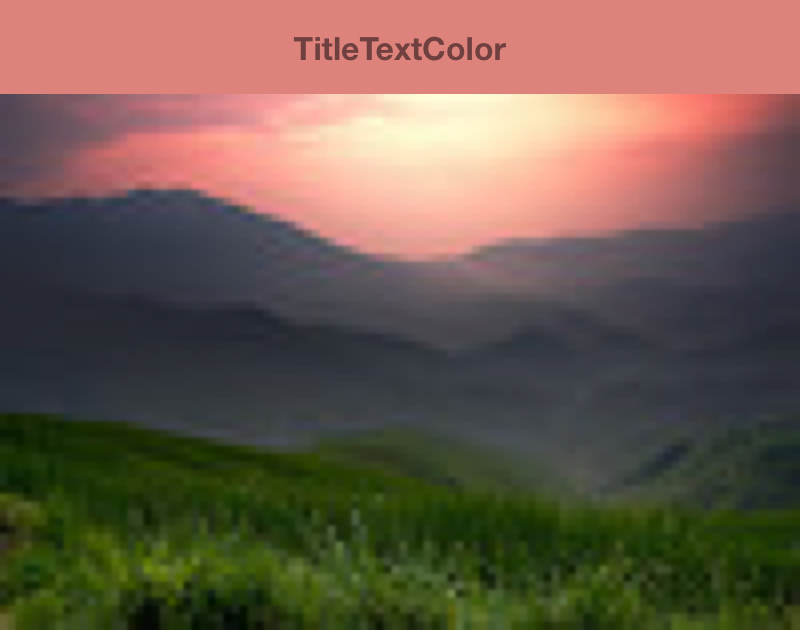
以下代码段使用上述代码段中的方法同步生成调色板,获取其 Vibrant 色样,并更改工具栏的颜色以匹配位图图片。图 2 显示了生成的图片和工具栏。
Kotlin
// Set the background and text colors of a toolbar given a bitmap image to
// match.
fun setToolbarColor(bitmap: Bitmap) {
    // Generate the palette and get the vibrant swatch.
    val vibrantSwatch = createPaletteSync(bitmap).vibrantSwatch

    // Set the toolbar background and text colors.
    // Fall back to default colors if the vibrant swatch isn't available.
    with(findViewById<Toolbar>(R.id.toolbar)) {
        setBackgroundColor(vibrantSwatch?.rgb ?:
                ContextCompat.getColor(context, R.color.default_title_background))
        setTitleTextColor(vibrantSwatch?.titleTextColor ?:
                ContextCompat.getColor(context, R.color.default_title_color))
    }
}
Java
// Set the background and text colors of a toolbar given a bitmap image to
// match.
public void setToolbarColor(Bitmap bitmap) {
    // Generate the palette and get the vibrant swatch.
    // See the createPaletteSync() method from the preceding code snippet.
    Palette p = createPaletteSync(bitmap);
    Palette.Swatch vibrantSwatch = p.getVibrantSwatch();

    Toolbar toolbar = (Toolbar) findViewById(R.id.toolbar);

    // Load default colors.
    int backgroundColor = ContextCompat.getColor(getContext(),
        R.color.default_title_background);
    int textColor = ContextCompat.getColor(getContext(),
        R.color.default_title_color);

    // Check that the Vibrant swatch is available.
    if(vibrantSwatch != null){
        backgroundColor = vibrantSwatch.getRgb();
        textColor = vibrantSwatch.getTitleTextColor();
    }

    // Set the toolbar background and text colors.
    toolbar.setBackgroundColor(backgroundColor);
        toolbar.setTitleTextColor(textColor);
}