

讓使用者實際在螢幕上拖曳元件,是現代 Android 應用程式的基本功能。無論您是要建構自訂滑桿、滑動關閉元件,還是互動式畫布,Jetpack Compose 都提供一組完整的 API,可輕鬆處理拖曳事件。
Compose 拖曳 API 可簡化原始觸控事件的複雜度。您可以使用內建修飾符,直接連結至 Compose 的狀態管理和動畫系統,不必手動計算觸控座標,並使用 pointerInput 管理手勢生命週期。
本頁面說明各個拖曳 API 的使用方式和時機。
選擇正確的拖曳 API
您可以使用多個 API 實作可拖曳內容。
- 在下列情況下,請選擇標準 Material 元件 (例如
SwipeToDismissBox或導覽匣):您需要預設的 Material 3 滑動或拖曳行為 (例如刪除電子郵件、封存工作,或開啟側邊選單 / 底部功能表)。提供內建行為,不需自訂狀態或版面配置管理。 - 選擇
Modifier.draggable時機:您只需要原始拖曳差異 (例如拖曳自訂滑桿)。詳情請參閱「使用 draggable 沿著單一軸拖曳」。- 選擇
Modifier.draggable2D時機:您需要一個元件,同時在 X 軸和 Y 軸上連續移動 (例如,平移地圖或建立懸浮動作按鈕,讓使用者可以拖曳到螢幕上的任何位置)。詳情請參閱「使用Modifier.draggable2D拖曳兩個維度」。
- 選擇
- 選擇
Modifier.anchoredDraggable時機:您正在建構自訂互動式元件,需要在兩個或多個不連續的位置之間貼齊 (例如底部功能表、導覽匣或滑動顯示動作)。詳情請參閱「使用anchoredDraggable在錨點之間拖曳元件」。
使用 draggable 沿著單一軸拖曳
draggable 修飾符是高階進入點,可讓您循單一方向拖曳手勢,並回報拖曳距離 (以像素為單位)。
請注意,這個修飾符和 scrollable 很類似,也只會偵測手勢。您必須保留該狀態並在螢幕上呈現,例如透過 offset 修飾符移動元素:
@Composable private fun DraggableText() { var offsetX by remember { mutableFloatStateOf(0f) } Text( modifier = Modifier .offset { IntOffset(offsetX.roundToInt(), 0) } .draggable( orientation = Orientation.Horizontal, state = rememberDraggableState { delta -> offsetX += delta } ), text = "Drag me!" ) }
如要控管整個拖曳手勢,請考慮透過 pointerInput 修飾符改用拖曳手勢偵測工具。
@Composable private fun DraggableTextLowLevel() { Box(modifier = Modifier.fillMaxSize()) { var offsetX by remember { mutableFloatStateOf(0f) } var offsetY by remember { mutableFloatStateOf(0f) } Box( Modifier .offset { IntOffset(offsetX.roundToInt(), offsetY.roundToInt()) } .background(Color.Blue) .size(50.dp) .pointerInput(Unit) { detectDragGestures { change, dragAmount -> change.consume() offsetX += dragAmount.x offsetY += dragAmount.y } } ) } }
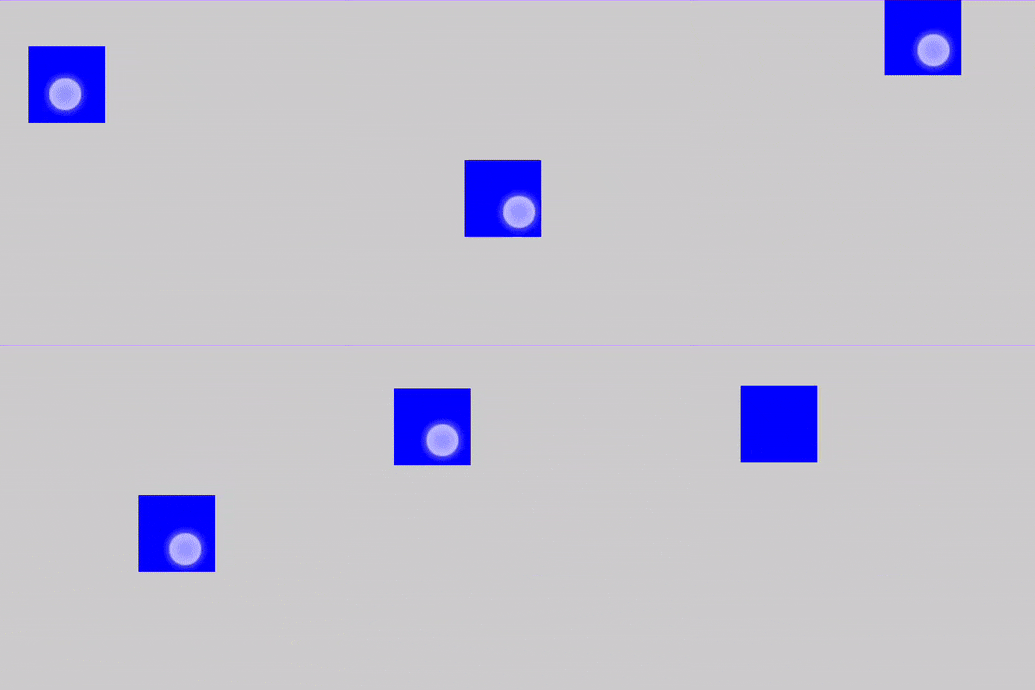
使用 anchoredDraggable 在錨點之間拖曳元件
anchoredDraggable 修飾符可讓您在一組預先定義的位置 (稱為錨點) 之間拖曳元件。使用者放開拖曳手勢時,元件會停在最靠近的錨點。anchoredDraggable 適合用來建立自訂底部功能表、複雜滑桿或導覽匣面板等元件。
API 介面
AnchoredDraggable API 主要包含下列部分:
- 錨定標記 (
DraggableAnchors):定義自訂狀態 (例如Start, Center, End的列舉類別) 與對應像素偏移值之間對應關係的建構工具。 - 狀態 (
AnchoredDraggableState<T>):狀態容器,用於管理元件目前的位置 (偏移)、錨定位置和拖曳進度。請使用rememberSaveable和AnchoredDraggableState.Saver<T>建立,以便在設定變更時保留狀態。 - 手勢修飾符 (
Modifier.anchoredDraggable):偵測沿著Orientation的拖曳手勢、使用拖曳差異更新狀態,並處理快速滑動手勢,在放開時將元件動畫至最近的錨點。
範例:建構自訂 SwipeToDismiss 元件
這個範例示範如何建構自訂 SwipeToDismiss 元件 (白色橫幅),使用者可以向左滑動關閉,或向右拖曳查看過度捲動延展效果。
定義錨定值。定義列舉,代表可拖曳內容可停留的離散位置:
private enum class AnchoredDraggableSwipeDismissValue { DismissedStart, Resting }
例項化並儲存
AnchoredDraggableState。搭配使用rememberSaveable和AnchoredDraggableState.Saver(),在活動重建和設定變更 (例如螢幕旋轉或主題變更) 時,保留元件目前的位置:val state = rememberSaveable(saver = AnchoredDraggableState.Saver()) { AnchoredDraggableState(initialValue = AnchoredDraggableSwipeDismissValue.Resting) }
套用
layout、offset和draggable修飾符。如要讓元件可拖曳,並確保錨點會根據元件大小調整,請對應移動的內容套用下列修飾符:Modifier.layout:錨定位置通常取決於元件的大小,而這在初始組合期間是未知的。使用layout修飾符測量元件,根據其寬度動態計算DraggableAnchors對應,並使用state.updateAnchors()更新狀態。
Modifier.anchoredDraggable:連線至狀態、以指定方向調度拖曳差異,並處理快速滑過手勢,在放開時將元件動畫至最近的錨點。將這個修飾符新增至應回應拖曳手勢的元件,並傳遞state和拖曳orientation(以及選用的overscrollEffect)。Modifier.offset:從偏移 lambda 內的state.requireOffset()讀取偏移。在這個 lambda 中讀取偏移量,可確保系統只會在放置階段讀取值,避免在拖曳期間進行不必要的重組。請將這個修飾符套用至應以視覺方式移動的內容。
Box( modifier = Modifier .fillMaxWidth() // Read state.requireOffset() inside the offset lambda to defer reading to the placement phase .offset { IntOffset(state.requireOffset().roundToInt(), 0) } .layout { measurable, constraints -> val placeable = measurable.measure(constraints) val anchors = DraggableAnchors { AnchoredDraggableSwipeDismissValue.DismissedStart at -placeable.width.toFloat() AnchoredDraggableSwipeDismissValue.Resting at 0f } state.updateAnchors(anchors) layout(placeable.width, placeable.height) { placeable.placeRelative(0, 0) } } // Pass overscrollEffect to anchoredDraggable so deltas beyond the bounds (min and max anchor) are dispatched to overscrollEffect, and render the visual effect with Modifier.overscroll. .overscroll(overscrollEffect) .anchoredDraggable( state, Orientation.Horizontal, overscrollEffect = overscrollEffect ) ) { dismissContent() }
[選用] 整合過度捲動。
overscrollEffectAPI 會實作視覺效果,在捲動或快速滑動到達捲動容器邊緣時顯示。當使用者拖曳超過定義的錨定邊界時,您可以透過過度捲動效果 (通常是拉伸或發光) 提供視覺回饋。- 調度:將
overscrollEffect例項傳遞至anchoredDraggable修飾符。這會根據手勢是在錨定邊界內或外,將拖曳差異調度至AnchoredDraggable狀態或過度捲動效果。 - 算繪:將
Modifier.overscroll與相同的OverscrollEffect執行個體套用至應以視覺方式算繪效果的元件。
- 調度:將
下列程式碼片段說明如何新增標準延展效果:
val overscrollEffect = rememberOverscrollEffect() Box( modifier.fillMaxWidth() ) { Box(Modifier.fillMaxWidth()) { background() } Box( modifier = Modifier .fillMaxWidth() // Read state.requireOffset() inside the offset lambda to defer reading to the placement phase .offset { IntOffset(state.requireOffset().roundToInt(), 0) } .layout { measurable, constraints -> val placeable = measurable.measure(constraints) val anchors = DraggableAnchors { AnchoredDraggableSwipeDismissValue.DismissedStart at -placeable.width.toFloat() AnchoredDraggableSwipeDismissValue.Resting at 0f } state.updateAnchors(anchors) layout(placeable.width, placeable.height) { placeable.placeRelative(0, 0) } } // Pass overscrollEffect to anchoredDraggable so deltas beyond the bounds (min and max anchor) are dispatched to overscrollEffect, and render the visual effect with Modifier.overscroll. .overscroll(overscrollEffect) .anchoredDraggable( state, Orientation.Horizontal, overscrollEffect = overscrollEffect ) ) { dismissContent() } }
結果
上述程式碼片段會產生白色橫幅,其中包含「Drag me to dismiss!」文字,使用者可以向左滑動關閉 (或向右拖曳查看過度捲動延展效果):
範例:建立自訂手勢導覽匣
以下範例說明如何建構自訂的手勢導覽抽屜式導覽列。當使用者水平拖曳時,前景畫面 (ScreenContents) 會向右滑動,從 1.0f 縮小至 0.8f,並將邊角圓角化,顯示底層的導覽匣。
定義錨定狀態和位置。在這個範例中,錨點是導覽匣的開啟和關閉狀態。定義
Open和Closed狀態的列舉,並使用DraggableAnchors將其對應至像素偏移:enum class DrawerState { Open, Closed } val anchors = DraggableAnchors { DrawerState.Open at drawerWidth DrawerState.Closed at 0f } val state = remember { AnchoredDraggableState( initialValue = DrawerState.Closed, anchors = anchors, ) }
在點選項目時為
anchoredDraggableState加上動畫效果。將HomeScreenDrawer放在Box底部,ScreenContents則放在頂端。導覽匣會保持不動,而頂層則會在其上方平移及縮放。當使用者選取導覽匣項目時,請更新有效畫面狀態,並使用
state.animateTo(DrawerState.Closed)自動關閉導覽匣:@Composable private fun AnchoredDraggableDrawerOnClickSample( modifier: Modifier = Modifier, state: AnchoredDraggableState<DrawerState>, coroutineScope: CoroutineScope ) { var screenState by remember { mutableStateOf(ScreenState.Home) } Box(modifier = modifier.fillMaxSize()) { HomeScreenDrawer( selectedScreen = screenState, onScreenSelected = { screen -> screenState = screen // Dismiss drawer when a destination is selected coroutineScope.launch { state.animateTo(DrawerState.Closed) } } ) // ScreenContents(...) } }
使用
state.requireOffset()變更多個視覺屬性。您可以使用Modifier.graphicsLayer變更不只一項屬性,根據拖曳進度同時為平移、縮放和圓角半徑加上動畫效果,而不只是偏移內容:- 使用
state.requireOffset()取得目前的拖曳偏移值。 - 使用
lerp()(線性內插) 計算相對於偏移和導覽匣寬度的比例 (1f至0.8f) 和圓角半徑 (0.dp至32.dp)。 Modifier.graphicsLayer會在繪製階段執行變更,確保動畫高效能,不會在拖曳期間觸發重組。
@Composable private fun AnchoredDraggableDrawerGraphicsLayerSample( state: AnchoredDraggableState<DrawerState>, drawerWidth: Float, selectedScreen: ScreenState, onDrawerClicked: () -> Unit ) { ScreenContents( selectedScreen = selectedScreen, onDrawerClicked = onDrawerClicked, modifier = Modifier .graphicsLayer { this.translationX = state.requireOffset() val scale = lerp(1f, 0.8f, state.requireOffset() / drawerWidth) this.scaleX = scale this.scaleY = scale val cornerRadius = lerp(0f, 32f, state.requireOffset() / drawerWidth) this.shape = RoundedCornerShape(cornerRadius.dp) this.clip = true } .anchoredDraggable(state, Orientation.Horizontal) ) }
- 使用
使用
animateTo觸發程式輔助動畫。在協同程式範圍內啟動state.animateTo(),以程式輔助方式控制導覽匣 (例如輕觸選單圖示或選取導覽匣項目時):fun toggleDrawerState( state: AnchoredDraggableState<DrawerState>, coroutineScope: CoroutineScope ) { coroutineScope.launch { if (state.currentValue == DrawerState.Open) { state.animateTo(DrawerState.Closed) } else { state.animateTo(DrawerState.Open) } } }
結果
使用 Modifier.draggable2D 拖曳兩個維度
使用 draggable2D 修飾符,同時沿著 X 軸和 Y 軸移動個別 UI 元素。
拖曳可組合元素
這個範例說明 draggable2D 最常見的用途:允許使用者挑選 UI 元素,並將其重新放置在父項容器中的任何位置。
@Composable private fun DraggableComposableElement() { // 1. Track the position of the floating window var offset by remember { mutableStateOf(Offset.Zero) } Box(modifier = Modifier.fillMaxSize().background(Color(0xFFF5F5F5))) { Box( modifier = Modifier // 2. Apply the offset to the box's position .offset { IntOffset(offset.x.roundToInt(), offset.y.roundToInt()) } // ... // 3. Attach the 2D drag logic .draggable2D( state = rememberDraggable2DState { delta -> // 4. Update the position based on the movement delta offset += delta } ), contentAlignment = Alignment.Center ) { Text("Video Preview", color = Color.White, fontSize = 12.sp) } } }
上述程式碼片段包含下列內容:
- 使用
offset狀態追蹤方塊的位置。 - 使用
offset修飾符,根據拖曳差異值移動元件位置。 - 由於不支援快速滑動,因此使用者一抬起手指,方塊就會停止移動。
根據父項的拖曳區域拖曳子項可組合項
這個範例示範如何使用 draggable2D 建立 2D 輸入區域,將選取器旋鈕限制在特定介面內。與可拖曳元素範例不同,該範例會移動元件本身,而這項實作會使用 2D 差異,在顏色挑選器中移動子項可組合項「選取器」:
@Composable private fun ExampleColorSelector( // ... ) { // 1. Maintain the 2D position of the selector in state. var selectorOffset by remember { mutableStateOf(Offset.Zero) } // 2. Track the size of the background container. var containerSize by remember { mutableStateOf(IntSize.Zero) } Box( modifier = Modifier .size(300.dp, 200.dp) // Capture the actual pixel dimensions of the container when it's laid out. .onSizeChanged { containerSize = it } .clip(RoundedCornerShape(12.dp)) .background( brush = remember(hue) { // Create a simple gradient representing Saturation and Value for the given Hue. Brush.linearGradient(listOf(Color.White, Color.hsv(hue, 1f, 1f))) } ) ) { Box( modifier = Modifier .size(24.dp) .graphicsLayer { // Center the selector on the finger by subtracting half its size. translationX = selectorOffset.x - (24.dp.toPx() / 2) translationY = selectorOffset.y - (24.dp.toPx() / 2) } // ... // 3. Configure 2D touch dragging. .draggable2D( state = rememberDraggable2DState { delta -> // 4. Calculate the new position and clamp it to the container bounds val newX = (selectorOffset.x + delta.x) .coerceIn(0f, containerSize.width.toFloat()) val newY = (selectorOffset.y + delta.y) .coerceIn(0f, containerSize.height.toFloat()) selectorOffset = Offset(newX, newY) } ) ) } }
上述程式碼片段包含下列內容:
- 它會使用
onSizeChanged修飾符擷取漸層容器的實際尺寸。選取器能準確辨識邊緣位置。 - 在
graphicsLayer內,它會調整translationX和translationY,確保選取器在拖曳時保持置中。
為您推薦
- 注意:系統會在 JavaScript 關閉時顯示連結文字
- 瞭解手勢
- 進階動畫範例:手勢 {:#gesture-and-animation}
- 以價值為準的動畫