

Android 剪貼簿架構支援複製及貼上原始和複雜資料類型,包括:
- 文字字串
- 複雜的資料結構
- 文字和二進位串流資料
- 應用程式資產
簡單文字資料會直接儲存在剪貼簿中,而複雜資料則儲存為參考資料,由執行貼上操作的應用程式使用內容供應器對其進行解析。
無論是在應用程式內,還是在實作該架構的應用程式之間,都能進行複製及貼上。
由於該架構的一部分使用內容供應器,因此本文假設您對 Android 內容供應器 API 有一定程度的瞭解。
使用文字
部分元件支援複製及貼上文字,如下表所示。
| 元件 | 複製文字 | 貼上文字 |
|---|---|---|
| BasicTextField | ✅ | ✅ |
| TextField | ✅ | ✅ |
| SelectionContainer | ✅ |
舉例來說,您可以將資訊卡中的文字複製到下列程式碼片段中的剪貼簿,然後將複製的文字貼到 TextField。如要顯示貼上文字的選單,請按住 TextField,或輕觸游標控點。
val textFieldState = rememberTextFieldState() Column { Card { SelectionContainer { Text("You can copy this text") } } BasicTextField(state = textFieldState) }
您可以使用下列鍵盤快速鍵貼上文字:Ctrl + V。根據預設,您也可以使用鍵盤快速鍵。詳情請參閱「處理鍵盤動作」。
使用 ClipboardManager 複製
您可以使用 ClipboardManager 將文字複製到剪貼簿。其 setText() 方法會將傳遞的 AnnotatedString 物件複製到剪貼簿。下列程式碼片段會在使用者點選按鈕時,將「Hello, clipboard」複製到剪貼簿。
// Retrieve a ClipboardManager object val clipboardManager = LocalClipboardManager.current Button( onClick = { // Copy "Hello, clipboard" to the clipboard clipboardManager.setText(AnnotatedString("Hello, clipboard")) } ) { Text("Click to copy a text") }
下列程式碼片段可執行相同操作,但可讓您更精細地控管。常見用途是複製機密內容,例如密碼。ClipEntry 描述剪貼簿中的項目。其中包含 ClipData 物件,用於描述剪貼簿上的資料。ClipData.newPlainText() 方法是從 String 物件建立 ClipData 物件的便利方法。您可以透過 ClipboardManager 物件呼叫 setClip() 方法,將建立的 ClipEntry 物件設為剪貼簿。
// Retrieve a ClipboardManager object val clipboardManager = LocalClipboardManager.current Button( onClick = { val clipData = ClipData.newPlainText("plain text", "Hello, clipboard") val clipEntry = ClipEntry(clipData) clipboardManager.setClip(clipEntry) } ) { Text("Click to copy a text") }
使用 ClipboardManager 貼上
您可以透過 ClipboardManager 呼叫 getText() 方法,存取複製到剪貼簿的文字。當文字複製到剪貼簿時,其 getText() 方法會傳回 AnnotatedString 物件。下列程式碼片段會將剪貼簿中的文字附加到 TextField 中的文字。
val textFieldState = rememberTextFieldState() Column { TextField(state = textFieldState) Button( onClick = { // The getText method returns an AnnotatedString object or null val annotatedString = clipboardManager.getText() if (annotatedString != null) { // The pasted text is placed on the tail of the TextField textFieldState.edit { append(annotatedString.text) } } } ) { Text("Click to paste the text in the clipboard") } }
使用多媒體內容
使用者喜歡圖片、影片和其他生動的內容。應用程式可讓使用者透過 ClipboardManager 和 ClipEntry 複製多媒體內容。contentReceiver 修飾符可協助您實作貼上多媒體內容。
複製多媒體內容
應用程式無法直接將多媒體內容複製到剪貼簿。應用程式會改為將 URI 物件傳遞至剪貼簿,並透過 ContentProvider 提供內容存取權。以下程式碼片段說明如何將 JPEG 圖片複製到剪貼簿。詳情請參閱「複製資料串流」。
// Get a reference to the context val context = LocalContext.current Button( onClick = { // URI of the copied JPEG data val uri = Uri.parse("content://your.app.authority/0.jpg") // Create a ClipData object from the URI value // A ContentResolver finds a proper ContentProvider so that ClipData.newUri can set appropriate MIME type to the given URI val clipData = ClipData.newUri(context.contentResolver, "Copied", uri) // Create a ClipEntry object from the clipData value val clipEntry = ClipEntry(clipData) // Copy the JPEG data to the clipboard clipboardManager.setClip(clipEntry) } ) { Text("Copy a JPEG data") }
貼上多媒體內容
您可以使用 contentReceiver 修飾符,在修改後的元件中處理貼到 BasicTextField 的多媒體內容。下列程式碼片段會將貼上的圖片資料 URI 新增至 Uri 物件清單。
// A URI list of images val imageList = remember { mutableStateListOf<Uri>() } // Remember the ReceiveContentListener object as it is created inside a Composable scope val receiveContentListener = remember { ReceiveContentListener { transferableContent -> // Handle the pasted data if it is image data when { // Check if the pasted data is an image or not transferableContent.hasMediaType(MediaType.Image) -> { // Handle for each ClipData.Item object // The consume() method returns a new TransferableContent object containging ignored ClipData.Item objects transferableContent.consume { item -> val uri = item.uri if (uri != null) { imageList.add(uri) } // Mark the ClipData.Item object consumed when the retrieved URI is not null uri != null } } // Return the given transferableContent when the pasted data is not an image else -> transferableContent } } } val textFieldState = rememberTextFieldState() BasicTextField( state = textFieldState, modifier = Modifier .contentReceiver(receiveContentListener) .fillMaxWidth() .height(48.dp) )
contentReceiver 修飾符會採用 ReceiveContentListener 物件做為引數,並在使用者將資料貼到已修改元件內的 BasicTextField 時,呼叫傳遞物件的 onReceive 方法。
TransferableContent 物件會傳遞至 onReceive 方法,說明可透過貼上在應用程式之間轉移的資料。您可以參照 clipEntry 屬性,存取 ClipEntry 物件。
舉例來說,當使用者選取多張圖片並複製到剪貼簿時,ClipEntry 物件可以有多個 ClipData.Item 物件。您應將每個 ClipData.Item 物件標示為已使用或已忽略,並傳回包含已忽略 ClipData.Item 物件的 TransferableContent,以便最接近的上階 contentReceiver 修飾符接收。
TransferableContent.hasMediaType() 方法可協助您判斷 TransferableContent 物件是否能提供具有媒體類型的項目。舉例來說,如果 TransferableContent 物件可以提供圖片,下列方法呼叫會傳回 true。
transferableContent.hasMediaType(MediaType.Image)
處理複雜資料
您可以將複雜資料複製到剪貼簿,方法與複製多媒體內容相同。詳情請參閱「使用內容供應器複製複雜資料」。
您也可以用相同方式處理複雜資料的貼上作業,以取得多媒體內容。您可以接收貼上資料的 URI。實際資料可從 ContentProvider 擷取。詳情請參閱「從供應器擷取資料」。
複製內容的意見回饋
使用者預期在將內容複製到剪貼簿時獲得回饋,因此除了支援複製及貼上功能的架構外,Android 13 (API 級別 33) 以上版本也會在使用者複製內容時顯示預設使用者介面。這項功能可能會導致重複通知。 如要進一步瞭解這個極端案例,請參閱「避免重複通知」。
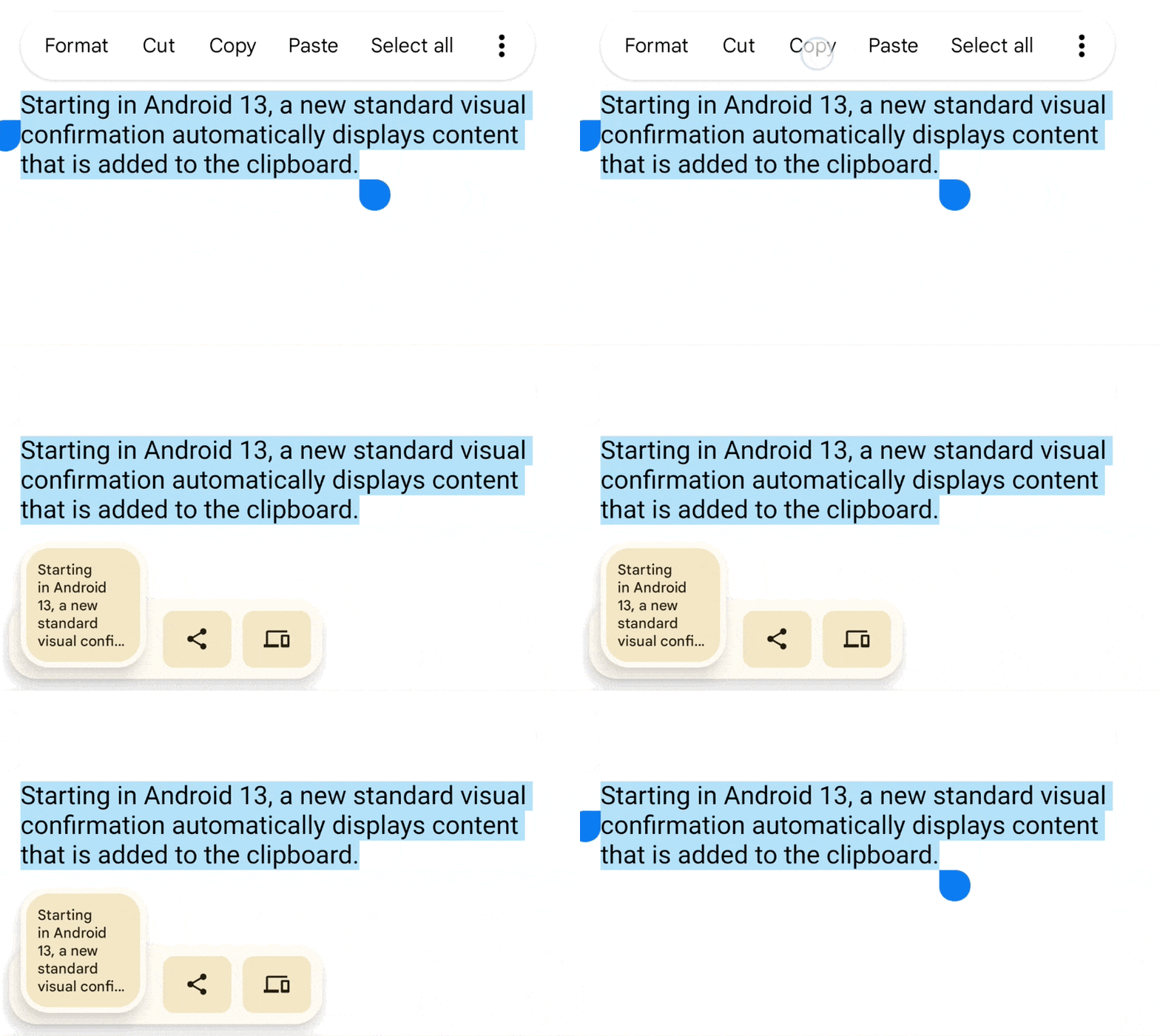
在 Android 12L (API 級別 32) 以下版本中,請手動向複製內容的使用者提供回饋。請參閱建議。
敏感內容
如果選擇讓應用程式允許使用者將敏感內容 (例如密碼) 複製到剪貼簿,應用程式必須通知系統,系統才能避免在 UI 中顯示複製的敏感內容 (圖 2)。
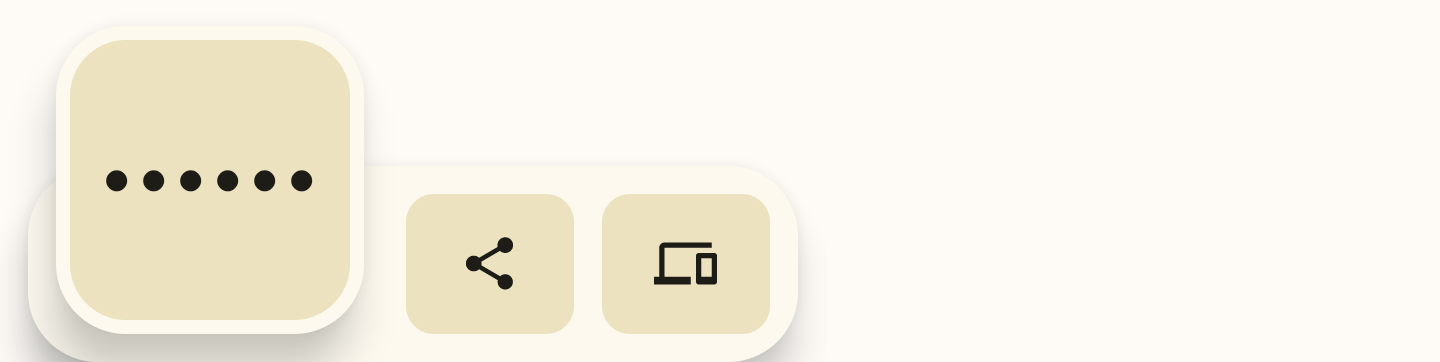
在 ClipboardManager 物件上呼叫 setClip() 方法之前,您必須在 ClipData 的 ClipDescription 中新增旗標:
// If your app is compiled with the API level 33 SDK or higher. clipData.apply { description.extras = PersistableBundle().apply { putBoolean(ClipDescription.EXTRA_IS_SENSITIVE, true) } } // If your app is compiled with a lower SDK. clipData.apply { description.extras = PersistableBundle().apply { putBoolean("android.content.extra.IS_SENSITIVE", true) } }