


WindowInsetsCompat का इस्तेमाल करके, आपका ऐप्लिकेशन ऑन-स्क्रीन कीबोर्ड (इसे IME भी कहा जाता है) को क्वेरी कर सकता है और उसे कंट्रोल कर सकता है. यह ठीक उसी तरह से काम करता है जिस तरह से सिस्टम बार के साथ इंटरैक्ट करता है. सॉफ़्टवेयर कीबोर्ड खोलने या बंद करने पर, आपका ऐप्लिकेशन आसानी से ट्रांज़िशन करने के लिए WindowInsetsAnimationCompat का इस्तेमाल भी कर सकता है.
ज़रूरी शर्तें
सॉफ़्टवेयर कीबोर्ड के लिए कंट्रोल और ऐनिमेशन सेट अप करने से पहले, अपने ऐप्लिकेशन को पूरे डिसप्ले पर दिखाने के लिए कॉन्फ़िगर करें. इससे, सिस्टम विंडो इंसर्ट को मैनेज किया जा सकता है. जैसे, सिस्टम बार और ऑन-स्क्रीन कीबोर्ड.
सिंक किए गए इनसेट का डिफ़ॉल्ट ऐनिमेशन
एपीआई लेवल 37.2 और इसके बाद के वर्शन पर, डिफ़ॉल्ट विंडो लेआउट में बदलाव करने वाले ऐप्लिकेशन (जैसे, WindowInsetsController.show(WindowInsets.Type.ime()) का इस्तेमाल करके IME दिखाते समय SOFT_INPUT_ADJUST_RESIZE या SOFT_INPUT_ADJUST_PAN) को फ़ायदा मिल सकता है. हालांकि, इसके लिए उन्हें कस्टम WindowInsetsAnimationCompat.Callback लागू नहीं करना होगा. उन्हें सिस्टम लेवल पर, फ़्रेम-बाय-फ़्रेम सिंक किए गए ऐनिमेशन का फ़ायदा मिल सकता है. इस सुविधा के चालू होने पर, हर फ़्रेम पर इनसेट अपने-आप लागू हो जाते हैं. साथ ही, लेआउट पास ट्रिगर हो जाता है. इससे कीबोर्ड के हिलने पर, ट्रांज़िशन आसानी से होता है.
इस सुविधा को चालू करने के लिए, अपनी गतिविधि या ऐप्लिकेशन में AndroidManifest.xml फ़ाइल में यह <property> टैग जोड़ें:
<property
    android:name="android.window.PROPERTY_COMPAT_ALLOW_SYNCHRONIZED_INSETS_ANIMATION"
    android:value="true" />
मुख्य थ्रेड से अलग थ्रेड पर, इंसर्ट ऐनिमेशन लागू करना
डिफ़ॉल्ट रूप से, WindowInsetsAnimationCompat.Callback रजिस्टर करने पर, विंडो इंसर्ट ऐनिमेशन को ऐप्लिकेशन के मुख्य थ्रेड पर चलाने के लिए मजबूर किया जाता है. अगर आपका ऐप्लिकेशन, ऐनिमेशन के दौरान लगातार अपडेट हो रहा है और व्यू लेआउट को सिंक कर रहा है, तो ऐसा करना ज़रूरी है. जैसे, onProgress तरीके में. हालांकि, अगर आपके ऐप्लिकेशन को सिर्फ़ लाइफ़साइकल ट्रांज़िशन (जैसे, IME के ऐनिमेशन शुरू या खत्म होने पर) को सुनने की ज़रूरत है और उसे व्यू को फ़्रेम-दर-फ़्रेम अपडेट करने की ज़रूरत नहीं है, तो मुख्य थ्रेड पर चलने से अनावश्यक ओवरहेड और ऐनिमेशन में रुकावट आ सकती है. ऐसा खास तौर पर तब होता है, जब मुख्य थ्रेड किसी और काम में व्यस्त हो.
एपीआई लेवल 37.2 और इससे ऊपर के वर्शन में, इन ट्रांज़िशन को देखने के लिए ViewTreeObserver.WindowInsetsAnimationListener का इस्तेमाल किया जा सकता है. इस लिसनर को फ़्रेम-बाय-फ़्रेम प्रोग्रेस अपडेट नहीं मिलते (कोई onProgress कॉलबैक नहीं), इसलिए सिस्टम, मुख्य थ्रेड के बजाय एक डेडीकेटेड ऐनिमेशन थ्रेड पर इंसर्ट ऐनिमेशन चला सकता है. इससे ट्रांज़िशन बेहतर होता है.
Kotlin
val listener = object : ViewTreeObserver.WindowInsetsAnimationListener {
  override fun onPrepare(animation: WindowInsetsAnimation) {
    // Handle preparation before animation starts
  }

  override fun onEnd(animation: WindowInsetsAnimation) {
    // Clean up temporary changes
  }
}

// Add the listener
view.viewTreeObserver.addWindowInsetsAnimationListener(listener)

// Remove the listener when no longer needed
view.viewTreeObserver.removeWindowInsetsAnimationListener(listener)
Java
ViewTreeObserver.WindowInsetsAnimationListener listener =
    new ViewTreeObserver.WindowInsetsAnimationListener() {
      @Override
      public void onPrepare(@NonNull WindowInsetsAnimation animation) {
        // Handle preparation before animation starts
      }

      @Override
      public void onEnd(@NonNull WindowInsetsAnimation animation) {
        // Clean up temporary changes
      }
    };

// Add the listener
view.getViewTreeObserver().addWindowInsetsAnimationListener(listener);

// Remove the listener when no longer needed
view.getViewTreeObserver().removeWindowInsetsAnimationListener(listener);
देखें कि कीबोर्ड सॉफ़्टवेयर दिख रहा है या नहीं
सॉफ़्टवेयर कीबोर्ड दिखने की सेटिंग की जांच करने के लिए, WindowInsets का इस्तेमाल करें.
Kotlin
val insets = ViewCompat.getRootWindowInsets(view) ?: return
val imeVisible = insets.isVisible(WindowInsetsCompat.Type.ime())
val imeHeight = insets.getInsets(WindowInsetsCompat.Type.ime()).bottom
Java
WindowInsetsCompat insets = ViewCompat.getRootWindowInsets(view);
boolean imeVisible = insets.isVisible(WindowInsetsCompat.Type.ime());
int imeHeight = insets.getInsets(WindowInsetsCompat.Type.ime()).bottom;
इसके अलावा, सॉफ़्टवेयर कीबोर्ड की दृश्यता में हुए बदलावों को देखने के लिए, ViewCompat.setOnApplyWindowInsetsListener का इस्तेमाल किया जा सकता है.
Kotlin
ViewCompat.setOnApplyWindowInsetsListener(view) { _, insets ->
  val imeVisible = insets.isVisible(WindowInsetsCompat.Type.ime())
  val imeHeight = insets.getInsets(WindowInsetsCompat.Type.ime()).bottom
  insets
}
Java
ViewCompat.setOnApplyWindowInsetsListener(view, (v, insets) -> {
  boolean imeVisible = insets.isVisible(WindowInsetsCompat.Type.ime());
  int imeHeight = insets.getInsets(WindowInsetsCompat.Type.ime()).bottom;
  return insets;
});
सॉफ़्टवेयर कीबोर्ड के साथ ऐनिमेशन सिंक करना
जब कोई उपयोगकर्ता टेक्स्ट डालने वाले फ़ील्ड पर टैप करता है, तो कीबोर्ड स्क्रीन के सबसे नीचे से ऊपर की ओर स्लाइड होता है. इसे इस उदाहरण में दिखाया गया है:
दूसरी इमेज में "सिंक नहीं किया गया" लेबल वाले उदाहरण में, Android 10 (एपीआई लेवल 29) में डिफ़ॉल्ट व्यवहार दिखाया गया है. इसमें, ऐप्लिकेशन का टेक्स्ट फ़ील्ड और कॉन्टेंट, कीबोर्ड के ऐनिमेशन के साथ सिंक होने के बजाय, अपनी जगह पर स्नैप हो जाता है. यह व्यवहार, देखने में अजीब लग सकता है.
Android 11 (एपीआई लेवल 30) और इसके बाद के वर्शन में,
WindowInsetsAnimationCompatका इस्तेमाल करके, ऐप्लिकेशन के ट्रांज़िशन को कीबोर्ड के साथ सिंक किया जा सकता है. इससे कीबोर्ड, स्क्रीन के सबसे नीचे से ऊपर और नीचे की ओर स्लाइड होता है. यह ज़्यादा बेहतर दिखता है. जैसा कि दूसरी इमेज में "सिंक किया गया" लेबल वाले उदाहरण में दिखाया गया है.
कीबोर्ड ऐनिमेशन के साथ सिंक करने के लिए, WindowInsetsAnimationCompat.Callback को कॉन्फ़िगर करें.
Kotlin
ViewCompat.setWindowInsetsAnimationCallback(
  view,
  object : WindowInsetsAnimationCompat.Callback(DISPATCH_MODE_STOP) {
    // Override methods.
  }
)
Java
ViewCompat.setWindowInsetsAnimationCallback(
    view,
    new WindowInsetsAnimationCompat.Callback(
        WindowInsetsAnimationCompat.Callback.DISPATCH_MODE_STOP
    ) {
      // Override methods.
    });
WindowInsetsAnimationCompat.Callback में ओवरराइड करने के कई तरीके हैं. जैसे,
onPrepare(),
onStart(),
onProgress(),
और
onEnd().
लेआउट में कोई भी बदलाव करने से पहले, onPrepare() पर कॉल करें.
onPrepare को तब कॉल किया जाता है, जब इंसर्ट ऐनिमेशन शुरू हो रहा हो और ऐनिमेशन की वजह से व्यू को फिर से लेआउट किया जा रहा हो. इसका इस्तेमाल शुरुआती स्थिति को सेव करने के लिए किया जा सकता है. इस मामले में, यह व्यू का सबसे नीचे वाला कोऑर्डिनेट है.
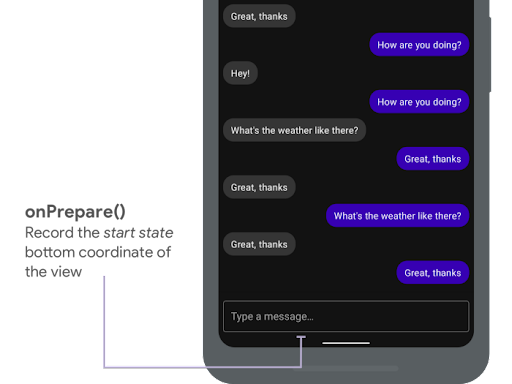
onPrepare() का इस्तेमाल करके, शुरू होने की स्थिति रिकॉर्ड करना.
यहां दिए गए स्निपेट में, onPrepare को कॉल करने का एक उदाहरण दिखाया गया है:
Kotlin
var startBottom = 0f

override fun onPrepare(
  animation: WindowInsetsAnimationCompat
) {
  startBottom = view.bottom.toFloat()
}
Java
float startBottom;

@Override
public void onPrepare(
    @NonNull WindowInsetsAnimationCompat animation
) {
  startBottom = view.getBottom();
}
onStart तब कॉल किया जाता है, जब इंसर्ट ऐनिमेशन शुरू होता है. इसका इस्तेमाल, लेआउट में हुए बदलावों की आखिरी स्थिति के हिसाब से, सभी व्यू प्रॉपर्टी सेट करने के लिए किया जा सकता है. अगर आपने किसी भी व्यू के लिए OnApplyWindowInsetsListener कॉलबैक सेट किया है, तो इस पॉइंट पर इसे पहले ही कॉल कर दिया जाता है. व्यू प्रॉपर्टी की आखिरी स्थिति को सेव करने का यह सही समय है.
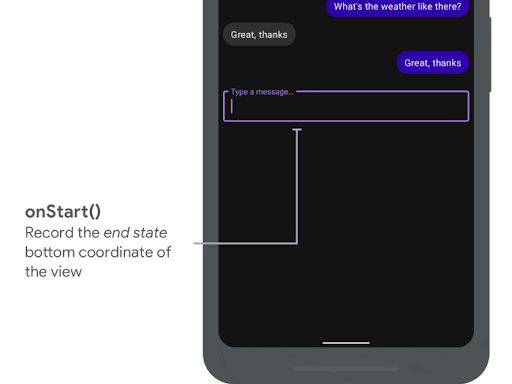
onStart() का इस्तेमाल करके, आखिरी स्थिति को रिकॉर्ड करना.
यहां दिए गए स्निपेट में, onStart को कॉल करने का एक उदाहरण दिखाया गया है:
Kotlin
var endBottom = 0f

override fun onStart(
  animation: WindowInsetsAnimationCompat,
  bounds: WindowInsetsAnimationCompat.BoundsCompat
): WindowInsetsAnimationCompat.BoundsCompat {
  // Record the position of the view after the IME transition.
  endBottom = view.bottom.toFloat()

  return bounds
}
Java
float endBottom;

@NonNull
@Override
public WindowInsetsAnimationCompat.BoundsCompat onStart(
    @NonNull WindowInsetsAnimationCompat animation,
    @NonNull WindowInsetsAnimationCompat.BoundsCompat bounds
) {
  endBottom = view.getBottom();
  return bounds;
}
onProgress को तब कॉल किया जाता है, जब ऐनिमेशन चलाने के दौरान इनसेट बदलते हैं. इसलिए, इसे बदला जा सकता है. साथ ही, कीबोर्ड ऐनिमेशन के दौरान हर फ़्रेम पर सूचना पाई जा सकती है. व्यू प्रॉपर्टी अपडेट करें, ताकि व्यू, कीबोर्ड के साथ सिंक्रनाइज़ होकर ऐनिमेट हो.
इस समय तक, लेआउट में किए गए सभी बदलाव पूरे हो जाते हैं. उदाहरण के लिए, अगर व्यू को बदलने के लिए View.translationY का इस्तेमाल किया जाता है, तो इस तरीके के हर कॉल के लिए वैल्यू धीरे-धीरे कम होती जाती है. आखिर में, यह 0 पर पहुंच जाती है, ताकि लेआउट को उसकी मूल पोज़िशन पर वापस लाया जा सके.
onProgress() का इस्तेमाल किया जाता है.
यहां दिए गए स्निपेट में, onProgress को कॉल करने का एक उदाहरण दिखाया गया है:
Kotlin
override fun onProgress(
  insets: WindowInsetsCompat,
  runningAnimations: MutableList<WindowInsetsAnimationCompat>
): WindowInsetsCompat {
  // Find an IME animation.
  val imeAnimation = runningAnimations.find {
    it.typeMask and WindowInsetsCompat.Type.ime() != 0
  } ?: return insets

  // Offset the view based on the interpolated fraction of the IME animation.
  view.translationY =
    (startBottom - endBottom) * (1 - imeAnimation.interpolatedFraction)

  return insets
}
Java
@NonNull
@Override
public WindowInsetsCompat onProgress(
    @NonNull WindowInsetsCompat insets,
    @NonNull List<WindowInsetsAnimationCompat> runningAnimations
) {
  // Find an IME animation.
  WindowInsetsAnimationCompat imeAnimation = null;
  for (WindowInsetsAnimationCompat animation : runningAnimations) {
    if ((animation.getTypeMask() & WindowInsetsCompat.Type.ime()) != 0) {
      imeAnimation = animation;
      break;
    }
  }
  if (imeAnimation != null) {
    // Offset the view based on the interpolated fraction of the IME animation.
    view.setTranslationY((startBottom - endBottom)

        *   (1 - imeAnimation.getInterpolatedFraction()));
  }
  return insets;
}
आपके पास onEnd को बदलने का विकल्प होता है. ऐनिमेशन खत्म होने के बाद, इस तरीके का इस्तेमाल किया जाता है. यह अस्थायी बदलावों को हटाने का सही समय है.
अन्य संसाधन
- GitHub पर WindowInsetsAnimation देखें.