


À l'aide de WindowInsetsCompat,
votre application peut interroger et contrôler le clavier à l'écran (également appelé
IME) de la même manière qu'elle interagit avec les barres système. Votre application peut également utiliser
WindowInsetsAnimationCompat
pour créer des transitions fluides lorsque le clavier virtuel est ouvert ou fermé.
Prérequis
Avant de configurer le contrôle et l'animation du clavier virtuel, configurez votre application pour qu'elle s'affiche de bord à bord. Cela lui permet de gérer les encarts de fenêtre système tels que les barres système et le clavier à l'écran.
Vérifier la visibilité du logiciel clavier
Utilisez WindowInsets pour vérifier la visibilité du logiciel
clavier.
Kotlin
val insets = ViewCompat.getRootWindowInsets(view) ?: return
val imeVisible = insets.isVisible(WindowInsetsCompat.Type.ime())
val imeHeight = insets.getInsets(WindowInsetsCompat.Type.ime()).bottom
Java
WindowInsetsCompat insets = ViewCompat.getRootWindowInsets(view);
boolean imeVisible = insets.isVisible(WindowInsetsCompat.Type.ime());
int imeHeight = insets.getInsets(WindowInsetsCompat.Type.ime()).bottom;
Vous pouvez également utiliser
ViewCompat.setOnApplyWindowInsetsListener
pour observer les modifications de la visibilité du clavier virtuel.
Kotlin
ViewCompat.setOnApplyWindowInsetsListener(view) { _, insets ->
  val imeVisible = insets.isVisible(WindowInsetsCompat.Type.ime())
  val imeHeight = insets.getInsets(WindowInsetsCompat.Type.ime()).bottom
  insets
}
Java
ViewCompat.setOnApplyWindowInsetsListener(view, (v, insets) -> {
  boolean imeVisible = insets.isVisible(WindowInsetsCompat.Type.ime());
  int imeHeight = insets.getInsets(WindowInsetsCompat.Type.ime()).bottom;
  return insets;
});
Synchroniser l'animation avec le clavier virtuel
Lorsqu'un utilisateur appuie sur un champ de saisie de texte, le clavier glisse vers le haut de l'écran, comme illustré dans l'exemple suivant :
L'exemple intitulé "Non synchronisé" de la figure 2 montre le comportement par défaut d'Android 10 (niveau d'API 29), dans lequel le champ de texte et le contenu de l'application se mettent en place au lieu de se synchroniser avec l'animation du clavier. Ce comportement peut être visuellement désagréable.
Dans Android 11 (niveau d'API 30) et versions ultérieures, vous pouvez utiliser
WindowInsetsAnimationCompatpour synchroniser la transition de l'application avec le clavier qui glisse vers le haut et vers le bas de l'écran. Cela semble plus fluide, comme illustré dans l'exemple intitulé "Synchronisé" de la figure 2.
Configure
WindowInsetsAnimationCompat.Callback
avec la vue à synchroniser avec l'animation du clavier.
Kotlin
ViewCompat.setWindowInsetsAnimationCallback(
  view,
  object : WindowInsetsAnimationCompat.Callback(DISPATCH_MODE_STOP) {
    // Override methods.
  }
)
Java
ViewCompat.setWindowInsetsAnimationCallback(
    view,
    new WindowInsetsAnimationCompat.Callback(
        WindowInsetsAnimationCompat.Callback.DISPATCH_MODE_STOP
    ) {
      // Override methods.
    });
Plusieurs méthodes peuvent être remplacées dans WindowInsetsAnimationCompat.Callback,
à savoir
onPrepare(),
onStart(),
onProgress(),
et
onEnd().
Commencez par appeler onPrepare() avant toute modification de la mise en page.
onPrepare est appelé lorsqu'une animation d'encarts démarre et avant que les vues ne soient réorganisées en raison d'une animation. Vous pouvez l'utiliser pour enregistrer l'état de début, qui dans ce cas est la coordonnée inférieure de la vue.
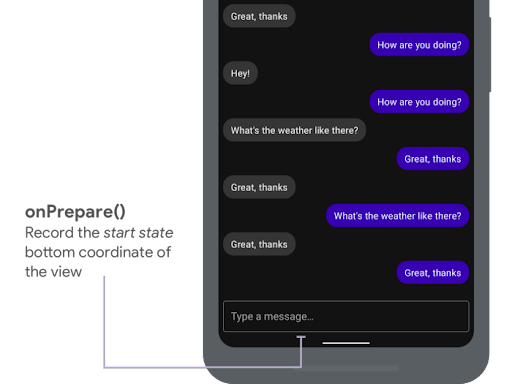
onPrepare() pour
enregistrer l'état de début.
L'extrait suivant montre un exemple d'appel à onPrepare :
Kotlin
var startBottom = 0f

override fun onPrepare(
  animation: WindowInsetsAnimationCompat
) {
  startBottom = view.bottom.toFloat()
}
Java
float startBottom;

@Override
public void onPrepare(
    @NonNull WindowInsetsAnimationCompat animation
) {
  startBottom = view.getBottom();
}
onStart est appelé lorsqu'une animation d'encarts démarre. Vous pouvez l'utiliser pour définir toutes les propriétés de la vue sur l'état final des modifications de la mise en page. Si vous avez défini un rappel OnApplyWindowInsetsListener sur l'une des vues, il est déjà appelé à ce stade. C'est le bon moment pour enregistrer l'état final des propriétés de la vue.
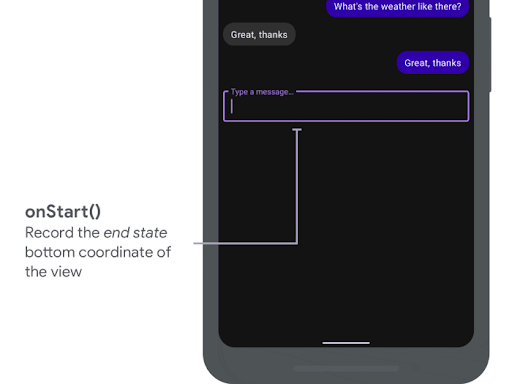
onStart() pour enregistrer
the end state.
L'extrait suivant montre un exemple d'appel à onStart :
Kotlin
var endBottom = 0f

override fun onStart(
  animation: WindowInsetsAnimationCompat,
  bounds: WindowInsetsAnimationCompat.BoundsCompat
): WindowInsetsAnimationCompat.BoundsCompat {
  // Record the position of the view after the IME transition.
  endBottom = view.bottom.toFloat()

  return bounds
}
Java
float endBottom;

@NonNull
@Override
public WindowInsetsAnimationCompat.BoundsCompat onStart(
    @NonNull WindowInsetsAnimationCompat animation,
    @NonNull WindowInsetsAnimationCompat.BoundsCompat bounds
) {
  endBottom = view.getBottom();
  return bounds;
}
onProgress est appelé lorsque les encarts changent dans le cadre de l'exécution d'une animation. Vous pouvez donc le remplacer et être averti à chaque frame pendant l'animation du clavier. Mettez à jour les propriétés de la vue afin qu'elle s'anime en synchronisation avec le clavier.
Toutes les modifications de la mise en page sont terminées à ce stade. Par exemple, si vous utilisez View.translationY pour décaler la vue, la valeur diminue progressivement à chaque appel de cette méthode et finit par atteindre 0 pour la position de mise en page d'origine.
onProgress() pour
synchroniser les animations.
L'extrait suivant montre un exemple d'appel à onProgress :
Kotlin
override fun onProgress(
  insets: WindowInsetsCompat,
  runningAnimations: MutableList<WindowInsetsAnimationCompat>
): WindowInsetsCompat {
  // Find an IME animation.
  val imeAnimation = runningAnimations.find {
    it.typeMask and WindowInsetsCompat.Type.ime() != 0
  } ?: return insets

  // Offset the view based on the interpolated fraction of the IME animation.
  view.translationY =
    (startBottom - endBottom) * (1 - imeAnimation.interpolatedFraction)

  return insets
}
Java
@NonNull
@Override
public WindowInsetsCompat onProgress(
    @NonNull WindowInsetsCompat insets,
    @NonNull List<WindowInsetsAnimationCompat> runningAnimations
) {
  // Find an IME animation.
  WindowInsetsAnimationCompat imeAnimation = null;
  for (WindowInsetsAnimationCompat animation : runningAnimations) {
    if ((animation.getTypeMask() & WindowInsetsCompat.Type.ime()) != 0) {
      imeAnimation = animation;
      break;
    }
  }
  if (imeAnimation != null) {
    // Offset the view based on the interpolated fraction of the IME animation.
    view.setTranslationY((startBottom - endBottom)

        *   (1 - imeAnimation.getInterpolatedFraction()));
  }
  return insets;
}
Vous pouvez éventuellement remplacer onEnd. Cette méthode est appelée une fois l'animation terminée. C'est le bon moment pour supprimer les modifications temporaires.
Ressources supplémentaires
- WindowInsetsAnimation sur GitHub.