


LinearLayout 是檢視區塊群組,可將所有子項依同一個方向 (垂直或水平) 對齊。您可以使用 android:orientation 屬性指定版面配置方向。

LinearLayout。所有 LinearLayout 的子項會依序堆疊,因此無論寬度為何,垂直清單的每一列都只有一個子項。水平清單只有一列高,高度為最高子項的高度加上邊框間距。LinearLayout 會遵循子項之間的「邊界」和各子項的「重力」 (靠右、置中或靠左對齊)。
版面配置權重
LinearLayout 也支援使用 android:layout_weight 屬性,將「權重」指派給個別子項。這項屬性會將「重要性」值指派給檢視畫面,以反映應在整個畫面佔多少空間。較大的權杖值可讓檢視畫面展開,以填滿父項檢視畫面中的剩餘空間。子檢視畫面可指定權重值,而檢視區塊群組中的任何剩餘空間則會按照宣告的權重比例指派給子項。預設權重為零。
均等分布
如要建立線性版面配置,讓每個子項在畫面上使用相同空間,請將每個檢視畫面的 android:layout_height 設定為 "0dp" (針對垂直版面配置),或將每個檢視畫面的 android:layout_width 設定為 "0dp" (針對水平版面配置)。接著,請將各檢視畫面的 android:layout_weight 設定為 "1"。
不等分布
您還可以建立線性版面配置,讓子元素在畫面上使用不同大小的空間。請見以下範例:
- 假設您有三個文字欄位:兩個的權重值為 1,第三個的權重值為預設值 0。第三個文字欄位的權重值為 0,只會佔用其內容所需的區域。另外兩個權重值為 1 的文字欄位,則會在測量完所有三個欄位的內容後,均等展開以填滿剩餘空間。
- 如果三個文字欄位中,有兩個欄位的權重值為 1,第三個欄位的權重值為 2,則在測量完所有三個欄位的內容後,剩餘空間會分配如下:權重值為 2 的欄位佔一半,權重值為 1 的欄位均分另一半。
下圖和程式碼片段顯示了版面配置權重在「傳送訊息」活動中的運作方式。「To」(收件者) 欄位、「Subject」(主旨) 行和「Send」(傳送) 按鈕只佔用所需的高度。訊息區域會佔用活動的其餘高度。
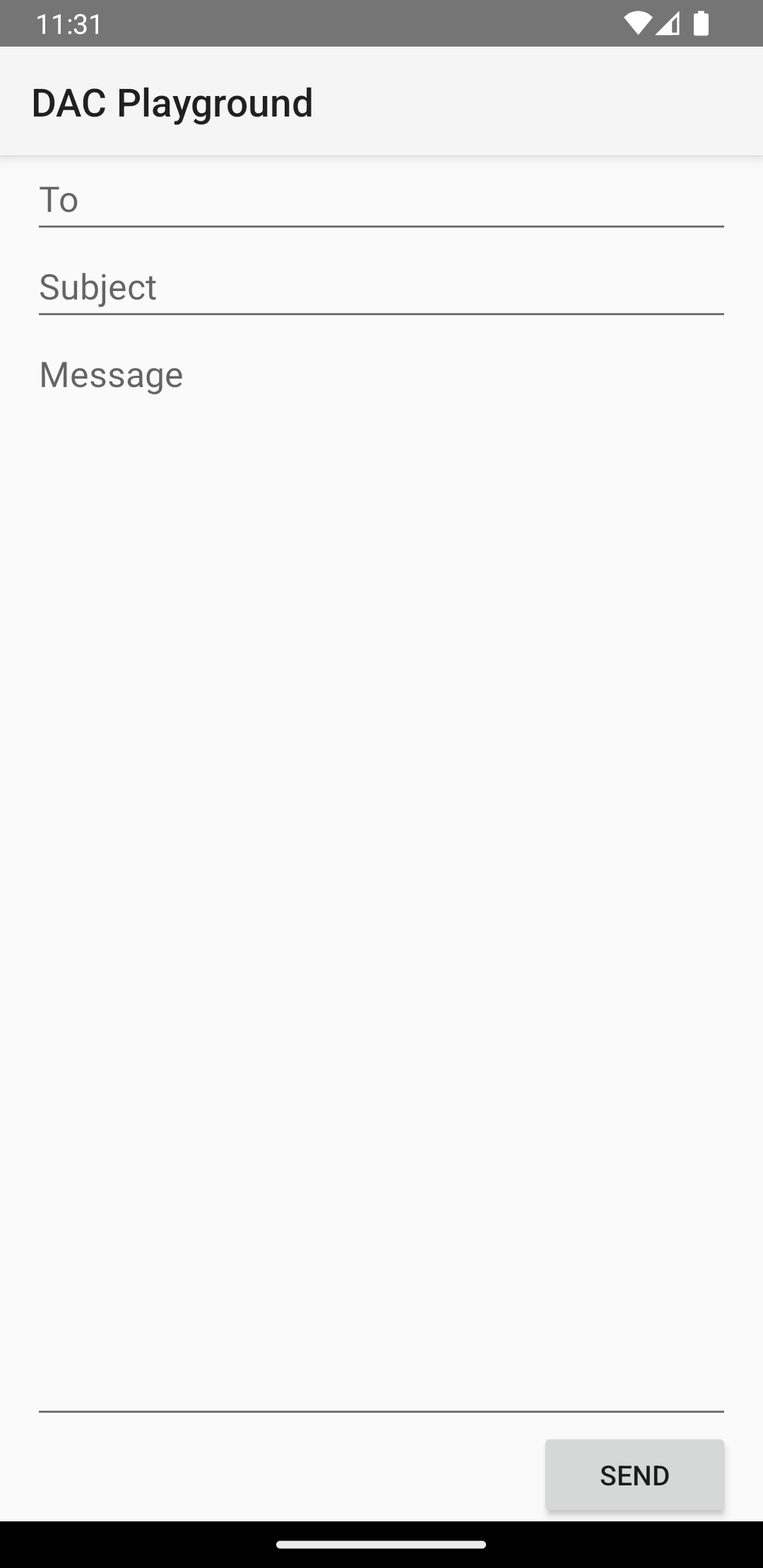
LinearLayout<?xml version="1.0" encoding="utf-8"?> <LinearLayout xmlns:android="http://schemas.android.com/apk/res/android" android:layout_width="match_parent" android:layout_height="match_parent" android:paddingLeft="16dp" android:paddingRight="16dp" android:orientation="vertical" > <EditText android:layout_width="match_parent" android:layout_height="wrap_content" android:hint="@string/to" /> <EditText android:layout_width="match_parent" android:layout_height="wrap_content" android:hint="@string/subject" /> <EditText android:layout_width="match_parent" android:layout_height="0dp" android:layout_weight="1" android:gravity="top" android:hint="@string/message" /> <Button android:layout_width="100dp" android:layout_height="wrap_content" android:layout_gravity="end" android:text="@string/send" /> </LinearLayout>
如要進一步瞭解 LinearLayout 每個孩童檢視模式可用的屬性,請參閱 LinearLayout.LayoutParams。