
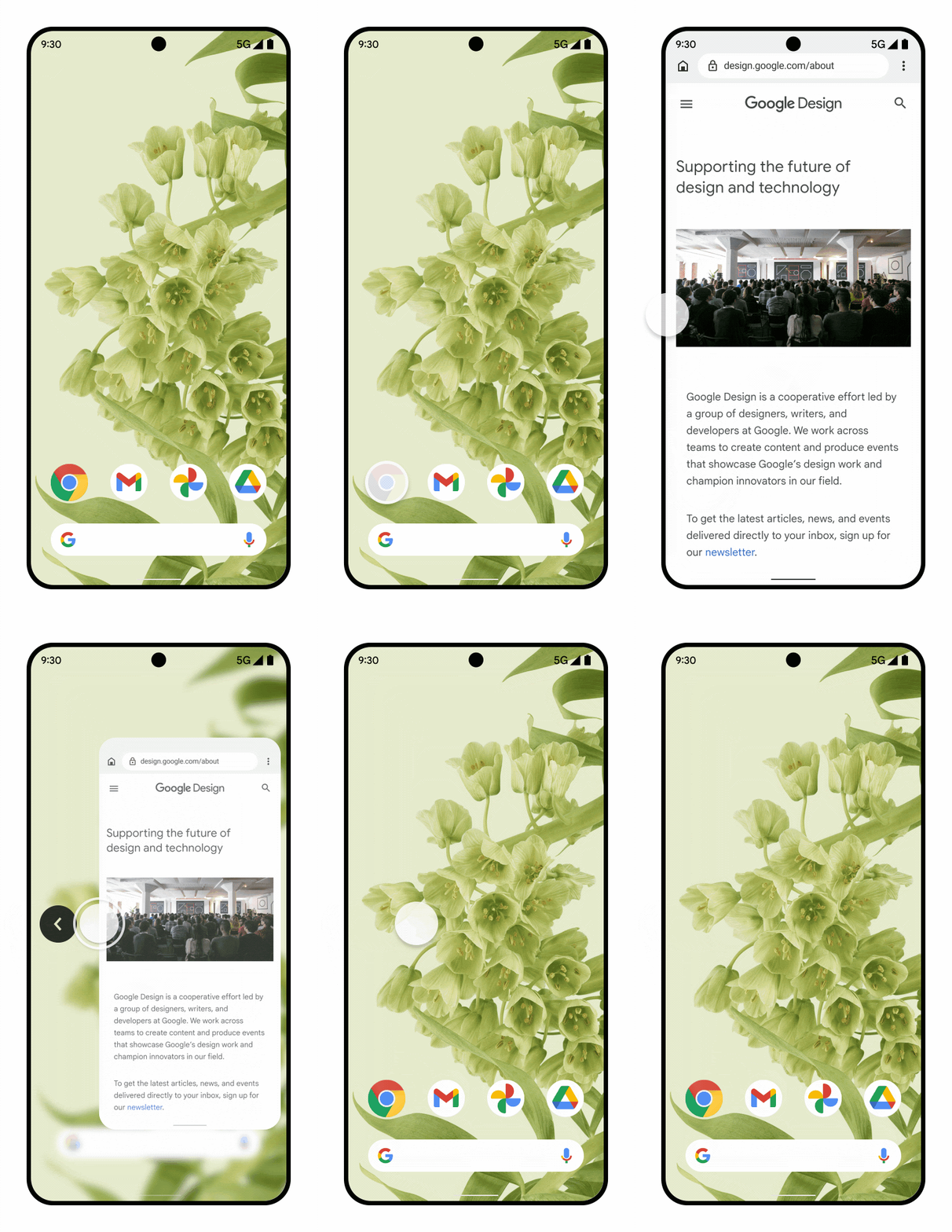
Predictive Back, a gesture navigation feature, lets users preview where the back swipe takes them.
For example, using a back gesture can display an animated preview of the Home screen behind your app, as presented in the mockup in figure 1.
Starting with Android 15, the developer option for predictive back animations is no longer available. System animations such as back-to-home, cross-task, and cross-activity now appear for apps that have opted in to the predictive back gesture either entirely or at an activity level.
You can test this back-to-home animation (as described in a following section of this page).
Supporting the predictive back gesture requires updating your app, using the
backward compatible OnBackPressedCallback in AndroidX Activity 1.6.0
or higher API, or using the new OnBackInvokedCallback platform API.
Most apps use the backward compatible AndroidX API.
This update provides a migration path to properly intercept back navigation,
which involves replacing back interceptions from KeyEvent.KEYCODE_BACK
and any classes with onBackPressed methods such as Activity and
Dialog with the new system Back APIs.
Codelab and Google I/O video
In addition to using this documentation on this page, try out our codelab. It provides a common use-case implementation of a WebView handling the predictive back gesture using AndroidX Activity APIs.
You can also view our Google I/O video, which covers additional examples of implementing the AndroidX and platform APIs.
Handle custom back gestures in Compose
Compose provides the PredictiveBackHandler composable to handle custom
back gestures. This API lets you respond to the back gesture and provides a
Flow of BackEventCompat objects that you can use to implement custom
animations or transitions as the user swipes.
To use PredictiveBackHandler, ensure your app includes the
androidx.activity:activity-compose dependency (version 1.8.0 or higher):
// In your build.gradle.kts file:
dependencies {
    implementation("androidx.activity:activity-compose:1.8.0")
}
PredictiveBackHandler(enabled = isBackHandlerEnabled) { progress: Flow<BackEventCompat> -> try { progress.collect { backEvent -> // Update your UI or animation based on backEvent.progress. } // Handle the final back action (e.g., navigate back). } catch (e: CancellationException) { // Back gesture was cancelled, reset your UI. } }
If you only need to intercept the back gesture without tracking progress, use
BackHandler.
Update an app that uses default back navigation
Predictive back is enabled by default.
If your app uses Fragments or the Navigation Component, also upgrade to AndroidX Activity 1.6.0 or higher.
Update an app that uses custom back navigation
If your app implements custom back behavior, there are different migration paths depending on whether it uses AndroidX and how it handles back navigation.
| How your app handles back navigation | Recommended migration path (link on this page) |
| AndroidX APIs | Migrate an existing AndroidX back implementation |
| Unsupported platform APIs | Migrate an AndroidX app containing unsupported back navigation APIs to AndroidX APIs |
Migrate an AndroidX back navigation implementation
This use case is the most common (and the most recommended). It applies to new
or existing apps that implement custom gesture navigation handling with
OnBackPressedDispatcher, as described in
Provide custom back navigation.
To make sure that APIs that are already using OnBackPressedDispatcher
(such as Fragments and the Navigation Component) work seamlessly with the
predictive back gesture, upgrade to AndroidX Activity 1.6.0 or higher.
// In your build.gradle file:
dependencies {
    // Add this in addition to your other dependencies
    implementation "androidx.activity:activity:1.6.0"
}
Migrate an AndroidX app containing unsupported back navigation APIs to AndroidX APIs
If your app uses AndroidX libraries but implements or makes reference to the unsupported back navigation APIs, you'll need to migrate to using AndroidX APIs to support the new behavior.
To migrate unsupported APIs to AndroidX APIs:
Migrate your system Back handling logic to AndroidX's
OnBackPressedDispatcherwith an implementation ofOnBackPressedCallback. For detailed guidance, see Provide custom back navigation.Disable the
OnBackPressedCallbackwhen ready to stop intercepting the back gesture.Stop intercepting back events using
OnBackPressedorKeyEvent.KEYCODE_BACK.Make sure to upgrade to AndroidX Activity 1.6.0 or higher.
// In your build.gradle file:
dependencies {
    // Add this in addition to your other dependencies
    implementation "androidx.activity:activity:1.6.0"
}
Opt out of predictive back
To opt out, in AndroidManifest.xml, in the <application> tag, set the
android:enableOnBackInvokedCallback flag to false.
<application
    ...
    android:enableOnBackInvokedCallback="false"
    ... >
...
</application>
Setting this to false does the following:
- Disables the predictive back gesture system animation.
- Ignores
OnBackInvokedCallback, butOnBackPressedCallbackcalls continue to work.
Opt out at an activity level
The android:enableOnBackInvokedCallback flag lets you opt out of predictive
system animations at the activity level. This behavior makes it more manageable
to migrate large multi-activity apps to predictive back gestures.
The following code shows an example of enableOnBackInvokedCallback set to
enable the back-to-home system animation from the MainActivity:
<manifest ...>
    <application . . .

        android:enableOnBackInvokedCallback="false">

        <activity
            android:name=".MainActivity"
            android:enableOnBackInvokedCallback="true"
            ...
        </activity>
        <activity
            android:name=".SecondActivity"
            android:enableOnBackInvokedCallback="false"
            ...
        </activity>
    </application>
</manifest>
Keep in mind the following considerations when using the
android:enableOnBackInvokedCallback flag:
- Setting
android:enableOnBackInvokedCallback=falseturns off predictive back animations either at the activity level or at the app level, depending on where you set the tag, and instructs the system to ignore calls to theOnBackInvokedCallbackplatform API. However, calls toOnBackPressedCallbackcontinue to run becauseOnBackPressedCallbackis backward compatible and calls theonBackPressedAPI, which is unsupported prior to Android 13. - Setting the
enableOnBackInvokedCallbackflag at the app level establishes the default value for all activities in the app. You can override the default per activity by setting the flag at the activity level, as shown in the preceding code example.
Callback guidelines
Follow these guidelines when using the supported system back callbacks:
PredictiveBackHandler or BackHandler (for Compose),
OnBackPressedCallback, or OnBackInvokedCallback.
Determine the UI State that enables and disables each callback
UI state is a property that describes the UI. We recommend following these high-level steps.
Determine the UI state that enables and disables each callback.
Define that state using an observable data holder type, such as
StateFlowor Compose State, and enable or disable the callback as the state changes.
If your app was previously associating back logic with conditional statements, this might signify you are reacting to the back event after it has already occurred. Avoid this pattern with newer callbacks. If possible, move the callback outside of the conditional statement and instead associate the callback to an observable data holder type.
Use system back callbacks for UI Logic
UI logic dictates how to display UI. Use system back callbacks to run UI logic, such as displaying a dialog or running an animation.
If your app enables an OnBackPressedCallback or an OnBackInvokedCallback
with PRIORITY_DEFAULT or PRIORITY_OVERLAY, the predictive back animations
don't run and you must handle the back event. Don't create these callbacks to
run business logic or to log.
Use the following approaches if your app must run business logic or log when the user swipes back:
- In Compose: Log within the
onCleared()callback of aViewModelassociated with the Compose destination. This is the best signal for knowing when a Compose destination is popped off the back stack and destroyed. - On Android 16 and higher: Use
OnBackInvokedCallbackwithPRIORITY_SYSTEM_NAVIGATION_OBSERVER. This creates an observer callback that doesn't consume the back event. For example, you can register this callback when the user swipes back from the root activity (leaving your app) to log the back event or run business logic while still allowing the back-to-home animation to play. - In View-based apps: Log within lifecycle or back stack callbacks rather
than consuming back events:
- For activity transitions, check if
isFinishingistruewithinActivity.onDestroy(). - For fragment transitions, check if
isRemovingistruewithin the Fragment's view lifecycleonDestroy(), or useFragmentManager.OnBackStackChangedListener(onBackStackChangeStarted/onBackStackChangeCommitted).
- For activity transitions, check if
Create single responsibility callbacks
You can add multiple callbacks to the dispatcher. The callbacks are added to a stack in which the last added enabled callback handles the next back gesture with one callback per back gesture.
It is easier to manage the enabled state of a callback if that callback has a single responsibility. For example:
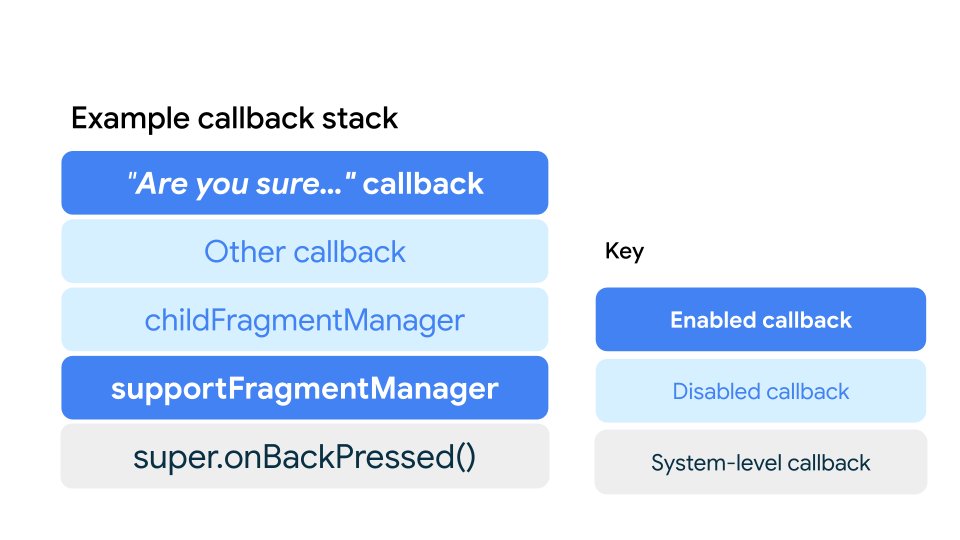
Figure 2 shows how you can have multiple callbacks in the stack, each responsible for one thing. In Compose, callbacks are evaluated from the innermost to the outermost composable, and a callback only runs if the callbacks preceding it in the stack are disabled:
- The "Are you sure..."
PredictiveBackHandleris enabled when the user enters data into a form, and disabled otherwise. When enabled, it intercepts the back gesture to display a confirmation dialog or custom in-app animation. - The screen-level
BackHandlerruns if the preceding callback is disabled. In this example, it is disabled. - The
NavHostcallback handles back navigation to pop destinations from the back stack if preceding custom callbacks are disabled. - Finally, the system handles the back gesture if all preceding callbacks are disabled. When the back stack is at its root destination, the system triggers system-level animations such as back-to-home, cross-activity, and cross-task.
The same stack behavior applies in View-based apps: the last added enabled
OnBackPressedCallback takes precedence, falling back to FragmentManager and
eventually system back handling.
Test the predictive back gesture animation
Starting with Android 15, system animations such as back-to-home, cross-task, and cross-activity are enabled by default for apps that support predictive back navigation. They are no longer behind a developer option.
On devices running Android 13 or Android 14, you can enable the developer option to test the back-to-home animation shown in Figure 1:
On your device, go to Settings > System > Developer options.
Select Predictive back animations.
Launch your updated app, and use the back gesture to see it in action.