
UI events are actions that should be handled in the UI layer, either by the UI or by the ViewModel. The most common type of events are user events. The user produces user events by interacting with the app—for example, by tapping the screen or by generating gestures. The UI then consumes these events using callbacks such as lambdas defined on different composables.
The ViewModel is normally responsible for handling the business logic of a
particular user event—for example, the user clicking on a button to refresh some
data. Usually, the ViewModel handles this by exposing functions that the UI can
call. User events might also have UI behavior logic that the UI can handle
directly—for example, navigating to a different screen or showing a
Snackbar.
While the business logic remains the same for the same app on different mobile platforms or form factors, the UI behavior logic is an implementation detail that might differ between those cases. The UI layer page defines these types of logic as follows:
- Business logic refers to what to do with state changes—for example, making a payment or storing user preferences. The domain and data layers usually handle this logic. Throughout this guide, the Architecture Components ViewModel class is used as an opinionated solution for classes that handle business logic.
- UI behavior logic or UI logic refers to how to display state changes—for example, navigation logic or how to show messages to the user. The UI handles this logic.
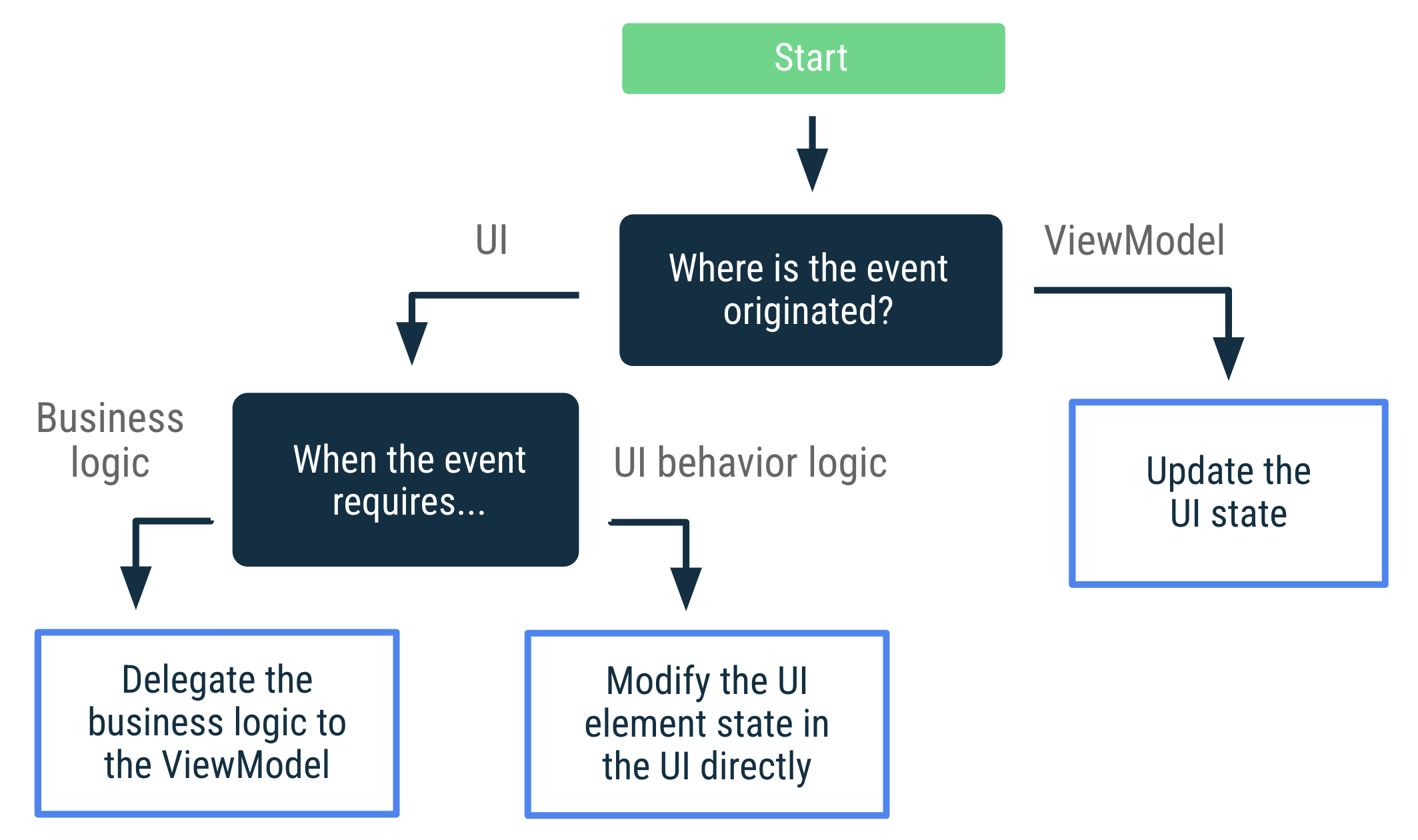
UI event decision tree
The following diagram shows a decision tree to find the best approach for handling a particular event use case. The rest of this guide explains these approaches in detail.
Handle user events
The UI can handle user events directly if those events relate to modifying the state of a UI element—for example, the state of an expandable item. If the event requires performing business logic, such as refreshing the data on the screen, it should be processed by the ViewModel.
The following example shows how different buttons are used to expand a UI element (UI logic) and to refresh the data on the screen (business logic):
@Composable
fun LatestNewsScreen(viewModel: LatestNewsViewModel = viewModel()) {

    // State of whether more details should be shown
    var expanded by remember { mutableStateOf(false) }

    Column {
        Text("Some text")
        if (expanded) {
            Text("More details")
        }

        Button(
        // The expand details event is processed by the UI that
        // modifies this composable's internal state.
        onClick = { expanded = !expanded }
        ) {
        val expandText = if (expanded) "Collapse" else "Expand"
        Text("$expandText details")
        }

        // The refresh event is processed by the ViewModel that is in charge
        // of the UI's business logic.
        Button(onClick = { viewModel.refreshNews() }) {
            Text("Refresh data")
        }
    }
}
User events in lazy lists
If the action is produced further down the UI tree, like in a LazyColumn
item, the ViewModel should still be the one handling user events.
For example, consider a list of clickable items. Don't pass the ViewModel
instance down into the list composable (MyList), because this tightly couples
the UI component to the implementation details.
Instead, expose the event as a lambda function parameter in the composable. This lets the list trigger the event without knowing who handles it or how.
data class MyItem(val id: Int)

@Composable
fun MyList(
    items: List<String>,
    onItemClick: (MyItem) -> Unit
) {
    Card {
        LazyColumn {
            itemsIndexed(items) { index, string ->
                ListItem(
                    modifier = Modifier.clickable {
                        onItemClick(MyItem(index))
                    },
                    headlineContent = {
                        Text(text = string)
                    }
                )
            }
        }
    }
}
In this approach, the MyList composable works only with the data it displays
and the events it exposes. It doesn't have access to the ViewModel. The event
is hoisted and passed to a ViewModel in a previous composable.
For more information about event handling, see Events in Compose.
Naming conventions for user event functions and event handlers
In this guide, the ViewModel functions that handle user events are named with a
verb based on the action that they handle—for example: validateInput() or
login().
Event handlers in Compose follow a standard naming convention to make the flow of data obvious:
- Parameter name:
on+Verb+Target(for example,onExpandClickedoronValueChange). - Lambda expression: When calling the composable, the lambda is often just the implementation of that event.
Handle ViewModel events
UI actions that originate from the ViewModel—ViewModel events—should always result in a UI state update. This complies with the principles of Unidirectional Data Flow. It makes events reproducible after configuration changes and guarantees that UI actions won't be lost. Optionally, you can also make events reproducible after process death if you use the saved state module.
Mapping UI actions to UI state is not always a simple process, but it does lead to simpler logic. Your thought process shouldn't end with determining how to make the UI navigate to a particular screen, for example. You need to think further and consider how to represent that user flow in your UI state. In other words: don't think about what actions the UI needs to make; think about how those actions affect the UI state.
For example, consider the case of a login screen. You could model this screen's UI state as follows:
data class LoginUiState(
    val isLoginInProgress: Boolean = false,
    val errorMessage: String? = null,
    val isUserLoggedIn: Boolean = false
)
The login screen reacts to changes to the UI state.
class LoginViewModel : ViewModel() {

    var uiState by mutableStateOf(LoginUiState())

    fun tryLogin(username: String, password: String) {
        viewModelScope.launch {
            // Emit a new state indicating that login is in progress
            uiState = uiState.copy(isLoginInProgress = true)

            uiState = if (login(username, password)) {
                // Emit a new state indicating that login was successful
                uiState.copy(isLoginInProgress = false, isUserLoggedIn = true)
            } else {
                // Emit a new state with the error message
                LoginUiState(isLoginInProgress = false, errorMessage = "Login failed")
            }
        }
    }

    private suspend fun login(username: String, password: String): Boolean {
        delay(1000)
        return (username == "Hello" && password == "World!")
    }
}

@Composable
fun LoginScreen(viewModel: LoginViewModel, onSuccessfulLogin: () -> Unit) {

    val uiState = viewModel.uiState

    LaunchedEffect(uiState) {
        if (uiState.isUserLoggedIn) {
            onSuccessfulLogin()
        }
    }

    if (uiState.isLoginInProgress) {
        CircularProgressIndicator()
    } else {
        LoginForm(
            onLoginAttempt = { username, password ->
                viewModel.tryLogin(username, password)
            },
            errorMessage = uiState.errorMessage
        )
    }
}
Consuming events can trigger state updates
Consuming certain ViewModel events in the UI might result in other UI state updates. For example, when showing transient messages on the screen to let the user know that something happened, the UI needs to notify the ViewModel to trigger another state update when the message has been shown on the screen. The event that happens when the user has consumed the message (by dismissing it or after a timeout) can be treated as "user input" and as such, the ViewModel should be aware of that. In this situation, the UI state can be modeled as follows:
// Models the UI state for the Latest news screen.
data class LatestNewsUiState(
    val news: List<News> = emptyList(),
    val isLoading: Boolean = false,
    val userMessage: String? = null
)
The ViewModel would update the UI state as follows when the business logic requires showing a new transient message to the user:
class LatestNewsViewModel(/* ... */) : ViewModel() {

    var uiState by mutableStateOf(LatestNewsUiState())
        private set

    fun refreshNews() {
        viewModelScope.launch {
            // If there isn't internet connection, show a new message on the screen.
            if (!internetConnection()) {
                uiState = uiState.copy(userMessage = "No Internet connection")
                return@launch
            }

            // Do something else.
        }
    }

    fun userMessageShown() {
        uiState = uiState.copy(userMessage = null)
    }
}
The ViewModel doesn't need to know how the UI is showing the message on the
screen; it just knows that there's a user message that needs to be shown. Once
the transient message has been shown, the UI needs to notify the ViewModel of
that, causing another UI state update to clear the userMessage property:
@Composable
fun LatestNewsScreen(
    snackbarHostState: SnackbarHostState,
    viewModel: LatestNewsViewModel = viewModel(),
) {
    // Rest of the UI content.

    // If there are user messages to show on the screen,
    // show it and notify the ViewModel.
    viewModel.uiState.userMessage?.let { userMessage ->
        LaunchedEffect(userMessage) {
            snackbarHostState.showSnackbar(userMessage)
            // Once the message is displayed and dismissed, notify the ViewModel.
            viewModel.userMessageShown()
        }
    }
}
Even though the message is transient, the UI state is a faithful representation of what's displayed on the screen at every single point in time. Either the user message is displayed, or it isn't.
Navigation events
The Consuming events can trigger state updates section details how you use UI state to display user messages on the screen. Navigation events are also a common type of event in an Android app.
If the event is triggered in the UI because the user tapped on a button, the UI takes care of that by exposing the event to the caller composable.
@Composable
fun LoginScreen(
    onHelp: () -> Unit, // Caller navigates to the help screen
    viewModel: LoginViewModel = viewModel()
) {
    // Rest of the UI
    Button(
        onClick = dropUnlessResumed { onHelp() }
    ) {
        Text("Get help")
    }
}
dropUnlessResumed is part of the Lifecycle library and lets
you run the onHelp function only when the lifecycle is at least RESUMED.
If the data input requires some business logic validation before navigating, the ViewModel would need to expose that state to the UI. The UI would react to that state change and navigate accordingly. The Handle ViewModel events section covers this use case. Here's similar code:
@Composable
fun LoginScreen(
    onUserLogIn: () -> Unit, // Caller navigates to the right screen
    viewModel: LoginViewModel = viewModel()
) {
    Button(
        onClick = {
            // ViewModel validation is triggered
            viewModel.tryLogin()
        }
    ) {
        Text("Log in")
    }
    // Rest of the UI

    val lifecycle = LocalLifecycleOwner.current.lifecycle
    val currentOnUserLogIn by rememberUpdatedState(onUserLogIn)
    LaunchedEffect(viewModel, lifecycle)  {
        // Whenever the uiState changes, check if the user is logged in and
        // call the `onUserLogin` event when `lifecycle` is at least STARTED
        snapshotFlow { viewModel.uiState }
            .filter { it.isUserLoggedIn }
            .flowWithLifecycle(lifecycle)
            .collect {
                currentOnUserLogIn()
            }
    }
}
In the example above, the app works as expected because the current destination, Login, wouldn't be kept in the back stack. Users cannot go back to it if they press back. However, in cases where that might happen, the solution would require additional logic.
Navigation events when the destination is kept in the back stack
When a ViewModel sets some state that produces a navigation event from screen A to screen B and screen A is kept in the navigation back stack, you might need additional logic to not keep advancing automatically to B. To implement this, you need additional state to indicate whether the UI should navigate to the other screen. Normally, that state is held in the UI because navigation logic is a concern of the UI, not the ViewModel. To illustrate this, consider the following use case.
Let's say that you are in the registration flow of your app. In the date of birth validation screen, when the user inputs a date, the date is validated by the ViewModel when the user taps on the "Continue" button. The ViewModel delegates the validation logic to the data layer. If the date is valid, the user goes to the next screen. As an additional feature, users can go back and forth between the different registration screens in case they want to change some data. Therefore, all the destinations in the registration flow are kept in the same back stack. Given these requirements, you could implement this screen as follows:
class DobValidationViewModel(/* ... */) : ViewModel() {
    var uiState by mutableStateOf(DobValidationUiState())
        private set
}

@Composable
fun DobValidationScreen(
    onNavigateToNextScreen: () -> Unit, // Caller navigates to the right screen
    viewModel: DobValidationViewModel = viewModel()
) {
    // TextField that updates the ViewModel when a date of birth is selected

    var validationInProgress by rememberSaveable { mutableStateOf(false) }

    Button(
        onClick = {
            viewModel.validateInput()
            validationInProgress = true
        }
    ) {
        Text("Continue")
    }
    // Rest of the UI

    /*
        * The following code implements the requirement of advancing automatically
        * to the next screen when a valid date of birth has been introduced
        * and the user wanted to continue with the registration process.
        */

    if (validationInProgress) {
        val lifecycle = LocalLifecycleOwner.current.lifecycle
        val currentNavigateToNextScreen by rememberUpdatedState(onNavigateToNextScreen)
        LaunchedEffect(viewModel, lifecycle) {
            // If the date of birth is valid and the validation is in progress,
            // navigate to the next screen when `lifecycle` is at least STARTED,
            // which is the default Lifecycle.State for the `flowWithLifecycle` operator.
            snapshotFlow { viewModel.uiState }
                .filter { it.isDobValid }
                .flowWithLifecycle(lifecycle)
                .collect {
                    validationInProgress = false
                    currentNavigateToNextScreen()
                }
        }
    }
}
The date of birth validation is business logic that the ViewModel is
responsible for. Most of the time, the ViewModel would delegate that logic to
the data layer. The logic to navigate the user to the next screen
is UI logic because these requirements could change depending on the UI
configuration. For example, you might not want to automatically advance to
another screen in a tablet if you're showing multiple registration steps at the
same time. The validationInProgress variable in the code above implements
this functionality and handles whether or not the UI should navigate
automatically whenever the date of birth is valid and the user wants
to continue to the following registration step.
Other use cases
If you think your UI event use case cannot be solved with UI state updates, you might need to reconsider how data flows in your app. Consider the following principles:
- Each class should do what it's responsible for, not more. The UI is in charge of screen-specific behavior logic such as navigation calls, click events, and obtaining permission requests. The ViewModel contains business logic and converts the results from lower layers of the hierarchy into UI state.
- Think about where the event originates. Follow the decision tree presented at the beginning of this guide, and make each class handle what it's responsible for. For example, if the event originates from the UI and it results in a navigation event, then that event has to be handled in the UI. Some logic might be delegated to the ViewModel, but handling the event can't be entirely delegated to the ViewModel.
- If you have multiple consumers and you're worried about the event being consumed multiple times, you might need to reconsider your app architecture. Having multiple concurrent consumers results in the delivered exactly once contract becoming extremely difficult to guarantee, so the amount of complexity and subtle behavior explodes. If you're having this problem, consider pushing those concerns upwards in your UI tree; you might need a different entity scoped higher up in the hierarchy.
- Think about when the state needs to be consumed. In certain situations,
you might not want to keep consuming state when the app is in the
background—for example, showing a
Toast. In those cases, consider consuming the state when the UI is in the foreground.
Samples
The following Google samples demonstrate the UI events in the UI layer. Go explore them to see this guidance in practice:
Additional resources
For more information about UI events, see the following additional resources:
Codelabs
Documentation
Views content
Recommended for you
- Note: link text is displayed when JavaScript is off
- UI layer
- State holders and UI State {:#mad-arch}
- Guide to app architecture