

Compose มาพร้อมกับ Composable และตัวแก้ไขในตัวสำหรับจัดการกรณีการใช้งานภาพเคลื่อนไหวทั่วไป
Composable แบบเคลื่อนไหวในตัว
Compose มี Composable หลายรายการที่ทำให้ลักษณะที่ปรากฏของเนื้อหา การหายไป และการเปลี่ยนแปลงเลย์เอาต์เคลื่อนไหวได้
ทำให้การปรากฏและการหายไปเคลื่อนไหว
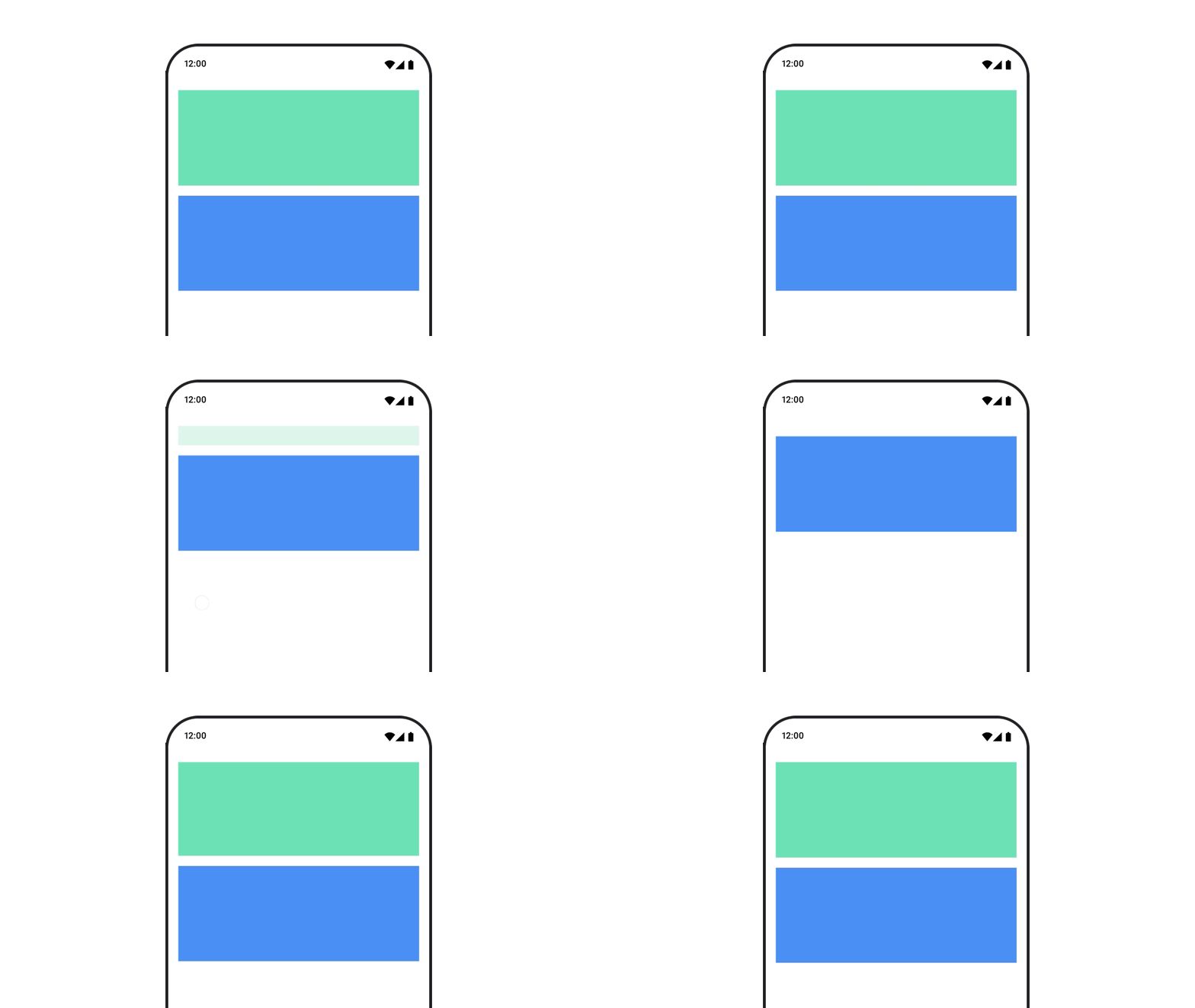
Composable AnimatedVisibility จะแสดงภาพเคลื่อนไหวของการปรากฏและการหายไปของเนื้อหา
var visible by remember { mutableStateOf(true) } // Animated visibility will eventually remove the item from the composition once the animation has finished. AnimatedVisibility(visible) { // your composable here // ... }
โดยค่าเริ่มต้น เนื้อหาจะปรากฏขึ้นโดยการค่อยๆ ปรากฏและขยาย และจะหายไปโดยการค่อยๆ หายไปและหดตัว ปรับแต่งการเปลี่ยนนี้โดยระบุออบเจ็กต์ EnterTransition และ ExitTransition
var visible by remember { mutableStateOf(true) } val density = LocalDensity.current AnimatedVisibility( visible = visible, enter = slideInVertically { // Slide in from 40 dp from the top. with(density) { -40.dp.roundToPx() } } + expandVertically( // Expand from the top. expandFrom = Alignment.Top ) + fadeIn( // Fade in with the initial alpha of 0.3f. initialAlpha = 0.3f ), exit = slideOutVertically() + shrinkVertically() + fadeOut() ) { Text( "Hello", Modifier .fillMaxWidth() .height(200.dp) ) }
ดังที่แสดงในตัวอย่างก่อนหน้า คุณสามารถรวมออบเจ็กต์ EnterTransition หรือ ExitTransition หลายรายการเข้ากับโอเปอเรเตอร์ + และแต่ละรายการจะยอมรับพารามิเตอร์ที่ไม่บังคับเพื่อปรับแต่งลักษณะการทำงานของออบเจ็กต์ ดูข้อมูลเพิ่มเติมได้ที่หน้าข้อมูลอ้างอิง
ตัวอย่างการเปลี่ยนเข้าและออก
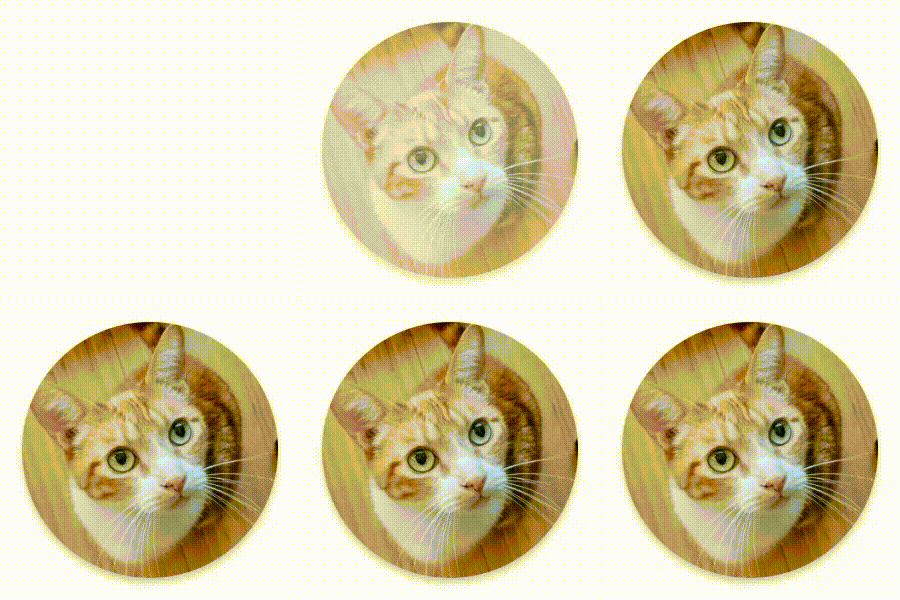

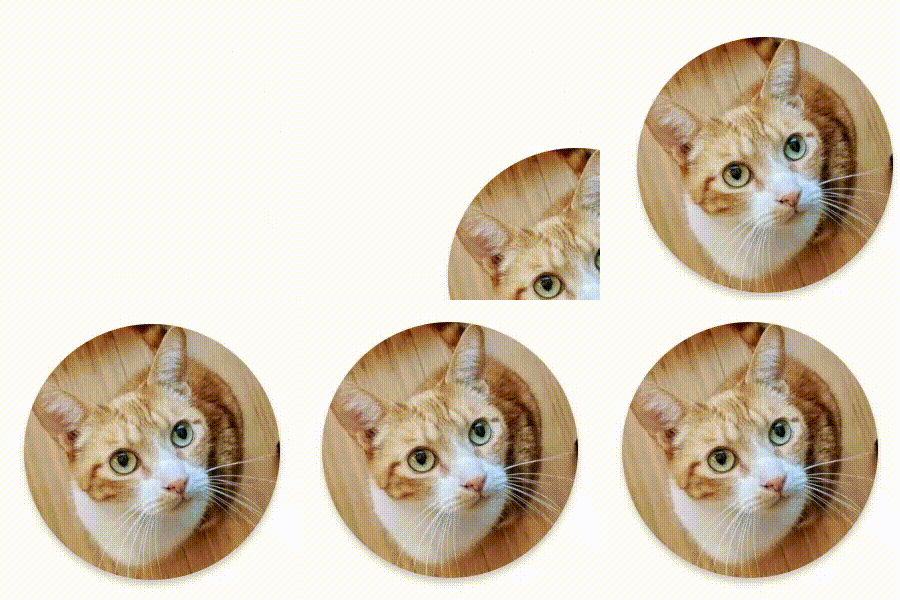

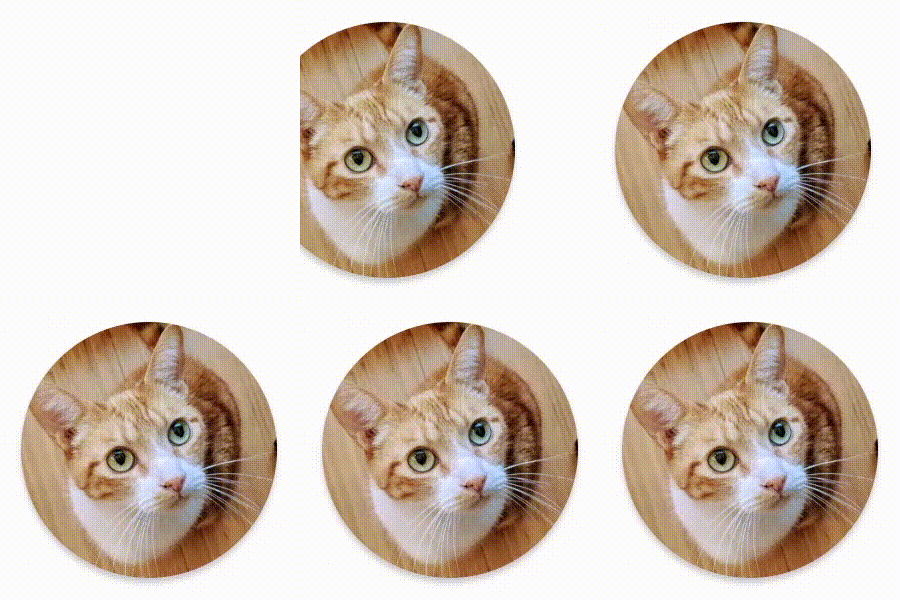



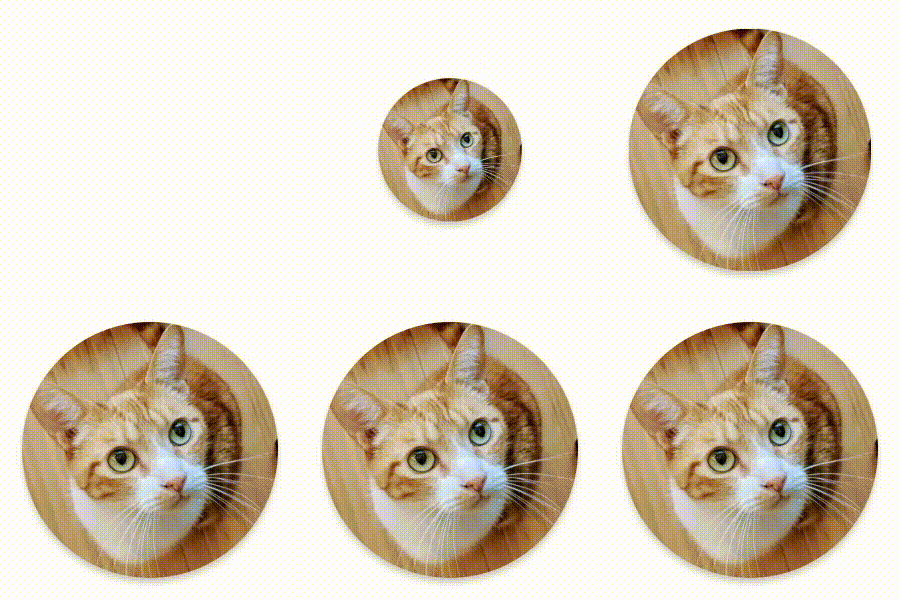

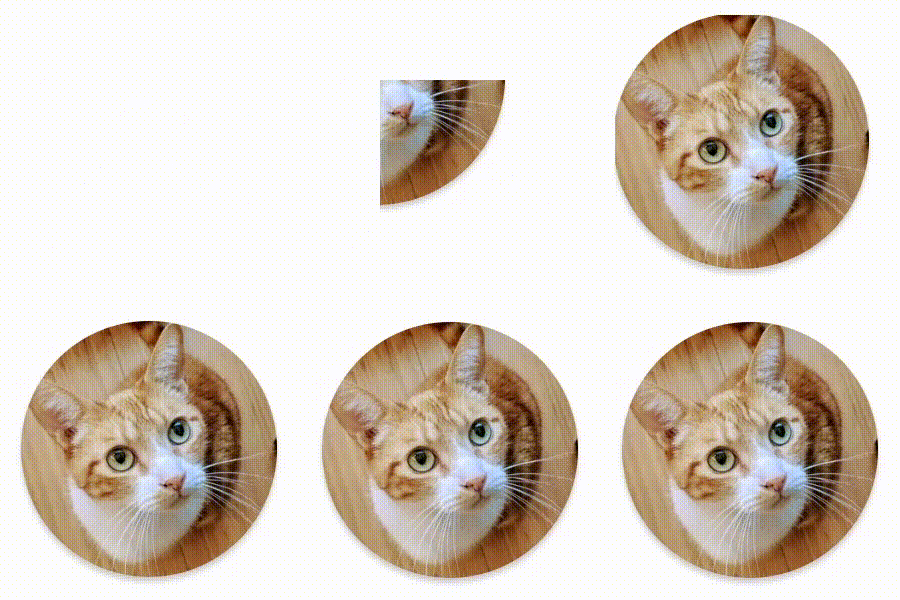

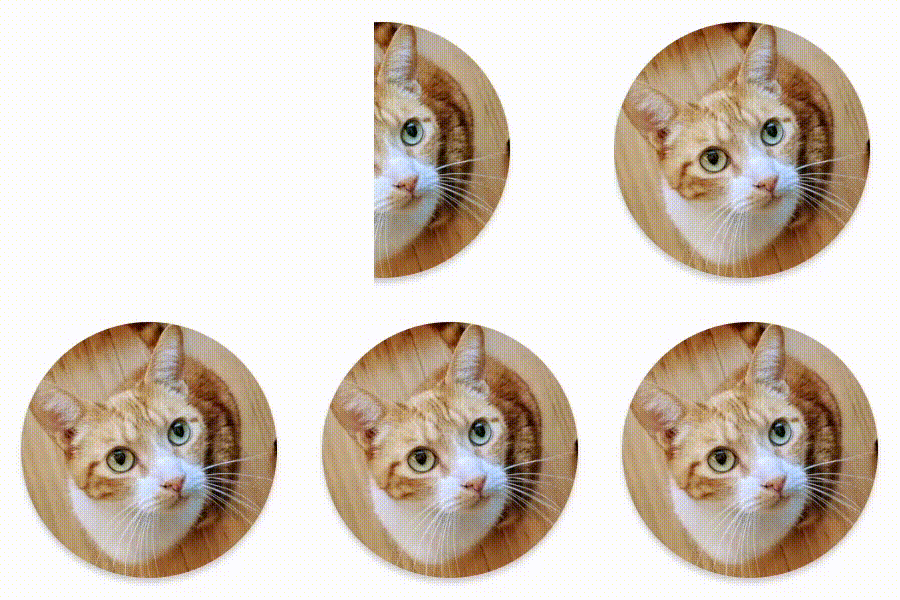

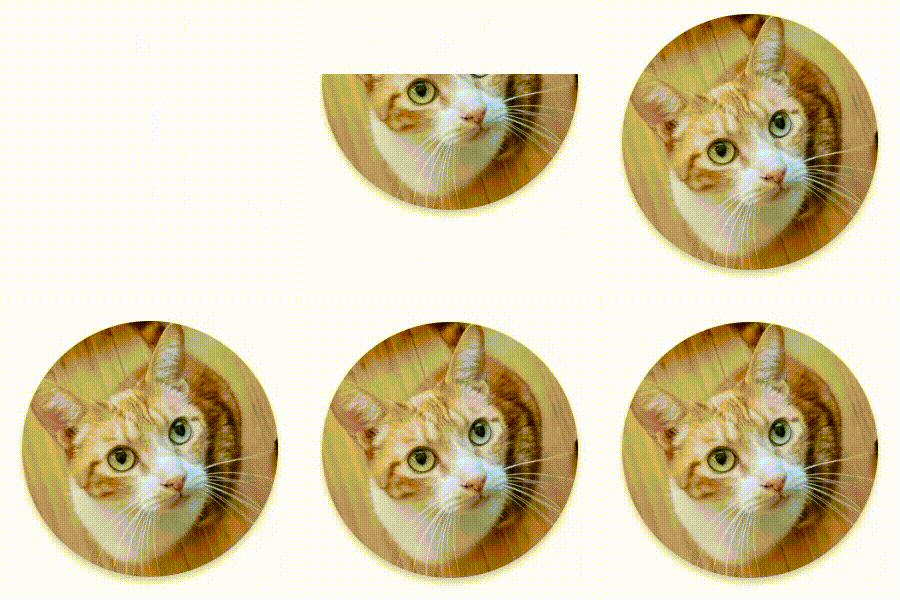

นอกจากนี้ AnimatedVisibility ยังมีตัวแปรที่รับอาร์กิวเมนต์ MutableTransitionState ด้วย ซึ่งจะช่วยให้คุณเรียกใช้ภาพเคลื่อนไหวได้ทันทีที่เพิ่ม AnimatedVisibility ที่ประกอบกันได้ลงในแผนผังองค์ประกอบ นอกจากนี้ยังเป็นประโยชน์ในการสังเกตสถานะภาพเคลื่อนไหวด้วย
// Create a MutableTransitionState<Boolean> for the AnimatedVisibility. val state = remember { MutableTransitionState(false).apply { // Start the animation immediately. targetState = true } } Column { AnimatedVisibility(visibleState = state) { Text(text = "Hello, world!") } // Use the MutableTransitionState to know the current animation state // of the AnimatedVisibility. Text( text = when { state.isIdle && state.currentState -> "Visible" !state.isIdle && state.currentState -> "Disappearing" state.isIdle && !state.currentState -> "Invisible" else -> "Appearing" } ) }
ทำให้การเข้าและออกของบุตรหลานเคลื่อนไหว
เนื้อหาภายใน AnimatedVisibility (องค์ประกอบย่อยโดยตรงหรือโดยอ้อม) สามารถใช้ตัวแก้ไข animateEnterExit เพื่อระบุลักษณะการทำงานของภาพเคลื่อนไหวที่แตกต่างกันสำหรับแต่ละองค์ประกอบได้ เอฟเฟกต์ภาพสำหรับคอมโพสิเบิลย่อยแต่ละรายการเหล่านี้เป็นการผสมผสานระหว่างภาพเคลื่อนไหวที่ระบุไว้ที่คอมโพสิเบิล AnimatedVisibility และภาพเคลื่อนไหวเข้าและออกของคอมโพสิเบิลย่อยเอง
var visible by remember { mutableStateOf(true) } AnimatedVisibility( visible = visible, enter = fadeIn(), exit = fadeOut() ) { // Fade in/out the background and the foreground. Box( Modifier .fillMaxSize() .background(Color.DarkGray) ) { Box( Modifier .align(Alignment.Center) .animateEnterExit( // Slide in/out the inner box. enter = slideInVertically(), exit = slideOutVertically() ) .sizeIn(minWidth = 256.dp, minHeight = 64.dp) .background(Color.Red) ) { // Content of the notification… } } }
ในบางกรณี คุณอาจต้องการให้ AnimatedVisibility ไม่ใช้ภาพเคลื่อนไหวเลย เพื่อให้เด็กๆ แต่ละคนมีภาพเคลื่อนไหวที่แตกต่างกันตามanimateEnterExit หากต้องการดำเนินการดังกล่าว ให้ระบุ EnterTransition.None และ ExitTransition.None ที่ Composable AnimatedVisibility
เพิ่มภาพเคลื่อนไหวที่กำหนดเอง
หากต้องการเพิ่มเอฟเฟกต์ภาพเคลื่อนไหวที่กำหนดเองนอกเหนือจากภาพเคลื่อนไหวการเข้าและออกในตัว ให้เข้าถึงอินสแตนซ์ Transition ที่สำคัญโดยใช้พร็อพเพอร์ตี้ transition ภายใน Lambda ของเนื้อหาสำหรับ AnimatedVisibility สถานะภาพเคลื่อนไหวที่เพิ่มลงในอินสแตนซ์การเปลี่ยนภาพจะทำงานพร้อมกันกับภาพเคลื่อนไหวเข้าและออกของ AnimatedVisibility AnimatedVisibility จะรอจนกว่าภาพเคลื่อนไหวทั้งหมดใน Transition จะเสร็จสิ้นก่อนที่จะนำเนื้อหาออก
สำหรับภาพเคลื่อนไหวออกที่สร้างขึ้นโดยไม่ขึ้นอยู่กับ Transition (เช่น การใช้ animate*AsState) AnimatedVisibility จะไม่สามารถพิจารณาภาพเคลื่อนไหวดังกล่าวได้ จึงอาจนำ Composable ของเนื้อหาออกก่อนที่ภาพเคลื่อนไหวจะเสร็จสิ้น
var visible by remember { mutableStateOf(true) } AnimatedVisibility( visible = visible, enter = fadeIn(), exit = fadeOut() ) { // this: AnimatedVisibilityScope // Use AnimatedVisibilityScope#transition to add a custom animation // to the AnimatedVisibility. val background by transition.animateColor(label = "color") { state -> if (state == EnterExitState.Visible) Color.Blue else Color.Gray } Box( modifier = Modifier .size(128.dp) .background(background) ) }
ดูข้อมูลเพิ่มเติมเกี่ยวกับการใช้ Transition เพื่อจัดการภาพเคลื่อนไหวได้ที่ทำให้พร็อพเพอร์ตี้หลายรายการเคลื่อนไหวพร้อมกันด้วยการเปลี่ยนภาพ
ภาพเคลื่อนไหวตามสถานะเป้าหมาย
AnimatedContent Composable จะทำให้เนื้อหาเคลื่อนไหวเมื่อมีการเปลี่ยนแปลงตามสถานะเป้าหมาย
Row { var count by remember { mutableIntStateOf(0) } Button(onClick = { count++ }) { Text("Add") } AnimatedContent( targetState = count, label = "animated content" ) { targetCount -> // Make sure to use `targetCount`, not `count`. Text(text = "Count: $targetCount") } }
โดยค่าเริ่มต้น เนื้อหาเริ่มต้นจะค่อยๆ จางหายไป จากนั้นเนื้อหาเป้าหมายจะค่อยๆ ปรากฏขึ้น (ลักษณะการทำงานนี้เรียกว่าการจางหาย)
คุณปรับแต่งลักษณะการทำงานของภาพเคลื่อนไหวนี้ได้โดยระบุออบเจ็กต์ ContentTransform ให้กับพารามิเตอร์ transitionSpec คุณสามารถสร้างอินสแตนซ์ของ ContentTransform ได้โดยการรวมออบเจ็กต์ EnterTransition เข้ากับออบเจ็กต์ ExitTransition โดยใช้ฟังก์ชัน infix with คุณสามารถใช้ SizeTransform กับออบเจ็กต์ ContentTransform โดยแนบกับฟังก์ชัน infix using
AnimatedContent( targetState = count, transitionSpec = { // Compare the incoming number with the previous number. if (targetState > initialState) { // If the target number is larger, it slides up and fades in // while the initial (smaller) number slides up and fades out. slideInVertically { height -> height } + fadeIn() togetherWith slideOutVertically { height -> -height } + fadeOut() } else { // If the target number is smaller, it slides down and fades in // while the initial number slides down and fades out. slideInVertically { height -> -height } + fadeIn() togetherWith slideOutVertically { height -> height } + fadeOut() }.using( // Disable clipping since the faded slide-in/out should // be displayed out of bounds. SizeTransform(clip = false) ) }, label = "animated content" ) { targetCount -> Text(text = "$targetCount") }
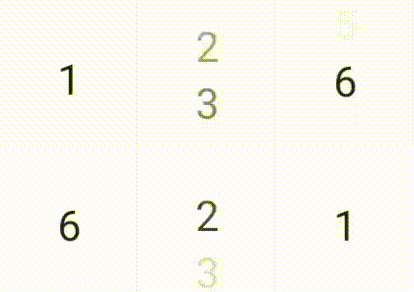
EnterTransition กำหนดลักษณะที่เนื้อหาเป้าหมายควรปรากฏ และ ExitTransition กำหนดลักษณะที่เนื้อหาเริ่มต้นควรหายไป นอกจากฟังก์ชัน EnterTransition และ ExitTransition ทั้งหมดที่มีให้สำหรับ AnimatedVisibility แล้ว AnimatedContent ยังมี slideIntoContainer และ slideOutOfContainer ด้วย
ซึ่งเป็นทางเลือกที่สะดวกแทน slideInHorizontally/Vertically และ slideOutHorizontally/Vertically ที่คำนวณระยะทางสไลด์ตามขนาดของเนื้อหาเริ่มต้นและเนื้อหาเป้าหมายของเนื้อหา AnimatedContent
SizeTransform กำหนดวิธีที่ขนาดควรเคลื่อนไหวระหว่างเนื้อหาเริ่มต้นและเนื้อหาเป้าหมาย คุณจะเข้าถึงได้ทั้งขนาดเริ่มต้นและขนาดเป้าหมายเมื่อสร้างภาพเคลื่อนไหว นอกจากนี้ SizeTransform ยังควบคุมว่าจะตัดเนื้อหาให้พอดีกับขนาดคอมโพเนนต์ระหว่างภาพเคลื่อนไหวหรือไม่
var expanded by remember { mutableStateOf(false) } Surface( color = MaterialTheme.colorScheme.primary, onClick = { expanded = !expanded } ) { AnimatedContent( targetState = expanded, transitionSpec = { fadeIn(animationSpec = tween(150, 150)) togetherWith fadeOut(animationSpec = tween(150)) using SizeTransform { initialSize, targetSize -> if (targetState) { keyframes { // Expand horizontally first. IntSize(targetSize.width, initialSize.height) at 150 durationMillis = 300 } } else { keyframes { // Shrink vertically first. IntSize(initialSize.width, targetSize.height) at 150 durationMillis = 300 } } } }, label = "size transform" ) { targetExpanded -> if (targetExpanded) { Expanded() } else { ContentIcon() } } }
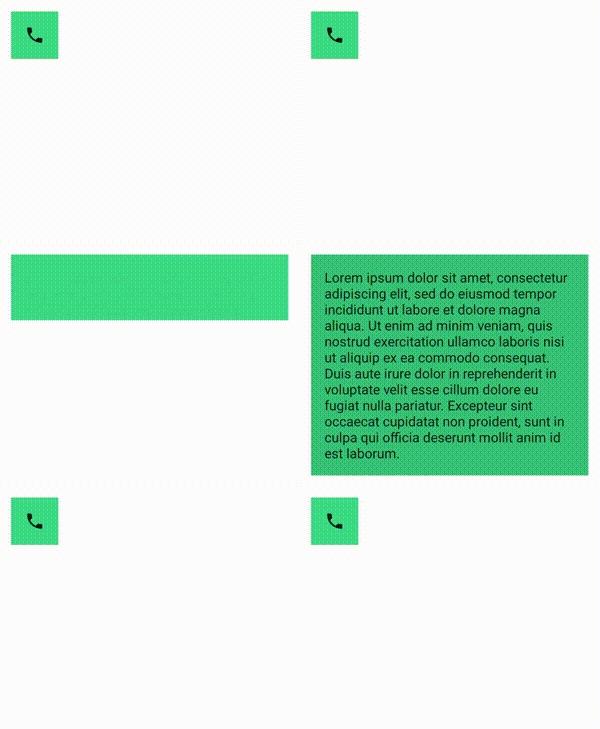
ทำให้การเปลี่ยนภาพเข้าและออกขององค์ประกอบย่อยเคลื่อนไหว
ตัวแก้ไข animateEnterExit จะพร้อมใช้งานภายใน Lambda ของเนื้อหาของ AnimatedContent เช่นเดียวกับ AnimatedVisibility ใช้ตัวเลือกนี้เพื่อใช้ EnterAnimation และ ExitAnimation กับหน่วยย่อยโดยตรงหรือโดยอ้อมแต่ละหน่วยแยกกัน
เพิ่มภาพเคลื่อนไหวที่กำหนดเอง
ฟิลด์ transition จะพร้อมใช้งานภายใน Lambda เนื้อหาของ AnimatedContent เช่นเดียวกับ AnimatedVisibility ใช้ตัวเลือกนี้เพื่อสร้างเอฟเฟกต์ภาพเคลื่อนไหวที่กำหนดเองซึ่งทำงานพร้อมกันกับการเปลี่ยน AnimatedContent ดูรายละเอียดได้ที่ updateTransition
สร้างภาพเคลื่อนไหวระหว่าง 2 เลย์เอาต์
Crossfade จะเคลื่อนไหวระหว่าง 2 เลย์เอาต์ด้วยภาพเคลื่อนไหวแบบครอสเฟด เมื่อสลับค่าที่ส่งไปยังพารามิเตอร์ current เนื้อหาจะเปลี่ยนด้วยภาพเคลื่อนไหวแบบครอสเฟด
var currentPage by remember { mutableStateOf("A") } Crossfade(targetState = currentPage, label = "cross fade") { screen -> when (screen) { "A" -> Text("Page A") "B" -> Text("Page B") } }
ตัวแก้ไขภาพเคลื่อนไหวในตัว
Compose มีตัวแก้ไขสำหรับการสร้างภาพเคลื่อนไหวของการเปลี่ยนแปลงที่เฉพาะเจาะจงใน Composable โดยตรง
ทำให้การเปลี่ยนแปลงขนาด Composable เป็นภาพเคลื่อนไหว
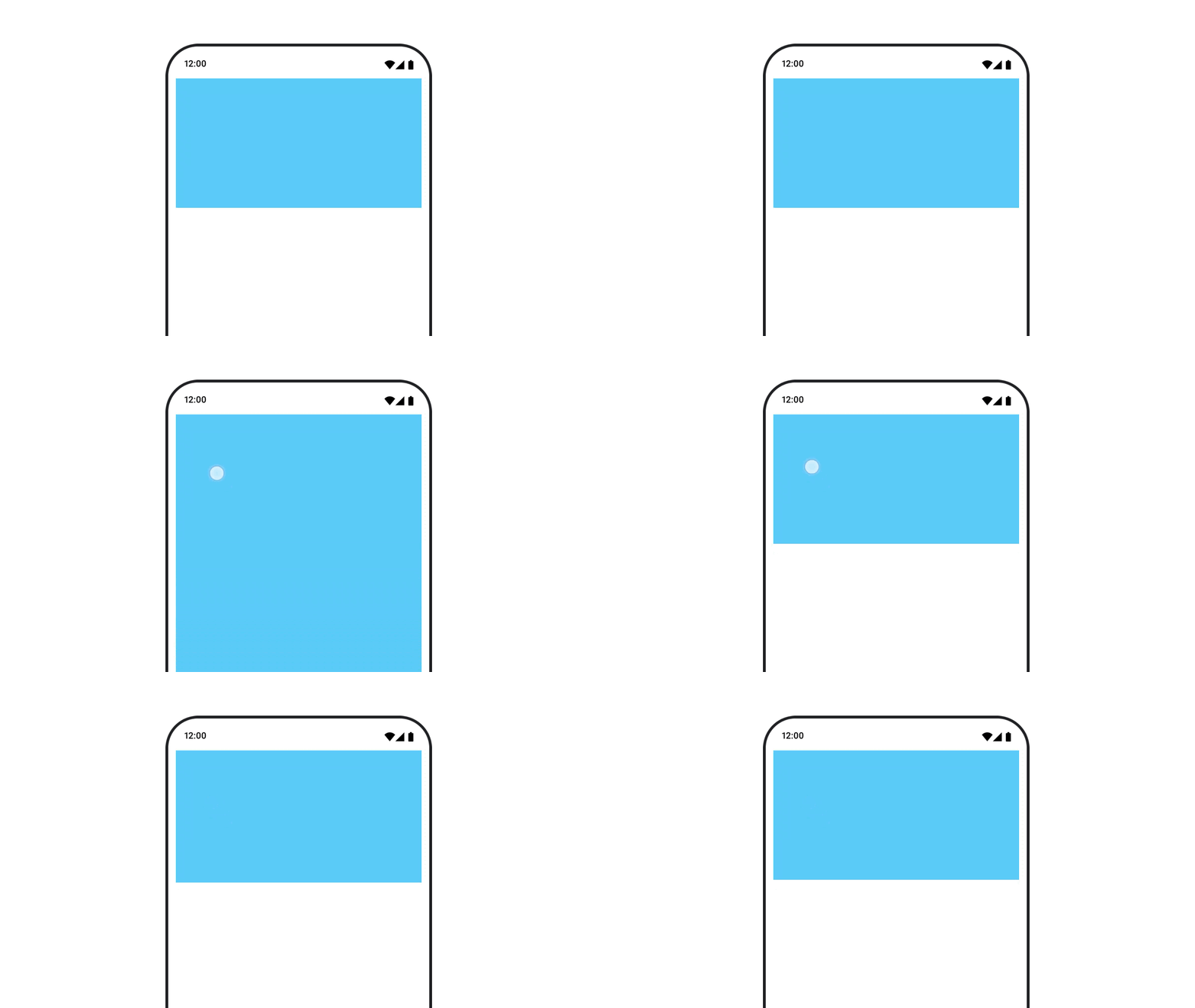
ตัวแก้ไข animateContentSize จะทำให้การเปลี่ยนขนาดเคลื่อนไหว
var expanded by remember { mutableStateOf(false) } Box( modifier = Modifier .background(colorBlue) .animateContentSize() .height(if (expanded) 400.dp else 200.dp) .fillMaxWidth() .clickable( interactionSource = remember { MutableInteractionSource() }, indication = null ) { expanded = !expanded } ) { }
ภาพเคลื่อนไหวของรายการในลิสต์
หากต้องการทำให้การจัดเรียงรายการใหม่ภายใน Lazy list หรือ Lazy grid เคลื่อนไหวได้ โปรดดูเอกสารประกอบเกี่ยวกับภาพเคลื่อนไหวของรายการเลย์เอาต์แบบ Lazy
แนะนำสำหรับคุณ
- หมายเหตุ: ข้อความลิงก์จะแสดงเมื่อ JavaScript ปิดอยู่
- ภาพเคลื่อนไหวตามมูลค่า
- ภาพเคลื่อนไหวใน Compose
- การรองรับเครื่องมือภาพเคลื่อนไหว {:#tooling}