


วิดเจ็ตคอลเล็กชันมีความเชี่ยวชาญในการแสดงองค์ประกอบจำนวนมากประเภทเดียวกัน เช่น คอลเล็กชันรูปภาพจากแอปแกลเลอรี บทความจากแอปข่าว หรือ ข้อความจากแอปการสื่อสาร โดยปกติแล้ว วิดเจ็ตคอลเล็กชันจะมุ่งเน้นที่กรณีการใช้งาน 2 กรณี ได้แก่ การเรียกดูคอลเล็กชันและการเปิดองค์ประกอบของคอลเล็กชันไปยังมุมมองรายละเอียด วิดเจ็ตคอลเล็กชันเลื่อนได้ในแนวตั้ง
วิดเจ็ตเหล่านี้ใช้ RemoteViewsService เพื่อแสดงคอลเล็กชันที่สำรองข้อมูลจากระยะไกล เช่น จากผู้ให้บริการเนื้อหา วิดเจ็ตจะแสดงข้อมูลโดยใช้มุมมองประเภทใดประเภทหนึ่งต่อไปนี้ ซึ่งเรียกว่ามุมมองคอลเล็กชัน
ListView- มุมมองที่แสดงรายการใน รายการที่เลื่อนในแนวตั้ง
GridView- มุมมองที่แสดงรายการใน ตารางกริดแบบเลื่อน 2 มิติ
StackView- มุมมองการ์ดซ้อนกัน คล้ายกับโรโลเดกซ์ ซึ่งผู้ใช้สามารถปัดการ์ดด้านหน้า ขึ้นหรือลงเพื่อดูการ์ดก่อนหน้าหรือถัดไปตามลำดับ
AdapterViewFlipperViewAnimatorที่ใช้ตัวดัดแปลงแบบง่าย ซึ่งเคลื่อนไหว ระหว่าง 2 มุมมองขึ้นไป ระบบจะแสดงบุตรหลานครั้งละ 1 คนเท่านั้น
เนื่องจากมุมมองคอลเล็กชันเหล่านี้แสดงคอลเล็กชันที่สำรองข้อมูลจากข้อมูลระยะไกล มุมมองจึงใช้ Adapter เพื่อเชื่อมต่ออินเทอร์เฟซผู้ใช้กับข้อมูล Adapter จะเชื่อมโยงรายการแต่ละรายการจากชุดข้อมูล
กับออบเจ็กต์ View แต่ละรายการ
และเนื่องจากมุมมองคอลเล็กชันเหล่านี้ได้รับการสนับสนุนโดยอแดปเตอร์ เฟรมเวิร์ก Android
จึงต้องมีสถาปัตยกรรมเพิ่มเติมเพื่อรองรับการใช้งานในวิดเจ็ต ในบริบทของวิดเจ็ต ระบบจะแทนที่ Adapter ด้วย
RemoteViewsFactory
ซึ่งเป็น Wrapper แบบบางรอบอินเทอร์เฟซ Adapter เมื่อมีการขอสำหรับ
รายการที่เฉพาะเจาะจงในคอลเล็กชัน RemoteViewsFactory จะสร้างและแสดง
รายการสำหรับคอลเล็กชันเป็นออบเจ็กต์ RemoteViews หากต้องการรวมมุมมองคอลเล็กชันในวิดเจ็ต ให้ใช้ RemoteViewsService และ
RemoteViewsFactory
RemoteViewsService เป็นบริการที่ช่วยให้อะแดปเตอร์ระยะไกลขอออบเจ็กต์
RemoteViewsได้ RemoteViewsFactory เป็นอินเทอร์เฟซสำหรับอะแดปเตอร์
ระหว่าง Collection View เช่น ListView, GridView และ
StackView กับข้อมูลพื้นฐานสำหรับมุมมองนั้น จากStackWidget ตัวอย่าง ต่อไปนี้คือตัวอย่างโค้ด Boilerplate เพื่อใช้บริการและ อินเทอร์เฟซนี้
Kotlin
class StackWidgetService : RemoteViewsService() {

    override fun onGetViewFactory(intent: Intent): RemoteViewsFactory {
        return StackRemoteViewsFactory(this.applicationContext, intent)
    }
}

class StackRemoteViewsFactory(
        private val context: Context,
        intent: Intent
) : RemoteViewsService.RemoteViewsFactory {

// See the RemoteViewsFactory API reference for the full list of methods to
// implement.

}
Java
public class StackWidgetService extends RemoteViewsService {
    @Override
    public RemoteViewsFactory onGetViewFactory(Intent intent) {
        return new StackRemoteViewsFactory(this.getApplicationContext(), intent);
    }
}

class StackRemoteViewsFactory implements RemoteViewsService.RemoteViewsFactory {

// See the RemoteViewsFactory API reference for the full list of methods to
// implement.

}
แอปพลิเคชันตัวอย่าง
ข้อมูลโค้ดในส่วนนี้มาจากStackWidget
ตัวอย่างเช่นกัน
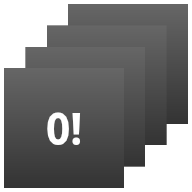
StackWidget.ตัวอย่างนี้ประกอบด้วยกองซ้อนของมุมมอง 10 รายการที่แสดงค่า 0 ถึง 9 วิดเจ็ตตัวอย่างมีลักษณะการทำงานหลักๆ ดังนี้
ผู้ใช้สามารถปัดมุมมองด้านบนในวิดเจ็ตในแนวตั้งเพื่อแสดงมุมมองถัดไป หรือมุมมองก่อนหน้า นี่คือลักษณะการทำงานในตัวของ
StackViewวิดเจ็ตจะเลื่อนดูมุมมองต่างๆ ตามลำดับโดยอัตโนมัติเหมือนสไลด์โชว์โดยไม่ต้องมีการโต้ตอบจากผู้ใช้ เนื่องจากการตั้งค่า
android:autoAdvanceViewId="@id/stack_view"ในไฟล์res/xml/stackwidgetinfo.xmlการตั้งค่านี้มีผลกับรหัสมุมมอง ซึ่งในกรณีนี้คือรหัสมุมมองของมุมมองสแต็กหากผู้ใช้แตะมุมมองด้านบน วิดเจ็ตจะแสดงข้อความ
Toast"แตะมุมมอง n" โดยที่ n คือดัชนี (ตำแหน่ง) ของมุมมองที่แตะ ดูข้อมูลเพิ่มเติมเกี่ยวกับการ ใช้ลักษณะการทำงานได้ที่ส่วนเพิ่มลักษณะการทำงานให้กับ รายการแต่ละรายการ
ใช้วิดเจ็ตกับคอลเล็กชัน
หากต้องการใช้วิดเจ็ตกับคอลเล็กชัน ให้ทำตามขั้นตอนเพื่อใช้วิดเจ็ต แล้วทำตามขั้นตอนเพิ่มเติม 2-3 ขั้นตอน ได้แก่ แก้ไขไฟล์ Manifest, เพิ่มมุมมองคอลเล็กชันลงในเลย์เอาต์วิดเจ็ต และแก้ไขAppWidgetProviderคลาสย่อย
ไฟล์ Manifest สำหรับวิดเจ็ตที่มีคอลเล็กชัน
นอกเหนือจากข้อกำหนดที่ระบุไว้ในประกาศวิดเจ็ตใน
ไฟล์ Manifest แล้ว คุณต้องทำให้วิดเจ็ตที่มี
คอลเล็กชันผูกกับ RemoteViewsService ได้ โดยประกาศ
บริการในไฟล์ Manifest ด้วยสิทธิ์
BIND_REMOTEVIEWS
ซึ่งจะป้องกันไม่ให้แอปพลิเคชันอื่นๆ เข้าถึงข้อมูลของวิดเจ็ตได้อย่างอิสระ
ตัวอย่างเช่น เมื่อสร้างวิดเจ็ตที่ใช้ RemoteViewsService เพื่อป้อนข้อมูลลงใน
มุมมองคอลเล็กชัน รายการในไฟล์ Manifest อาจมีลักษณะดังนี้
<service android:name="MyWidgetService"
    android:permission="android.permission.BIND_REMOTEVIEWS" />
ในตัวอย่างนี้ android:name="MyWidgetService" หมายถึงคลาสย่อยของ
RemoteViewsService
เลย์เอาต์สำหรับวิดเจ็ตที่มีคอลเล็กชัน
ข้อกำหนดหลักสำหรับไฟล์ XML ของเลย์เอาต์วิดเจ็ตคือต้องมีมุมมองคอลเล็กชันอย่างใดอย่างหนึ่งต่อไปนี้ ListView, GridView, StackView หรือ AdapterViewFlipper widget_layout.xml สำหรับ
StackWidget
ตัวอย่างมีดังนี้
<FrameLayout xmlns:android="http://schemas.android.com/apk/res/android"
    android:layout_width="match_parent"
    android:layout_height="match_parent">
    <StackView
        android:id="@+id/stack_view"
        android:layout_width="match_parent"
        android:layout_height="match_parent"
        android:gravity="center"
        android:loopViews="true" />
    <TextView
        android:id="@+id/empty_view"
        android:layout_width="match_parent"
        android:layout_height="match_parent"
        android:gravity="center"
        android:background="@drawable/widget_item_background"
        android:textColor="#ffffff"
        android:textStyle="bold"
        android:text="@string/empty_view_text"
        android:textSize="20sp" />
</FrameLayout>
โปรดทราบว่ามุมมองว่างต้องเป็นองค์ประกอบที่อยู่ระดับเดียวกันกับมุมมองคอลเล็กชันที่มุมมองว่างแสดงสถานะว่าง
นอกเหนือจากไฟล์เลย์เอาต์สำหรับวิดเจ็ตทั้งหมดแล้ว ให้สร้างไฟล์เลย์เอาต์อีกไฟล์ที่กำหนดเลย์เอาต์สำหรับแต่ละรายการในคอลเล็กชัน เช่น เลย์เอาต์สำหรับหนังสือแต่ละเล่มในคอลเล็กชันหนังสือ StackWidget ตัวอย่างมี
ไฟล์เลย์เอาต์ของรายการเพียงไฟล์เดียว widget_item.xml เนื่องจากรายการทั้งหมดใช้เลย์เอาต์เดียวกัน
คลาส AppWidgetProvider สำหรับวิดเจ็ตที่มีคอลเล็กชัน
เช่นเดียวกับวิดเจ็ตปกติ โค้ดส่วนใหญ่ในคลาสย่อย AppWidgetProvider
มักจะอยู่ใน
onUpdate()
ความแตกต่างที่สำคัญในการติดตั้งใช้งานสำหรับ onUpdate() เมื่อสร้างวิดเจ็ตที่มีคอลเล็กชันคือคุณต้องเรียกใช้ setRemoteAdapter() ซึ่งจะบอกมุมมองคอลเล็กชันว่าจะรับข้อมูลจากที่ใด
จากนั้น RemoteViewsService จะส่งคืนการติดตั้งใช้งาน
RemoteViewsFactory และวิดเจ็ตจะแสดงข้อมูลที่เหมาะสมได้ เมื่อคุณ
เรียกใช้เมธอดนี้ ให้ส่ง Intent ที่ชี้ไปยังการติดตั้งใช้งาน
RemoteViewsService และรหัสวิดเจ็ตที่ระบุวิดเจ็ตที่จะอัปเดต
ตัวอย่างเช่น StackWidget ตัวอย่างจะใช้เมธอด onUpdate()
callback เพื่อตั้งค่า RemoteViewsService เป็นอะแดปเตอร์ระยะไกลสำหรับ
คอลเล็กชันวิดเจ็ตดังนี้
Kotlin
override fun onUpdate(
        context: Context,
        appWidgetManager: AppWidgetManager,
        appWidgetIds: IntArray
) {
    // Update each of the widgets with the remote adapter.
    appWidgetIds.forEach { appWidgetId ->

        // Set up the intent that starts the StackViewService, which
        // provides the views for this collection.
        val intent = Intent(context, StackWidgetService::class.java).apply {
            // Add the widget ID to the intent extras.
            putExtra(AppWidgetManager.EXTRA_APPWIDGET_ID, appWidgetId)
            data = Uri.parse(toUri(Intent.URI_INTENT_SCHEME))
        }
        // Instantiate the RemoteViews object for the widget layout.
        val views = RemoteViews(context.packageName, R.layout.widget_layout).apply {
            // Set up the RemoteViews object to use a RemoteViews adapter.
            // This adapter connects to a RemoteViewsService through the
            // specified intent.
            // This is how you populate the data.
            setRemoteAdapter(R.id.stack_view, intent)

            // The empty view is displayed when the collection has no items.
            // It must be in the same layout used to instantiate the
            // RemoteViews object.
            setEmptyView(R.id.stack_view, R.id.empty_view)
        }

        // Do additional processing specific to this widget.

        appWidgetManager.updateAppWidget(appWidgetId, views)
    }
    super.onUpdate(context, appWidgetManager, appWidgetIds)
}
Java
public void onUpdate(Context context, AppWidgetManager appWidgetManager, int[] appWidgetIds) {
    // Update each of the widgets with the remote adapter.
    for (int i = 0; i < appWidgetIds.length; ++i) {

        // Set up the intent that starts the StackViewService, which
        // provides the views for this collection.
        Intent intent = new Intent(context, StackWidgetService.class);
        // Add the widget ID to the intent extras.
        intent.putExtra(AppWidgetManager.EXTRA_APPWIDGET_ID, appWidgetIds[i]);
        intent.setData(Uri.parse(intent.toUri(Intent.URI_INTENT_SCHEME)));
        // Instantiate the RemoteViews object for the widget layout.
        RemoteViews views = new RemoteViews(context.getPackageName(), R.layout.widget_layout);
        // Set up the RemoteViews object to use a RemoteViews adapter.
        // This adapter connects to a RemoteViewsService through the specified
        // intent.
        // This is how you populate the data.
        views.setRemoteAdapter(R.id.stack_view, intent);

        // The empty view is displayed when the collection has no items.
        // It must be in the same layout used to instantiate the RemoteViews
        // object.
        views.setEmptyView(R.id.stack_view, R.id.empty_view);

        // Do additional processing specific to this widget.

        appWidgetManager.updateAppWidget(appWidgetIds[i], views);
    }
    super.onUpdate(context, appWidgetManager, appWidgetIds);
}
เก็บข้อมูลไว้
ดังที่อธิบายไว้ในหน้านี้ คลาสย่อย RemoteViewsService จะมีRemoteViewsFactory ที่ใช้เพื่อแสดงข้อมูลในมุมมองคอลเล็กชันระยะไกล
โดยเฉพาะอย่างยิ่ง ให้ทำตามขั้นตอนต่อไปนี้
คลาสย่อย
RemoteViewsServiceRemoteViewsServiceคือบริการที่อะแดปเตอร์ระยะไกลสามารถขอRemoteViewsได้ในคลาสย่อย
RemoteViewsServiceให้รวมคลาสที่ใช้ อินเทอร์เฟซRemoteViewsFactoryRemoteViewsFactoryคืออินเทอร์เฟซสำหรับ อแดปเตอร์ระหว่างมุมมองการรวบรวมข้อมูลระยะไกล เช่นListView,GridView,StackViewกับข้อมูลพื้นฐานสำหรับมุมมองนั้น การติดตั้งใช้งานของคุณมีหน้าที่สร้างออบเจ็กต์RemoteViewsสำหรับแต่ละ รายการในชุดข้อมูล อินเทอร์เฟซนี้เป็น Wrapper แบบบางรอบAdapter
คุณไม่สามารถพึ่งพาอินสแตนซ์เดียวของบริการหรือข้อมูลใดๆ ที่มีอยู่เพื่อ
คงอยู่ได้ อย่าจัดเก็บข้อมูลใน RemoteViewsService เว้นแต่จะเป็นข้อมูลแบบคงที่ หากต้องการให้ข้อมูลของวิดเจ็ตคงอยู่ แนวทางที่ดีที่สุดคือการใช้
ContentProvider ที่ข้อมูล
คงอยู่ได้นานกว่าวงจรของกระบวนการ ตัวอย่างเช่น วิดเจ็ตร้านขายของชำสามารถจัดเก็บสถานะของรายการในรายการซื้อของชำแต่ละรายการไว้ในตำแหน่งที่ถาวร เช่น ฐานข้อมูล SQL
เนื้อหาหลักของRemoteViewsServiceการติดตั้งใช้งานคือRemoteViewsFactory ซึ่งอธิบายไว้ในส่วนต่อไปนี้
อินเทอร์เฟซ RemoteViewsFactory
คลาสที่กำหนดเองซึ่งใช้RemoteViewsFactoryอินเทอร์เฟซจะให้ข้อมูลแก่
วิดเจ็ตสำหรับรายการในคอลเล็กชัน โดยการ
รวมไฟล์เลย์เอาต์ XML ของรายการวิดเจ็ตกับแหล่งข้อมูล แหล่งที่มาของ
ข้อมูลอาจเป็นอะไรก็ได้ตั้งแต่ฐานข้อมูลไปจนถึงอาร์เรย์อย่างง่าย ในStackWidget
ตัวอย่าง แหล่งข้อมูลคืออาร์เรย์ของ WidgetItems RemoteViewsFactory
ทำหน้าที่เป็นอแดปเตอร์เพื่อเชื่อมข้อมูลกับมุมมองการรวบรวมข้อมูลระยะไกล
วิธีที่สำคัญที่สุด 2 วิธีที่คุณต้องใช้สำหรับคลาสย่อย RemoteViewsFactory คือ onCreate() และ getViewAt()
ระบบจะเรียกใช้ onCreate() เมื่อสร้าง Factory เป็นครั้งแรก
ส่วนนี้คือที่ที่คุณตั้งค่าการเชื่อมต่อหรือเคอร์เซอร์กับแหล่งข้อมูล ตัวอย่างเช่น ตัวอย่าง StackWidget ใช้ onCreate() เพื่อเริ่มต้นอาร์เรย์ของออบเจ็กต์ WidgetItem เมื่อวิดเจ็ตทำงานอยู่ ระบบจะเข้าถึงออบเจ็กต์เหล่านี้โดยใช้ตำแหน่งดัชนีในอาร์เรย์และแสดงข้อความที่ออบเจ็กต์มี
ต่อไปนี้เป็นตัวอย่างจากStackWidgetRemoteViewsFactoryการใช้งานของตัวอย่าง
ที่แสดงส่วนต่างๆ ของเมธอด onCreate()
Kotlin
private const val REMOTE_VIEW_COUNT: Int = 10

class StackRemoteViewsFactory(
        private val context: Context
) : RemoteViewsService.RemoteViewsFactory {

    private lateinit var widgetItems: List<WidgetItem>

    override fun onCreate() {
        // In onCreate(), set up any connections or cursors to your data
        // source. Heavy lifting, such as downloading or creating content,
        // must be deferred to onDataSetChanged() or getViewAt(). Taking
        // more than 20 seconds on this call results in an ANR.
        widgetItems = List(REMOTE_VIEW_COUNT) { index -> WidgetItem("$index!") }
        ...
    }
    ...
}
Java
class StackRemoteViewsFactory implements RemoteViewsService.RemoteViewsFactory {
    private static final int REMOTE_VIEW_COUNT = 10;
    private List<WidgetItem> widgetItems = new ArrayList<WidgetItem>();

    public void onCreate() {
        // In onCreate(), setup any connections or cursors to your data
        // source. Heavy lifting, such as downloading or creating content,
        // must be deferred to onDataSetChanged() or getViewAt(). Taking
        // more than 20 seconds on this call results in an ANR.
        for (int i = 0; i < REMOTE_VIEW_COUNT; i++) {
            widgetItems.add(new WidgetItem(i + "!"));
        }
        ...
    }
...
เมธอด RemoteViewsFactory getViewAt() จะแสดงผลออบเจ็กต์ RemoteViews
ที่สอดคล้องกับข้อมูลที่ position ที่ระบุในชุดข้อมูล ต่อไปนี้เป็น
ตัวอย่างจากการติดตั้งใช้งาน RemoteViewsFactory ของStackWidgetตัวอย่าง
Kotlin
override fun getViewAt(position: Int): RemoteViews {
    // Construct a remote views item based on the widget item XML file
    // and set the text based on the position.
    return RemoteViews(context.packageName, R.layout.widget_item).apply {
        setTextViewText(R.id.widget_item, widgetItems[position].text)
    }
}
Java
public RemoteViews getViewAt(int position) {
    // Construct a remote views item based on the widget item XML file
    // and set the text based on the position.
    RemoteViews views = new RemoteViews(context.getPackageName(), R.layout.widget_item);
    views.setTextViewText(R.id.widget_item, widgetItems.get(position).text);
    return views;
}
เพิ่มลักษณะการทำงานให้กับแต่ละรายการ
ส่วนก่อนหน้าแสดงวิธีเชื่อมโยงข้อมูลกับคอลเล็กชันวิดเจ็ต แต่จะเกิดอะไรขึ้นหากคุณต้องการเพิ่มลักษณะการทำงานแบบไดนามิกลงในแต่ละรายการใน มุมมองคอลเล็กชัน
ตามที่อธิบายไว้ในจัดการเหตุการณ์ด้วยคลาส onUpdate()
class โดยปกติคุณจะใช้
setOnClickPendingIntent() เพื่อตั้งค่าลักษณะการคลิกของออบเจ็กต์ เช่น เพื่อ
ทำให้ปุ่มเปิดใช้ Activity แต่
ไม่อนุญาตให้ใช้วิธีนี้กับมุมมองย่อยในรายการคอลเล็กชันแต่ละรายการ
เช่น คุณสามารถใช้ setOnClickPendingIntent() เพื่อตั้งค่าปุ่มส่วนกลาง
ในวิดเจ็ต Gmail ที่เปิดแอปได้ แต่จะใช้กับ
รายการในลิสต์แต่ละรายการไม่ได้
แต่หากต้องการเพิ่มลักษณะการคลิกให้กับแต่ละรายการในคอลเล็กชัน ให้ใช้
setOnClickFillInIntent() ซึ่งเกี่ยวข้องกับการตั้งค่าเทมเพลต Intent รอดำเนินการ สำหรับมุมมองคอลเล็กชัน แล้วตั้งค่า Intent การเติมข้อมูลในแต่ละรายการในคอลเล็กชันผ่าน RemoteViewsFactory
ส่วนนี้ใช้ตัวอย่าง StackWidget เพื่ออธิบายวิธีเพิ่มลักษณะการทำงานให้กับ
รายการแต่ละรายการ ในStackWidgetตัวอย่าง หากผู้ใช้แตะมุมมองด้านบน
วิดเจ็ตจะแสดงToastข้อความ "แตะมุมมอง n" โดย n คือ
ดัชนี (ตำแหน่ง) ของมุมมองที่แตะ โดยมีวิธีการดังนี้
StackWidgetProviderซึ่งเป็นคลาสย่อยของAppWidgetProviderจะสร้าง Intent รอดำเนินการ ด้วยการดำเนินการที่กำหนดเองชื่อTOAST_ACTIONเมื่อผู้ใช้แตะมุมมอง ระบบจะเรียกใช้ Intent และออกอากาศ
TOAST_ACTIONการออกอากาศนี้จะถูกสกัดกั้นโดยเมธอด
onReceive()ของคลาสStackWidgetProviderและวิดเจ็ตจะแสดงข้อความToastสำหรับมุมมองที่แตะ ข้อมูลสำหรับรายการในคอลเล็กชันมาจากRemoteViewsFactoryผ่านRemoteViewsService
ตั้งค่าเทมเพลต Intent รอดำเนินการ
StackWidgetProvider (คลาสย่อยของ AppWidgetProvider) ตั้งค่า Intent รอดำเนินการ รายการแต่ละรายการในคอลเล็กชันจะตั้งค่า PendingIntent ของตัวเองไม่ได้
แต่คอลเล็กชันโดยรวมจะตั้งค่าเทมเพลต PendingIntent
และแต่ละรายการจะตั้งค่า FillInIntent เพื่อสร้างลักษณะการทำงานที่ไม่ซ้ำกัน
ในแต่ละรายการ
คลาสนี้ยังได้รับการออกอากาศที่ส่งเมื่อผู้ใช้แตะมุมมองด้วย
โดยจะประมวลผลเหตุการณ์นี้ในเมธอด onReceive() หาก
การกระทําของ Intent คือ TOAST_ACTION วิดเจ็ตจะแสดงข้อความ Toast สําหรับมุมมองปัจจุบัน
Kotlin
const val TOAST_ACTION = "com.example.android.stackwidget.TOAST_ACTION"
const val EXTRA_ITEM = "com.example.android.stackwidget.EXTRA_ITEM"

class StackWidgetProvider : AppWidgetProvider() {

    ...

    // Called when the BroadcastReceiver receives an Intent broadcast.
    // Checks whether the intent's action is TOAST_ACTION. If it is, the
    // widget displays a Toast message for the current item.
    override fun onReceive(context: Context, intent: Intent) {
        val mgr: AppWidgetManager = AppWidgetManager.getInstance(context)
        if (intent.action == TOAST_ACTION) {
            val appWidgetId: Int = intent.getIntExtra(
                    AppWidgetManager.EXTRA_APPWIDGET_ID,
                    AppWidgetManager.INVALID_APPWIDGET_ID
            )
            // EXTRA_ITEM represents a custom value provided by the Intent
            // passed to the setOnClickFillInIntent() method to indicate the
            // position of the clicked item. See StackRemoteViewsFactory in
            // Set the fill-in Intent for details.
            val viewIndex: Int = intent.getIntExtra(EXTRA_ITEM, 0)
            Toast.makeText(context, "Touched view $viewIndex", Toast.LENGTH_SHORT).show()
        }
        super.onReceive(context, intent)
    }

    override fun onUpdate(
            context: Context,
            appWidgetManager: AppWidgetManager,
            appWidgetIds: IntArray
    ) {
        // Update each of the widgets with the remote adapter.
        appWidgetIds.forEach { appWidgetId ->

            // Sets up the intent that points to the StackViewService that
            // provides the views for this collection.
            val intent = Intent(context, StackWidgetService::class.java).apply {
                putExtra(AppWidgetManager.EXTRA_APPWIDGET_ID, appWidgetId)
                // When intents are compared, the extras are ignored, so embed
                // the extra sinto the data so that the extras are not ignored.
                data = Uri.parse(toUri(Intent.URI_INTENT_SCHEME))
            }
            val rv = RemoteViews(context.packageName, R.layout.widget_layout).apply {
                setRemoteAdapter(R.id.stack_view, intent)

                // The empty view is displayed when the collection has no items.
                // It must be a sibling of the collection view.
                setEmptyView(R.id.stack_view, R.id.empty_view)
            }

            // This section makes it possible for items to have individualized
            // behavior. It does this by setting up a pending intent template.
            // Individuals items of a collection can't set up their own pending
            // intents. Instead, the collection as a whole sets up a pending
            // intent template, and the individual items set a fillInIntent
            // to create unique behavior on an item-by-item basis.
            val toastPendingIntent: PendingIntent = Intent(
                    context,
                    StackWidgetProvider::class.java
            ).run {
                // Set the action for the intent.
                // When the user touches a particular view, it has the effect of
                // broadcasting TOAST_ACTION.
                action = TOAST_ACTION
                putExtra(AppWidgetManager.EXTRA_APPWIDGET_ID, appWidgetId)
                data = Uri.parse(toUri(Intent.URI_INTENT_SCHEME))

                PendingIntent.getBroadcast(context, 0, this, PendingIntent.FLAG_UPDATE_CURRENT)
            }
            rv.setPendingIntentTemplate(R.id.stack_view, toastPendingIntent)

            appWidgetManager.updateAppWidget(appWidgetId, rv)
        }
        super.onUpdate(context, appWidgetManager, appWidgetIds)
    }
}
Java
public class StackWidgetProvider extends AppWidgetProvider {
    public static final String TOAST_ACTION = "com.example.android.stackwidget.TOAST_ACTION";
    public static final String EXTRA_ITEM = "com.example.android.stackwidget.EXTRA_ITEM";

    ...

    // Called when the BroadcastReceiver receives an Intent broadcast.
    // Checks whether the intent's action is TOAST_ACTION. If it is, the
    // widget displays a Toast message for the current item.
    @Override
    public void onReceive(Context context, Intent intent) {
        AppWidgetManager mgr = AppWidgetManager.getInstance(context);
        if (intent.getAction().equals(TOAST_ACTION)) {
            int appWidgetId = intent.getIntExtra(AppWidgetManager.EXTRA_APPWIDGET_ID,
                AppWidgetManager.INVALID_APPWIDGET_ID);
            // EXTRA_ITEM represents a custom value provided by the Intent
            // passed to the setOnClickFillInIntent() method to indicate the
            // position of the clicked item. See StackRemoteViewsFactory in
            // Set the fill-in Intent for details.
            int viewIndex = intent.getIntExtra(EXTRA_ITEM, 0);
            Toast.makeText(context, "Touched view " + viewIndex, Toast.LENGTH_SHORT).show();
        }
        super.onReceive(context, intent);
    }

    @Override
    public void onUpdate(Context context, AppWidgetManager appWidgetManager, int[] appWidgetIds) {
        // Update each of the widgets with the remote adapter.
        for (int i = 0; i < appWidgetIds.length; ++i) {

            // Sets up the intent that points to the StackViewService that
            // provides the views for this collection.
            Intent intent = new Intent(context, StackWidgetService.class);
            intent.putExtra(AppWidgetManager.EXTRA_APPWIDGET_ID, appWidgetIds[i]);
            // When intents are compared, the extras are ignored, so embed
            // the extras into the data so that the extras are not
            // ignored.
            intent.setData(Uri.parse(intent.toUri(Intent.URI_INTENT_SCHEME)));
            RemoteViews rv = new RemoteViews(context.getPackageName(), R.layout.widget_layout);
            rv.setRemoteAdapter(appWidgetIds[i], R.id.stack_view, intent);

            // The empty view is displayed when the collection has no items. It
            // must be a sibling of the collection view.
            rv.setEmptyView(R.id.stack_view, R.id.empty_view);

            // This section makes it possible for items to have individualized
            // behavior. It does this by setting up a pending intent template.
            // Individuals items of a collection can't set up their own pending
            // intents. Instead, the collection as a whole sets up a pending
            // intent template, and the individual items set a fillInIntent
            // to create unique behavior on an item-by-item basis.
            Intent toastIntent = new Intent(context, StackWidgetProvider.class);
            // Set the action for the intent.
            // When the user touches a particular view, it has the effect of
            // broadcasting TOAST_ACTION.
            toastIntent.setAction(StackWidgetProvider.TOAST_ACTION);
            toastIntent.putExtra(AppWidgetManager.EXTRA_APPWIDGET_ID, appWidgetIds[i]);
            intent.setData(Uri.parse(intent.toUri(Intent.URI_INTENT_SCHEME)));
            PendingIntent toastPendingIntent = PendingIntent.getBroadcast(context, 0, toastIntent,
                PendingIntent.FLAG_UPDATE_CURRENT);
            rv.setPendingIntentTemplate(R.id.stack_view, toastPendingIntent);

            appWidgetManager.updateAppWidget(appWidgetIds[i], rv);
        }
        super.onUpdate(context, appWidgetManager, appWidgetIds);
    }
}
ตั้งค่าความตั้งใจในการกรอกข้อมูล
RemoteViewsFactory ต้องตั้งค่าเจตนาในการเติมข้อความในแต่ละรายการในคอลเล็กชัน ซึ่งจะช่วยให้แยกความแตกต่างของการดำเนินการเมื่อคลิกแต่ละรายการได้ จากนั้นระบบจะรวมความตั้งใจในการกรอกข้อมูลกับเทมเพลต
PendingIntent เพื่อกำหนดความตั้งใจสุดท้ายที่จะดำเนินการเมื่อแตะรายการ
Kotlin
private const val REMOTE_VIEW_COUNT: Int = 10

class StackRemoteViewsFactory(
        private val context: Context,
        intent: Intent
) : RemoteViewsService.RemoteViewsFactory {

    private lateinit var widgetItems: List<WidgetItem>
    private val appWidgetId: Int = intent.getIntExtra(
            AppWidgetManager.EXTRA_APPWIDGET_ID,
            AppWidgetManager.INVALID_APPWIDGET_ID
    )

    override fun onCreate() {
        // In onCreate(), set up any connections or cursors to your data source.
        // Heavy lifting, such as downloading or creating content, must be
        // deferred to onDataSetChanged() or getViewAt(). Taking more than 20
        // seconds on this call results in an ANR.
        widgetItems = List(REMOTE_VIEW_COUNT) { index -> WidgetItem("$index!") }
        ...
    }
    ...

    override fun getViewAt(position: Int): RemoteViews {
        // Construct a remote views item based on the widget item XML file
        // and set the text based on the position.
        return RemoteViews(context.packageName, R.layout.widget_item).apply {
            setTextViewText(R.id.widget_item, widgetItems[position].text)

            // Set a fill-intent to fill in the pending intent template.
            // that is set on the collection view in StackWidgetProvider.
            val fillInIntent = Intent().apply {
                Bundle().also { extras ->
                    extras.putInt(EXTRA_ITEM, position)
                    putExtras(extras)
                }
            }
            // Make it possible to distinguish the individual on-click
            // action of a given item.
            setOnClickFillInIntent(R.id.widget_item, fillInIntent)
            ...
        }
    }
    ...
}
Java
public class StackWidgetService extends RemoteViewsService {
    @Override
    public RemoteViewsFactory onGetViewFactory(Intent intent) {
        return new StackRemoteViewsFactory(this.getApplicationContext(), intent);
    }
}

class StackRemoteViewsFactory implements RemoteViewsService.RemoteViewsFactory {
    private static final int count = 10;
    private List<WidgetItem> widgetItems = new ArrayList<WidgetItem>();
    private Context context;
    private int appWidgetId;

    public StackRemoteViewsFactory(Context context, Intent intent) {
        this.context = context;
        appWidgetId = intent.getIntExtra(AppWidgetManager.EXTRA_APPWIDGET_ID,
                AppWidgetManager.INVALID_APPWIDGET_ID);
    }

    // Initialize the data set.
    public void onCreate() {
        // In onCreate(), set up any connections or cursors to your data
        // source. Heavy lifting, such as downloading or creating
        // content, must be deferred to onDataSetChanged() or
        // getViewAt(). Taking more than 20 seconds on this call results
        // in an ANR.
        for (int i = 0; i < count; i++) {
            widgetItems.add(new WidgetItem(i + "!"));
        }
        ...
    }

    // Given the position (index) of a WidgetItem in the array, use the
    // item's text value in combination with the widget item XML file to
    // construct a RemoteViews object.
    public RemoteViews getViewAt(int position) {
        // Position always ranges from 0 to getCount() - 1.

        // Construct a RemoteViews item based on the widget item XML
        // file and set the text based on the position.
        RemoteViews rv = new RemoteViews(context.getPackageName(), R.layout.widget_item);
        rv.setTextViewText(R.id.widget_item, widgetItems.get(position).text);

        // Set a fill-intent to fill in the pending
        // intent template that is set on the collection view in
        // StackWidgetProvider.
        Bundle extras = new Bundle();
        extras.putInt(StackWidgetProvider.EXTRA_ITEM, position);
        Intent fillInIntent = new Intent();
        fillInIntent.putExtras(extras);
        // Make it possible to distinguish the individual on-click
        // action of a given item.
        rv.setOnClickFillInIntent(R.id.widget_item, fillInIntent);

        // Return the RemoteViews object.
        return rv;
    }
    ...
}
อัปเดตข้อมูลคอลเล็กชันอยู่เสมอ
รูปที่ 2 แสดงโฟลว์การอัปเดตในวิดเจ็ตที่ใช้คอลเล็กชัน โดยจะแสดงวิธีที่โค้ดวิดเจ็ตโต้ตอบกับ RemoteViewsFactory และวิธีที่คุณจะ
ทริกเกอร์การอัปเดตได้
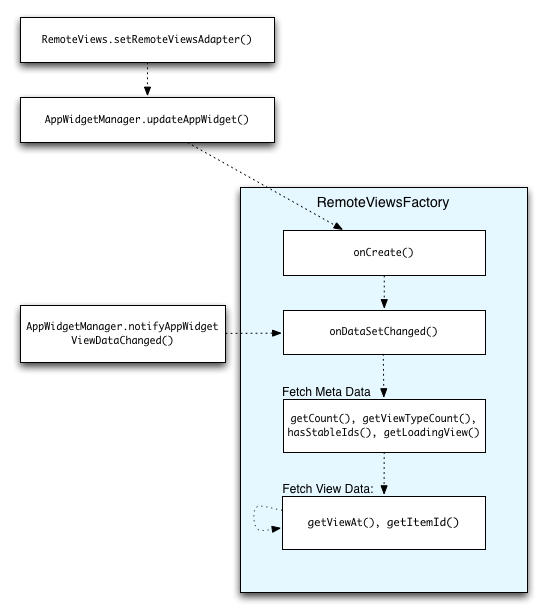
RemoteViewsFactory ระหว่างการอัปเดตวิดเจ็ตที่ใช้คอลเล็กชันจะช่วยให้ผู้ใช้ได้รับเนื้อหาล่าสุด เช่น วิดเจ็ต Gmail จะแสดงภาพรวมของกล่องจดหมายให้ผู้ใช้ หากต้องการให้เป็นไปได้ ให้ทริกเกอร์RemoteViewsFactoryและมุมมองการรวบรวมเพื่อดึงและแสดงข้อมูลใหม่
โดยใช้
AppWidgetManager เพื่อโทรหา
notifyAppWidgetViewDataChanged() การเรียกนี้จะทำให้เกิดการเรียกกลับไปยังเมธอด
onDataSetChanged()
ของออบเจ็กต์ RemoteViewsFactory ซึ่งช่วยให้คุณดึงข้อมูลใหม่ได้
คุณสามารถดำเนินการที่ต้องใช้การประมวลผลจำนวนมากแบบพร้อมกันภายใน
onDataSetChanged()ได้ คุณมั่นใจได้ว่าการเรียกนี้จะเสร็จสมบูรณ์
ก่อนที่จะดึงข้อมูลเมตาหรือข้อมูลการดูจาก RemoteViewsFactory คุณ
ยังดำเนินการที่ต้องใช้การประมวลผลสูงภายในเมธอด getViewAt()
ได้ด้วย หากการเรียกนี้ใช้เวลานาน ระบบจะแสดงมุมมองการโหลดที่ระบุโดยเมธอด
getLoadingView()
ของออบเจ็กต์ RemoteViewsFactory
ในตำแหน่งที่สอดคล้องกันของคอลเล็กชันวิว
จนกว่าจะมีการส่งคืน
ใช้ RemoteCollectionItems เพื่อส่งต่อคอลเล็กชันโดยตรง
Android 12 (ระดับ API 31) เพิ่มเมธอด setRemoteAdapter(int viewId,
RemoteViews.RemoteCollectionItems
items) ซึ่งช่วยให้แอปส่งต่อคอลเล็กชันได้โดยตรงเมื่อแสดงผลมุมมองคอลเล็กชัน หากตั้งค่าอะแดปเตอร์โดยใช้วิธีนี้ คุณไม่จำเป็นต้อง
ใช้ RemoteViewsFactory และไม่จำเป็นต้องเรียกใช้
notifyAppWidgetViewDataChanged()
นอกจากจะช่วยให้การป้อนข้อมูลในอแดปเตอร์ง่ายขึ้นแล้ว วิธีนี้ยังช่วย
ลดเวลาในการตอบสนองสำหรับการป้อนข้อมูลรายการใหม่เมื่อผู้ใช้เลื่อนลงในรายการเพื่อ
ดูรายการใหม่ เราขอแนะนำให้ใช้วิธีนี้ในการตั้งค่าอแดปเตอร์ตราบใดที่ชุดรายการคอลเล็กชันมีขนาดค่อนข้างเล็ก อย่างไรก็ตาม วิธีนี้ใช้ได้ไม่ดีนักหากคอลเล็กชันมี Bitmaps จำนวนมากที่ส่งไปยัง setImageViewBitmap
หากคอลเล็กชันไม่ได้ใช้ชุดเลย์เอาต์ที่คงที่ (กล่าวคือ หากบางรายการปรากฏเฉพาะบางครั้ง) ให้ใช้ setViewTypeCount เพื่อระบุจำนวนเลย์เอาต์ที่ไม่ซ้ำกันสูงสุดที่คอลเล็กชันจะมีได้ ซึ่งช่วยให้
อแดปเตอร์นำกลับมาใช้ใหม่ได้ในการอัปเดตวิดเจ็ตแอป
ตัวอย่างวิธีใช้คอลเล็กชัน RemoteViews แบบง่ายมีดังนี้
Kotlin
val itemLayouts = listOf(
        R.layout.item_type_1,
        R.layout.item_type_2,
        ...
)

remoteView.setRemoteAdapter(
        R.id.list_view,
        RemoteViews.RemoteCollectionItems.Builder()
            .addItem(/* id= */ ID_1, RemoteViews(context.packageName, R.layout.item_type_1))
            .addItem(/* id= */ ID_2, RemoteViews(context.packageName, R.layout.item_type_2))
            ...
            .setViewTypeCount(itemLayouts.count())
            .build()
)
Java
List<Integer> itemLayouts = Arrays.asList(
    R.layout.item_type_1,
    R.layout.item_type_2,
    ...
);

remoteView.setRemoteAdapter(
    R.id.list_view,
    new RemoteViews.RemoteCollectionItems.Builder()
        .addItem(/* id= */ ID_1, new RemoteViews(context.getPackageName(), R.layout.item_type_1))
        .addItem(/* id= */ ID_2, new RemoteViews(context.getPackageName(), R.layout.item_type_2))
        ...
        .setViewTypeCount(itemLayouts.size())
        .build()
);