

Android के अलग-अलग वर्शन पर सूचनाओं को बेहतर तरीके से दिखाने के लिए, स्टैंडर्ड सूचना टेंप्लेट का इस्तेमाल करके सूचनाएं बनाएं. अगर आपको अपनी सूचना में ज़्यादा कॉन्टेंट दिखाना है, तो सूचना के लिए, बड़े किए जा सकने वाले किसी टेंप्लेट का इस्तेमाल करें.
हालांकि, अगर सिस्टम के टेंप्लेट आपकी ज़रूरतों के मुताबिक नहीं हैं, तो सूचना के लिए अपना लेआउट इस्तेमाल किया जा सकता है.
कॉन्टेंट वाले सेक्शन के लिए कस्टम लेआउट बनाना
अगर आपको कस्टम लेआउट की ज़रूरत है, तो अपनी सूचना पर
NotificationCompat.DecoratedCustomViewStyle लागू करें. इस एपीआई की मदद से, कॉन्टेंट वाले सेक्शन के लिए कस्टम लेआउट उपलब्ध कराया जा सकता है. आम तौर पर, इस सेक्शन में टाइटल और टेक्स्ट कॉन्टेंट दिखता है. साथ ही, सूचना आइकॉन, टाइमस्टैंप, सब-टेक्स्ट, और ऐक्शन बटन के लिए सिस्टम डेकोरेशन का इस्तेमाल किया जा सकता है.
यह एपीआई, सूचना के लिए बड़े किए जा सकने वाले टेंप्लेट की तरह काम करता है. इसके लिए, सूचना के बुनियादी लेआउट का इस्तेमाल किया जाता है. यह इस तरह काम करता है:
- बुनियादी सूचना को
NotificationCompat.Builderकी मदद से बनाएं. setStyle()को कॉल करें. साथ ही, इसेNotificationCompat.DecoratedCustomViewStyleका इंस्टेंस पास करें.RemoteViewsके इंस्टेंस के तौर पर, अपने कस्टम लेआउट को इन्फ़्लेट करें.- कम शब्दों में जानकारी दिखाने के लिए सूचना का लेआउट सेट करने के लिए,
setCustomContentView()को कॉल करें. - ज़रूरी नहीं: सूचना को बड़ा करके दिखाने के लिए, अलग
लेआउट सेट करने के लिए,
setCustomBigContentView()को भी कॉल किया जा सकता है.
लेआउट तैयार करना
आपके पास small और large लेआउट होना चाहिए. इस उदाहरण के लिए, small लेआउट ऐसा दिख सकता है:
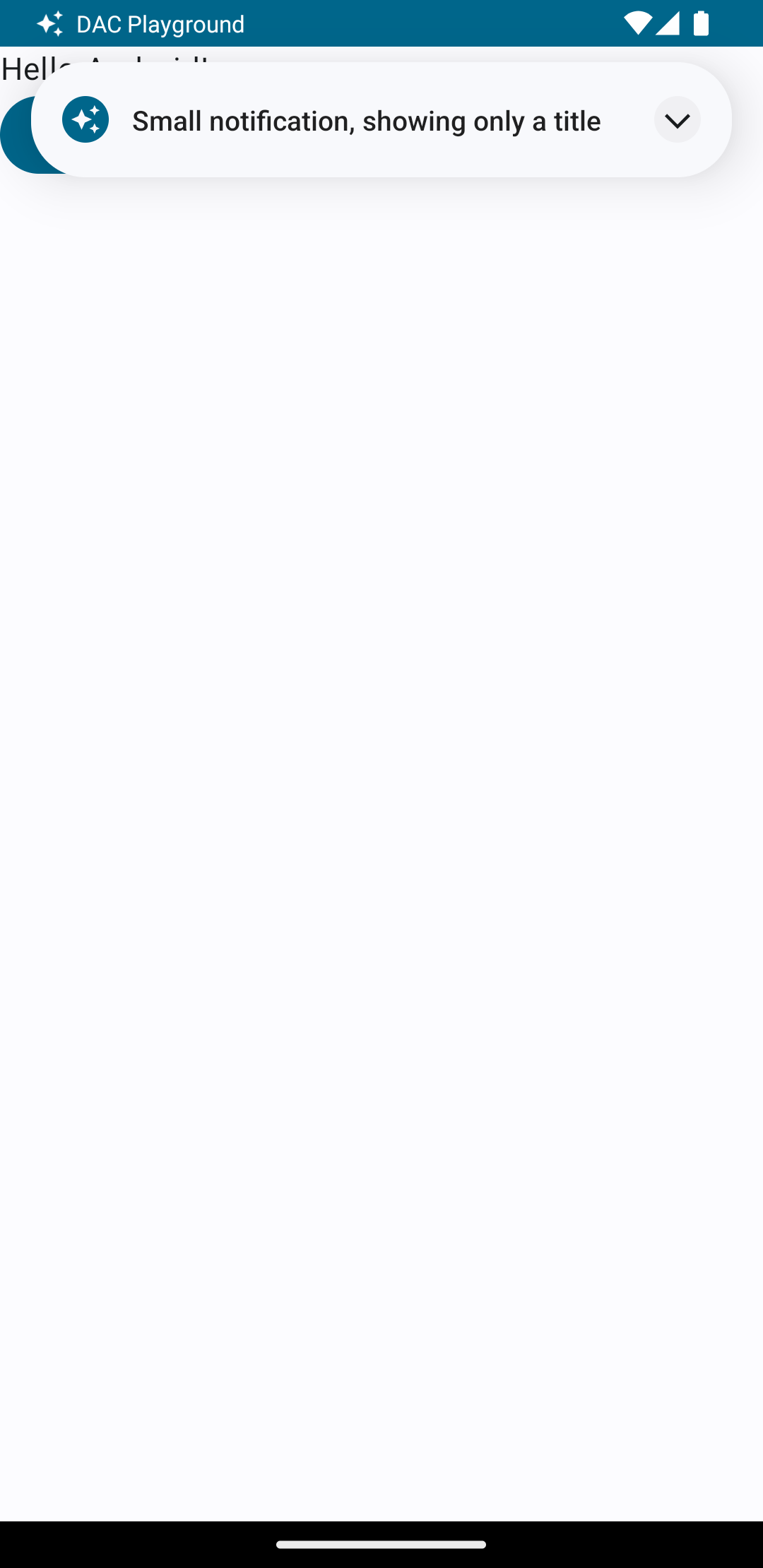
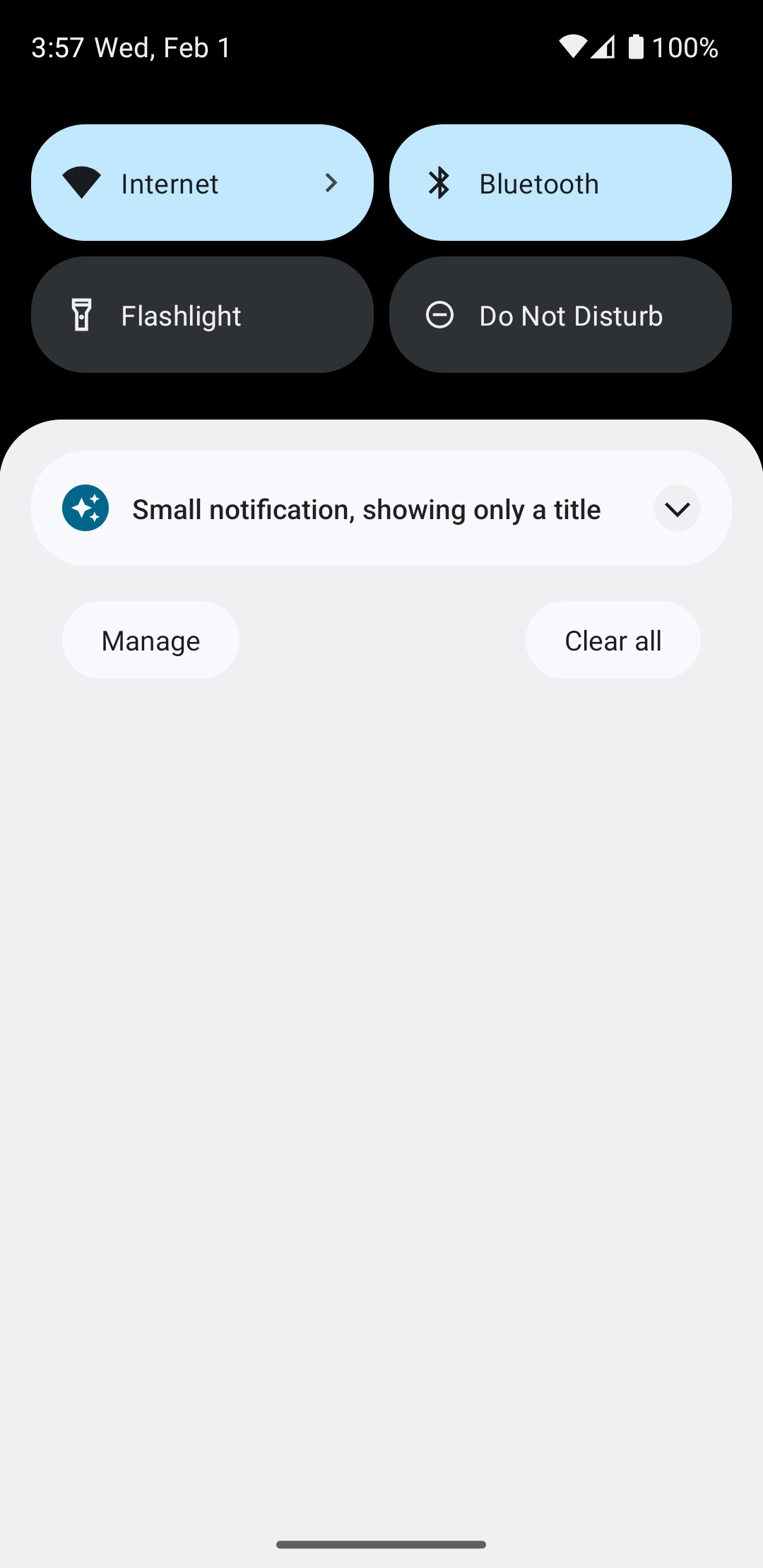
<LinearLayout xmlns:android="http://schemas.android.com/apk/res/android" android:layout_width="match_parent" android:layout_height="wrap_content" android:orientation="vertical"> <TextView android:id="@+id/notification_title" style="@style/TextAppearance.Compat.Notification.Title" android:layout_width="wrap_content" android:layout_height="0dp" android:layout_weight="1" android:text="Small notification, showing only a title" /> </LinearLayout>
वहीं, large लेआउट ऐसा दिख सकता है:
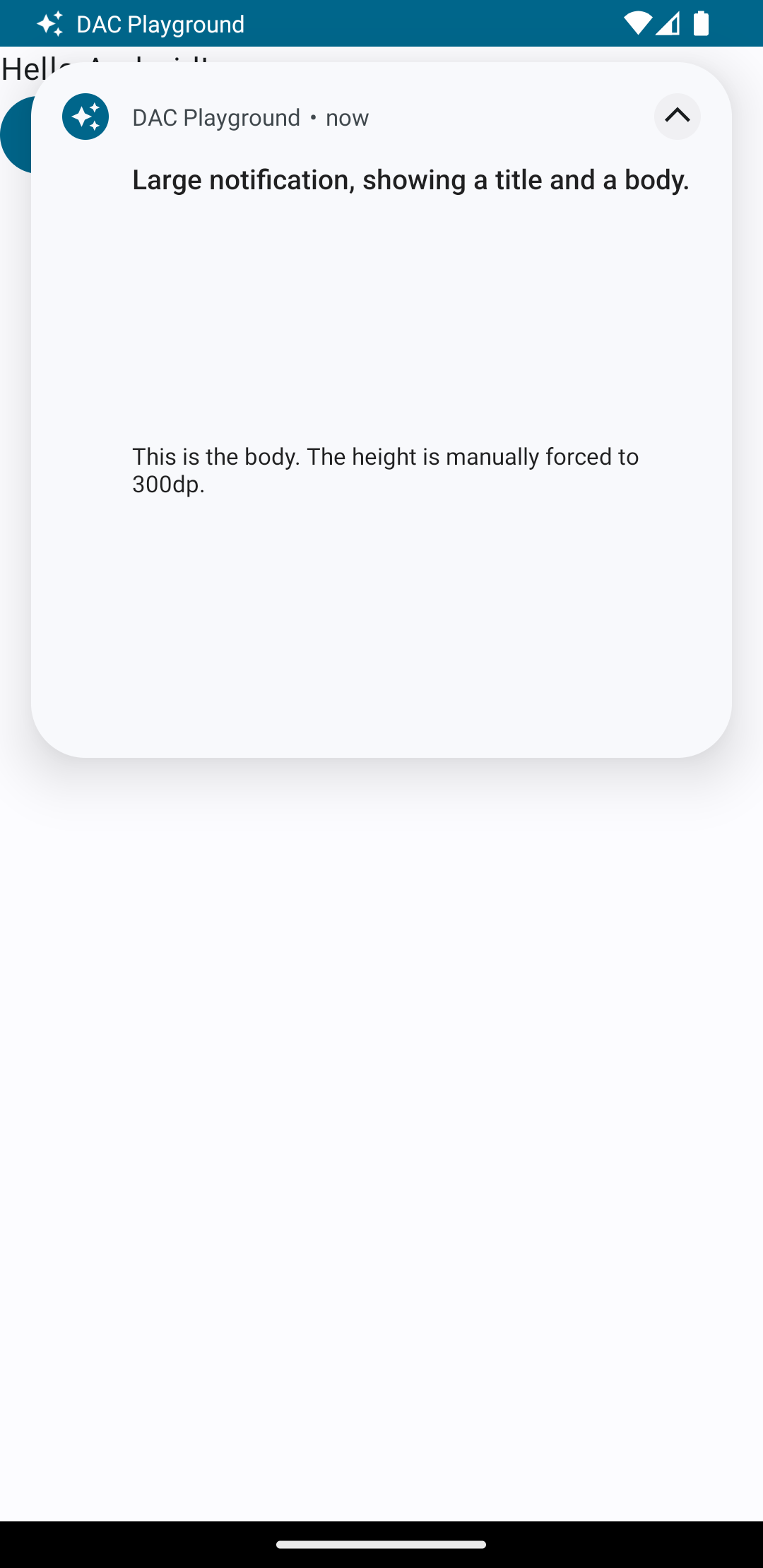
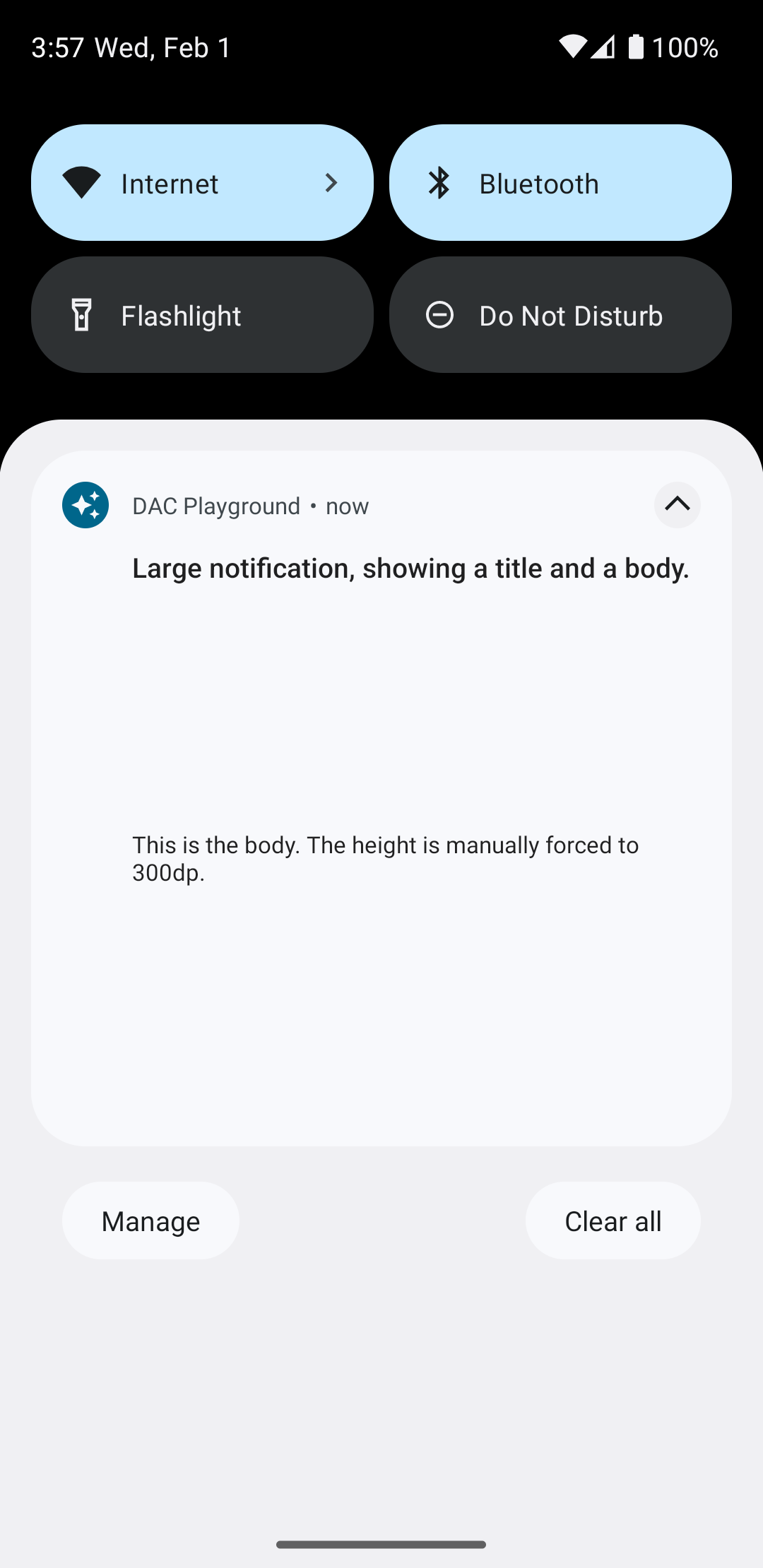
<LinearLayout xmlns:android="http://schemas.android.com/apk/res/android" android:layout_width="match_parent" android:layout_height="300dp" android:orientation="vertical"> <TextView android:id="@+id/notification_title" style="@style/TextAppearance.Compat.Notification.Title" android:layout_width="wrap_content" android:layout_height="wrap_content" android:layout_weight="1" android:text="Large notification, showing a title and a body." /> <TextView android:id="@+id/notification_body" style="@style/TextAppearance.Compat.Notification.Line2" android:layout_width="wrap_content" android:layout_height="wrap_content" android:layout_weight="1" android:text="This is the body. The height is manually forced to 300dp." /> </LinearLayout>
सूचना बनाना और दिखाना
लेआउट तैयार होने के बाद, इनका इस्तेमाल इस उदाहरण में दिखाए गए तरीके से किया जा सकता है:
val notificationManager = getSystemService(Context.NOTIFICATION_SERVICE) as NotificationManager // Get the layouts to use in the custom notification. val notificationLayout = RemoteViews(packageName, R.layout.notification_small) val notificationLayoutExpanded = RemoteViews(packageName, R.layout.notification_large) // Apply the layouts to the notification. val customNotification = NotificationCompat.Builder(context, CHANNEL_ID) .setSmallIcon(R.drawable.notification_icon) .setStyle(NotificationCompat.DecoratedCustomViewStyle()) .setCustomContentView(notificationLayout) .setCustomBigContentView(notificationLayoutExpanded) .build() notificationManager.notify(666, customNotification)
ध्यान रखें कि सूचना के बैकग्राउंड का रंग, अलग-अलग डिवाइसों और वर्शन के हिसाब से अलग-अलग हो सकता है. अपने कस्टम लेआउट में, टेक्स्ट के लिए
TextAppearance_Compat_Notification और टाइटल के लिए
TextAppearance_Compat_Notification_Title जैसे सपोर्ट लाइब्रेरी स्टाइल लागू करें,
जैसा कि इस उदाहरण में दिखाया गया है. ये स्टाइल, रंगों के अंतर के हिसाब से अडजस्ट हो जाते हैं. इसलिए, आपको काले रंग के बैकग्राउंड पर काला टेक्स्ट या सफ़ेद रंग के बैकग्राउंड पर सफ़ेद टेक्स्ट नहीं दिखेगा.
<TextView
    android:layout_width="wrap_content"
    android:layout_height="match_parent"
    android:layout_weight="1"
    android:text="@string/notification_title"
    android:id="@+id/notification_title"
    style="@style/TextAppearance.Compat.Notification.Title" />
RemoteViews ऑब्जेक्ट पर बैकग्राउंड इमेज सेट न करें, क्योंकि इससे आपका टेक्स्ट पढ़ा नहीं जा सकेगा.
जब उपयोगकर्ता किसी ऐप्लिकेशन का इस्तेमाल कर रहा हो और सूचना ट्रिगर की जाती है, तो नतीजा पहली इमेज जैसा होता है:
एक्सपेंडर ऐरो पर टैप करने से, सूचना बड़ी हो जाती है. जैसा कि दूसरी इमेज में दिखाया गया है:
सूचना का टाइम आउट खत्म होने के बाद, सूचना सिर्फ़ सिस्टम बार में दिखती है. यह तीसरी इमेज की तरह दिखती है:
एक्सपेंडर ऐरो पर टैप करने से, सूचना बड़ी हो जाती है. जैसा कि चौथी इमेज में दिखाया गया है:
सूचना के लिए पूरी तरह से कस्टम लेआउट बनाना
अगर आपको अपनी सूचना में स्टैंडर्ड सूचना
आइकॉन और हेडर नहीं दिखाना है, तो ऊपर दिया गया तरीका अपनाएं. हालांकि, न करें setStyle().