
In-app browsers give your users a full web experience without making them leave your app. Android offers two primary APIs for implementing in-app browsers: Custom Tabs and WebViews. Use an in-app browser when you have a link or an ad that leads to a web page. You can open that page right inside your app, as you can see in Figure 1.
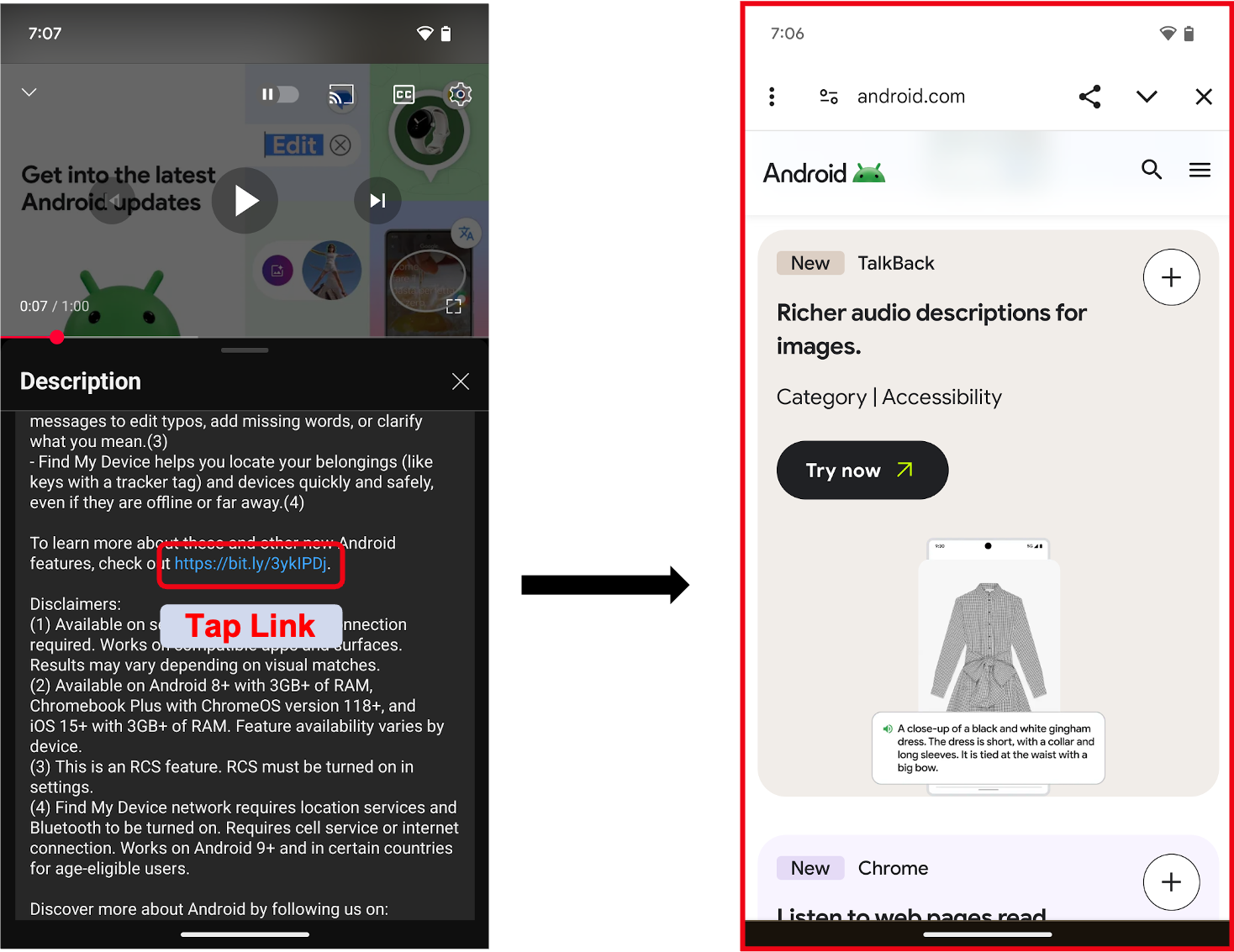
Choosing between Custom Tabs and WebViews is a big architectural decision that affects your development speed, user experience, and how much control you have over the UI.
Quick comparison
Use the following table to help you decide which tool fits your needs:
| Feature | WebView | Custom Tabs |
|---|---|---|
| Primary use case | Building hybrid apps with web as primary or supporting content, displaying ads, in-app campaigns, or terms of service pages. | Displaying content from external websites (like news articles or product pages). |
| UI control | Full. It is a View component you can place anywhere. You control all the surrounding UI. |
Limited. You can theme the toolbar color and add a few custom actions. |
| Data and sessions | Sandboxed. It doesn't share cookies or logins with the user's main browser. | Shared. It uses the user's default browser session, including cookies and saved passwords. |
| Native <-> Web bridge | Yes. You can use a JavaScript bridge for deep, bidirectional communication between web content and native app code. | Limited. You can use the window.postMessage() method for basic string passing. |
| Developer effort | High. You need to manage the lifecycle, navigation, and performance yourself. | Low. You can implement it with just a few lines of code. |
WebView
A WebView is a view that makes web pages an integral part of your app's layout. It is powerful, but it's a bit more complex to handle compared to Custom Tabs.
WebView can load remote or local web content, execute JavaScript, and enable bidirectional communication between your web content and native app code. To learn more about its capabilities, see What WebView can do.
You can also use WebView to deliver a web application or display an online web page as part of your app. For example, an end-user agreement that you need to update periodically. To learn more, see Build web apps in WebView.
Why you should choose WebView
The following are some scenarios where WebView is a good fit:
- Hybrid apps: You're building an app where web content and native components (like a navigation bar or a floating action button) live side-by-side.
- First-party content: Your web content is a core, interactive part of the app experience, like a document editor or a design canvas.
- Full UI control: You need to modify the contents of the web page itself or overlay native UI elements on top of it.
- Deep analytics: You need detailed insight into user engagement and activity within the web view.
Key trade-offs
The following are some key trade-offs to consider when using WebView:
- Performance: WebView can be memory-intensive. If you don't manage it carefully, you can run into performance issues or ANRs (App Not Responding errors).
- Security and maintenance: You're responsible for hardening the security
and managing the lifecycle. This includes managing state preservation
across process recreation using
WebViewCompat.saveState()and staying within Android's 1MB saved state transaction limit. However, WebView updates release globally through Google Play, so you don't have to worry about the underlying engine getting outdated.
Custom Tabs
Custom Tabs are a great choice for directing users to external URLs, as they provide a fast, secure, and user-friendly browser window that slides over your app.
Why you should choose Custom Tabs
The following are some scenarios where Custom Tabs are a good fit:
- External Links: When a user taps a link to a website you don't own, Custom Tabs keep them in your app's context while providing a full browser experience.
- Ease of integration: It is the simplest way to get an embedded web experience up and running.
- Shared state: Because it shares cookies with the user's default browser, users don't have to sign in again to sites they have already visited.
- Third-party sign-in: They are well-suited for third-party sign-in flows (such as "Sign in with Google" or "Sign in with Facebook") as the browser handles credentials securely.
Although most browsers support Custom Tabs, some offer more customization than others. For more information, see Browser support.
Use web content in Jetpack Compose
You can use both Custom Tabs and WebView when building with Jetpack Compose:
- Custom Tabs: Since Custom Tabs use an
Intent, you can launch them from anyContextin your Compose functions, making for a seamless integration. - WebView: Compose doesn't have a native WebView composable yet, so you'll
need to use
AndroidViewto embed a standard WebView into your layout.
Additional resources
To develop web pages for Android-powered devices using WebViews or Custom Tabs APIs, see the following documents:
- Embedding web content into your app as primary or supporting content
- API Reference: WebView
- Custom Tabs Overview
- Overview of Trusted Web Activities
- Manage WebView state efficiently
- Browser support