
This page details the different features of the Car App Library that you can use to implement the functionality of your turn-by-turn navigation app.
Declare navigation support in your manifest
Your navigation app needs to declare the androidx.car.app.category.NAVIGATION
car app category in the intent
filter of its CarAppService:
<application>
    ...
   <service
       ...
        android:name=".MyNavigationCarAppService"
        android:exported="true">
      <intent-filter>
        <action android:name="androidx.car.app.CarAppService" />
        <category android:name="androidx.car.app.category.NAVIGATION"/>
      </intent-filter>
    </service>
    ...
</application>
Support navigation intents
A variety of intent formats enable navigation apps to work with other apps, such as point of interest apps and voice assistants.
To support these intent formats, first declare support by adding intent filters in your app's manifest. The location of these intent filters depends on the platform:
- Android Auto: Within the
<activity>manifest element for theActivityused to handle the intent when a user isn't using Android Auto. - Android Automotive OS: Within the
<activity>manifest element for theCarAppActivity.
Then, read and handle the intents in both the onCreateScreen() and
onNewIntent() callbacks in your app's Session implementation.
Required intent formats
To meet the NF-6 quality requirement, your app must handle
navigation intents.
Optional intent formats
You can also support the following intent formats to further increase your app's interoperability:
Access the navigation templates
Navigation apps can access the following templates, which display a surface in the background with the map and, during active navigation, turn-by-turn directions.
NavigationTemplate: A template that displays an optional informational message and travel estimates during active navigation.MapWithContentTemplate: A template that allows an app to render map tiles with some sort of content (for example, a list). The content is usually rendered as an overlay on top of the map tiles, with the map visible and stable areas adjusting to the content.
For more details about how to design your navigation app's user interface using these templates, see Navigation apps.
To get access to the navigation templates, your app needs to declare
the androidx.car.app.NAVIGATION_TEMPLATES permission in its
AndroidManifest.xml file:
<manifest ...>
  ...
  <uses-permission android:name="androidx.car.app.NAVIGATION_TEMPLATES"/>
  ...
</manifest>
An additional permission is required to draw maps.
Migrate to the MapWithContentTemplate
Starting with Car App API Level 7, the
MapTemplate,
PlaceListNavigationTemplate,
and RoutePreviewNavigationTemplate
are deprecated. Deprecated templates will continue to be supported, but
migrating to the MapWithContentTemplate is strongly recommended.
The functionality provided by these templates can be implemented
using the MapWithContentTemplate. See the following snippets for examples:
MapTemplate
// MapTemplate (deprecated) val templateDeprecated = MapTemplate.Builder() .setPane(paneBuilder.build()) .setActionStrip(actionStrip) .setHeader(header) .setMapController(mapController) .build() // MapWithContentTemplate val template = MapWithContentTemplate.Builder() .setContentTemplate( PaneTemplate.Builder(paneBuilder.build()) .setHeader(header) .build() ) .setActionStrip(actionStrip) .setMapController(mapController) .build()
PlaceListNavigationTemplate
// PlaceListNavigationTemplate (deprecated) val templateDeprecated = PlaceListNavigationTemplate.Builder() .setItemList(itemListBuilder.build()) .setHeader(header) .setActionStrip(actionStrip) .setMapActionStrip(mapActionStrip) .build() // MapWithContentTemplate val template = MapWithContentTemplate.Builder() .setContentTemplate( ListTemplate.Builder() .setSingleList(itemListBuilder.build()) .setHeader(header) .build() ) .setActionStrip(actionStrip) .setMapController( MapController.Builder() .setMapActionStrip(mapActionStrip) .build() ) .build()
RoutePreviewNavigationTemplate
// RoutePreviewNavigationTemplate (deprecated) val templateDeprecated = RoutePreviewNavigationTemplate.Builder() .setItemList( ItemList.Builder() .addItem( Row.Builder() .setTitle(title) .build() ) .build() ) .setHeader(header) .setNavigateAction( Action.Builder() .setTitle(actionTitle) .setOnClickListener { /* onClick */ } .build() ) .setActionStrip(actionStrip) .setMapActionStrip(mapActionStrip) .build() // MapWithContentTemplate val template = MapWithContentTemplate.Builder() .setContentTemplate( ListTemplate.Builder() .setSingleList( ItemList.Builder() .addItem( Row.Builder() .setTitle(title) .addAction( Action.Builder() .setTitle(actionTitle) .setOnClickListener { /* onClick */ } .build() ) .build() ) .build() ) .setHeader(header) .build() ) .setActionStrip(actionStrip) .setMapController( MapController.Builder() .setMapActionStrip(mapActionStrip) .build() ) .build()
Communicate navigation metadata
Navigation apps must communicate additional navigation metadata with the host. The host uses the information to provide information to the vehicle head unit and to prevent navigation applications from clashing over shared resources.
Navigation metadata is provided through the
NavigationManager
car service accessible from the
CarContext:
val navigationManager = carContext.getCarService(NavigationManager::class.java)
Start, end, and stop navigation
For the host to manage multiple navigation apps, routing notifications,
and vehicle cluster data, it needs to be aware of the current state of
navigation. When a user starts navigation, call
NavigationManager.navigationStarted.
Similarly, when navigation ends — for example, when the user arrives at
their destination or the user cancels navigation — call
NavigationManager.navigationEnded.
Only call NavigationManager.navigationEnded
when the user finishes navigating. For example, if you need to recalculate
the route in the middle of a trip, use
Trip.Builder.setLoading(true)
instead.
Occasionally, the host needs an app to stop navigation and calls
onStopNavigation in a
NavigationManagerCallback
object provided by your app through
NavigationManager.setNavigationManagerCallback.
The app must then stop issuing next-turn information in the cluster display,
navigation notifications, and voice guidance.
Update trip information
During active navigation, call
NavigationManager.updateTrip.
The information provided in this call can be used by the vehicle's cluster and
heads-up displays. Depending on the particular vehicle being driven, not all
the information is displayed to the user.
For example, the Desktop Head Unit (DHU) shows
the Step added to the
Trip, but doesn't show
the Destination
information.
Drawing to the Cluster Display
To provide the most immersive user experience, you may want to go beyond showing basic metadata on the vehicle's cluster display. Starting with Car App API Level 6, navigation apps have the option of rendering their own content directly on the cluster display (in supported vehicles), with the following limitations:
- The cluster display API does not support input controls
- Car app quality guideline
NF-9: The cluster display should only show map tiles. An active navigation route can optionally be displayed on these tiles. - The cluster display API only supports use of the
NavigationTemplate- Unlike main displays, cluster displays may not consistently show all
NavigationTemplateUI elements, such as turn-by-turn instructions, ETA cards, and actions. Map tiles are the only consistently displayed UI element.
- Unlike main displays, cluster displays may not consistently show all
Declare Cluster Support
To let the host application know that your app supports rendering on cluster
displays, you must add an androidx.car.app.category.FEATURE_CLUSTER
<category> element to your CarAppService's <intent-filter> as shown in the
following snippet:
<application>
    ...
   <service
       ...
        android:name=".MyNavigationCarAppService"
        android:exported="true">
      <intent-filter>
        <action android:name="androidx.car.app.CarAppService" />
        <category android:name="androidx.car.app.category.NAVIGATION"/>
        <category android:name="androidx.car.app.category.FEATURE_CLUSTER"/>
      </intent-filter>
    </service>
    ...
</application>
Lifecycle and State Management
Starting with API level 6, the car app
lifecycle flow
stays the same, but now CarAppService::onCreateSession takes a parameter of
type SessionInfo that provides
additional information about the Session being created (namely, the display
type and the set of supported templates).
Apps have the option to either use the same Session class to handle both the
cluster and main display, or create display-specific Sessions to customize
behavior on each display (as shown in the following snippet).
override fun onCreateSession(sessionInfo: SessionInfo): Session { return if (sessionInfo.displayType == SessionInfo.DISPLAY_TYPE_CLUSTER) { ClusterSession() } else { MainDisplaySession() } }
There are no guarantees about when or if the cluster display is provided, and
it's also possible for the cluster Session to be the only Session (for
example, the user swapped the main display to another app while your app is
actively navigating). The "standard" agreement is that the app gains control of
cluster display only after NavigationManager::navigationStarted has been
called. However, it's possible for the app to be provided the cluster display
while no active navigation is occurring, or to never be provided the cluster
display. It is up to your app to handle these scenarios by rendering your app's
idle state of map tiles.
The host creates separate binder and CarContext instances per Session. This
means that, when using the methods like ScreenManager::push or
Screen::invalidate, only the Session from which they are called is
affected. Apps should create their own communication channels between these
instances if cross-Session communication is needed (for example, by using
broadcasts, a shared singleton, or something
else).
Testing Cluster Support
You can test your implementation on both Android Auto and Android Automotive OS. For Android Auto, this is done by configuring the Desktop Head Unit to emulate a secondary cluster display. For Android Automotive OS, the generic system images for API level 30 and higher emulate a cluster display.
Customize TravelEstimate with text or an icon
To customize the travel estimate with text, an icon, or both, use the
TravelEstimate.Builder
class's
setTripIcon
or
setTripText
methods. The
NavigationTemplate
uses
TravelEstimate
to optionally set text and icons alongside or in place of the estimated time
of arrival, remaining time, and remaining distance.
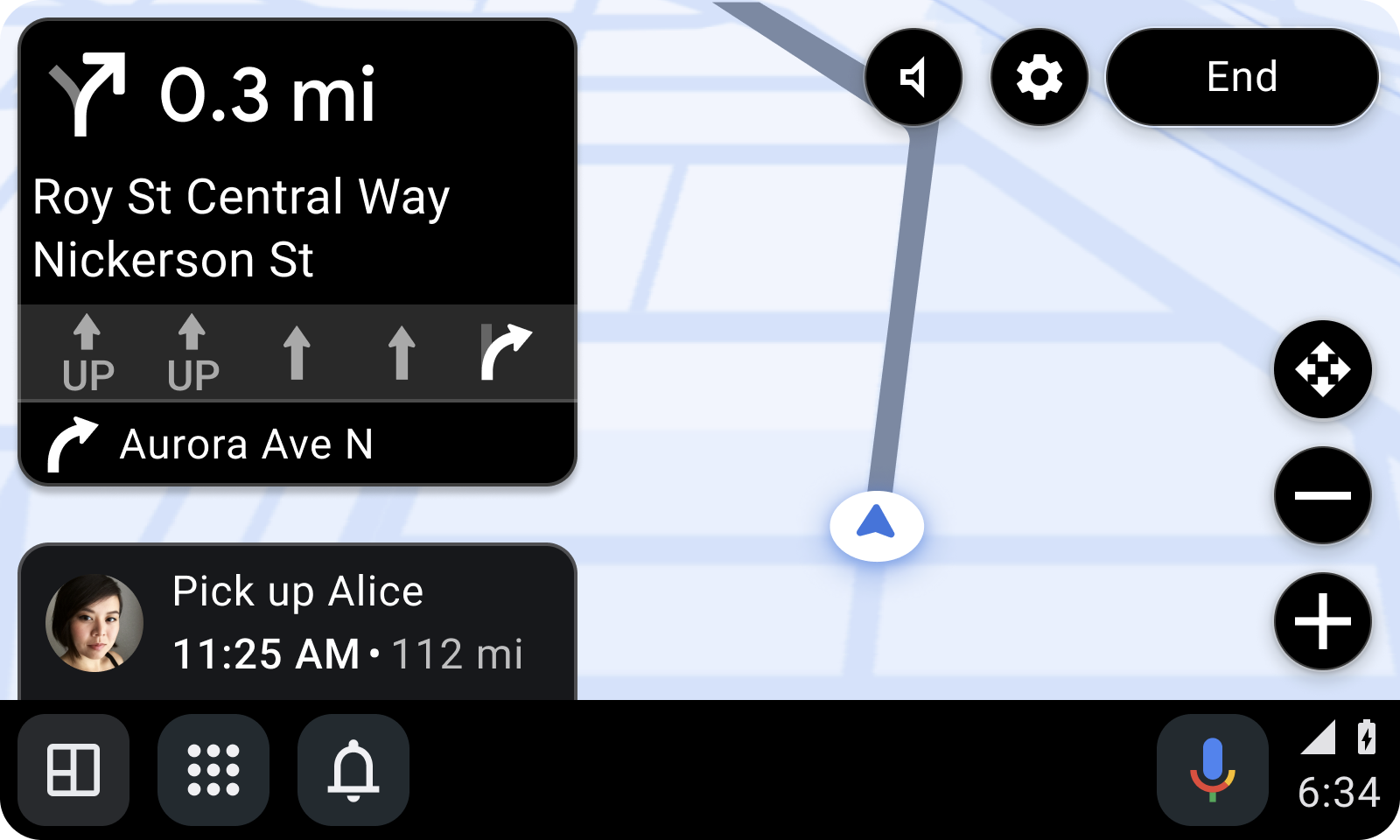
The following snippet uses setTripIcon and setTripText to customize the
travel estimate:
TravelEstimate.Builder( Distance.create(350.0, Distance.UNIT_METERS), arrivalTimeAtDestination ) .setTripIcon( CarIcon.Builder( IconCompat.createWithResource(carContext, R.drawable.ic_garage) ).build() ) .setTripText(CarText.create("Custom Text")) .build()
Provide turn-by-turn notifications
Provide turn-by-turn (TBT) navigation instructions using a frequently updated navigation notification. To be treated as a navigation notification in the car screen, your notification's builder must do the following:
- Mark the notification as ongoing with the
NotificationCompat.Builder.setOngoingmethod. - Set the notification's category to
Notification.CATEGORY_NAVIGATION. - Extend the notification with a
CarAppExtender.
A navigation notification displays in the rail widget at the bottom of
the car screen. If the notification's importance level is set to
IMPORTANCE_HIGH, it also displays as a heads-up notification (HUN).
If the importance is not set with the
CarAppExtender.Builder.setImportance
method, the
notification channel's importance
is used.
The app can set a PendingIntent in the
CarAppExtender that
is sent to the app when the user taps on the HUN or the rail widget.
If
NotificationCompat.Builder.setOnlyAlertOnce
is called with a value of true, a high-importance notification alerts only
once in the HUN.
The following snippet shows how to build a navigation notification:
NotificationCompat.Builder(context, NOTIFICATION_CHANNEL_ID) .setOnlyAlertOnce(true) .setOngoing(true) .setCategory(NotificationCompat.CATEGORY_NAVIGATION) .extend( CarAppExtender.Builder() .setContentTitle(carScreenTitle) .setContentIntent( PendingIntent.getBroadcast( context, ACTION_OPEN_APP.hashCode(), Intent(ACTION_OPEN_APP).setComponent( ComponentName(context, MyNotificationReceiver::class.java) ), PendingIntent.FLAG_IMMUTABLE ) ) .setImportance(NotificationManagerCompat.IMPORTANCE_HIGH) .build() ) .build()
Update the TBT notification regularly for distance
changes, which updates the rail widget, and only show the notification as a HUN.
You can control the HUN behavior by setting the notification's importance with
CarAppExtender.Builder.setImportance. Setting the importance to
IMPORTANCE_HIGH shows a HUN. Setting
it to any other value only updates the rail widget.
Refresh PlaceListNavigationTemplate content
You can let drivers refresh content with the tap of a button while browsing
lists of places built with
PlaceListNavigationTemplate.
To enable list refresh, implement the
OnContentRefreshListener
interface's
onContentRefreshRequested
method and use
PlaceListNavigationTemplate.Builder.setOnContentRefreshListener
to set the listener on the template.
The following snippet shows how to set the listener on the template:
PlaceListNavigationTemplate.Builder() .setOnContentRefreshListener { // Execute any desired logic // Then call invalidate() so onGetTemplate() is called again screen.invalidate() } .build()
The refresh button is only shown in the header of the
PlaceListNavigationTemplate if the listener has a value.
When the user clicks the refresh button, the
onContentRefreshRequested method of your
OnContentRefreshListener implementation is called. Within
onContentRefreshRequested, call the
Screen.invalidate method.
The host then calls back into your app's
Screen.onGetTemplate
method to retrieve the template with the refreshed content. See
Refresh the contents of a template for
more information about refreshing templates. As long as the next template
returned by
onGetTemplate is of
the same type, it counts as a refresh and does not count toward the
template quota.
Provide audio guidance
To play navigation guidance over the car speakers, your app must request
audio focus. As a part of your
AudioFocusRequest, set
the usage as AudioAttributes.USAGE_ASSISTANCE_NAVIGATION_GUIDANCE. Also,
set the focus gain as AudioManager.AUDIOFOCUS_GAIN_TRANSIENT_MAY_DUCK.
Simulate navigation
To verify your app's navigation functionality when you submit it to the
Google Play Store, your app must implement the
NavigationManagerCallback.onAutoDriveEnabled
callback. When this callback is called, your app must simulate navigation to
the chosen destination when the user begins navigation. Your app can exit this
mode whenever the lifecycle of the current Session
reaches the
Lifecycle.Event.ON_DESTROY
state.
You can test that your implementation of onAutoDriveEnabled is called by
executing the following from a command line:
adb shell dumpsys activity service CAR_APP_SERVICE_NAME AUTO_DRIVE
This is shown in the following example:
adb shell dumpsys activity service androidx.car.app.samples.navigation.car.NavigationCarAppService AUTO_DRIVE
Default navigation car app
In Android Auto, the default navigation car app corresponds to the last navigation app that the user launched. The default app receives navigation intents when the user invokes navigation commands through the Assistant or when another app sends an intent to start navigation.
Display in-context navigation alerts
Alert displays important
information to the driver with optional actions ‐ without leaving the
context of the navigation screen. To provide the best experience to the driver,
Alert works within the
NavigationTemplate
to avoid blocking the navigation route and to minimize driver distraction.
Alert is only available within the NavigationTemplate.
To notify the user outside of the NavigationTemplate,
consider using a heads-up notification (HUN), as explained in
Display notifications.
For example, use Alert to:
- Inform the driver of an update relevant to the current navigation, such as a change in traffic conditions.
- Ask the driver for an update related to the current navigation, such as the existence of a speed trap.
- Propose an upcoming task and ask whether the driver accepts it, such as whether the driver is willing to pick up someone on their way.
In its basic form, an Alert consists of a title and the Alert
duration time. The duration time is represented by a progress bar. Optionally,
you can add a subtitle, an icon, and up to two
Action objects.
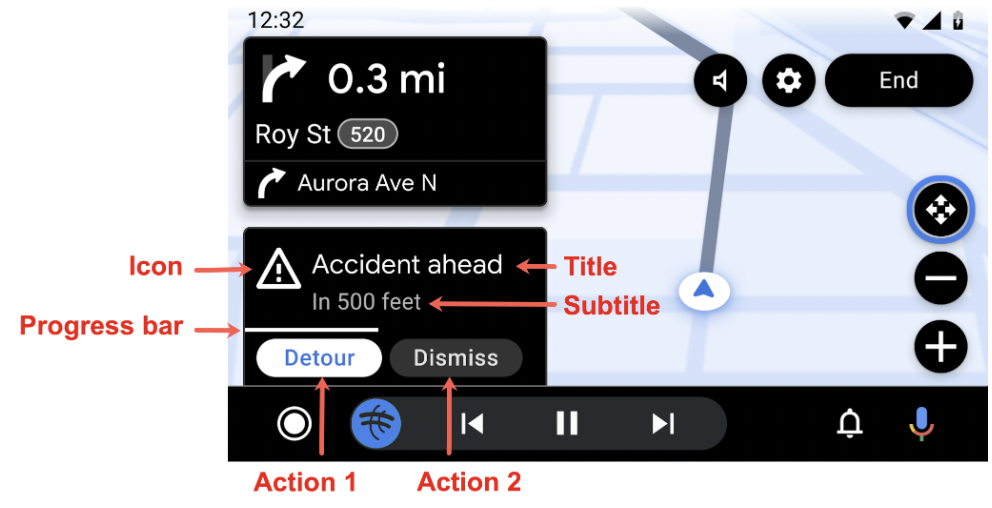
Once an Alert is shown, it does not carry over to another template if the
driver interaction results in leaving the NavigationTemplate.
It stays in the original NavigationTemplate until Alert times out, the user
takes an action, or the app dismisses the Alert.
Create an alert
Use Alert.Builder
to create an Alert instance:
Alert.Builder( 1, // alertId CarText.create("Hello"), // title 5000 // durationMillis ) // The fields below are optional .addAction(firstAction) .addAction(secondAction) .setSubtitle(CarText.create("Subtitle")) .setIcon(CarIcon.APP_ICON) .setCallback(alertCallback) .build()
If you want to listen for Alert
cancellation or dismissal, create an implementation of the
AlertCallback interface.
The AlertCallback call paths are:
If the
Alerttimes out, the host calls theAlertCallback.onCancelmethod with theAlertCallback.REASON_TIMEOUTvalue. It then calls theAlertCallback.onDismissmethod.If the driver clicks one of the action buttons, the host calls
Action.OnClickListenerand then callsAlertCallback.onDismiss.If the
Alertisn't supported, the host callsAlertCallback.onCancelwith theAlertCallback.REASON_NOT_SUPPORTEDvalue. The host doesn't callAlertCallback.onDismiss, because theAlertwasn't shown.
Configure alert duration
Choose an Alert duration that
matches your app's needs. The recommended duration for a navigation
Alert is 10 seconds. Refer to Navigation alerts
for more information.
Show an alert
To show an Alert, call the
AppManager.showAlert
method available through your app's
CarContext.
carContext.getCarService(AppManager::class.java).showAlert(alert)
- Calling
showAlertwith anAlertthat has analertIdthat is the same as the ID of theAlertalready on display does nothing. TheAlertdoesn't update. To update anAlert, you must recreate it with a newalertId. - Calling
showAlertwith anAlertthat has a differentalertIdthan theAlertalready on display dismisses theAlertdisplayed alert.
Dismiss an alert
While an Alert automatically dismisses
due to timeout or driver interaction, you can also manually dismiss an
Alert, such as if its information becomes outdated. To dismiss an
Alert, call the
dismissAlert
method with the
alertId
of the Alert.
carContext.getCarService(AppManager::class.java).dismissAlert(alert.id)
Calling dismissAlert with an alertId that doesn't match the already
displayed Alert does nothing. It doesn't throw an exception.