


集合小工具專門用於顯示多個相同類型的元素,例如相片庫應用程式中的圖片集合、新聞應用程式中的文章,或通訊應用程式中的訊息。集合小工具通常著重於兩種用途:瀏覽集合,以及開啟集合中的元素以查看詳細資料檢視畫面。集合小工具可以垂直捲動。
這些小工具會使用 RemoteViewsService 顯示由遠端資料 (例如來自內容供應器) 支援的集合。小工具會使用下列其中一種檢視畫面類型 (稱為「集合檢視畫面」) 呈現資料:
ListView:在垂直捲動清單中顯示項目的檢視畫面。
GridView:在二維捲動格線中顯示項目的檢視畫面。
StackView:堆疊資訊卡檢視畫面 (類似名片夾),使用者可以向上或向下撥動最前面的資訊卡,分別查看上一張或下一張資訊卡。
AdapterViewFlipper:由轉接器支援的 ViewAnimator,可在兩個或多個檢視畫面之間建立動畫。一次只會顯示一個子項。
由於這些集合檢視畫面會顯示由遠端資料支援的集合,因此會使用 Adapter 將使用者介面繫結至資料。Adapter 會將一組資料中的個別項目繫結至個別 View 物件。
由於這些集合檢視畫面是由轉接器支援,因此 Android 架構必須包含額外的架構,才能支援在小工具中使用這些檢視畫面。在小工具的背景中,Adapter 會替換為 RemoteViewsFactory,這是 Adapter 介面的精簡包裝函式。當系統要求集合中的特定項目時,RemoteViewsFactory 會建立並傳回該項目,做為 RemoteViews 物件。如要在小工具中加入集合檢視畫面,請實作 RemoteViewsService 和 RemoteViewsFactory。
RemoteViewsService 是一項服務,可讓遠端轉接程式要求 RemoteViews 物件。RemoteViewsFactory 是轉接器的介面,用於連接集合檢視畫面 (例如 ListView、GridView 和 StackView) 與該檢視畫面的基礎資料。以下是 StackWidget 範例中實作這項服務和介面的樣板程式碼範例:
class StackWidgetService : RemoteViewsService() { override fun onGetViewFactory(intent: Intent): RemoteViewsFactory = StackRemoteViewsFactory(this.applicationContext, intent) } class StackRemoteViewsFactory( private val context: Context, intent: Intent ) : RemoteViewsService.RemoteViewsFactory { // See the RemoteViewsFactory API reference for the full list of methods to implement. }
應用程式範例
本節中的程式碼摘錄也取自 StackWidget 範例:
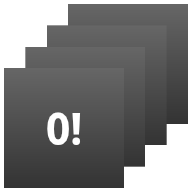
StackWidget。這個範例包含十個檢視畫面的堆疊,顯示零到九的值。範例小工具的主要行為如下:
使用者可以垂直滑動小工具中的頂層檢視畫面,顯示下一個或上一個檢視畫面。這是內建的
StackView行為。即使使用者未進行任何互動,小工具也會自動依序切換檢視畫面,就像投影片一樣。這是因為
res/xml/stackwidgetinfo.xml檔案中的android:autoAdvanceViewId="@id/stack_view"設定。這項設定適用於檢視畫面 ID,在本例中為堆疊檢視畫面的檢視畫面 ID。如果使用者輕觸頂端檢視畫面,小工具會顯示
Toast訊息「Touched view n」,其中 n 是輕觸檢視畫面的索引 (位置)。如要進一步瞭解如何實作行為,請參閱「為個別項目新增行為」一節。
實作含有集合的小工具
如要實作含有集合的小工具,請按照實作任何小工具的程序操作,然後執行幾個額外步驟:修改資訊清單、在小工具版面配置中新增集合檢視畫面,以及修改 AppWidgetProvider 子類別。
含有集合的小工具資訊清單
除了「在資訊清單中宣告小工具」一節列出的規定外,您還必須讓含有集合的小工具能夠繫結至 RemoteViewsService。方法是在資訊清單檔案中,使用 BIND_REMOTEVIEWS 權限宣告服務。這樣可以防止其他應用程式任意存取小工具的資料。
舉例來說,建立使用 RemoteViewsService 填入集合檢視畫面的小工具時,資訊清單項目可能如下所示:
<service android:name="MyWidgetService"
    android:permission="android.permission.BIND_REMOTEVIEWS" />
在這個範例中,android:name="MyWidgetService" 是指 RemoteViewsService 的子類別。
含有集合的小工具版面配置
小工具版面配置 XML 檔案的主要需求條件,是必須包含下列其中一個集合檢視畫面:ListView、GridView、StackView 或 AdapterViewFlipper。以下是 StackWidget 範例的 widget_layout.xml 檔案:
<FrameLayout xmlns:android="http://schemas.android.com/apk/res/android" android:layout_width="match_parent" android:layout_height="match_parent"> <StackView android:id="@+id/stack_view" android:layout_width="match_parent" android:layout_height="match_parent" android:gravity="center" android:loopViews="true" /> <TextView android:id="@+id/empty_view" android:layout_width="match_parent" android:layout_height="match_parent" android:gravity="center" android:background="@drawable/widget_item_background" android:textColor="#ffffff" android:textStyle="bold" android:text="@string/empty_view_text" android:textSize="20sp" /> </FrameLayout>
請注意,空白檢視畫面必須是集合檢視畫面的同層檢視畫面,空白檢視畫面才能代表空白狀態。
除了整個小工具的版面配置檔案外,請建立另一個版面配置檔案,定義集合中每個項目的版面配置,例如書籍集合中每本書的版面配置。StackWidget 範例只有一個項目版面配置檔案 widget_item.xml,因為所有項目都使用相同的版面配置。
含有集合的小工具 AppWidgetProvider 類別
與一般小工具一樣,AppWidgetProvider 子類別中的大部分程式碼通常會進入 onUpdate()。使用集合建立小工具時,onUpdate() 實作的主要差異在於您必須呼叫 setRemoteAdapter()。這會告知集合檢視畫面從何處取得資料。RemoteViewsService 接著會傳回 RemoteViewsFactory 的實作,小工具則會提供適當的資料。呼叫這個方法時,請傳遞指向 RemoteViewsService 實作的意圖,以及指定要更新的小工具 ID。
舉例來說,以下是 StackWidget 範例實作 onUpdate() 回呼方法的方式,將 RemoteViewsService 設為小工具集合的遠端轉接器:
override fun onUpdate( context: Context, appWidgetManager: AppWidgetManager, appWidgetIds: IntArray ) { // Update each of the widgets with the remote adapter. appWidgetIds.forEach { appWidgetId -> // Set up the intent that starts the StackViewService, which // provides the views for this collection. val intent = Intent(context, StackWidgetService::class.java).apply { // Add the widget ID to the intent extras. putExtra(AppWidgetManager.EXTRA_APPWIDGET_ID, appWidgetId) data = Uri.parse(toUri(Intent.URI_INTENT_SCHEME)) } // Instantiate the RemoteViews object for the widget layout. val views = RemoteViews(context.packageName, R.layout.widget_layout).apply { // Set up the RemoteViews object to use a RemoteViews adapter. // This adapter connects to a RemoteViewsService through the // specified intent. // This is how you populate the data. setRemoteAdapter(R.id.stack_view, intent) // The empty view is displayed when the collection has no items. // It must be in the same layout used to instantiate the // RemoteViews object. setEmptyView(R.id.stack_view, R.id.empty_view) } // Do additional processing specific to this widget. appWidgetManager.updateAppWidget(appWidgetId, views) } super.onUpdate(context, appWidgetManager, appWidgetIds) }
保存資料
如本頁所述,RemoteViewsService 子類別會提供用於填入遠端集合檢視畫面的 RemoteViewsFactory。
具體來說,請執行下列步驟:
子類別
RemoteViewsService。RemoteViewsService是遠端轉接程式可用來要求RemoteViews的服務。在
RemoteViewsService子類別中,加入實作RemoteViewsFactory介面的類別。RemoteViewsFactory是遠端集合檢視畫面 (例如ListView、GridView、StackView) 與該檢視畫面基礎資料之間的轉接器介面。您的實作項目負責為資料集中的每個項目建立RemoteViews物件。這個介面是Adapter的精簡包裝函式。
您無法依賴單一服務執行個體或其中包含的任何資料來持續運作。除非資料是靜態資料,否則請勿將資料儲存在 RemoteViewsService 中。如要保留小工具的資料,最好的做法是使用 ContentProvider,其資料會保留到程序生命週期結束後。舉例來說,雜貨店小工具可以將每個雜貨清單項目的狀態儲存在永久位置,例如 SQL 資料庫。
RemoteViewsService 實作的主要內容是 RemoteViewsFactory,詳情請參閱下一節。
RemoteViewsFactory 介面
實作 RemoteViewsFactory 介面的自訂類別會為小工具提供集合中項目的資料。為此,系統會將小工具項目 XML 版面配置檔案與資料來源結合。這個資料來源可以是資料庫或陣列。在 StackWidget 範例中,資料來源是 WidgetItems 陣列。RemoteViewsFactory 的功能是做為轉接器,將資料黏合至遠端集合檢視畫面。
您需要為 RemoteViewsFactory 子類別實作的兩個最重要方法是 onCreate() 和 getViewAt()。
系統會在首次建立工廠時呼叫 onCreate()。您可以在這裡設定資料來源的連線或游標。舉例來說,StackWidget 範例會使用 onCreate() 初始化 WidgetItem 物件陣列。小工具啟用時,系統會使用陣列中的索引位置存取這些物件,並顯示其中包含的文字。
以下是 StackWidget 範例的 RemoteViewsFactory 實作摘錄,顯示 onCreate() 方法的部分內容:
private const val REMOTE_VIEW_COUNT: Int = 10 class StackRemoteViewsFactory( private val context: Context ) : RemoteViewsService.RemoteViewsFactory { private lateinit var widgetItems: List<WidgetItem> override fun onCreate() { // In onCreate(), set up any connections or cursors to your data // source. Heavy lifting, such as downloading or creating content, // must be deferred to onDataSetChanged() or getViewAt(). Taking // more than 20 seconds on this call results in an ANR. widgetItems = List(REMOTE_VIEW_COUNT) { index -> WidgetItem("$index!") } } }
RemoteViewsFactory 方法 getViewAt() 會傳回與資料集中指定 position 資料相對應的 RemoteViews 物件。以下是 StackWidget 範例的 RemoteViewsFactory 實作摘錄:
override fun getViewAt(position: Int): RemoteViews { // Construct a remote views item based on the widget item XML file // and set the text based on the position. return RemoteViews(context.packageName, R.layout.widget_item).apply { setTextViewText(R.id.widget_item, widgetItems[position].text) } }
為個別項目新增行為
上述各節說明如何將資料繫結至小工具集合。但如果想在集合檢視畫面中為個別項目新增動態行為,該怎麼做?
如「使用 onUpdate() 類別處理事件」一文所述,您通常會使用 setOnClickPendingIntent() 設定物件的點擊行為,例如讓按鈕啟動 Activity。但個別集合項目中的子檢視畫面不允許採用這種方法。舉例來說,您可以使用 setOnClickPendingIntent() 在 Gmail 小工具中設定啟動應用程式的全域按鈕,但不要在個別清單項目上設定。
如要為集合中的個別項目新增點擊行為,請改用 setOnClickFillInIntent()。為集合檢視畫面設定待處理意圖範本,並使用 RemoteViewsFactory 為集合中的每個項目設定填入意圖。
本節將使用 StackWidget 範例,說明如何為個別項目新增行為。在 StackWidget 範例中,如果使用者輕觸頂端檢視畫面,小工具會顯示 Toast 訊息「Touched view n」,其中 n 是輕觸檢視畫面的索引 (位置)。這類廣告運作方式如下:
StackWidgetProvider(AppWidgetProvider子類別) 會建立待處理意圖,並使用名為TOAST_ACTION的自訂動作。當使用者輕觸檢視畫面時,意圖會觸發並廣播
TOAST_ACTION。這項廣播會由
StackWidgetProvider類別的onReceive()方法攔截,小工具則會顯示輕觸檢視畫面的Toast訊息。集合項目的資料是由RemoteViewsFactory透過RemoteViewsService提供。
設定待處理意圖範本
StackWidgetProvider (AppWidgetProvider 子類別) 會設定待處理意圖。集合中的個別項目無法設定自己的待處理意圖。而是由集合整體設定待處理意圖範本,並由個別項目設定填入意圖,為每個項目建立專屬行為。
這個類別也會接收使用者輕觸檢視畫面時傳送的廣播。並在 onReceive() 方法中處理這項事件。如果意圖的動作是 TOAST_ACTION,小工具會顯示目前檢視畫面的 Toast 訊息。
const val TOAST_ACTION = "com.example.android.stackwidget.TOAST_ACTION" const val EXTRA_ITEM = "com.example.android.stackwidget.EXTRA_ITEM" class StackWidgetProvider : AppWidgetProvider() { // ... // Called when the BroadcastReceiver receives an Intent broadcast. // Checks whether the intent's action is TOAST_ACTION. If it is, the // widget displays a Toast message for the current item. override fun onReceive(context: Context, intent: Intent) { val mgr: AppWidgetManager = AppWidgetManager.getInstance(context) if (intent.action == TOAST_ACTION) { val appWidgetId: Int = intent.getIntExtra( AppWidgetManager.EXTRA_APPWIDGET_ID, AppWidgetManager.INVALID_APPWIDGET_ID ) // EXTRA_ITEM represents a custom value provided by the Intent // passed to the setOnClickFillInIntent() method to indicate the // position of the clicked item. See StackRemoteViewsFactory in // Set the fill-in Intent for details. val viewIndex: Int = intent.getIntExtra(EXTRA_ITEM, 0) Toast.makeText(context, "Touched view $viewIndex", Toast.LENGTH_SHORT).show() } super.onReceive(context, intent) } override fun onUpdate( context: Context, appWidgetManager: AppWidgetManager, appWidgetIds: IntArray ) { // Update each of the widgets with the remote adapter. appWidgetIds.forEach { appWidgetId -> // Sets up the intent that points to the StackViewService that // provides the views for this collection. val intent = Intent(context, StackWidgetService::class.java).apply { putExtra(AppWidgetManager.EXTRA_APPWIDGET_ID, appWidgetId) // When intents are compared, the extras are ignored, so embed // the extra sinto the data so that the extras are not ignored. data = Uri.parse(toUri(Intent.URI_INTENT_SCHEME)) } val rv = RemoteViews(context.packageName, R.layout.widget_layout).apply { setRemoteAdapter(R.id.stack_view, intent) // The empty view is displayed when the collection has no items. // It must be a sibling of the collection view. setEmptyView(R.id.stack_view, R.id.empty_view) } // This section makes it possible for items to have individualized // behavior. It does this by setting up a pending intent template. // Individuals items of a collection can't set up their own pending // intents. Instead, the collection as a whole sets up a pending // intent template, and the individual items set a fillInIntent // to create unique behavior on an item-by-item basis. val toastPendingIntent: PendingIntent = Intent( context, StackWidgetProvider::class.java ).run { // Set the action for the intent. // When the user touches a particular view, it has the effect of // broadcasting TOAST_ACTION. action = TOAST_ACTION putExtra(AppWidgetManager.EXTRA_APPWIDGET_ID, appWidgetId) data = Uri.parse(toUri(Intent.URI_INTENT_SCHEME)) // The template must be mutable, because each item fills in its // own extras through setOnClickFillInIntent(). PendingIntent.getBroadcast( context, 0, this, PendingIntent.FLAG_UPDATE_CURRENT or PendingIntent.FLAG_MUTABLE ) } rv.setPendingIntentTemplate(R.id.stack_view, toastPendingIntent) appWidgetManager.updateAppWidget(appWidgetId, rv) } super.onUpdate(context, appWidgetManager, appWidgetIds) } }
設定填入意圖
RemoteViewsFactory 必須為集合中的每個項目設定填入意圖。這樣就能區分特定項目的個別點擊動作。接著,系統會將填入意圖與 PendingIntent 範本結合,決定輕觸項目時執行的最終意圖。
private const val REMOTE_VIEW_COUNT: Int = 10 class StackRemoteViewsFactory( private val context: Context, intent: Intent ) : RemoteViewsService.RemoteViewsFactory { private lateinit var widgetItems: List<WidgetItem> private val appWidgetId: Int = intent.getIntExtra( AppWidgetManager.EXTRA_APPWIDGET_ID, AppWidgetManager.INVALID_APPWIDGET_ID ) override fun onCreate() { // In onCreate(), set up any connections or cursors to your data source. // Heavy lifting, such as downloading or creating content, must be // deferred to onDataSetChanged() or getViewAt(). Taking more than 20 // seconds on this call results in an ANR. widgetItems = List(REMOTE_VIEW_COUNT) { index -> WidgetItem("$index!") } // ... } // ... override fun getViewAt(position: Int): RemoteViews { // Construct a remote views item based on the widget item XML file // and set the text based on the position. return RemoteViews(context.packageName, R.layout.widget_item).apply { setTextViewText(R.id.widget_item, widgetItems[position].text) // Set a fill-intent to fill in the pending intent template. // that is set on the collection view in StackWidgetProvider. val fillInIntent = Intent().apply { Bundle().also { extras -> extras.putInt(EXTRA_ITEM, position) putExtras(extras) } } // Make it possible to distinguish the individual on-click // action of a given item. setOnClickFillInIntent(R.id.widget_item, fillInIntent) // ... } } // ... }
保持產品素材資源集合資料最新
圖 2 說明使用集合的小工具更新流程。說明小工具程式碼如何與 RemoteViewsFactory 互動,以及如何觸發更新:
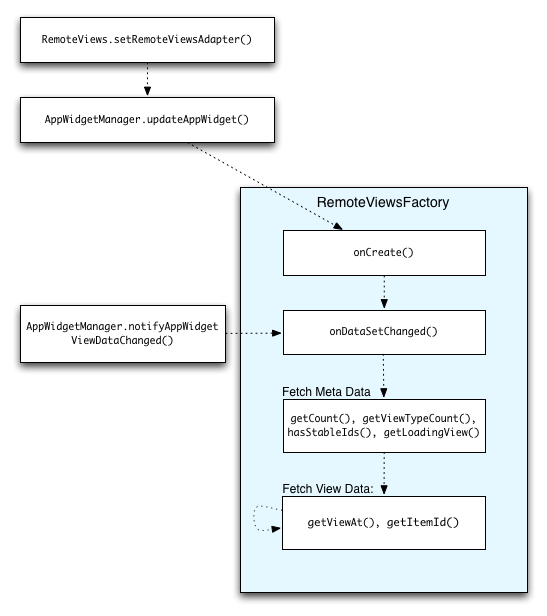
RemoteViewsFactory互動。使用集合的小工具可為使用者提供最新內容。舉例來說,Gmail 小工具可讓使用者快速查看收件匣。為此,請觸發 RemoteViewsFactory 和集合檢視畫面,擷取並顯示新資料。
方法是使用 AppWidgetManager 呼叫 notifyAppWidgetViewDataChanged()。這項呼叫會導致回呼至 RemoteViewsFactory 物件的 onDataSetChanged() 方法,讓您擷取任何新資料。
您可以在 onDataSetChanged() 回呼中同步執行需要大量處理的作業。這項呼叫會在從 RemoteViewsFactory 擷取中繼資料或檢視資料之前完成。您也可以在 getViewAt() 方法中執行處理密集型作業。如果呼叫時間過長,系統會在集合檢視畫面的對應位置,顯示 RemoteViewsFactory 物件 getLoadingView() 方法指定的載入檢視畫面,直到呼叫傳回為止。
使用 RemoteCollectionItems 直接傳遞集合
Android 12 (API 級別 31) 新增 setRemoteAdapter(int viewId,
RemoteViews.RemoteCollectionItems
items) 方法,可讓應用程式在填入集合檢視畫面時直接傳遞集合。如果使用這個方法設定轉接程式,就不需要實作 RemoteViewsFactory,也不需要呼叫 notifyAppWidgetViewDataChanged()。
除了能更輕鬆地填入轉接程式,這種方法還能消除使用者捲動清單顯示新項目時,填入新項目的延遲時間。只要集合項目數量相對較少,建議採用這種設定轉接程式的方法。不過,舉例來說,如果集合包含許多傳遞至 setImageViewBitmap 的 Bitmaps,這個方法就不太適用。
如果集合不使用一組固定的版面配置,也就是說,如果某些項目只在某些時候出現,請使用 setViewTypeCount 指定集合可包含的不重複版面配置數量上限。這樣一來,在應用程式小工具更新時,轉接器就能重複使用。
以下範例說明如何實作簡化的 RemoteViews 集合。
val itemLayouts = listOf( R.layout.item_type_1, R.layout.item_type_2, // ... ) remoteView.setRemoteAdapter( R.id.list_view, RemoteViews.RemoteCollectionItems.Builder() .addItem(/* id= */ ID_1, RemoteViews(context.packageName, R.layout.item_type_1)) .addItem(/* id= */ ID_2, RemoteViews(context.packageName, R.layout.item_type_2)) // ... .setViewTypeCount(itemLayouts.count()) .build() )