良好的视觉设计对于成功的应用至关重要,而配色方案是设计的主要组成部分。Palette 库是一个 Jetpack 库,可从图片中提取突出颜色,以打造具有视觉吸引力的应用。
您可以使用 Palette 库设计布局主题,并将自定义颜色应用于应用中的视觉元素。例如,您可以使用调色板根据歌曲的专辑封面为歌曲创建颜色协调的片头字幕,或在应用的背景图片发生变化时调整应用的工具栏颜色。借助 Palette 对象,您可以访问 Bitmap 图片中的颜色,同时该对象还提供位图中的六种主要颜色配置文件,以便您做出设计选择。
设置调色板库
如需使用 Palette 库,请将以下内容添加到 build.gradle 中:
Kotlin
android {
    compileSdkVersion(36)
    ...
}

dependencies {
    ...
    implementation("androidx.palette:palette:1.0.0")
}
Groovy
android {
    compileSdkVersion 36
    ...
}

dependencies {
    ...
    implementation 'androidx.palette:palette:1.0.0'
}
创建调色板
通过 Palette 对象,您可以访问图片中的主要颜色以及叠加文本的对应颜色。您可以使用调色板来设计应用的样式,并根据给定的源图片动态更改应用的配色方案。
如需创建调色板,请先通过 Bitmap 实例化 Palette.Builder。然后,您可以使用 Palette.Builder 自定义调色板,然后再生成调色板。本部分介绍了如何通过位图图片生成和自定义调色板。
生成调色板实例
使用 Palette 实例的 from(Bitmap bitmap) 方法,首先通过 Bitmap 创建 Palette.Builder。
构建器可以同步或异步生成调色板。如果您想在与所调用方法相同的线程上创建调色板,请使用同步调色板生成。如果您在其他线程上异步生成调色板,请使用 onGenerated() 方法在调色板创建后立即访问它。
以下代码段提供了这两种调色板生成类型的示例方法:
Kotlin
// Generate palette synchronously and return it.
fun createPaletteSync(bitmap: Bitmap): Palette = Palette.from(bitmap).generate()

// Generate palette asynchronously and use it on a different thread using onGenerated().
fun createPaletteAsync(bitmap: Bitmap) {
    Palette.from(bitmap).generate { palette ->
        // Use generated instance.
    }
}
Java
// Generate palette synchronously and return it.
public Palette createPaletteSync(Bitmap bitmap) {
  Palette p = Palette.from(bitmap).generate();
  return p;
}

// Generate palette asynchronously and use it on a different thread using onGenerated().
public void createPaletteAsync(Bitmap bitmap) {
  Palette.from(bitmap).generate(new PaletteAsyncListener() {
    public void onGenerated(Palette p) {
      // Use generated instance.
    }
  });
}
如果您需要为已排序的图片或对象列表持续生成调色板,请考虑缓存 Palette 实例,以防止界面性能下降。请勿在主线程上创建调色板。
自定义调色板
Palette.Builder 允许您自定义调色板,方法是选择生成的调色板中包含多少种颜色、构建器使用图片的哪个区域来生成调色板,以及调色板中包含哪些颜色。例如,您可以滤除黑色,或确保构建器仅使用图片的上半部分来生成调色板。
使用 Palette.Builder 类中的以下方法微调调色板的大小和颜色:
addFilter()- 此方法会添加一个过滤器,用于指明生成的调色板中允许使用哪些颜色。传入您自己的
Palette.Filter并修改其isAllowed()方法,以确定从调色板中滤除哪些颜色。 maximumColorCount()- 此方法可用于设置调色板中的颜色数量上限。默认值为 16,最佳值取决于来源图片。对于风景,最佳值范围为 8-16,而包含人脸的图片通常具有 24-32 的值。
Palette.Builder需要更长时间才能生成包含更多颜色的调色板。 setRegion()- 此方法指示构建器在创建调色板时使用位图的哪个区域。您只能在从位图生成调色板时使用此方法,并且它不会影响原始图片。
addTarget()- 此方法可让您通过向构建器添加
Target颜色配置文件来执行自己的颜色匹配。如果默认Target不够用,高级开发者可以使用Target.Builder创建自己的Target。
提取颜色配置文件
Palette 库根据 Material Design 标准从图片中提取常用颜色配置文件。每个配置文件都由一个 Target 定义,并且系统会根据饱和度、亮度和填充度(位图中由相应颜色表示的像素数)针对每个配置文件对从位图图片中提取的颜色进行评分。对于每个配置文件,得分最高的颜色定义了给定图片的颜色配置文件。
默认情况下,Palette 对象包含给定图片中的 16 种主要颜色。生成调色板时,您可以使用 Palette.Builder 自定义其颜色数量。提取更多颜色可为每个颜色配置文件提供更多潜在匹配项,但也会导致 Palette.Builder 在生成调色板时花费更长时间。
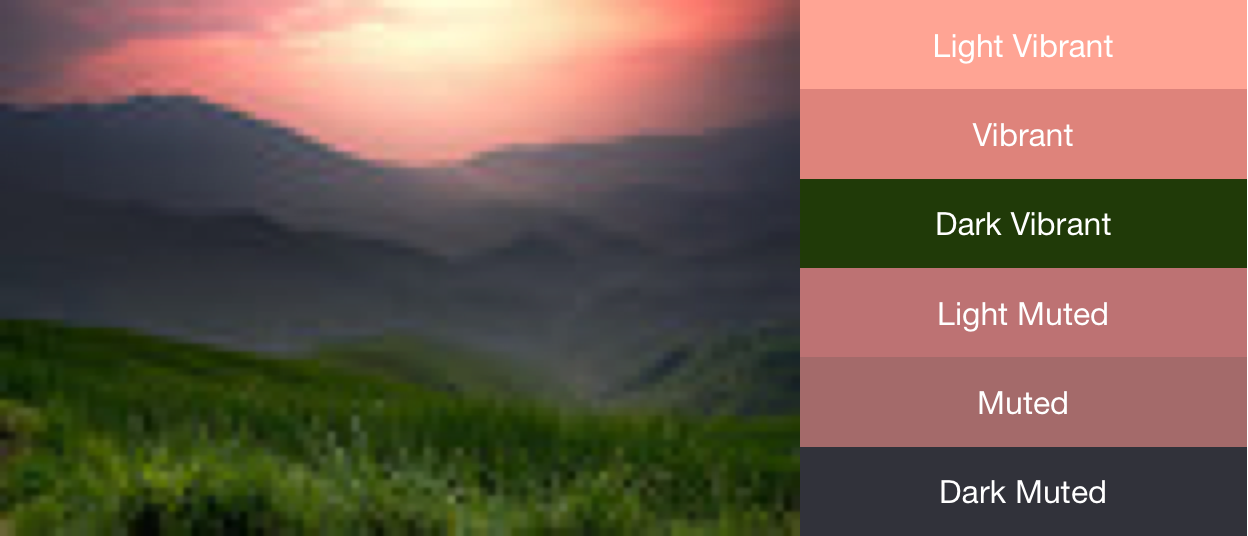
Palette 库会尝试提取以下六种颜色配置文件:
- Light Vibrant
- Vibrant
- Dark Vibrant
- Light Muted
- Muted
- Dark Muted
Palette 中的每个 get<Profile>Color() 方法都会返回与该特定配置文件关联的调色板中的颜色,其中 <Profile> 会替换为六种颜色配置文件之一的名称。例如,获取深色鲜艳颜色配置的方法是 getDarkVibrantColor()。
由于并非所有图片都包含所有颜色配置文件,因此请提供要返回的默认颜色。
图 1 显示了一张照片及其通过 get<Profile>Color() 方法获得的相应颜色配置文件。
使用色样创建配色方案
Palette 类还会为每个颜色配置文件生成 Palette.Swatch 对象。Palette.Swatch 对象包含该配置文件的关联颜色以及该颜色的像素数量。
色样具有其他方法,可用于访问有关颜色配置文件的更多信息,例如 HSL 值和像素填充。您可以使用色板,通过 getBodyTextColor() 和 getTitleTextColor() 方法帮助创建更全面的配色方案和应用主题。这些方法会返回适合在色板颜色上使用的颜色。
Palette 中的每个 get<Profile>Swatch() 方法都会返回与该特定配置文件关联的色样,其中 <Profile> 会替换为六种颜色配置文件之一的名称。虽然调色板的 get<Profile>Swatch() 方法不需要默认值参数,但如果图片中不存在该特定色调,它们会返回 null。因此,请在使用色样之前检查其是否不为 null。例如,如果 Vibrant 色板不为 null,以下代码会从调色板中获取标题文本颜色:
Kotlin
val vibrant = myPalette.vibrantSwatch
// In Kotlin, check for null before accessing properties on the vibrant swatch.
val titleColor = vibrant?.titleTextColor
Java
Palette.Swatch vibrant = myPalette.getVibrantSwatch();
if(vibrant != null){
    int titleColor = vibrant.getTitleTextColor();
    // ...
}
如需访问调色板中的所有颜色,getSwatches() 方法会返回根据图片生成的所有色样的列表,包括标准的六种颜色配置文件。
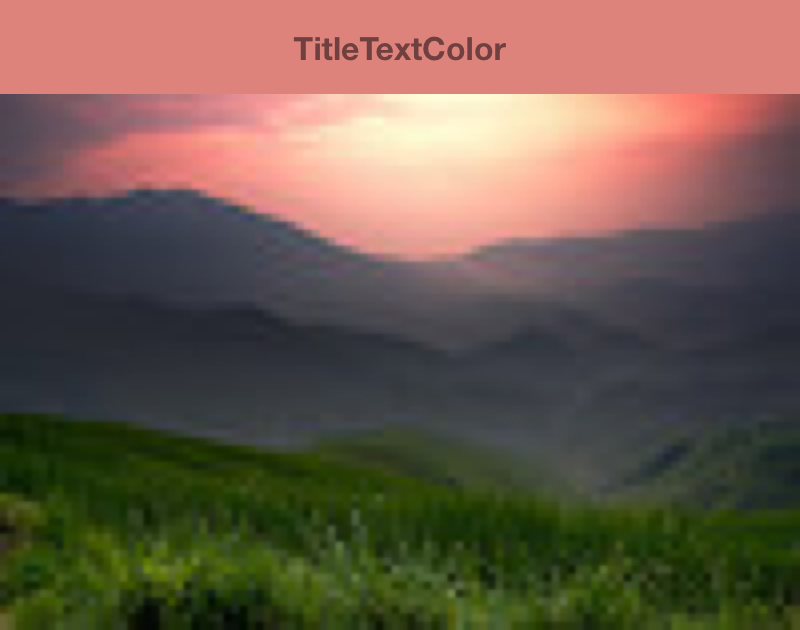
以下代码段使用上述代码段中的方法来同步生成调色板、获取其鲜艳色样,并更改工具栏的颜色以匹配位图图片。图 2 显示了生成的图片和工具栏。
Kotlin
// Set the background and text colors of a toolbar given a bitmap image to
// match.
fun setToolbarColor(bitmap: Bitmap) {
    // Generate the palette and get the vibrant swatch.
    val vibrantSwatch = createPaletteSync(bitmap).vibrantSwatch

    // Set the toolbar background and text colors.
    // Fall back to default colors if the vibrant swatch isn't available.
    with(findViewById<Toolbar>(R.id.toolbar)) {
        setBackgroundColor(vibrantSwatch?.rgb ?:
                ContextCompat.getColor(context, R.color.default_title_background))
        setTitleTextColor(vibrantSwatch?.titleTextColor ?:
                ContextCompat.getColor(context, R.color.default_title_color))
    }
}
Java
// Set the background and text colors of a toolbar given a bitmap image to
// match.
public void setToolbarColor(Bitmap bitmap) {
    // Generate the palette and get the vibrant swatch.
    // See the createPaletteSync() method from the preceding code snippet.
    Palette p = createPaletteSync(bitmap);
    Palette.Swatch vibrantSwatch = p.getVibrantSwatch();

    Toolbar toolbar = (Toolbar) findViewById(R.id.toolbar);

    // Load default colors.
    int backgroundColor = ContextCompat.getColor(getContext(),
        R.color.default_title_background);
    int textColor = ContextCompat.getColor(getContext(),
        R.color.default_title_color);

    // Check that the Vibrant swatch is available.
    if(vibrantSwatch != null){
        backgroundColor = vibrantSwatch.getRgb();
        textColor = vibrantSwatch.getTitleTextColor();
    }

    // Set the toolbar background and text colors.
    toolbar.setBackgroundColor(backgroundColor);
        toolbar.setTitleTextColor(textColor);
}