

Using WindowInsetsCompat,
your app can query and control the on-screen keyboard (also called the
IME) similar to the
way it interacts with the system bars. Your app can also use
WindowInsetsAnimationCompat
to create seamless transitions when the software keyboard is opened or closed.
Prerequisites
Before setting up control and animation for the software keyboard, configure your app to display edge-to-edge. This lets it handle system window insets such as the system bars and the on-screen keyboard.
Default synchronized insets animation
From API level 37.2 and higher, applications that use the default window layout
adjustments (such as SOFT_INPUT_ADJUST_RESIZE or SOFT_INPUT_ADJUST_PAN when
showing the IME using WindowInsetsController.show(WindowInsets.Type.ime()))
without implementing a custom WindowInsetsAnimationCompat.Callback can benefit
from system-level synchronized frame-by-frame animations. When enabled, this
feature automatically applies the insets on every frame and triggers a layout
pass, creating a smooth transition as the keyboard moves.
To enable this behavior, add the following <property> tag to your activity or
application in the AndroidManifest.xml file:
<property
    android:name="android.window.PROPERTY_COMPAT_ALLOW_SYNCHRONIZED_INSETS_ANIMATION"
    android:value="true" />
Perform insets animations off the main thread
By default, registering a
WindowInsetsAnimationCompat.Callback enforces that the
window inset animation runs on the app's main thread. This is necessary if your
app is continuously updating and synchronizing its view layout
during the animation (such as in the onProgress method). However, if your app
only needs to listen to lifecycle transitions (such as when the IME starts or
ends animating) and doesn't need to update views frame-by-frame, running on the
main thread can cause unnecessary overhead and animation stutter—especially if
the main thread is otherwise busy.
From API level 37.2 and higher, you can use
ViewTreeObserver.WindowInsetsAnimationListener
to observe these transitions instead. Because this listener doesn't receive
frame-by-frame progress updates (no onProgress callback), the system can run
the inset animation on a dedicated animation thread rather than the main thread,
resulting in a smoother transition.
Kotlin
val listener = object : ViewTreeObserver.WindowInsetsAnimationListener {
  override fun onPrepare(animation: WindowInsetsAnimation) {
    // Handle preparation before animation starts
  }

  override fun onEnd(animation: WindowInsetsAnimation) {
    // Clean up temporary changes
  }
}

// Add the listener
view.viewTreeObserver.addWindowInsetsAnimationListener(listener)

// Remove the listener when no longer needed
view.viewTreeObserver.removeWindowInsetsAnimationListener(listener)
Java
ViewTreeObserver.WindowInsetsAnimationListener listener =
    new ViewTreeObserver.WindowInsetsAnimationListener() {
      @Override
      public void onPrepare(@NonNull WindowInsetsAnimation animation) {
        // Handle preparation before animation starts
      }

      @Override
      public void onEnd(@NonNull WindowInsetsAnimation animation) {
        // Clean up temporary changes
      }
    };

// Add the listener
view.getViewTreeObserver().addWindowInsetsAnimationListener(listener);

// Remove the listener when no longer needed
view.getViewTreeObserver().removeWindowInsetsAnimationListener(listener);
Check keyboard software visibility
Use WindowInsets to check the software
keyboard visibility.
Kotlin
val insets = ViewCompat.getRootWindowInsets(view) ?: return
val imeVisible = insets.isVisible(WindowInsetsCompat.Type.ime())
val imeHeight = insets.getInsets(WindowInsetsCompat.Type.ime()).bottom
Java
WindowInsetsCompat insets = ViewCompat.getRootWindowInsets(view);
boolean imeVisible = insets.isVisible(WindowInsetsCompat.Type.ime());
int imeHeight = insets.getInsets(WindowInsetsCompat.Type.ime()).bottom;
Alternatively, you can use
ViewCompat.setOnApplyWindowInsetsListener
to observe changes to software keyboard visibility.
Kotlin
ViewCompat.setOnApplyWindowInsetsListener(view) { _, insets ->
  val imeVisible = insets.isVisible(WindowInsetsCompat.Type.ime())
  val imeHeight = insets.getInsets(WindowInsetsCompat.Type.ime()).bottom
  insets
}
Java
ViewCompat.setOnApplyWindowInsetsListener(view, (v, insets) -> {
  boolean imeVisible = insets.isVisible(WindowInsetsCompat.Type.ime());
  int imeHeight = insets.getInsets(WindowInsetsCompat.Type.ime()).bottom;
  return insets;
});
Synchronize animation with the software keyboard
A user tapping a text input field causes the keyboard to slide into place from the bottom of the screen, as shown in the following example:
The example labeled "Unsynchronized" in figure 2 shows the default behavior in Android 10 (API level 29), in which the text field and content of the app snap into place instead of synchronizing with the keyboard's animation—behavior that can be visually jarring.
In Android 11 (API level 30) and higher, you can use
WindowInsetsAnimationCompatto synchronize the transition of the app with the keyboard sliding up and down from the bottom of the screen. This looks smoother, as shown in the example labeled "Synchronized" in figure 2.
Configure
WindowInsetsAnimationCompat.Callback
with the view to be synchronized with the keyboard animation.
Kotlin
ViewCompat.setWindowInsetsAnimationCallback(
  view,
  object : WindowInsetsAnimationCompat.Callback(DISPATCH_MODE_STOP) {
    // Override methods.
  }
)
Java
ViewCompat.setWindowInsetsAnimationCallback(
    view,
    new WindowInsetsAnimationCompat.Callback(
        WindowInsetsAnimationCompat.Callback.DISPATCH_MODE_STOP
    ) {
      // Override methods.
    });
There are several methods to override in WindowInsetsAnimationCompat.Callback,
namely
onPrepare(),
onStart(),
onProgress(),
and
onEnd().
Start with calling onPrepare() before any of the layout changes.
onPrepare is called when an insets animation is starting and before the views
are re-laid out due to an animation. You can use it to save the start state,
which in this case is the bottom coordinate of the view.
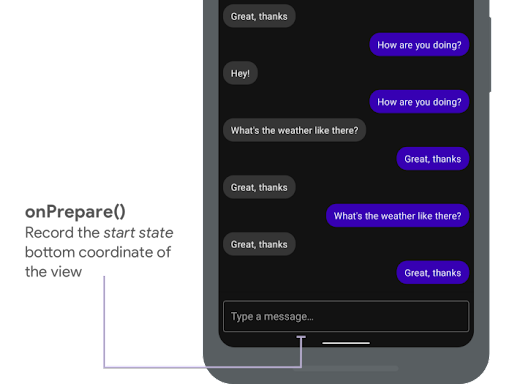
onPrepare() to
record the start state.
The following snippet shows a sample call to onPrepare:
Kotlin
var startBottom = 0f

override fun onPrepare(
  animation: WindowInsetsAnimationCompat
) {
  startBottom = view.bottom.toFloat()
}
Java
float startBottom;

@Override
public void onPrepare(
    @NonNull WindowInsetsAnimationCompat animation
) {
  startBottom = view.getBottom();
}
onStart is called when an insets animation starts. You can use it to set all
the view properties to the end state of the layout changes. If you have an
OnApplyWindowInsetsListener callback set to any of the views, it is already
called at this point. This is a good time to save the end state of the view
properties.
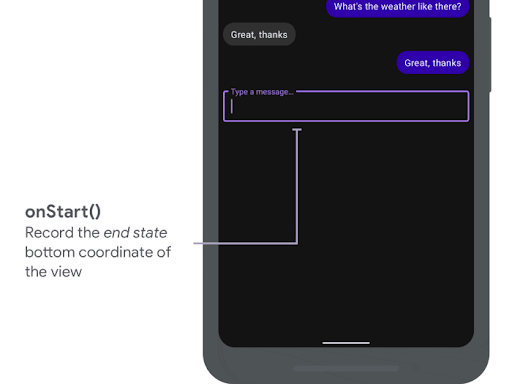
onStart() to record
the end state.
The following snippet shows a sample call to onStart:
Kotlin
var endBottom = 0f

override fun onStart(
  animation: WindowInsetsAnimationCompat,
  bounds: WindowInsetsAnimationCompat.BoundsCompat
): WindowInsetsAnimationCompat.BoundsCompat {
  // Record the position of the view after the IME transition.
  endBottom = view.bottom.toFloat()

  return bounds
}
Java
float endBottom;

@NonNull
@Override
public WindowInsetsAnimationCompat.BoundsCompat onStart(
    @NonNull WindowInsetsAnimationCompat animation,
    @NonNull WindowInsetsAnimationCompat.BoundsCompat bounds
) {
  endBottom = view.getBottom();
  return bounds;
}
onProgress is called when the insets change as part of running an animation,
so you can override it and be notified on every frame during the keyboard
animation. Update the view properties so that the view animates in
synchronization with the keyboard.
All the layout changes are complete at this point. For example, if you use
View.translationY to shift the view, the value gradually decreases for every
call of this method and eventually reaches 0 to the original layout position.
onProgress() to
synchronize the animations.
The following snippet shows a sample call to onProgress:
Kotlin
override fun onProgress(
  insets: WindowInsetsCompat,
  runningAnimations: MutableList<WindowInsetsAnimationCompat>
): WindowInsetsCompat {
  // Find an IME animation.
  val imeAnimation = runningAnimations.find {
    it.typeMask and WindowInsetsCompat.Type.ime() != 0
  } ?: return insets

  // Offset the view based on the interpolated fraction of the IME animation.
  view.translationY =
    (startBottom - endBottom) * (1 - imeAnimation.interpolatedFraction)

  return insets
}
Java
@NonNull
@Override
public WindowInsetsCompat onProgress(
    @NonNull WindowInsetsCompat insets,
    @NonNull List<WindowInsetsAnimationCompat> runningAnimations
) {
  // Find an IME animation.
  WindowInsetsAnimationCompat imeAnimation = null;
  for (WindowInsetsAnimationCompat animation : runningAnimations) {
    if ((animation.getTypeMask() & WindowInsetsCompat.Type.ime()) != 0) {
      imeAnimation = animation;
      break;
    }
  }
  if (imeAnimation != null) {
    // Offset the view based on the interpolated fraction of the IME animation.
    view.setTranslationY((startBottom - endBottom)

        *   (1 - imeAnimation.getInterpolatedFraction()));
  }
  return insets;
}
Optionally, you can override onEnd. This method is called after the animation
is over. This is a good time to clean up any temporary changes.
Additional resources
- WindowInsetsAnimation on GitHub.