


在 Jetpack Compose Glimmer 中,Card 元件是相關內容的主要容器,可為容易理解的資訊單元建立清楚的視覺界線。資訊卡具有高度適應性,可支援主要內容、選用標題、副標題,以及開頭或結尾圖示的組合。資訊卡預設會填滿可用的最大寬度,且可成為焦點,您也可以讓資訊卡可供點選。資訊卡支援直向排列,最上方是標題圖片,接著是標題、副標題和內文。
資訊卡是以 Jetpack Compose Glimmer 介面系統為基礎建構,因此會沿用深度效果、剪裁和一致的邊框醒目顯示等實體屬性。
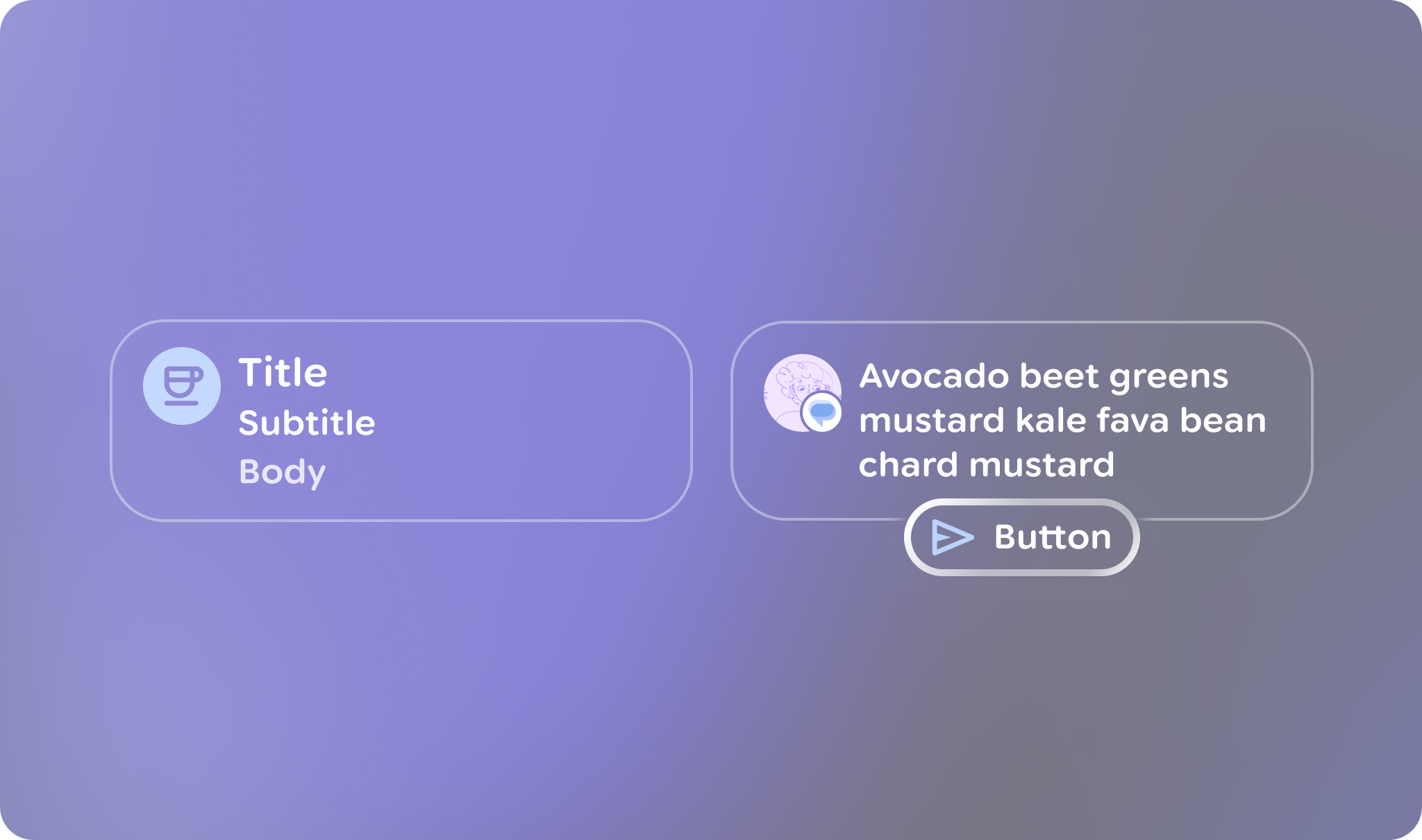
結構和插槽
Jetpack Compose Glimmer 資訊卡是由多個專用元素建構而成,可供您自訂內容和版面配置。
| 運算單元 | 說明 |
|---|---|
標題 |
卡片的頂端部分,用於放置圖片。 |
標題和副標題 |
這些文字欄位提供資訊卡的標籤,包括主要和次要標籤。標題會顯示在子標題上方。 |
前置圖示 |
顯示在卡片內容區域開頭的選用圖示 (通常為 |
尾端圖示 |
顯示在資訊卡內容區域結尾處的選用圖示。 |
主要內容 |
資訊卡的主要 |
資訊卡預設值
資訊卡適用下列預設值:
- 寬度:資訊卡會填滿螢幕可用的最大寬度,以利在顯示型眼鏡上閱讀。
- 最低高度:
80.dp - 文字垂直間距:
3.dp - 標題形狀:使用
RoundedCornerShape,並採用24.dp圓角 - 內容邊框間距:預設為
GlimmerTheme.componentSpacingValues.medium。這會影響標題圖片和內容容器周圍最外層的邊框間距。 - 形狀:預設為
GlimmerTheme.shapes.medium。 文字轉譯:針對下列插槽使用
GlimmerTheme.typography的預設值:- 標題:
bodyMedium - 子標題:
caption - 主要內容:
bodySmall
- 標題:
範例:基本資訊卡
以下程式碼顯示建構資訊卡所需的最低程式碼:
Card { Text("This is a card") }
範例:含有多個運算單元的資訊卡
以下程式碼說明如何搭配使用多個位置,建構資訊卡:
Card( title = { Text("Card Title", style = GlimmerTheme.typography.titleMedium) }, subtitle = { Text("Sub-heading text", style = GlimmerTheme.typography.titleSmall) }, leadingIcon = { Icon(FavoriteIcon, contentDescription = "Favorite") }, trailingIcon = { Icon(BookmarkIcon, contentDescription = "Bookmark") } ) { Text("This is a complete card") }
程式碼重點
- 說明如何使用各種資訊卡元素 (例如
title、subtitle和leadingIcon) 自訂資訊卡的內容和結構。 - 使用
Card多載搭配onClick,讓整個資訊卡介面具有互動性。
動作資訊卡
如要在資訊卡中加入動作按鈕,請使用 ActionCard。動作資訊卡與標準資訊卡包含相同的元素,但動作資訊卡還會納入額外的 action 參數,用於定義底部按鈕。

ActionCard 範例。範例:基本動作資訊卡
這段程式碼說明如何建立 ActionCard:
ActionCard( action = { Button(onClick = {}, trailingIcon = { Icon(FavoriteIcon, "Localized description") }) { Text("Send") } } ) { Text("This is a card with a title, leading icon, header image, and action") }
範例:含有圖示的動作資訊卡
這段程式碼顯示如何建立含有圖示的較複雜 ActionCard:
ActionCard( title = { Text("Card Title", style = GlimmerTheme.typography.titleMedium) }, subtitle = { Text("Sub-heading text", style = GlimmerTheme.typography.titleSmall) }, leadingIcon = { Icon(FavoriteIcon, contentDescription = "Favorite") }, action = { Button(onClick = { /* Handle action */ }) { Text("Action") } } ) { Text( "This is the main body content of the card, utilizing theme-tokens for consistent styling.", style = GlimmerTheme.typography.bodyMedium ) }