

Different types of audio glasses and display glasses have different capabilities. For example, while all audio glasses and display glasses feature audio experiences through voice, only display glasses have a display where your app can show UIs built with Jetpack Compose Glimmer.
To create a seamless user experience across a range of devices, plan your
Activity for glasses to check for different device capabilities. This
approach simplifies development by letting you build one activity that adapts
its behavior, rather than multiple activities that target specific devices.
Understand the lifecycle of projected activities
The activity that you build for audio glasses and display glasses doesn't run directly on the device, but is instead projected to the device from a host device (such as user's phone). Dedicated activities that you build for this purpose are projected activities. The lifecycle of projected activities is built off the standard activity lifecycle, but it also includes several key differences that support the capabilities of different types of audio glasses and display glasses.
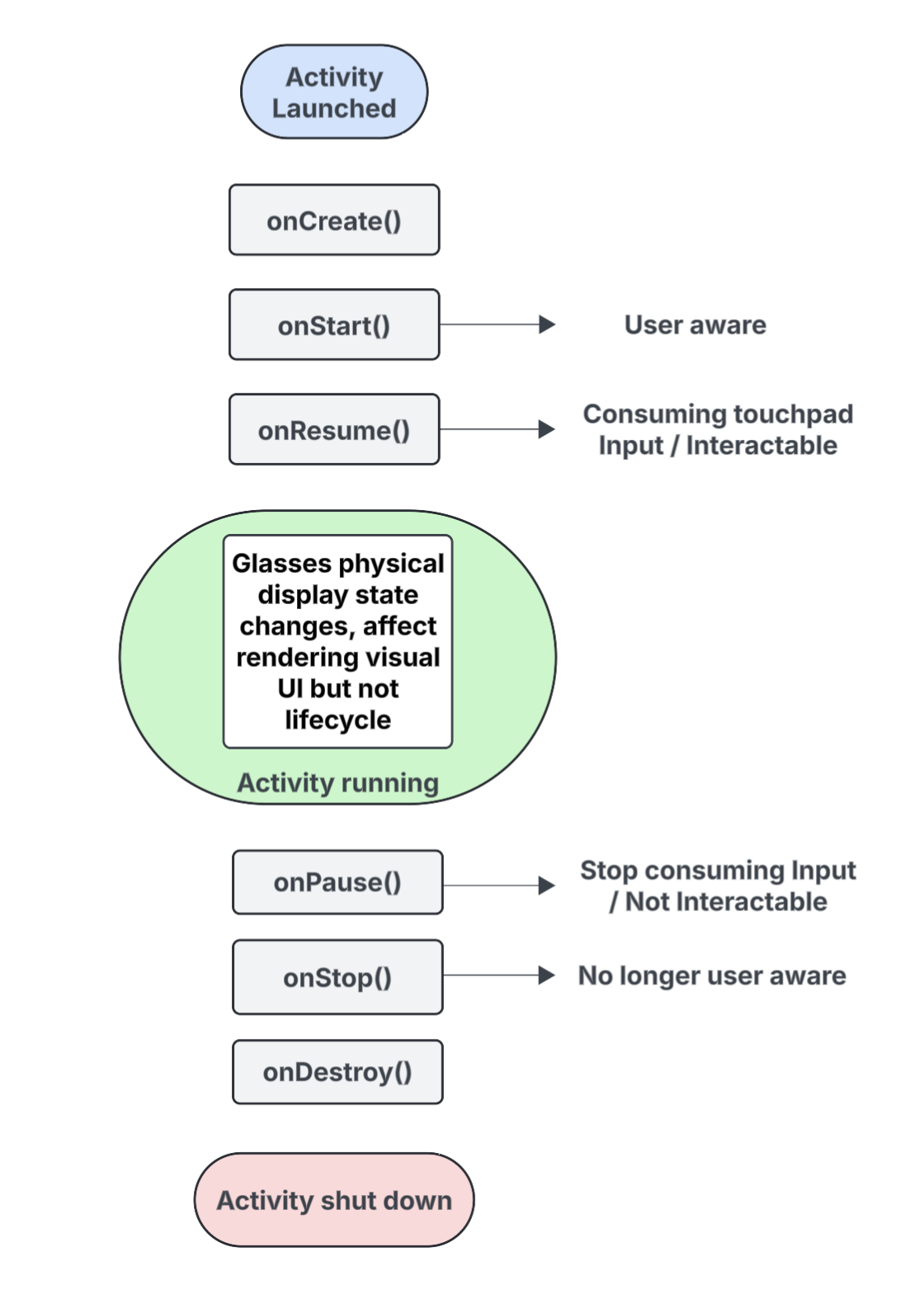
Here is a breakdown of the key events, with callouts for interactions that are specific to activities that are projected to audio glasses and display glasses:
onCreate()- Called when the projected activity is created.
- Initialize your app's Jetpack Compose Glimmer UI and other components here.
onStart()- Called when the projected activity is starting and the user is aware of the app.
onResume()- Called when the projected activity regains focus. While the activity is in focus, it is interactable and can consume touchpad or button input.
- Called when the glasses are put back on (donned), after they were previously taken off the head (doffed).
onPause()- Called when the projected activity loses focus, but the user is still aware of your app. While the activity is out of focus, it isn't interactable stops consuming input.
onStop()- Called when the system believes the user is no longer aware of your app.
- Called when the glasses are removed from the head (doffed).
onDestroy()- Called when the projected activity is about to be destroyed. When this is called, the system releases all resources that are tied to the activity.
Understand how display state affects the projected activity lifecycle
In a standard Activity, the lifecycle state changes when the device's
screen turns off, typically moving to onPause() or onStop(). In
contrast, the projected activity lifecycle doesn't change when the glasses'
display turns on or off. This behavior means your projected activity continues
to run in the Started or Resumed state even when the display is off, which lets
your app's audio experiences continue without interruption.
Other activity state changes triggered by different system and user events behave the usual way.
Understand how user awareness affects your projected activity
A user can be aware of your projected activity even if it's not visible. Awareness refers to all the ways a user can sense and interact with your app's experiences, including the following:
- Listening to audio, audible feedback, or other sound cues.
- App actions that trigger a user-facing LED, such as a privacy indicator if your app accesses the camera or microphone.
In these situations, the user is aware that the audio glasses and display glasses are active and responding, even if they aren't looking at a display:
- The
onStart()state for projected activities means the activity is active. - The
onResume()state means the activity is interactable and can receive touchpad input, or is receiving primary input dispatch.
So long as the user is aware of your app, your activity remains active and in
the foreground. If the system doesn't detect any signals of awareness for a
short period of time, the system removes the activity from the foreground and
eventually triggers onStop().
Understand projected activities and projected contexts
Audio glasses and display glasses are treated as a connected device that extends
the capabilities of a user's phone. A projected context is a device-aware
Context that lets apps interact with the hardware on a connected glasses
device—such as its sensors, camera, or microphone—rather than the phone's
hardware. As you develop experiences for audio glasses and display glasses, your
app must use a projected context to access the glasses' hardware.
A projected context can be automatically granted to your app depending on the calling activity's context:
For projected activities: If your app's code is running from within your projected activity, its own activity context is already a projected context. In this scenario, calls made within that activity can already access the glasses' hardware.
For phone apps or services: If a part of your app outside of your projected activity (such as a phone activity or a service) needs to access the glasses' hardware, it must explicitly obtain a projected context. To do this, use the
createProjectedDeviceContext()method.
For more information, see Use a projected context to access hardware on audio glasses and display glasses.
Understand device-aware APIs
Some standard Android APIs change which device's hardware they access depending
on the calling activity's Context. When these APIs receive a projected
context, they access the glasses' hardware instead of the hardware on the host
phone device:
CameraManager: Accesses the camera on the glasses.SensorManager: Retrieves sensor data (for example, gyroscope or accelerometer data) from the glasses.AudioManager: Manages audio streams, volume, and routing on the glasses.AudioRecord: Captures audio using the glasses' microphone.