

หากต้องการให้การแจ้งเตือนดูดีที่สุดใน Android เวอร์ชันต่างๆ ให้ใช้เทมเพลตการแจ้งเตือนมาตรฐานเพื่อสร้างการแจ้งเตือน หาก ต้องการใส่เนื้อหาเพิ่มเติมในการแจ้งเตือน ให้ลองใช้ เทมเพลตการแจ้งเตือนที่ขยายได้
อย่างไรก็ตาม หากเทมเพลตของระบบไม่ตรงกับความต้องการของคุณ คุณสามารถใช้เลย์เอาต์ของคุณเองสำหรับการแจ้งเตือนได้
สร้างเลย์เอาต์ที่กำหนดเองสำหรับพื้นที่เนื้อหา
หากต้องการเลย์เอาต์ที่กำหนดเอง คุณสามารถใช้
NotificationCompat.DecoratedCustomViewStyle กับการแจ้งเตือนได้ API นี้ช่วยให้คุณระบุเลย์เอาต์ที่กำหนดเองสำหรับพื้นที่เนื้อหาที่ปกติแล้วจะใช้แสดงชื่อและเนื้อหาข้อความ ขณะเดียวกันก็ยังใช้การตกแต่งของระบบสำหรับไอคอนการแจ้งเตือน การประทับเวลา ข้อความย่อย และปุ่มดำเนินการได้
API นี้ทำงานคล้ายกับเทมเพลตการแจ้งเตือนที่ขยายได้โดย สร้างขึ้นจากเลย์เอาต์การแจ้งเตือนพื้นฐานดังนี้
- สร้างการแจ้งเตือนพื้นฐานด้วย
NotificationCompat.Builder - เรียก
setStyle()โดยส่งอินสแตนซ์ของNotificationCompat.DecoratedCustomViewStyle - ขยายเลย์เอาต์ที่กำหนดเองเป็นอินสแตนซ์ของ
RemoteViews - เรียก
setCustomContentView()เพื่อตั้งค่าเลย์เอาต์สำหรับการแจ้งเตือนแบบย่อ - หรือจะเรียก
setCustomBigContentView()เพื่อตั้งค่าเลย์เอาต์อื่นสำหรับการแจ้งเตือนแบบขยายก็ได้
เตรียมเลย์เอาต์
คุณต้องมีเลย์เอาต์ small และ large สำหรับตัวอย่างนี้ เลย์เอาต์ small
อาจมีลักษณะดังนี้
<LinearLayout xmlns:android="http://schemas.android.com/apk/res/android" android:layout_width="match_parent" android:layout_height="wrap_content" android:orientation="vertical"> <TextView android:id="@+id/notification_title" style="@style/TextAppearance.Compat.Notification.Title" android:layout_width="wrap_content" android:layout_height="0dp" android:layout_weight="1" android:text="Small notification, showing only a title" /> </LinearLayout>
และเลย์เอาต์ large อาจมีลักษณะดังนี้
<LinearLayout xmlns:android="http://schemas.android.com/apk/res/android" android:layout_width="match_parent" android:layout_height="300dp" android:orientation="vertical"> <TextView android:id="@+id/notification_title" style="@style/TextAppearance.Compat.Notification.Title" android:layout_width="wrap_content" android:layout_height="wrap_content" android:layout_weight="1" android:text="Large notification, showing a title and a body." /> <TextView android:id="@+id/notification_body" style="@style/TextAppearance.Compat.Notification.Line2" android:layout_width="wrap_content" android:layout_height="wrap_content" android:layout_weight="1" android:text="This is the body. The height is manually forced to 300dp." /> </LinearLayout>
สร้างและแสดงการแจ้งเตือน
เมื่อเลย์เอาต์พร้อมแล้ว คุณสามารถใช้เลย์เอาต์ดังกล่าวได้ตามที่แสดงในตัวอย่างต่อไปนี้
val notificationManager = getSystemService(Context.NOTIFICATION_SERVICE) as NotificationManager // Get the layouts to use in the custom notification. val notificationLayout = RemoteViews(packageName, R.layout.notification_small) val notificationLayoutExpanded = RemoteViews(packageName, R.layout.notification_large) // Apply the layouts to the notification. val customNotification = NotificationCompat.Builder(context, CHANNEL_ID) .setSmallIcon(R.drawable.notification_icon) .setStyle(NotificationCompat.DecoratedCustomViewStyle()) .setCustomContentView(notificationLayout) .setCustomBigContentView(notificationLayoutExpanded) .build() notificationManager.notify(666, customNotification)
โปรดทราบว่าสีพื้นหลังของการแจ้งเตือนอาจแตกต่างกันไปในอุปกรณ์และเวอร์ชันต่างๆ ใช้สไตล์ของไลบรารีการสนับสนุน เช่น
TextAppearance_Compat_Notification สำหรับข้อความ และ
TextAppearance_Compat_Notification_Title สำหรับชื่อในเลย์เอาต์ที่กำหนดเอง
ดังที่แสดงในตัวอย่างต่อไปนี้ สไตล์เหล่านี้จะปรับให้เข้ากับสีต่างๆ เพื่อไม่ให้ข้อความมีสีดำบนพื้นหลังสีดำหรือสีขาวบนพื้นหลังสีขาว
<TextView
    android:layout_width="wrap_content"
    android:layout_height="match_parent"
    android:layout_weight="1"
    android:text="@string/notification_title"
    android:id="@+id/notification_title"
    style="@style/TextAppearance.Compat.Notification.Title" />
หลีกเลี่ยงการตั้งค่ารูปภาพพื้นหลังในออบเจ็กต์ RemoteViews เนื่องจากข้อความอาจอ่านไม่ออก
เมื่อคุณทริกเกอร์การแจ้งเตือนขณะที่ผู้ใช้กำลังใช้แอป ผลลัพธ์จะคล้ายกับรูปที่ 1

การแตะลูกศรขยายจะขยายการแจ้งเตือน ดังที่แสดงในรูปที่ 2
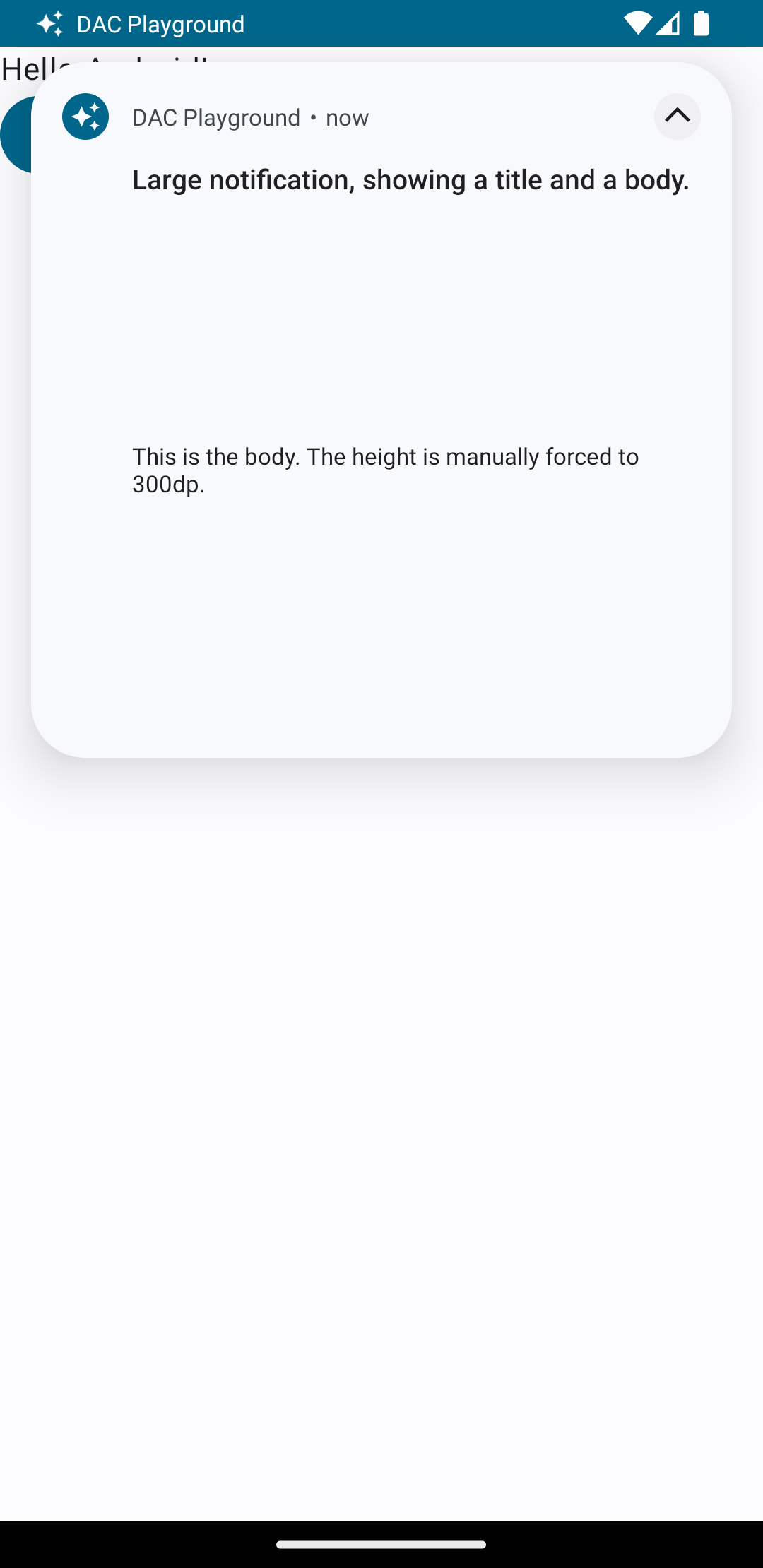
หลังจากหมดเวลาการแจ้งเตือนแล้ว การแจ้งเตือนจะปรากฏในแถบระบบเท่านั้น ซึ่งจะมีลักษณะดังรูปที่ 3

การแตะลูกศรขยายจะขยายการแจ้งเตือน ดังที่แสดงในรูปที่ 4

สร้างเลย์เอาต์การแจ้งเตือนที่กำหนดเองทั้งหมด
หากไม่ต้องการให้การแจ้งเตือนมีการตกแต่งด้วยไอคอนการแจ้งเตือนและส่วนหัวมาตรฐาน ให้ทำตามขั้นตอนก่อนหน้า แต่ ไม่ต้อง เรียก setStyle()