
The following are new features in Android Studio Otter.
Backup and Sync
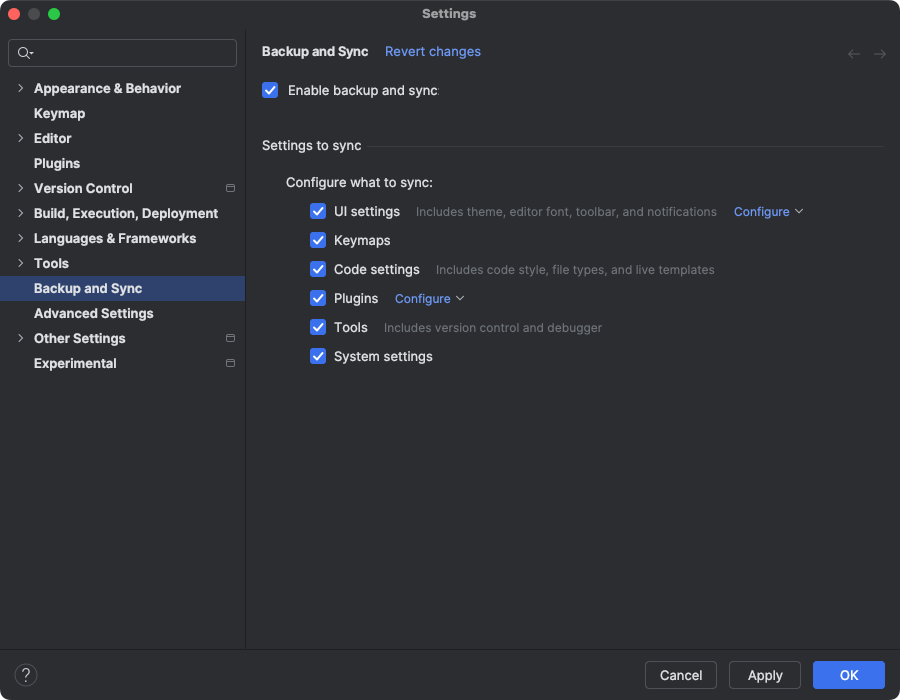
You can now back up Android Studio settings to cloud storage using either your Google or JetBrains account. This helps sync your settings, such as keymaps, Code Editor settings, system settings, and more. To get started, do one of the following:
After opening a project in Android Studio, sign into your Google Account by clicking the avatar in the top-right corner of the IDE, and clicking Sign in.
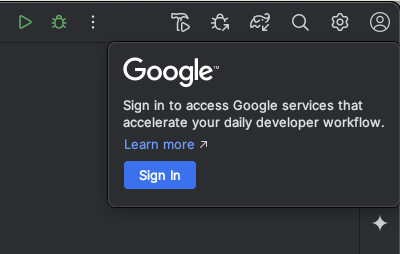
- Follow the prompts in the dialog that appears and make sure to check the box to authorize Android Studio to access your Google Account Storage.
- Follow the prompts to authorize Android Studio.
Navigate to Settings > Backup and Sync.
- Select Google to use your Google Account Storage to sync your app data across Android Studio installs. Alternatively, you can use a JetBrains account to sync your app data across IntelliJ and Android Studio installs.
- After you follow the prompts to authorize Android Studio to access your preferred account's storage, return to Android Studio.
- On the Settings > Backup and Sync page, you can review the categories of app data that you want to sync to your account.
- To disable Backup and Sync, uncheck the box that enables the feature.
If you already have data synced to your selected device, Android Studio gives you the option to either download settings from your remote storage (this is the default option) or upload your local settings and overwrite settings synced to your remote storage.