
The Media3 Transformer library provides a suite of tools for editing and
manipulating media. A core component for multi-asset editing is the
Composition API. This API lets you arrange multiple input media items,
such as video clips, images, and audio tracks, into a single, coherent structure
that can then be processed, previewed, or exported. A Composition can be
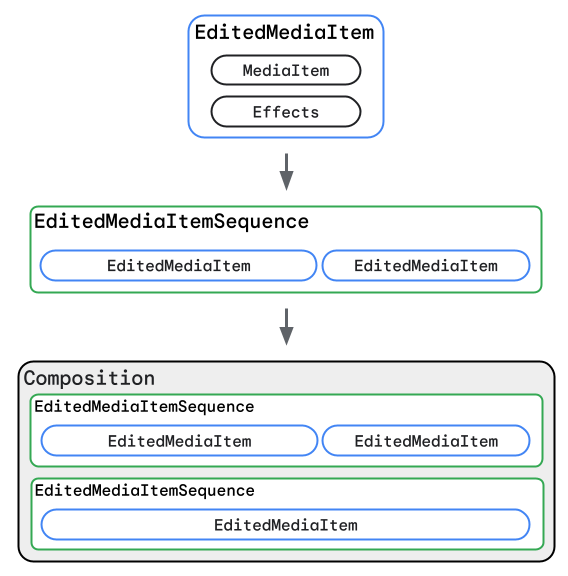
thought of as a timeline that holds one or more sequences of media. Each
sequence (defined by an EditedMediaItemSequence) contains individual
media items (defined as EditedMediaItem instances).
Transformations and effects can be applied to an individual
EditedMediaItem, or to an entire Composition.
A Composition is your entry point for a variety of use cases with Media3
Transformer, such as:
- Sequentially combining audio, image, and video assets.
- Overlaying a video on top of another video (picture-in-picture).
- Mixing a background audio track with a video sequence.
- Applying visual or audio effects across an entire edited piece.
- Handling complex scenarios like HDR video processing.
This guide focuses on how to define and build Composition objects, including
the key classes involved, how to create basic and more complex compositions
with single or multiple sequences, and how to apply effects at different levels.
Key Concepts and Classes
To effectively use the Composition API, it's important to understand the main
classes involved in constructing a media composition:
Effects:
- Purpose: An
Effectsobject is a collection of audio processors and video effects. - How it's used: In the context of a
Composition, anEffectscan be set on individualEditedMediaIteminstances to modify specific clips, or to theCompositionas a whole (typically forPresentationeffects that affect the final output, like adjusting the display resolution or frame rate). - Why it's important:
Effectsis the mechanism for applying transformations, filters, and other processing to your media at both the individual item level and the overall composition level. For more information, seeTransformations.
EditedMediaItem:
- Purpose: This class represents a single piece of media (like a video, image, or audio file) and the edits to be applied to it.
- How it's used: An
EditedMediaItemgroups aMediaItem(which points to the actual media content) with anEffectsobject. - Why it's important: This is the fundamental building block of your composition. It lets you define precisely which media to include and how each individual piece should look and sound before it's combined with others in a sequence.
EditedMediaItemSequence:
- Purpose: Represents a linear sequence of
EditedMediaItemobjects that are intended to be played one after the other. - How it's used: An
EditedMediaItemSequenceis constructed with a list ofEditedMediaItemobjects. Each sequence within aCompositionis similar to a track or layer in a multi-track video editing timeline. For example, one sequence might contain your main video clips, while another sequence, overlapping in time, might contain video clips to be overlaid on the first, and yet another sequence may contain only an audio track for background music. - Why it's important: An
EditedMediaItemSequencegroups related media items that should follow each other directly. By using multiple sequences, you can build up more complex arrangements, like layering audio or creating visual overlays.
Composition:
- Purpose: This is the top-level object that represents the entire timeline of media to be processed. It acts as a container for all the media sequences and any global settings or effects that apply to the whole output.
- How it's used: A
Compositionconsists of one or moreEditedMediaItemSequenceobjects. You can also apply composition-wide effects and set global configurations such as HDR mode directly on theComposition. If aCompositioncontains multipleEditedMediaItemSequenceobjects, these sequences can be arranged to play sequentially or can overlap in time, allowing for overlaid layouts like picture-in-picture or transitions from one sequence to another. - Why it's important: A
Compositiondefines the overall structure of the input media to be processed, and is a common object that you can use both for previewing edits with aCompositionPlayerand exporting an output video with edits applied usingTransformer.
Create and export a Composition
Here is an example of creating a video asset that consists of two edited video clips, overlaid with an audio track, and exporting it:
Kotlin
val video1 = EditedMediaItem.Builder(MediaItem.fromUri(video1Uri)).build() val video2 = EditedMediaItem.Builder(MediaItem.fromUri(video2Uri)).build() val videoSequence = EditedMediaItemSequence.withAudioAndVideoFrom(listOf(video1, video2)) val backgroundAudio = EditedMediaItem.Builder(MediaItem.fromUri(audioUri)).build() val backgroundAudioSequence = EditedMediaItemSequence.withAudioFrom(listOf(backgroundAudio)) .buildUpon() .setIsLooping(true) // Loop audio track through duration of videoSequence .build() val composition = Composition.Builder(videoSequence, backgroundAudioSequence).build() transformer.start(composition, filePath)
Java
EditedMediaItem video1 = new EditedMediaItem.Builder(MediaItem.fromUri(video1Uri)).build(); EditedMediaItem video2 = new EditedMediaItem.Builder(MediaItem.fromUri(video2Uri)).build(); EditedMediaItemSequence videoSequence = EditedMediaItemSequence.withAudioAndVideoFrom(ImmutableList.of(video1, video2)); EditedMediaItem backgroundAudio = new EditedMediaItem.Builder(MediaItem.fromUri(audioUri)).build(); EditedMediaItemSequence backgroundAudioSequence = EditedMediaItemSequence.withAudioFrom(ImmutableList.of(backgroundAudio)) .buildUpon() .setIsLooping(true) // Loop audio track through duration of videoSequence .build(); Composition composition = new Composition.Builder(videoSequence, backgroundAudioSequence).build(); transformer.start(composition, filePath);
Examples of supported use cases
This is a non-exhaustive list of use cases that the Transformer API
supports with Composition:
- Sequentially combining audio, image, and video assets.
- Adding background audio to a video asset.
- Adding effects to a Composition.
- Tone mapping HDR input to SDR to generate better visual quality SDR output.
Current limitations
Sequences within a Composition must meet the conditions outlined in
Transformer.start().
Furthermore, the following operations are not yet supported when working with
Compositions:
- Crossfading video or audio tracks
Feature requests
If you have any feature requests for the Transformer APIs, file an issue on the Media3 GitHub repository.