

應用程式必須在資訊清單中,透過意圖篩選器宣告 MediaBrowserService。你可以選擇自己的服務名稱。在以下範例中,所選服務名稱為 MediaPlaybackService。
<service android:name=".MediaPlaybackService">
  <intent-filter>
    <action android:name="android.media.browse.MediaBrowserService" />
  </intent-filter>
</service>
初始化媒體工作階段
服務收到 onCreate() 生命週期回呼方法時,應執行下列步驟:
- 建立並初始化媒體工作階段
- 設定媒體工作階段回呼
- 設定媒體工作階段符記
下列 onCreate() 程式碼會示範這些步驟:
Kotlin
private const val MY_MEDIA_ROOT_ID = "media_root_id"
private const val MY_EMPTY_MEDIA_ROOT_ID = "empty_root_id"

class MediaPlaybackService : MediaBrowserServiceCompat() {

    private var mediaSession: MediaSessionCompat? = null
    private lateinit var stateBuilder: PlaybackStateCompat.Builder

    override fun onCreate() {
        super.onCreate()

        // Create a MediaSessionCompat
        mediaSession = MediaSessionCompat(baseContext, LOG_TAG).apply {

            // Enable callbacks from MediaButtons and TransportControls
            setFlags(MediaSessionCompat.FLAG_HANDLES_MEDIA_BUTTONS
                    or MediaSessionCompat.FLAG_HANDLES_TRANSPORT_CONTROLS
            )

            // Set an initial PlaybackState with ACTION_PLAY, so media buttons can start the player
            stateBuilder = PlaybackStateCompat.Builder()
                    .setActions(PlaybackStateCompat.ACTION_PLAY
                                    or PlaybackStateCompat.ACTION_PLAY_PAUSE
                    )
            setPlaybackState(stateBuilder.build())

            // MySessionCallback() has methods that handle callbacks from a media controller
            setCallback(MySessionCallback())

            // Set the session's token so that client activities can communicate with it.
            setSessionToken(sessionToken)
        }
    }
}
Java
public class MediaPlaybackService extends MediaBrowserServiceCompat {
    private static final String MY_MEDIA_ROOT_ID = "media_root_id";
    private static final String MY_EMPTY_MEDIA_ROOT_ID = "empty_root_id";

    private MediaSessionCompat mediaSession;
    private PlaybackStateCompat.Builder stateBuilder;

    @Override
    public void onCreate() {
        super.onCreate();

        // Create a MediaSessionCompat
        mediaSession = new MediaSessionCompat(context, LOG_TAG);

        // Enable callbacks from MediaButtons and TransportControls
        mediaSession.setFlags(
              MediaSessionCompat.FLAG_HANDLES_MEDIA_BUTTONS |
              MediaSessionCompat.FLAG_HANDLES_TRANSPORT_CONTROLS);

        // Set an initial PlaybackState with ACTION_PLAY, so media buttons can start the player
        stateBuilder = new PlaybackStateCompat.Builder()
                            .setActions(
                                PlaybackStateCompat.ACTION_PLAY |
                                PlaybackStateCompat.ACTION_PLAY_PAUSE);
        mediaSession.setPlaybackState(stateBuilder.build());

        // MySessionCallback() has methods that handle callbacks from a media controller
        mediaSession.setCallback(new MySessionCallback());

        // Set the session's token so that client activities can communicate with it.
        setSessionToken(mediaSession.getSessionToken());
    }
}
管理用戶端連線
MediaBrowserService 有兩種方法可處理用戶端連線:onGetRoot() 可控管服務存取權,而 onLoadChildren() 則可讓用戶端建構及顯示 MediaBrowserService 的內容階層選單。
使用 onGetRoot() 控制用戶端連線
onGetRoot() 方法會傳回內容階層的根節點。如果方法傳回空值,連線就會遭到拒絕。
如要允許用戶端連線至您的服務並瀏覽媒體內容,onGetRoot() 必須傳回非空值的 BrowserRoot,這是代表內容階層的根 ID。
如要允許用戶端連線至 MediaSession,而不必瀏覽,onGetRoot()仍須傳回非空值的 BrowserRoot,但根 ID 應代表空白的內容階層。
onGetRoot() 的常見實作方式如下:
Kotlin
override fun onGetRoot(
        clientPackageName: String,
        clientUid: Int,
        rootHints: Bundle?
): MediaBrowserServiceCompat.BrowserRoot {

    // (Optional) Control the level of access for the specified package name.
    // You'll need to write your own logic to do this.
    return if (allowBrowsing(clientPackageName, clientUid)) {
        // Returns a root ID that clients can use with onLoadChildren() to retrieve
        // the content hierarchy.
        MediaBrowserServiceCompat.BrowserRoot(MY_MEDIA_ROOT_ID, null)
    } else {
        // Clients can connect, but this BrowserRoot is an empty hierarchy
        // so onLoadChildren returns nothing. This disables the ability to browse for content.
        MediaBrowserServiceCompat.BrowserRoot(MY_EMPTY_MEDIA_ROOT_ID, null)
    }
}
Java
@Override
public BrowserRoot onGetRoot(String clientPackageName, int clientUid,
    Bundle rootHints) {

    // (Optional) Control the level of access for the specified package name.
    // You'll need to write your own logic to do this.
    if (allowBrowsing(clientPackageName, clientUid)) {
        // Returns a root ID that clients can use with onLoadChildren() to retrieve
        // the content hierarchy.
        return new BrowserRoot(MY_MEDIA_ROOT_ID, null);
    } else {
        // Clients can connect, but this BrowserRoot is an empty hierarchy
        // so onLoadChildren returns nothing. This disables the ability to browse for content.
        return new BrowserRoot(MY_EMPTY_MEDIA_ROOT_ID, null);
    }
}
在某些情況下,您可能會想控管哪些人可以連線至 MediaBrowserService。其中一種方法是使用存取控制清單 (ACL),指定允許的連線,或列舉應禁止的連線。如要瞭解如何實作允許特定連線的 ACL,請參閱通用 Android 音樂播放器範例應用程式中的 PackageValidator 類別。
建議您視發出查詢的用戶端類型,提供不同的內容階層。特別是 Android Auto 會限制使用者與音訊應用程式的互動方式。詳情請參閱「播放 Android Auto 音訊」。您可以在連線時查看 clientPackageName,判斷用戶端類型,並根據用戶端 (或任何 rootHints) 傳回不同的 BrowserRoot。
與「onLoadChildren()」分享內容
用戶端連線後,可以重複呼叫 MediaBrowserCompat.subscribe(),建構 UI 的本機表示法,藉此遍歷內容階層。subscribe() 方法會將回呼 onLoadChildren() 傳送至服務,服務會傳回 MediaBrowser.MediaItem 物件清單。
每個 MediaItem 都有專屬 ID 字串,也就是不透明的權杖。當用戶端想要開啟子選單或播放項目時,系統會傳遞 ID。服務負責將 ID 與適當的選單節點或內容項目建立關聯。
簡單的 onLoadChildren() 實作可能如下所示:
Kotlin
override fun onLoadChildren(
        parentMediaId: String,
        result: MediaBrowserServiceCompat.Result<List<MediaBrowserCompat.MediaItem>>
) {
    //  Browsing not allowed
    if (MY_EMPTY_MEDIA_ROOT_ID == parentMediaId) {
        result.sendResult(null)
        return
    }

    // Assume for example that the music catalog is already loaded/cached.

    val mediaItems = emptyList<MediaBrowserCompat.MediaItem>()

    // Check if this is the root menu:
    if (MY_MEDIA_ROOT_ID == parentMediaId) {
        // Build the MediaItem objects for the top level,
        // and put them in the mediaItems list...
    } else {
        // Examine the passed parentMediaId to see which submenu we're at,
        // and put the children of that menu in the mediaItems list...
    }
    result.sendResult(mediaItems)
}
Java
@Override
public void onLoadChildren(final String parentMediaId,
    final Result<List<MediaItem>> result) {

    //  Browsing not allowed
    if (TextUtils.equals(MY_EMPTY_MEDIA_ROOT_ID, parentMediaId)) {
        result.sendResult(null);
        return;
    }

    // Assume for example that the music catalog is already loaded/cached.

    List<MediaItem> mediaItems = new ArrayList<>();

    // Check if this is the root menu:
    if (MY_MEDIA_ROOT_ID.equals(parentMediaId)) {
        // Build the MediaItem objects for the top level,
        // and put them in the mediaItems list...
    } else {
        // Examine the passed parentMediaId to see which submenu we're at,
        // and put the children of that menu in the mediaItems list...
    }
    result.sendResult(mediaItems);
}
注意: MediaBrowserService 傳送的 MediaItem 物件不應包含圖示點陣圖。請改為在為每個項目建構 MediaDescription 時呼叫 setIconUri()。Uri
如要瞭解如何實作 onLoadChildren(),請參閱 Android 通用音樂播放器範例應用程式。
媒體瀏覽器服務生命週期
Android 服務的行為取決於是否啟動或繫結至一或多個用戶端。建立服務後,可以啟動、繫結或同時執行這兩項操作。無論處於上述哪種狀態,服務都能正常運作,並執行設計用途的工作。不同之處在於服務的存續時間。只有在所有繫結的用戶端解除繫結後,繫結服務才會遭到終止。啟動的服務可以明確停止並終止 (假設服務不再繫結至任何用戶端)。
當在另一個活動中執行的 MediaBrowser 連線至 MediaBrowserService 時,會將活動繫結至服務,使服務成為繫結狀態 (但不會啟動)。這項預設行為已內建於 MediaBrowserServiceCompat 類別中。
如果服務只繫結 (未啟動),當所有用戶端取消繫結時,服務就會遭到終止。如果 UI 活動在此時中斷連線,服務就會遭到終止。如果你尚未播放任何音樂,這並非問題。不過,使用者開始播放內容後,即使切換應用程式,可能也希望繼續聆聽。當您取消繫結 UI 以搭配其他應用程式使用時,不希望刪除播放器。
因此,您必須呼叫 startService(),確保服務在開始播放時啟動。無論服務是否繫結,都必須明確停止啟動的服務。這樣可確保即使控制項 UI 活動取消繫結,播放器仍會繼續執行。
如要停止已啟動的服務,請呼叫 Context.stopService() 或 stopSelf()。系統會盡快停止並終止服務。不過,如果仍有一或多個用戶端繫結至服務,系統會延遲停止服務的呼叫,直到所有用戶端解除繫結為止。
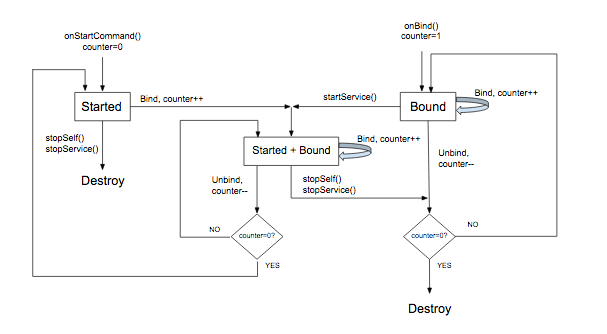
MediaBrowserService 的生命週期取決於建立方式、繫結的用戶端數量,以及從媒體工作階段回呼接收的呼叫。摘要:
- 當服務因應媒體按鈕啟動,或活動繫結至服務 (透過
MediaBrowser連線後),系統就會建立服務。 - 媒體工作階段
onPlay()回呼應包含呼叫startService()的程式碼。即使繫結至服務的所有 UIMediaBrowser活動都取消繫結,服務仍會啟動並持續執行。 onStop()回呼應呼叫stopSelf()。如果服務已啟動,這項操作會停止服務。此外,如果沒有任何活動繫結至服務,服務就會遭到刪除。否則,服務會維持繫結狀態,直到所有活動解除繫結為止。(如果在服務遭到刪除前收到後續的startService()呼叫,系統就會取消待處理的停止作業)。
下圖說明如何管理服務的生命週期。變數計數器會追蹤繫結的用戶端數量:
搭配前景服務使用 MediaStyle 通知
服務播放內容時,應在前台執行。這樣一來,系統就會知道這項服務正在執行實用功能,因此即使記憶體不足也不應終止服務。前景服務必須顯示通知,讓使用者瞭解服務正在執行,並視需要進行控制。onPlay() 回呼應將服務放在前景。(請注意,這是「前景」的特殊意義。雖然 Android 會將這項服務視為前景服務,以利程序管理,但對使用者而言,播放器是在背景播放,而螢幕「前景」顯示的是其他應用程式。
服務在前台執行時,必須顯示通知,最好還包含一或多個傳輸控制項。通知也應包含工作階段中繼資料的實用資訊。
在播放器開始播放時,建構並顯示通知。最適合執行這項操作的位置是 MediaSessionCompat.Callback.onPlay() 方法。
下例使用專為媒體應用程式設計的 NotificationCompat.MediaStyle。說明如何建構可顯示中繼資料和傳輸控制項的通知。便利方法 getController() 可讓您直接從媒體工作階段建立媒體控制器。
Kotlin
// Given a media session and its context (usually the component containing the session)
// Create a NotificationCompat.Builder

// Get the session's metadata
val controller = mediaSession.controller
val mediaMetadata = controller.metadata
val description = mediaMetadata.description

val builder = NotificationCompat.Builder(context, channelId).apply {
    // Add the metadata for the currently playing track
    setContentTitle(description.title)
    setContentText(description.subtitle)
    setSubText(description.description)
    setLargeIcon(description.iconBitmap)

    // Enable launching the player by clicking the notification
    setContentIntent(controller.sessionActivity)

    // Stop the service when the notification is swiped away
    setDeleteIntent(
            MediaButtonReceiver.buildMediaButtonPendingIntent(
                    context,
                    PlaybackStateCompat.ACTION_STOP
            )
    )

    // Make the transport controls visible on the lockscreen
    setVisibility(NotificationCompat.VISIBILITY_PUBLIC)

    // Add an app icon and set its accent color
    // Be careful about the color
    setSmallIcon(R.drawable.notification_icon)
    color = ContextCompat.getColor(context, R.color.primaryDark)

    // Add a pause button
    addAction(
            NotificationCompat.Action(
                    R.drawable.pause,
                    getString(R.string.pause),
                    MediaButtonReceiver.buildMediaButtonPendingIntent(
                            context,
                            PlaybackStateCompat.ACTION_PLAY_PAUSE
                    )
            )
    )

    // Take advantage of MediaStyle features
    setStyle(android.support.v4.media.app.NotificationCompat.MediaStyle()
            .setMediaSession(mediaSession.sessionToken)
            .setShowActionsInCompactView(0)

            // Add a cancel button
            .setShowCancelButton(true)
            .setCancelButtonIntent(
                    MediaButtonReceiver.buildMediaButtonPendingIntent(
                            context,
                            PlaybackStateCompat.ACTION_STOP
                    )
            )
    )
}

// Display the notification and place the service in the foreground
startForeground(id, builder.build())
Java
// Given a media session and its context (usually the component containing the session)
// Create a NotificationCompat.Builder

// Get the session's metadata
MediaControllerCompat controller = mediaSession.getController();
MediaMetadataCompat mediaMetadata = controller.getMetadata();
MediaDescriptionCompat description = mediaMetadata.getDescription();

NotificationCompat.Builder builder = new NotificationCompat.Builder(context, channelId);

builder
    // Add the metadata for the currently playing track
    .setContentTitle(description.getTitle())
    .setContentText(description.getSubtitle())
    .setSubText(description.getDescription())
    .setLargeIcon(description.getIconBitmap())

    // Enable launching the player by clicking the notification
    .setContentIntent(controller.getSessionActivity())

    // Stop the service when the notification is swiped away
    .setDeleteIntent(MediaButtonReceiver.buildMediaButtonPendingIntent(context,
       PlaybackStateCompat.ACTION_STOP))

    // Make the transport controls visible on the lockscreen
    .setVisibility(NotificationCompat.VISIBILITY_PUBLIC)

    // Add an app icon and set its accent color
    // Be careful about the color
    .setSmallIcon(R.drawable.notification_icon)
    .setColor(ContextCompat.getColor(context, R.color.primaryDark))

    // Add a pause button
    .addAction(new NotificationCompat.Action(
        R.drawable.pause, getString(R.string.pause),
        MediaButtonReceiver.buildMediaButtonPendingIntent(context,
            PlaybackStateCompat.ACTION_PLAY_PAUSE)))

    // Take advantage of MediaStyle features
    .setStyle(new MediaStyle()
        .setMediaSession(mediaSession.getSessionToken())
        .setShowActionsInCompactView(0)

        // Add a cancel button
       .setShowCancelButton(true)
       .setCancelButtonIntent(MediaButtonReceiver.buildMediaButtonPendingIntent(context,
           PlaybackStateCompat.ACTION_STOP)));

// Display the notification and place the service in the foreground
startForeground(id, builder.build());
使用 MediaStyle 通知時,請注意下列 NotificationCompat 設定的行為:
- 使用
setContentIntent()時,只要點選通知,服務就會自動啟動,非常方便。 - 在「不信任」的情況下 (例如螢幕鎖定畫面),通知內容的預設顯示設定為
VISIBILITY_PRIVATE。你可能想在螢幕鎖定畫面上看到傳輸控制項,因此建議使用VISIBILITY_PUBLIC。 - 設定背景顏色時請務必謹慎,在 Android 5.0 以上版本的普通通知中,顏色只會套用至小型應用程式圖示的背景。但如果是 Android 7.0 之前的 MediaStyle 通知,系統會將顏色套用至整個通知背景。測試背景顏色。避免使用極為明亮或螢光色,以免眼睛不適。
只有在使用 NotificationCompat.MediaStyle 時,才能使用這些設定:
- 使用
setMediaSession()將通知與工作階段建立關聯。第三方應用程式和隨附裝置就能存取及控制工作階段。 - 使用
setShowActionsInCompactView()在通知的標準大小 contentView 中新增最多 3 個動作。(這裡指定了暫停按鈕)。 - 在 Android 5.0 (API 級別 21) 以上版本中,如果服務不再於前景執行,您可以滑開通知來停止播放器。舊版無法執行這項操作。如要讓使用者在 Android 5.0 (API 級別 21) 之前移除通知並停止播放,可以呼叫
setShowCancelButton(true)和setCancelButtonIntent(),在通知右上角新增取消按鈕。
新增暫停和取消按鈕時,需要附加至播放動作的 PendingIntent。方法 MediaButtonReceiver.buildMediaButtonPendingIntent() 會將 PlaybackState 動作轉換為 PendingIntent。
啟用 AVRCP 媒體瀏覽功能
除了 Android Auto 等自訂應用程式,系統的藍牙層也會做為 MediaBrowserService 的用戶端,方便無線遙控瀏覽目錄 (AVRCP)。
在 Android 16 和 Android 17 中,平台會要求未使用 Media3 的應用程式公開具有意圖篩選器的特定活動,以供驗證瀏覽。
將這個特定意圖篩選器新增至 AndroidManifest.xml 中的匯出活動。請注意,我們刻意省略 CATEGORY_DEFAULT,避免應用程式出現在本機音訊檔案的「開啟方式」一般選單中:
<activity
    android:name=".BluetoothValidationActivity"
    android:exported="true"
    android:theme="@android:style/Theme.NoDisplay"
    android:excludeFromRecents="true"
    android:noHistory="true">
  <intent-filter>
    <action android:name="android.intent.action.VIEW" />
    <data android:scheme="content" />
    <data android:host="media" />
    <!-- Specific path check used by Bluetooth stack for validation -->
    <data android:pathPrefix="/internal/audio/media/" />
    <data android:mimeType="audio/*" />
  </intent-filter>
</activity>