

You might encounter issues while creating virtual devices or running your app's augmented experiences on the emulator. If you do encounter issues, see the sections on this page for help resolving common issues.
Some errors have multiple possible causes. This document lists some common errors and their fixes, but you might encounter the same error message for a different reason.
Can't pair emulators using Pairing Assistant
While pairing the emulators using the Pairing Assistant, the process fails.
Cause
The Pairing Assistant can't find both emulators or is having another issue while pairing.
Fix
Follow these steps to manually pair the emulators on the phone AVD:
In the Android Studio Device Manager, find the glasses AVD that you created and click Start.

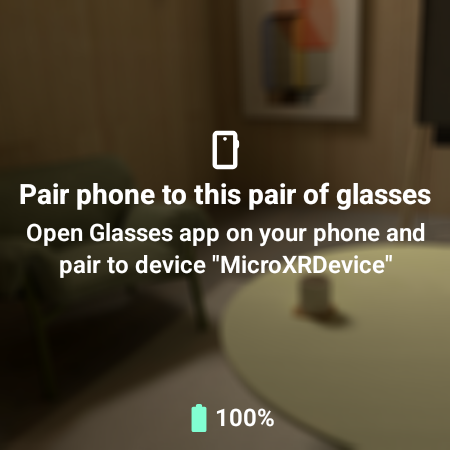
Check that the glasses AVD has fully launched. You'll see a "Pair phone to ..." message.
In the Android Studio Device Manager, find the phone AVD that you created to act as a host device for the glasses emulator, and click Start.

Check that the phone emulator has fully launched by waiting until you see the Home screen.
On the phone emulator, launch the Glasses app
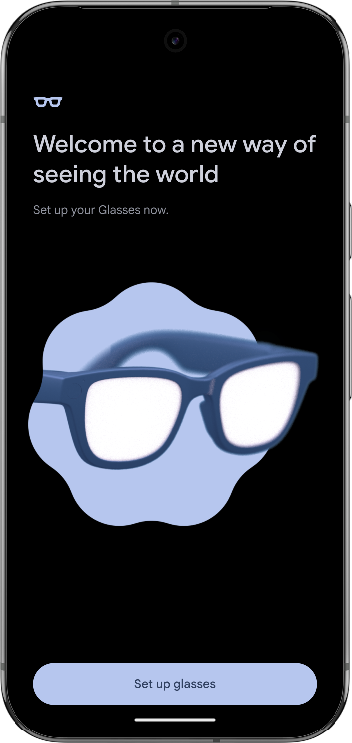
Select Set up glasses.
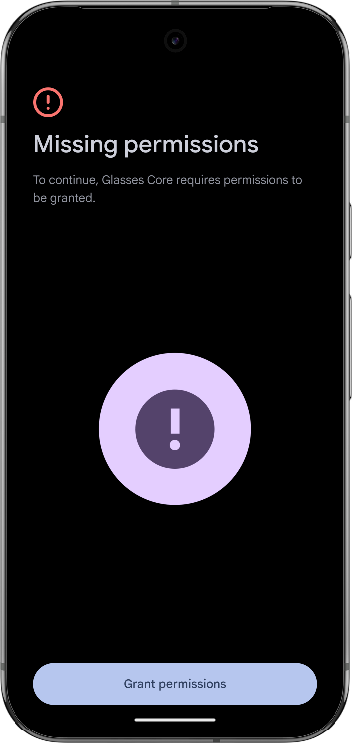
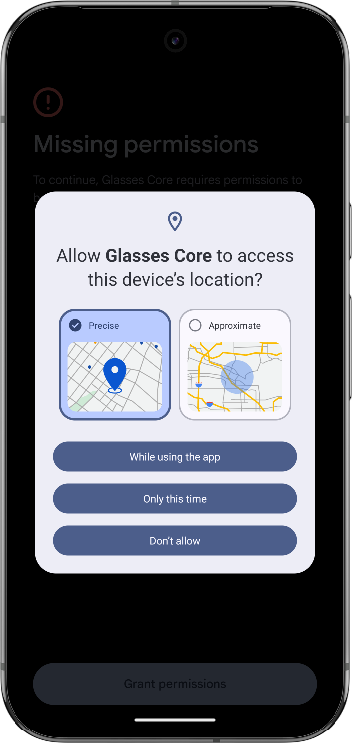
When prompted, select Grant permissions and accept the permissions request required by the Glasses Core app.
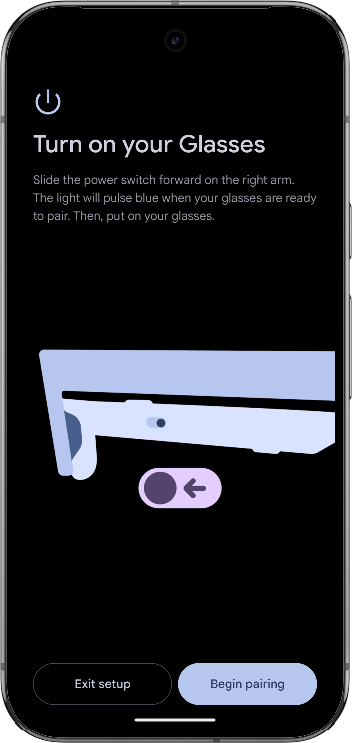
Select Begin Pairing.
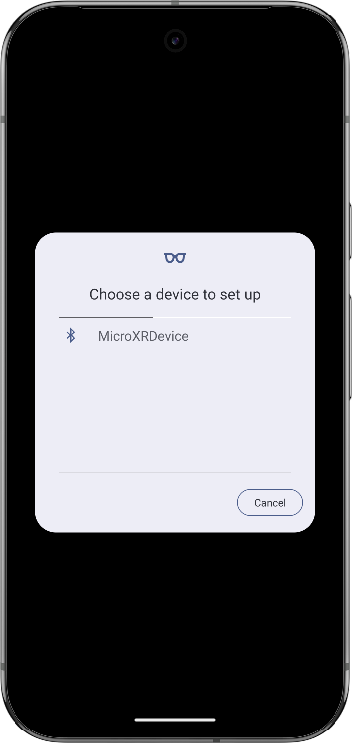
Select the glasses AVD from the list of devices.
The emulators now attempt to pair to each other.
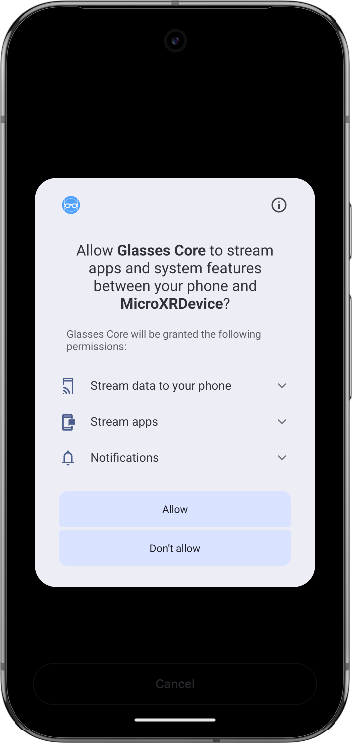
During pairing, accept the association request for the Glasses Core app.
Select Next to finish the pairing process.
Emulator for glasses not in pairing mode
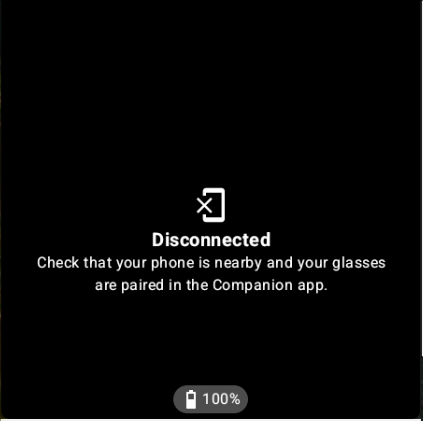
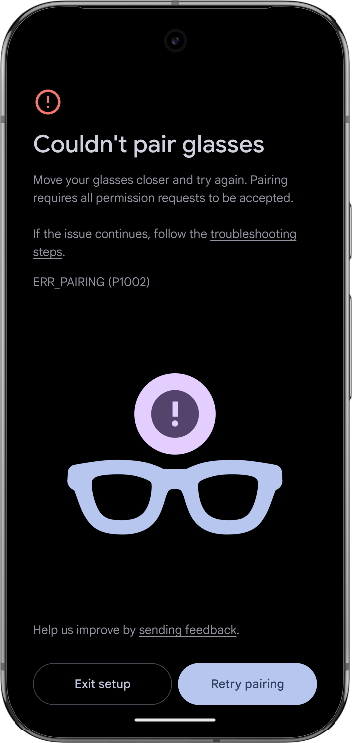
While pairing the emulators using the Pairing Assistant or manually by following the steps in the preceding section, you encounter a message that says "Disconnected" or "Couldn't pair glasses" and the emulators won't pair.
Cause
The glasses emulator isn't in pairing mode.
Fix
- Stop the glasses emulator.
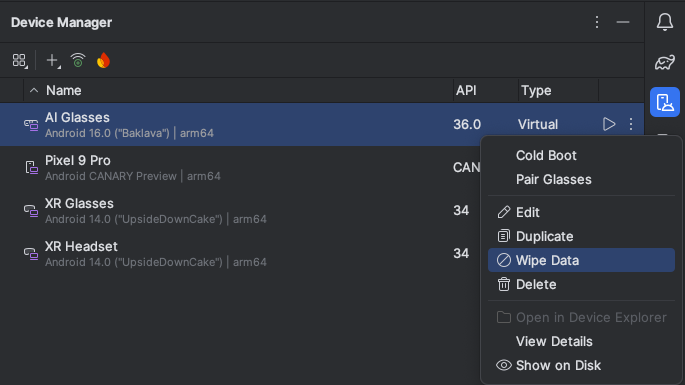
In the Android Studio Device Manager, find the glasses AVD and click Wipe Data in the overflow menu.
Attempt to pair again using the Pairing Assistant, and then try manually pairing if that doesn't succeed.
Paired emulators don't reconnect devices on relaunch
After initial pairing, the emulators don't reconnect the devices to each other when launched.
Cause
A connectivity issue is stopping the devices from reconnecting.
Fix
First, try the following method:
- Stop the phone emulator and the glasses emulator.
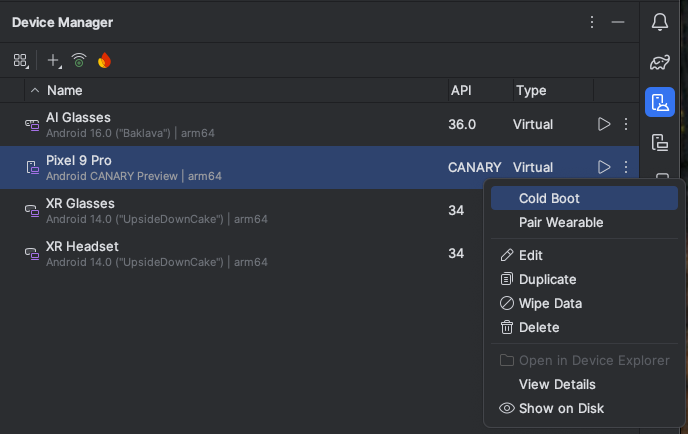
In the Android Studio Device Manager, find the phone AVD and click Cold Boot in the overflow menu.
Wait for the phone emulator to fully boot, and then relaunch the glasses emulator.
If this method doesn't work, follow these steps:
- Stop the glasses emulator.
In the Android Studio Device Manager, find the glasses AVD and click Wipe Data in the overflow menu.
On the phone emulator, launch the system Settings app.
Select Connected devices.
Find the glasses device and select Device details.
Select Forget > Forget device.
Pair the devices again.
Glasses won't associate with phone
During pairing, the glasses won't associate with the phone.
Cause
A connectivity issue is stopping the Glasses Core app from detecting the glasses AVD.
Fix
First, try forgetting the Bluetooth device and re-pairing:
- On the phone emulator, launch the system Settings app.
- Select Connected devices.
- Find the glasses device and select Device details.
- Select Forget > Forget device.
- Pair the devices again.
If this method doesn't work, follow these steps:
- Stop the glasses emulator.
In the Android Studio Device Manager, find the glasses AVD and click Wipe Data in the overflow menu.
Projected activity won't launch on emulator
Your projected activity won't launch on the glasses emulator.
Cause
An issue is preventing the activity from being projected to the display.
Fix
Follow the same troubleshooting steps as when the emulators don't reconnect the devices on relaunch.
Can't use Gemini Live on the glasses emulator
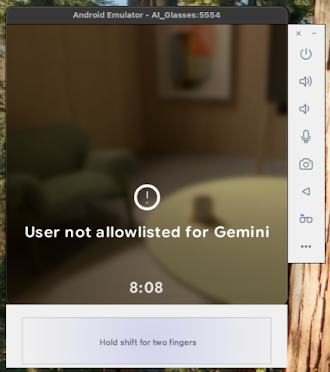
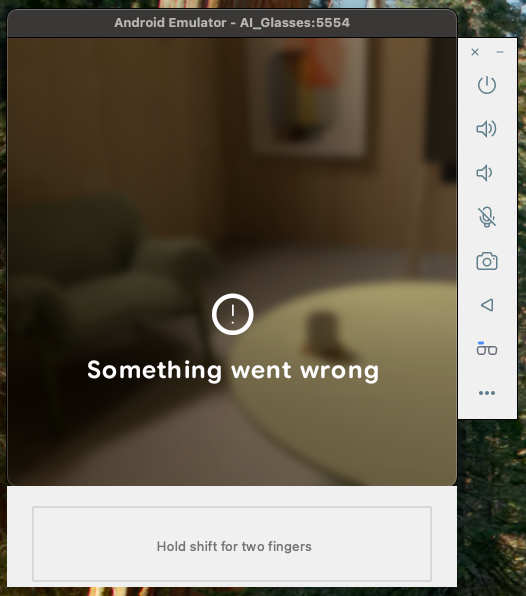
While trying to use Gemini Live on the glasses emulator, you see the following messages:
Cause
The Google app needs to be updated to the latest version (minimum required version is 16.46.63) on the phone emulator.
Fix
In the Android Studio Device Manager, find the phone AVD that you created to act as a host device for the glasses emulator, and click Start .
Open the Google Play Store app.
Search for "Google" and select the Google app.
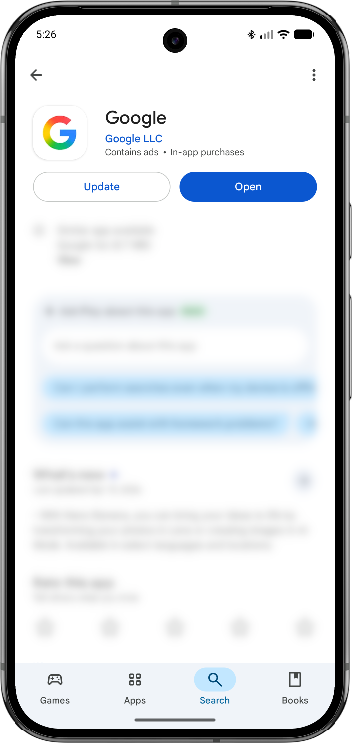
Select Update.
Can't install the public glasses emulators
You can't install the glasses emulators on the latest Android Studio Canary.
Cause
You installed the glasses emulators before it was available as part of Android Studio Canary in the Developer Preview 3.
Fix
Uninstall your previous glasses emulators and install the public version.
- Open Android Studio.
- Open the SDK Manager.
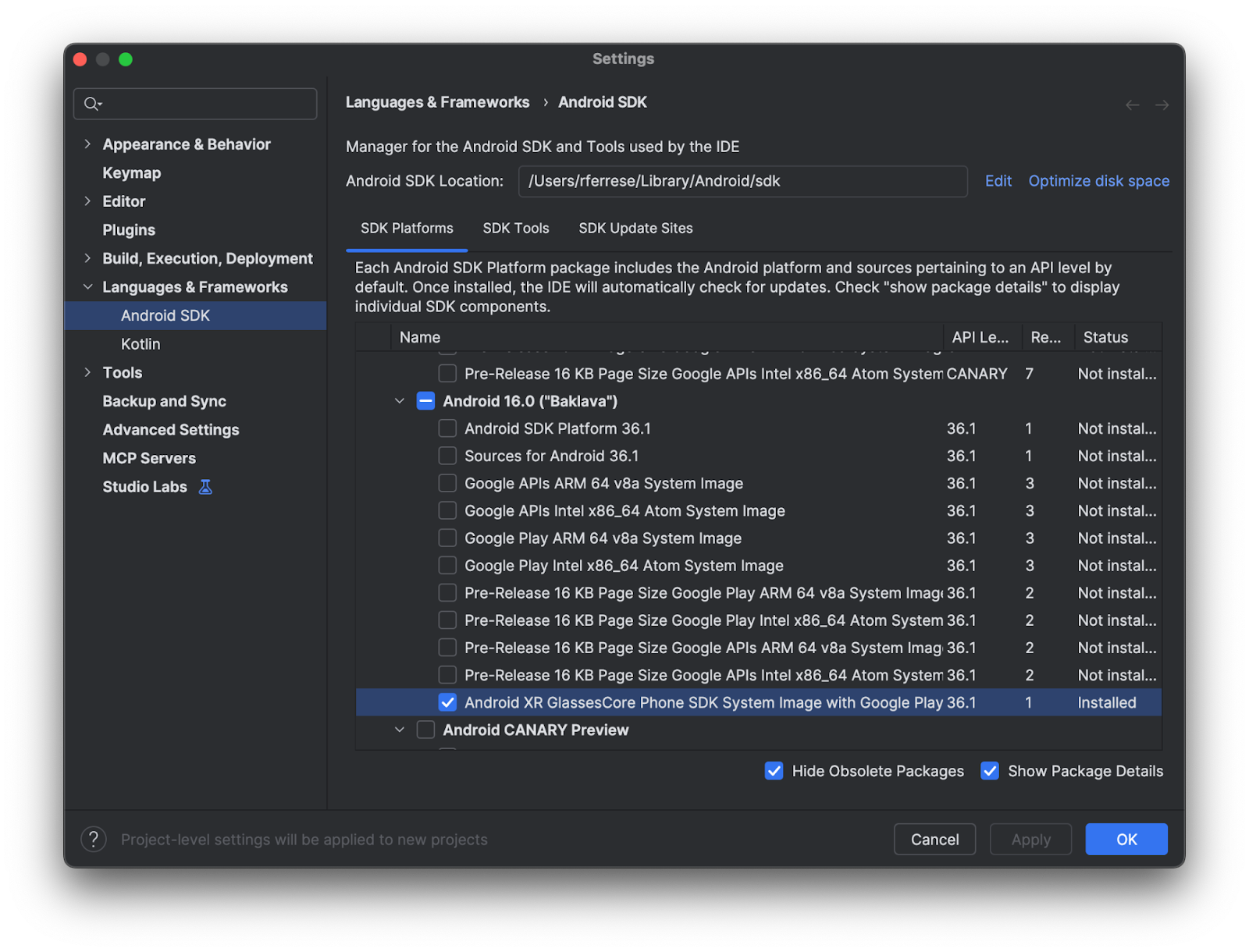
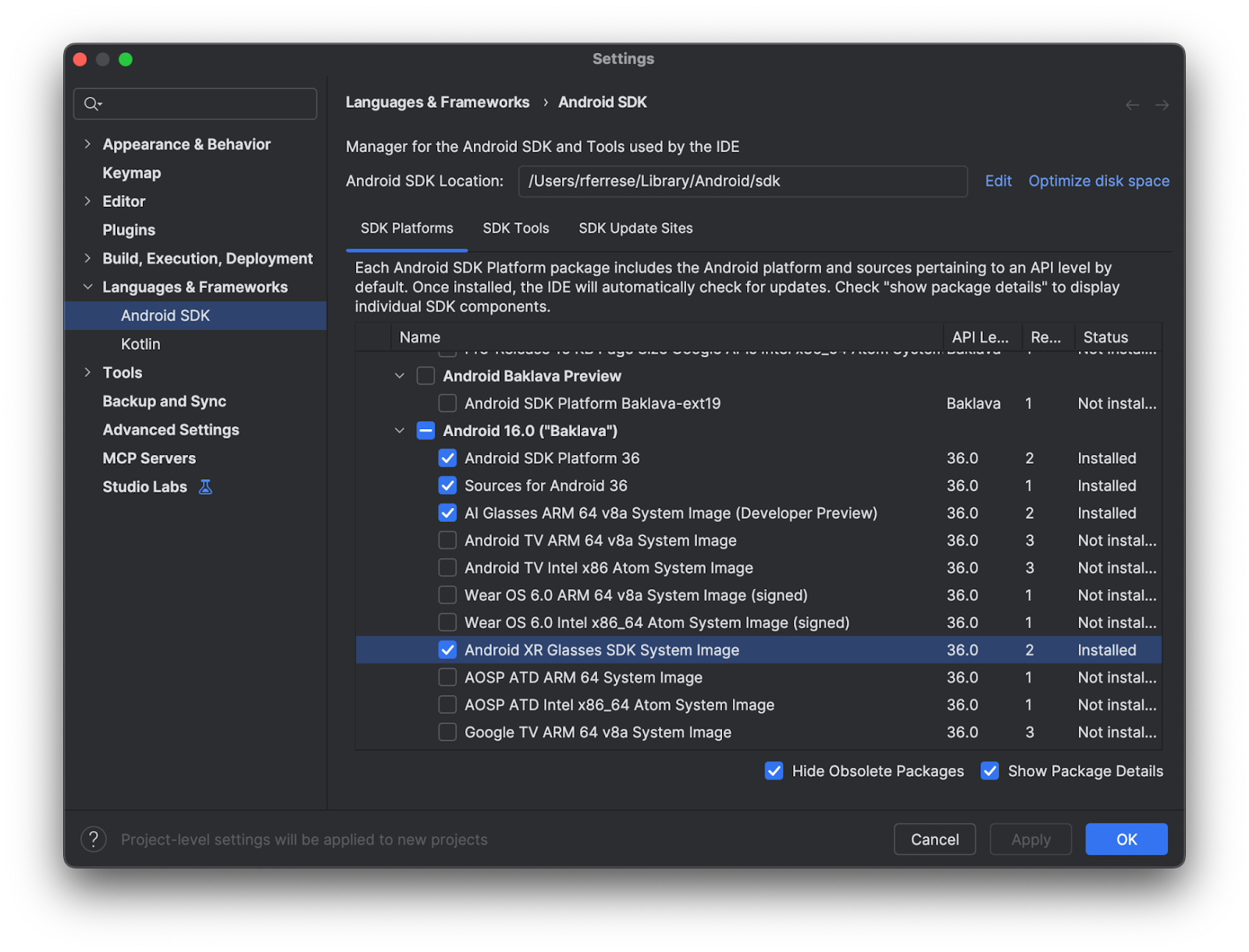
- Check the Show Package Details checkbox.
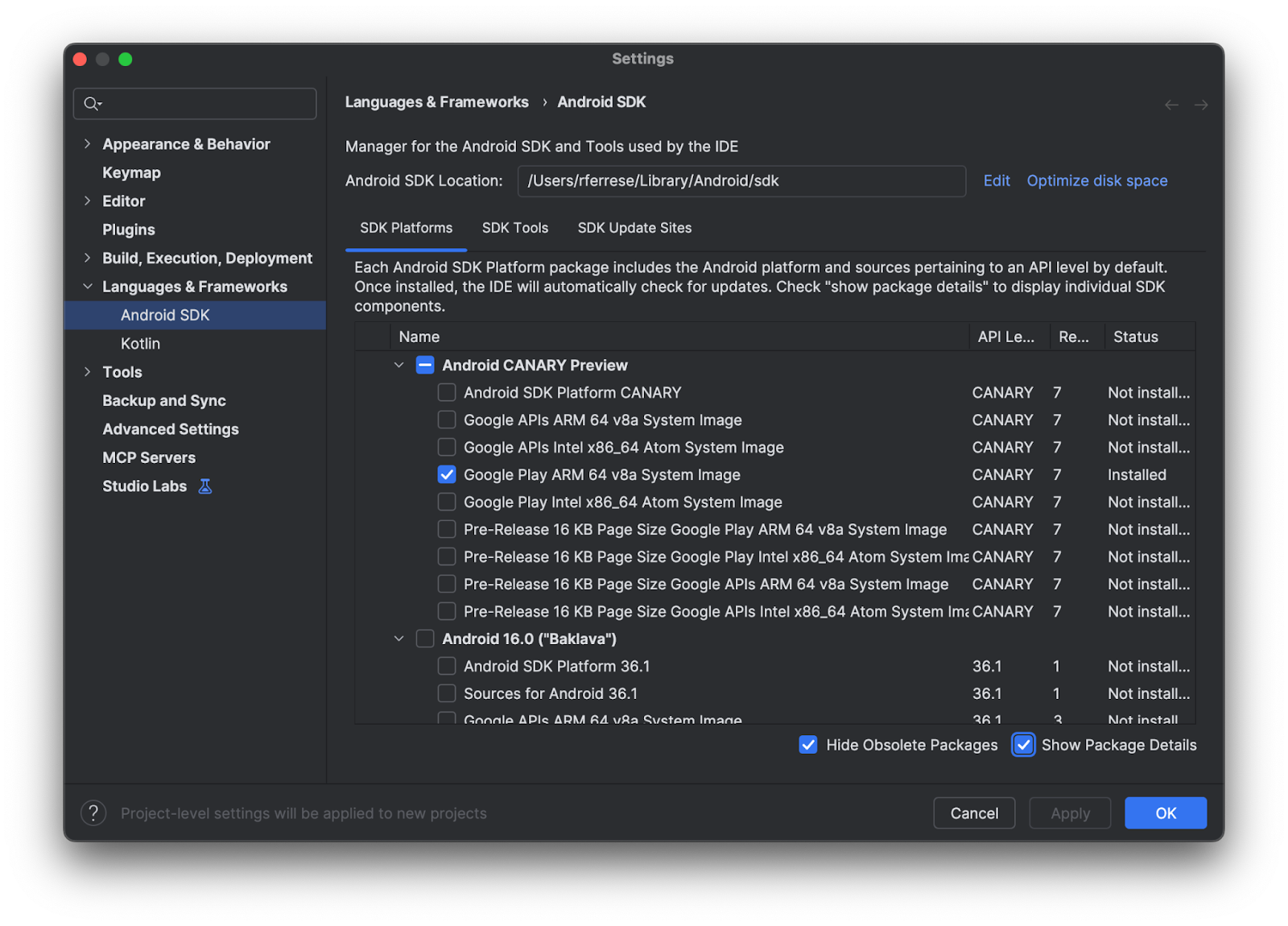
- Clear Android XR GlassesCore Phone system image under any of the
Android 16.0 foldouts and click Apply to uninstall.
- Clear Android XR Glasses SDK System Image under any of the
Android 16.0 foldouts and click Apply to uninstall.
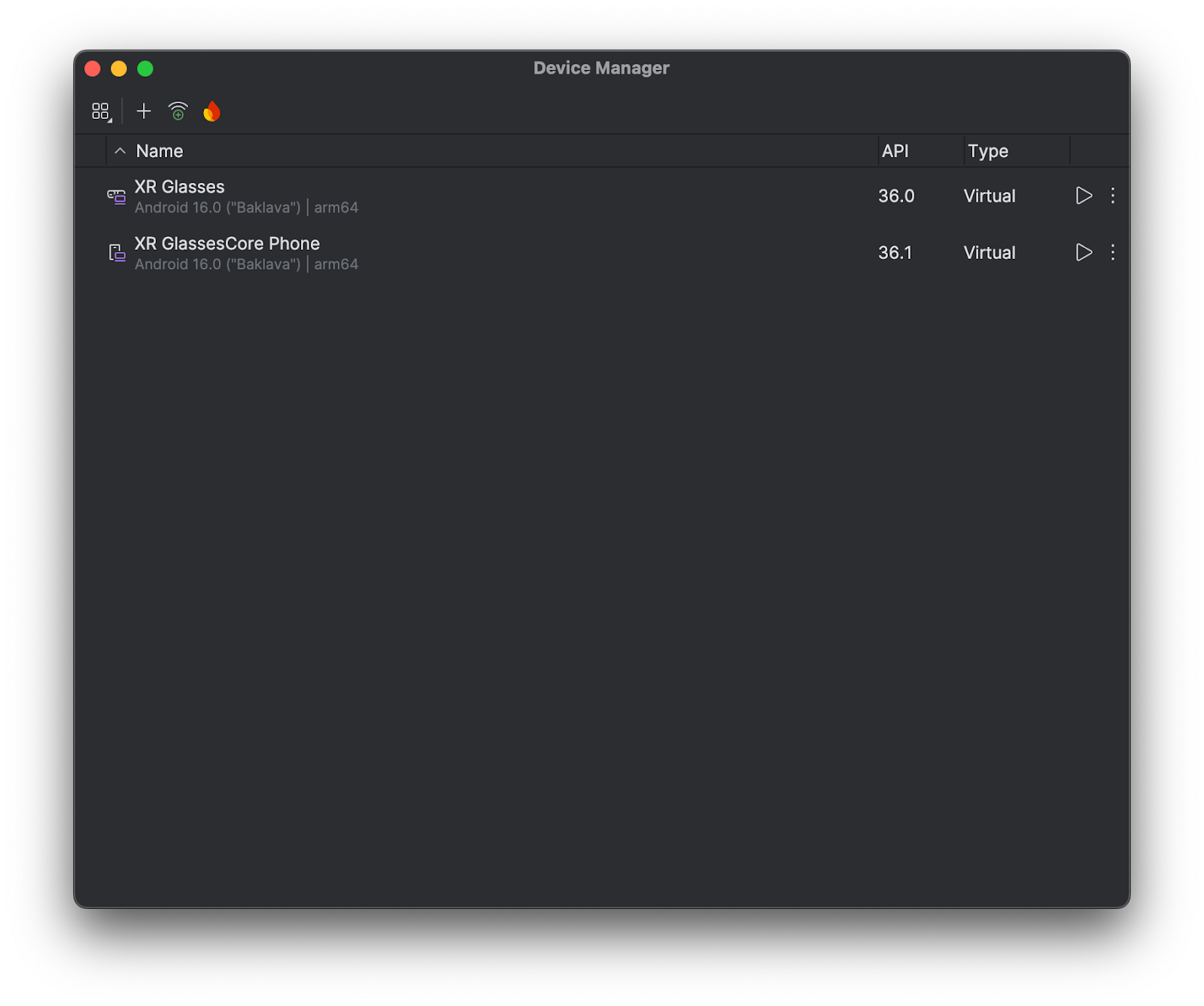
- Open the Virtual Device Manager and delete all XR Glasses and
XR GlassesCore Phone devices.
After uninstalling the previous EAP glasses emulator, see our documentation to install the public glasses emulators in Android Studio Canary.
See also
- Create virtual devices for audio glasses and display glasses
- Run your app's augmented experiences on the emulator