
The billing choice program lets you integrate your own billing system or guide users to your website for purchases using external web links. Regardless of which option you implement, users should be given a choice between Google Play Billing and either alternative billing within the app or external web links. You should review the program requirements and enroll in the billing choice program before using these APIs.
User experience
When a user initiates a purchase, they will be presented with a choice screen displaying both your alternative billing system (in the app or external web links) and Google Play Billing. You have the flexibility to customize this flow depending on who renders the choice screen and where the payment happens. You are required to update your choice screen preference and external web links preference in Play Console before implementing the API in your app.
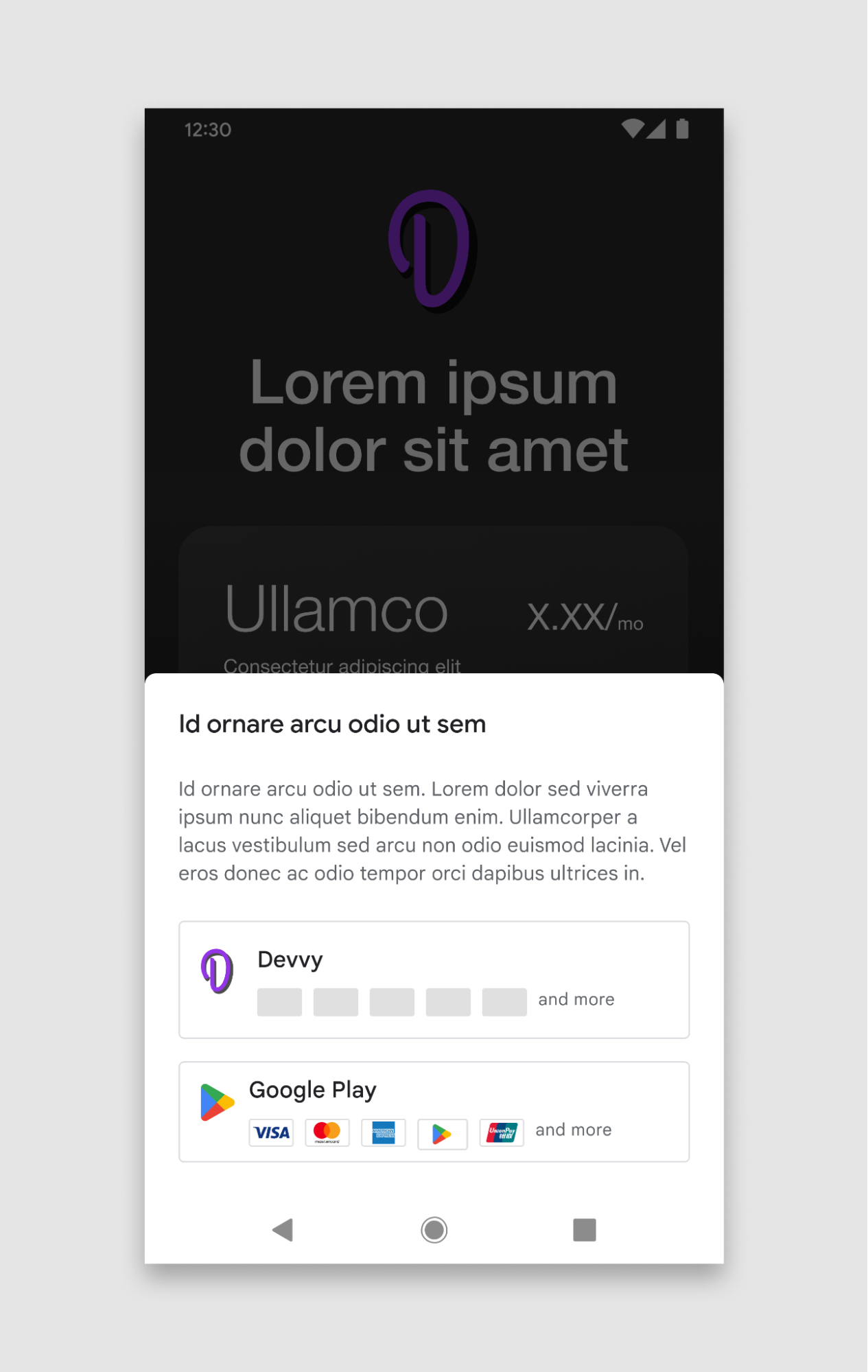

1. Who renders the choice screen
- Google-rendered: Google Play handles the choice screen UI automatically for you as part of the billing flow.
- Your own : You design and render a custom choice screen within your app. If you choose this route, you are required to follow UX guidelines.
2. Where the payment happens
- In-app: The user completes the transaction within your app's interface.
- External web link: The user is directed to your website to complete the transaction.
Parental controls
Supervised users are allowed to make a billing choice, but mandatory parental controls and one-time information screens must be displayed.
- For Google-rendered choice screens: Google automatically handles the parental control screen before the choice screen is shown.
- For Developer-rendered choice screens: You are responsible for calling specific Play Billing Library APIs to trigger the parental controls. For in-app purchases, this is done through a mandatory information dialog before you show your custom choice screen. For external links, the parental controls are handled right before the user is linked out of the app.
Payment method image asset guidelines
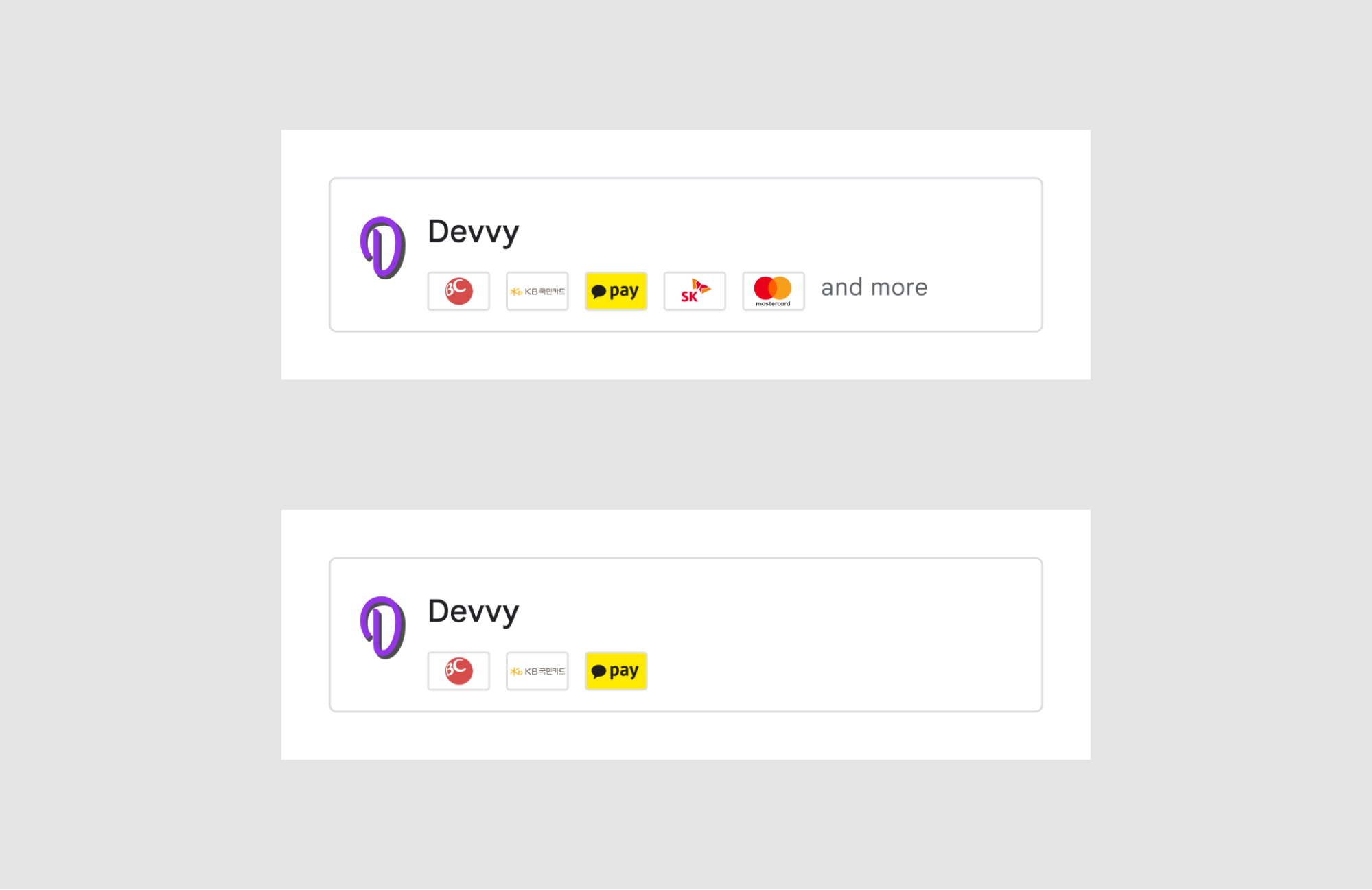
You can upload image assets in the Play Console representing your supported payment methods to be shown on the billing choice screen.
Image asset for payment methods
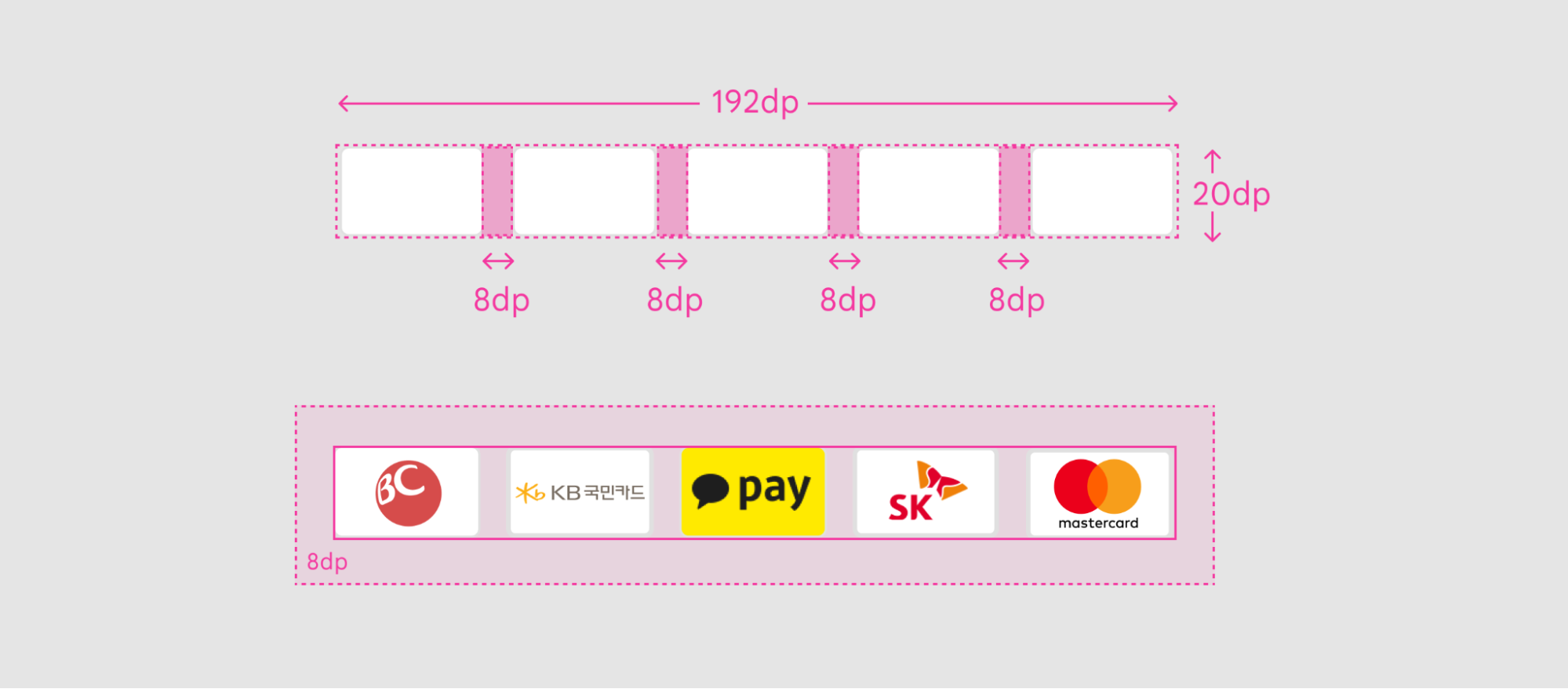
The single image asset is made up of multiple payment method cards and must follow the specifications defined in these guidelines.
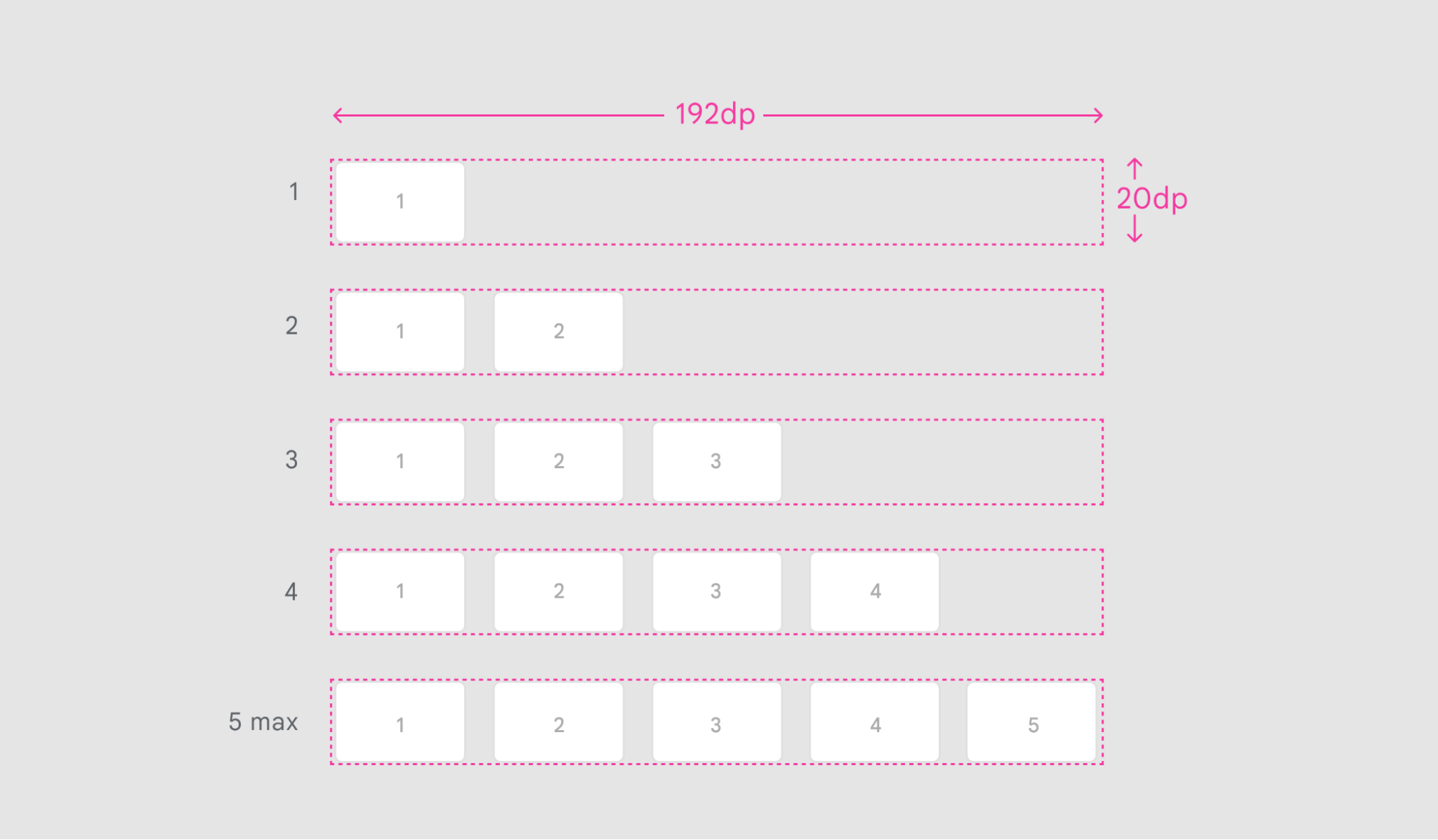
Dimensions |
192dp X 20dp |
Card spacing |
8dp |
File format |
PNG, transparent background |
Payment method variations
Developers can choose the number of available payment method icons they want to include in the image asset, up to a maximum of 5.
No other images or text should be included in the image.
Card specifications
The payment method cards included in the image asset must follow the following guidelines for size, spacing, and style.
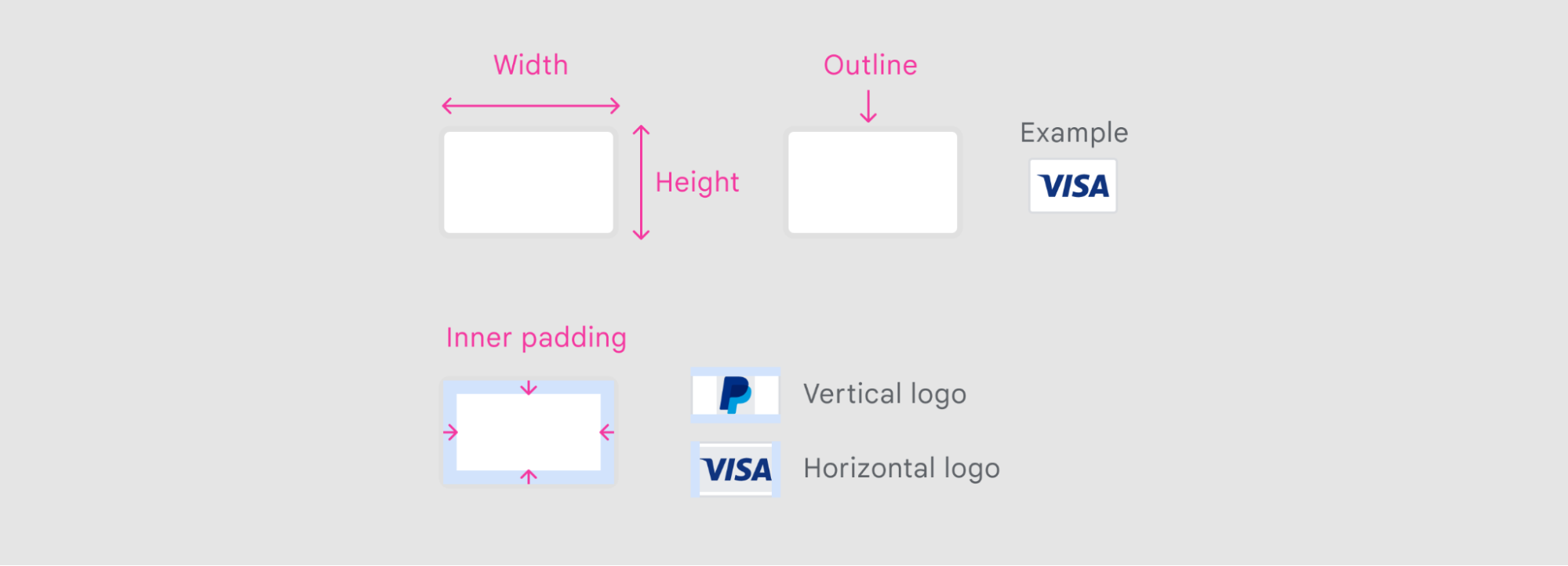
| Card dimensions | 32dp X 20dp |
| Inner padding | 3dp |
| Outline | 1dp (inner stroke included in dimensions), Radius 2dp, #E0E0E0 |
| Card background | Solid color (preferably white) |
Prerequisites
To use the billing choice program, you must meet the following requirements:
- Enrollment - You must enroll in the billing choice program. If you choose to offer external web links, you must update your preferences in Play Console before implementing it in your app.
- PBL version - You must use a Play Billing Library version 9.1 or higher.
Reporting
All alternative billing transactions (including transactions from external
links) must be securely reported to Google Play. To achieve this, an external
transaction token is required. Depending on the billing choice scenario,
the token is generated through different APIs. This transaction token indicates
whether the DeveloperBillingType is categorized as an external link or in-app.
The token is essential for validating transactions and associate them with the
appropriate service fee.