
Android has two power-saving features that extend battery life for users by managing how apps behave when a device isn't connected to a power source: Doze and App Standby. Doze reduces battery consumption by deferring background CPU and network activity for apps when the device is unused for long periods of time. App Standby defers background network activity for apps with no recent user activity.
While the device is in Doze, apps' access to certain battery-intensive resources is deferred until the maintenance window. The specific restrictions are listed in Power management restrictions.
Doze and App Standby manage the behavior of all apps running on Android 6.0 or higher, regardless of whether they are specifically targeting API level 23. To help ensure the best experience for users, test your app in Doze and App Standby modes and make any necessary adjustments to your code. The following sections provide details.
Understand Doze
If a user leaves a device unplugged and stationary for a period of time, with the screen off, the device enters Doze mode. In Doze mode, the system attempts to conserve battery by restricting apps' access to network and CPU-intensive services. It also prevents apps from accessing the network and defers their jobs, syncs, and standard alarms.
Periodically, the system exits Doze for a brief time to let apps complete their deferred activities. During this maintenance window, the system runs all pending syncs, jobs, and alarms, and lets apps access the network.
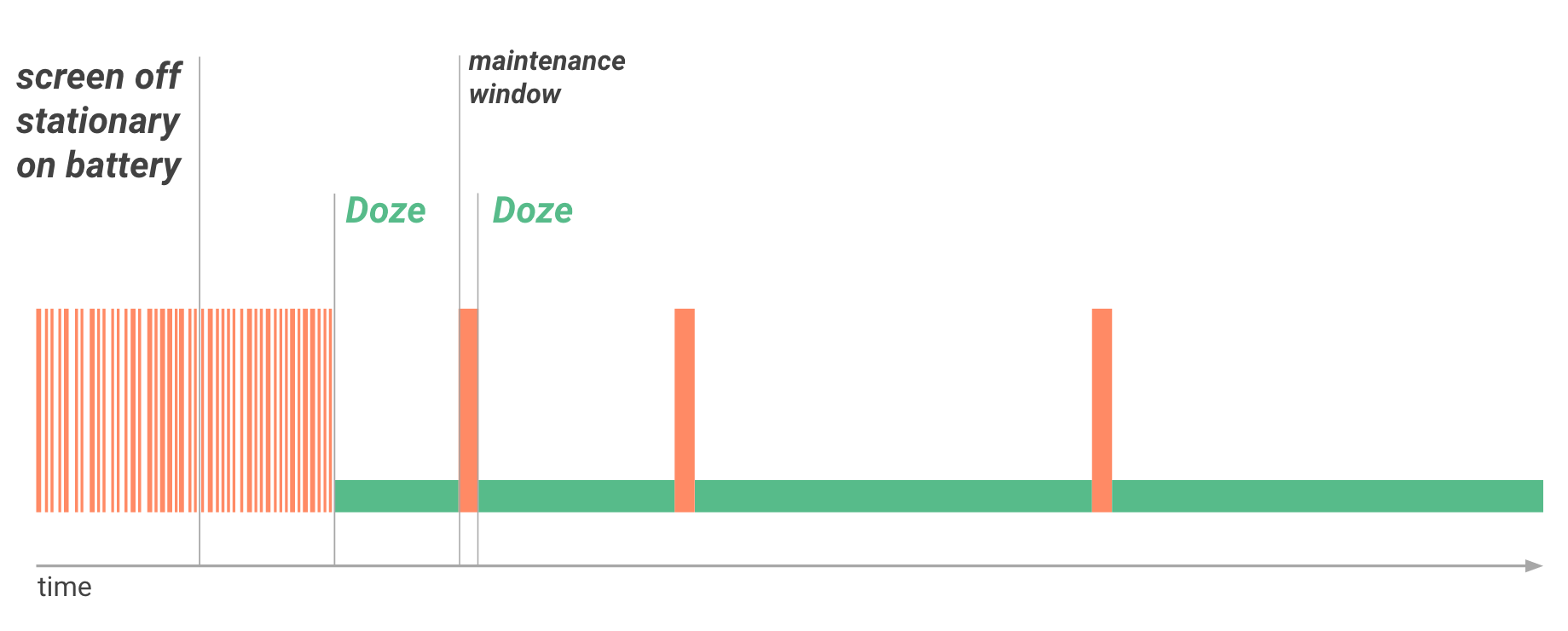
When the maintenance window concludes, the system again enters Doze, suspending network access and deferring jobs, syncs, and alarms. Over time, the system schedules maintenance windows less frequently, helping reduce battery consumption in cases of longer inactivity when the device isn't charging.
When the user wakes the device by moving it, turning on the screen, or connecting a charger, the system exits Doze and all apps resume normal activity.
Doze restrictions
The system applies the following restrictions to your apps while in Doze:
- Suspends network access.
- Ignores wake locks.
- Defers standard
AlarmManageralarms, includingsetExact()andsetWindow(), to the next maintenance window.- If you need to set alarms that fire while in Doze, use
setAndAllowWhileIdle()orsetExactAndAllowWhileIdle(). - Alarms set with
setAlarmClock()continue to fire normally. The system exits Doze shortly before those alarms fire.
- If you need to set alarms that fire while in Doze, use
- Doesn't perform Wi-Fi scans.
- Doesn't let sync adapters run.
- Doesn't let
JobSchedulerrun.
Doze checklist
- If possible, use Firebase Cloud Messaging (FCM) for downstream messaging.
- If your users must see a notification right away, use the
RemoteNotificationmessage type. For more guidance, refer to FCM's documentation on theRemoteNotificationmessage type. - Provide sufficient information within the initial message payload, so subsequent network access is unnecessary.
- Set critical alarms with
setAndAllowWhileIdle()andsetExactAndAllowWhileIdle(). - Test your app in Doze.
Adapt your app to Doze
Doze can affect apps differently, depending on the capabilities they offer and the services they use. Many apps function normally across Doze cycles without modification. In some cases, you must optimize the way that your app manages network, alarms, jobs, and syncs. Apps must be able to efficiently manage activities during each maintenance window.
To help with scheduling alarms, you can use two AlarmManager
methods: setAndAllowWhileIdle() and
setExactAndAllowWhileIdle(). With these methods, you can set alarms
that fire even if the device is in Doze.
The Doze restriction on network access is also likely to affect your app, especially if the app relies on real-time messages such as tickles or notifications. If your app requires a persistent connection to the network to receive messages, use Firebase Cloud Messaging (FCM) if possible.
To confirm that your app behaves as expected with Doze, you can use
adb commands to force the system to enter and exit Doze and
observe your app's behavior. For details, see
Test with Doze and App Standby.
Understand App Standby
App Standby lets the system determine that an app is idle when the user isn't actively using it. The system makes this determination when the user doesn't touch the app for a certain period of time and none of the following conditions applies:
- The user explicitly launches the app.
- The app has a process currently in the foreground, either as an activity or foreground service, or in use by another activity or foreground service.
- The app generates a notification that users see on the lock screen or in the notification tray.
When the user plugs the device into a power supply, the system releases apps from the standby state, letting them freely access the network and execute any pending jobs and syncs. If the device is idle for long periods of time, the system allows idle apps network access about once a day.
Use FCM to interact with your app while the device is idle
Firebase Cloud Messaging (FCM) is a cloud-to-device service that lets you support real-time downstream messaging between backend services and apps on Android devices. FCM provides a single, persistent connection to the cloud. All apps needing real-time messaging can share this connection. This shared connection significantly optimizes battery consumption by making it unnecessary for multiple apps to maintain their own, separate persistent connections, which can deplete the battery rapidly. For this reason, if your app requires messaging integration with a backend service, we strongly recommend you use FCM if possible, rather than maintaining your own persistent network connection.
FCM is optimized to work with Doze and App Standby idle modes. The FCM
RemoteNotification message type lets you wake your app to engage the user. In
Doze or App Standby mode, the system delivers the message and gives the app
temporary access to network services and partial wakelocks, then returns the
device or app to the idle state. For time-sensitive, user-visible notifications,
consider using RemoteNotification message types to enable delivery in Doze
mode. These messages can result in notifications. See
FCM's guidance on RemoteNotification for more information.
For messages that don't result in notifications, such as keeping app content
up to date in the background or initiating data syncs, use BackgroundSync FCM
messages. These messages are intentionally low priority and may be delayed or
throttled to optimize for device battery.
As a general best practice, if your app requires downstream messaging, use
FCM. If your app already uses FCM, make sure that it uses RemoteNotification
for messages that result in user-facing notifications.
Don't use RemoteNotification for the following situations:
- When a notification definitely won't be shown.
- For immediate delivery of messages that only update app state, such as keeping app content up to date in the background or initiating data syncs.
- As a means for prompting the end-user for granting permissions.
Support for other use cases
Almost all apps are able to support Doze by managing network connectivity, alarms, jobs, and syncs, and by using FCM messages. For a narrow set of use cases, this might be insufficient. For such cases, the system provides a configurable list of apps that are partially exempt from Doze and App Standby optimizations.
An app that is partially exempt can use the network and hold partial wake
locks during Doze and App Standby. However, other restrictions still apply
to the app, just as they do to other apps. For example, the app's jobs and syncs
are deferred on API level 23 and below, and its regular
AlarmManager alarms don't fire. An app can check whether it is
currently on the exemption list by calling
isIgnoringBatteryOptimizations().
Users can manually configure the list of exempted apps in Settings > Battery > Battery Optimization. Alternatively, the system provides ways for apps to ask users to exempt them:
- Most apps can invoke an intent that contains the
ACTION_IGNORE_BATTERY_OPTIMIZATION_SETTINGS. - Apps that satisfy an acceptable use case
can instead invoke an intent that contains the
ACTION_REQUEST_IGNORE_BATTERY_OPTIMIZATIONSintent action to let the user add the app to the exemption list directly, without going to system settings.
An app can check whether it is currently on the exemption list by calling
isIgnoringBatteryOptimizations().
Test with Doze and App Standby
To help ensure a great experience for your users, test your app fully in Doze and App Standby.
Test your app with Doze
You can test Doze mode by doing the following:
- Configure a hardware device or virtual device with an Android 6.0 (API level 23) or higher system image.
- Connect the device to your development machine and install your app.
- Run your app and leave it active.
- Force the system into idle mode by running the following command:
$ adb shell dumpsys deviceidle force-idle - When ready, exit idle mode by running the following command:
$ adb shell dumpsys deviceidle unforce - Reactivate the device by performing the following command:
$ adb shell dumpsys battery reset - Observe the behavior of your app after you reactivate the device. Make sure the app recovers gracefully when the device exits Doze.
Test your app with App Standby
To test the App Standby mode with your app, do the following:
- Configure a hardware device or virtual device with an Android 6.0 (API level 23) or higher system image.
- Connect the device to your development machine and install your app.
- Run your app and leave it active.
- Force the app into App Standby mode by running the following commands:
$ adb shell dumpsys battery unplug $ adb shell am set-inactive <packageName> true - Simulate waking your app using the following commands:
$ adb shell am set-inactive <packageName> false $ adb shell am get-inactive <packageName> - Observe the behavior of your app after waking it. Make sure the app recovers gracefully from standby mode. In particular, check if your app's notifications and background jobs function as expected.
Acceptable use cases for exemption
The following table highlights several use cases and whether it's acceptable
for apps to use the ACTION_REQUEST_IGNORE_BATTERY_OPTIMIZATIONS
intent action in these situations. In general, your app doesn't meet these
exceptions unless Doze or App Standby breaks the core function of the app or
there is a technical reason why your app can't use FCM RemoteNotification
messages.
For more information, see Support for other use cases.
| Type | Use case | Can use FCM? | Exemption acceptable? | Notes |
|---|---|---|---|---|
| Instant messaging, chat, or calling app. | Requires delivery of real-time messages to users while device is in Doze or app is in App Standby. | Yes, using FCM | Not Acceptable | Use FCM RemoteNotification messages to wake the app and access
the network. |
Yes, but isn't using FCM RemoteNotification messages. |
||||
| Instant messaging, chat, or calling app; enterprise VOIP apps. | No, can't use FCM because of technical dependency on another messaging service or Doze and App Standby break the core function of the app. | Acceptable | ||
| Safety app. | Apps that keep their users and their families safe. | If applicable. | Acceptable | |
| Task automation app. | App's core function is scheduling automated actions, such as for instant messaging, voice calling, or new photo management. | If applicable. | Acceptable | |
| Peripheral device companion app. | App's core function is maintaining a persistent connection with the peripheral device for the purpose of providing the peripheral device internet access. | If applicable. | Acceptable | |
| App only needs to connect to a peripheral device periodically to sync, or only needs to connect to devices, such as wireless headphones, connected via standard Bluetooth profiles. | If applicable. | Not Acceptable |