

Media apps using the Car App Library templates can customize their media browsing and playback experience while ensuring the experience is optimized for car screens and minimizes distractions while driving.
This guide assumes that you already have a media app that plays audio on a phone
and that your media app conforms to the Android media app architecture. The
Car App Library gives you the ability to replace the in-app experience with
templates instead of those built using the Build media apps for cars
MediaBrowser data structure. You still must provide a MediaSession
for playback controls, and a MediaBrowserService or MediaLibraryService,
which is used for recommendations and other smart experiences.
Configure your app's manifest
In addition to the steps described in Using the Android for Cars App Library, the following are required of templated media apps:
Declare category support in your manifest
Your app needs to declare the androidx.car.app.category.MEDIA
car app category in the intent
filter of its CarAppService.
<application>
    ...
   <service
       ...
        android:name=".MyCarAppService"
        android:exported="true">
      <intent-filter>
        <action android:name="androidx.car.app.CarAppService" />
        <category android:name="androidx.car.app.category.MEDIA"/>
      </intent-filter>
    </service>
    ...
<application>
To get access to the MediaPlaybackTemplate, your app also
needs to declare the androidx.car.app.MEDIA_TEMPLATES permission in its
manifest file:
<manifest ...>
  ...
  <uses-permission android:name="androidx.car.app.MEDIA_TEMPLATES"/>
  ...
</manifest>
Set the minimum car app API level
Media apps using the MediaPlaybackTemplate are only supported in CAL API 8 and
above, be sure your minimum Car App API level is set to 8.
<application ...>
  ...
  <meta-data
    android:name="androidx.car.app.minCarApiLevel"
    android:value="8"/>
  ...
</application>
Provide an attribution icon
Be sure to add an attribution icon for media apps built using the Car App Library.
Declare Android Auto support
Ensure the following is included in your app's manifest:
<application>
  ...
  <meta-data android:name="com.google.android.gms.car.application"
      android:resource="@xml/automotive_app_desc"/>
  ...
</application>
Then, add the template declaration to automotive_app_desc.xml in your xml
resources. It should look as follows:
<automotiveApp xmlns:android="http://schemas.android.com/apk/res/android">
 <uses name="media"/>
 <uses name="template"/>
</automotiveApp>
Declare Android Automotive OS support
There are two different ways you can distribute a Car App Library enabled media
app on Android Automotive OS: as a single APK or as two separate APKs. If you
distribute a single APK, it will support vehicles that are enabled for Android
Automotive OS with the Car App Library host and fall back to a
MediaBrowserService or MediaLibraryService application if not, even for
older Android versions (Android 10 - Android 13). If you choose to distribute
two separate APKs, you can more easily update the new additions to the Car App
Library version without fear of impacting the MediaBrowserService or
MediaLibraryService version of your app.
Distributing a single APK
When distributing a single APK for the Car App Library and MediaBrowserService
or MediaLibraryService versions of your app, it's crucial to set the
android.software.car.templates_host.media to android:required="false".
<uses-feature android:name="android.software.car.templates_host.media" android:required="false"/>
Next, follow the Car App Library guidelines for AAOS and
introduce a launchable CarAppActivity (or trampoline activity). You must set
the activity to android:enabled="false" in the manifest. Next, add a metadata
tag to the MediaBrowserService declaration indicating the CarAppActivity
component as the replacement. See the example manifest below:
<service android:name=".media.MyMediaService"
    android:exported="true"
    android:label="@string/app_name">
    <intent-filter>
        <action android:name="androidx.media3.session.MediaLibraryService"/>
    </intent-filter>

    <!-- Link to Car App Library Activity -->
    <meta-data
        android:name="androidx.car.app.media.CalMediaActivityComponent"
        android:value="com.example.mediaapp.LaunchableTrampoline"/>
</service>

<activity
    android:name=".LaunchableTrampoline"
    android:exported="true"
    android:theme="@android:style/Theme.DeviceDefault.NoActionBar"
    android:launchMode="singleTask"
    android:label="@string/app_name_cal"
    android:enabled="false"> <!-- Set to false -->

    <meta-data android:name="distractionOptimized" android:value="true" />

    <intent-filter>
        <action android:name="android.intent.action.MAIN"/>
        <action android:name="androidx.car.app.media.action.SHOW_MEDIA_PLAYBACK"/>
        <category android:name="android.intent.category.LAUNCHER"/>
    </intent-filter>
</activity>
Play distribution
Your APK with the Car App Library and MediaBrowserService
or MediaLibraryService should be enabled with a higher version code and
minSdk targeting Android 14 (34).
Distributing with two APKs
To distribute two separate APKs, one using the Car App Library and another using
MediaBrowserService or MediaLibraryService, follow these steps to ensure the
correct vehicle capabilities are targeted correctly.
When creating a separate APK for the Car App Library version of your app,
you must set the android.software.car.templates_host.media to
android:required=true. This ensures the app is distributed only on Android
Automotive OS builds certified with support for the Car App Library host.
<uses-feature android:name="android.software.car.templates_host.media" android:required="true"/>
Aside from using android.software.car.templates_host.media and setting it to
android:required=true above, follow these steps to enable Android Automotive OS
for your launchable Car App Library activity.
Play Distribution
The APK that uses the Car App Library, should be distributed in the Automotive OS dedicated track.
Support voice actions
Voice-enable your app to allow users to complete common actions hands-free.
See support voice actions for media for more detailed implementation
instructions. With a templated media app if you receive a voice command, you
don't need to update your MediaBrowserService or MediaLibraryService with
search results. Instead, consider adding an action in your media playback
template to allow the user to find more content based on that play or search
query. Supporting voice commands is required to meet the VC-1 quality
guideline.
Create your Playback Template
The MediaPlaybackTemplate displays media playback
information in your Car App Library media app. This template allows setting a
header with a title and customizable actions while the media information and
playback controls are populated by the host based off of the state of your app's
MediaSession.
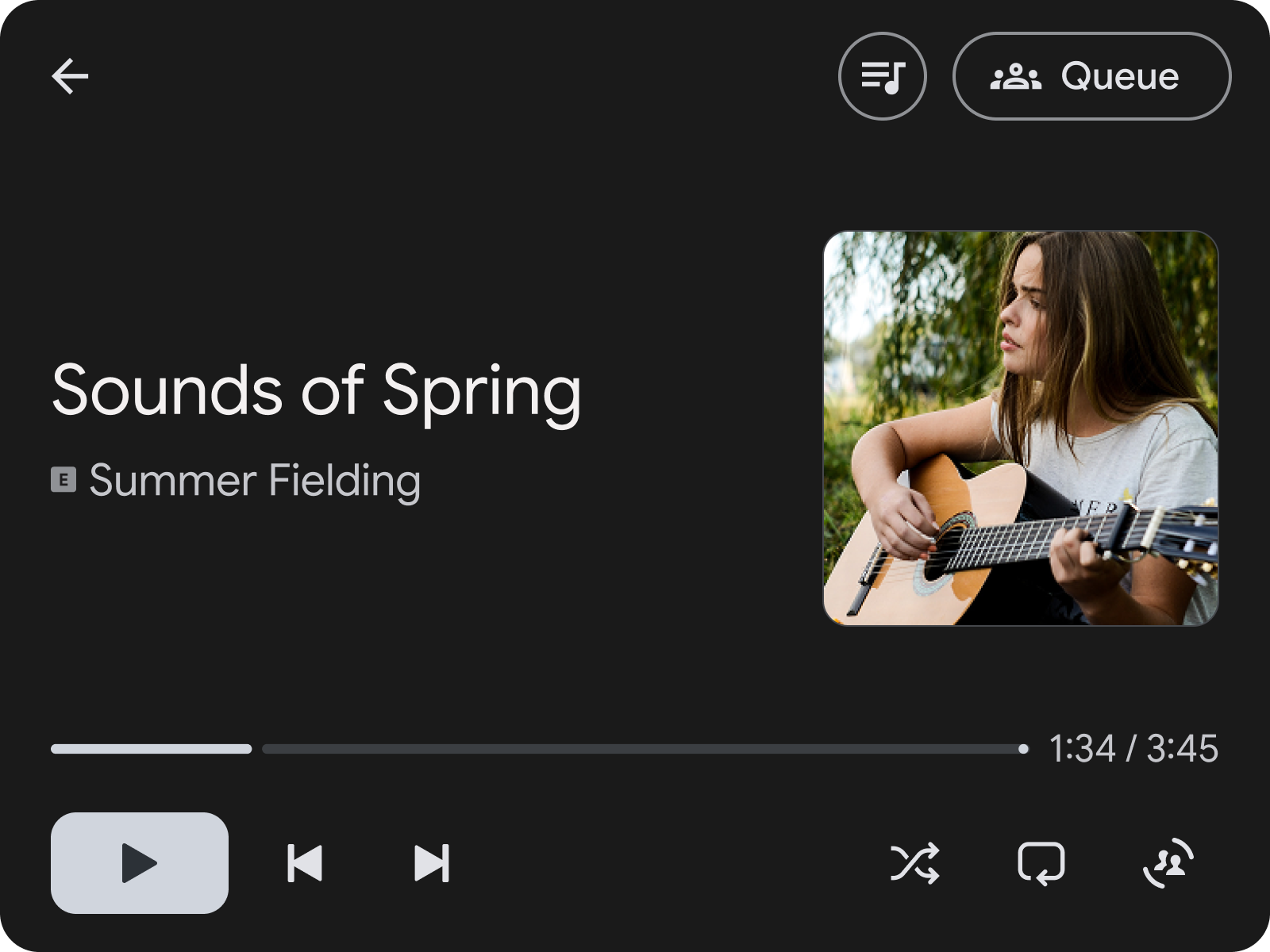
Figure 1:
MediaPlaybackTemplate with a header action to open the queue
along the top.
This code example shows how to build an example playback template that sets a header action which allows the user to navigate to a screen with the queue of songs.
val playbackTemplate = MediaPlaybackTemplate.Builder()
      .setHeader(
        Header.Builder()
          .setStartHeaderAction(Action.BACK)
          .addEndHeaderAction(
                Action.Builder()
                  .setTitle(model.context.getString(R.string.queue_button_title))
                  .setIcon(
                    CarIcon.Builder(
                        IconCompat.createWithResource(
                          model.context,
                          R.drawable.gs_queue_music_vd_theme_24,
                        ))
                      .build())
                  .setOnClickListener(showQueueScreen())
                  .build())
          .setTitle(model.context.getString(R.string.media_playback_view_title))
          .build())
      .build()
When you use MediaPlaybackTemplate, register a
MediaSession token using the MediaPlaybackManager in your
CarAppService. Failing to do so causes an error to be displayed when a
MediaPlaybackTemplate is sent to the host.
import androidx.car.app.media.MediaPlaybackManager
…

override fun onCreateSession(sessionInfo: SessionInfo): Session {
    return object : Session() {
        …

        init {
          lifecycle.addObserver(
            LifecycleEventObserver { _, event ->
              if (event == ON_CREATE) {
                val token = ... // MediaSessionCompat.Token
                (carContext.getCarService(CarContext.MEDIA_PLAYBACK_SERVICE) as MediaPlaybackManager)
                  .registerMediaPlaybackToken(token)
              }
              ...
            }
          )
        }
    }
}
.registerMediaPlaybackToken is necessary for exposing media playback
information and controls to Android Auto. This is also important for the host to
create media specific notifications.
For apps using the Media3 library, which use a PlatformToken rather than a
standard MediaSessionCompat.Token, you will need to implement a custom
SessionCommand in your MediaLibrarySession.Callback that returns the
session's underlying platform token: session.platformToken. In your
CarAppService send this custom command to the session. Once you receive the
platform token, convert it using
MediaSessionCompat.Token.fromToken(platformToken) and pass this compat token
to the Car App Library in .registerMediaPlaybackToken().
Organize media using templates
To organize media for browsing such as songs or albums, we recommend using the
SectionedItemTemplate,
which lets you use the GridSection and
RowSection together to create layouts that mix lists of images
and text items.
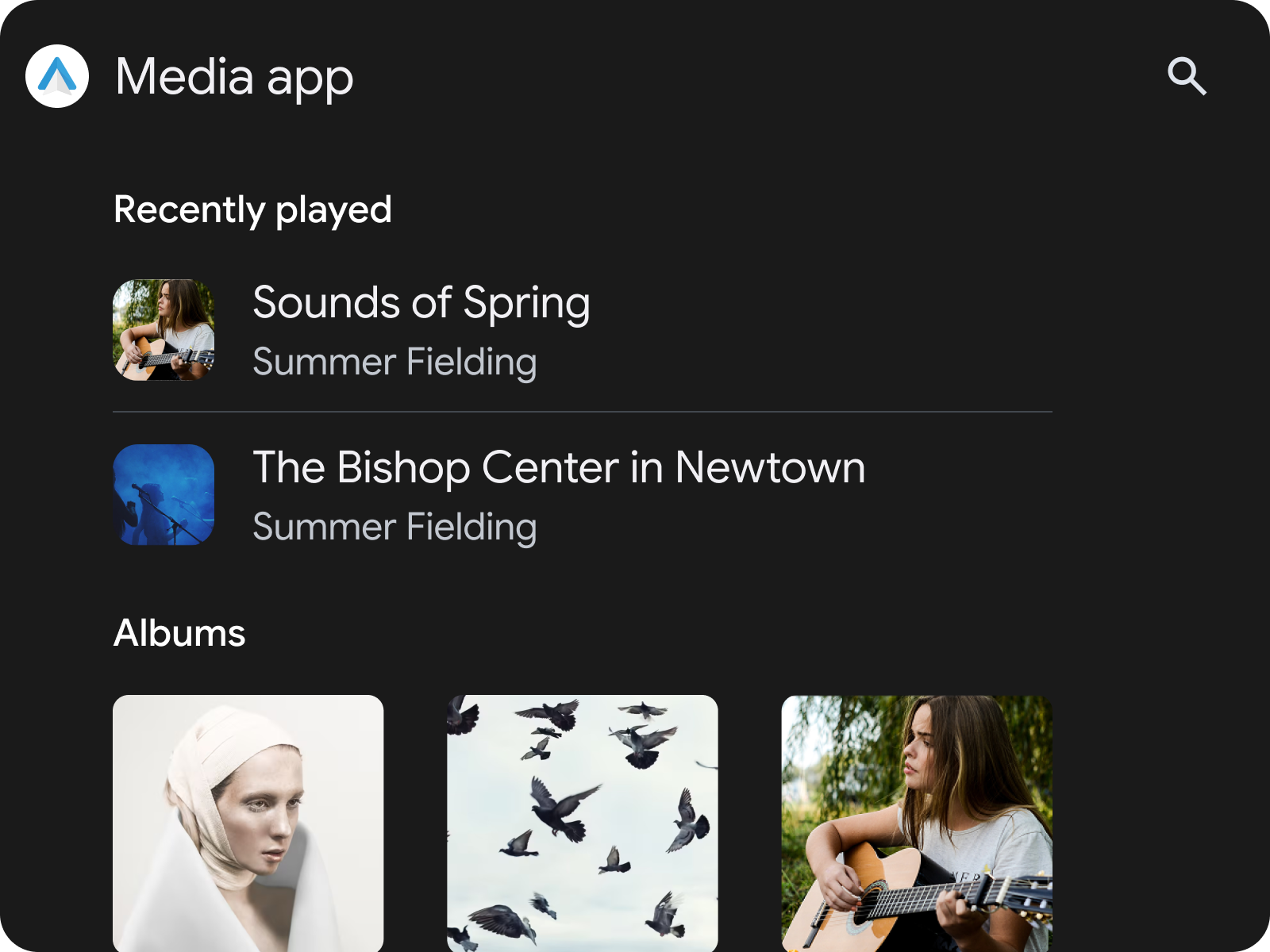
Figure 2: A
SectionedItemTemplate containing a RowSection
followed by a GridSection
Using SectionedItemTemplate inside a TabTemplate
One convenient way to categorize media within your app, is using the
SectionedItemTemplate inside a
TabTemplate.
val template =
      SectionedItemTemplate.Builder()...build();
val tabTemplate =
      TabTemplate.Builder(tabCallback)
          .setTabContents(TabContents.Builder(template).build)
          .setHeaderAction(Action.APP_ICON)
          …
          .build();
Car app library 1.9 components and features
Car App Library API Version 1.9 introduces customized components for unique browsing capabilities, such as Chips, Progress Bars, Condensed Items, Interactive and Expanded Header, Spotlight Sections and Banners.
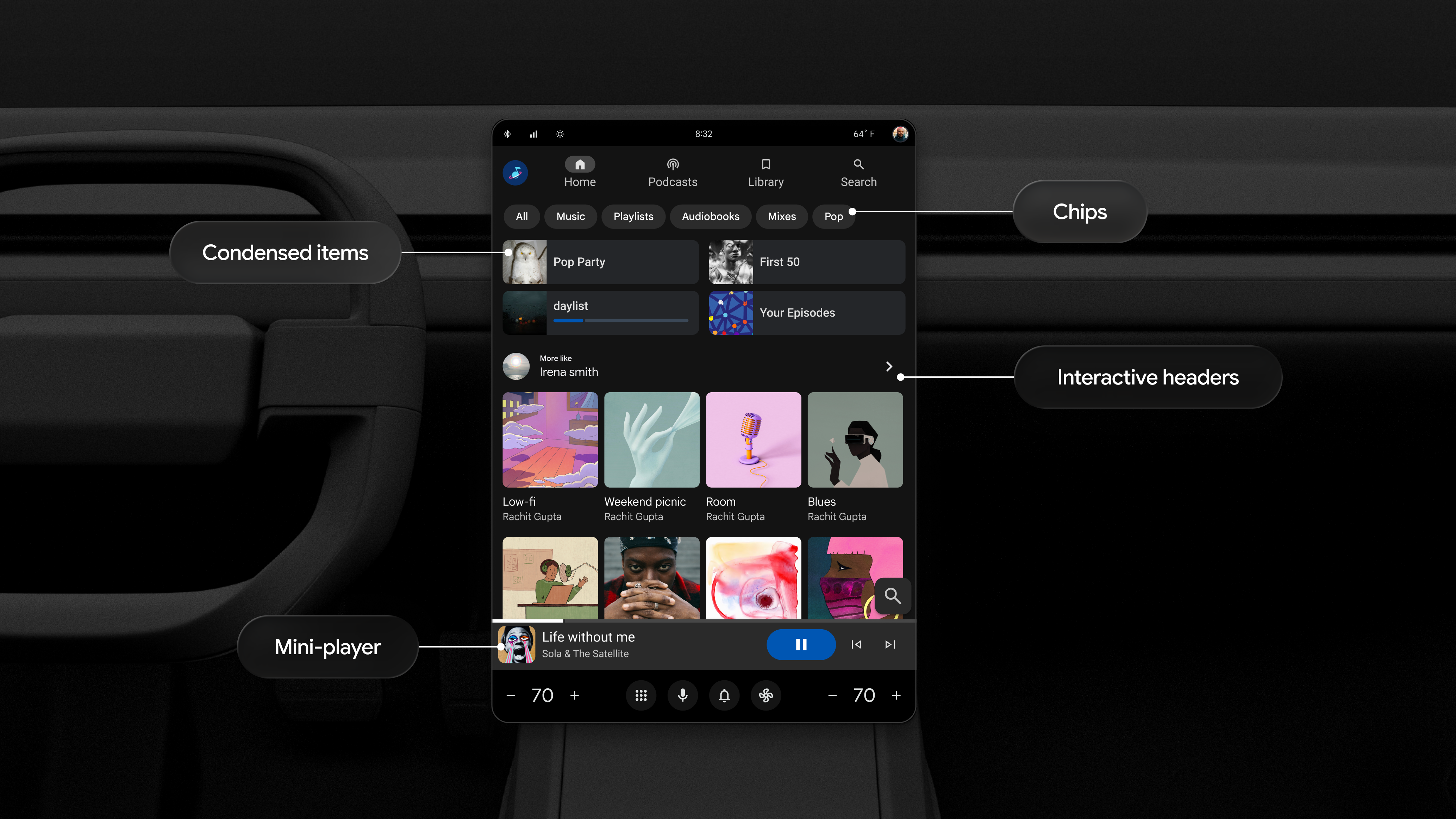
Figure 3: A
SectionedItemTemplate containing Chips,
Condensed Items, an Interactive Header,
Grid Items, and a Minimized Control Panel
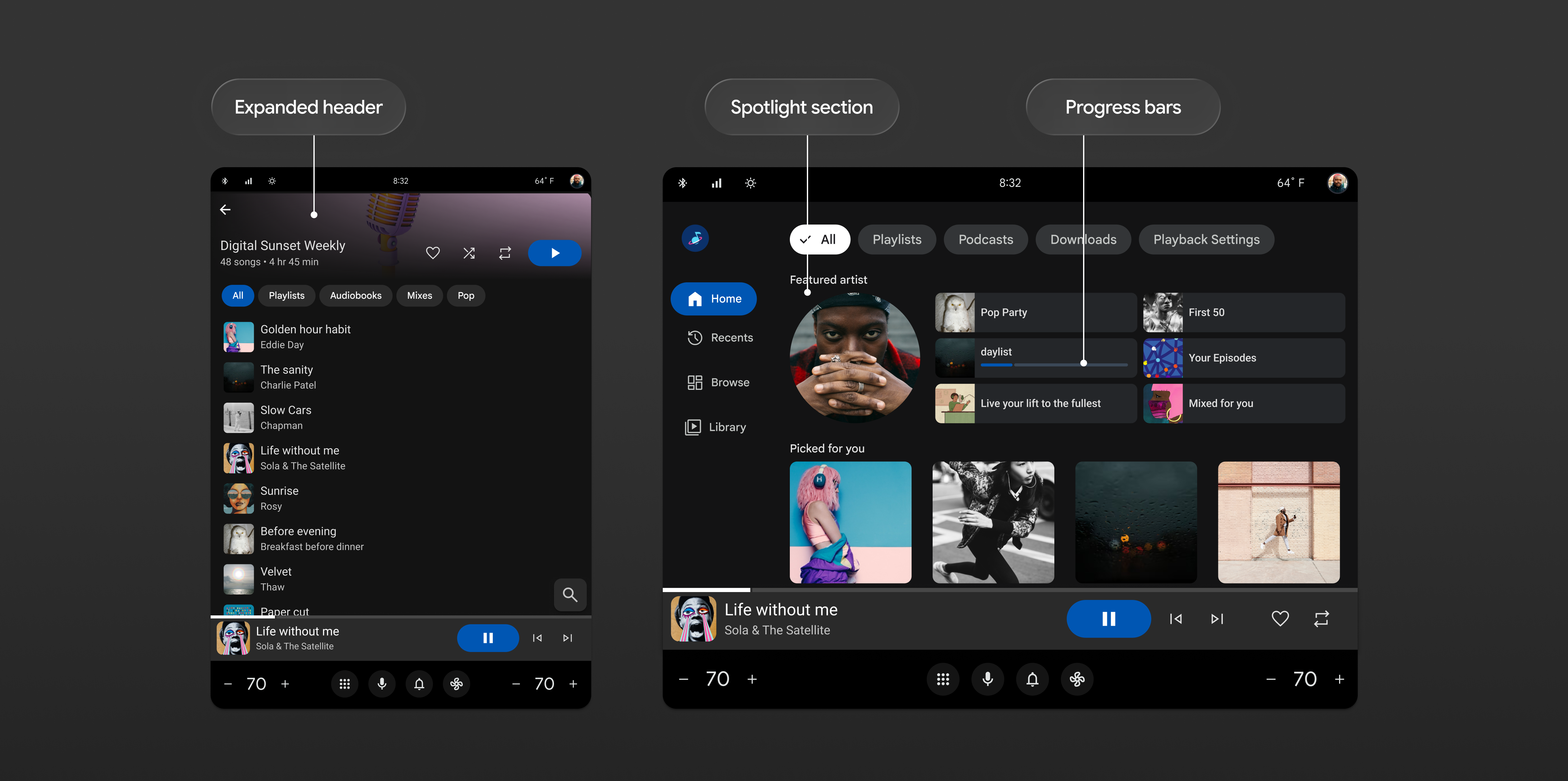
Figure 4: Two
media browsing screens featuring the Expanded Header,
Spotlight Sections, and Progress Bars
For more details about how to design your media app's user interface using these templates, see Media apps.
Navigating to the playback controls
When browsing through media it is important that the user is able to quickly
navigate to the MediaPlaybackTemplate with minimal distraction.To meet the
MFT-1 quality requirement, your app must have a way to access
the MediaPlaybackTemplate from all media browsing screens.
If you are using SectionedItemTemplate you can achieve this by adding an
action button that navigates you to the media playback screen. Use the
standard Car App Library Action.MEDIA_PLAYBACK action. A media app will
surface this action as a Minimized control panel,
which is required to meet the MFT-1 quality requirement if you are
using Car App Library API 1.9 or higher. For other templates, a header action is another
way to achieve this.
Handle system media playback intents
It is required to direct the user to the MediaPlaybackTemplate when an
application is launched from a system playing media surface, such as a media
card. We require that media applications handle this Intent Action in order
to provide a seamless experience for users.
Add the androidx.car.app.media.action.SHOW_MEDIA_PLAYBACK action to the
intent-filter of your Car App Library component (either CarAppActivity or
your trampoline Activity).
Ensure your activity uses a launchMode of singleTask or singleTop so that
onNewIntent() is invoked.
<activity
    android:name=".LaunchableTrampoline"
    android:exported="true"
    android:theme="@android:style/Theme.DeviceDefault.NoActionBar"
    android:launchMode="singleTask"
    android:label="@string/app_name_cal"
    android:enabled="false">

    <meta-data android:name="distractionOptimized" android:value="true" />

    <intent-filter>
        <action android:name="android.intent.action.MAIN"/>
        <action android:name="androidx.car.app.media.action.SHOW_MEDIA_PLAYBACK"/>
        <category android:name="android.intent.category.LAUNCHER"/>
    </intent-filter>
</activity>
In your Session class, override onNewIntent() to parse the incoming intent.
If the incoming intent action matches SHOW_MEDIA_PLAYBACK, navigate the user
to your now playing screen.
@Override
public void onNewIntent(@NonNull Intent intent) {
    super.onNewIntent(intent);
    if (SHOW_MEDIA_PLAYBACK.equals(intent.getAction())) {
        ScreenManager screenManager = getCarContext().getCarService(ScreenManager.class);
        // Avoid redundant navigation if already on the playing screen
        if (screenManager.getTop() instanceof MyMediaPlayScreen) {
            return;
        }
        screenManager.push(MyMediaPlayScreen.createScreenFromPlaying(
                getCarContext(), mMediaSessionController));
    }
}
If you are using a trampoline activity, check for the intent action within
onCreate(). Pass this action to the CarAppActivity creation intent before
calling finish().
public class LaunchableTrampoline extends AppCompatActivity {
    private static final String SHOW_MEDIA_PLAYBACK = "androidx.car.app.media.action.SHOW_MEDIA_PLAYBACK";

    @Override
    protected void onCreate(Bundle savedInstanceState) {
        super.onCreate(savedInstanceState);
        Intent receivedIntent = getIntent();
        String action;

        if (SHOW_MEDIA_PLAYBACK.equals(receivedIntent.getAction())) {
            action = SHOW_MEDIA_PLAYBACK;
        } else {
            action = Intent.ACTION_MAIN;
        }

        Intent intent = new Intent(action);
        intent.setClassName(getPackageName(), "androidx.car.app.activity.CarAppActivity");
        startActivity(intent);
        finish();
    }
}