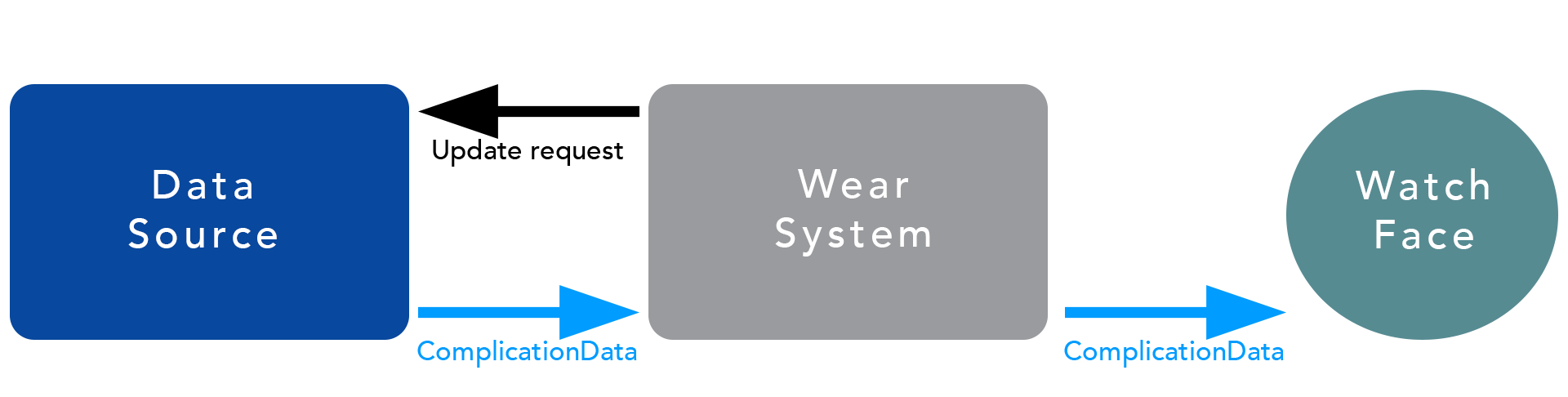
A complication is any feature in a watch face that displays more than hours and minutes. For example, a battery indicator is a complication. The Complications API is for both watch faces and data provider apps.
Watch faces can display extra information without needing code for getting the underlying data. Data providers can supply data (such as battery level, weather, or step-count data) to any watch face using the API.
Apps that provide data to watch faces for complications are called "complication data providers." These data providers are not responsible for controlling how their data is rendered on a watch face. Therefore, a watch face can integrate data naturally with a watch face's design; see the design patterns for complications.
A watch face is responsible for drawing its complications. The watch face can receive complication data of various types (e.g., small text data or icon data) and then display it. See Adding Complications to a Watch Face.
As shown in the diagram below, Android Wear mediates the flow of data from providers to watch faces.
For writing apps that provide data to watch faces, see Exposing Data to Complications.
Adding Complications to a Watch Face
Watch face developers can receive complication data and enable users to select data providers. Additionally, Android Wear provides a user interface for data source selection.
Receiving data
To start receiving complication data, a watch face calls
setActiveComplications(), in the
WatchFaceService.Engine class, with a list of watch face
complication IDs. A watch face creates these IDs to uniquely identify
slots on the watch face where complications can appear, and passes them
to the createProviderChooserIntent() method
to allow the user to decide which complication should go in which slot.
Complication data is delivered via the
onComplicationDataUpdate() (of
WatchFaceService.Engine) callback.
Rendering complications
The watch face may render the data as desired as long as the expected fields are represented; the required fields should always be included and the data should be represented in some way. Depending on the type, some of the optional fields should also be included (see the Notes column in the table below).
We provide design guidelines for our style, as a suggestion for standard complications, but developers can use their own styles or incorporate the data into the watch face in different ways.
Drawing complications
The
ComplicationDrawable class enables you to render an entire
complication on a canvas.
The class supports all six of the main complication types, and does the following for you:
- Handles all aspects of layout and styling for complications.
- Draws backgrounds, icons, text, etc., within bounds.
- Allows you to set many options. These include, but are not limited to, options for the following: background color, corner shape and radius, border (or lack of a border), text color, and typeface.
- Decodes and caches images.
If you target API level 24, a ComplicationDrawable object
can be defined in XML as a resource. Alternatively, you can create a
ComplicationDrawable object programmatically. You use the
draw() method to draw a complication and set style options
for the interactive and ambient modes.
For detailed instructions and examples for drawing complications, see
ComplicationDrawable, which includes sample XML. For a sample
watch face that utilizes this class and includes sample XML, see the
AnalogComplicationWatchFaceService sample in the Watch Face sample
app.
If you don't use a ComplicationDrawable object, use
TextRenderer for the text of a complication.
Rendering text
The
TextRenderer class is intended for use in complications, and
eases the drawing of text on a canvas. The class includes these features:
- If seven characters (the maximum in the short text field) do not fit in the bounds at the requested text size, the class shrinks the text until it fits.
- Text can be flowed over a specified number of lines.
- Text can be ellipsized if it does not fit.
- Rendering is adjusted for an always-on screen (ambient mode).
When you
initialize your watch face engine, you can create a
TextRenderer object and pass in the TextPaint object
that you want the TextRenderer object to use.
The TextPaint object defines the font, text size, color,
and more. You should create a TextRenderer object for each
field, e.g. one for a text field and one for a title field.
For example code, including for specifying bounds on the text you want to
render, see
TextRenderer.
Allowing users to choose data providers
Android Wear provides a user interface (via an Activity) that enables
users to choose providers for a particular complication. Watch faces can
call the createProviderChooserIntent method to obtain an
intent that can be used to show the chooser interface.
This intent must be used with startActivityForResult(). When a
watch face calls createProviderChooserIntent, the watch face
supplies a watch face complication ID and a list of supported types. The
types should be listed in order of preference, usually with types
offering more information, such as ranged value, given higher preference.
When the user selects a data provider, the configuration is saved automatically; nothing more is required from the watch face.
User interactions with complications
Providers can specify an action that occurs if the user taps on a
complication, so it should be possible for most complications to be
tappable. This action will be specified as a
PendingIntent
included in the ComplicationData object. The watch face is
responsible for detecting taps on complications, and should fire the
pending intent when a tap occurs.
It may be infeasible to make some complications tappable (e.g., in the case of a complication that fills the entire background of the watch face), but it is expected that watch faces accept taps on complications where possible.
Recommended Code for Watch Face Settings
Any watch face with complications should include a way for users to configure them. See the Watch Face sample app for the full-featured, recommended code for the settings user interface.
That code includes:
- A standard interface for complication settings.
- Easy access to other settings.
A starting point for reviewing that code is the
AnalogComplicationConfigActivity class, which has a
getDataToPopulateAdapter() method that returns a list of the
settings entries available in the UI.
Permissions for Complication Data
A watch face must have the following permission to receive complication data and open the provider chooser:
com.google.android.wearable.permission.RECEIVE_COMPLICATION_DATA
Opening the provider chooser
A watch face that was not granted the above permission will be unable to start the provider chooser.
To make it easier to request the permission and start the chooser, the
ComplicationHelperActivity class is available in the
wearable support library. This class should be used instead of
ProviderChooserIntent class to start the chooser in almost all
cases.
Requesting the necessary permission
To use ComplicationHelperActivity, add it to the watch face
in the
manifest file:
<activity android:name="android.support.wearable.complications.ComplicationHelperActivity"/>
To start the provider chooser, call the
ComplicationHelperActivity.createProviderChooserHelperIntent
method, to obtain an intent.
The new intent can be used with either startActivity or
startActivityForResult to launch the chooser.
Here is an example of using the new intent with
startActivityForResult:
startActivityForResult(
ComplicationHelperActivity.createProviderChooserHelperIntent(
getActivity(),
watchFace,
complicationId,
ComplicationData.TYPE_LARGE_IMAGE),
PROVIDER_CHOOSER_REQUEST_CODE);
When the helper activity is started, the helper activity checks if the permission was granted. If the permission was not granted, the helper activity makes a runtime permission request. If the permission request is accepted (or is unneeded), the provider chooser is shown.
If startActivityForResult was used with the intent, the
result delivered back to the calling Activity will have a result code of
RESULT_OK if a provider was successfully set, or a result
code of RESULT_CANCELLED if no provider was set.
In the case where a provider was set,
ComplicationProviderInfo class for the chosen provider will be
included in the data intent of the result, as an extra with the key
ProviderChooserIntent#EXTRA_PROVIDER_INFO.
Receiving complication data
In general, watch faces need the above permission in order to receive complication data, but there are some exceptions. Specifically, a watch face can only receive data from a provider if one of the following is true:
- The provider is a "safe" system provider,
- The provider and watch face are from the same app,
- The provider whitelists the watch face as a "safe" watch face, or
- The watch face has the permission
Lack of appropriate permission
If none of the above is true, then when ComplicationData
normally would be sent by a provider to a watch face, the system instead
sends data of the type TYPE_NO_PERMISSION. This type
includes an icon (an exclamation mark) and short text ("--") to allow it
to be rendered as if it were of the short text type or icon type, for
convenience.
When a watch face receives data of TYPE_NO_PERMISSION, the
watch face should render this appropriately, so the user can see that
action is needed for the complication to work. If possible, a tap on a
complication in this state should launch a permission request. This can
be done using
ComplicationHelperActivity.createPermissionRequestHelperIntent(),
if the helper activity was added to the watch face app.
If a user accepts the permission request created by the helper activity,
updates are requested for all the active complications on the watch face
automatically, allowing the TYPE_NO_PERMISSION data to be
replaced by real data.
Safe providers
Some system providers are considered safe because they only supply information that the watch face already could obtain itself.
These providers are listed in the SystemProviders class
in the wearable support library; see the
Wear API Reference. Also
see the System providers section
for a list.
Provider-specified safe watch faces
Providers can specify certain watch faces as "safe" to receive their data. This is intended to be used only when a watch face will attempt to use the provider as a default (see below), and the provider trusts the watch face app.
To declare watch faces as safe, the provider adds metadata with a key of
android.support.wearable.complications.SAFE_WATCH_FACES. The
metadata value should be a comma-separated list (whitespace is ignored).
Entries in the list can be component names (of
WatchFaceServices, given as if
ComponentName.flattenToString() had been called), or they
can be package names (of apps, in which case every watch face within a
specified app is considered safe).
For example:
<meta-data
android:name="android.support.wearable.complications.SAFE_WATCH_FACES"
android:value="
com.app.watchface/com.app.watchface.MyWatchFaceService,
com.anotherapp.anotherwatchface/com.something.WatchFaceService,
com.something.text
"/>
Default Providers for Watch Faces
Watch faces can specify default providers that are used until a user selects a provider.
Setting default providers
Set default providers using the
setDefaultComplicationProvider() method in
WatchFaceService.Engine. This method may be called at any
time, but it does nothing if the user already chose a provider for the
given complication.
For most providers, the RECEIVE_COMPLICATION_DATA permission
must be granted to a watch face before data can flow to it. However, some
system providers are considered safe, and do not require the watch face
to have the permission for data to be sent (see Safe providers and System providers). These providers may be
preferable to use as defaults, as they can supply data immediately.
Alternatively, if a watch face has a partnership with a certain provider and wishes to use it as a default, it can request that the provider list it as a safe watch face (see Provider-specified safe watch faces).
System providers
The system includes providers that can be used as defaults.
The setDefaultSystemComplicationProvider() method, in the
WatchFaceService.Engine class, sets a default
system provider for a complication. This method takes an ID
(as an integer) that represents a system provider.
The available IDs are listed
in the SystemProviders class.
The following table has details about providers that are considered safe:
| Method name in the SystemProviders class | Safety | Can be the default | Notes |
|---|---|---|---|
dateProvider()
|
Yes | Yes | The standard system date provider. Tapping opens the standard Agenda app. |
currentTimeProvider()
|
Yes | Yes | The standard system "time and date" provider. No tap action. |
batteryProvider()
|
Yes | Yes | The standard system battery provider. No tap action. |
stepCountProvider()
|
Yes | Yes |
Shows a daily total of steps, as reported by
readDailyTotal.
|
unreadCountProvider()
|
Yes | Yes | Shows the number of unread notifications in the stream. |
worldClockProvider()
|
Yes | Yes | Will default to London or New York. Can be tapped to change the time zone. |
appsProvider()
|
Yes | Yes | Will show an "apps" icon at first, which can be tapped to choose an app. |
nextEventProvider()
|
No | Yes (but not a safe provider) | The standard system "next event" provider. Tapping opens the standard Agenda app. |
Exposing Data to Complications
A complication data provider is a service that extends
ComplicationProviderService. To respond to update requests
from the system, your data provider must implement the
onComplicationUpdate() method of the
ComplicationProviderService class. This method will be
called when the system wants data from your provider - this could be when
a complication using your provider becomes active, or when a fixed amount
of time has passed. A ComplicationManager object is passed
as a parameter to the onComplicationUpdate method, and can
be used to send data back to the system.
Note: When you provide data as a complication data provider, the watch face receives the raw values you send so it can draw them on the watch face.
In your app's manifest, declare the service and add an intent filter for the following:
android.support.wearable.complications.ACTION_COMPLICATION_UPDATE_REQUEST
The service's manifest entry should also include an
android:icon attribute. The provided icon should be a
single-color white icon. Vector drawables are recommended for the icons.
An icon should represent the provider and will be shown in the provider
chooser.
Include metadata to specify the supported types, update period, and
configuration action, if required; for details,
see the keys listed for the
ComplicationProviderService class
in the
Wear API Reference.
Additionally, a permission for provider services ensures that only the Android Wear system can bind to provider services. Only the Android Wear system can have this permission.
Provider services should add the following to their service declarations in the manifest:
android:permission="com.google.android.wearable.permission.BIND_COMPLICATION_PROVIDER"
Update period
Your provider can specify an update period using the following metadata key in the manifest:
android.support.wearable.complications.UPDATE_PERIOD_SECONDS
This should be set to as long a time as possible, as updating too frequently may impact battery life. Note that update requests are not guaranteed to be sent with this frequency. The system does apply a minimum update period, and in particular, update requests may come less often when the device is in ambient mode or is not worn.
You can alternatively use a "push style" to send updates, rather than
requesting updates on a fixed schedule. To do so, you can set the update
period to 0 so scheduled update requests do not occur (or set it to a
non-zero value) and use a ProviderUpdateRequester to trigger
calls to onComplicationUpdate as required.
Provider configuration
If required, a provider can include a configuration activity that is shown to the user when the user chooses a data provider. To include the configuration activity, include a metadata item in the provider service declaration in the manifest with a key of the following:
android.support.wearable.complications.PROVIDER_CONFIG_ACTION
The value can be an action of your choice.
Then create the configuration activity with an intent filter for that
action. The configuration activity must reside in the same package as the
provider. The configuration activity must return RESULT_OK or
RESULT_CANCELED, to tell the system whether the provider
should be set.
If a data provider needs a specific permission to access a user's data, then standard code for runtime permissions is needed. A configuration activity may be used as an opportunity to request any permissions required by the provider.
For details,
see the following in the ComplicationProviderService class
in the
Wear API Reference:
METADATA_KEY_PROVIDER_CONFIG_ACTION
Using and Testing Complication Types
Complication types determine the kinds of data shown in a complication.
For example, the SHORT_TEXT type is available when the key
data is a short string. In the example of the SHORT_TEXT
type, optional data are an icon and a short title.
Data providers use these complication types differently from the way watch face providers use these types:
- A data provider chooses the types of complication data to supply. For
example, a step count provider might support the
RANGED_VALUEandSHORT_TEXTtypes, whereas a "next meeting" provider might support theSHORT_TEXTandLONG_TEXTtypes. The data provider also chooses which optional fields of those types to include. - A watch face provider chooses how many complication types to support.
For example, a round complication on a watch face might support the
SHORT_TEXT,ICONandRANGED_VALUEtypes, whereas a gauge on the watch face might support only theRANGED_VALUEtype.
A
ComplicationData object will always have a single
complication type. Each complication type has required and optional
fields. Generally, a required field represents the primary piece of data;
most types take their name from the required field.
A given type may include different sets of fields. For example,
SHORT_TEXT may be just a single piece of text, or a title
and text, or an icon and text. A complication that supports a given type
must be able to display all the expected variants. However, some optional
fields do not need to be displayed (see the Notes column of the
table below). For example, the Short title field of the
RANGED_VALUE type is not required so that, for example,
gauges can be shown without including text.
Testing complication types
Each complication type has fields, such as text and icons. If your watch face supports a complication type, you need to support all of the valid field combinations.
You can test the way complication data is displayed on a watch face.
Specifically, a
test suite enables you to test the display of the complication types.
Thus, you don't need to write code to test the valid field combinations
for a ComplicationData object.
The test suite is a data provider, available as a sample, which cycles through the valid field combinations for a given complication type.
To use the test suite:
- Install the test suite APK on a device or emulator.
- Access your watch face and tap its main settings icon.
- Use the settings UI to choose the test suite: WearComplication-ProviderTestSuite
- Choose a complication data type to test.
- Tap your complication to view the variations of the data type.
- Repeatedly tap your complication to verify that all relevant field combinations are properly displayed.
For example, if a complication supports short text, tap your complication to see all the main combinations of fields for short text.
Examples of Complication Types
The following shows examples of complication types:
Types and fields
The following table describes the types and fields of the
ComplicationData object.
If a watch face requests a field that is invalid for a complication type,
a default value for the field is returned.
For example, if a watch face tries to access a Long text
field in a SHORT_TEXT type, the default value for the
Long text field is returned.
| Type | Required fields | Optional fields | Notes |
|---|---|---|---|
| SHORT_TEXT | Short text |
Icon Burn-in protection icon Short title |
Exactly one of Icon/Short title is expected to be shown if either or both are provided. |
| ICON | Icon | Burn-in protection icon | Used when text is not needed. The icon is expected to be single-color, and may be tinted by the watch face. |
| RANGED_VALUE |
Value Min value Max value |
Icon Burn-in protection icon Short text Short title |
Optional fields are not guaranteed to be displayed. |
| LONG_TEXT | Long text |
Long title Icon Burn-in protection icon Small image |
Title is expected to be shown if provided. |
| SMALL_IMAGE | Small image | A small image has one of two styles: photo style or icon style. Photo style means it should fill the space and can be cropped; icon style means it should not be cropped and may be padded. Image variability can result in an unsuitable image for display in ambient mode on devices with burn-in protection or with low-bit ambient mode. Since it is hard for a watch face to determine suitability for display, a watch face should not display an image in ambient mode if burn-in protection or low-bit ambient is enabled. | |
| LARGE_IMAGE | Large image | This image is expected to be large enough to fill the watch face. Image variability can result in an unsuitable image for display in ambient mode on devices with burn-in protection or with low-bit ambient mode. Since it is hard for a watch face to determine suitability for display, a watch face should not display an image in ambient mode if burn-in protection or low-bit ambient is enabled. |
The types in the table below are for empty data and may be sent for any complication slot. These types have no fields and do not need to be included in a list of supported types. These types enable watch faces to differentiate among the following three cases:
- No provider was chosen
- The user has selected "empty" for a slot
- A provider has no data to send
Providers should not send TYPE_EMPTY in response to
update requests. Providers should send TYPE_NO_DATA instead.
Details on the complication types for "empty" data are in the following table:
| Complication type | Description |
|---|---|
TYPE_NOT_CONFIGURED
|
Sent by the system when a complication is activated but the user has
not selected a provider, and no default was set.
Cannot be sent by providers. |
TYPE_EMPTY
|
Sent by the system when a complication is activated and the user has
chosen "empty" instead of a provider, or when the watch face has
chosen no provider, and this type, as the default.
Cannot be sent by providers. |
TYPE_NO_DATA
|
Sent by the system when a complication (that has a provider) is
activated, to clear the complication before actual data is received
from the provider.
Should be sent by providers if they have no actual data to send. |
Using Fields for Complication Data
The fields of a ComplicationData object have different
functions. For example, a text field contains the primary data while a
title field is descriptive; a step count complication might have a text
field value of "2,543" with a title field value of "steps."
The following table contains descriptions of the fields in a
ComplicationData object. The fields may or may not be
populated, depending on the complication type.
| Field | Description |
|---|---|
| Short text | Primary text field for small complications. The maximum length of this field should not exceed seven characters (including any time-dependent text). Watch faces are expected to have the ability to render any seven-character string. Strings vary in width, depending on the characters used. A watch face should adjust the text size to allow it to fit in the complication. If the text exceeds seven characters, it may be truncated. |
| Icon | A single-color image representing the data or the source of the data. Must be tintable. Vector drawables are recommended for this field. |
| Burn-in protection icon |
Field to enable an icon to be displayed in
ambient mode on devices that use burn-in protection. In
ambient mode, watch faces on devices that use
burn-in protection should not display solid blocks of pixels.
The Burn-in protection icon field is optional for any
complication type that includes the icon field.
The Burn-in protection icon field should not
contain any solid blocks of pixels.
The Burn-in protection icon field should be supplied by
providers if their standard icon is unsuitable for burn-in
protection. A watch face rendering in
ambient mode on a device with burn-in protection enabled
should use the Burn-in protection icon field,
if available, instead of
the icon field.
|
| Short title |
Descriptive field for small complications.
May only be meaningful in combination with the Short
text field.
The maximum length of this field should not exceed seven characters
(including any time-dependent text). Watch faces are expected to have
the ability to render any seven-character string.
Strings vary in width, depending on the characters used.
A watch face should adjust the text size to allow it to fit in the
complication.
If the text exceeds seven characters, it may be truncated.
|
| Long text | Primary data field for large, text-based complications. |
| Long title | Descriptive field for large, text-based complications. May only be meaningful in combination with Long text. |
| Value | A numerical (float) representation of the data. Expected to be depicted relative to the bounds the Min value and Max value fields (but not required to be between those bounds). |
| Min value | The lower bound for the range within which Value should be depicted. Only meaningful in combination with Value and Max value. |
| Max value | The upper bound for the range within which value should be depicted. Only meaningful in combination with Value and Min value. |
| Small image | A small image to represent the data or the source of the data. May be full color. Not expected to fill the entire watch face. |
| Large image | An image with sufficient resolution to fill the watch face. May be full color. |
Providing time-dependent values
Some complications need to display a value that relates to the current time. Examples include the current date, the time until the next meeting, or the time in another time zone.
Providers of such data should not need to update a complication every second/minute to keep those values up to date. Instead, they can specify the values as relative to the current date or time.
Providers can use the builders in the
ComplicationText class
to create these time-dependent values.
API Summary
Below is a summary of the Complications API. The API is part of the Wearable Support Library; see the Wear API Reference.
-
ComplicationData- Parcelable (using a Bundle internally); immutable
- Represents all types of complication data
- Includes a Builder for instance creation
-
ComplicationDrawable- Enables you to render an entire complication on a canvas
-
ComplicationHelperActivity- Used to request the following permission:
com.google.android.wearable.permission.RECEIVE_COMPLICATION_DATA - Used instead of
ProviderChooserIntentto start the chooser in almost all cases
- Used to request the following permission:
-
ComplicationManager- A wrapper for the complication manager service, for use by providers
- Allows providers to send complication data to the system
-
ComplicationProviderService- Extends
Serviceand includes callback methods to respond to the complication system - Callback methods are all called on the main thread
- Extends
-
ComplicationText- Used to supply text-based values in a
ComplicationDataobject - Includes options for time-dependent values, whose text value depends on the current time
- Used to supply text-based values in a
-
ProviderChooserIntent- Non-instantiable utility class that is not commonly used; use
ComplicationHelperActivityinstead
- Non-instantiable utility class that is not commonly used; use
-
ProviderInfoRetriever- Can be used (by watch face configuration activities) to retrieve the current data provider information (app, provider name, icon) for all complications belonging to a watch face
-
ProviderUpdateRequester- Can be used by data provider apps to trigger calls to
onComplicationUpdatedin their provider service, to enable the push of updates
- Can be used by data provider apps to trigger calls to
-
SystemProviders- Lists system providers that are considered "safe", because they only supply information that the watch face already could obtain itself
-
TextRenderer- Eases the drawing of text on a canvas
Additionally, the WatchFaceService.Engine class contains the
following methods:
-
setActiveComplications()- Should be called by the watch face to tell the
ComplicationManagerobject what complication slots are available and what types are supported
- Should be called by the watch face to tell the
-
onComplicationDataUpdate()- Called by the
ComplicationManagerobject to send complication data to the watch face
- Called by the
-
setDefaultSystemComplicationProvider()- Sets a default system provider for a complication.
This method takes an ID (as an integer) for a system provider.
The available IDs are listed in the
SystemProvidersclass.
- Sets a default system provider for a complication.
This method takes an ID (as an integer) for a system provider.
The available IDs are listed in the