

처음 사용하는 사용자에게 앱을 최대한 활용할 수 있는 방법을 보여주려면 앱 시작 시 등록 정보를 제시하세요. 다음은 등록 정보의 예입니다.
- 사용자가 채널 앱에 처음으로 액세스할 때 사용할 수 있는 채널을 자세히 안내합니다.
- 앱에서 주목할 만한 기능을 알립니다.
- 사용자가 처음으로 앱을 사용할 때 실행할 필수 단계나 권장 단계를 설명합니다.
androidx.leanback 라이브러리는 처음 사용하는 사용자에게 정보를 제시하는 데 필요한 OnboardingSupportFragment 클래스를 제공합니다. 이 가이드에서는 OnboardingSupportFragment 클래스를 사용하여 앱이 처음으로 시작될 때 표시할 소개 정보를 제시하는 방법을 설명합니다.
OnboardingSupportFragment는 TV UI 권장사항을 사용하여 TV UI 스타일에 맞고 TV 기기에서 쉽게 탐색할 수 있는 방식으로 정보를 제시합니다.
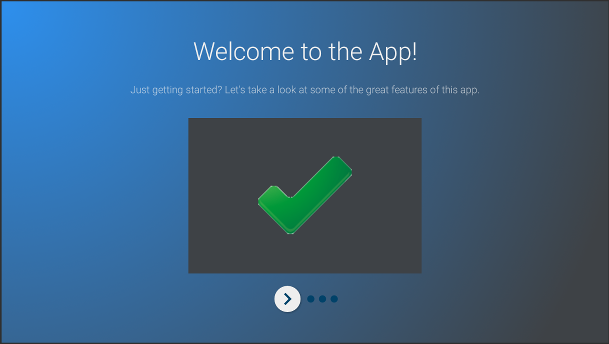
그림 1. 예: OnboardingSupportFragment
OnboardingSupportFragment는 모든 사용 사례에 적합하지 않습니다.
버튼, 필드와 같은 사용자 입력을 요구하는 UI 요소를 포함해야 하는 경우에는 OnboardingSupportFragment를 사용하지 마세요.
또한 사용자가 정기적으로 실행할 작업에 OnboardingSupportFragment를 사용하지 마세요. 마지막으로 사용자 입력이 필요한 다중 페이지 UI를 표시해야 하는 경우 GuidedStepSupportFragment를 사용하는 것이 좋습니다.
OnboardingSupportFragment 추가하기
앱에 OnboardingSupportFragment를 추가하려면 OnboardingSupportFragment 클래스를 확장하는 클래스를 구현합니다. 활동의 레이아웃 XML을 사용하거나 프로그래매틱 방식으로 이 프래그먼트를 활동에 추가하면 됩니다. 테마 맞춤설정하기 섹션에 설명된 대로 활동 또는 프래그먼트가 Theme_Leanback_Onboarding에서 파생된 테마를 사용하는지 확인합니다.
앱 기본 활동의 onCreate() 메서드에서 OnboardingSupportFragment의 상위 활동을 가리키는 Intent로 startActivity()를 호출합니다.
이렇게 하면 앱이 시작되는 즉시 OnboardingSupportFragment가 표시됩니다.
사용자가 처음으로 앱을 시작할 때만 OnboardingSupportFragment가 나타나도록 하려면 SharedPreferences 객체를 사용하여 사용자가 이미 OnboardingSupportFragment를 봤는지 여부를 추적합니다. 사용자가 OnboardingSupportFragment를 봤으면 true로 변경되는 불리언 값을 정의합니다. 기본 활동의 onCreate() 메서드에서 이 값을 확인하고 값이 false인 경우에만 OnboardingSupportFragment 상위 활동을 시작합니다.
다음 예에서는 SharedPreferences 값을 확인하는 onCreate()를 재정의하는 것을 보여줍니다. 값이 true로 설정되지 않은 경우 startActivity()를 호출하여 OnboardingSupportFragment를 보여줍니다.
Kotlin
override fun onCreate(savedInstanceState: Bundle?) {
    super.onCreate(savedInstanceState)
    setContentView(R.layout.activity_main)
    PreferenceManager.getDefaultSharedPreferences(this).apply {
        // Check if we need to display our OnboardingSupportFragment
        if (!getBoolean(MyOnboardingSupportFragment.COMPLETED_ONBOARDING_PREF_NAME, false)) {
            // The user hasn't seen the OnboardingSupportFragment yet, so show it
            startActivity(Intent(this@OnboardingActivity, OnboardingActivity::class.java))
        }
    }
}
자바
@Override
protected void onCreate(Bundle savedInstanceState) {
    super.onCreate(savedInstanceState);
    setContentView(R.layout.activity_main);
    SharedPreferences sharedPreferences =
            PreferenceManager.getDefaultSharedPreferences(this);
    // Check if we need to display our OnboardingSupportFragment
    if (!sharedPreferences.getBoolean(
            MyOnboardingSupportFragment.COMPLETED_ONBOARDING_PREF_NAME, false)) {
        // The user hasn't seen the OnboardingSupportFragment yet, so show it
        startActivity(new Intent(this, OnboardingActivity.class));
    }
}
사용자가 OnboardingSupportFragment를 본 후에는 SharedPreferences 객체를 사용하여 확인함으로 표시합니다. 이렇게 하려면 OnboardingSupportFragment에서 onFinishFragment()를 재정의하고 SharedPreferences 값을 true로 설정합니다.
Kotlin
override fun onFinishFragment() {
    super.onFinishFragment()
    // User has seen OnboardingSupportFragment, so mark our SharedPreferences
    // flag as completed so that we don't show our OnboardingSupportFragment
    // the next time the user launches the app
    PreferenceManager.getDefaultSharedPreferences(context).edit().apply {
        putBoolean(COMPLETED_ONBOARDING_PREF_NAME, true)
        apply()
    }
}
자바
@Override
protected void onFinishFragment() {
    super.onFinishFragment();
    // User has seen OnboardingSupportFragment, so mark our SharedPreferences
    // flag as completed so that we don't show our OnboardingSupportFragment
    // the next time the user launches the app
    SharedPreferences.Editor sharedPreferencesEditor =
            PreferenceManager.getDefaultSharedPreferences(getContext()).edit();
    sharedPreferencesEditor.putBoolean(
            COMPLETED_ONBOARDING_PREF_NAME, true);
    sharedPreferencesEditor.apply();
}
OnboardingSupportFragment 페이지 추가하기
OnboardingSupportFragment는 순서가 지정된 일련의 페이지에 콘텐츠를 표시합니다. OnboardingSupportFragment를 추가한 후에는 등록 페이지를 정의해야 합니다. 각 페이지에는 제목과 설명뿐 아니라 이미지나 애니메이션을 포함할 수 있는 다수의 하위 뷰가 있을 수 있습니다.
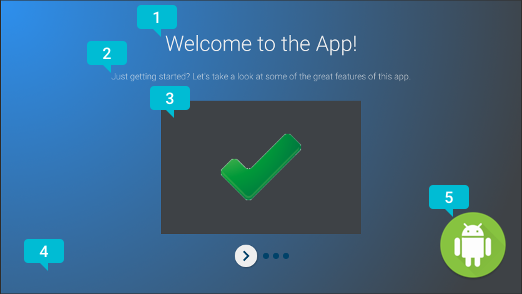
그림 2. OnboardingSupportFragment
페이지 요소
그림 2에 나온 페이지 예에는 OnboardingSupportFragment가 제공할 수 있는 맞춤설정 가능한 페이지 요소를 나타내는 설명선이 표시되어 있습니다. 이러한 페이지 요소는 다음 사항을 나타냅니다.
- 페이지 제목
- 페이지 설명
- 페이지 콘텐츠 뷰. 이 예에서는 회색 상자 안에 있는 단순한 녹색 체크표시입니다. 이 뷰는 선택사항입니다. 이 뷰를 사용하여 페이지 세부정보를 자세히 보여주세요. 예를 들어 페이지에서 설명하는 앱 기능을 강조하는 스크린샷을 포함할 수 있습니다.
- 페이지 배경 뷰. 이 예에서는 단순한 파란색 그라데이션입니다. 이 뷰는 항상 페이지의 다른 뷰 뒤에서 렌더링됩니다. 이 뷰는 선택사항입니다.
- 페이지 전경 뷰. 이 예에서는 로고입니다. 이 뷰는 항상 페이지의 다른 모든 뷰 앞에서 렌더링됩니다. 이 뷰는 선택사항입니다.
시스템은 프래그먼트 뷰를 만들 때 페이지 정보를 요청하므로 OnboardingSupportFragment가 처음 만들어지거나 상위 활동에 연결되면 페이지 정보를 초기화하세요. 클래스 생성자 또는 onAttach() 재정의에서 페이지 정보를 초기화할 수 있습니다.
시스템에 페이지 정보를 제공하는 다음의 각 메서드를 재정의합니다.
getPageCount()는OnboardingSupportFragment의 페이지 수를 반환합니다.getPageTitle()는 요청된 페이지 번호의 제목을 반환합니다.getPageDescription()은 요청된 페이지 번호의 설명을 반환합니다.
이미지나 애니메이션을 표시하는 데 사용되는 선택적 하위 뷰를 제공하도록 다음의 각 메서드를 재정의합니다.
onCreateBackgroundView()는 백그라운드 뷰로 작동하도록 만든View를 반환합니다. 백그라운드 뷰가 필요하지 않은 경우 null을 반환합니다.onCreateContentView()는 콘텐츠 뷰로 작동하도록 만든View를 반환합니다. 콘텐츠 뷰가 필요하지 않은 경우 null을 반환합니다.onCreateForegroundView()는 포그라운드 뷰로 작동하도록 만든View를 반환합니다. 포그라운드 뷰가 필요하지 않은 경우 null을 반환합니다.
시스템은 만들어진 View를 페이지 레이아웃에 추가합니다. 다음 예에서는 onCreateContentView()를 재정의하고 ImageView를 반환합니다.
Kotlin
private lateinit var contentView: ImageView
...
override fun onCreateContentView(inflater: LayoutInflater?, container: ViewGroup?): View? {
    return ImageView(context).apply {
        scaleType = ImageView.ScaleType.CENTER_INSIDE
        setImageResource(R.drawable.onboarding_content_view)
        setPadding(0, 32, 0, 32)
        contentView = this
    }
}
자바
private ImageView contentView;
...
@Override
protected View onCreateContentView(LayoutInflater inflater, ViewGroup container) {
    contentView = new ImageView(getContext());
    contentView.setScaleType(ImageView.ScaleType.CENTER_INSIDE);
    contentView.setImageResource(R.drawable.onboarding_content_view);
    contentView.setPadding(0, 32, 0, 32);
    return contentView;
}
초기 로고 화면 추가하기
OnboardingSupportFragment는 앱을 소개하는 로고 화면(선택사항)으로 시작할 수 있습니다. 로고 화면으로 Drawable을 표시하려면 OnboardingSupportFragment의 onCreate() 메서드에서 Drawable ID를 사용하여 setLogoResourceId()를 호출합니다.
시스템이 페이드 인되어 Drawable을 잠깐 표시하고 Drawable을 페이드 아웃한 후 OnboardingSupportFragment의 첫 페이지를 표시합니다.
로고 화면용 맞춤 애니메이션을 제공하려면 setLogoResourceId()를 호출하는 대신, 다음 예와 같이 onCreateLogoAnimation()를 재정의하고 맞춤 애니메이션을 렌더링하는 Animator 객체를 반환합니다.
Kotlin
public override fun onCreateLogoAnimation(): Animator =
        AnimatorInflater.loadAnimator(context, R.animator.onboarding_logo_screen_animation)
자바
@Override
public Animator onCreateLogoAnimation() {
    return AnimatorInflater.loadAnimator(getContext(),
            R.animator.onboarding_logo_screen_animation);
}
페이지 애니메이션 맞춤설정하기
시스템에서는 OnboardingSupportFragment의 첫 페이지를 표시할 때와 사용자가 다른 페이지로 이동할 때 기본 애니메이션을 사용합니다. 이러한 애니메이션은 OnboardingSupportFragment에서 메서드를 재정의하여 맞춤설정할 수 있습니다.
첫 페이지에 표시되는 애니메이션을 맞춤설정하려면 onCreateEnterAnimation()를 재정의하고 Animator를 반환합니다.
다음 예에서는 콘텐츠 뷰를 수평으로 확장하는 Animator를 만듭니다.
Kotlin
override fun onCreateEnterAnimation(): Animator =
    ObjectAnimator.ofFloat(contentView, View.SCALE_X, 0.2f, 1.0f)
            .setDuration(ANIMATION_DURATION)
자바
@Override
protected Animator onCreateEnterAnimation() {
    Animator startAnimator = ObjectAnimator.ofFloat(contentView,
            View.SCALE_X, 0.2f, 1.0f).setDuration(ANIMATION_DURATION);
    return startAnimator;
}
사용자가 다른 페이지로 이동할 때 사용되는 애니메이션을 맞춤설정하려면 onPageChanged()를 재정의합니다.
onPageChanged() 메서드에서 이전 페이지를 삭제하고 다음 페이지를 표시하는 Animator 객체를 만들어 AnimatorSet에 추가하고 이 조합을 재생합니다. 다음 예에서는 페이드 아웃 애니메이션을 사용하여 이전 페이지를 삭제하고, 콘텐츠 뷰 이미지를 업데이트하고, 페이드 인 애니메이션을 사용하여 다음 페이지를 표시합니다.
Kotlin
override fun onPageChanged(newPage: Int, previousPage: Int) {
    // Create a fade-out animation for previousPage and, once
    // done, swap the contentView image with the next page's image
    val fadeOut = ObjectAnimator.ofFloat(mContentView, View.ALPHA, 1.0f, 0.0f)
            .setDuration(ANIMATION_DURATION)
            .apply {
                addListener(object : AnimatorListenerAdapter() {

                    override fun onAnimationEnd(animation: Animator) {
                        mContentView.setImageResource(pageImages[newPage])
                    }
                })
            }
    // Create a fade-in animation for nextPage
    val fadeIn = ObjectAnimator.ofFloat(mContentView, View.ALPHA, 0.0f, 1.0f)
            .setDuration(ANIMATION_DURATION)
    // Create AnimatorSet with fade-out and fade-in animators and start it
    AnimatorSet().apply {
        playSequentially(fadeOut, fadeIn)
        start()
    }
}
자바
@Override
protected void onPageChanged(final int newPage, int previousPage) {
    // Create a fade-out animation for previousPage and, once
    // done, swap the contentView image with the next page's image
    Animator fadeOut = ObjectAnimator.ofFloat(mContentView,
            View.ALPHA, 1.0f, 0.0f).setDuration(ANIMATION_DURATION);
    fadeOut.addListener(new AnimatorListenerAdapter() {
        @Override
        public void onAnimationEnd(Animator animation) {
            mContentView.setImageResource(pageImages[newPage]);
        }
    });
    // Create a fade-in animation for nextPage
    Animator fadeIn = ObjectAnimator.ofFloat(mContentView,
            View.ALPHA, 0.0f, 1.0f).setDuration(ANIMATION_DURATION);
    // Create AnimatorSet with fade-out and fade-in animators and start it
    AnimatorSet set = new AnimatorSet();
    set.playSequentially(fadeOut, fadeIn);
    set.start();
}
Animator 객체와 AnimatorSet 객체를 만드는 방법에 관한 자세한 내용은
속성 애니메이션 개요를 참고하세요.
테마 맞춤설정하기
모든 OnboardingSupportFragment 구현에서는 Theme_Leanback_Onboarding 테마 또는 Theme_Leanback_Onboarding에서 상속된 테마를 사용해야 합니다. 다음 중 하나를 실행하여 OnboardingSupportFragment 테마를 설정하세요.
- 원하는 테마를 사용하도록
OnboardingSupportFragment의 상위 활동을 설정합니다. 다음 예는 앱 매니페스트에서 활동이Theme_Leanback_Onboarding을 사용하도록 설정하는 방법을 보여줍니다.<activity android:name=".OnboardingActivity" android:enabled="true" android:exported="true" android:theme="@style/Theme.Leanback.Onboarding"> </activity>
-
맞춤 활동 테마에서
LeanbackOnboardingTheme_onboardingTheme속성을 사용하여 상위 활동의 테마를 설정합니다. 이 속성이 활동의OnboardingSupportFragment객체만 사용하는 다른 맞춤 테마를 가리키도록 합니다. 활동이 이미 맞춤 테마를 사용하고 있으며 활동의 다른 뷰에OnboardingSupportFragment스타일을 적용하지 않으려는 경우 이 방법을 사용합니다. onProvideTheme()를 재정의하고 원하는 테마를 반환합니다. 여러 활동에서OnboardingSupportFragment를 사용하는 경우 또는 상위 활동에서 원하는 테마를 사용할 수 없는 경우 이 방법을 사용합니다. 다음 예에서는onProvideTheme()를 재정의하고Theme_Leanback_Onboarding을 반환합니다.Kotlin
override fun onProvideTheme(): Int = R.style.Theme_Leanback_Onboarding
Java
@Override
public int onProvideTheme() {
   return R.style.Theme_Leanback_Onboarding;
}