
Screenshot testing is an effective way to verify how your UI looks to users. The Compose Preview Screenshot Testing tool combines the simplicity and features of composable previews with the productivity gains of running host-side screenshot tests. Compose Preview Screenshot Testing is designed to be as straightforward to use as composable previews.
Android skills
View on GitHub
Create screenshot tests
testing-setup Android skill to develop a testing strategy and create screenshot tests.android skills add testing-setup
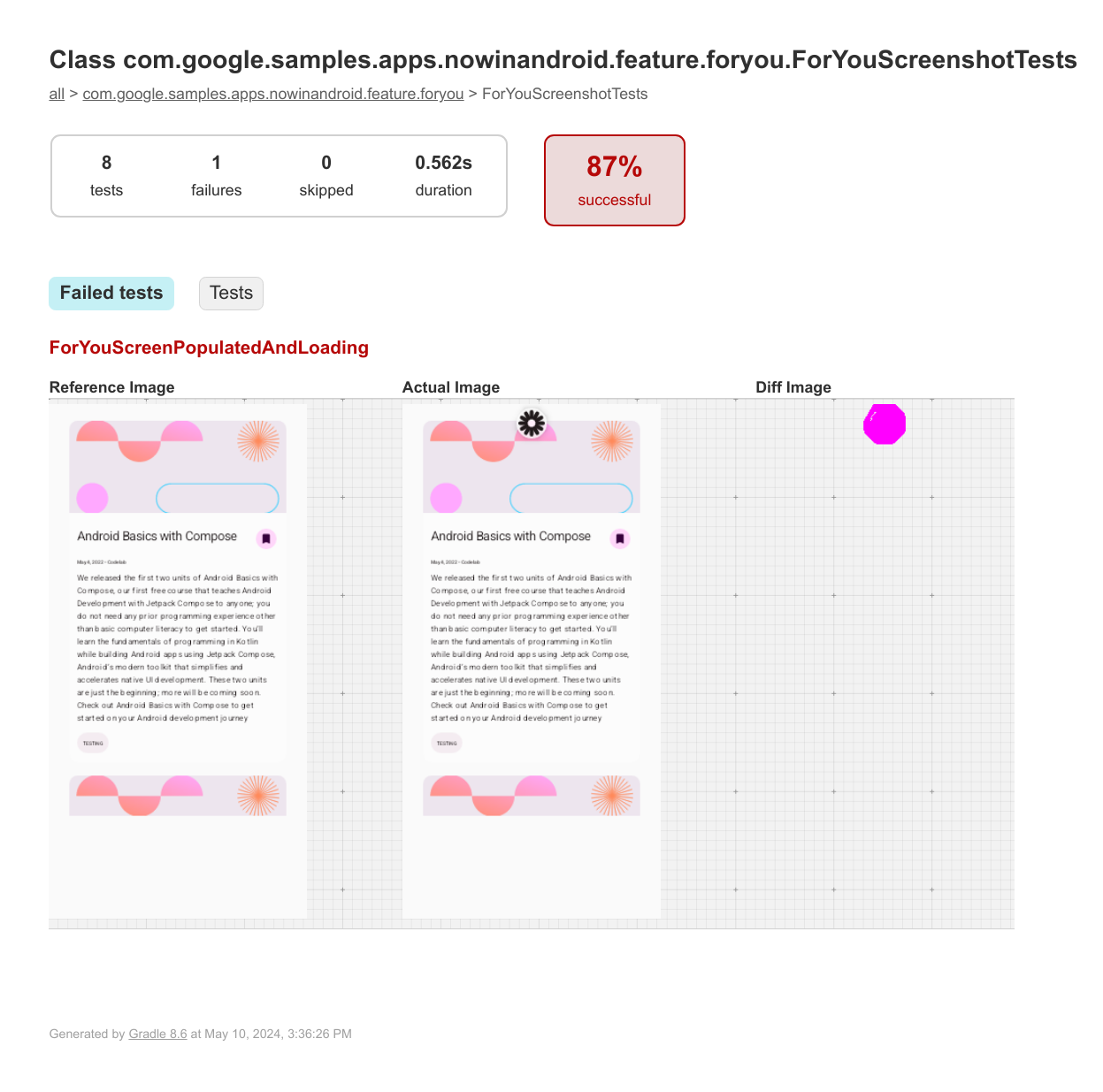
A screenshot test is an automated test that takes a screenshot of a piece of UI and then compares it against a previously approved reference image. If the images don't match, the test fails and produces an HTML report to help you compare and find the differences.
With the Compose Preview Screenshot Testing tool, you can:
- Use
@PreviewTestto create screenshot tests for existing or new composable previews. - Generate reference images from those composable previews.
- Generate an HTML report that identifies changes to those previews after you make code changes.
- Use
@Previewparameters, such asuiModeorfontScale, and multi-previews to help you scale your tests. - Modularize your tests with the new
screenshotTestsource set.
IDE integration
While you can use the Compose Preview Screenshot Testing tool by running the
underlying Gradle tasks (updateScreenshotTest and validateScreenshotTest)
manually, Android Studio Otter 3 Feature Drop Canary 4 introduces a full IDE
integration. This lets you generate reference images, run tests, and analyze
validation failures entirely within the IDE. Here are some of the key features:
- In-editor gutter icons. You can now run tests or update reference images
directly from the source code. Green run icons appear in the gutter next to
composables and classes annotated with
@PreviewTest.- Run screenshot tests. Execute tests specifically for a single function or for an entire class.
- Add or update reference images. Trigger the update flow specifically for the selected scope.
- Interactive reference management. Updating reference images is now safer
and more granular.
- New reference image generation dialog. Instead of running a bulk Gradle task, a new dialog lets you visualize and select exactly which previews to generate or update.
- Preview variations. The dialog lists all preview variations (such as light theme or dark theme, or different devices) individually, allowing you to select or clear specific items before generating images.
- Integrated test results and diff viewer. View results without leaving the
IDE.
- Unified run panel. Screenshot test results appear in the standard Run tool window. Tests are grouped by class and function, with pass or fail status clearly marked.
- Visual diff tool. When a test fails, the Screenshot tab lets you compare the Reference, Actual, and Diff images side-by-side.
- Detailed attributes. An Attributes tab provides metadata on failed
tests, including match percentage, image dimensions, and the specific
preview configuration used (for example,
uiModeorfontScale).
- Flexible test scoping. You can now execute screenshot tests with various scopes directly from the Project View. Right-click a module, directory, file, or class to run screenshot tests specifically for that selection.
Requirements
To use Compose Preview Screenshot Testing through the full IDE integration, your project must meet the following requirements:
- Android Studio Panda 1 Canary 4 or higher.
- Android Gradle Plugin (AGP) version 9.0 or higher.
- Compose Preview Screenshot Testing plugin version 0.0.1-alpha16 or higher.
- Kotlin version 2.2.10 or higher.
- JDK version 17 or higher.
- Compose enabled for your project. We recommend enabling Compose using the Compose Compiler Gradle plugin.
If you only want to use the underlying Gradle tasks without the IDE integration, the requirements are as follows:
- Android Gradle Plugin (AGP) version 8.5.0 or higher.
- Compose Preview Screenshot Testing plugin version 0.0.1-alpha16 or higher.
- Kotlin version 1.9.20 or higher. We recommend using Kotlin 2.0 or higher so you can use the Compose Compiler Gradle plugin.
- JDK version 17 or higher.
- Compose enabled for your project. We recommend enabling Compose using the Compose Compiler Gradle plugin.
Setup
Both the integrated tool and the underlying Gradle tasks rely on the Compose Preview Screenshot Testing plugin. To set up the plugin, follow these steps:
Enable the experimental property in your project's
gradle.propertiesfile.android.experimental.enableScreenshotTest=trueIn the
android {}block of your module-levelbuild.gradle.ktsfile, enable the experimental flag to use thescreenshotTestsource set.android { experimentalProperties["android.experimental.enableScreenshotTest"] = true }Add the
com.android.compose.screenshotplugin, version0.0.1-alpha16to your project.Add the plugin to your version catalogs file:
[versions]
agp = "9.0.0-rc03"
kotlin = "2.2.10"
screenshot = "0.0.1-alpha16"

[plugins]
screenshot = { id = "com.android.compose.screenshot", version.ref = "screenshot"}
In your module-level
build.gradle.ktsfile, add the plugin in theplugins {}block:plugins { alias(libs.plugins.screenshot) }
Add the
screenshot-validation-apiandui-toolingdependencies.Add them to your version catalogs:
[libraries]
screenshot-validation-api = { group = "com.android.tools.screenshot", name = "screenshot-validation-api", version.ref = "screenshot"}
androidx-ui-tooling = { group = "androidx.compose.ui", name = "ui-tooling"}
Add them to your module-level
build.gradle.ktsfile:dependencies { screenshotTestImplementation(libs.screenshot.validation.api) screenshotTestImplementation(libs.androidx.ui.tooling) }
Designate composable previews to use for screenshot tests
To designate the composable previews you want to use for screenshot tests, mark
the previews with the @PreviewTest annotation. The previews must be located in
the new screenshotTest source set, for example:
app/src/screenshotTest/kotlin/com/example/yourapp/
ExamplePreviewScreenshotTest.kt
You can add more composables or previews, including multi-previews, in this file or other files created in the same source set.
package com.example.yourapp

import androidx.compose.runtime.Composable
import androidx.compose.ui.tooling.preview.Preview
import com.android.tools.screenshot.PreviewTest
import com.example.yourapp.ui.theme.MyApplicationTheme

@PreviewTest
@Preview(showBackground = true)
@Composable
fun GreetingPreview() {
    MyApplicationTheme {
        Greeting("Android!")
    }
}
Generate reference images
After you set up a test class, you need to generate reference images for each preview. These reference images are used to identify changes later, after you make code changes. To generate reference images for your composable preview screenshot tests, follow the instructions in this section for the IDE integration or for the Gradle tasks.
Android CLI
Download the Android CLI
Try Android CLI to render a Compose preview
For example, use the
android studio render-compose-preview command when you
need to render a Compose preview for visual testing.android studio render-compose-preview
In the IDE
Click the gutter icon next to a @PreviewTest function and select Add/Update
Reference Images. Select the previews in the dialog and click Add.
With the Gradle tasks
Run the following Gradle task:
- Linux and macOS:
./gradlew updateDebugScreenshotTest(./gradlew :{module}:update{Variant}ScreenshotTest) - Windows:
gradlew updateDebugScreenshotTest(gradlew :{module}:update{Variant}ScreenshotTest)
After the task completes, find the reference images in
app/src/screenshotTestDebug/reference
({module}/src/screenshotTest{Variant}/reference).
Generate a test report
After reference images exist, generate a test report by following the instructions in this section for the IDE integration or for the Gradle tasks.
In the IDE
Click the gutter icon next to a @PreviewTest function and select Run
'ScreenshotTests'.
If a test fails, click the test name in the Run panel. Select the Screenshot tab to inspect the image diff using the integrated zoom and pan controls.
With the Gradle tasks
Run the validate task to take a new screenshot and compare it with the reference image:
- Linux and macOS:
./gradlew validateDebugScreenshotTest(./gradlew :{module}:validate{Variant}ScreenshotTest) - Windows:
gradlew validateDebugScreenshotTest(gradlew :{module}:validate{Variant}ScreenshotTest)
The verification task creates an HTML report at
{module}/build/reports/screenshotTest/preview/{variant}/index.html.
Troubleshooting
Compose Preview Screenshot Testing runs host-side tests, which can be
memory-intensive. You can increase the maximum heap size for the test JVM by
adding the following property to your gradle.properties file:
android.compose.screenshot.maxHeapSize=4g
Known issues
- Kotlin Multiplatform (KMP): Both the IDE and the underlying plugin are engineered exclusively for Android projects. They don't support non-Android targets in KMP projects.
You can find the complete list of current known issues in the tool's issue tracker component. Report any other feedback and issues through the issue tracker.
Release updates
For a full list of release updates, see the release notes.