

Geospatial anchors are a type of anchor that allow you to place 3D content with geographical coordinates using the Geospatial API.
Geospatial anchors use a latitude and longitude to determine their positioning. The latitude and longitude are defined by the WGS84 specification, which are the same coordinates shown in a typical GPS system.
Determine the latitude and longitude of a location
If you have a specific point of interest in mind, use Google Maps to determine its latitude and longitude:
- Go to Google Maps on a desktop computer.
Navigate to Layers > More.
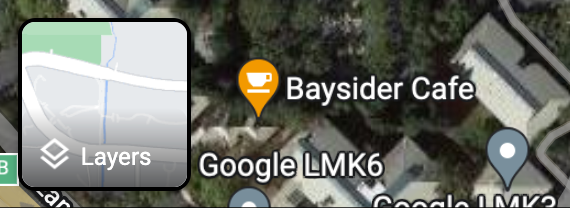
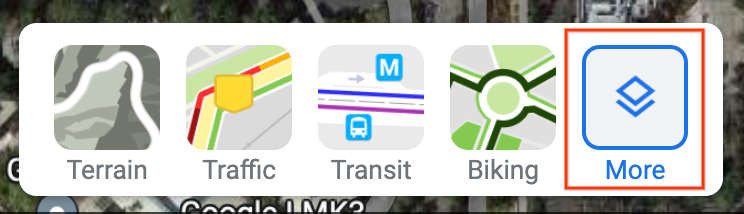
Change the Map Type to Satellite and clear the Globe View checkbox at the bottom left corner of the screen.
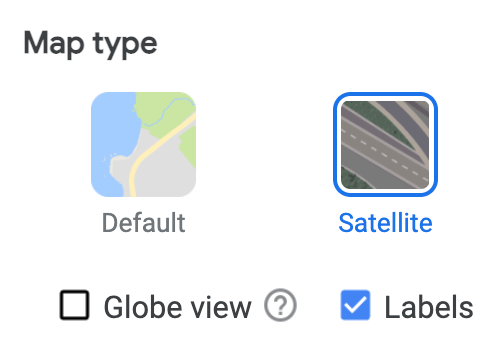
This forces a 2D perspective and eliminates possible errors that can come from an angled 3D view.
On the map, right-click the location and select the longitude and latitude to copy it to your clipboard.
Convert a position in the user's area to a Geospatial anchor
If you are able to travel to the point of interest, you can determine the latitude, longitude, and altitude from a local reading by converting a device-local pose to a Geospatial pose.
Position content at a Geospatial anchor
Geospatial anchors require an altitude value, which is relative to the WGS84 ellipsoid or relative to the terrain or rooftop.
For altitude values relative to the WGS84 ellipsoid, use
Geospatial.createAnchor:val createAnchorResult = geospatial.createAnchor( latitude, longitude, altitude, Quaternion.Identity, )
For altitude values relative to the terrain or a rooftop, use
Geospatial.createAnchorOnSurface, usingGeospatialSurface.TERRAINandGeospatialSurface.ROOFTOPrespectively to specify how the final altitude should be interpreted:val createAnchorResult = geospatial.createAnchorOnSurface( latitude, longitude, altitude, Quaternion.Identity, GeospatialSurface.TERRAIN, )
When using
GeospatialSurface.ROOFTOP, the altitude defaults to the terrain altitude when not placed on a building.
Then, check the result of the creation call:
when (createAnchorResult) { is AnchorCreateSuccess -> { // Use anchorCreateResult.anchor to render content at the result. } else -> { // Anchor create failed. // See AnchorCreateResult for possible failure reasons. } }
Finally, use the anchor to position 3D content:
Compose XR
Subspace(FollowTarget.anchor(anchorCreateResult.anchor)) { SpatialPanel { GeospatialContent() } }
SceneCore
val anchorSpace = AnchorSpace.create(session, anchorCreateResult.anchor) val contentEntity = createGeospatialContentEntity(context, session) anchorSpace.addChild(contentEntity)