
Notifications on watches use the same APIs and have the same structure as notifications on phones.
Notifications can appear on a watch in two ways:
- A mobile app creates a notification and the system automatically bridges that notification to the watch.
- A wearable app creates a notification.
For both scenarios, use the
NotificationCompat.Builder
class to create notifications. When you build notifications with the builder class, the system
takes care of displaying notifications properly. For example, when you issue a notification from
your mobile app, each notification appears as a card on the Notification Stream.
Review the following example to see how notifications display.
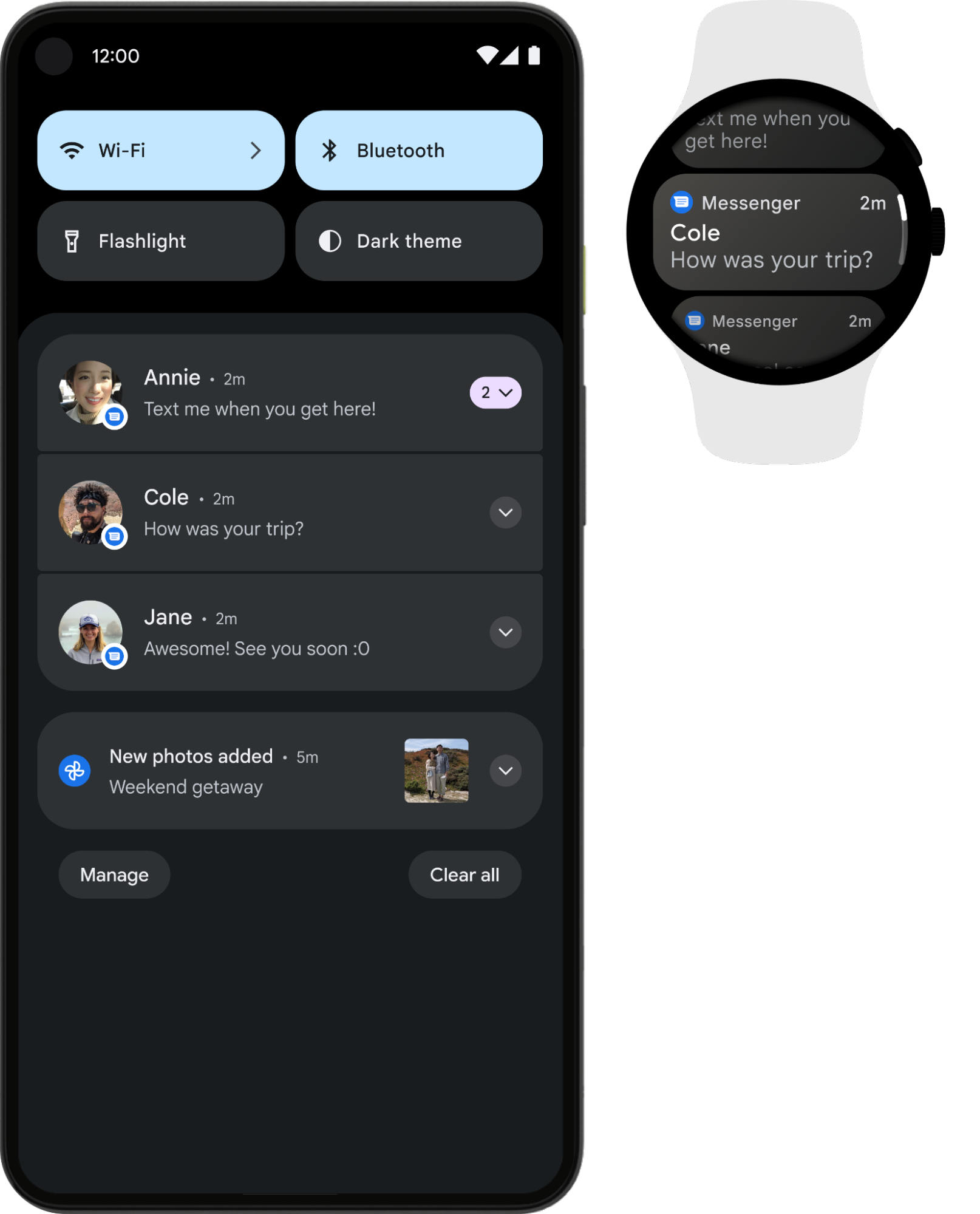
Use one of the
NotificationCompat.Style
subclasses for the best results.
Note:
Using RemoteViews
strips notifications of custom layouts, and the wearable only displays the text and icons.
Note:
Full-screen intent notifications (setFullScreenIntent())
and the USE_FULL_SCREEN_INTENT
permission are not supported on Wear OS.
Recommended notifications for wearables
Use expandable notifications as the starting point for all notifications, as they are a great way to engage wearable users. The collapsed state displays in the notification tray for a short, glanceable experience. If the user taps it, the notification expands, revealing an immersive, scrollable experience of additional content and actions.
You can Create an expandable notification
the same way you would on mobile, using any of the NotificationCompat.Style
subclasses. For example, a standard notification using
NotificationCompat.MessagingStyle
looks like this:
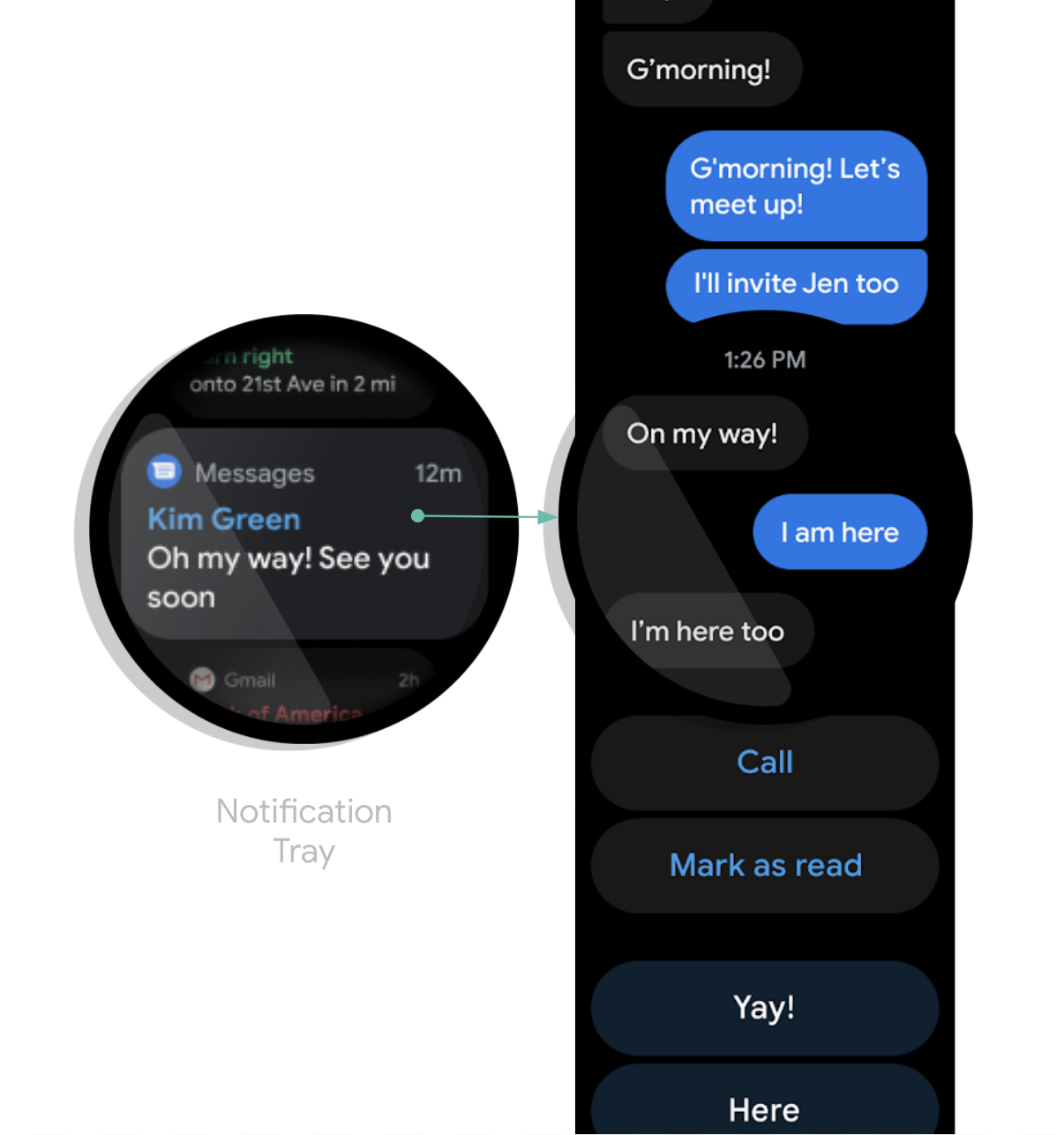
MessagingStyle notification on Wear OS.
You can see the notification has multiple actions stacked at the bottom of the expanded state.
Tip: If your notifications include a "reply" action, such as for a messaging
app, you can enhance the behavior of the notification. For example, you can enable voice input
replies directly from the wearable or predefined text responses with
setChoices().
For more information, read
Add the reply button.
Avoid duplicate Notifications
By default, notifications are bridged from a companion phone app to any paired watches. This is a great option if you don't have a wearable app installed.
However, if you build a standalone watch app and a companion phone app, the apps create duplicate notifications.
Wear OS provides a way to stop duplicate notifications with the Bridging APIs. This is particularly important for apps on devices that run Wear OS 5 or higher, because some notifications that are dismissible on a mobile device aren't dismissible on the Wear OS device. For more information, read Bridging options for notifications.
Add wearable-specific features to a notification
If you need to add wearable-specific features to a notification, you can use the
NotificationCompat.WearableExtender class to specify the options.
To use this API, do the following:
Note:
If you use the framework's NotificationManager,
some features from
NotificationCompat.WearableExtender don't work, so make sure to use
NotificationCompat.
This example shows how to set a Wear-specific action on the notification and also set the
dismissal ID. When the notification is dismissed, all other notifications with the same
dismissal ID are dismissed on the watch and on the companion phone. To retrieve a dismissal ID,
use
getDismissalId().
// This intent will be fired as a result of the user clicking the "Open on watch" action. // However, it executes on the phone, not on the watch. Typically, the Activity should then use // RemoteActivityHelper to then launch the correct activity on the watch. val intent = Intent(context, LaunchOnWearActivity::class.java) val wearPendingIntent = PendingIntent.getActivity( context, wearRequestCode, intent, PendingIntent.FLAG_UPDATE_CURRENT or PendingIntent.FLAG_IMMUTABLE ) val openOnWatchAction = NotificationCompat.Action.Builder( R.drawable.watch, "Open on watch", wearPendingIntent ) .build() val wearableExtender = NotificationCompat.WearableExtender() // This action will only be shown on the watch, not on the phone. // Actions added to the Notification builder directly will not be shown on the watch, // because one or more actions are defined in the WearableExtender. .addAction(openOnWatchAction) // This synchronizes dismissals between watch and phone. .setDismissalId(chatId) val notification = NotificationCompat.Builder(context, channelId) // ... set other fields ... .extend(wearableExtender) .build()
Launch your phone app from a wearable device
If you are using bridged notifications, any notification automatically includes a button to launch the app on the phone. However, if you are using a local notification, created on the watch, use the following steps to create a button that launches the app on the phone:
- Create a new
Activitythat extendsConfirmationActivity. - Use
RemoteActivityHelperin the newActivityto launch the phone app. - When building the
Intentto launch theActivityfrom the notification, set theEXTRA_ANIMATION_TYPEextra toOPEN_ON_PHONE_ANIMATION.
This approach guides the user to interacting on their phone and follows the platform requirements for launching background processes.
Note: You can't use a BroadcastReceiver as the target
of the notification action.